365i Environment Indicator
| 开发者 | bsolveit |
|---|---|
| 更新时间 | 2026年5月21日 16:06 |
| PHP版本: | 7.4 及以上 |
| WordPress版本: | 7.0 |
| 版权: | GPLv2 or later |
| 版权网址: | 版权信息 |
详情介绍:
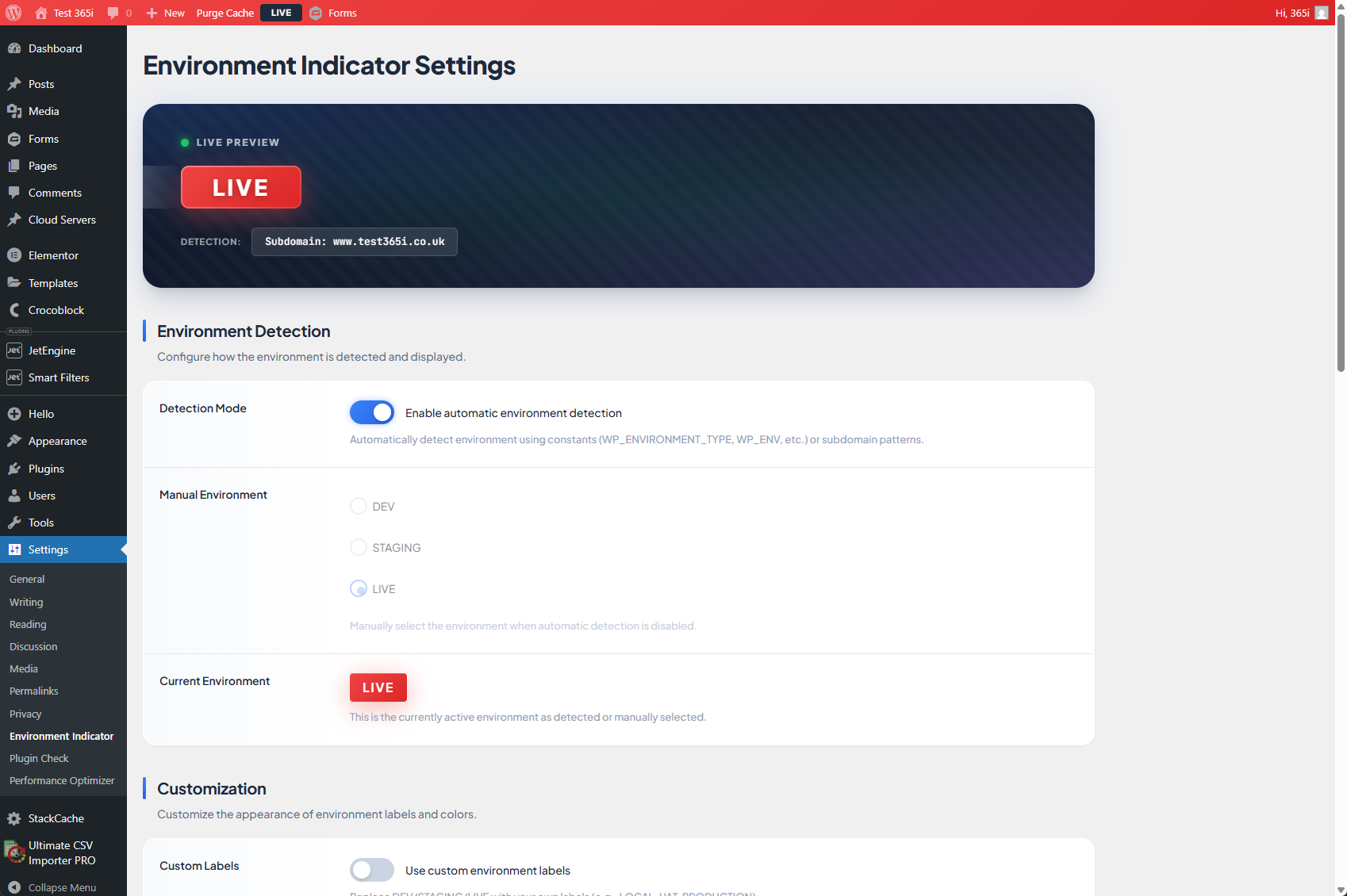
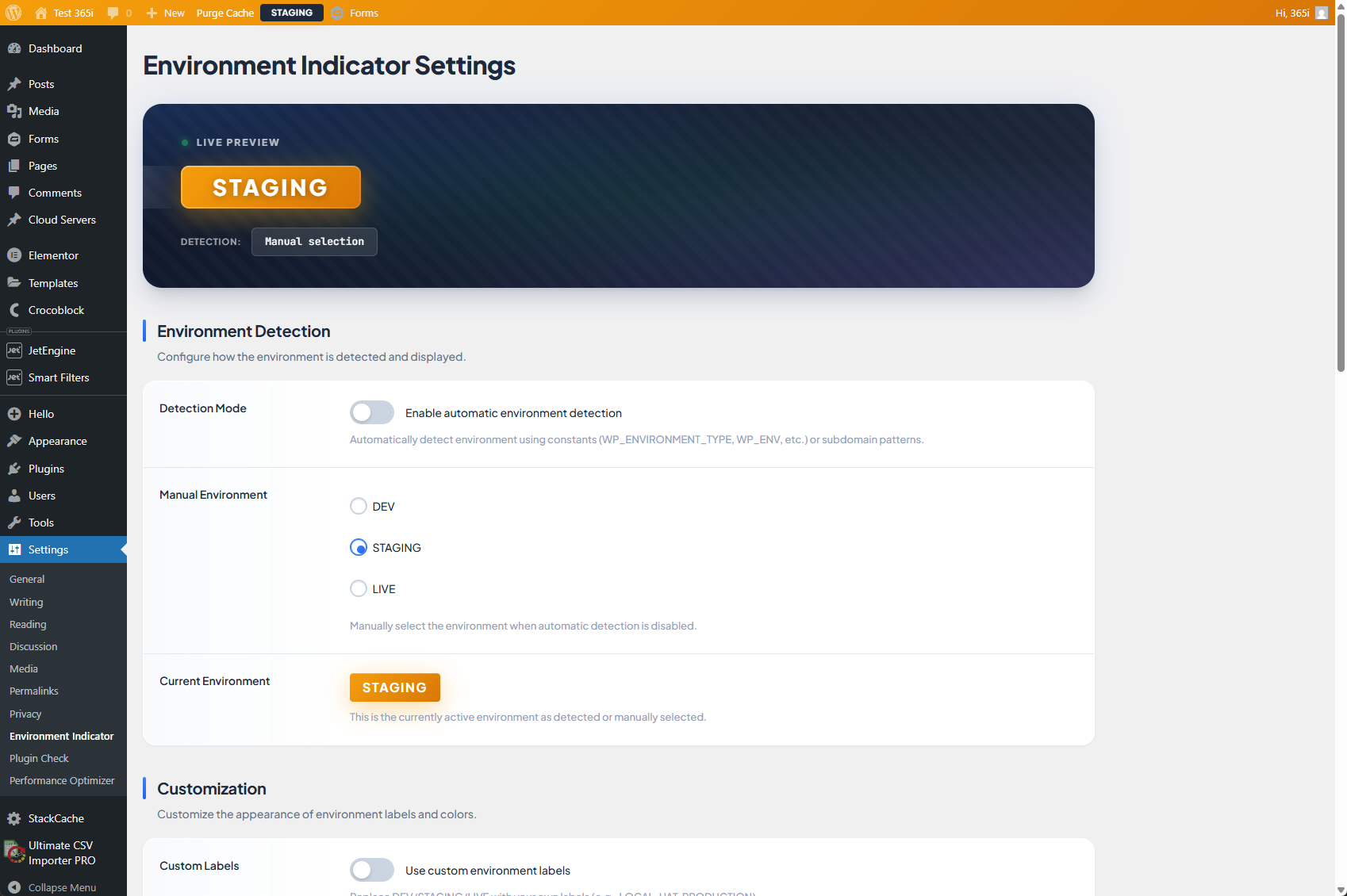
- Automatically detects environment using WordPress core constants (
WP_ENVIRONMENT_TYPE) - Supports popular hosting providers: WP Engine, Pantheon, Kinsta, Flywheel
- Legacy Bedrock constant support (
WP_ENV) - Subdomain-based heuristics (dev.example.com, staging.example.com)
- Manual override option for custom setups Customization Options
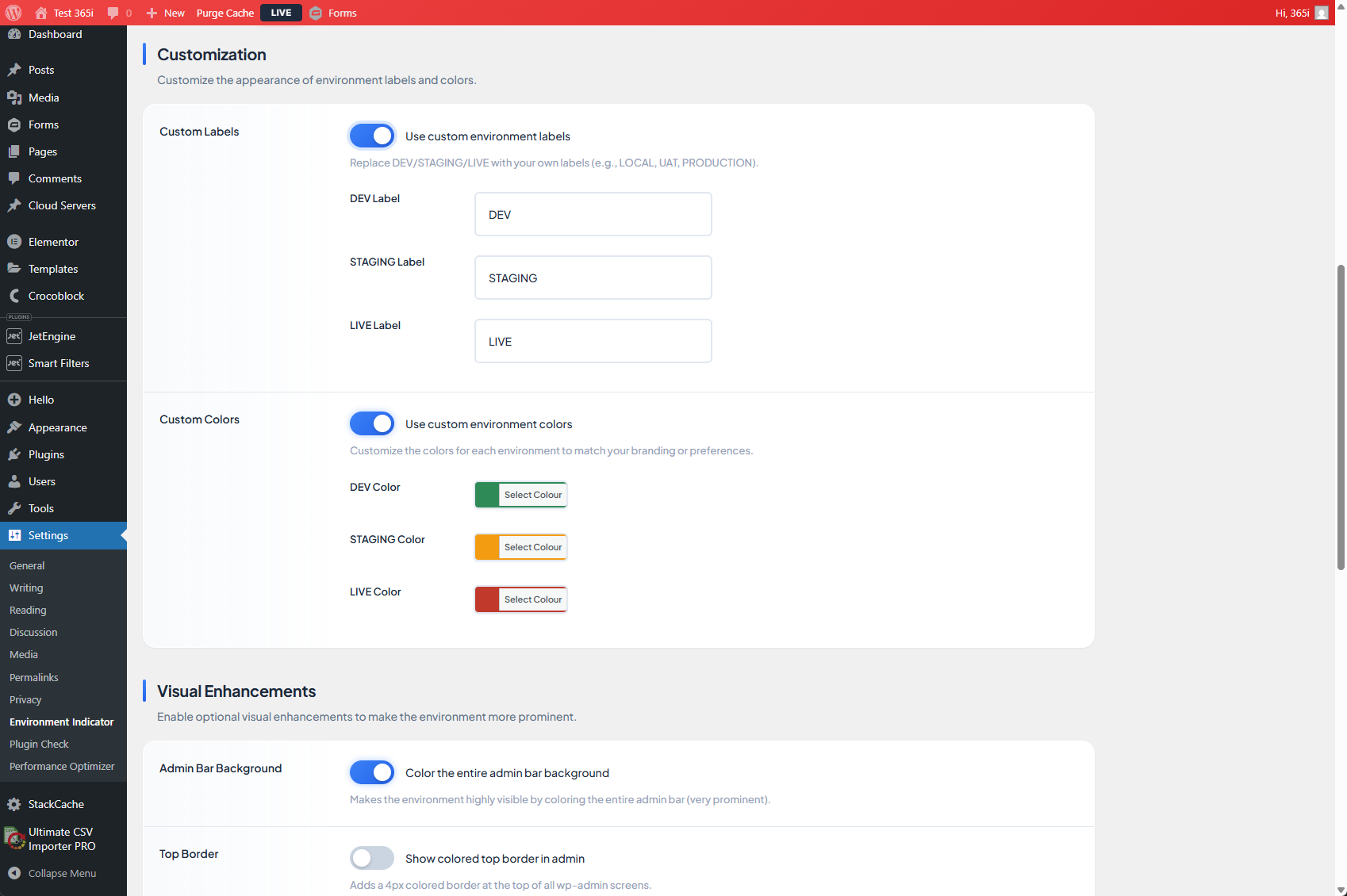
- Custom Colors - Match your branding or personal preferences for each environment
- Custom Labels - Rename DEV/STAGING/LIVE to LOCAL, UAT, PRODUCTION, or anything you prefer
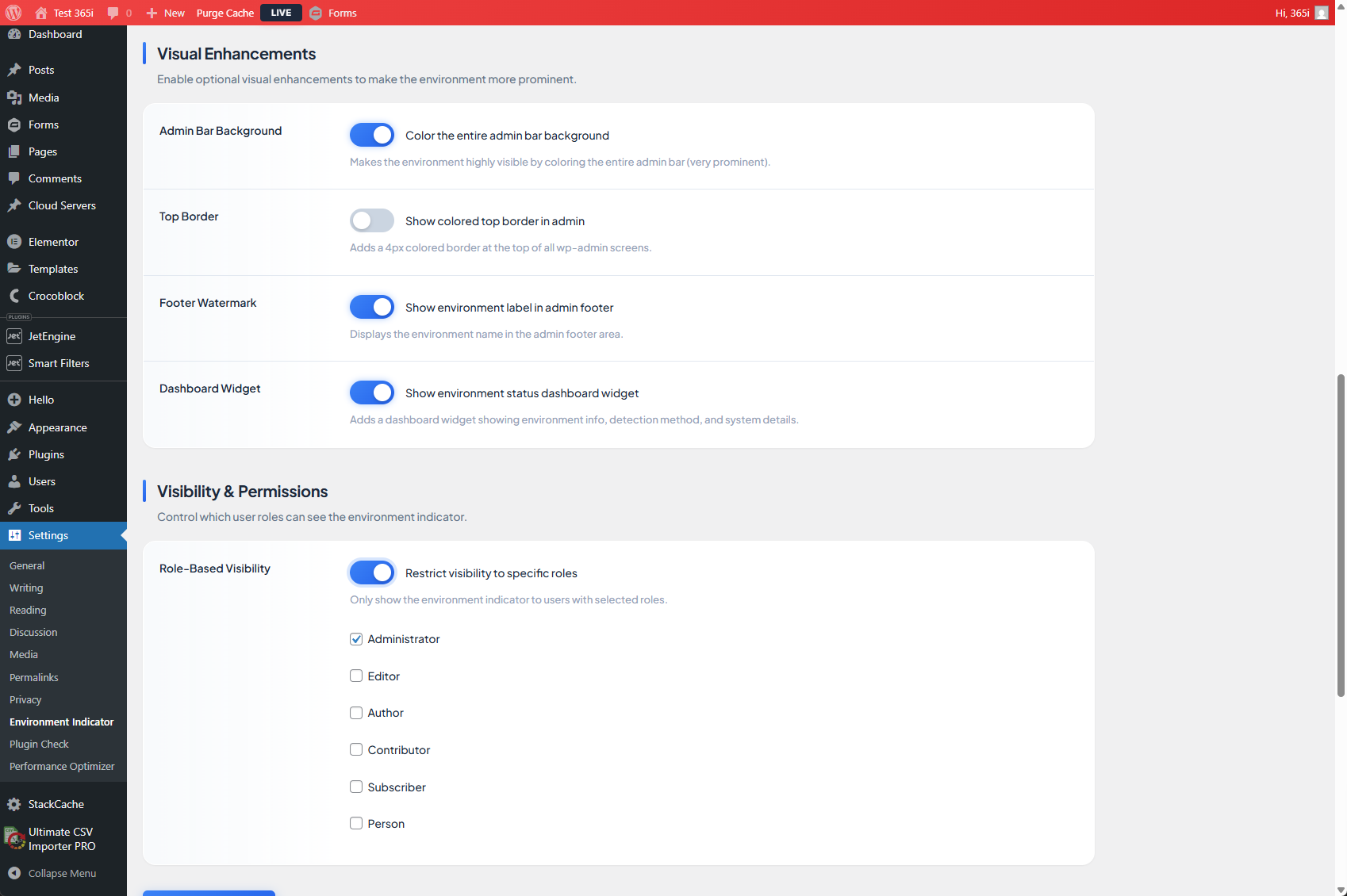
- Role-Based Visibility - Control which user roles can see the indicator (great for client sites) Visual Enhancements
- Admin bar label (always visible)
- Full admin bar background coloring (high-visibility option)
- Browser tab prefix - instantly identify environments across multiple tabs
- Top border in wp-admin screens
- Admin footer watermark
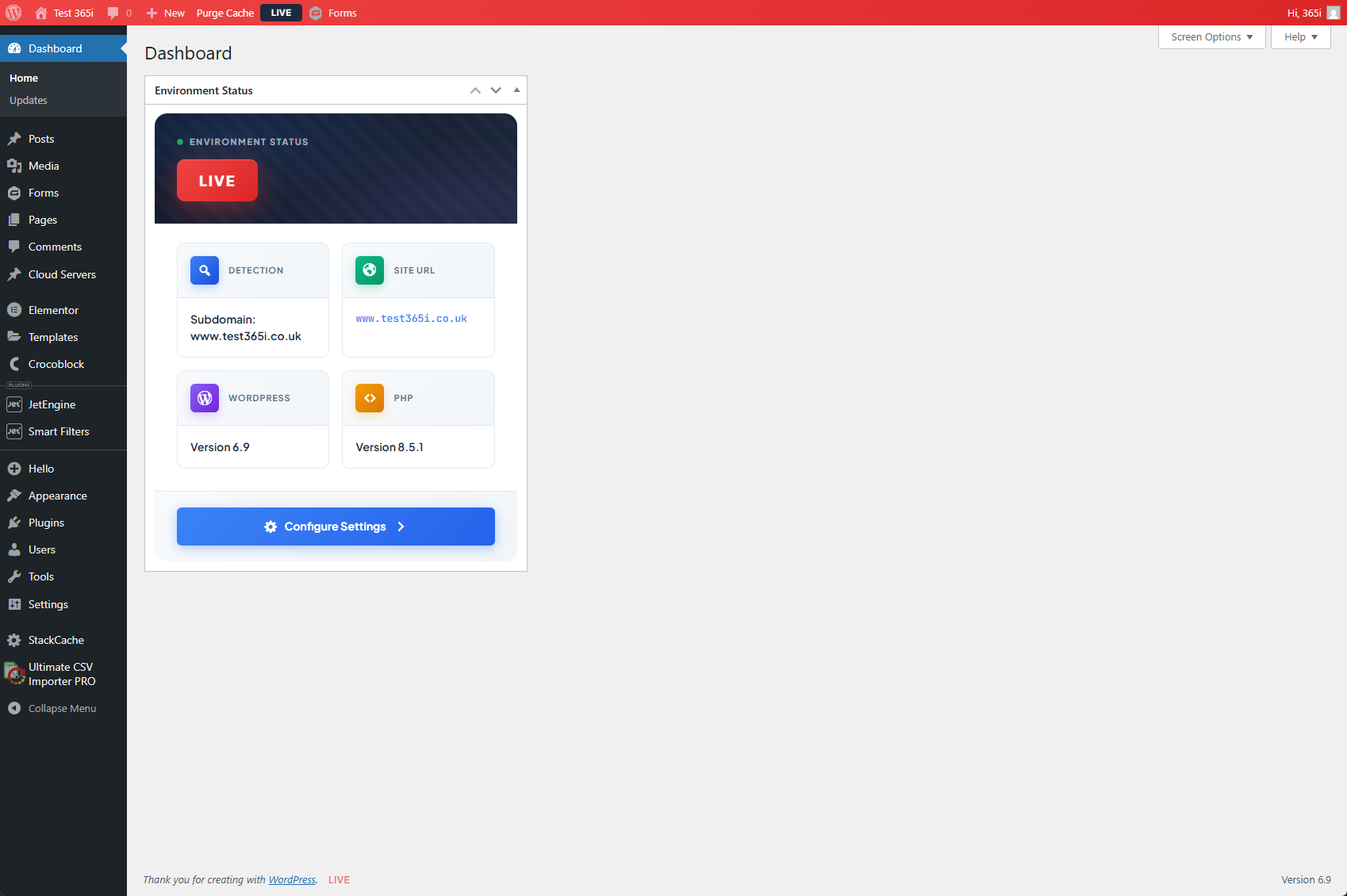
- Dashboard widget showing environment status and system information Export/Import
- Export settings as JSON to deploy across multiple sites
- Import settings from JSON file
- Perfect for agencies managing client sites with consistent configurations Multisite Compatible
- Full support for WordPress multisite installations
- Network-wide settings when network-activated
- Per-site settings when activated on individual sites
- WordPress core constant:
WP_ENVIRONMENT_TYPE - Legacy constant:
WP_ENV - Hosting provider constants (WP Engine, Pantheon, Kinsta, Flywheel)
- Subdomain patterns (dev, staging, test, qa)
- Default to LIVE if no detection
- Developers - Never accidentally deploy to the wrong environment
- Agencies - Manage multiple client sites with consistent environment indicators
- Teams - Everyone instantly knows which environment they're working in
- Managed Hosting - Works out-of-the-box with WP Engine, Pantheon, Kinsta, and Flywheel
安装:
- Upload the
environment-indicatorfolder to/wp-content/plugins/ - Activate the plugin through the Plugins menu in WordPress
- Visit Settings → Environment Indicator to customize (optional)
屏幕截图:
常见问题:
Does this affect public visitors?
No. The indicator only displays for logged-in users who can see the WordPress admin bar. There is zero impact on public visitors.
Can I customize the colors?
Yes! Enable custom colors in Settings → Environment Indicator and choose any color for DEV, STAGING, and LIVE environments.
Can I change the labels from DEV/STAGING/LIVE?
Absolutely. Enable custom labels and rename them to anything you want: LOCAL, UAT, PRODUCTION, or company-specific terms.
Does it work on multisite?
Yes. When network-activated, settings are managed network-wide from Network Admin → Settings → Environment Indicator.
Which hosting providers are supported?
Environment Indicator automatically detects environments on:
- WP Engine (WPE_ENVIRONMENT)
- Pantheon (PANTHEON_ENVIRONMENT)
- Kinsta (KINSTA_ENV_TYPE)
- Flywheel (FLYWHEEL_CONFIG_DIR)
- Any host using WP_ENVIRONMENT_TYPE or WP_ENV constants
Can I restrict who sees the indicator?
Yes. Enable role-based visibility and select which user roles can see the environment indicator. This is useful for client sites where you don't want clients to see the indicator.
Does this plugin block actions or restrict editing?
No. Environment Indicator is visual only. It does not restrict editing, block actions, or change how WordPress behaves. It simply provides a clear visual reminder of which environment you're working in.
What happens if no environment is detected?
If no environment constants or recognized subdomain patterns are found, the site defaults to LIVE. You can override this using manual mode in the settings.
Can I export settings to use on other sites?
Yes! Use the Export/Import feature to download your settings as JSON and import them on other sites. Perfect for agencies deploying the same configuration across client sites.
Can I see the environment in my browser tabs?
Yes! Enable "Browser Tab Prefix" in Visual Enhancements and your page titles will show the environment, e.g. [DEV] Dashboard or [LIVE] Edit Post. This makes it easy to identify environments when you have multiple tabs open.
How do I set the environment constant?
Add one of these lines to your wp-config.php file:
For WordPress 5.5+:
define( 'WP_ENVIRONMENT_TYPE', 'development' ); // or 'staging' or 'production'
For legacy Bedrock:
define( 'WP_ENV', 'development' ); // or 'staging' or 'production'
更新日志:
- Compatibility: Tested up to WordPress 7.0
- New: Browser tab prefix - prepends environment label to page titles (e.g. [DEV] Dashboard)
- New: Works in both wp-admin and front-end for logged-in users
- Enhancement: Easily identify which environment each browser tab belongs to
- Enhancement: Added Plugin URI header for WordPress.org integration
- Enhancement: "View details" link now works in Plugins admin screen
- Fix: Updated function prefix from 'ei_' to 'i365ei_' for WordPress.org compliance (4+ character requirement)
- Fix: Improved $_FILES sanitization with proper file type validation using wp_check_filetype()
- Fix: Updated filter_input to use proper sanitization with direct $_POST handling
- Fix: Added explicit CSS color escaping for inline styles with hex validation
- Security: Enhanced input validation throughout settings handling
- Fix: Added translators comment for sprintf() placeholder in detection.php
- Fix: Replaced parse_url() with wp_parse_url() in dashboard-widget.php for consistency
- Fix: Sanitized $_FILES input in settings.php for WordPress.org compliance
- Fix: Reduced tags to 5 (WordPress.org limit)
- Fix: Updated text domain to match plugin slug (365i-environment-indicator) for WordPress.org compliance
- Fix: Removed negative margins from dashboard widget to improve integration
- Enhancement: Widget footer now properly contained within widget boundaries
- Fix: Dashboard widget settings button layout and sizing improvements
- Fix: Button now properly fits within widget footer container
- Enhancement: Improved icon placement with space-between layout
- Enhancement: Redesigned dashboard widget with professional, modern UI
- Enhancement: Added gradient header with rainbow accent bar
- Enhancement: Color-coded card icons with gradient backgrounds (blue, green, purple, orange)
- Enhancement: Smooth hover animations and micro-interactions
- Enhancement: Improved responsive design for mobile devices
- Enhancement: Better typography with proper font weights and spacing
- Enhancement: Enhanced settings button with animated arrow on hover
- Fix: Separated import/export form from main settings form to prevent save button triggering file upload prompt
- Fix: Improved visual hierarchy and information architecture
- Initial release
- Automatic environment detection (WordPress core, WP Engine, Pantheon, Kinsta, Flywheel)
- Custom colors for each environment
- Custom labels for each environment
- Role-based visibility controls
- Dashboard widget with environment status
- Export/Import settings functionality
- Visual enhancements (admin bar background, top border, footer watermark)
- Full multisite support
- Subdomain-based detection heuristics
- Manual environment override