Instant AI Image Generator – Create & Import Images
| 开发者 |
bdthemes
selimrana abutalib mohammaadfarid bdkoder selimmw muhammadasik arafatakashakku maudud |
|---|---|
| 更新时间 | 2026年10月21日 13:09 |
| PHP版本: | 5.0 及以上 |
| WordPress版本: | 7.0 |
| 版权: | GPL3 |
| 版权网址: | 版权信息 |
详情介绍:
安装:
- Navigate to Plugins → Add New
- Search for "Instant AI Image Generator"
- Click Install Now and then Activate
- Go to AI Image → Dashboard to configure your settings
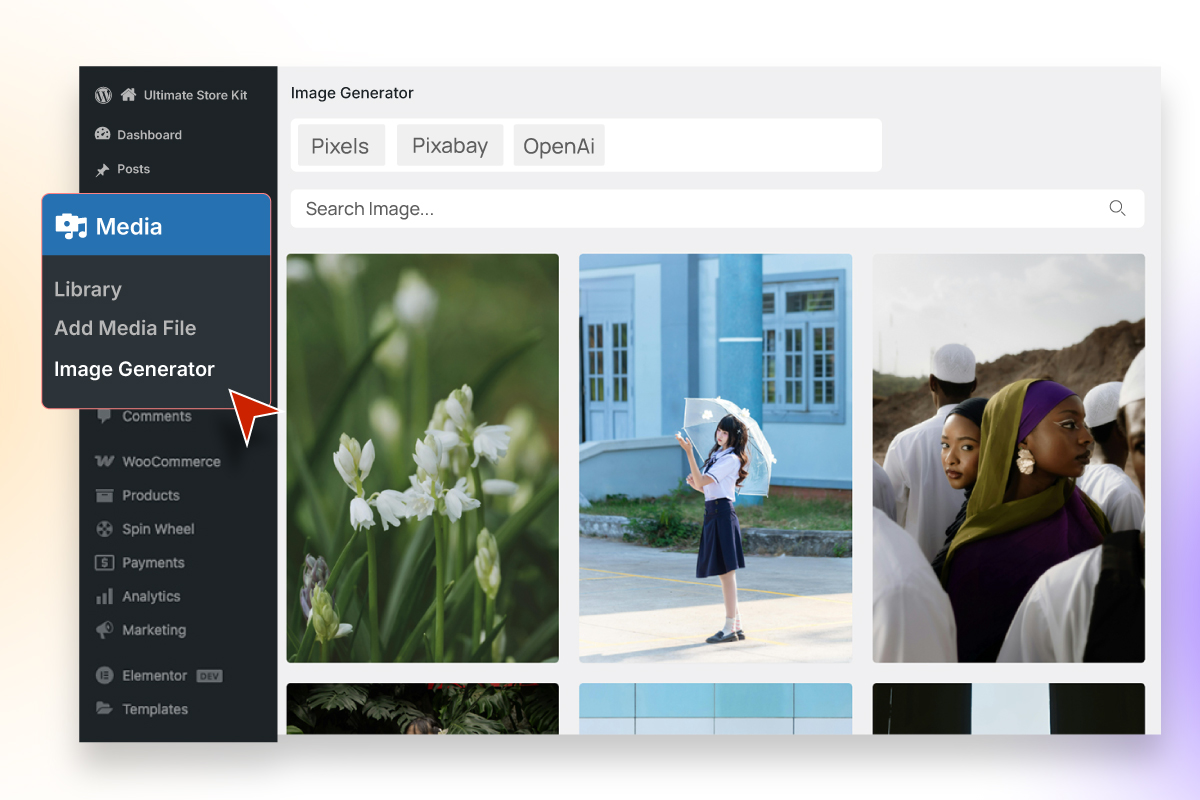
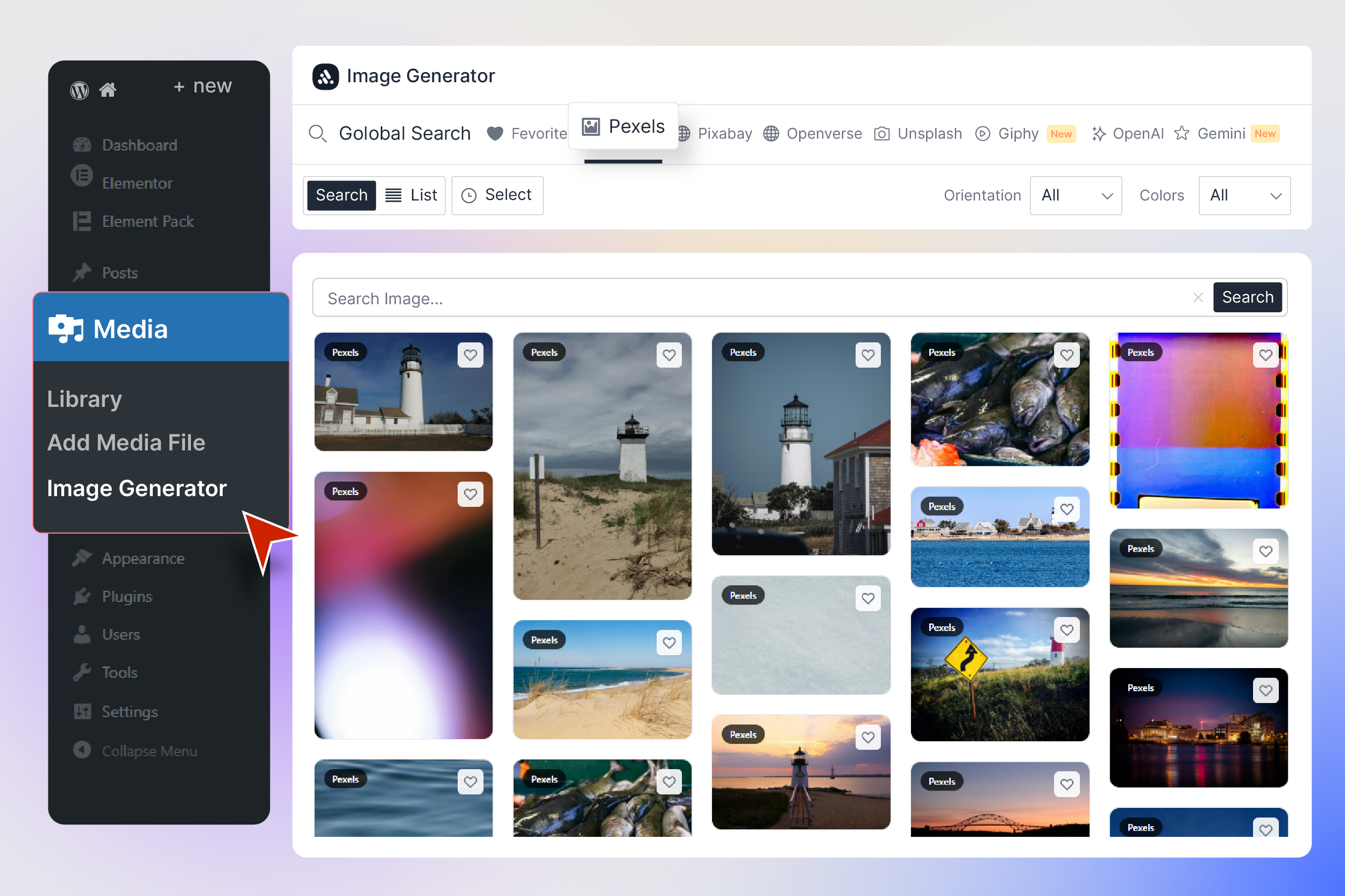
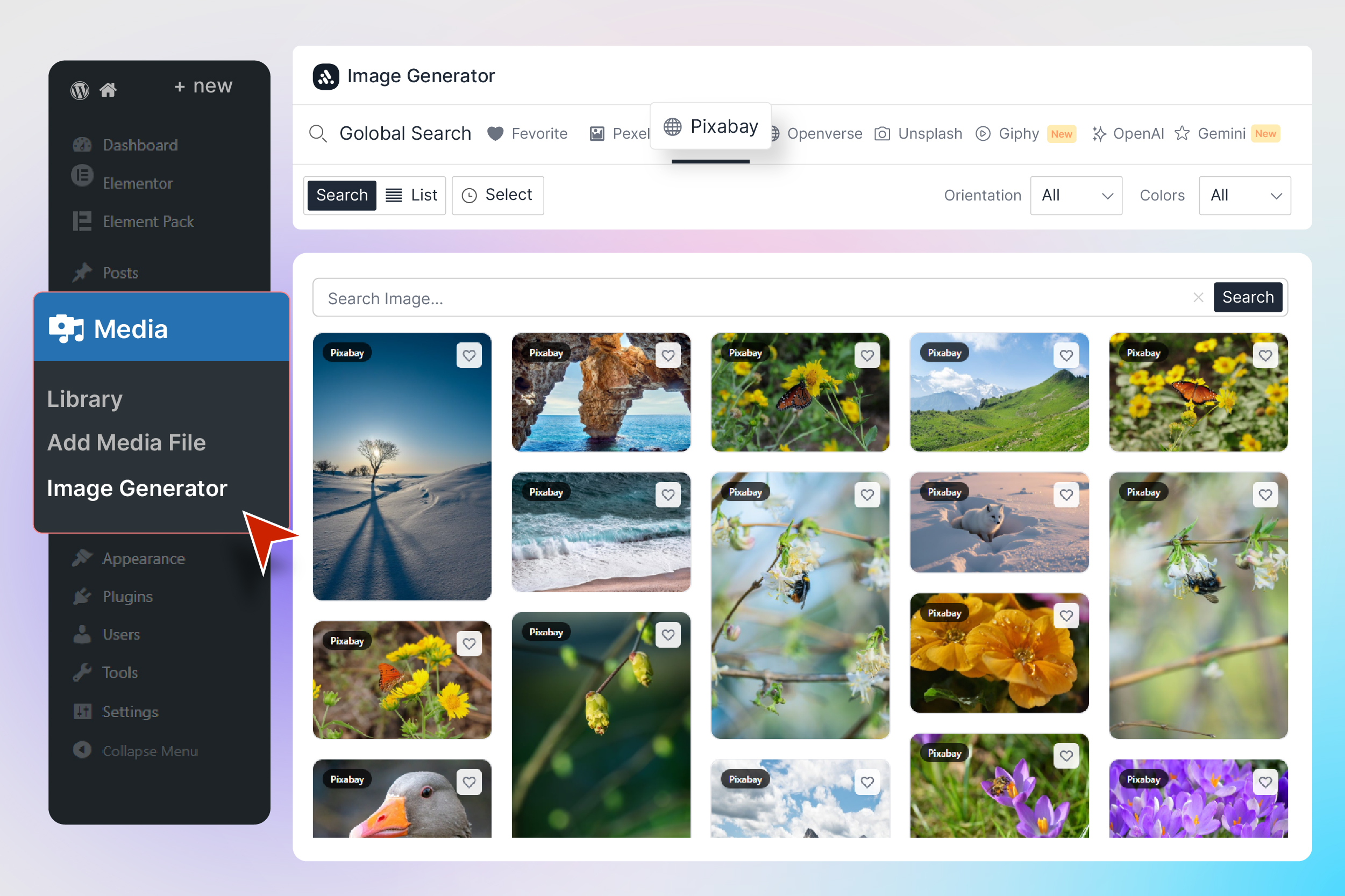
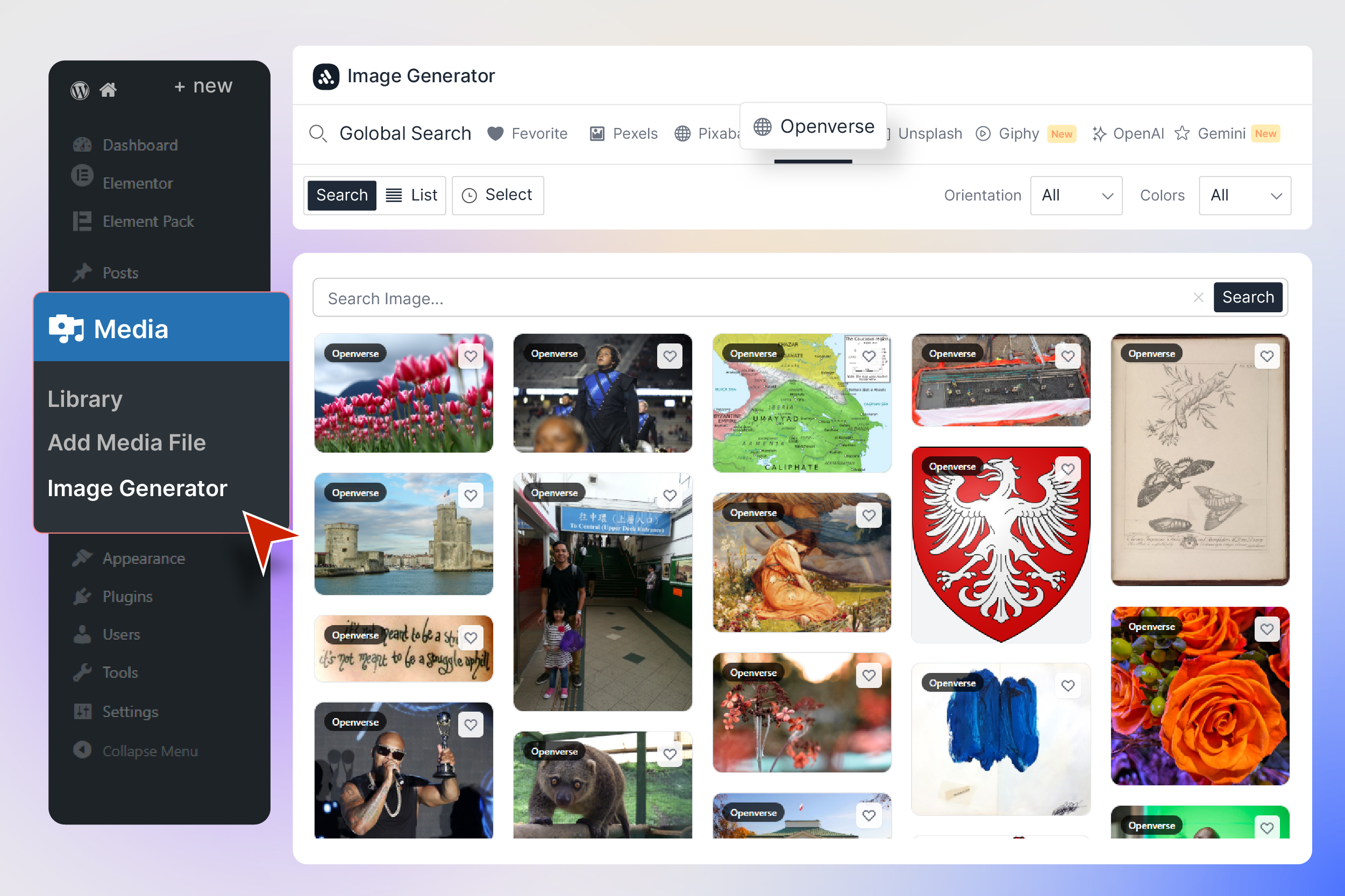
- Navigate to Media → Image Generator to start finding images!
- Download the plugin ZIP file
- Upload the
ai-imagefolder to/wp-content/plugins/ - Activate the plugin through the Plugins menu in WordPress
- Configure your API keys in AI Image → Dashboard → Image Sources
- Unsplash — Get your free Access Key from Unsplash Developers
- Giphy — Get your free API Key from GIPHY Developers
- OpenAI — Get your API Key from OpenAI Platform
- Gemini — Get your free API Key from Google AI Studio
- Pexels — Get your free API Key from Pexels API
- Pixabay — Get your free API Key from Pixabay API
- Wikimedia Commons, Openverse — No API key required! Works out of the box. https://youtu.be/5TgYpqAILwM?si=eI5KOEneRiSpcAwE
屏幕截图:


常见问题:
- Do I need API keys to use this plugin?
Not for all sources! Wikimedia Commons and Openverse need no key at all. Pexels, Pixabay, Unsplash and Giphy ship with a shared BdThemes key, so they work out of the box — you can replace it with your own key at any time in AI Image → Dashboard → Image Sources. Only the AI generators, OpenAI (GPT Image) and Google Gemini, require you to add your own API key. All API keys are free to obtain from their respective developer portals.
- Are the images free to use? Can I use them commercially?
Yes! All images from Pixabay and Pexels are released under their respective free licenses that allow commercial use without attribution (though attribution is appreciated). Unsplash images are free for commercial and non-commercial use. Openverse images carry Creative Commons licenses — check individual image licenses before commercial use. Giphy GIFs are subject to Giphy's terms of service. AI-generated images (OpenAI/Gemini) are subject to the respective AI provider's usage policies.
- How does the WordPress Media Modal integration work?
When the plugin is active and the "Media Modal" setting is enabled (it's ON by default), an "Instant Images" tab automatically appears in the WordPress media selector popup. This is the same popup that appears when you click "Add Media" in the classic editor, "Set Featured Image," or use any media selection button. You can search and import images directly from this popup without leaving the page you're editing.
- What happens when I import an image?
When you click "Import," the plugin downloads the image from the source and uploads it directly to your WordPress Media Library. The image is saved in your /wp-uploads/ folder just like any manually uploaded image. Depending on your settings, the plugin can automatically set the Alternative Text (for SEO), Title, and Caption (with author attribution like "Photo by John Doe"). The filename is generated from the image title for clean, SEO-friendly URLs.
- Can I control what metadata is added to imported images?
Absolutely! In AI Image → Dashboard → General Settings, you'll find three toggle switches under "Image Metadata on Import":
- Alternative Text — When ON, automatically sets the image's source title as the WordPress Alt Text (great for SEO and accessibility)
- Image Title — When ON, sets the source title as the WordPress attachment title
- Image Attribution — When ON, adds "Photo by [Author Name]" as the image caption
- How does Global Search work?
Global Search is a powerful feature that searches all your enabled image providers simultaneously. When you type a keyword in the Global Search tab, the plugin sends requests to Pexels, Pixabay, Unsplash, Openverse, and Giphy at the same time and combines the results into a single masonry grid. Each image shows a provider badge so you know where it came from. If you disable a provider in your Dashboard settings, it's automatically excluded from Global Search results.
- How do I generate AI images with OpenAI or Gemini?
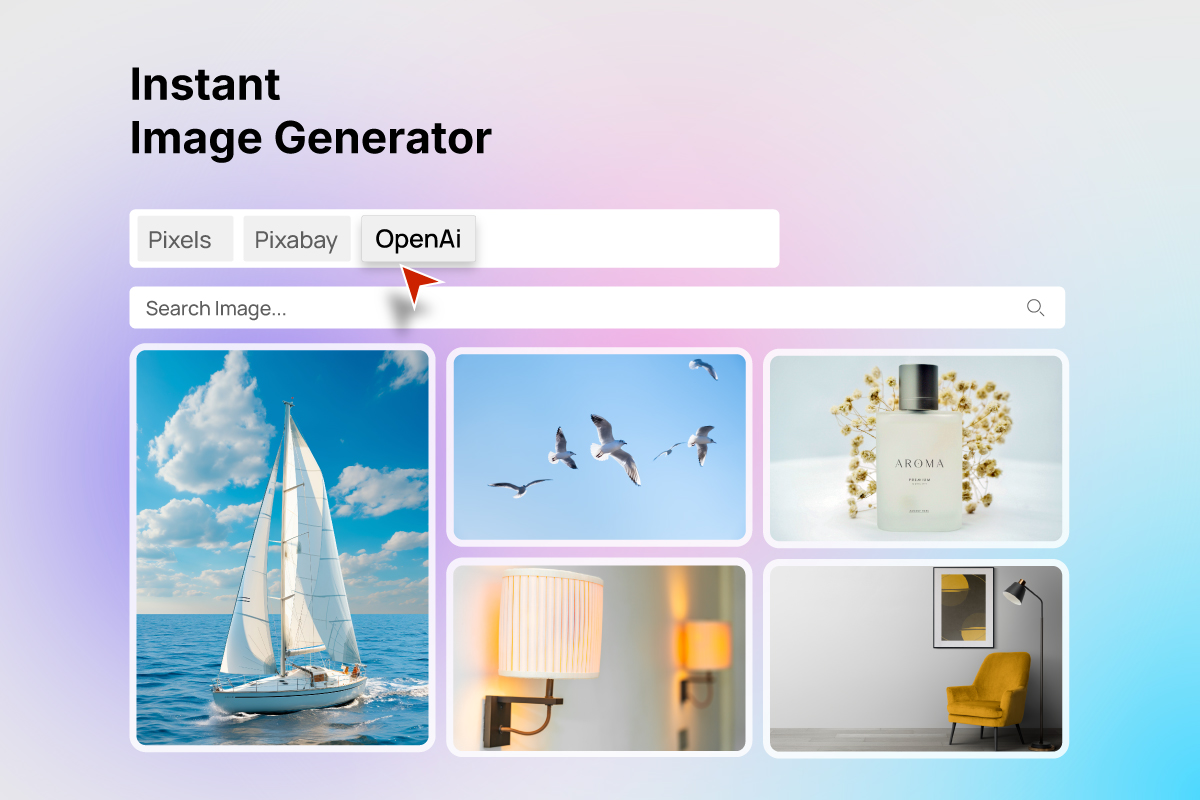
First, add your API key in AI Image → Dashboard → Image Sources (for OpenAI or Gemini). Then navigate to the Image Generator page and click the OpenAI or Gemini tab. Enter a descriptive text prompt (e.g., "A serene mountain lake at sunset with reflections") and click Generate. For Gemini, you can also choose the image size (512px, 1024px, or 2048px) and number of images (1-4). Generated images can be imported to your Media Library with one click, just like stock photos.
- Can I reorder the image source tabs?
Yes! Go to AI Image → Dashboard → Image Sources. You'll see all your providers listed as cards with drag handles. Simply drag and drop the cards to rearrange them, or use the up/down arrow buttons for precise positioning. The order you set here is reflected in the Image Generator page tabs. You can also enable or disable the Global Search tab separately with its own toggle at the top of the section. Click "Save Settings" to persist your changes.
- What is the GIF animation control feature?
To improve page performance and reduce visual clutter, Giphy GIFs are displayed as still thumbnails by default. When you hover your mouse over a GIF, it comes alive and starts animating. A small "GIF" badge with a play icon appears on each GIF card so you can easily identify animated content. In the full-size preview modal, GIFs always play at their full animation. This feature helps keep the gallery fast and responsive even when browsing hundreds of GIFs.
- Does the plugin slow down my website?
No. The plugin only loads its assets (JavaScript and CSS) on admin pages where they're needed — the Dashboard settings page, the Image Generator page, and admin pages where the WordPress Media Modal is available. It adds zero frontend code to your public-facing website. Your visitors will never notice the plugin is installed. The React-based interface is optimized for performance with lazy loading, debounced search, and efficient image rendering.
更新日志:
- Added: BdThemes deals notice on the Dashboard, Plugins screen and plugin dashboard; “Don’t Show Again” hides it in every BdThemes plugin
- Security: Improved API key protection, provider URL validation, and error handling.
- Fixed: Settings, image import, search, favourites, Gemini, provider filters, pagination, uninstall, and fatal-error issues.
- Fixed: Incorrect image generation prompts and upload limit validation.
- Fixed: Dashboard crashes and UI issues.
- Performance: Improved provider search caching and request handling.
- Performance: Added a 45-second limit for Block Editor image generation.
- Changed: Updated permissions for Image Generator and AI image generation.
- Changed: Improved dashboard accessibility and isolated plugin styles.
- Added: External services section in the readme documenting every third-party service the plugin contacts, what data is sent and when, with links to each service's terms and privacy policy — covers Pixabay, Pexels, Unsplash, Openverse, Wikimedia Commons, GIPHY, OpenAI, Google Gemini and UI Avatars, and states which calls come from the server and which from the browser
- Added: Source code section in the readme documenting the build tooling and rebuild steps for the compiled
build/bundle - Added: Uncompressed React/Tailwind source (
src/) and build configuration are now shipped with the plugin - Removed: BdThemes news feed dashboard widget and all of its remote requests to
bdthemes.comanddashboard.bdthemes.io - Removed: Dependency on the external
ui-avatars.comservice — fallback author avatars are now generated locally in the browser as an SVG, so no request leaves your site for them - Fixed:
Tested up tonow uses the major WordPress version (7.0) in both the readme and the plugin header - Fixed: Readme now states the correct Gemini model (Imagen 4.0) and which providers actually require your own API key
- Fixed: Readme Description trimmed under the 2500-word limit so the External services and Source code sections are no longer truncated off the plugin page
- Updated: Admin API Biggopti removed
- Fixed: Security issue where data returned by the promotions API could be injected as script into the WordPress admin area
- Fixed: Promotion links and images are now restricted to http(s) and mailto addresses
- Updated: Security improved
- Added: Export & Import settings page in the dashboard — back up or migrate plugin configuration (general, display, image sources, custom sizes, and optional API keys) as a JSON file
- Updated: OpenAI image generation migrated from deprecated DALL·E 3 to GPT Image (
gpt-image-1) after OpenAI retired DALL·E models - Updated: Made compatible with WordPress version 7.0
- Fixed: Block toolbar OpenAI fallback aligned with the same GPT Image API request format
- Fixed: Security issue fixed ( Thanks to ParkHyunWoo )
- Fixed: Admin notice styling and handling
- Updated: Plugin display name to Instant AI Image Generator – Create & Import Images in readme and plugin headers (WordPress.org naming guidelines)
- Updated: Readme: clearer tone, External services disclosure, fewer promotional claims
- Fixed: Block
apiVersionset to 3 for WordPress 7+ block editor requirements - Fixed: Translation calls in
admin/feed.phpuse theai-imagetext domain as a string literal
- Fixed: Scoped Tailwind Preflight to
.ai-image-wraponly — prevents base style resets from bleeding into wp-admin buttons, headings, and other global elements - Fixed: Link color inside the plugin UI now explicitly set to WordPress blue (
#2271b1) after preflight inherits parent color - Fixed:
.search-input-fieldscoped under.ai-image-wrapto avoid unintended global style matches - Improved: Tailwind global
preflightdisabled viacorePlugins— scoped equivalent inai-image-preflight.cssreplaces it for the plugin root only - Improved: All Tailwind utilities now use
.ai-image-wrapas theimportantselector for consistent specificity
- Added: Dashboard feed widget with styled RSS posts, banner image, badges, and footer links on the WordPress dashboard
- Fixed: Overflow issue hiding download dropdown button next to import button on image cards
- Fixed: Z-index layering so dropdown menus appear above all card elements including preview icon
- Fixed: Hover stability for import button and action buttons - more reliable interaction
- Improved: Better flex layout for author name and action buttons to prevent overflow
- Improved: Author name now properly truncates with ellipsis when space is limited
- Added: Wikimedia Commons image provider tab support in dashboard and Global Search
- Added: Wikimedia provider filters (Media Type, Sort)
- Added: Wikimedia support in Block Toolbar “Generate Image” provider menu and smart fallback flow
- Added: Admin API notification system with countdown timers
- Improved: Wikimedia search handling and result ordering in proxy endpoint
- Fixed: First-install imports no longer auto-apply Alt Text, Image Title, or Attribution until saved in settings
- Added: Default API keys for Unsplash & Giphy (works without user configuration)
- Added: Encrypted API key storage for enhanced security
- Improved: All free image sources now work out of the box
- Improved: Better code maintainability and performance
- Improved: Enhanced API key protection system
- Fixed: WordPress Plugin Checker compatibility issues
- Fixed: Removed unused functions, variables, and imports
- Added: Complete plugin rebuild with React and Tailwind CSS for modern UI/UX
- Added: Global Search — search across all image providers simultaneously
- Added: Unsplash image source support
- Added: Openverse image source support (WordPress, Flickr, NASA, SpaceX, Wikimedia, and more)
- Added: Giphy GIF source with animation control (hover to play)
- Added: Google Gemini Imagen 3.0 AI image generation
- Added: WordPress Media Modal integration ("Instant Images" tab)
- Added: Advanced provider-specific filters (Source, Orientation, Order, Type, Category, Color)
- Added: Batch selection and import for multiple images
- Added: Favorites and bookmarking system
- Added: Search history with keyboard navigation
- Added: Full-size image preview modal with sidebar and next/prev navigation
- Added: Smart image metadata on import (Alt Text, Title, Caption with attribution)
- Added: Individual toggle controls for Alt Text, Title, and Attribution metadata
- Added: Drag-and-drop provider ordering in dashboard
- Added: Global Search on/off toggle
- Added: Display Settings tab (View Mode, Items Per Page, Thumbnail Size, Load More Mode)
- Added: Custom Image Sizes management (add/delete custom WordPress image sizes)
- Added: Professional admin dashboard with sidebar navigation
- Added: Grid and List view toggle
- Added: Infinite scroll with manual "Load More" button fallback
- Added: Loading skeleton animations
- Added: Responsive design for all screen sizes
- Added: Generate Image from content in page/post
- Improved: Image import now uses original source title for filename
- Improved: Media library auto-refreshes after import in media modal
- Improved: Provider tabs respect enabled/disabled state and custom ordering
- Updated: Made compatible with WordPress version 6.9
- Updated: Made Compatible with WordPress 6.8.3
- Updated: System improved
- Fixed: OpenAI avatar issue fixed
- Updated: Modal design improved
- Added: Made Compatible with WordPress Version 6.8
- Added: Plugin page action menu settings added
- Fixed: Pexels avatar issue fixed
- Improved: Pexels image preview and upload by default original size
- Updated: System improved
- Added: Image URL copy Button Added
- Improved: Grid Layout Improved
- Improved: Open AI Improved
- Added: New system added
- Fixed: Security issue fixed
- Updated: System improved
- Added: Pexels Support added
- Added: Pixabay Support added
- Updated: System improved
- Initial Release