
AiProfile Inside
| 开发者 | aiprofile |
|---|---|
| 更新时间 | 2026年11月26日 20:27 |
| PHP版本: | 7.4 及以上 |
| WordPress版本: | 7.2 |
| 版权: | GPLv2 or later |
| 版权网址: | 版权信息 |
详情介绍:
- Install and activate the plugin. It opens Settings, AiProfile.
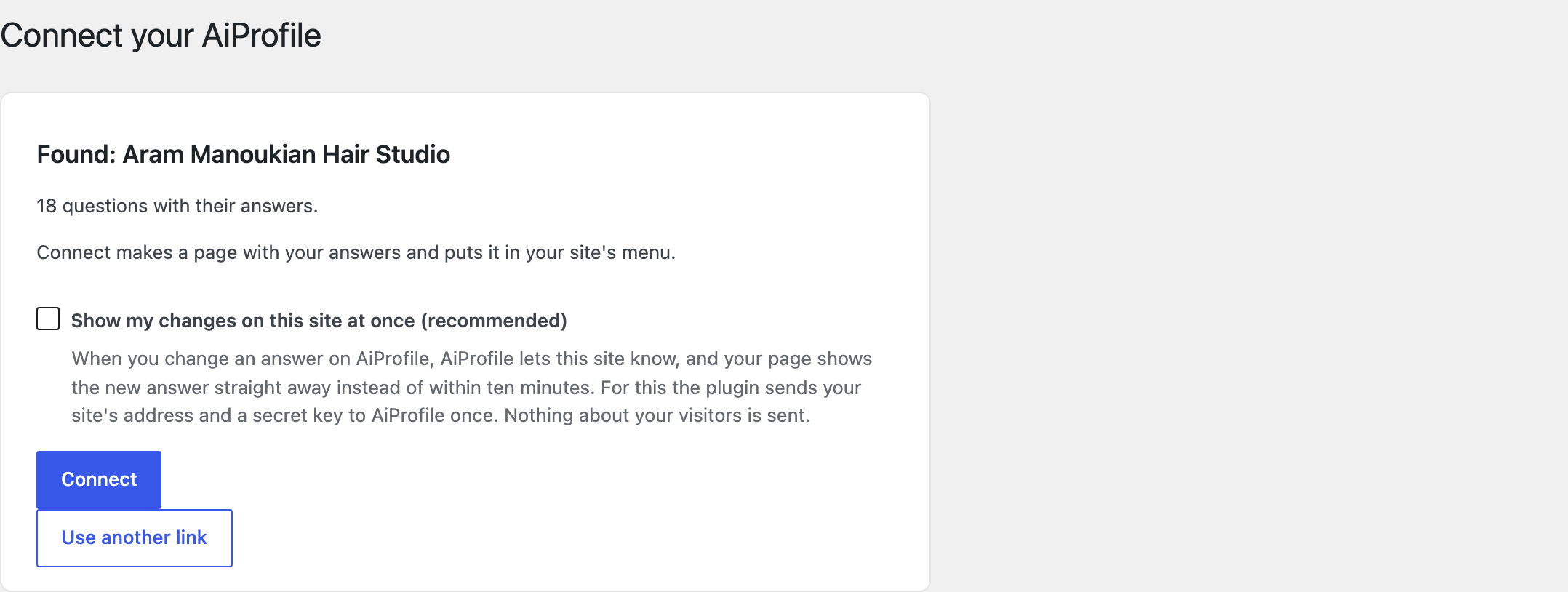
- The plugin looks up the AiProfile that has your site's address as its website and shows the name of your business and the number of questions. When several businesses share your site's address, you pick yours from a short list. When none has it, "Make my AiProfile" makes one for free from your website on aiprofile.com (in a new tab, in about a minute); then click "I made it, look again". Already have one under another address? Paste your AiProfile link (aiprofile.com/your-name, your profile URL, or your business id) and click Check.
- Click Connect. The plugin makes a page "AiProfile of" your business, with its type and place ("AiProfile van De Gouden Korst, bakkerij in Amsterdam" on a Dutch site, in the language of your answers) with your answers and puts a small AiProfile logo, linking to that page, in your site's footer. A page that already holds the shortcode is reused instead.
- Classic themes: as an item in the menu of your footer (a footer menu location with a menu assigned to it).
- Block themes: as a link in the Navigation block of your footer, when that block shows a menu of its own.
- Otherwise: as a small line at the bottom of every page, printed by the plugin.
- See how often ChatGPT and other AI read your page (off by default, also after an update). Each time your answers page is opened, by a person or by an AI crawler such as GPTBot or ClaudeBot, the plugin tells AiProfile, so AiProfile can show you how often AI reads your page. What is sent is listed under "External services" (7). No IP address, no cookies. Uses the one-time registration of "Update automatically".
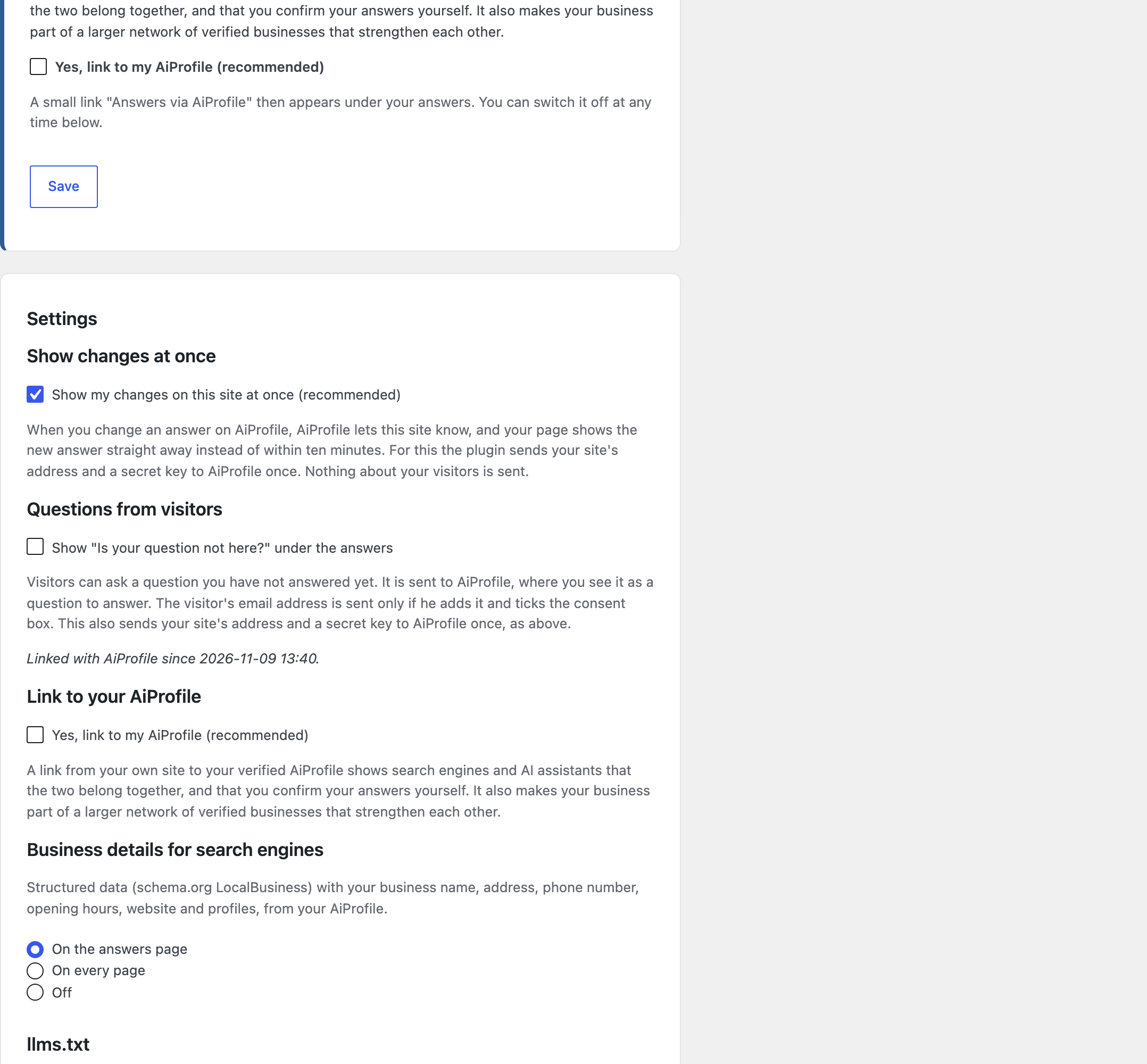
- Update automatically (ticked by default on the Connect screen since 1.4.2; untick it there or here). When you change an answer on AiProfile, your page shows it straight away instead of within ten minutes. Uses a one-time registration with AiProfile; see "External services" below.
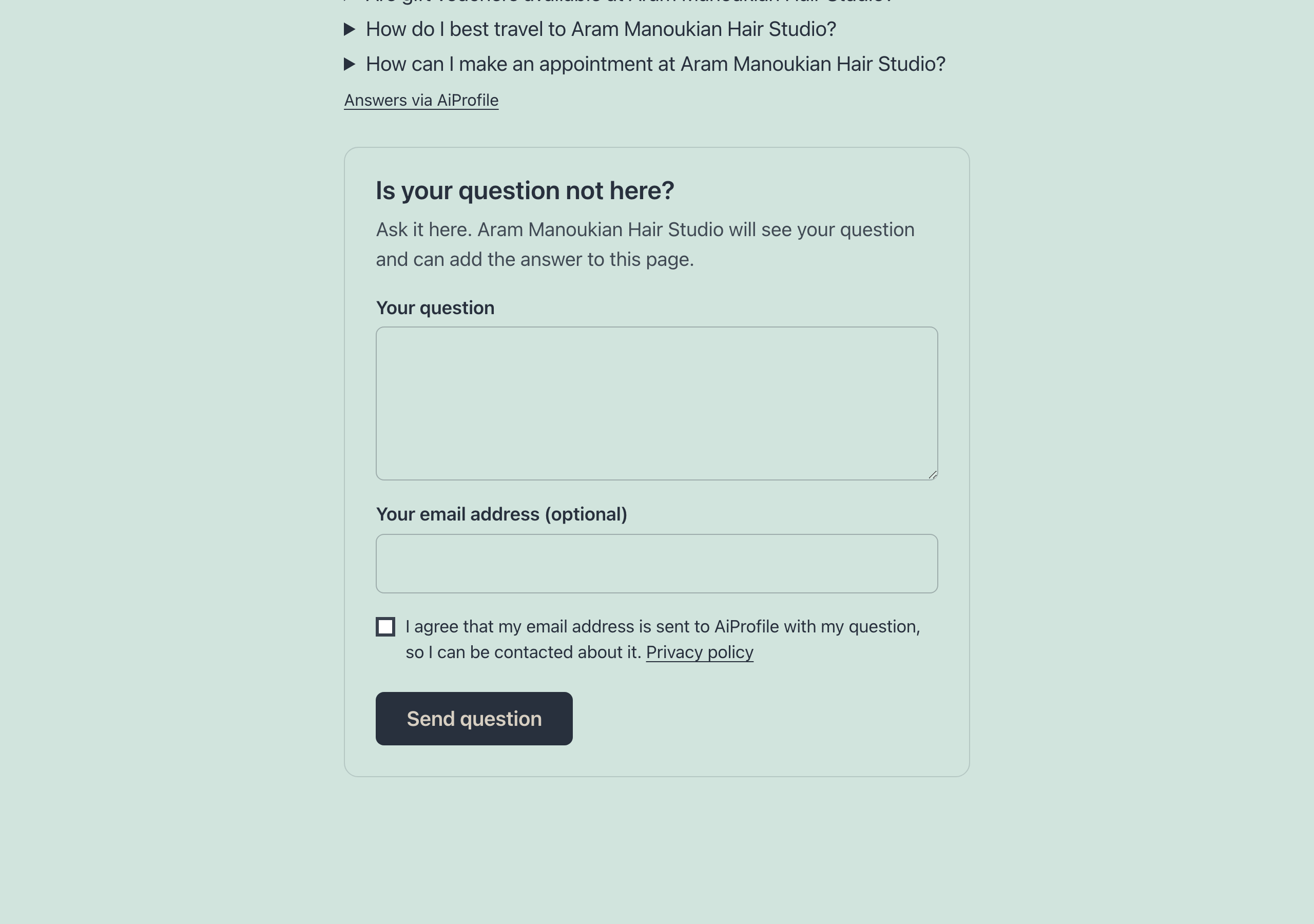
- Questions from visitors (off by default). A small form "Is your question not here?" under the answers. The question reaches you on AiProfile as a question to answer. A visitor's email address is sent only if he adds it and ticks the consent box.
- Link to your AiProfile (off by default; since 1.4.1 asked on the Connect screen, unticked). A small "Powered by AiProfile" link, with the AiProfile mark, in the badge above your answers. It shows search engines and AI assistants that your site and your verified profile belong together.
- Business details for search engines (on the answers page by default). schema.org LocalBusiness structured data with your business name, address, phone number, opening hours, website and profiles. Also possible on every page, or off. Left out automatically when Yoast SEO, Rank Math or All in One SEO already describes your business.
- llms.txt (off by default). Serves /llms.txt with your business and a link to your answers page, for AI tools that read that file. Only when your site has no llms.txt file of its own.
- Page layout (switched on by the plugin when needed). Some themes build their pages from fields of their own and leave out the page content, so the answers do not show. The plugin then shows your answers page in its own layout: your theme's header and footer, with the page title and your answers between them. It switches this on by itself when your answers did not show on two views of the page; you can switch it on or off yourself. Only your answers page uses it, and never on a block theme.
[aiprofile] shows the connected profile on any page (in the block editor: a Shortcode block). Options:
profiel(orprofile): another profile: a short link, a profile URL, or a business id.taal(orlang): the language, for examplenloren. By default: your site's language when your profile has it, else your profile's home language.titel="ja"(ortitle="yes"): adds a heading "Frequently asked questions about ..." above the answers. Off by default, because the page's own title is the heading.jsonld="0": leaves out the FAQPage structured data, for example when your SEO plugin already adds it.
aiprofile-* classes are there for custom CSS.
If AiProfile cannot be reached, the page shows the last copy it had (kept for 7 days). If there is nothing to show, the block prints nothing visible.
安装:
- In your WordPress admin, go to Plugins, Add New Plugin, and search for "AiProfile Inside". Or upload the ZIP under Plugins, Add New Plugin, Upload Plugin.
- Activate the plugin. It opens Settings, AiProfile.
- Click Connect when the plugin shows your business, or paste your AiProfile link, click Check, then Connect.
屏幕截图:
常见问题:
Do I need an AiProfile?
Yes. The plugin shows the questions and answers of the AiProfile you connect. You find yours, or make one, on https://www.aiprofile.com. When the plugin finds no AiProfile for your site, "Make my AiProfile" on the settings screen makes one for free from your website.
Where do I change my answers?
On AiProfile. The page on your site follows within ten minutes, or at once with "Update automatically" switched on.
I use a page cache plugin. Do my changes still show?
Yes. A page cache serves a stored copy of your page, so the plugin clears that copy itself: at once when "Update automatically" is on, and otherwise within half a day, when its twice-daily check sees that your answers changed. This works with WP-Optimize, LiteSpeed Cache, WP Rocket, W3 Total Cache, WP Super Cache, WP Fastest Cache, SiteGround Optimizer and Breeze.
Does it slow down my page?
No. The answers are kept on your site and asked again at most once every ten minutes; the request to AiProfile times out after 5 seconds, and then the last copy is shown.
Does the plugin track my visitors?
Not unless you ask it to. It sets no cookies and loads no script from AiProfile. Only when you switch on "See how often ChatGPT and other AI read your page" does it send AiProfile a short report for each view of your answers page: the user agent, the page address, the site the visitor came from, the time and whether the visitor is logged in, never an IP address or a query string. The other exception is a question a visitor sends himself through the optional form. Settings, Privacy has a suggested text for your privacy policy.
My SEO plugin already adds structured data. Will there be duplicates?
The FAQPage data belongs to the answers; leave it out with jsonld="0" in the shortcode if your SEO plugin adds its own. The LocalBusiness data is left out automatically when Yoast SEO, Rank Math or All in One SEO already describes your business.
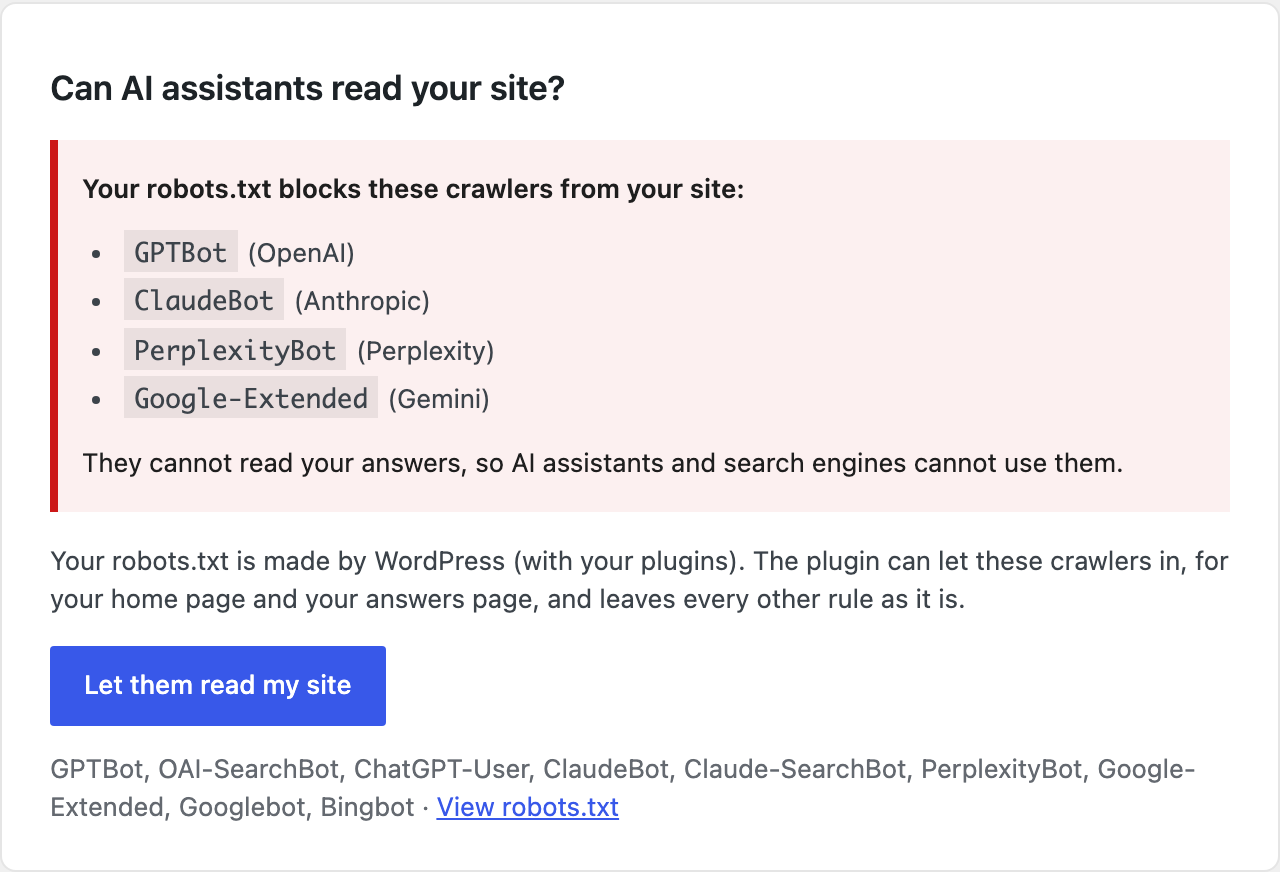
The AI check says my robots.txt blocks crawlers. What now?
When WordPress makes your robots.txt, click "Let them read my site". When it is a file on your server, ask your web host or developer to remove the "Disallow" lines for those crawlers. A firewall or CDN (for example a "block AI bots" setting) can also block crawlers; the plugin cannot see those.
My answers page shows my theme's placeholders and no answers. What now?
Your theme builds its pages from fields of its own and leaves out the page content. The plugin notices this on the first views of your answers page and then shows that page in its own layout, with your theme's header and footer. You can also switch it on at once: Settings, AiProfile, "Use the plugin's page layout for your answers page".
What is removed when I delete the plugin?
All cached answers, the plugin's settings and the "AiProfile" link in your footer, and AiProfile is asked to forget the registration of "Update automatically". The page with your answers stays; delete it yourself if you no longer want it.
更新日志:
- "Update this site automatically" now starts ticked on the Connect screen, so your changes on AiProfile show on your page at once. You can untick it there or in the settings. A site that connects again keeps the choice it made before. The other two boxes stay unticked until you tick them.
- New: a button "Turn on automatic updates" on the settings screen, also right after you connect. One click turns on WordPress's own automatic updates for AiProfile Inside, so new versions arrive by themselves. The plugin never turns them on by itself, and "No thanks" hides the question.
- The question "Link to my AiProfile" is now on the Connect screen, as a third checkbox next to the other two. It stays unticked until you tick it. Connect saves your answer, so the separate question after connecting no longer appears. You can still change it in the settings. Sites that connected before and were never asked still get the question after Connect.
- Your answers page and the logo in your footer now name the type of your business and its place: "AiProfile of De Gouden Korst, bakery in Amsterdam". AiProfile supplies these texts with your answers, in the language of your answers, so they can improve without a new plugin version. An answers page the plugin made gets the new title, only while its title is still one the plugin gave it; a title you changed stays, and the page's address never changes.
- A short first sentence above your answers says what your business is and where ("De Gouden Korst is een bakkerij in Amsterdam.").
- The link in your footer is now the AiProfile logo, an image that comes with the plugin, on a small white label so it reads on light and dark footers. Search engines and screen readers read it as "Questions and answers about" your business, in the language of your answers. In your menu it stays the text "AiProfile", so with the plugin switched off nothing odd is left.
- New answers pages are titled "AiProfile of" your business ("AiProfile van ..." on a Dutch site). An answers page the plugin made gets the new title once after the update, only when you never changed its title. Its address stays the same.
- New, off unless you tick it: "See how often ChatGPT and other AI read your page". With it on, the plugin tells AiProfile each time your answers page is opened, by a person or an AI crawler: the user agent, the page address, the site the visitor came from, the time and whether the visitor is logged in. Never an IP address, a query string or a cookie, and your page does not wait for it. It uses the same one-time registration as "Update automatically". See "External services".
- A suggested text for your privacy policy under Settings, Privacy.
- Your AiProfile can link to your answers page: the request for your answers now also sends the address of that page, so your profile on aiprofile.com shows a link "Frequently asked questions on own site" next to your address and website.
- "Powered by AiProfile" and the AiProfile link in your footer get a short description that shows when visitors hover over them: "Questions answered by the owner of" your business, "via AiProfile".
- The badge above your answers keeps its look on every site, also where the plugin's stylesheet does not load, such as a site that shows your WordPress pages through another front end. Its style now comes with the badge itself.
- Long questions and answers always wrap to the next line instead of running off the edge of the page.
- No AiProfile yet? When the plugin finds no AiProfile with your site's address, the settings screen offers "Make my AiProfile": it makes one for free from your website on aiprofile.com, in a new tab. Then "I made it, look again" finds it straight away. Pasting a link still works below it.
- Your answers now also show on themes that build their pages from fields of their own and leave out the page content. When the plugin sees that your theme did not show the answers on your answers page, it shows that page in its own layout: your theme's header and footer, with the page title and your answers between them. Only that page changes, never on a block theme, and not by itself when that page is your home page.
- A new setting "Page layout" switches the plugin's layout on or off yourself. The settings screen says when the plugin switched it on.
- The badge above your answers shows the ChatGPT, Google and Claude marks instead of their names. The images come with the plugin; each has its name as alt text.
- The answers page gets its title in the language of your answers ("Veelgestelde vragen" on a Dutch site), also when no language pack is installed. A page the plugin made with the English title on a site in another language gets the right title once after the update; its address stays the same, and a title you changed yourself is never touched.
- After connecting, and once after this update, the plugin clears the sitemap caches of Yoast SEO and Rank Math and the cached sitemap of your page cache, so your answers page shows up in your sitemap.
- The request for your answers also says whether "Link to your AiProfile" is on. It stays off until you switch it on.
- The switch for instant updates is now called "Update this site automatically" (on the settings screen: "Update automatically"). It works as before.
- The plugin finds your AiProfile by your site's address: the settings screen shows "Found: your business" with the Connect button straight away, so there is no link to paste. When several businesses share your address you pick yours from a list, and "Use another link" still lets you paste a link.
- Your questions keep their own capitals under themes that write every word with a capital (such as Astra).
- More room between the groups of questions, and even spacing between the questions, whatever margins your theme gives its headings.
- With a page cache plugin, a change on AiProfile now reaches your page: "Show changes at once" also clears the page cache, and a twice-daily check does the same when your answers changed.
- The AI access check takes your site's admin paths from WordPress instead of assuming /wp-admin/.
- Translations now come from translate.wordpress.org.
- Connecting puts a small link "AiProfile" with the AiProfile mark in your footer (footer menu, footer navigation, or a line of its own), instead of putting the page in your main menu. You can remove it on the settings screen.
- Sites connected with an older version keep their menu item; "Move to my footer" moves it when you want.
- A badge above your answers: "Verified by" your business, "Optimized for AI agents", and "Powered by AiProfile" when you switched that link on. Its small stylesheet loads only on pages with the answers.
- Deleting the plugin also removes the footer link.
- Dutch translation updated.
- The question form looks at home in any theme: a light card, a smaller heading, full-width fields in your theme's font, the checkbox on the first line of its label, and your theme's button style (block themes) or a matching solid button (classic themes). Works with dark themes.
- The form's small stylesheet loads only on pages with the answers.
- Show changes at once: AiProfile sends a signed message when you change an answer, and the page refreshes straight away (opt-in).
- Questions from visitors: an optional form "Is your question not here?" under the answers (opt-in).
- AI access check: warns when robots.txt blocks AI crawlers or search engines, with a one-click fix for the robots.txt WordPress makes.
- llms.txt for your business (opt-in).
- LocalBusiness structured data from your AiProfile, on the answers page or every page, skipped when an SEO plugin already describes your business.
- The "Answers via AiProfile" link is now off by default; switched on, it is a normal link.
- Dutch translation updated.
- Connecting reuses a page that already held the shortcode and makes it show the connected profile: a profile named in that shortcode is removed (taal, titel and jsonld stay).
- Connecting clears the cached answers and the page cache, so the page shows the new profile at once.
- The answers are rendered on the server, into the page's HTML, with the FAQPage JSON-LD. No JavaScript from AiProfile.
- Cached 10 minutes; the last good copy (7 days) is shown when AiProfile cannot be reached.
- No own heading by default; theme groups are h2 under the page title.
titel="ja"brings the heading back. taalattribute; the default language follows the site.- Setup screen: paste your AiProfile link, the plugin makes the page and puts it in your menu.
- Dutch translation included.
- First version: shortcode that loads the answers with JavaScript.