
AnalyticsBadger: Analytics Auditor
| 开发者 |
ksym04
pkvillanueva |
|---|---|
| 更新时间 | 2026年11月12日 03:52 |
| PHP版本: | 7.4 及以上 |
| WordPress版本: | 7.1 |
| 版权: | GPLv2 or later |
| 版权网址: | 版权信息 |
详情介绍:
- Activate the plugin. It opens the AnalyticsBadger dashboard for you. There is no account to create and nothing to configure first.
- Click "Run my first audit". AnalyticsBadger reads the settings of the analytics plugins you already use, then opens your homepage, a recent post and an archive page in a hidden frame to see what really loads. It usually takes under a minute.
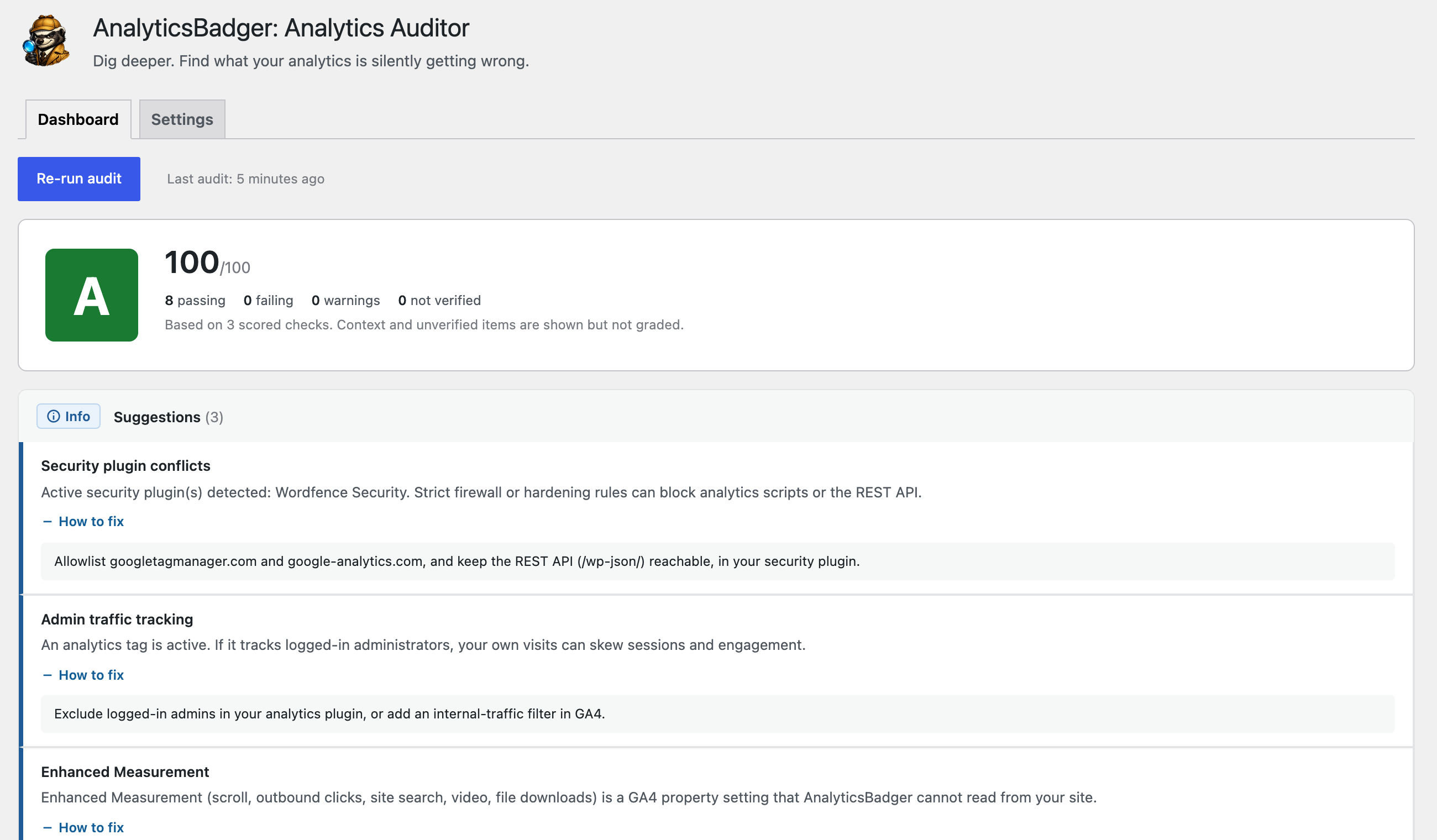
- Read your score. You get a 0 to 100 health score with a letter grade, and every problem it finds comes with a plain fix. Your last result stays on the dashboard until you run the next audit.
- GA4 Measurement ID detection (present, missing, or multiple found)
- Duplicate tag detection (Tag Manager plus a direct gtag conflict)
- GA4 loading on the front end, verified in a real browser
- GA4 page-type coverage (homepage, single posts, archives)
- Tag Manager container detection
- Enhanced Measurement reminder
- Search engine visibility check
- Admin-logged-in tracking warning (your own visits skewing the data)
- Security plugin conflict scan (Wordfence, Solid Security, All In One Security, BBQ, Sucuri)
- Caching plugin conflict scan (WP Rocket, W3 Total Cache, LiteSpeed, SG Optimizer, WP Super Cache)
- Analytics script delivery inspection
- Admin only. Your visitors never get any scripts, styles, or queries from AnalyticsBadger. The only code it loads on your public pages is the audit probe, served only to you, the logged-in administrator, while an audit runs.
- No external services. Audits run locally against your own site configuration.
- Lightweight. No build step, no bloat, no tracking of your visitors.
安装:
- Upload the
analytics-badgerfolder to/wp-content/plugins/, or install it from the Plugins screen in your dashboard. - Activate the plugin through the Plugins screen.
- Open the AnalyticsBadger menu in your admin sidebar and run your first audit.
屏幕截图:
常见问题:
Does this replace MonsterInsights or Site Kit?
No. AnalyticsBadger is an auditor, not a tracking plugin. It checks whatever analytics setup you already have and tells you what is broken. Keep using your current tools.
Will it track my visitors?
No. AnalyticsBadger never tracks or collects visitor data, and your visitors never get anything from it. It reads your site's settings. The only code it ever loads on your public pages is the audit probe, and that is served only to you, the logged-in administrator, while an audit runs.
Does it need WooCommerce?
No. WooCommerce is optional. WooCommerce-specific tracking checks are planned for a future release and skip cleanly when WooCommerce is not active.
How does AnalyticsBadger check my live pages?
When you run an audit, AnalyticsBadger briefly opens your own front end in a hidden frame and reads what loads in the browser, then reports back to your dashboard. This probe is served only to you, the logged-in administrator, and only during an audit. It is never shown to real visitors and it never collects or stores visitor data.
Do I need to set anything up first?
No. Activate the plugin and click "Run my first audit". There is no account, API key or Google sign-in. Settings has two optional controls: an expected measurement ID (AnalyticsBadger warns you when a different GA4 ID is in use), and a list of checks you can switch off.
How long does an audit take?
Usually under a minute. AnalyticsBadger opens up to three of your pages in a hidden frame (your homepage, your most recent post, and your blog page or a category archive), waiting at most 12 seconds for each, then runs each enabled check one at a time. The status line under the button shows which page or check is running at that moment.
What does the score mean?
Each scored check earns credit: a pass earns full credit, a suggestion 90 percent, a warning half, and a failure none. The score is the average, from 0 to 100, with a letter grade (A is 90 or more, B 80, C 70, D 60, F below 60). When a critical failure is confirmed, such as no GA4 tag at all, the score is capped at 39 so a broken setup can never earn a passing grade. Results marked "Not verified" and context notes are shown but not counted. When nothing could be scored, the grade shows N/A instead of a misleading number.
It says no GA4 was found. What now?
Your GA4 measurement ID starts with G- and is shown in Google Analytics under Admin, Data streams, then your web stream. Add it with the tool you prefer, for example Site Kit by Google, a Google Tag Manager container with a GA4 tag inside it, or a tracking code field in your theme or a header and footer plugin. Then run the audit again. If you use Tag Manager, AnalyticsBadger cannot read the tags inside the container, so it reports a suggestion to confirm the GA4 tag there instead of a failure. Once the tag is live, you can enter the same ID in Settings as the expected measurement ID.
Why does a check say not verified?
"Not verified" means AnalyticsBadger could not confirm the fact either way, so it is left out of the score instead of being guessed. The browser check runs as you, the logged-in administrator, so it cannot see the tag when your analytics plugin excludes administrators from tracking (AnalyticsBadger reads this setting in MonsterInsights and Analytify). It also cannot confirm a tag when a consent banner denies analytics by default, when a performance plugin delays JavaScript until a visitor interacts with the page, or when the hidden page check could not report back. Test in a private window as a visitor, or allow the REST API and admin-ajax.php in your security plugin, then re-run the audit.
Does it work with Site Kit, MonsterInsights or GTM4WP?
Yes. AnalyticsBadger reads the GA4 or Tag Manager ID from the settings of Site Kit by Google (GA4 and Tag Manager), MonsterInsights, GTM4WP, WooCommerce Google Analytics, Jetpack, Analytify, PixelYourSite, CAOS and Insert Headers and Footers, and confirms in the browser that the tag really loads. It does not change their settings and does not replace them.
A security plugin seems to block the check. What should I do?
Some security plugins and firewalls block the WordPress REST API, which the audit uses to send what it found on your pages back to your dashboard. When that happens, AnalyticsBadger automatically tries a second route, and tells you when a check could not be verified. To let the check complete, allowlist the REST API (/wp-json/) and /wp-admin/admin-ajax.php in your security plugin.
更新日志:
- Activating the plugin now opens the AnalyticsBadger dashboard once. Bulk activations, network activations and WP-CLI activations are left alone.
- The first-run panel has its own "Run my first audit" button and says how long an audit usually takes.
- Your last completed audit is now kept after the 24-hour cache expires and after a deactivation, so returning to the dashboard shows your last score with a "Last audited ... ago" line and a re-run button. Deleting the plugin removes it.
- When every check is switched off, the dashboard now says so and links to Settings, instead of an outdated message about checks arriving in future updates.
- The "no GA4 tag found" result now explains where to find your G- measurement ID and the common ways to add it.
- Clearer readme: a concrete short description, a "How it works" section, and new FAQ entries.
- Tested with WordPress 7.1.2.
- The plugin's product page link now goes straight to the right page.
- Audit results now handle malformed data from the browser probe without logging PHP warnings: a list sent where text is expected falls back to the default.
- Corrected the plugin description, which promised event checks that the free checks do not run.
- Corrected the FAQ and description: your visitors never get anything from AnalyticsBadger, and the only code it loads on your public pages is the audit probe, served to you while an audit runs. Also removed an unsourced statistic from the description.
- Clearer, plainer wording in the FAQ and External Services sections.
- Added an External Services section to the readme. The plugin makes no third-party HTTP requests: every check runs locally, and the only network request is to your own site's REST API during an audit.
- Major accuracy and trust overhaul. The health score now tells the truth: a site with no working analytics can no longer score a passing grade, and "could not verify" is shown honestly instead of being counted as near-perfect.
- Detection is far more precise. IDs are read from the exact plugin fields and real tag code that hold them, so look-alike text (a "G-Suite" label, a "GTM-Setup-Guide" link) is never mistaken for a measurement ID.
- Added detection for WooCommerce Google Analytics, Jetpack, CAOS, and more, so fewer real setups are missed.
- Server-side and real-browser results are now reconciled into one verdict per fact, so the dashboard never says "missing" and "loading fine" about the same tag.
- The browser check now allows for consent mode, delayed JavaScript, and admin-excluded tracking, reporting "not verified" instead of a false failure.
- Added the official AnalyticsBadger logo to the dashboard.
- Fixed a PHP warning when building the front-end probe targets on sites where the first post or category was not at the expected array position.
- First public release. Eleven free checks across server-side detection and real-browser verification, a 0 to 100 health score with letter grade, and clear one-line fixes.
- Privacy-safe front-end probe, security-reviewed nonces and capability checks, full translation support, and an accessible, responsive dashboard.
- Release candidate hardening: separated the audit nonces so each background action verifies its own, after an independent security review.
- Final accessibility and standards pass ahead of the 1.0 release.
- Prepared for WordPress.org: full readme with FAQ, a generated translation template, and a clean security and standards pass.
- Added FAQ entries explaining the privacy-safe front-end probe and what to do when a security plugin blocks it.
- Polished the dashboard: results grouped by severity (Critical, Warnings, Suggestions, Passing) with collapsible sections and expandable fix steps.
- Added accessible labels, clear focus styles, reduced-motion support, and a responsive layout for smaller screens.
- Completed the free check set: GA4 page-type coverage (homepage, single posts, archives), Tag Manager container detection, and an Enhanced Measurement reminder.
- The front-end probe now checks multiple page types in one run, so template-specific tracking gaps are caught.
- Added the front-end detector: a read-only probe that loads only for a logged-in administrator who runs an audit, never for visitors, and verifies in the browser what actually loads (GA4, Tag Manager, dataLayer, consent mode).
- Added a nonce-secured REST endpoint to receive probe results, with an admin-ajax fallback for sites where a security plugin blocks the REST API.
- Added a GA4 front-end loading check that confirms tags fire on live pages, or reports clearly when verification is unavailable.
- Added security plugin conflict detection (Wordfence, Solid Security, All In One WP Security, BBQ, Sucuri).
- Added caching plugin conflict detection (WP Rocket, W3 Total Cache, LiteSpeed, SG Optimizer, WP Super Cache and more), including a warning when WP Rocket delay JavaScript is on.
- Added an analytics script delivery check. Conflict detection reads the active plugin list, never remote probes.
- Added the first four checks: GA4 measurement ID detection, duplicate tag conflict, robots.txt rules, and an admin traffic tracking warning.
- Added server-side analytics detection across popular analytics plugins, header and footer code, theme settings, and registered scripts. No external requests.
- Added the audit engine: check interface, result objects, a check registry, and a 24-hour cached audit run.
- Added a 0 to 100 health score with letter grade and a status breakdown.
- Added the Run Audit button, dashboard results view, and a settings screen for the expected measurement ID and per-check toggles.
- Initial foundation: plugin scaffold, admin menu, activation and uninstall lifecycle, and internationalization setup.