AndreaDesign Table Booking
| 开发者 | saland |
|---|---|
| 更新时间 | 2026年11月6日 03:35 |
| PHP版本: | 7.4 及以上 |
| WordPress版本: | 7.1 |
| 版权: | GPLv2 or later |
| 版权网址: | 版权信息 |
详情介绍:
- A booking form added to any page with the
[andreadesign_table_booking]shortcode: date, number of guests, time, name, email, phone, optional notes and an explicit consent checkbox. - Only times that are really available are offered, based on confirmed reservations, active tables, the opening schedule and the site's timezone.
- Optional emails that describe the request or its confirmation.
- Review Reservations with their status: pending, confirmed, cancelled or completed.
- See the day at a glance in the Dashboard, the Calendar and the table layout.
- Add manual reservations, for example phone bookings.
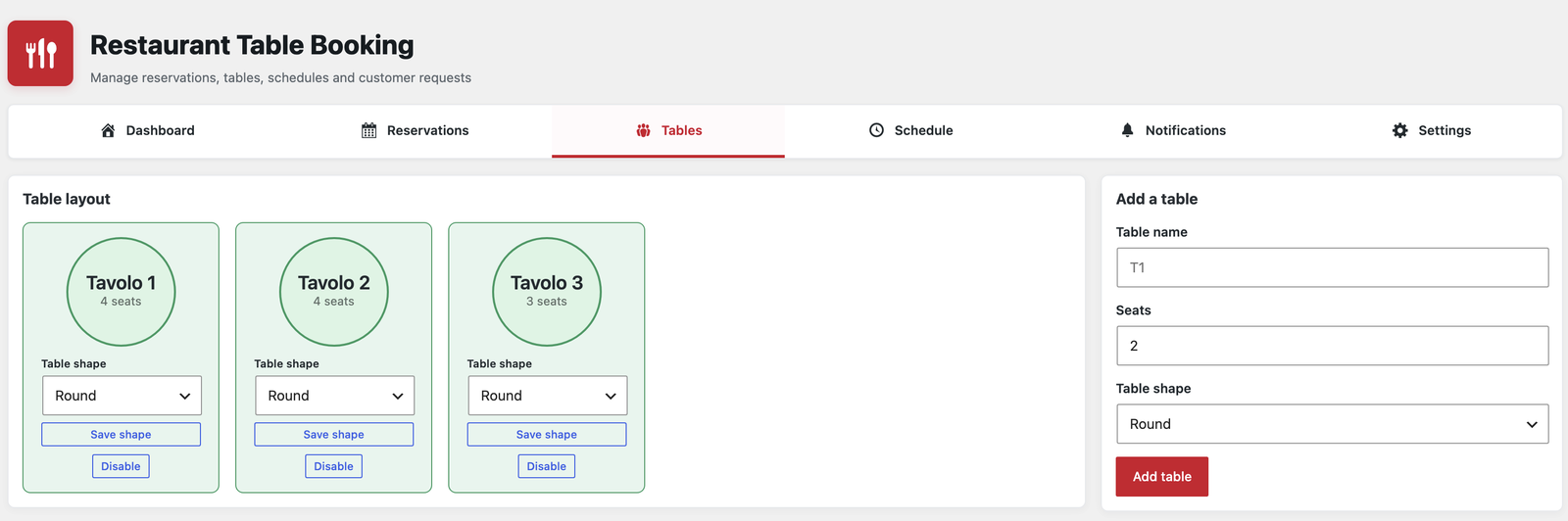
- Define Tables with their seats and shape (round, square, rectangular or oval) and disable a table that is out of service.
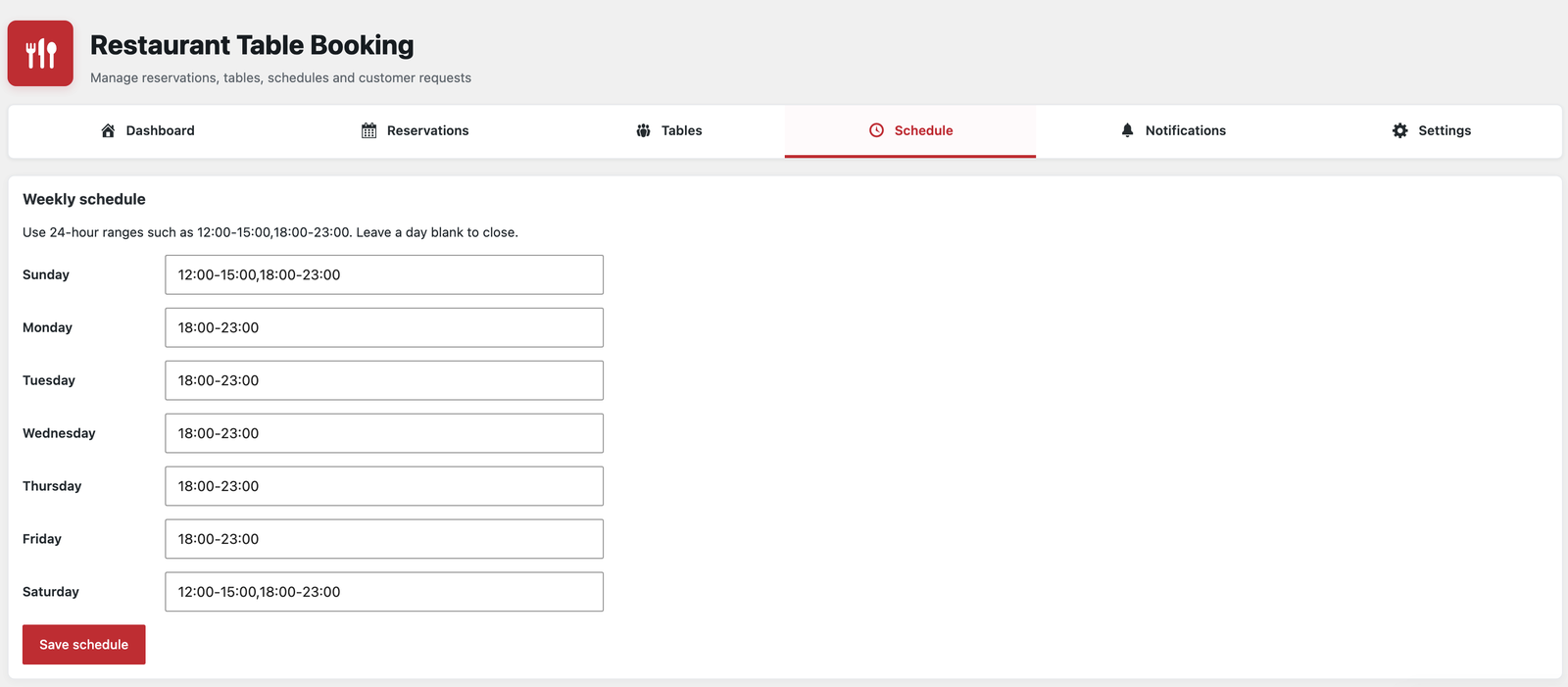
- Set weekly opening hours in Schedule, with one or more ranges per day.
- Export reservations to CSV.
- Choose whether bookings are confirmed automatically when a table is free, or stay pending until the staff confirms them.
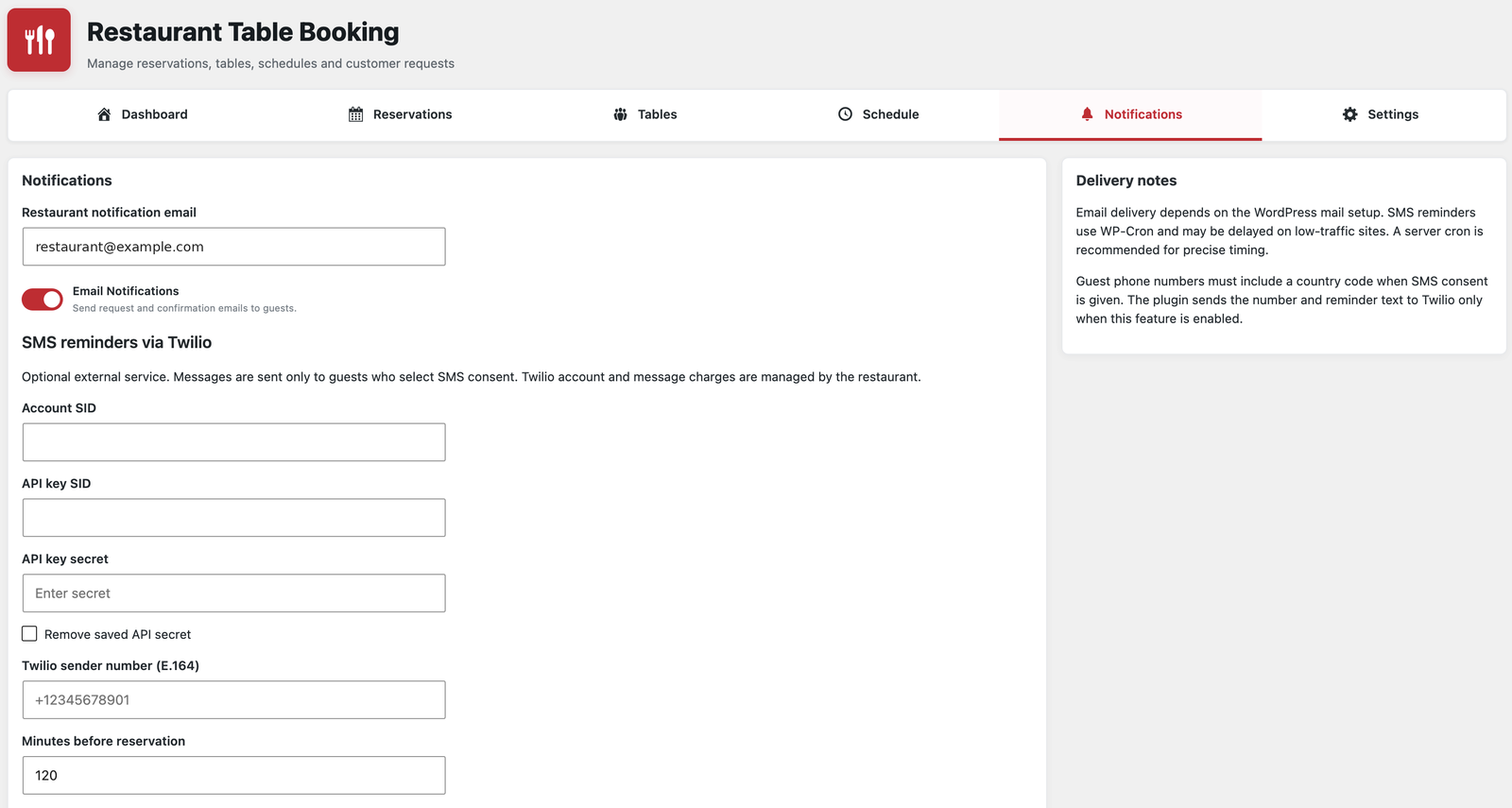
- Optionally send SMS reminders to guests who agreed to them, through your own Twilio account.
- Plugin page: https://andreadesign.it/servizi/plugin-wordpress
- Author website: https://andreadesign.it/
安装:
- In WordPress go to Plugins > Add New, search for "AndreaDesign Table Booking", click Install Now and then Activate. Alternatively upload the plugin ZIP through Plugins > Add New > Upload Plugin.
- A new Restaurant Booking menu appears in the admin sidebar, with the sections Dashboard, Reservations, Tables, Schedule, Notifications, Settings, Add-ons and Calendar.
- Check the site timezone. Go to Settings > General in WordPress and make sure Timezone is your city. Available times are calculated from it.
- Add your tables. Open Restaurant Booking > Tables. In "Add a table" enter a name (for example T1), the number of seats and the shape, then click Add table. Repeat for every table. You can change the shape later or disable a table.
- Set your opening hours. Open Restaurant Booking > Schedule. For each day write the time ranges in 24-hour notation, for example
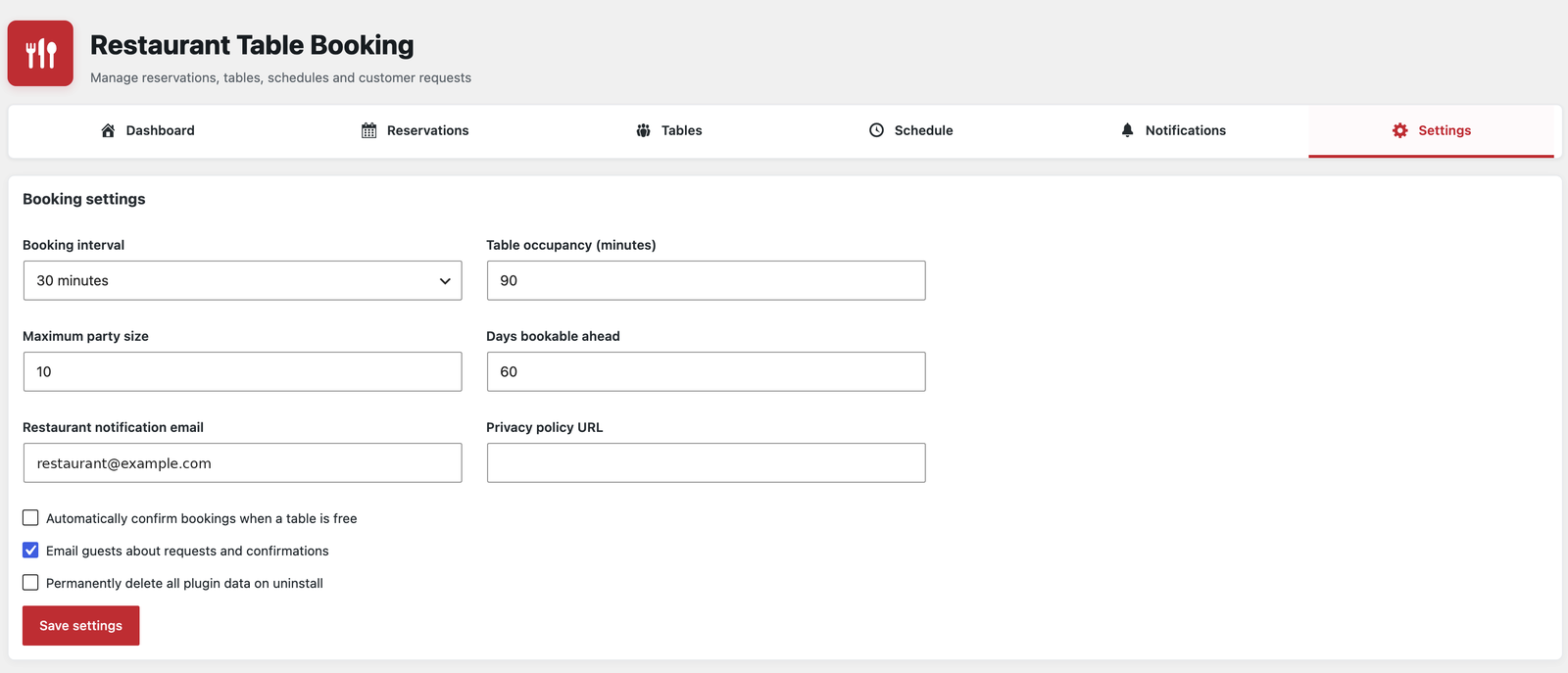
12:00-15:00,18:00-23:00. Leave a day blank to close it. Click Save schedule. - Choose the booking rules. Open Restaurant Booking > Settings:
- Booking interval: the step between available times (30 minutes by default).
- Table occupancy: how many minutes a confirmed reservation keeps a table (90 by default).
- Maximum party size (10 by default) and days bookable ahead (60 by default).
- Restaurant notification email: the address that receives new requests.
- Privacy policy URL: shown to guests next to the consent checkbox. Add yours.
- Automatic confirmation: leave it off if you want to approve each request, or turn it on to confirm when a table is free.
- Email guests about requests and confirmations: on by default.
- Permanently delete all plugin data on uninstall: off by default, so data is kept if you remove the plugin. Click Save settings.
- Publish the form. Create or edit a page, add a Shortcode block (or a text block) containing
[andreadesign_table_booking]and publish it. Link the page from your menu. - Make a test reservation from the public page, then open Reservations and confirm it. Check that the notification email arrives; delivery depends on your WordPress email setup, so an SMTP plugin is recommended on many hosts.
- Optional, SMS reminders. Open Restaurant Booking > Notifications. Enter your Twilio Account SID, API key SID, API key secret and sender number (E.164 format, for example +12345678901), choose how many minutes before the reservation the SMS is sent, and turn on SMS Reminders. SMS stays disabled until you enable it and provide valid credentials. Guests receive SMS only if they select the SMS consent option, and their phone number must include the country code.
屏幕截图:
常见问题:
Are reservations automatically confirmed?
By default they remain pending. You can enable automatic confirmation in Settings. Pending requests do not reserve a table.
Does the plugin support more than one restaurant or combining tables?
This version is for one restaurant and assigns each confirmed party to one table.
What happens to data when I uninstall?
Reservation data and settings are retained by default. The owner can choose permanent deletion on uninstall in the plugin settings before uninstalling.
Are email messages guaranteed to arrive?
Delivery depends on the site's WordPress email configuration. Test email delivery on your site.
How do SMS reminders work?
SMS is optional and uses Twilio Programmable Messaging. You need your own Twilio account, sender number, Account SID and API key credentials. Twilio's Terms of Service and Privacy Notice apply. The plugin sends a phone number and reminder text to Twilio only when the restaurant enables the feature and the guest opts in; manual reservations require staff to record that consent. Twilio may charge for messages. The reminder is scheduled using WP-Cron, which runs on site visits and can be delayed on low-traffic sites. A real server cron is recommended for precise timing. Phone numbers must be entered in E.164 format.
更新日志:
- Add the plugin icon and screenshots to the plugin page.
- Expand the readme with a full installation and configuration guide.
- Add the Plugin URI header linking to andreadesign.it.
- Add the andreadesign.it name to the plugin's own admin header as plain text. It is not shown on the public site.
- Return HTTP 403 when a user without permission uses a staff action.
- Load the public stylesheet and script only on pages that contain the booking form.
- Add the adtb_client_ip filter so sites behind a proxy or CDN can rate limit by the real visitor address.
- Remove the promotional block from the admin header.
- Document each necessary custom-table database call for Plugin Check, with scoped coding-standard exceptions for real-time reads, writes and uninstall.
- Keep reservation availability and staff actions based on current database state.
- Prepare identifiers in custom-table queries for WordPress 6.4 and newer, including privacy tools and uninstall.
- Validate schedule input more defensively and preserve safe CSV streaming.
- Remove the unused translation directory header.
- Set the CSV escape argument explicitly for PHP 8.4 compatibility and standards-compliant CSV output.
- Reject malformed table-shape input without triggering a PHP type error.
- Document the WordPress version used for compatibility checks.
- Let administrators choose round, square, rectangular or oval shapes for new and existing tables, with a matching layout preview.
- Migrate existing table drawings to stored shapes without changing their reservations.
- Add a nonce-protected, individually targeted deletion action for cancelled reservations.
- Add dashboard layout and navigation matching the restaurant reference, calendar, quick settings and optional opt-in SMS reminders.
- Add database upgrade for SMS consent, notification settings and privacy export.
- Protect future reservations when editing hours and intervals, refresh cached form dates and prevent duplicate scheduled reminders.
- Load booking assets when a page builder renders the form, support multiple forms and refresh nonces on cached pages.
- Show valid time slots in the manual booking form and prevent early table release.
- Separate schedule and settings saves, validate opening ranges and improve table and booking error handling.
- Initial release: reservations, capacity checks, table and schedule management, privacy tools.