
Barcode Man for WooCommerce
| 开发者 | gookit |
|---|---|
| 更新时间 | 2026年10月18日 12:13 |
| PHP版本: | 7.4 及以上 |
| WordPress版本: | 7.1 |
| 版权: | GPLv2 or later |
| 版权网址: | 版权信息 |
详情介绍:
安装:
- In your WordPress admin, go to Plugins > Add New, search for "Barcode Man", then install and activate it. You can also upload the
barcodeman-for-woocommercefolder to/wp-content/plugins/. - Go to WooCommerce > Barcode Man.
- Click "Connect this site to Barcode Man". You need to be a site administrator to do this.
- Sign in to Barcode Man (or create an account), then approve the request on the WooCommerce screen.
- Check that the account and site are right. After that, the "Open workspace" button takes you to Barcode Man.
屏幕截图:
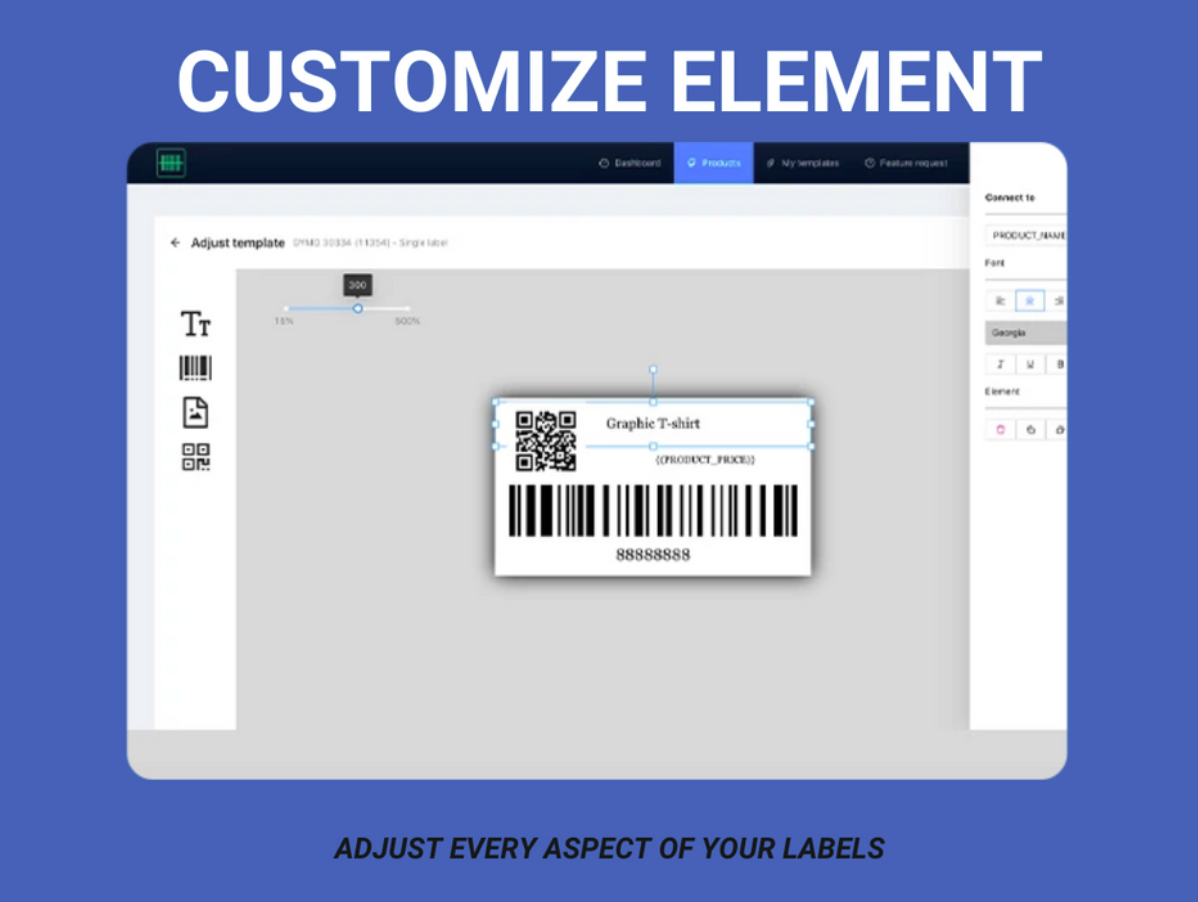


常见问题:
Which printers can I use?
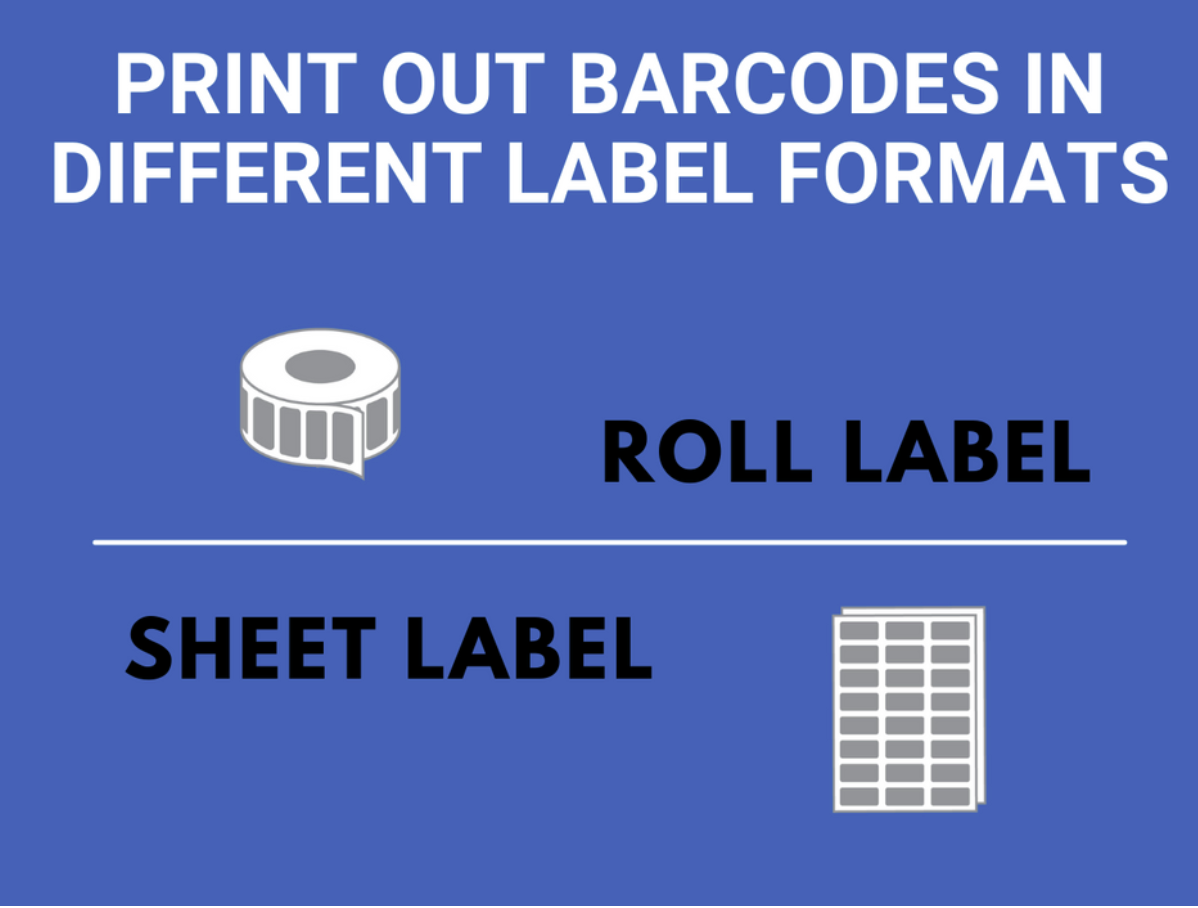
Any printer that can print a PDF. That includes regular printers with label sheets and label printers such as Dymo, Brother, Zebra and Rollo.
Do I need a Barcode Man account?
Yes. Your label designs are saved to your account. You'll need to confirm your email address before you connect a store.
How much does it cost?
The plugin is free to install and connect. You'll see the paid plans and prices before you subscribe. Plans are billed through Stripe, and you can change or cancel yours in Barcode Man.
Will Barcode Man change my products?
Only if you confirm a change in the SKU generator. Printing never changes your products.
What does the plugin save on my site?
An ID for your Barcode Man connection and a key that you can cancel at any time. WooCommerce creates the store access key and sends it straight to Barcode Man. The plugin doesn't keep a copy.
How do I disconnect or remove Barcode Man?
Click Disconnect on WooCommerce > Barcode Man and cancel any paid plan before you delete the plugin. Deleting the plugin on its own does not stop access or billing. To delete your account or data, email hi@gookit.co.
Where can I get help?
Email hi@gookit.co, or use the support form in Barcode Man.
更新日志:
- Fixed: cancelling an approved but unconfirmed connection revokes only its own WooCommerce REST API key. A failed removal shows manual revocation instructions.
- Fixed: connections use the homepage URL when WordPress is installed in a subdirectory on the same origin. Sites with a separate frontend domain keep using the WordPress installation URL.
- Changed: existing connections on sites whose WordPress Address differs from the Site Address on the same origin may need to reconnect once.
- Fixed: the SKU generator now works for variations that have no SKU of their own.
- Maintenance release with no changes for WordPress.org sites.
- New: Barcode Man is now under WooCommerce > Barcode Man and opens in a new tab.
- New: the connection screen shows the web address where you sign in.
- Tested with WooCommerce 11.1.
- Fixed: updating from the 2022 version (1.0.1) now keeps the plugin active.
- New: connect your store with a Barcode Man account and design and print on the Barcode Man website.
- New: one-click fix for sites that use Plain permalinks.
- New: the plugin can be translated.
- Initial release.