Tabs Block – Responsive Gutenberg Tabs for Block Editor
| 开发者 |
lubus
ajitbohra punitv342 thomasnavarro |
|---|---|
| 更新时间 | 2026年9月9日 23:18 |
| PHP版本: | 7.4 及以上 |
| WordPress版本: | 7.1 |
| 版权: | MIT |
| 版权网址: | 版权信息 |
详情介绍:
- Accessible Tabs: WCAG-compliant markup, ARIA roles, and keyboard navigation support.
- Zero Dependencies: No jQuery or heavy JS frameworks powered by the Interactivity API.
- Responsive by Default: Tabs automatically stack or scroll on smaller screens.
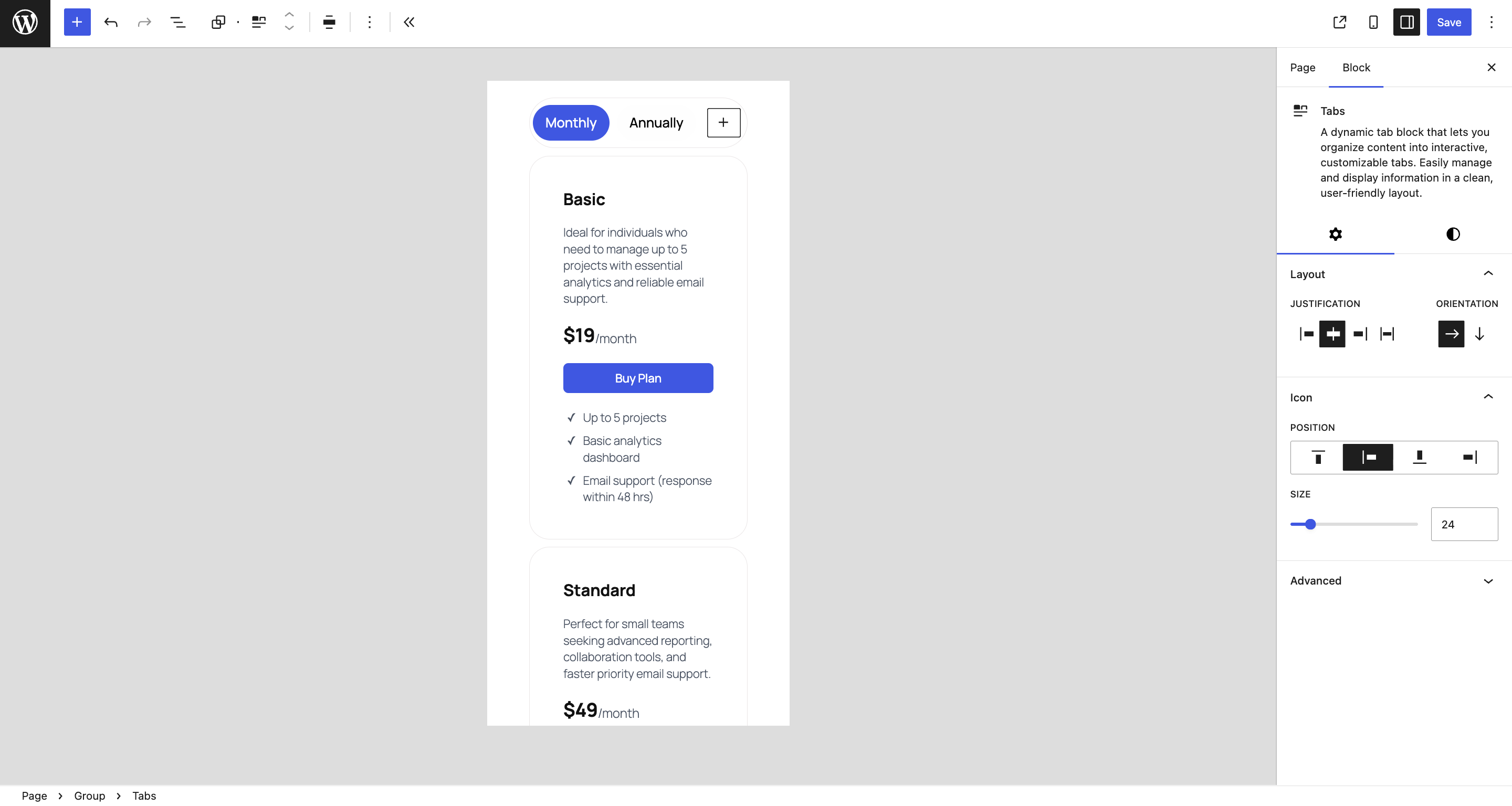
- Horizontal & Vertical Layouts: Switch between tab orientations with one click.
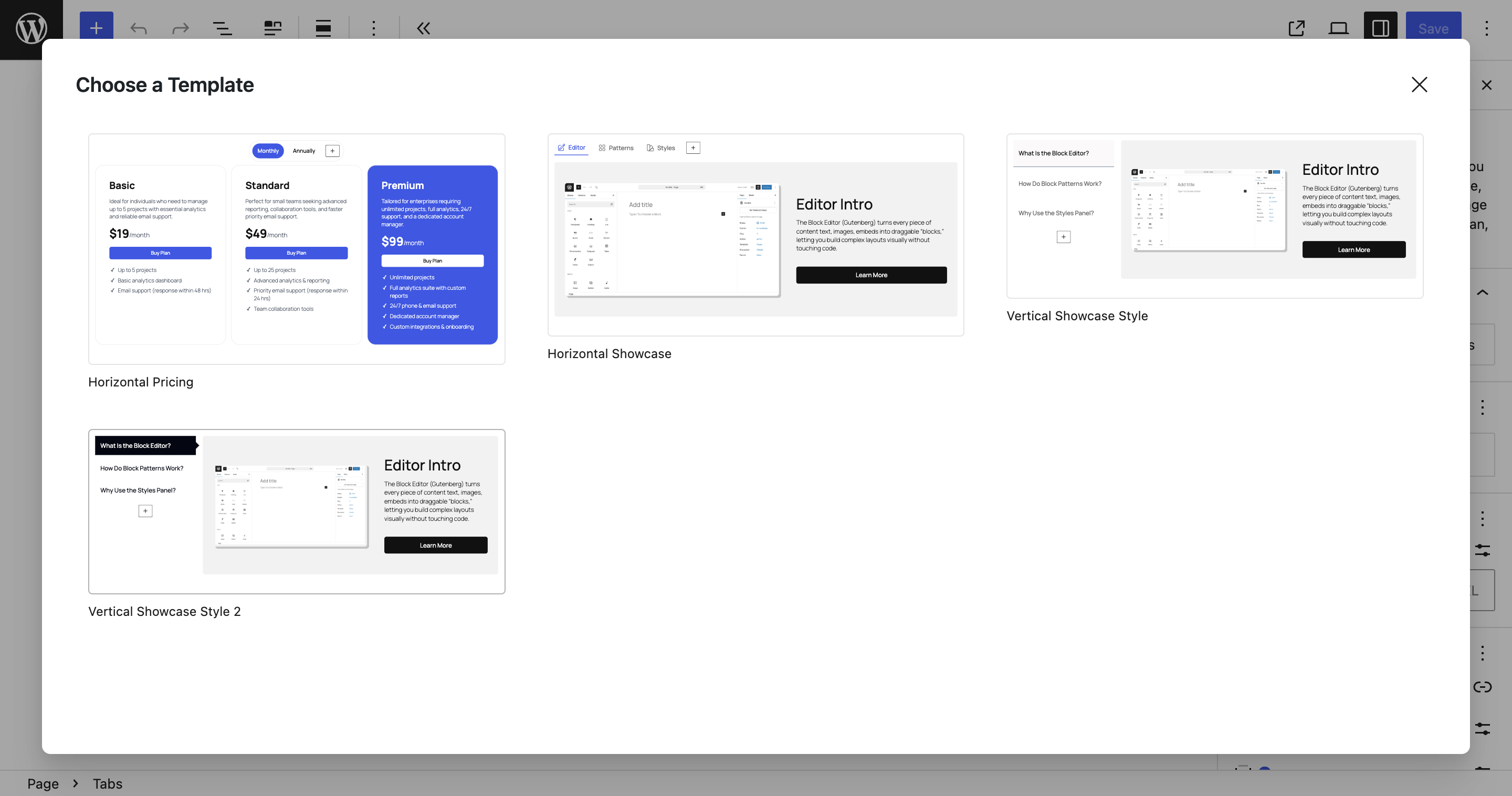
- Ready-to-Use Templates: Choose from prebuilt designs to jump-start your layout.
- Seamless Block Editor Integration: Looks, feels, and behaves like a native WordPress block.
- In the Block Editor, click the “+” icon to add a new block.
- Search for “Tabs Block”.
- Select it to insert into your post or page.
- Change background and text colors using global styles.
- Adjust spacing, borders, and radii.
- Apply block style variations for a unified site look.
- Product Features Tabs: Highlight product details, specifications, and reviews.
- Documentation Pages: Organize setup instructions and API references.
- FAQs: Group related questions under topic-based tabs.
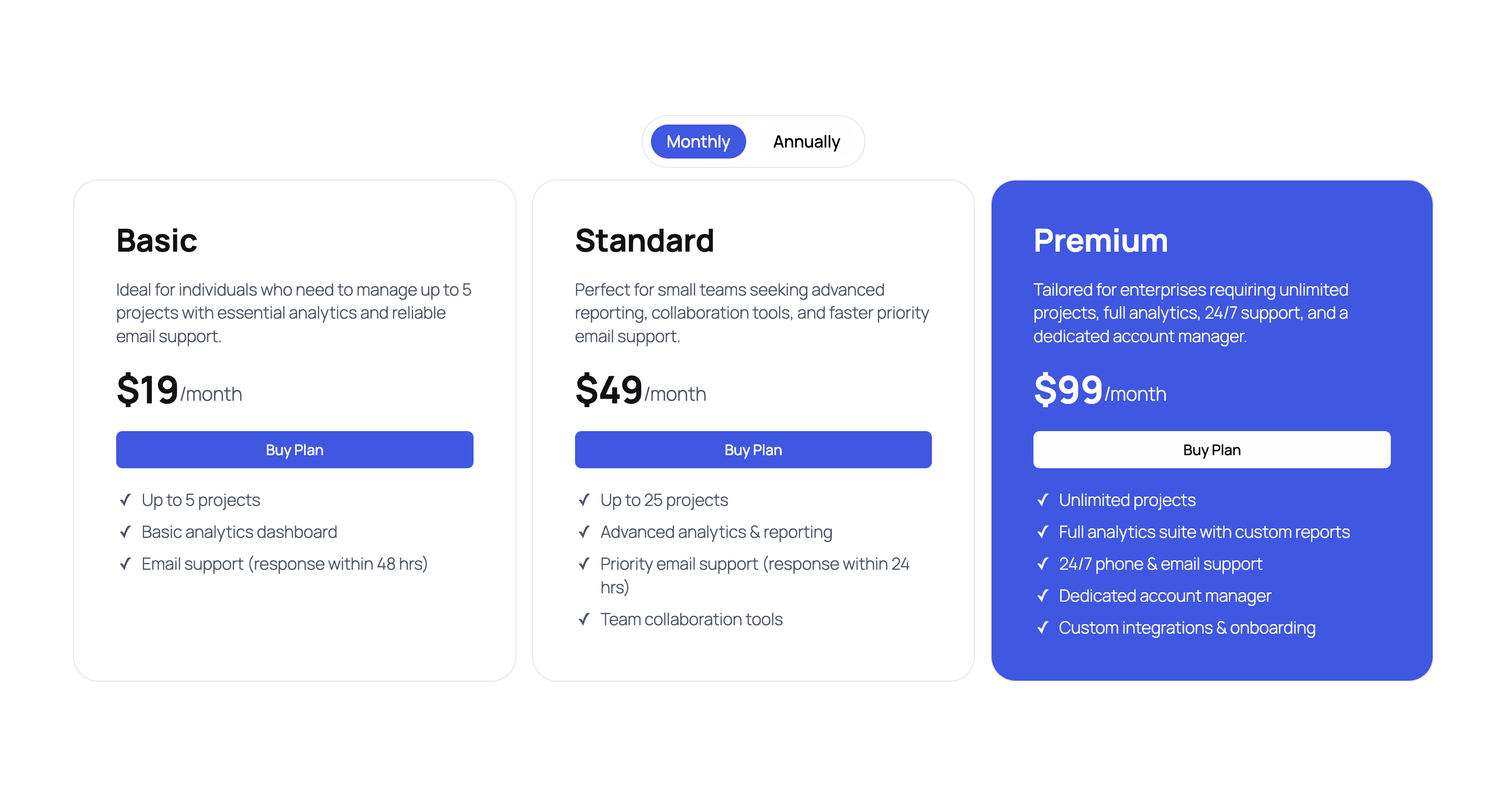
- Pricing Comparisons: Present plan details side by side.
- Portfolio Showcases: Display projects or case studies by category.
- Core WordPress Blocks: Columns, Groups, Cover, Image, Paragraph, Buttons, etc.
- Full Site Editing (FSE): Works in templates and template parts.
- Reusable Blocks: Create once, reuse anywhere.
- Translation Plugins: WPML, Polylang, Loco Translate.
- Caching & Optimization Plugins: No conflicts with WP Rocket, LiteSpeed Cache, or Autoptimize.
- Check for JavaScript errors in your browser console.
- Ensure WordPress 6.5 or higher is installed (Interactivity API required).
- Source Code:\ https://github.com/lubusIN/blablablocks-tabs-block
- Report Issues:\ https://github.com/lubusIN/blablablocks-tabs-block/issues
- Documentation:\ https://github.com/lubusIN/blablablocks-tabs-block/wiki
安装:
- Log in to your WordPress dashboard.
- Navigate to Plugins > Add New.
- In the search field, type “Tabs Block for Gutenberg”, then click Search Plugins.
- Click Install Now, then Activate.
- Download the BlaBlaBlocks Tabs Block plugin.
- Upload it to your server via FTP under
/wp-content/plugins/. - Activate it through the Plugins screen in WordPress.
屏幕截图:
常见问题:
- Does this plugin work with Full Site Editing?
Yes. Tabs Block works perfectly with block themes and the Site Editor.
- Can I add blocks inside tabs?
Absolutely. Each tab panel is a container for any core or third-party block.
- Is this plugin mobile-friendly?
Yes. Tabs automatically become scrollable or stacked on small screens.
- Can I use the Tabs Block inside Columns or Groups?
Yes. It supports full nesting and alignment control.
- Does it require JavaScript libraries?
No. Tabs Block uses WordPress’s Interactivity API, eliminating dependency on jQuery.
- How do I change colors and typography?
Use the built-in WordPress color, typography, and border tools under the block sidebar.
- Can I create my own tab templates?
Yes. You can save a Tabs Block setup as a Reusable Block or pattern and reuse it across posts.
- How do I make vertical tabs?
Select the Tabs Block → under Layout settings → choose “Vertical”.
- Why aren’t my tabs switching?
Ensure you’re on WordPress 6.5+ and your theme doesn’t override Interactivity API features.
- Can I style tabs using CSS?
Yes. Each tab and panel has a unique class name for custom styling.
- Is it compatible with caching plugins?
Yes. Tabs Block doesn’t rely on AJAX or dynamic requests, so caching won’t affect functionality.
更新日志:
- Chore: Update Tested up to 7.0.
- Fix: Corrected keyboard roving tabindex behavior so only the selected tab is focusable via
Tab, and unselected tabs usetabindex="-1"#40 - Fix: Restored visible keyboard focus indicator for tab buttons by removing focus outline suppression #41
- Fix: Resolved issue where Tabs gap was not applied when using spacing presets (e.g. small, medium, large). Preset values are now correctly converted to valid CSS variables like var(--wp--preset--spacing--*).
- Fix: Corrected rendering of rich text formats inside Tabs content. Rich formatting is now properly applied on the frontend instead of being output as raw HTML strings.
- Fix: Ensure tabId is always synced with clientId to prevent duplication issues by @thomasnavarro in #32
- Fix: Escape special characters in tab titles to prevent block crash #30
- Fix: Site Editor constantly showing "Review changes" after inserting Tabs block #27
- Bump plugin version to 1.1.0.
- Update "Tested up to" to 6.9.
- Initial release of Tabs Block for Gutenberg.
- Added responsive horizontal and vertical tab layouts.
- Built using WordPress Interactivity API for zero-dependency performance.
- Includes ready-to-use templates and accessible WCAG-compliant markup.