
Blankless – Default Block Patterns for Post Types
| 开发者 | bmx269 |
|---|---|
| 更新时间 | 2026年10月2日 07:55 |
| PHP版本: | 8.0 及以上 |
| WordPress版本: | 7.1 |
| 版权: | GPLv2 or later |
| 版权网址: | 版权信息 |
详情介绍:
- Build a pattern. Create a pattern in the Site Editor (Appearance → Editor → Patterns), or use one that your theme or a plugin registers in code.
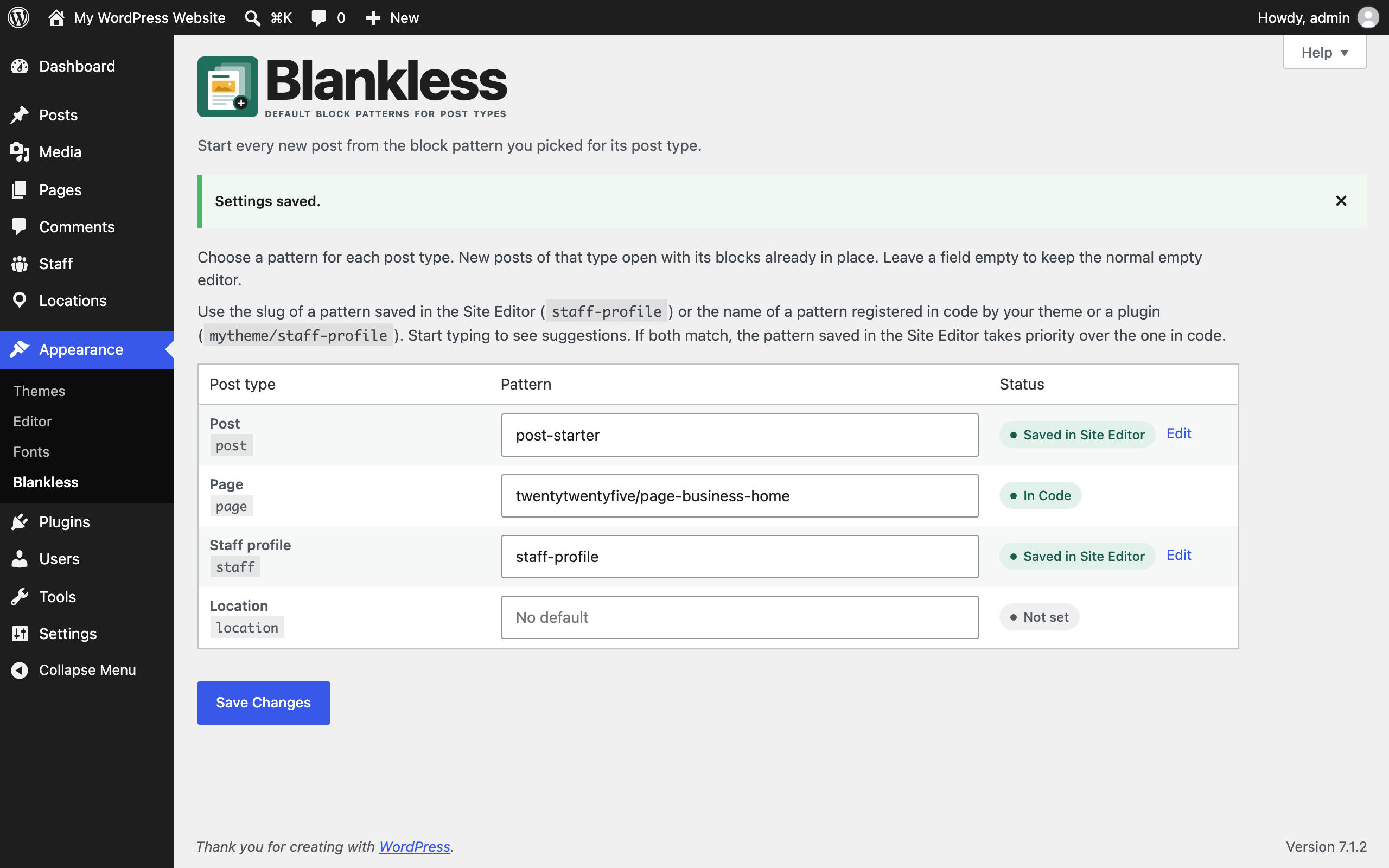
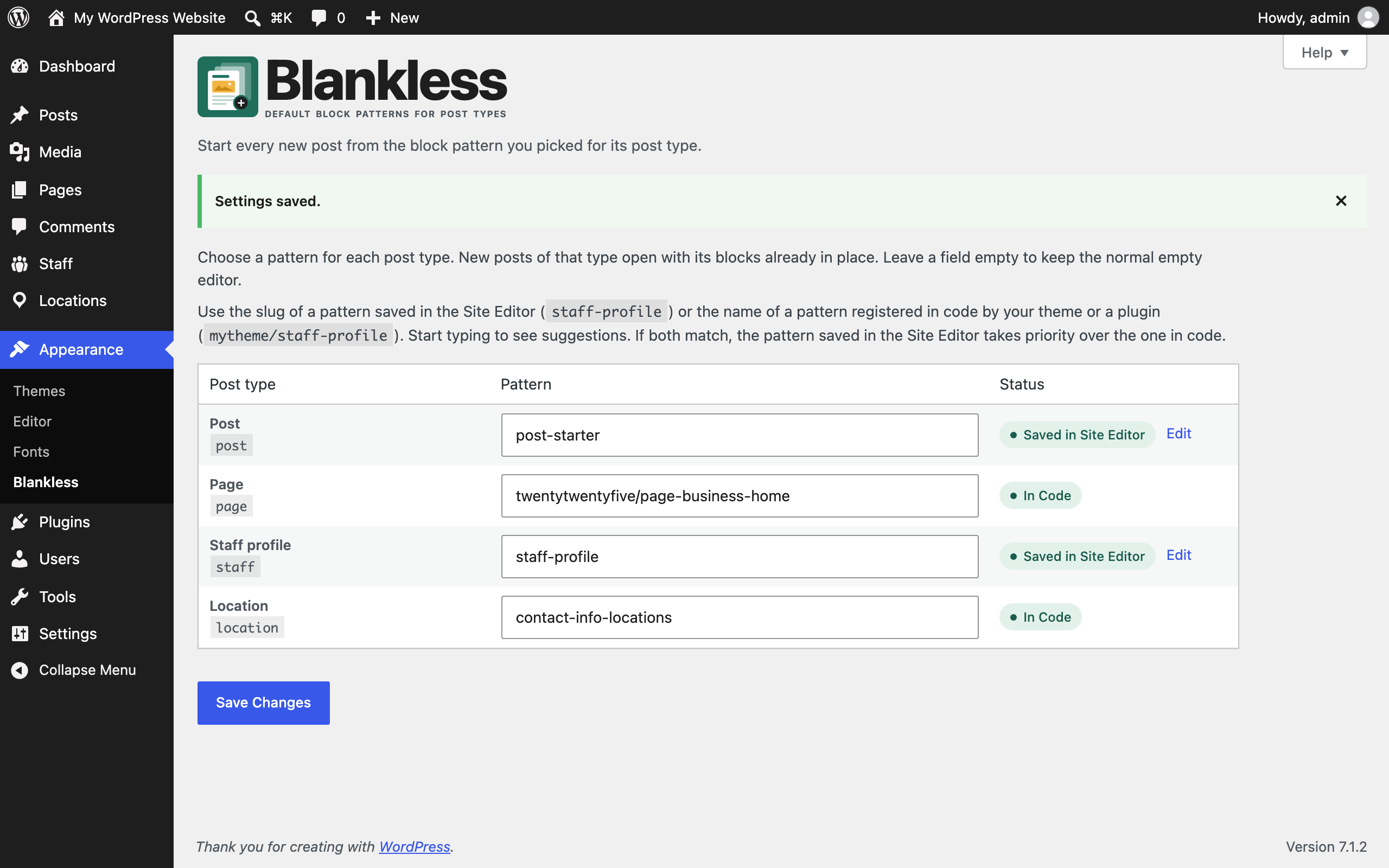
- Pick it for a post type. Go to Appearance → Blankless and enter the pattern's slug next to Posts, Pages or any custom post type. Start typing and the field suggests every pattern on the site. The Status column confirms each one is found.
- Add New starts from it. Create a new post of that type and the editor opens with the pattern's blocks already in place, ready to edit.
- One settings screen under Appearance → Blankless lists every public post type, including custom post types
- Set a different pattern for posts, pages and each custom post type, or leave one blank to keep the empty editor
- No theme code,
block.jsonmetadata or template changes required
- Use patterns you saved in the Site Editor (Saved Patterns)
- Use patterns registered by your theme's
/patternsfolder or by a plugin - Reference a registered pattern by its full name (
mytheme/staff-profile) or just the part after the slash (staff-profile) - Slug fields suggest every pattern on the site as you type
- A status column shows whether each slug matches a Saved Pattern, a registered pattern, or nothing
- If a slug stops matching, for example after a theme switch, new posts open empty rather than breaking
- Only fills posts that start out empty, so content passed in another way is kept
- Draft and unpublished Saved Patterns are ignored
- Only administrators can change the settings
- No front-end code, no external requests and no tracking. The plugin stores one option and removes it when you delete the plugin
- The Saved Pattern linked when the settings were saved
- A pattern registered in code whose full name matches
- A pattern registered in code whose name ends with the slug
staff-profile, then save the settings.
How it differs from core starter patterns
WordPress can already offer "starter patterns" when you create a new page. Those are useful, but they work differently:
- Core asks the writer to choose a pattern each time. This plugin applies the one the administrator picked, automatically.
- Core only offers patterns that declare the
core/post-contentblock type, and by default only for pages. This plugin works with any pattern and any public post type. - Core's list comes from registered patterns. This plugin also works with Saved Patterns made in the editor, with no code.
- Support: ask questions and report problems in the support forum.
- Contribute: the code lives on GitHub. Bug reports and pull requests are welcome in the issue tracker.
安装:
- Install the plugin from Plugins → Add New Plugin by searching for "Blankless", or upload the
blanklessfolder to/wp-content/plugins/. - Activate the plugin through the Plugins screen.
- Go to Appearance → Blankless.
- Enter a pattern slug next to each post type you want to pre-fill. The field suggests available patterns as you type.
- Save, then check the Status column. A green tick means the slug matched a pattern.
- Create a new post of that type to see the pattern in the editor.
屏幕截图:


常见问题:
Where do I find the pattern slug?
Start typing in a slug field on the settings screen. It suggests every published Saved Pattern and every registered pattern on the site.
A Saved Pattern's slug is its post slug, usually its title in lowercase with hyphens. A registered pattern's slug is its registered name, such as mytheme/staff-profile, or just staff-profile.
What do "Saved in Site Editor" and "In Code" mean?
They show where the matched pattern lives. "Saved in Site Editor" means it was made in WordPress and saved on your site, under Appearance → Editor → Patterns (or Appearance → Patterns with a classic theme, where it reads "Saved in Patterns"). Click Edit next to it to open that pattern. "In Code" means the pattern comes from your theme's or a plugin's files, so it's changed there rather than in WordPress.
What if a Saved Pattern and a registered pattern share a slug?
The pattern saved in the Site Editor takes priority over the one in code, as long as it was published when you last saved the settings. Otherwise the pattern in code is used.
Does this work with custom post types?
Yes. Every public post type appears in the settings table, except Media and Patterns themselves.
What happens if the slug doesn't match any pattern?
New posts open with the normal empty editor, as if the plugin weren't there. The Status column shows "Pattern not found" so you can spot the problem.
Will it overwrite content that is already there?
No. It only fills new posts that start out empty. Existing posts are never changed.
I use a synced pattern. Will later edits to it update my posts?
No. The plugin copies the pattern's blocks into each new post as a starting point. Changing the pattern later affects posts created after the change, not ones that already exist.
Why doesn't the "Choose a pattern" window appear anymore?
WordPress only shows that window for empty new posts. Once a post type has a default pattern, its new posts aren't empty, so the window stays closed. Clear the slug for that post type to get it back.
Who can change the settings?
Administrators, or any role with the manage_options capability.
Does it work with the Classic Editor?
It works, but patterns are block markup, so the Classic Editor shows the raw HTML and block comments. The plugin is meant for the block editor.
Does it work on multisite?
Yes. Each site has its own settings. Deleting the plugin removes the setting from every site in the network.
What does the plugin store, and what happens when I delete it?
It stores a single option, blankless, holding each post type's slug and, for Saved Patterns, the ID of the pattern it's linked to. Deleting the plugin from the Plugins screen removes that option. Your patterns and posts are not touched.
更新日志:
- Settings screen under Appearance to set a default block pattern for each public post type
- Supports Saved Patterns and patterns registered by themes and plugins
- Patterns saved in the Site Editor take priority over patterns in code with the same slug
- Saved Patterns are linked when the settings are saved, so a pattern published later with the same slug can't replace your choice
- Status column shows whether each slug matches a pattern
- Slug fields suggest available patterns as you type
- Only fills new posts that start out empty, and ignores unpublished Saved Patterns
- Settings link on the Plugins screen
- Removes its option on uninstall, including across a multisite network