Checkout Shield for WooCommerce – Stop Fake Orders, Spam Bots & Card Testing
| 开发者 |
carticy
alikhallad freemius |
|---|---|
| 更新时间 | 2026年11月17日 04:40 |
| 捐献地址: | 去捐款 |
| PHP版本: | 8.0 及以上 |
| WordPress版本: | 7.1 |
| 版权: | GPLv2 or later |
| 版权网址: | 版权信息 |
详情介绍:
- Catches what CAPTCHA misses: stops bots that submit checkouts directly, without asking shoppers to prove anything
- Never blocks your customers by mistake: it only starts once it has seen a real checkout on your store work, and if your theme ever stops carrying the proof it notices, keeps letting real shoppers through, and tells you what to fix
- Works with any caching: LiteSpeed, Cloudflare, WP Rocket and W3TC, with no conflicts or exclusions
- Nothing to configure: no rules to write and no thresholds to tune
- No external services: every check runs on your own server, with no third-party API and no subscription
- Adds milliseconds: the check is local, with no third-party call to wait on
- Checkout protection: blocks scripted submissions on classic and block checkout, with every payment gateway
- Automatic arming: switches itself on once it has seen one checkout on your store work
- 4 protection levels: Learning, Permissive, Balanced and Strict, so you choose how strict to be
- Card testing alerts: an admin notice and dashboard report when payments keep failing from one checkout visit, with an optional limit that turns that visit away
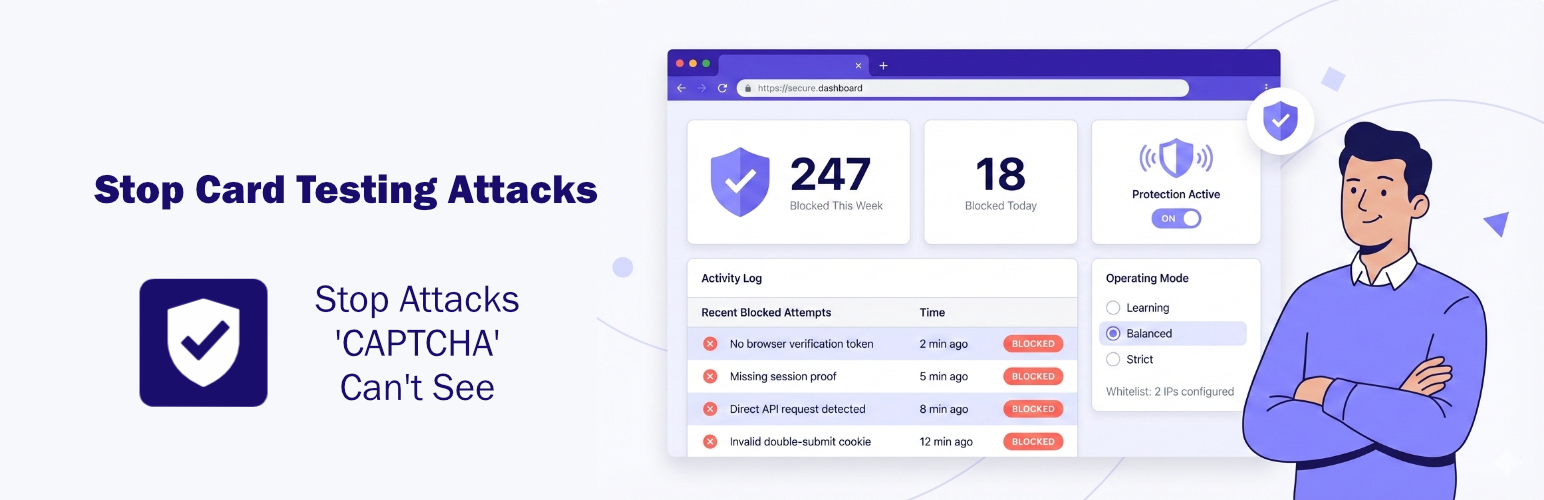
- Checkout Shield screen: a live overview of whether you're protected and how many attempts were stopped in the last 24 hours, the last 30 days and since you installed it
- Dashboard widget: blocked vs verified orders at a glance, with a 7-day chart
- Order status column: see whether each order passed the check, came from a trusted source, or arrived while protection was learning
- IP whitelist: let trusted addresses through, with CIDR support
- API key authentication: for headless and custom checkout setups
- HPOS compatible: works with High-Performance Order Storage
- WooCommerce logging: full integration with WooCommerce Status logs
- Sign-up protection: the same no-CAPTCHA proof on your My Account and WordPress registration forms, so scripts can't create fake accounts. It only starts blocking once it has seen a real sign-up come through your own form, so a custom sign-up form is never affected
- Saved payment method protection: only customers with a paid order or a subscription can add a card from My Account, with a limit on tries per account and per address. It stops the card check itself with Stripe, WooPayments and PayPal, and checkout is untouched
- Throwaway email blocking: rejects known disposable inboxes at checkout and at sign-up, from a domain list the plugin keeps up to date
- Auto-ban repeat offenders: once switched on, a source that keeps failing payments or keeps trying cards is blocked for a while, then released on its own
- Customer blocklist: block by email, name, address and postcode, phone, or IP, or straight from any order screen
- Live attack timeline: every blocked attempt as it arrives, with where it hit, why it was stopped, and a masked email and IP
- One-click protection test: fire the real card testing request at your own store and watch it get blocked, with no order created
- Logging control: log nothing, blocked attempts only, or everything, including the email and payment method bots tried to use
- Automatic CDN/proxy detection: reads real visitor IPs behind Cloudflare, Sucuri, or Akamai
- Stronger permissive mode: tighter checks using the referrer and user-agent
安装:
- Upload the plugin files to
/wp-content/plugins/carticy-checkout-shield-for-woocommerce/, or install it from Plugins, Add New - Activate the plugin through the 'Plugins' menu in WordPress
- Open your own checkout page and submit it once
- WordPress 6.0+
- WooCommerce 8.0+
- PHP 8.0+
屏幕截图:


常见问题:
Why didn't my CAPTCHA stop these bots?
A CAPTCHA protects the checkout page. Card testing bots skip the page and send their requests straight to WooCommerce, so the CAPTCHA is never shown to them. Checkout Shield checks the request itself, so it catches them whichever way they come in.
Does it protect my checkout form, or only the API?
Both. Classic checkout and block checkout send orders to WooCommerce in different ways, the classic form handler and the Store API, and Checkout Shield checks both. What decides whether a submission is blocked is whether it loaded your checkout page, not which route it took.
Will this block real customers?
It is built so it cannot. Before blocking anything it waits until it has seen a checkout on your store carry its proof successfully. After that it watches its own proof: if a theme update or a page builder ever rebuilds your checkout so the proof stops rendering, the plugin notices on its own, keeps letting real shoppers through on the cookie their browser holds, and shows you an admin notice saying exactly what to fix, while your store keeps selling. If you want to watch first, Learning mode logs what would be blocked without blocking anyone. The Pro protections are built the same careful way. Sign-up protection waits until it has seen a real sign-up come through each of your forms before it blocks anything there. Saved payment method protection never touches checkout, and customers who have ordered before can save cards in My Account as usual. Auto-banning is off until you turn it on, never touches a whitelisted address, and every ban expires by itself.
I'm still getting card testing or spam orders. Why?
Two causes, and the dashboard tells you which one you have. Something is reusing one checkout visit. It loaded your checkout page for real and is reusing the proof it was given. That proof is valid, so this plugin passes it, exactly as it would for a shopper retrying a declined card. Look at "Repeated payment failures from one checkout visit" on the dashboard widget: several failures against a single visit inside a day is what card testing looks like. Open Checkout Shield, then Settings, to set a limit that turns those submissions away, and in Pro have the source IP banned for a while once it does. A bot mitigation service in front of the site is the layer that stops them arriving at all. The orders were never placed through your checkout. If someone has gained access to your WordPress they can create orders directly, and no plugin that checks checkout submissions can see that happen. Signs worth checking are administrator accounts you do not recognise, posts you did not publish, and recently modified plugin or theme files. Neither case means protection is off. The Checkout Shield screen shows what it is stopping.
I sent a test bot request and it went through. Is it broken?
Almost certainly not. Protection stays inactive until one checkout on your store has been seen working, so a test request sent before that will pass. Open your own checkout page and submit it once, then try your test again. The Checkout Shield screen says which state the store is in.
Does this slow down checkout?
No. The check runs locally in microseconds. There are no external API calls and nothing to wait on.
What about PayPal, Stripe, and other payment gateways?
Every gateway works normally at checkout. The plugin checks the checkout submission, not the payment confirmation that comes back from the gateway.
Apple Pay and Google Pay buttons from Stripe and WooPayments also work on product and cart pages. Those orders skip the checkout page entirely, so Checkout Shield accepts the gateway's own security token in place of its proof, and still counts their failed payments toward your repeated-failure limit. If another gateway's express buttons place orders from those pages, a developer can add it with the carticy_checkout_shield_express_checkout_nonces filter.
Do I still need CAPTCHA?
Up to you. Checkout Shield catches the bots CAPTCHA misses. You can use both, or drop CAPTCHA from checkout to make buying easier for real customers.
I run a headless store. Will this break my setup?
Not if you configure it. Add your frontend's server IP to the whitelist, or use API key authentication. Both let legitimate automated requests through.
How do I know it's working?
Open the Checkout Shield menu. The Overview shows whether protection is armed and how many attempts it has stopped in the last 24 hours, the last 30 days, and since you installed it, updating as they happen. The dashboard widget counts what happened three ways: blocked, passed, and not checked. "Not checked" means a submission was let through because the check was not yet trustworthy, kept separate from "passed" so a bot-shaped request is never counted as a happy customer. In Pro, the Activity tab lists each blocked attempt as it lands, and the Protection Test fires a real one at your own store so you can watch it get stopped. For the raw detail, go to WooCommerce, Status, Logs, and filter by "carticy-checkout-shield".
What does Pro add?
The free plugin protects your checkout, and that is where card testing starts. Pro protects the other places bots attack: sign-up forms, and the saved payment method form in My Account that card testers turn to once checkout is locked. It also bans repeat offenders automatically, blocks throwaway email addresses, keeps a customer blocklist, and shows every blocked attempt as it happens. The full list is under Pro features above.
Does Pro protect My Account, Add payment method?
Yes. Card testers register throwaway accounts and try one stolen card per account through this form, which gets past WooCommerce's own per-account limit. With saved payment method protection, only customers who have placed a paid order, or who have a subscription, can add a payment method there, so subscribers can always replace a card before a renewal. Everyone else sees a short message that they can save a card at checkout, in place of the form. Each account and each address also gets a limited number of tries.
The check runs where the card is actually verified. Stripe, WooPayments and PayPal check the card with the processor before WooCommerce's form is submitted, so Checkout Shield stands in front of those requests too. Gateways that use WooCommerce's standard form are covered as well. A developer can add another gateway with the carticy_checkout_shield_payment_method_endpoints filter. Store managers and whitelisted IPs are never affected.
Which sign-up forms does Pro protect?
The WooCommerce My Account registration form and the WordPress registration form (wp-login.php). Creating an account during checkout is part of checkout, so it is protected there in both free and Pro. Multisite sign-up (wp-signup.php) is not covered. A custom sign-up form that doesn't run WooCommerce's or WordPress's form hooks never carries the proof, so sign-up protection never arms there and never blocks it. The one setup to watch is a store offering both WooCommerce's own form and a separate custom form that submits to WooCommerce: once the standard form arms, sign-ups through the custom form would need the proof too. If that's you, switch sign-up protection off under Checkout Shield, Settings.
I updated Pro from an earlier version. Is sign-up protection on?
Updates never change a protection you were already running with. Sign-up protection is on by default for new installs; if you updated, it stays as it was, and you can switch it on under Checkout Shield, Settings. Saved payment method protection is new in 1.5.0, so there was no earlier setting to keep: it is on after the update, and you can switch it off in the same place.
更新日志:
- Fix: Apple Pay and Google Pay orders placed from product and cart pages with Stripe or WooPayments are no longer turned away on stores that use block checkout.
- New: The overview now shows how many attempts have been blocked since you installed the plugin.
- Pro: Saved payment method protection. Throwaway accounts can no longer test cards through My Account, Add payment method: only customers with a paid order or a subscription can add a card there, with a limit on tries per account and per address. Works with Stripe, WooPayments, PayPal, and gateways that use WooCommerce's standard form. Checkout is untouched. It is on after updating; you can switch it off under Checkout Shield, Settings.
- Pro: Blocklisted customers, by email or IP, can no longer save cards in My Account either.
- Pro: Sign-up protection is now on by default for new installs, and only starts blocking once it has seen a real sign-up come through your own form, so a custom sign-up form is never affected. Existing stores keep their current setting.
- Pro: An address that keeps trying cards across accounts can now be auto-banned, alongside repeated checkout failures.
- Pro: Turning off "Enable protection" now pauses sign-up and saved payment method protection too, so one switch stops everything while you troubleshoot.
- Fix: The throwaway email and automation user-agent settings now always behave the way the settings screen shows them.
- Updated Freemius SDK to the latest version.
- New: a dedicated Checkout Shield screen that gathers the overview, activity, settings, and blocklist into one place, so protection is no longer tucked away under WooCommerce settings.
- New: a live overview that shows whether you're protected and how many attempts have been stopped in the last day and month, updating as they arrive.
- Pro: a live attack timeline that lists each blocked attempt as it lands, with the surface it hit, why it was stopped, and a masked email and IP.
- Pro: a protection test. One button sends the real card-testing request at your own store and shows you it was blocked, with no order ever created.
- Pro: automatic, time-limited IP banning for a source that keeps failing payment on a single checkout visit. It is off until you enable it, only acts past a limit you set, never bans a whitelisted address, and every ban releases itself.
- Pro: registration protection that extends the same no-CAPTCHA proof to your sign-up forms, alongside throwaway-email blocking and per-IP rate limiting, to stop the fake accounts that tend to come before fraud.
- Pro: throwaway and disposable email blocking at checkout, using a domain list the plugin keeps up to date for you.
- Improved the reliability of automatic protection under sustained bot traffic.
- Reduced checkout-path database writes for better performance on busy stores.
- Added a dashboard view of repeated payment failures from a single checkout visit, a common sign of card testing.
- Added an optional limit to turn away checkout visits whose payments keep failing.
- Clearer dashboard status for new stores, with a separate count for submissions that were not checked.
- Stronger, site-signed checkout proof for more accurate bot detection.
- Fewer false positives for cookie-blocked browsers, multiple tabs, and idle checkout pages.
- Full support for classic and block checkout, and for paying from emailed order links.
- Automatic pause with an admin notice if proof stops reaching your checkout, resuming on its own.
- Minor fixes to admin labels and placeholders (Pro).
- Default mode is now Balanced.
- Added logging controls, a recent-blocks feed, CDN/proxy detection, and enhanced permissive mode (Pro).
- Initial release.