
Cuenti Pay
| 开发者 | juandaviddavila |
|---|---|
| 更新时间 | 2026年11月27日 04:48 |
| PHP版本: | 7.4 及以上 |
| WordPress版本: | 7.1 |
| 版权: | GPLv2 or later |
| 版权网址: | 版权信息 |
详情介绍:
- An order is marked paid only after the store reads the link status from Cuenti Pay. The signed notice (webhook) from Cuenti Pay only tells the store which link to check; neither that notice nor the customer coming back to the store marks anything on its own.
- If the link expires or is cancelled without a payment, the order is cancelled with a note. While a payment is in progress, the order waits.
- If the amount paid does not match the order, the order is put «On hold» with a note for you to review.
- If the customer pays an order again, the store checks the previous link first, so the same order is not charged twice. If two payments still arrive for one order, the order is put «On hold» with a note.
- A test-mode payment puts the order «On hold» with a note saying no real money was received.
- Currencies: COP or USD, the one chosen when you connect.
- Limits: each connection has a maximum amount per order and per day, shown in the settings. When the cart total is above the maximum per order, Cuenti Pay is not offered at checkout.
- Works with the classic checkout, the Cart and Checkout blocks, and High-Performance Order Storage (HPOS).
安装:
- In WordPress, go to Plugins > Add New, search for «Cuenti Pay», then install and activate it. You can also upload the zip in Plugins > Add New > Upload Plugin.
- Make sure pretty permalinks are on (Settings > Permalinks, any option except «Plain»). Cuenti Pay checks that your store answers at its address while you connect, and uses them to notify payments right away.
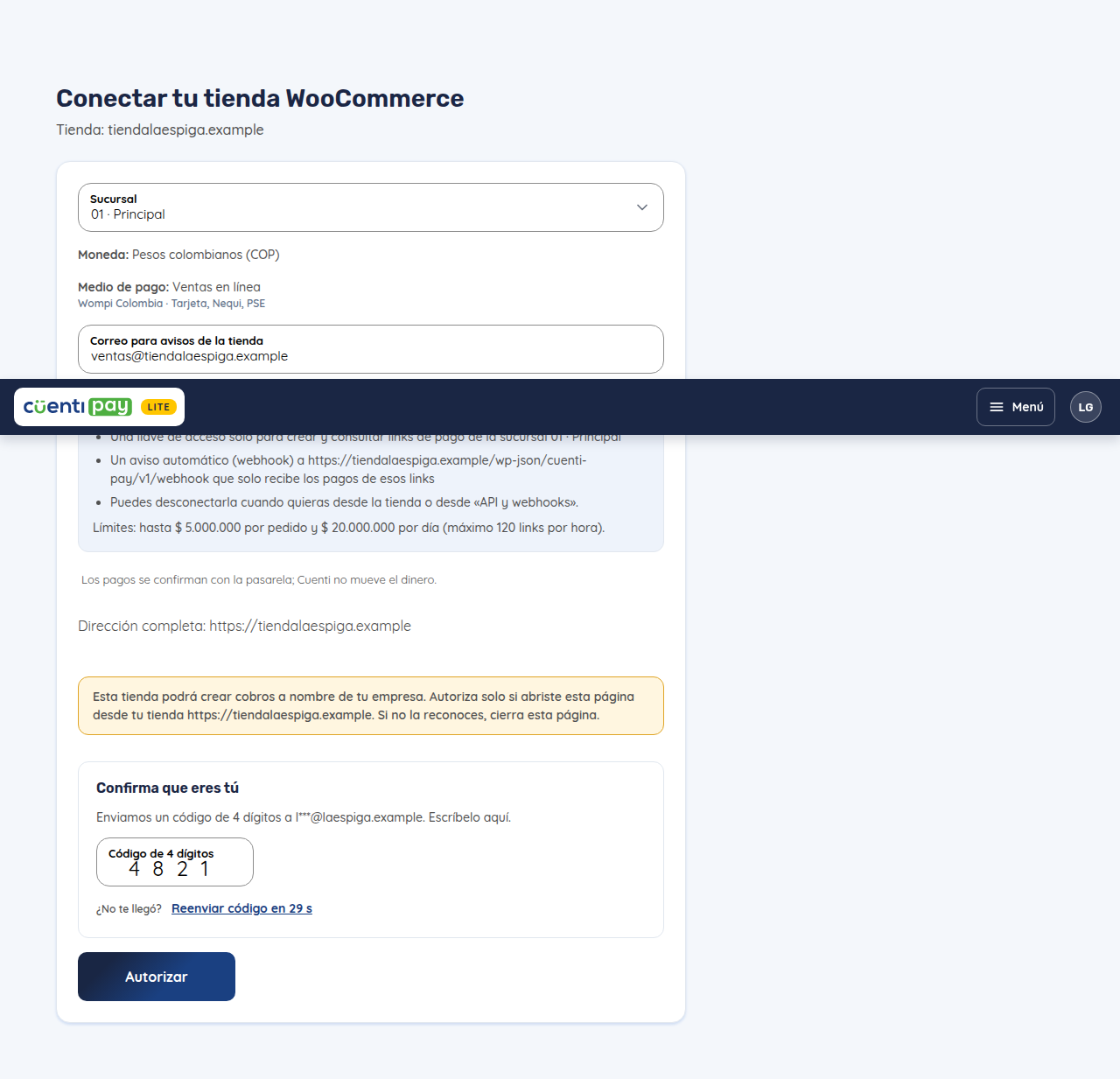
- Go to WooCommerce > Settings > Payments > Cuenti Pay and click «Conectar con Cuenti» (Connect with Cuenti). Sign in to Cuenti Pay, choose the branch, enter the code sent to your e-mail and authorize. Done.
屏幕截图:


常见问题:
Do I need to copy keys or tokens?
No. When you authorize, Cuenti Pay creates the connection and the store saves it encrypted. Keys are never shown.
How does Cuenti Pay know the store is mine?
The store creates a secret code that never leaves your server. Before handing over the connection, Cuenti Pay asks the store to prove it holds that code. If the store does not answer (for example, it cannot be reached from the internet), no connection is created and you connect again.
Who processes the payments?
Your own payment gateway account (Wompi Colombia, Wompi Panama or Yappy) connected in Cuenti Pay. Cuenti Pay creates the payment link and reads its status; it does not receive or hold the money.
The store says the connection is no longer valid
The connection was revoked in Cuenti Pay, or the WordPress security keys changed. Click «Conectar con Cuenti» again.
How do I disconnect the store?
In WooCommerce > Settings > Payments > Cuenti Pay, click «Desconectar» (Disconnect). Cuenti Pay revokes the connection and the store forgets it. Deleting the plugin also tries to revoke the connection in Cuenti Pay.
Why does the checkout show «Cuenti Pay · Yappy» and «Cuenti Pay · Tarjeta» instead of «Cuenti Pay»?
Since 1.3.6 each method your connection offers (Yappy, cards) is its own entry at checkout. To also show «Cuenti Pay» with every method, turn on «Mostrar también Cuenti Pay con todos los medios» in WooCommerce > Settings > Payments > Cuenti Pay > Opciones avanzadas. A store connected with a version before 1.3.0 needs to connect again to see the separate methods.
Can I refund from WooCommerce?
No. Refunds are made outside Cuenti Pay.
更新日志:
- The checkout shows «Cuenti Pay · Yappy» and «Cuenti Pay · Tarjeta» as separate methods when your connection offers them; each opens a link with only that method (Clave is offered inside «Cuenti Pay · Tarjeta»). The general «Cuenti Pay» is hidden then, unless you turn on «Mostrar también Cuenti Pay con todos los medios». Classic and block checkout.
- New payment methods «Cuenti Pay · Yappy», «Cuenti Pay · Tarjeta» and «Cuenti Pay · Clave», never shown at checkout: a paid order moves to the one that paid it, so accounting systems can map each method to its bank. The checkout keeps one «Cuenti Pay».
- The paid order now shows which method was used: its payment method reads «Cuenti Pay · Yappy», «Cuenti Pay · Tarjeta» or «Cuenti Pay · Clave», and the order keeps it in the meta
_cuenti_pay_method(code) and_cuenti_pay_method_label(name) for accounting systems.
- Fix: on a new store, connecting with Cuenti now leaves Cuenti Pay enabled at checkout (before, it appeared only after pressing «Save changes» once). A merchant who turned it off keeps it off.
- Admin notices appear only on the Plugins screen and the WooCommerce settings, never on the dashboard.
- Prepared for the WordPress.org directory: readme in English, direct access protection in every file, WordPress URL parsing, «Tested up to» 7.1.
- The description shown to the customer names only the payment methods of your connection. A description you wrote yourself is never changed; on disconnect a generated description goes back to a general text.
- An order is no longer cancelled while its payment is in progress.
- Cancelling an order in WooCommerce cancels its payment link.
- A payment that arrives after the order was cancelled puts the order «On hold» with a note.
- After reconnecting the store, an order with a link of the previous connection does not get a second link.
- The 5-minute check uses the link's date and includes cancelled orders that have a link.
- Stronger connection: PKCE code and a check that the store answers at its address.
- The store key and the webhook secret are stored encrypted.
- The notice from Cuenti Pay only says which link to check; the order is decided by reading the link.
- An order keeps all its links, and a second payment puts the order «On hold» for review.
- Cuenti Pay is hidden when the cart is above the maximum per order.
- The settings show the limits per order and per day.
- Deleting the plugin revokes the connection in Cuenti Pay.
- First version: one-button connection, payment link when the order is placed, signed webhook and a status check every 5 minutes.