
Deadbolt — Restricted Page Templates
| 开发者 | apos37 |
|---|---|
| 更新时间 | 2026年11月6日 02:33 |
| PHP版本: | 8.0 及以上 |
| WordPress版本: | 7.1 |
| 版权: | GPLv2 or later |
| 版权网址: | 版权信息 |
详情介绍:
- Member-only areas: keep pages for logged-in users and point everyone else to log in or register, without setting up a full membership plugin.
- Staff portals and intranets: limit internal pages, documents and menus to certain roles or specific employees.
- Client portals: give each client pages that only their user accounts can open.
- Schools, training and course sites: show lessons and resources only to enrolled roles, with a clear message for everyone else.
- Nonprofits, associations and local government: keep board, volunteer or staff resources private on an otherwise public site.
- Campaigns and partner links: open landing pages only to visitors who arrive from your email, QR code or partner link, using a URL Parameter rule.
- Sites with logged-out-only pages: send logged-in users away from login, registration or signup pages with a friendly message.
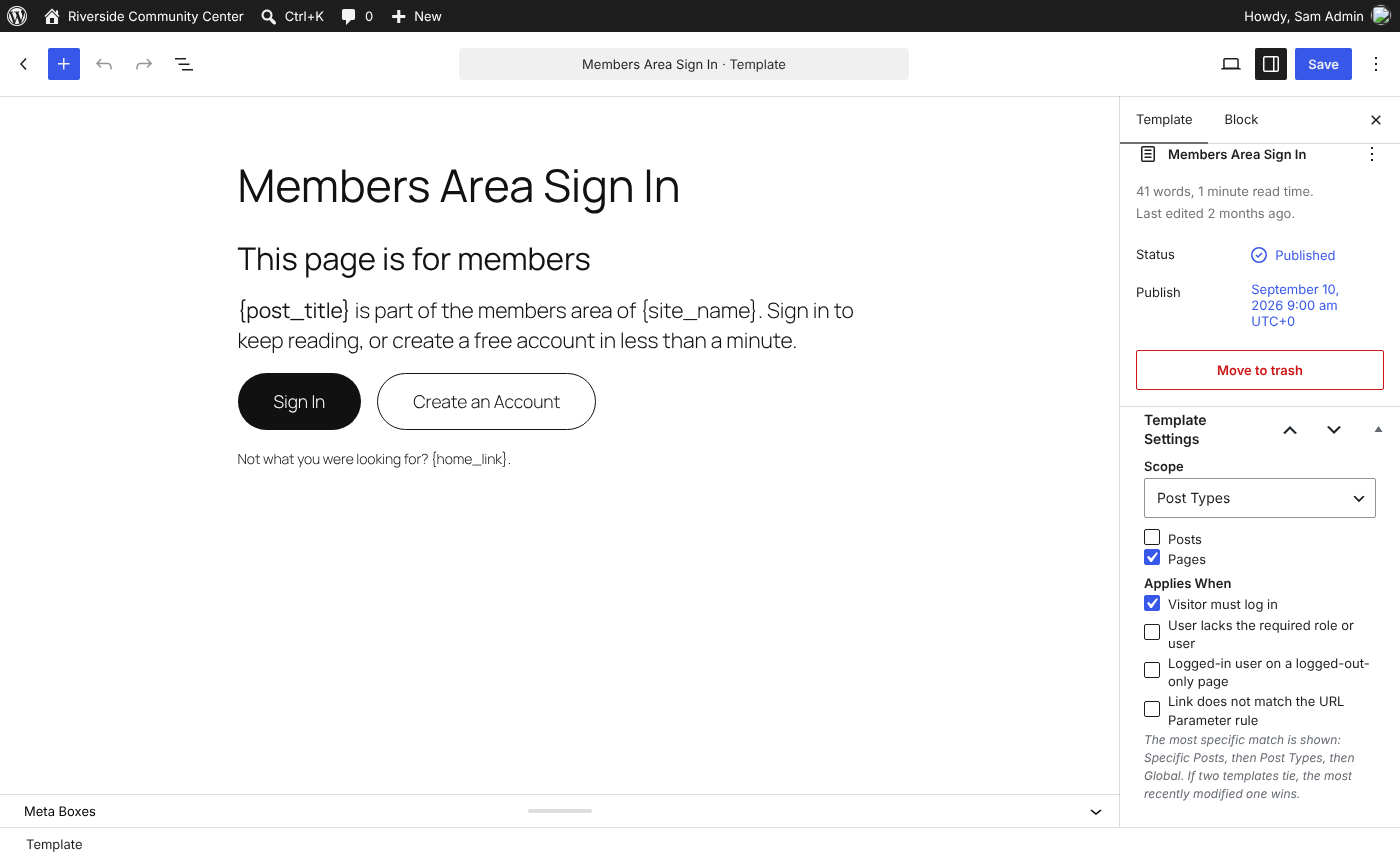
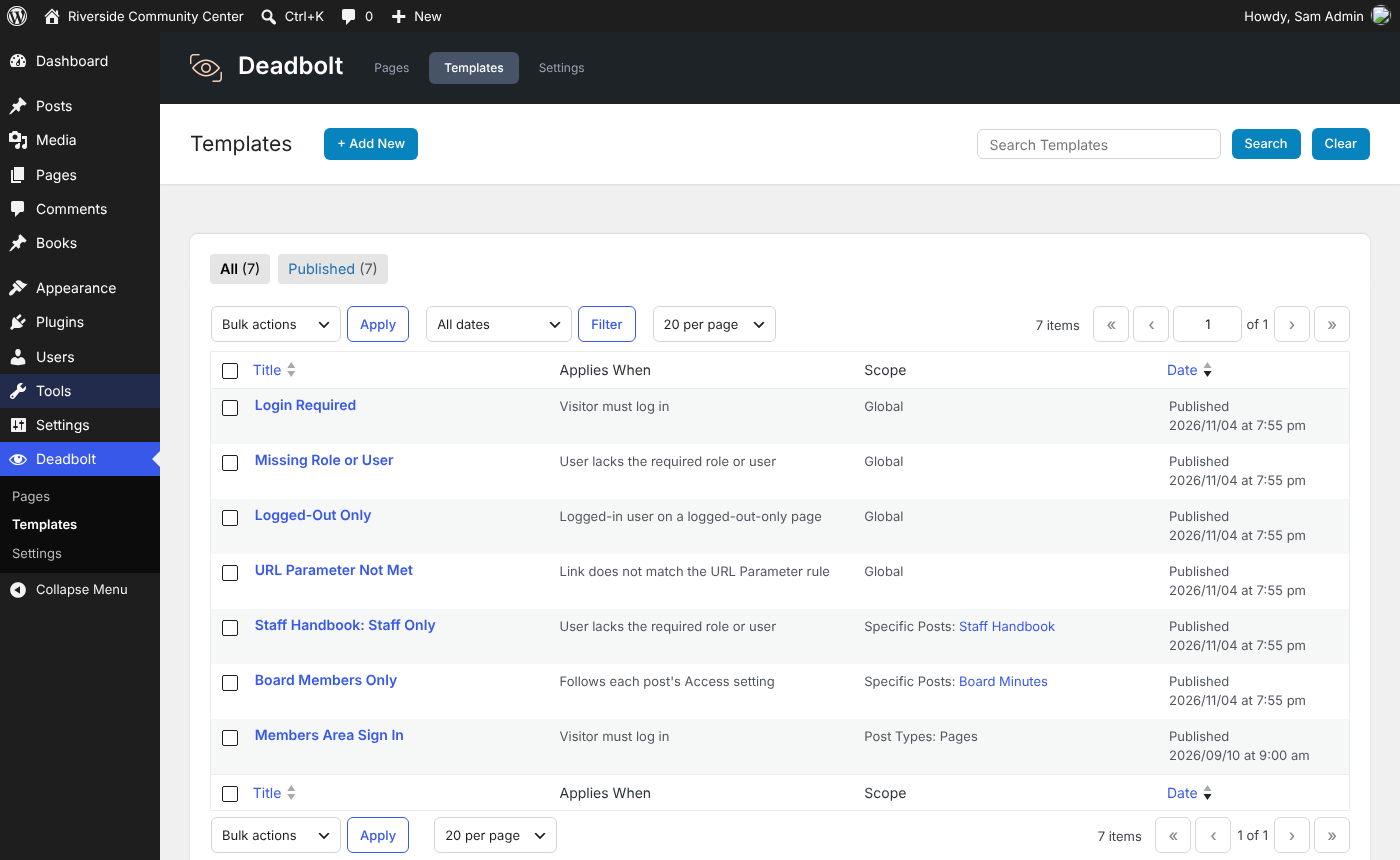
- Write a template for each situation: the visitor needs to log in, the user lacks the required role or user access, a logged-in user opened a page meant for logged-out visitors, or the link does not match the page's URL Parameter rule.
- Choose where it applies: use a template everywhere, for certain post types, or for specific posts and pages.
- Templates for specific posts follow each post's Access setting: they show to whoever that post blocks, or you can limit them to certain situations.
- The best match wins: a template for a specific post beats one for the post type, which beats a global one. If two tie, the most recently edited one is used.
- Merge tags: drop in login, logout, register, retry and homepage links or URLs, the title and URL of the restricted page, the roles that can view it, the visitor's name and the site name. Tags also work inside link and button URLs, and visitors return to the page they wanted after logging in.
- See what visitors will see: the Access box lists the templates in use and updates as you change the access, before you save. Optionally list them in the post list's Access column too, with unique templates marked.
- Safe defaults: four ready-made templates are created for you, and a built-in message is used whenever no template matches.
- Per post: Everyone, Logged-In Only, Logged-Out Only or URL Parameter, from a box on the edit screen, Quick Edit or Bulk Edit.
- By role or by user: limit "Logged-In Only" content to certain roles, to specific users, or to both.
- By URL parameter: let anyone view the content when the link they arrive with matches a rule: a parameter is, is not, contains, does not contain, starts with, ends with, is greater than or is less than a value. A missing parameter counts as empty, so "id is not" with no value only opens the page for links that carry an id.
- Post type defaults: choose which post types have access controls and the access their content uses unless a post says otherwise.
- Administrator bypass: optionally let administrators view everything.
- Archives, the blog page and post lists, including Query Loop blocks and most page builder widgets
- Search results
- RSS feeds
- The REST API
- XML sitemaps from WordPress, Yoast SEO, Rank Math, All in One SEO and SEOPress
- Previous and next post links
- Navigation menus, in Appearance > Menus and in the Navigation block, where items linking to content can simply match that content's access
- Access control without the extras: no payments, subscriptions, profiles or member directories to set up, maintain or slow your site down. Just who can view what, and what they see when they can't.
- Access rules are kept in one cached index, so hiding content adds no post meta joins to your queries.
- Scripts and styles only load on the screens that use them.
- No extra database tables, no external requests and no upsells.
安装:
- Install the plugin from Plugins > Add New, or upload the
deadboltfolder to/wp-content/plugins/. - Activate the plugin through the Plugins screen.
- Go to Deadbolt > Settings and select or create your No Access Page. It must contain the
[deadbolt]shortcode - creating this page from Settings automatically adds the shortcode. - Under Post Types, enable the post types you want to control and choose their default access.
- Edit a post or page and choose who can view it in the Access box.
- Customize what blocked visitors see under Deadbolt > Templates.
- Check everything that is restricted under Deadbolt > Pages.
- ALWAYS test access to ensure it's working properly.
屏幕截图:


常见问题:
Why can visitors still view restricted pages?
Visitors are only redirected once a published No Access Page is selected under Deadbolt > Settings. Also check that the post type is enabled under Post Types.
How does the plugin choose which template to show?
When a visitor is redirected, the No Access Page looks at the restricted post, the link the visitor arrived with, and the reason they were blocked: they need to log in, they lack the required role or user access, they are logged in on a logged-out-only page, or their link does not match the page's URL Parameter rule. A template for that specific post wins over one for its post type, which wins over a global one. If nothing matches, a built-in default is used.
How does URL Parameter access work?
Choose URL Parameter as the access for a post, or as a post type's default, then enter a parameter name, a condition and a value. Visitors whose link matches can view the content, logged in or not, and everyone else is sent to the No Access Page and shown your "URL Parameter Not Met" templates. For example, "id is not" with no value requires links like ?id=123, while "ref is email" only opens the page from your email links. When hiding restricted content from archives, search, feeds, sitemaps and menus, links are checked without parameters, so the content is listed only if its rule matches an empty parameter. WordPress query names, such as p, s and page_id, can't be used.
Can I show a different message on one page?
Yes. In the Access box on that page, click "Create a unique template for this post". Alternatively, create a new template and choose "Specific Posts" as the Scope and choose the page you want. Then select "Follows each post's Access setting." You will still need to select the Access point on the page itself if you don't want it set to the default.
Which merge tags are available?
{login_link}, {login_url}, {logout_link}, {logout_url}, {register_link}, {register_url}, {retry_link}, {retry_url}, {home_link}, {home_url}, {post_title}, {post_url}, {required_roles}, {user_display_name} and {site_name}. The Merge Tags box on the template screen lists them all, and developers can add more with the deadbolt_merge_tags filter.
Will hiding restricted content work with my theme and plugins?
Restricted content is always protected when visited directly. The optional hiding features depend on how your theme and other plugins load content:
- Archives, search and feeds cover queries made through WordPress, including Query Loop blocks and most page builder widgets. Content loaded with custom database queries, or with
suppress_filtersturned on, is not affected. - Front-end AJAX requests, such as "load more" buttons, are not filtered by default. Developers can add
'deadbolt_context' => 'archives'to the query arguments to include them. - XML sitemaps are supported for WordPress core, Yoast SEO, Rank Math, All in One SEO and SEOPress. Other sitemap generators may still list restricted content. Remember to clear your SEO plugin's sitemap cache after changing access.
- Navigation menus work in Appearance > Menus and in the Navigation block. Menus built by page builders or other menu plugins may not be affected. The Customizer's menu editor does not show the visibility controls.
- Previous/next links work with WordPress functions and blocks. Themes that build these links with their own queries may still show restricted posts, but those posts are still protected when clicked.
Is the hiding feature fast on large sites?
Yes. Access rules are kept in a single cached index, so no post meta joins are added to your queries. For the best performance, restrict whole post types with the default access and allow exceptions per post, rather than restricting thousands of posts one by one.
Does it work with caching plugins?
Restricted pages redirect before any content is sent, and the No Access Page tells caching plugins not to cache it. If a page cache serves logged-out visitors, clear it after changing access rules.
What happens to my data when I delete the plugin?
Nothing is removed unless you check "Remove All Plugin Data on Uninstall" under Settings > Advanced.
Where can I request features and get further support?
We recommend using our website support forum as the primary method for requesting features and getting help. You can also reach out via our Discord support server or the WordPress.org support forum, but please note that WordPress.org doesn’t always notify us of new posts, so it’s not ideal for time-sensitive issues.
更新日志:
- Initial release.