
Progressive Web App - PWA, Web Push Notifications and Offline Mode
| 开发者 | devdiggers |
|---|---|
| 更新时间 | 2026年11月3日 19:48 |
| PHP版本: | 7.4 及以上 |
| WordPress版本: | 7.1 |
| 版权: | GPLv3 or later |
| 版权网址: | 版权信息 |
详情介绍:
- Full web app manifest control: name, short name, theme and background colour, display mode, orientation, scope, start URL, description and categories.
- Upload your own app icon set, including a maskable icon so Android does not crop your logo into a circle.
- Store screenshots for the richer, app store style install dialog Chrome shows when both a wide and a narrow screenshot are supplied.
- iOS splash screens, so the installed app does not open on a blank white screen, plus an iOS status bar style.
- An install banner with your own title, message, button label and colours, plus a [ddwppwa_install_button] shortcode for putting an install button in a page, post or widget.
- Optional campaign parameters on the start URL, so app launches can be told apart from ordinary visits in your analytics.
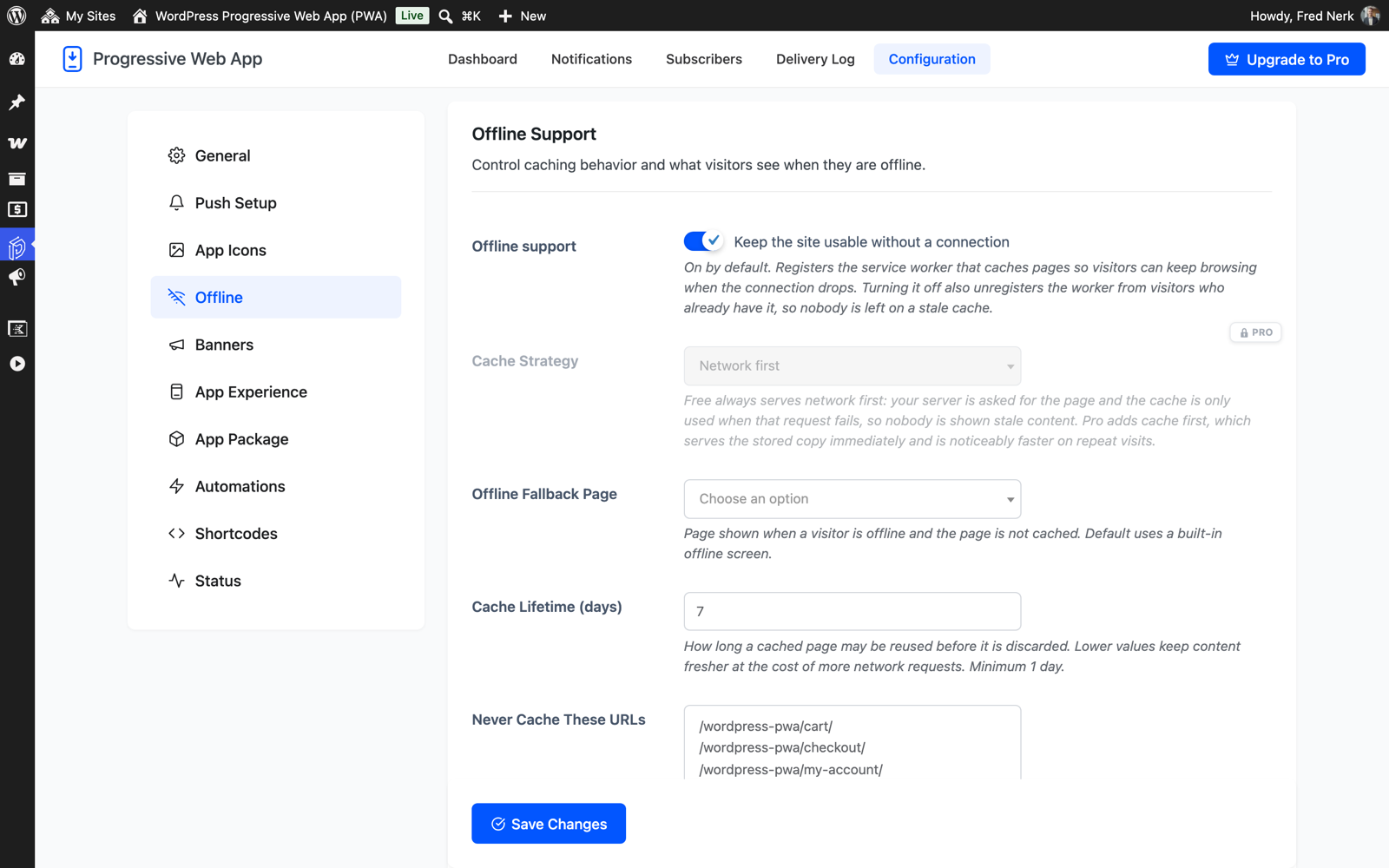
- Network first caching. A visitor with a connection always sees your current content, and the cache is only reached for when the network is not there.
- Set how long a cached page stays usable.
- Point the offline fallback at any page you have written, or use the built in offline screen.
- Keep pages out of the cache with a never cache list. Your cart, checkout and account pages are filled in for you, because a cached cart is a support ticket.
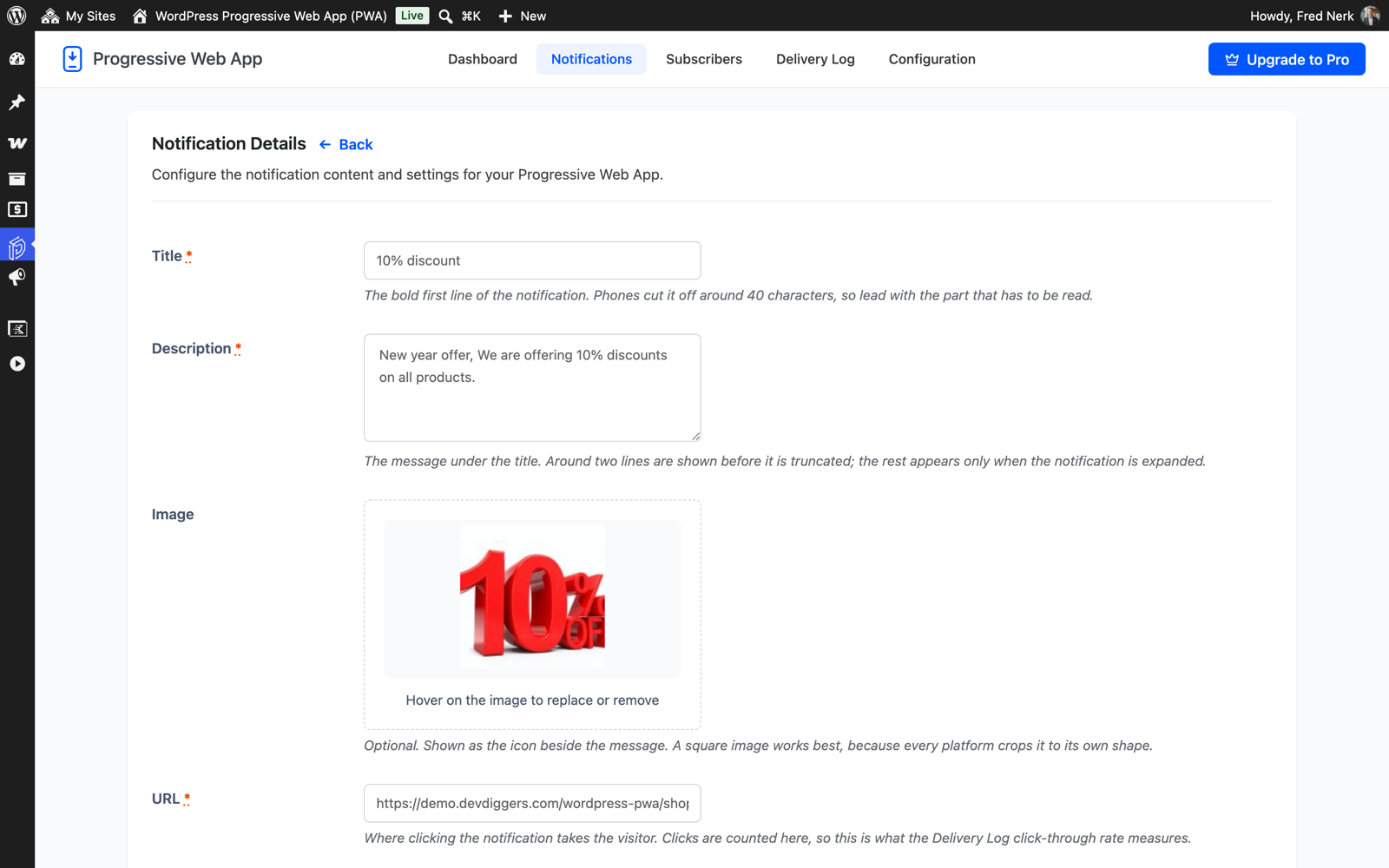
- Write a push notification with a title, message, image and click URL, then send it to everyone who subscribed.
- Send a quick push straight from any post with the Send Push box in the editor.
- Send a push automatically when you publish a new post, with a per post switch for the ones that should stay quiet, and placeholders for the title, URL, excerpt and site name.
- Welcome new subscribers with a one time notification.
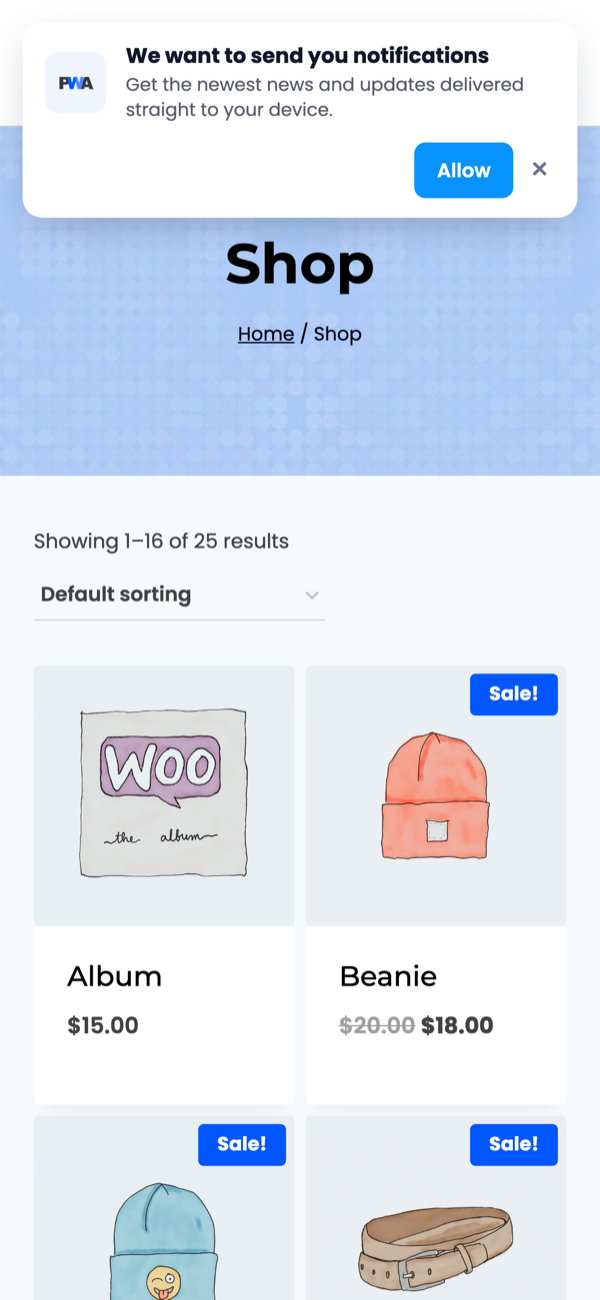
- Style the permission prompt with your own wording and colours, delay it by a number of seconds or page views, and exclude the pages where asking would be rude.
- A Test Notification button, so you find out your setup is wrong before your subscribers do.
- A [ddwppwa_subscribe_button] shortcode for asking permission from inside your content.
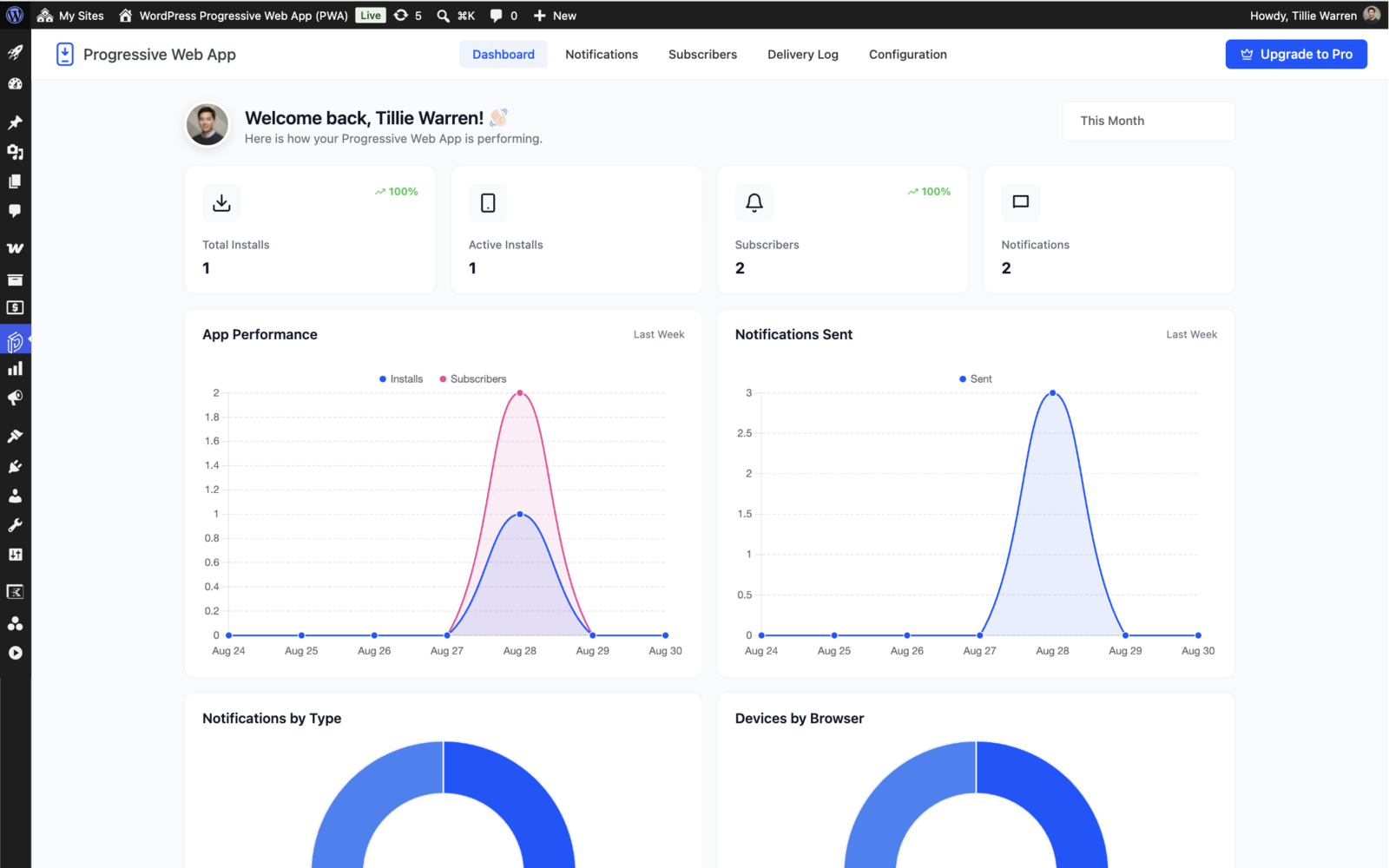
- A dashboard with total installs, active installs, subscribers and notifications sent.
- An app readiness score out of 100, worked out from the same checks as the Status tab, with whatever is holding it back listed underneath.
- Charts for app performance over time, notifications sent, notifications by type and which browsers your visitors are on.
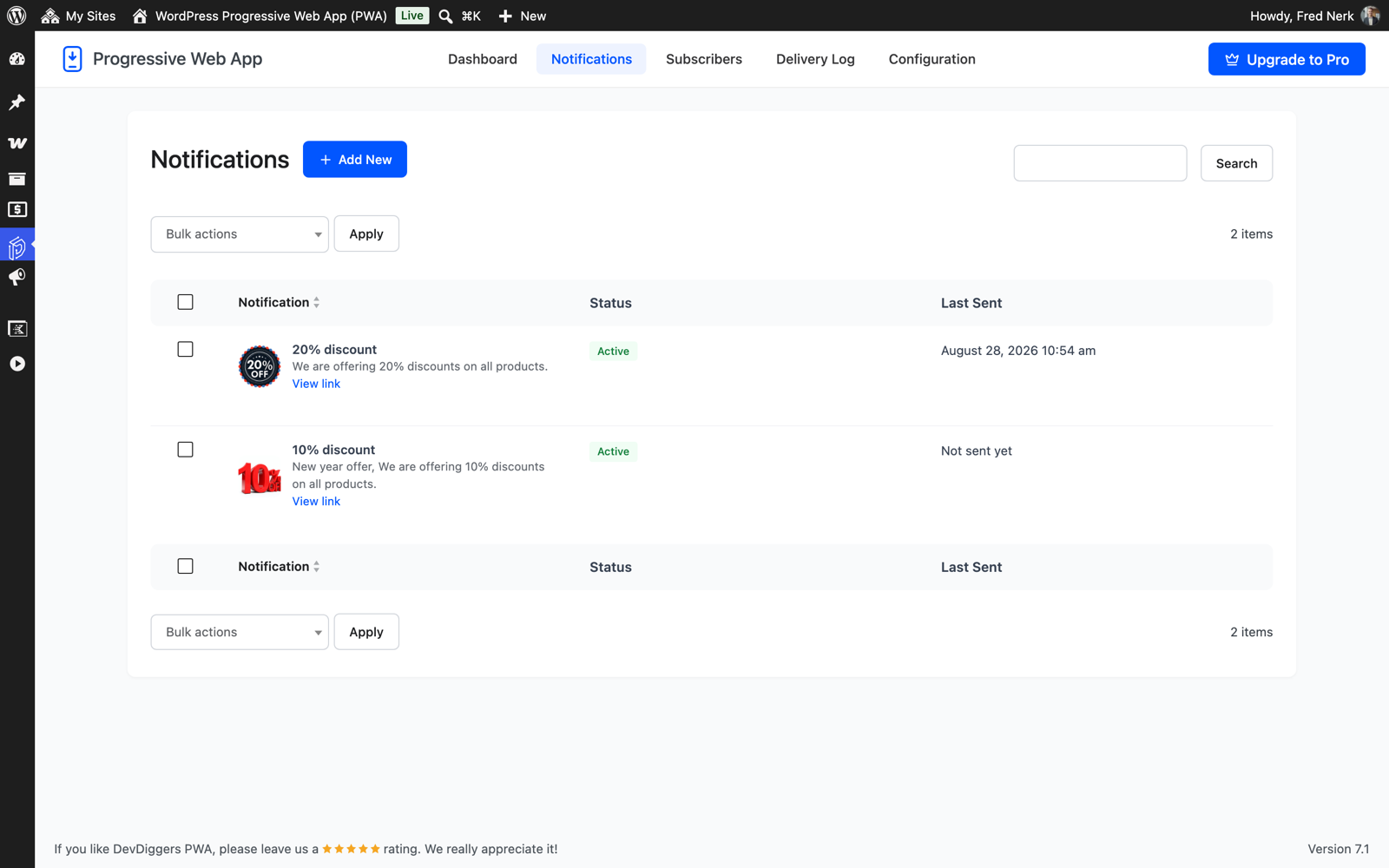
- A Delivery Log with a row for every push: type, status, how many devices it reached, and the reason when a send fails.
- A Subscribers screen listing every known device with its platform, browser, status, signed in user, when it was installed and when it was last seen.
- A setup checklist, and a Status tab that checks HTTPS, OpenSSL, your generated files, your icons and your Firebase credentials, then shows what each browser lets your app do.
- AMP. On an AMP page no script is enqueued, so the page stays valid and keeps its AMP cache listing. The manifest and the app meta tags are valid AMP and are still added, so the page is still installable. Works with the official AMP plugin and with AMP for WP.
- Multisite. Every site in the network gets its own manifest, its own settings and its own subscriber list. Nothing is shared between them.
- WPML and Polylang. The app name, short name, description, install banner and permission prompt are registered for translation under the DevDiggers PWA string group, and the manifest is served in the language the visitor is reading, so a French visitor installs an app named in French.
- WooCommerce. HPOS compatible, and the cart, checkout and account pages are kept out of the offline cache by default.
- Click tracking and click through rate. See how many people opened each notification, per send and across the site, with an engagement chart on the dashboard.
- Audience targeting. Send to logged in users, guests, installed app users or WooCommerce customers instead of everyone.
- Scheduled sends. Pick a future date and time and the notification sends itself.
- Action buttons and badges. Up to two buttons on a notification, each opening its own URL, plus a badge icon for the Android status bar.
- WooCommerce push notifications. New product and on sale pushes, back in stock alerts for the shoppers who asked, order status updates to the buyer's own devices, and abandoned cart reminders.
- Recurring digest. A daily or weekly broadcast on the day and time you choose.
- App shortcuts and a QR code. Quick links in the menu that opens when someone long presses your app icon, plus a printable QR code for the app start URL.
- Cache first strategy. Serve the stored copy of a page immediately for a noticeably faster repeat visit. Free is always network first.
- App Experience. A bottom tab bar built from a WordPress menu, pull to refresh, page transitions, a loading bar, a dark mode toggle, the device share sheet, haptic feedback, a screen wake lock and saved form entries.
- Android app for the Play Store. Store readiness checks, the packaging file for PWABuilder or Bubblewrap, and the asset links file served from your own site so the installed app opens with no browser bar. You keep your own signing key. The iOS project is generated the same way.
- Send when back online. A comment or contact form submitted with no signal is queued on the device and sent as soon as the connection returns, instead of being lost to a browser error page.
- Save for offline. A button that keeps a page on the device for reading later, listed in the browser's own downloads area.
安装:
- Upload the devdiggers-pwa folder to /wp-content/plugins/, or install the zip from Plugins > Add New.
- Activate the plugin through the Plugins menu.
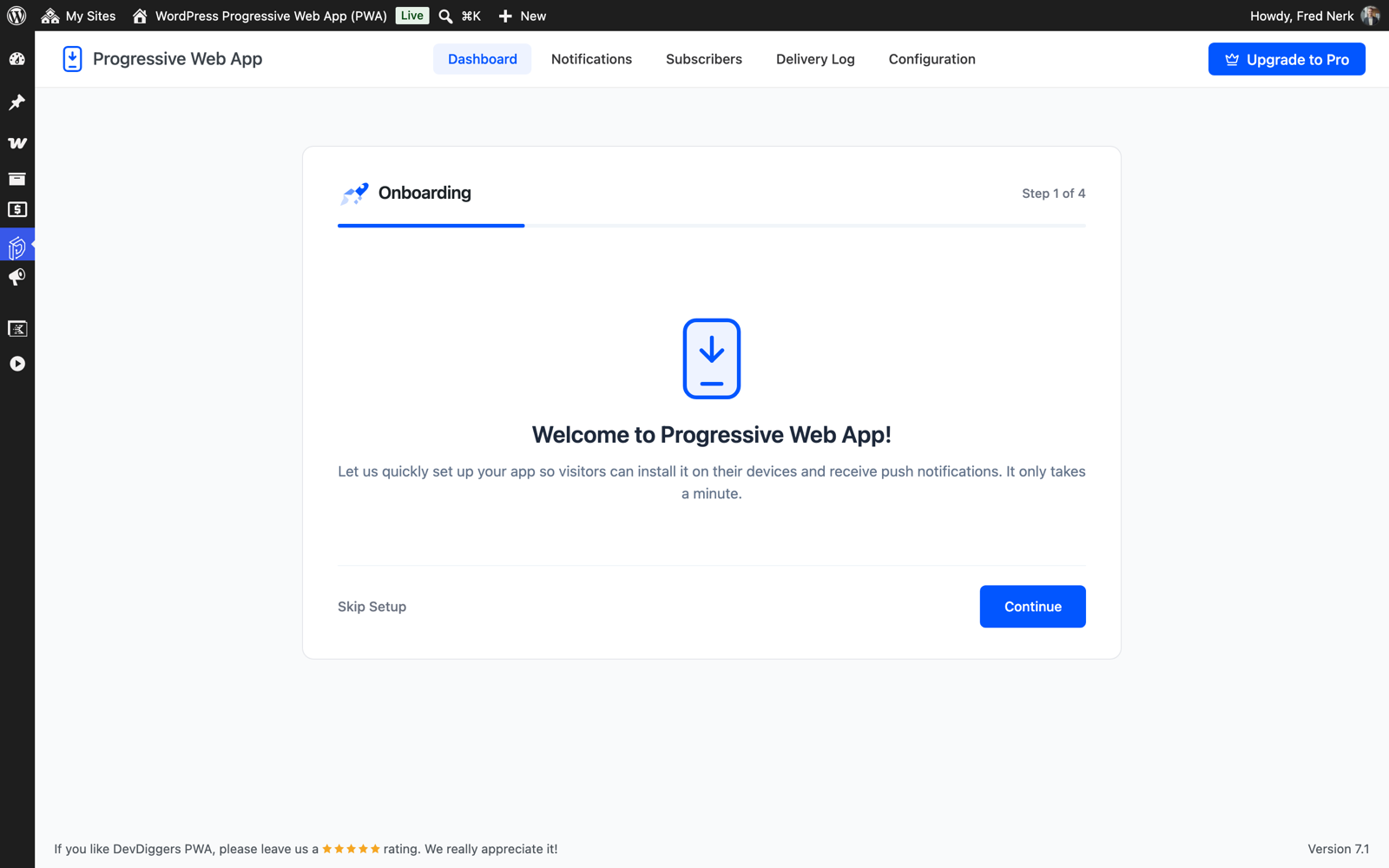
- Open the Progressive Web App menu and run the Setup Wizard.
- For push notifications, create a free Firebase project, then paste the Firebase config, the VAPID key and the service account JSON into Configuration > Push Setup.
屏幕截图:
常见问题:
How do I turn my WordPress site into an app?
Activate the plugin and run the Setup Wizard. It writes the web app manifest and the service worker for you, and asks for an app name, an icon and a theme colour. After that, browsers on Android and desktop offer an install prompt, and iPhone users can add your site to the home screen from the Safari share sheet.
Do I need an SSL certificate?
Yes. Browsers only allow service workers and web push over HTTPS, or on localhost during development. Without it the app cannot be installed and no notification can be delivered.
Is there a limit on subscribers or notifications?
No. Notifications are delivered by Firebase Cloud Messaging using a Firebase project you create yourself, so the sending limits are Google's rather than ours. There is no subscriber cap in the plugin, no per message price and nothing to pay us for the free version.
Do I need a Firebase account?
Yes, for push notifications. It is free to create. Add the Firebase config, the VAPID key and the service account JSON under Push Setup, then use the Test Notification button to confirm it works. The installable app and offline browsing need no Firebase account at all.
Do web push notifications work on iPhone?
Yes, within the limits Apple sets. iOS delivers web push only after the visitor has added your site to the home screen from the Safari share sheet. Once it is added, the installed app gets your icon and splash screen and can receive notifications like any other device.
Does it work with WooCommerce?
Yes. It is HPOS compatible, and the cart, checkout and account pages are kept out of the offline cache by default so nobody is shown a stale basket. Store event pushes, such as order status updates, back in stock alerts and abandoned cart reminders, are part of the Pro version.
Does it work with AMP?
Yes. On an AMP page no script is enqueued, so the page stays valid, but the manifest and app meta tags are still added and the page is still installable. Both the official AMP plugin and AMP for WP are detected.
Can I send a push automatically when I publish a post?
Yes. Turn on Auto Push on Publish under Automations and every published post broadcasts to your subscribers, using a title template with placeholders for the post title, URL, excerpt and site name. Any single post can opt out from the Send Push box in the editor.
Can I see what I have sent?
Yes. Every push is recorded in the Delivery Log with its type, delivery status, the number of devices it reached and the reason when a send fails. Knowing how many people opened each notification, as a click count and a click through rate, is part of the Pro version.
Can I use it on a multisite network or a translated site?
Yes. Each site in a network keeps its own manifest, settings and subscriber list. With WPML or Polylang, the app name, description, install banner and permission prompt are registered for translation and the manifest is served in the visitor's language.
Will this slow my site down?
The front end adds a small script and a service worker. Caching usually makes repeat visits faster rather than slower, and if you do not want a particular feature, each one has its own switch.
Can I publish the app on Google Play?
Not from the free version. Free gives you the installable web app that Android and iOS both accept from the browser. The packaging file for PWABuilder or Bubblewrap, the store readiness checks and the asset links file needed for a Play Store listing are part of the Pro version.
What happens to my subscribers if I delete the plugin?
They are kept. Deleting the plugin removes the generated service worker and manifest, because a stale service worker would keep serving cached pages, but your notifications, subscribers and delivery log stay in the database unless you tick the setting that asks for them to be removed.
更新日志:
- Fixed: tapping a push notification on iPhone and iPad now opens the linked post or page while the installed app is running in the background on every device. After 1.1.2 some iPhones still brought the app to the front without opening the post.
- Fixed: the install button now shows on iPhone and iPad and opens the Add to Home Screen steps when tapped.
- Fixed: tapping a push notification on iPhone and iPad now opens the post or page it links to when the installed app is still running in the background. Before, the app only came to the front and stayed on the page it was on.
- Improved: refreshed admin dashboard charts, card styling and success notices, and removed the loading bar at the top of admin screens.
- Fixed a fatal error (undefined function ddwppwa_print_notification) when saving a push notification in the admin.
- Upgraded to DevDiggers Framework 1.1.0: admin screens now open instantly without a full page reload, with skeleton placeholders while a screen loads.
- Improved list screens: the title action buttons, search box, bulk actions and pagination now follow one consistent layout.
- Fixed minor PHP warnings and JavaScript errors seen after in-place navigation.
- Bug fixes and stability improvements.
- Initial release of the free version.