
DevDome Admin Cleaner: Remove Dashboard Widgets and Hide Menu Items
| 开发者 | devdome |
|---|---|
| 更新时间 | 2026年10月16日 20:39 |
| PHP版本: | 7.4 及以上 |
| WordPress版本: | 7.1 |
| 版权: | GPLv2 or later |
| 版权网址: | 版权信息 |
详情介绍:
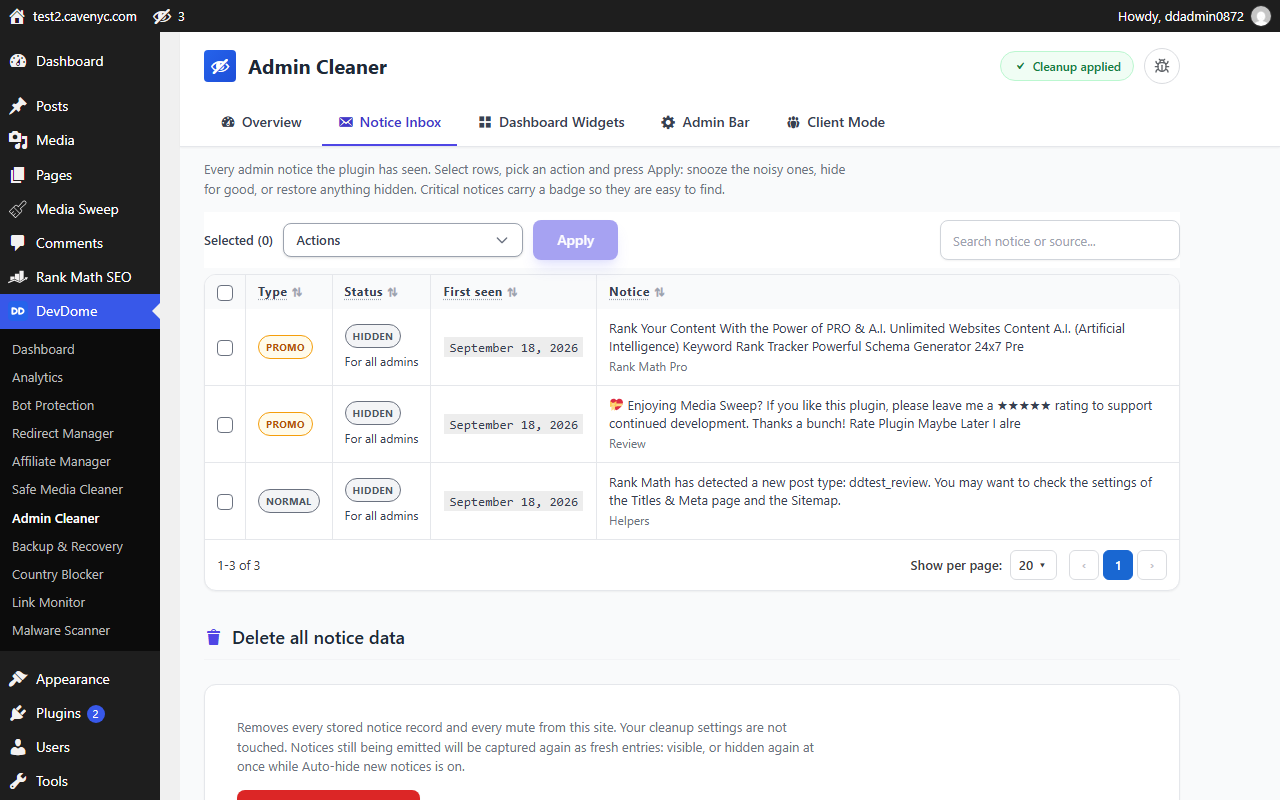
- Hide plugin notices for yourself or all administrators.
- Snooze selected notices for 1 or 7 days.
- Review notice sources, classifications, first-seen dates and mute status.
- Enable an optional toolbar bell that links to the inbox. Snooze notices for 1 or 7 days from the Notice Inbox.
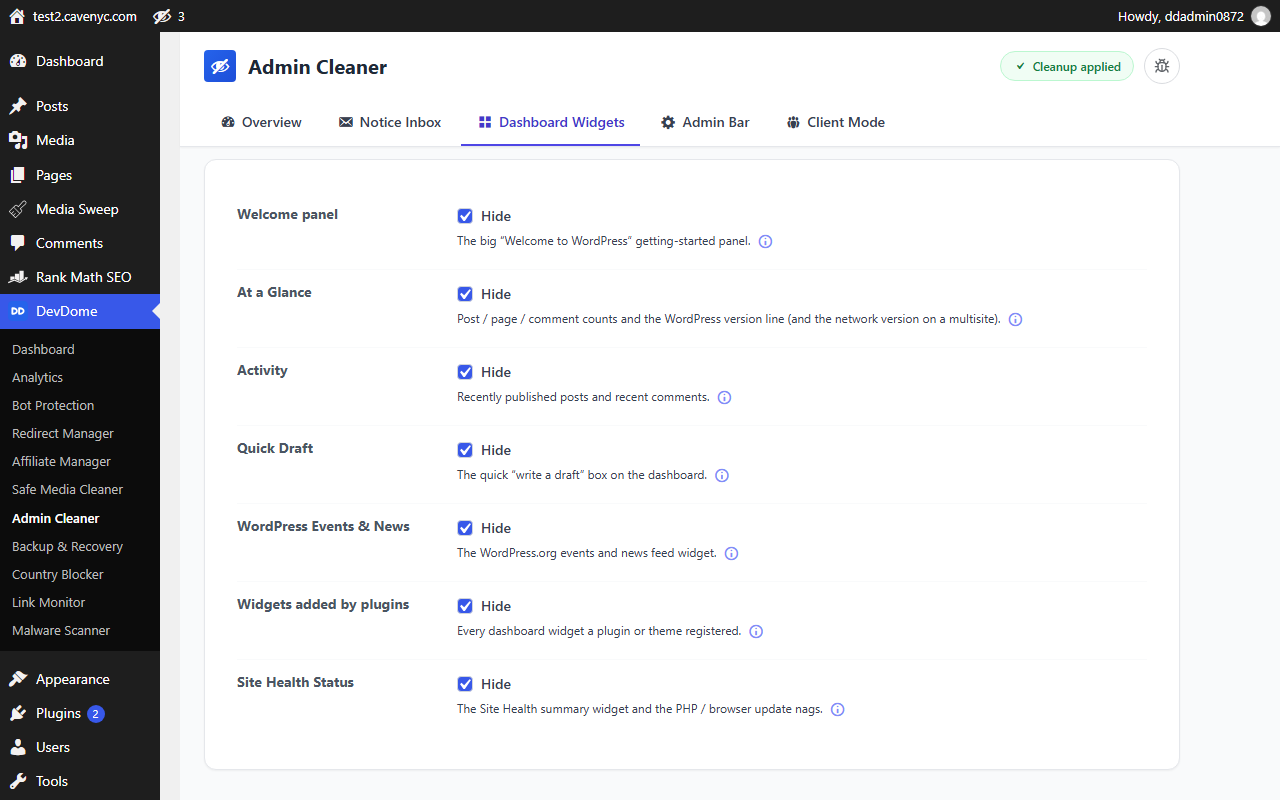
- Hide the Welcome panel, Activity, Quick Draft, At a Glance, Events & News and Site Health.
- Hide dashboard widgets added by plugins and themes.
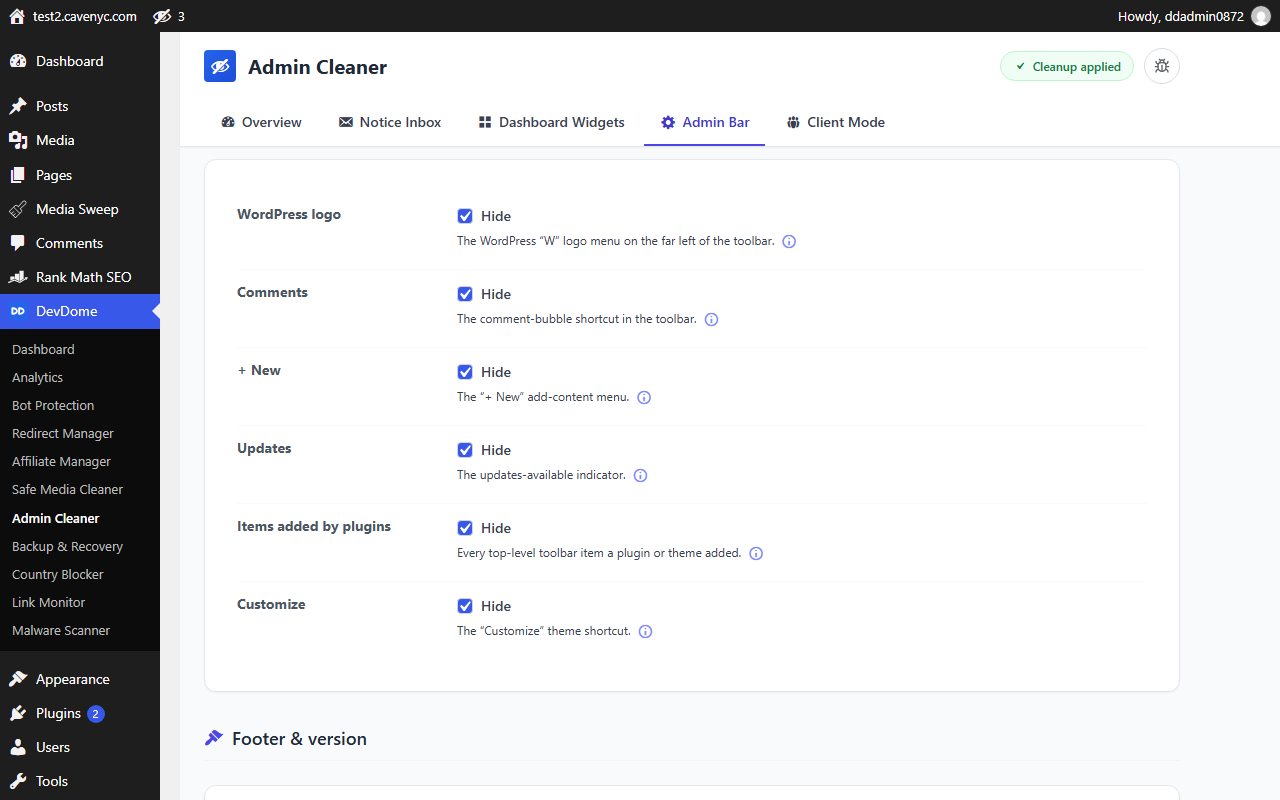
- Hide admin footer text, the version number and notice rows beneath plugins on the Plugins screen.
- Hides dashboard widgets and supported toolbar items.
- Hides footer text, the version number and plugin list notice rows.
- Hides all notices already captured in the inbox for all administrators.
- Enables Auto-hide new notices, including supported notices added after page load.
- Redaction removes email addresses, tokens, keys, nonces, URL query strings and filesystem paths.
- Raw notice HTML is never stored.
- Retention targets 200 records. Unresolved protected notices are kept even when this exceeds the limit, with a storage warning.
- Expired snoozes and orphaned mutes are cleaned automatically.
- Delete all notice data removes stored notices and mutes without resetting settings.
安装:
- Upload the plugin to
/wp-content/plugins/and activate it, or install it from the Plugins screen. - Open DevDome Tools → Admin Cleaner.
- Click Clean My Admin to apply cleanup, or use the tabs to choose exactly what to hide.
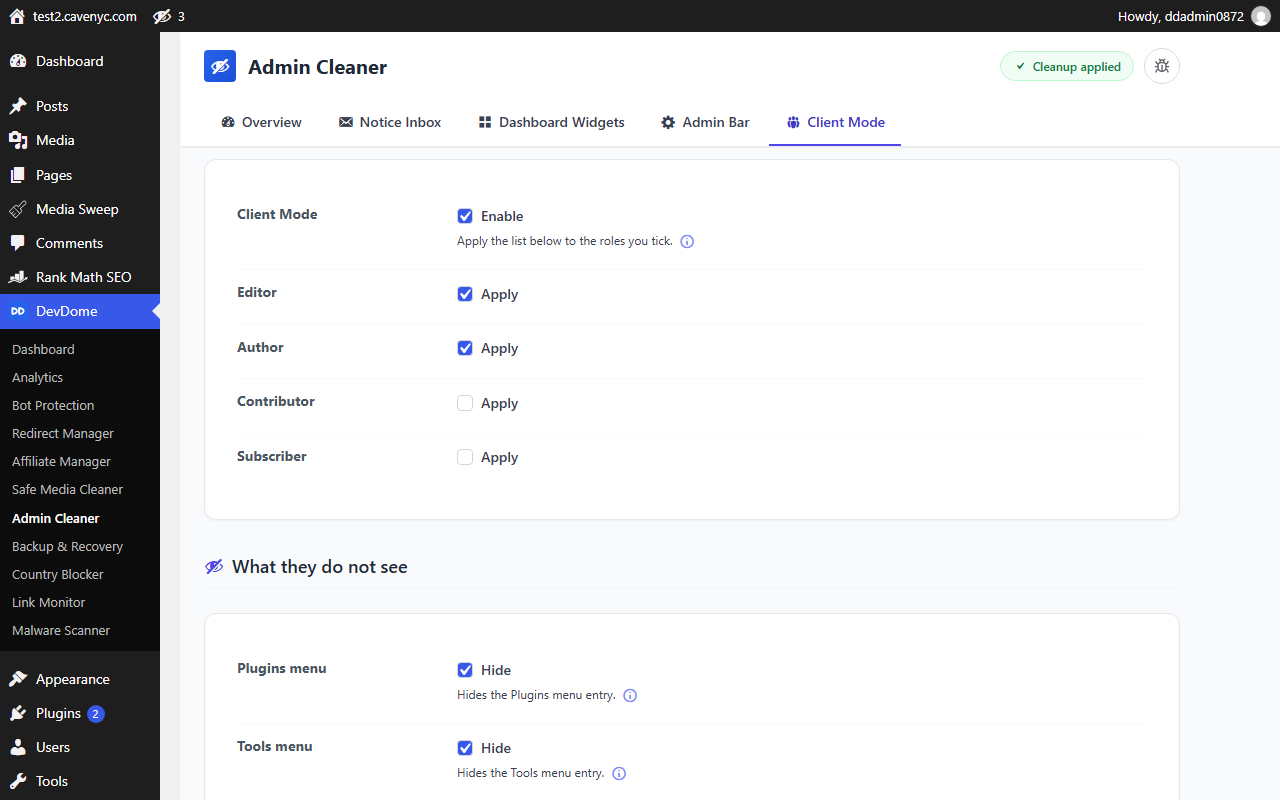
- Set up Client Mode if you hand the site to editors or clients. Undo last change reverses your most recent settings change; restore notice mutes separately.
屏幕截图:
常见问题:
How do I hide admin notices?
Open DevDome Tools > Admin Cleaner > Notice Inbox. Select notices, choose Hide (you), Hide for all admins or a snooze action, then press Apply. To remove admin notices from view in one step, use Clean My Admin. It also enables Auto-hide new notices.
How do I remove dashboard widgets?
Open the Dashboard Widgets tab. Select the widgets you want to hide and press Save Settings. Built-in widgets have individual options. Widgets added by plugins and themes have a shared option. Clean My Admin turns on all these hiding options.
Is anything deleted when I clean the dashboard?
Clean My Admin hides interface items and notices. It does not delete your content. Remove and Delete all notice data permanently delete stored inbox records and their mutes. Retention housekeeping can also delete eligible records. A deleted notice can return if its source displays it again. Uninstalling removes the plugin's settings and notice data.
Does it hide update notices or disable admin notifications?
It can hide on-screen update, error and security notices, including those marked Critical. Clean My Admin also hides the toolbar Updates item and plugin list notice rows. It does not disable updates or notification emails. Restore captured notices from the inbox and turn off Auto-hide if you want new notices to remain visible.
What does Client Mode do?
Client Mode hides selected menu entries for the roles you choose. It can also redirect the theme editor, plugin editor and Updates screens to the dashboard. Permissions stay unchanged. Users with manage_options, the Admin Cleaner capability or network management privileges are exempt. Notice hiding is separate and applies only to users who can access Admin Cleaner.
Does it work on multisite?
Settings and notice records are stored separately for each site. Configure Admin Cleaner from each site's dashboard. The code also handles network dashboard widgets and network admin notice hooks. There is no central screen for applying one configuration across every site.
How do I undo the cleanup?
Undo last change restores the settings from before the most recent settings change. It keeps one recovery point. Restore notices separately in the inbox, or use Clear all mutes. Turn off Auto-hide new notices to stop hiding future notices. You can also show individual widgets and toolbar items again through their settings. Deactivation stops the plugin's cleanup while preserving its saved data.
How do I disable admin notices or hide notifications on screen?
Enable Auto-hide new notices to hide supported notices, including those added after page load. Use the Notice Inbox to hide or snooze captured notices. These settings change on-screen visibility for users who can access Admin Cleaner; they do not stop the source plugin from generating notices or sending notification emails.
How do I hide admin menu items for client roles?
Open Client Mode, choose the roles and select the supported menu entries to hide. Registered custom roles are available too. Users with manage_options, the Admin Cleaner capability or network management privileges are exempt. Hiding an entry does not remove access allowed by the user's permissions.
Can I make a custom dashboard by hiding existing widgets?
Yes. Select which built-in dashboard widgets to hide and use the shared option for widgets added by plugins and themes. This custom dashboard setup simplifies the existing WordPress dashboard; it does not add new widgets or build a replacement dashboard.
更新日志:
- A dismissible note at the top of the settings page mentions the free DevDome Analytics plugin, with a button that opens the plugin installer (or the Analytics screen when it is already active). Dismiss hides it for good.
- Shared DevDome library 1.7.13: uninstalling the last DevDome plugin also removes the note's dismissal, the update-repair records and the per-user "Report a bug" flag; the visitor-beacon flood guard keeps one short-lived record per address and clears its expired ones itself, and behind Cloudflare it counts per visitor instead of per Cloudflare address.
- Shared DevDome library 1.7.12: a Cloudflare visitor address header is trusted only when the connection itself comes from a Cloudflare address, so a forged header from anywhere else is ignored.
- Shared DevDome library 1.7.11: on a subdirectory multisite, a site mapped to its own domain is its own site and no longer shares the network's connection.
- Deleting the plugin also removes the cached update-check answer it kept in the database.
- Shared DevDome library 1.7.10: the one-time Report a bug hint is recorded through a nonce-checked request instead of on a page view; the DevDome dashboard lists only real problems and prints its icons through the WordPress escaping functions.
- The plugin screen is printed directly instead of being buffered, and every value is escaped where it is printed (WordPress.org review rule).
- Listing text updated: title, short description, tags and introduction.
- AI agents get setting names and role names back unchanged; the output filter no longer treats a long name as a secret.
- Bundled DevDome library 1.7.6: if you connect a DevDome account from the DevDome Tools dashboard, the Connect card now says exactly what is shared, including the list of active DevDome plugins and their versions. Sites that were already connected, and sites that never connect, send nothing new. See External services.
- The notice capture always closes its own output buffer, even when another plugin leaves one open above it.
- The bundled DevDome library loads WordPress admin files only where they are needed.
- Security review pass: every request handler checks capability and nonce inline before reading input, all inputs sanitised on the line they are read, output escaping tightened, the bundled DevDome library verifies nonces before any lookup, and the account connect return is bound to the user who started it.
- Notice redaction now covers HTTP Authorization headers and any absolute server path; late-inserted notices reappear if the plugin does not answer within 8 seconds.
- External services disclosure corrected to list every field an error report carries.
- Settings use plain checkboxes on the left of each option, saved with the Save Settings button, instead of toggle switches; nothing changes until you save.
- Connect fix (shared DevDome core 1.6.6): the connect claim now waits up to 30 seconds and keeps the handshake for 20 minutes so a refresh retries it, the DevDome hub shows why a connect failed with a Try again link, and the verify file is served through a query form for hosts that answer /.well-known/ before WordPress.
- First tab is now called Overview, in line with the other DevDome plugins; old links to the Dashboard tab still open it. Overview status card in the suite style, sticky Save Settings footer on every settings tab, darker readable text, consistent spacing under the tab bar.
- Design: every screen now follows the shared DevDome admin frame (section heads above cards, blue header badge, bug-report button, standard Save button, suite status colours).
- Notice Inbox is a data list with status badges and grouped row actions.
- Confirmations open an in-page dialog instead of the browser prompt.
- Copy: no dashes in customer-facing text.
- DevDome Dashboard: plugin list, descriptions, logos and versions now come from devdome.com, one-click install of DevDome plugins from WordPress.org, Docs link and Fix buttons, Activate stays on the dashboard.
- First WordPress.org release. Every identifier now uses the devdadcl_ prefix; shared DevDome core 1.6.0 (site token sent in a POST header, never in a URL).
- Notice storage rebuilt: one record per notice, so concurrent administrators can no longer overwrite each other's changes, reported counts are true counts, and storage limits never discard an unresolved protected notice.
- Notice identity v2: a changed operational notice no longer inherits a mute stored for an older, different message.
- Stored excerpts are redacted (emails, tokens, keys, query strings, paths) before persistence.
- Mute scope is explicit: hide for yourself or for all administrators; the status column shows who is affected.
- The clutter number is now a documented workspace estimate computed from real state: muted promos stop counting, hiding Site Health or Updates never improves it, and client exposure comes from real users instead of a hardcoded value.
- Presets show the exact diff against your current settings before applying, and Undo last change restores the prior configuration exactly.
- Reset plugin settings, Clear all mutes and Delete all notice data are now separate, honestly named actions.
- Client Mode: capability-based exemptions (manage_options always wins), dynamic role discovery including custom roles, duplicate editor toggle merged, and every security-sounding claim replaced with the cosmetic truth.
- Shared DevDome core updated to 1.4.7: the suite dashboard makes no request to DevDome before you explicitly connect, and its Connect button states what connecting shares.
- Self-hosted updater hardened: manifest validation (trusted host, HTTPS, matching plugin, sane version), fail-closed behavior, and package checksum verification when published.
- Summary cache refreshes immediately after every change, with a visible last-updated time and manual refresh.
- Expanded External services disclosure.
- Readme copy polish.
- Notice Inbox: added a Remove button next to Restore on every row that forgets a notice entirely (drops it from the inbox and the mute list), distinct from Restore which only un-hides it.
- Performance: the notice inbox now writes at most once per admin request instead of once per notice, and settings are read from a single memoized autoloaded option, cutting redundant database work on every admin page.
- Design: dashboard-widget, admin-bar and Client Mode settings now use compact toggle switches on the DevDome suite design system.
- Accuracy: corrected the External services and Privacy sections to document the shared DevDome suite bot-detection download; removed dead detection scaffolding and a duplicate theme-editor hide.
- Initial release: one-click admin cleanup with a live clutter score, a notice inbox with snooze/mute/restore (criticals always kept visible), per-widget dashboard cleanup, admin-bar and footer/version hiding, role-based Client Mode, and five ready-made presets.