Devlapse Time Logging
| 开发者 | kagunda |
|---|---|
| 更新时间 | 2026年9月30日 18:30 |
| PHP版本: | 7.4 及以上 |
| WordPress版本: | 7.1 |
| 版权: | GPLv2 or later |
| 版权网址: | 版权信息 |
详情介绍:
- A start/stop timer on the Dashboard & Timer screen and a live counter in the admin bar that shows the running project, so you can see at a glance whether the clock is running.
- Dashboard totals for time tracked today, billable amount today and sessions currently running.
- Notes and commit references you can add to a running session, so the entry records what actually happened.
- Manual entries for work done away from the keyboard, such as calls, planning or meetings.
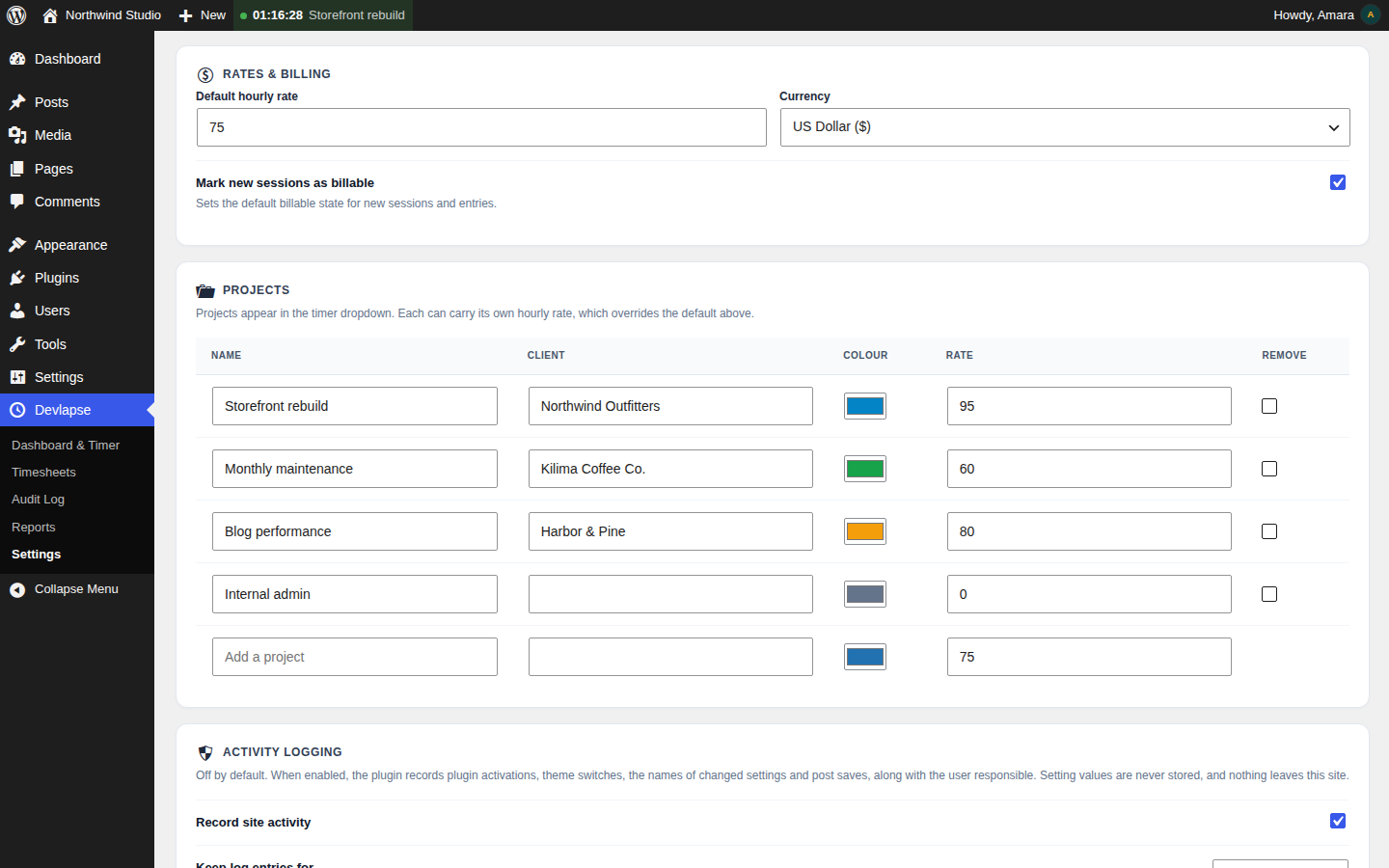
- Projects you define yourself, each with its own client name, colour and hourly rate. A project's rate overrides your default rate.
- Billable and non-billable time, with a setting that decides whether new sessions are billable by default, so internal work never ends up on a client's summary by accident.
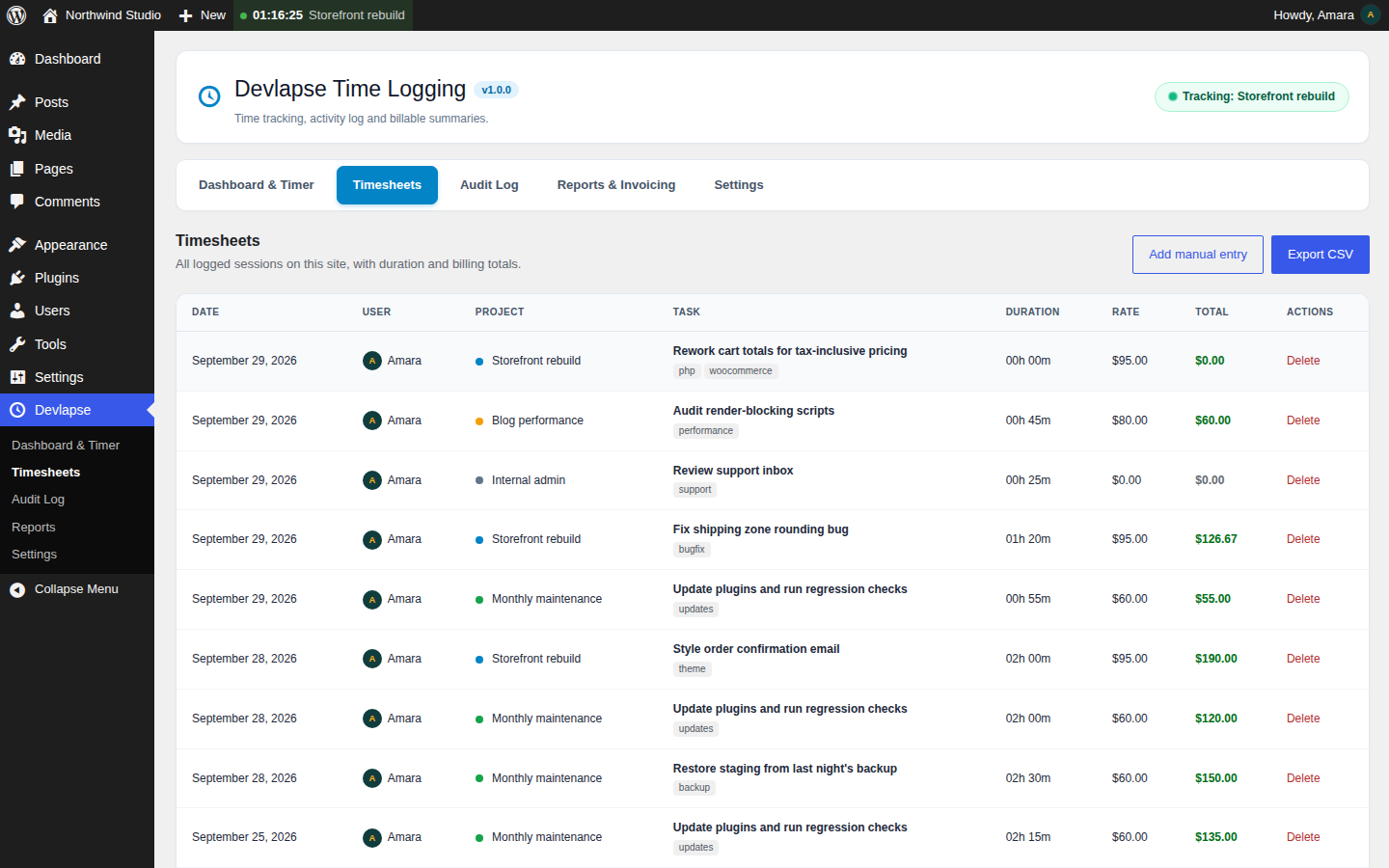
- Timesheets listing date, user, project, task, duration, rate and total, with short tags on each entry, plus CSV export for your own spreadsheets or accounting tools.
- An optional Audit Log recording plugin activations, theme switches, changed setting names and post saves, with the user responsible.
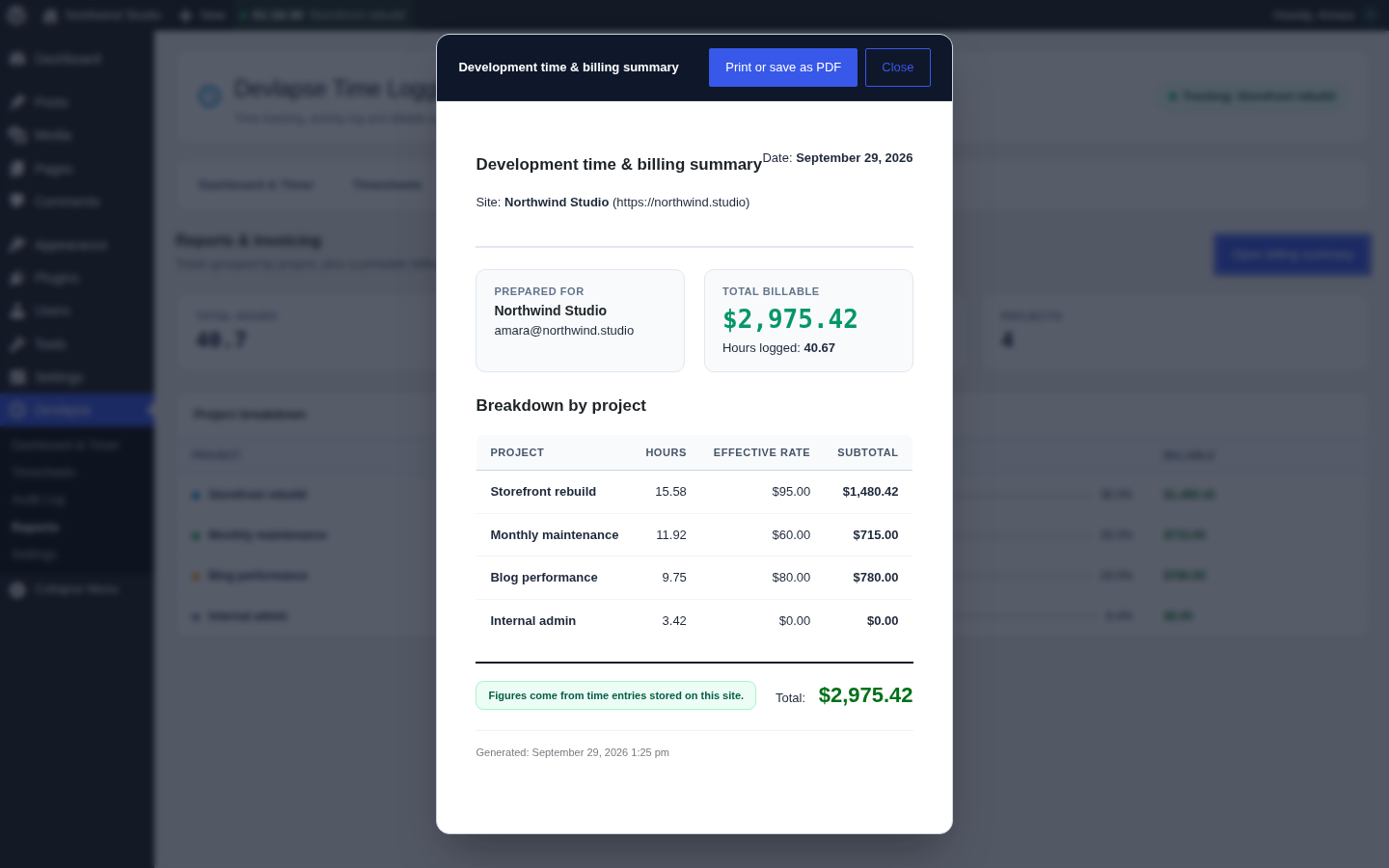
- A Reports & Invoicing screen with time grouped by project, and a printable billing summary showing hours, effective rate and subtotal per project. Print it or save it as a PDF from your browser.
- A currency selector with common currencies (USD, EUR, GBP, KES, NGN, ZAR, INR, JPY, AUD, CAD, CHF) and a custom option for anything else.
- Optional session summary emails, sent to the address you choose.
- REST endpoints under
devlapse-time-logging/v1for your own tooling.
- Freelancers who bill by the hour and want an honest record without paying for a separate service.
- Agencies who need to show clients how much time went into maintenance, support and new work.
- Site maintainers who want a simple log of what changed on a site and when, next to the time spent on it.
- Anyone who prefers to keep their working data on their own server instead of a third-party cloud.
- Add your projects, client names, colours and hourly rates in Devlapse > Settings, and choose a currency and default rate.
- Open Dashboard & Timer, choose a project, describe the task and start the timer.
- Work as normal. The admin bar shows the running project and time on every admin screen, and you can add a note or commit reference to the session at any point.
- Stop the timer when you finish. The entry is saved with its duration, rate and billable status.
- At the end of the week or month, open Timesheets to review your totals or export a CSV, then open Reports & Invoicing to print a billing summary for a client.
安装:
- Upload the
devlapse-time-loggingfolder to/wp-content/plugins/, or install the ZIP through Plugins > Add New. - Activate the plugin through the Plugins menu.
- Open Devlapse > Settings to add your projects and set a default hourly rate.
- Start the timer from Devlapse > Dashboard & Timer or from the admin bar.
屏幕截图:
常见问题:
Does this send my data anywhere?
No. There are no external requests of any kind. Everything is stored in your own database, and the only outbound mail is the optional session summary, which WordPress sends to the address you choose.
Does the plugin record my screen or take screenshots?
No. Despite the name, Devlapse Time Logging does not record your screen, capture video, take screenshots or monitor what you type. It only stores the entries you create: a task description, a project, start and end times, a rate and a billable flag.
Do I need an account or a licence key?
No. There is nothing to sign up for. Install it, activate it and start tracking.
Can other users see my time entries?
Only administrators can see other users' entries. Everyone else sees their own.
Who can track time?
Any logged-in user who can edit posts can track their own time and view their own timesheets. Administrators can also see everyone's entries, the activity log, reports and settings.
Can I track time for more than one project or client?
Yes. Define as many projects as you need in Devlapse > Settings. Each project has its own client name, colour and hourly rate.
Can I set a different hourly rate for each project?
Yes. Every project has its own rate, and you can also set a default hourly rate that is used when a project does not have one.
Can I log time I forgot to track?
Yes. Use the manual entry form on the Timesheets screen to add hours, minutes and a task description for work done away from the timer.
Can I mark some time as non-billable?
Yes. Each entry has a billable flag, and billable totals are calculated separately from total duration, so internal or unpaid work does not appear on a client's billing summary.
Which currencies are supported?
The currency field offers a dropdown of common currencies (USD, EUR, GBP, KES, NGN, ZAR, INR, JPY, AUD, CAD, CHF). If yours is not listed, choose "Custom..." and type it in.
Can I export my data?
Yes. Timesheets can be exported to CSV, which you can open in Excel, Google Sheets or any accounting tool. Administrators export all entries; other users export only their own.
Does it create invoices?
The Reports & Invoicing screen produces a printable billing summary rather than a full invoicing system. It shows hours, effective rate and subtotal for each project, plus a grand total. Use it as the basis for an invoice in whatever invoicing tool you already use, or get in touch about a custom integration.
How do I give a client a copy of the hours?
Open Reports & Invoicing, open the billing summary and click "Print or save as PDF". In your browser's print dialog, choose "Save as PDF" to get a file you can send. You can also export the timesheet as a CSV.
Can I add a note to a timer that is already running?
Yes. While a session is running, the Dashboard & Timer screen has a field where you can add a note or commit reference. Use it to record what you did, such as a ticket number or a commit hash.
What is the "effective rate" in the billing summary?
It is the hourly rate actually applied to a project's time: the project's own rate if it has one, otherwise your default hourly rate. Projects with a rate of 0, such as internal admin work, add hours but no billable amount.
Can new sessions be non-billable by default?
Yes. In Devlapse > Settings, under Rates & Billing, turn off "Mark new sessions as billable". You can still change the billable flag on individual entries.
Where do I find the activity log?
Administrators will find it on the Audit Log tab of the plugin. It shows only what you have chosen to record, and it stays empty until you switch on "Record site activity" in Settings.
Is the activity log on by default?
No. It is off until you enable it in Settings. When enabled it records only the names of changed settings, never their values.
What does the activity log record?
Plugin activations and deactivations, theme switches, the names of settings that were changed, and post saves, each with the user who did it. It skips transient and cron noise. Old entries are pruned automatically after the period you set under "Keep log entries for" in Settings.
Are email notifications on by default?
No. Session summary emails are off until you enable them, and they default to your site's administration email address.
Is the plugin GDPR friendly?
The plugin stores data only in your own database, makes no external requests and uses no tracking. Time entries are included in WordPress's personal data export and erase tools, and the plugin adds suggested wording to your privacy policy draft. You remain responsible for your own compliance, so please review your privacy policy with your own advisers if needed.
Will it slow down my site?
No. The plugin does nothing on the public side of your site. Its admin CSS and JS load only on its own screens, and read queries use the WordPress object cache.
Does it work with my theme or page builder?
The plugin works entirely in the WordPress admin, so it does not depend on your theme or page builder. The only thing it adds elsewhere is the timer counter in the admin bar.
What happens to my data if I delete the plugin?
Deactivating keeps everything. Deleting the plugin from the Plugins screen removes both custom tables and all plugin options, on every site of a multisite network. Export your timesheets to CSV first if you want to keep a copy.
Can I use the REST API?
Yes. Routes live under devlapse-time-logging/v1 and require a logged-in user with the matching capability. Send a wp_rest nonce with each request.
Can I get custom features or an integration?
Yes. If you need any customization, such as extra fields, custom reports, or a connection to your invoicing or project management tools, please contact me through peterkagunda.com.
Where do I report a bug or ask for help?
Please open a topic in the plugin's support forum on WordPress.org. Include your WordPress and PHP versions and the steps to reproduce the problem, and I will do my best to help.
更新日志:
- Initial release.