DuetG AI Connector
| 开发者 | duetg |
|---|---|
| 更新时间 | 2026年9月15日 18:18 |
| PHP版本: | 7.4 及以上 |
| WordPress版本: | 7.1 |
| 版权: | GPL-2.0-or-later |
| 版权网址: | 版权信息 |
详情介绍:
- Ollama(本地 AI)
- LM Studio(本地 AI)
- MiniMax (text + image generation)
- Moonshot
- DeepSeek
- SiliconFlow
- 以及任意其他 OpenAI 兼容的 API 提供商
安装:
- Upload the
duetg-ai-connectorfolder to the/wp-content/plugins/directory - 通过 WordPress 的"插件"菜单激活插件
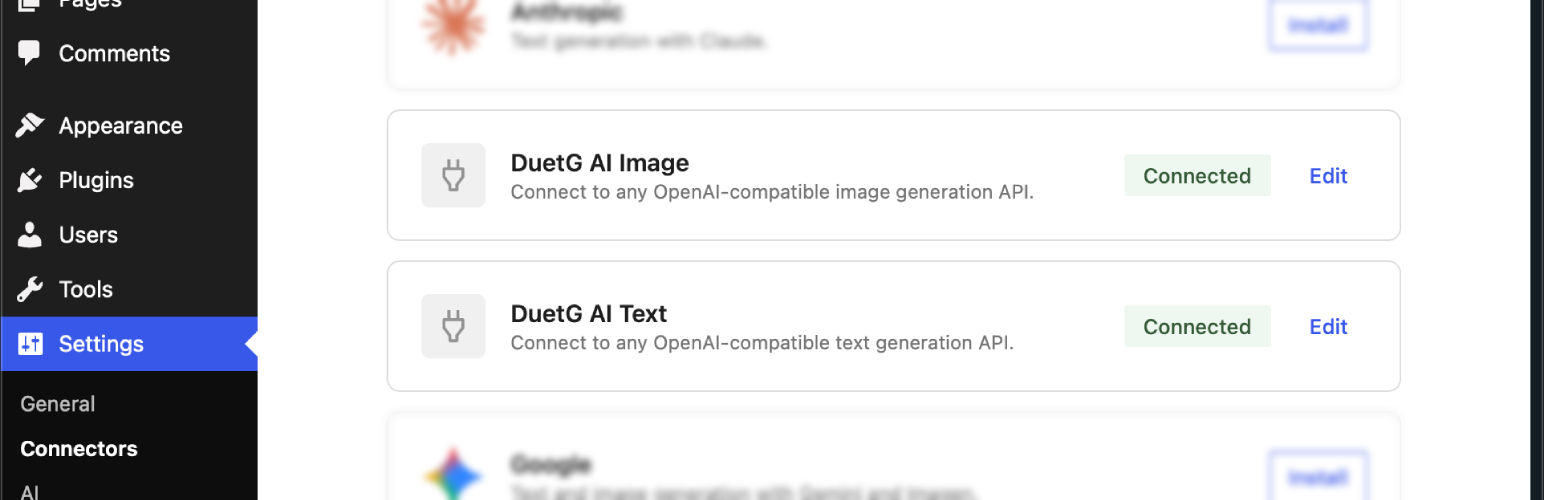
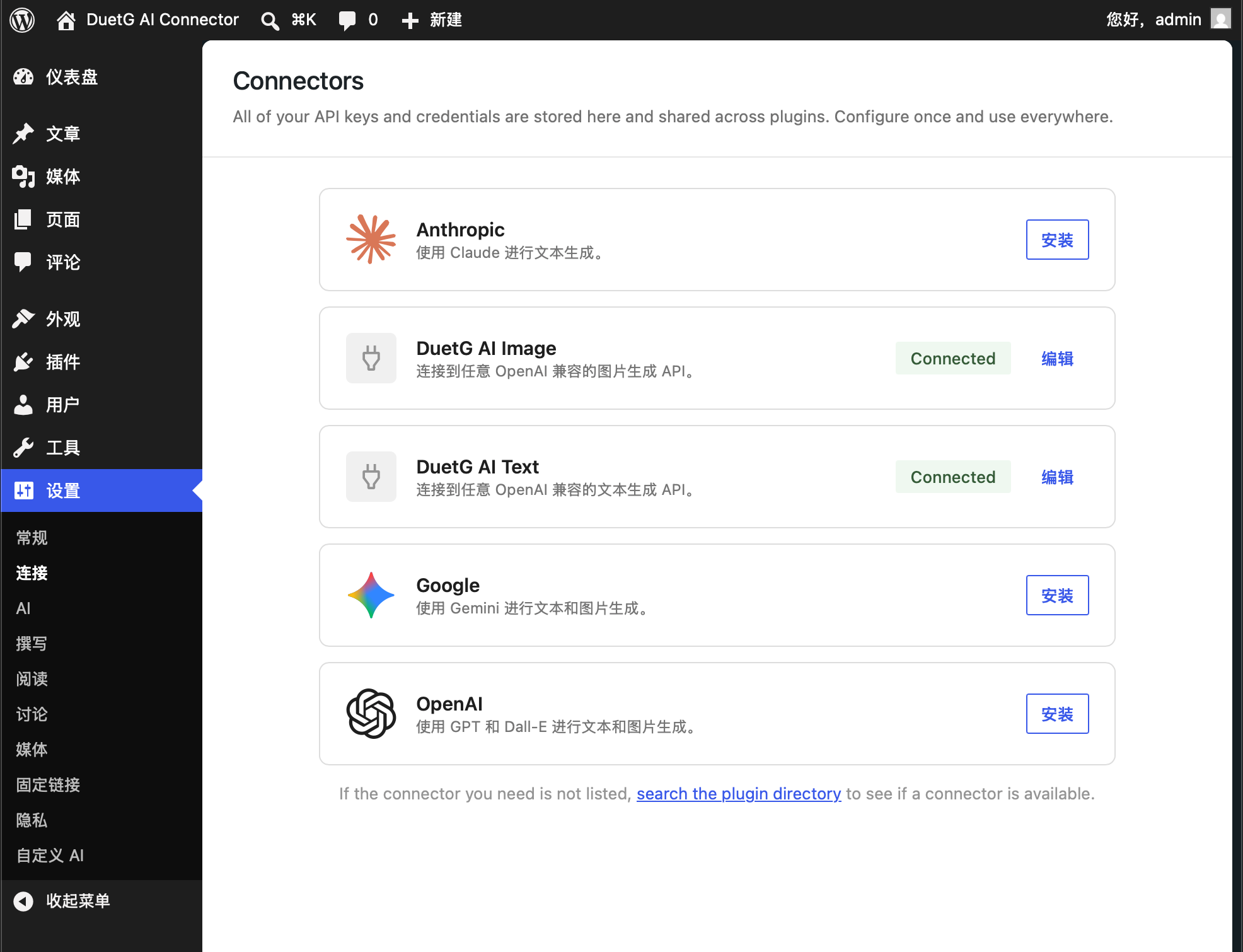
- Configure your API key at Settings > Connectors
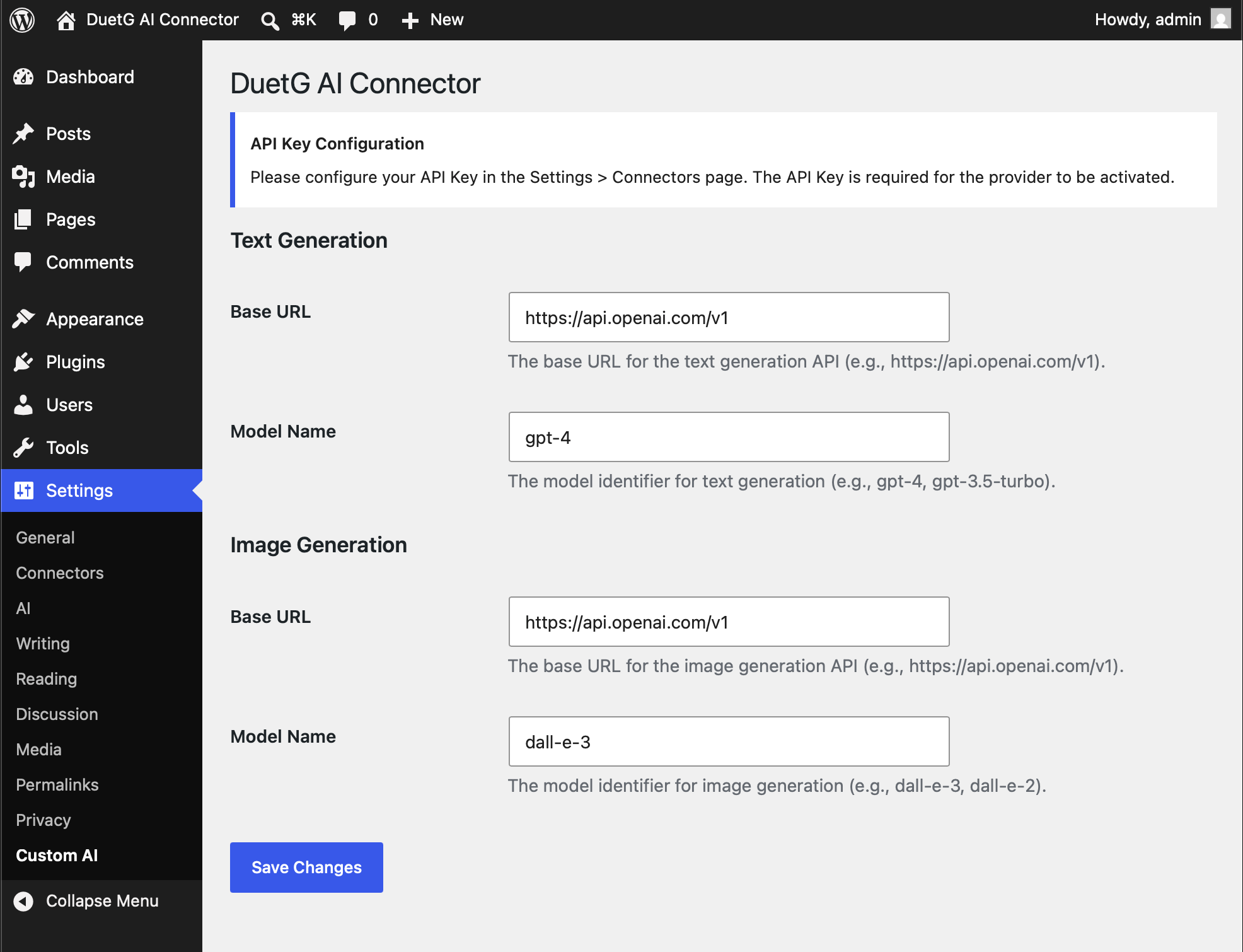
- Go to Settings > Custom AI to configure your Base URL and model
- (Optional) Go to Tools > Test AI to verify your configuration
屏幕截图:
常见问题:
如何启用调试日志?
To enable debug logging, add the following to your wp-config.php:
define('DUETGAICON_DEBUG', true);
When enabled, debug information will be written to your server's debug log (usually wp-content/debug.log). This includes:
- Request/response details for AI API calls
- Provider registration status
- Model handler information Note: Disable debug logging in production environments to avoid performance impact and log file growth.
此插件在没有 WordPress 7.0 的情况下能用吗?
不需要。此插件需要 WordPress 7.0 或更高版本,因为它使用内置的连接器 API 来管理 API Key。
为什么建议数量和笔记数量有时不匹配?
使用评审笔记时,您可能会注意到 AI 返回的建议数量与编辑器中显示的笔记数量不完全匹配。 This is expected behavior and has two causes:
- Multi-category suggestions: Some AI models return a single suggestion that applies to multiple review categories (e.g.,
review_type: "seo, accessibility"). The plugin preserves these as-is, so one suggestion may appear under multiple note categories in WordPress AI Client. - Model response format: The AI model controls the number of suggestions it returns, and WordPress AI Client determines how to display and categorize them. The plugin correctly forwards the model's response without modifying the count.
如何找到我的 AI 提供商的 Base URL?
- Ollama (local):
http://localhost:11434/v1 - LM Studio (local):
http://localhost:1234/v1 - MiniMax:
https://api.minimax.io/v1 - Moonshot:
https://api.moonshot.ai/v1 - DeepSeek:
https://api.deepseek.com/v1 - SiliconFlow:
https://api.siliconflow.cn/v1 - 其他提供商:请查阅其文档
Does this plugin support MiniMax image generation?
Yes. MiniMax image models such as image-01 and image-01-live work out of the box. Set your Base URL to a MiniMax endpoint (e.g., https://api.minimax.io/v1 or https://api.minimax.cn/v1) and the Model Name to an image model (any name starting with image-). The plugin automatically detects the combination and bridges the four API differences (endpoint path, response_format enum, response top-level shape, image delivery channel ordering) so responses look identical to OpenAI's.
Works with any MiniMax region — detection only checks for the minimax substring in the Base URL.
需要 API Key 吗?
部分提供商需要 API Key。对于不需要身份验证的本地安装(如 Ollama),您可以输入任意字符串(如 "not-required")作为 API Key。
为什么本地推理/思考模型有时会超时?
在 Ollama 上运行的本地推理模型(如 Gemma 4、QwQ 等)会在生成最终答案之前产生长的"思考"链。这个过程可能需要 30-60 秒或更长时间,可能触发 cURL 的低速限制超时(默认 30 秒)。 Cloud models generally work well - most cloud API providers (DeepSeek, MiniMax, Moonshot, etc.) respond quickly without timeout issues. If a cloud model frequently times out, it may have unusually long thinking chains - try switching to a different model. Recommended solutions for local models:
- Use non-reasoning models for local AI features. For Ollama, models like
qwen2.5:7b,llama3.2:3b, orphi3work well without the timeout issue. - Configure Ollama to keep models loaded:
bash
export OLLAMA_KEEP_ALIVE=-1  # Keep model in memory
如何使用本地 AI 提供商(如 Ollama 或 LM Studio)?
By default, WordPress blocks requests to localhost and private IP addresses for security (SSRF protection). If you're using a local AI provider, you can disable this protection by adding to your wp-config.php:
define('DUETGAICON_ALLOW_LOCAL_URLS', true);
Warning: Disabling SSRF protection allows requests to private/local IPs. Only enable this if you trust your local AI provider and your server is not directly accessible from the internet.
此设置在使用本地 AI 提供商时同时适用于文本模型和图片模型。
Tip: When DUETGAICON_ALLOW_LOCAL_URLS is enabled, a Network Connectivity Test tool appears on the Test AI page (Tools > Test AI). You can use it to verify that your WordPress server can reach your local AI provider before running actual AI feature tests. This is especially useful for debugging connection issues with local Ollama or LM Studio installations.
如何在代码中使用?
use WordPress\AiClient\AiClient; $registry = AiClient::defaultRegistry(); // Text Generation $model = $registry->getProviderModel('duetgaicon_text', 'gpt-4'); $result = $model->generateTextResult([ new \WordPress\AiClient\Messages\DTO\UserMessage([ new \WordPress\AiClient\Messages\DTO\MessagePart('Your prompt here') ]) ]); echo $result->toText(); // Image Generation $model = $registry->getProviderModel('duetgaicon_image', 'dall-e-3'); $result = $model->generateImageResult([ new \WordPress\AiClient\Messages\DTO\UserMessage([ new \WordPress\AiClient\Messages\DTO\MessagePart('Your prompt here') ]) ]); $files = $result->toImageFiles();
更新日志:
- Added image refinement (modify a previously generated image with an additional prompt) by routing to OpenAI's
images/editsendpoint with multipart/form-data when a reference file is attached - Extended image metadata input modalities to support both text-only and text+image prompt shapes so the official WordPress AI plugin's
is_supported_for_image_generation()returns true for refinement requests - Added MiniMax-aware dispatch for refinement (MiniMax does not expose
images/edits): refinement requests go to MiniMax'simage_generationendpoint with the reference carried inline - Fixed MiniMax refinement wire format to use the API's
subject_referencefield (withtype: characterand the image as a base64 Data URL); the previousimage: [...]payload was silently ignored by MiniMax, which caused refined images to look unrelated to the original - Match the MiniMax text-model prefix
MiniMax-case-insensitively, so model names likeminimax-text-01orMINIMAX-TEXT-01work alongside the canonicalMiniMax-Text-01 - Fixed the image refinement multipart payload leaking the MIME type as a separate non-standard form-data field; preserved HTTP response headers (with object-or-array shape handling) when wrapping WordPress HTTP responses into the SDK Response object
- Polyfilled
array_is_list()in the MiniMax response handler for PHP < 8.1 compatibility - Localized the Test AI prompt placeholders via wp_localize_script
- Security: hardened SSRF protection to block IPv6 bypasses — recognize
[::1]/[::]bracketed forms and trim brackets before IP validation in bothvalidateImageUrl()andHelper::isLocalUrl() - Security: replaced
wp_remote_get()withwp_safe_remote_get()in image URL fetching to block redirect-based SSRF (a 302 redirect to an internal IP is now caught at every hop) - Robustness: handle array-format content (multimodal API responses) without
TypeErrorinThinkingTagHelper::clean() - Robustness: image prompt extraction now searches backwards for the latest user message with text, supporting prompts that include system instructions or multiple messages
- Added support for MiniMax image generation (image-01, image-01-live) via a dual-filter handler that matches MiniMax Base URL plus image-model prefix and bridges the four OpenAI/MiniMax API differences (endpoint path, response_format enum, response top-level shape, image delivery channel ordering)
- Refactored MiniMax URL detection to a single substring check so future MiniMax regions and CDN domains work without a plugin update
- Removed dead getModelId() overrides from text and image models (no longer required after the SDK moved to $this->metadata()->getId())
- Removed unused jQuery dependency from the Test AI admin page (the page is vanilla JS)
- Bumped "Tested up to" to WordPress 7.1
- Updated Stable tag to match plugin version
- 修复 PHP 8.x "Undefined variable $prompt" 警告(Test AI 页面初次加载时触发)
- 修复 PHP 8.x "file_exists() path too long" 警告(在图像 API 返回超过 4 KB 的 b64_json 时触发)
- 将 b64_json 临时方案扩展到 URL→base64 下载路径(当服务商忽略 response_format 而直接返回 URL 时触发)
- 将内部 PHP 命名空间从 WordPress\CustomAiProvider 重命名为 WordPress\DuetGAIConnector
- 更新 @package 文档块注解以匹配新的命名空间
- 修复 logo 不显示问题:移除手动 connector 注册(改用 registerProvider())
- 修复图片生成显示问题(对内联 base64 data URI 跳过 esc_url())
- 修复 isConfigured() 以正确验证 API key 是否存在
- 将所有 provider ID 从 custom_text/custom_image 重命名为 duetgaicon_text/duetgaicon_image
- 添加 provider 注册状态的调试日志
- 更新文档中的代码示例以反映新的 provider ID 前缀
- 从 readme 中移除 WordPress AI Integration 部分
- 从 readme 中移除 Model Capabilities 部分
- 添加 isLocalUrl() 帮助方法,用于检测 localhost/私有 IP URL
- 当配置了本地 AI URL 但 DUETGAICON_ALLOW_LOCAL_URLS 禁用时,添加明确的错误提示
- 修复 PHP 语法错误(TestPage.php 中多余的 );)
- 修复 PHPCS:使用 wp_kses_post 输出错误以支持 HTML 格式
- 修复 PHPCS:在国际化友好的错误消息中使用 sprintf 及 translators 注释
- 网络连接测试按钮现使用 primary 样式
- 将重复的本地 URL 检测代码重构为 Helper::isLocalUrl()
- 插件重命名为 DuetG AI Connector(原 Custom AI Provider)
- 添加强能内容分类功能(AI 驱动的文章标签和分类建议)
- 添加元描述生成功能
- 添加 WordPress 连接器注册表集成,以兼容 WordPress 7.0+
- 为 MiniMax、Kimi、GLM 和腾讯混元添加多提供商响应格式标准化
- 为 DashScope(qwen/glm)模型添加自动 JSON 关键字注入
- 改进 JSON 提取,使用平衡大括号计数替代非贪婪正则
- 添加带 URL sanitization 的详细调试日志
- 在测试 AI 页面添加网络连接测试功能,用于调试本地 Ollama 连接
- 扩展 DUETGAICON_ALLOW_LOCAL_URLS 至整个插件(文本和图片模型)
- 添加说明本地推理模型超时问题的 FAQ 版块
- 从文档中移除 WordPress AI 版本要求
- 清理 CustomTextGenerationModel 中的调试日志代码
- 修复 PHPCS:在表单字段使用前对 test_url 进行 sanitization
- 当 DUETGAICON_ALLOW_LOCAL_URLS 禁用时,网络连接测试现为隐藏状态
- 修复网络连接测试按钮样式(现使用 primary 样式)
- 在本地 AI 提供商 FAQ 中添加网络连接测试文档
- 修复 TestPage.php 中图片 URL 的 OutputNotEscaped 错误
- 修复 Settings.php 中命名空间声明顺序(移至 ABSPATH 检查之前)
- 修复 JS 文件版本号以使用 JS 文件自身的 mtime 而非 plugin.php
- 为 custom_ai_debug() 添加 function_exists() 包装以防止冲突
- 修复 ThinkingTagHelper 中重复的 docblock 注释
- 修复 CustomImageGenerationModel 注释中的拼写错误("if not setting" → "if not set")
- 在调试日志中添加 URL sanitization 以过滤敏感参数
- 将 JSON 正则从贪婪匹配改为非贪婪匹配以提升准确性
- 修复 TestPage.php 中 dirname 层级 Bug(dirname level 3 → 2)
- 修复调试日志中 array_map 键保留 Bug
- 内联 URL sanitization 逻辑以避免嵌套函数定义
- 修复 wp_enqueue_script() 中缺失的资源版本号
- 修复测试页面中未转义的输出
- 为 Settings.php 添加直接文件访问保护
- 为图片 URL 添加 SSRF 保护(默认阻止 localhost/私有 IP)
- 添加 DUETGAICON_ALLOW_LOCAL_URLS 常量,以便在需要时启用本地图片 URL
- 更新至 WordPress AI 插件(移除"实验性"品牌)
- 添加与 WordPress AI 插件(0.6.0+)的兼容性
- 添加 Alt Text 生成支持(需要 VLM 模型)
- 添加图片提示词生成支持
- 添加评审笔记功能
- 添加标题生成支持
- 添加内容摘要支持
- 添加摘要生成支持
- 为 DeepSeek、Qwen、MiniMax、Kimi 等模型添加思考/推理支持
- 改进 JSON 响应解析,提升兼容性
- 添加调试日志(通过 WP_DEBUG 控制)
- 首次发布
- 支持文本生成
- 支持图片生成