
editant Docs
| 开发者 | editant |
|---|---|
| 更新时间 | 2026年11月6日 20:14 |
| PHP版本: | 8.1 及以上 |
| WordPress版本: | 7.1 |
| 版权: | GPLv2 or later |
| 版权网址: | 版权信息 |
详情介绍:
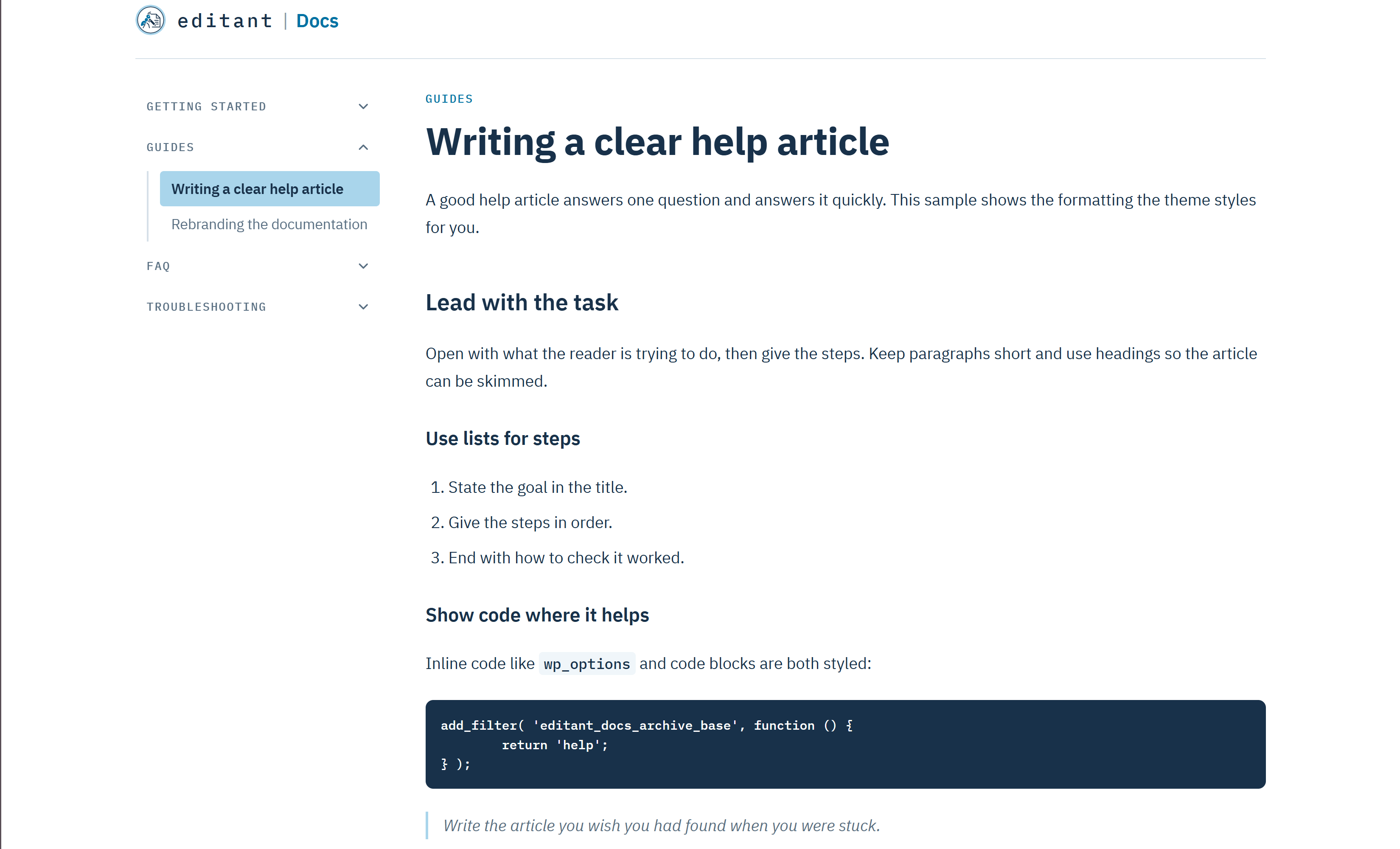
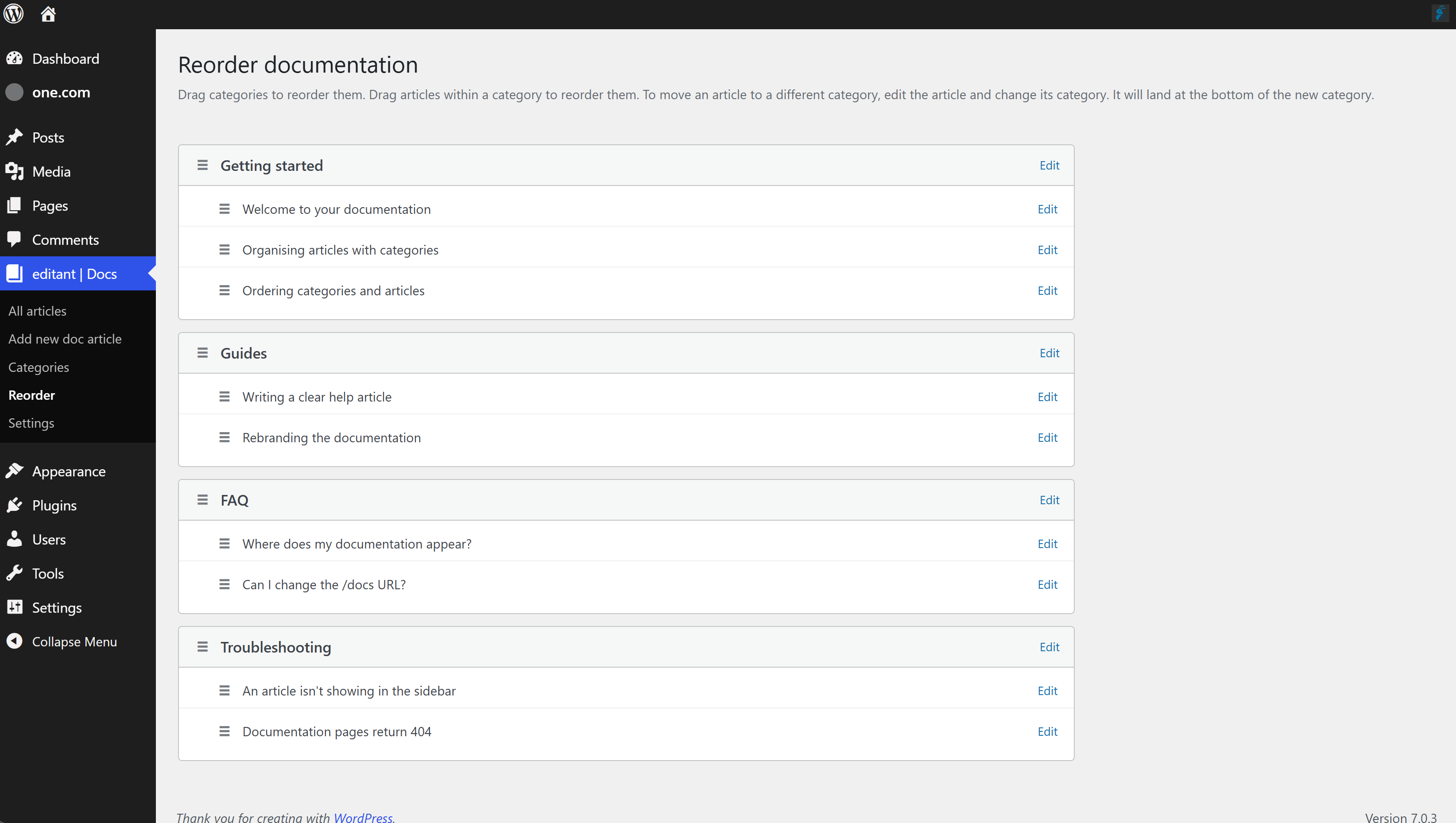
- A documentation post type with nested categories, shown nested in the sidebar, the index and the Reorder screen.
- A self-contained two-column layout - foldable sidebar plus article - drawn by the plugin on any theme.
- Drag-and-drop reordering of categories and the articles within them.
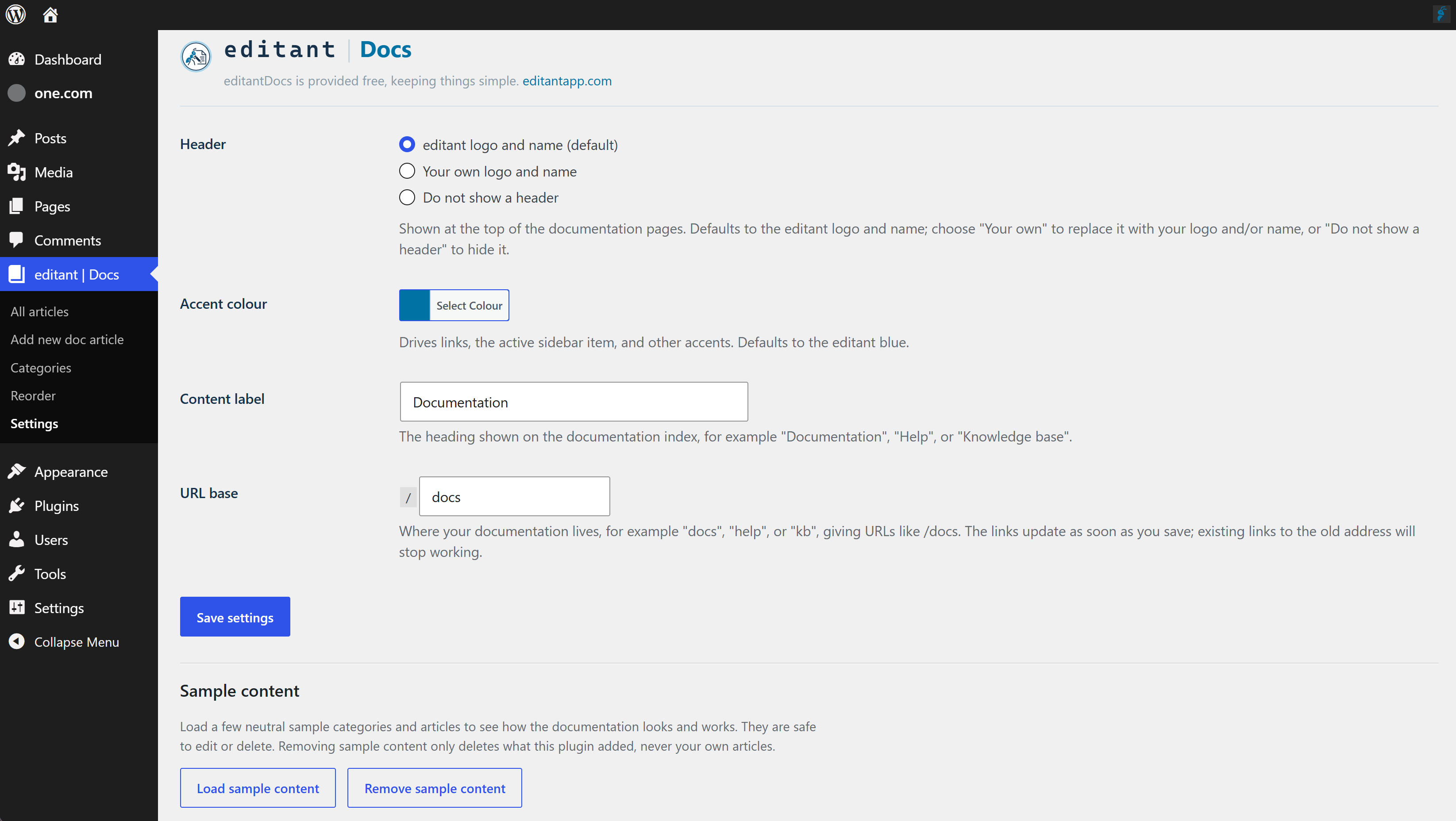
- A header you control: the editant logo and name by default, your own logo and/or name, or no header at all.
- An accent colour that drives links and the active sidebar item.
- A configurable section label for the index heading.
- A configurable URL base - set it in the admin (with a developer filter override) so your docs can live at /docs, /help, /kb, or wherever you like.
- Bundled IBM Plex fonts - no dependency on the active theme and no font CDN.
- One-click sample content you can load and remove from the Settings page (no WP-CLI needed).
- Export and import: move your documentation to another site, or back it up, as a single file that keeps the category hierarchy, the order of categories and articles, and your settings.
- Export selected articles from the articles list, with a category filter to narrow the list first.
- Translation-ready.
安装:
- Upload the plugin to your
/wp-content/plugins/directory, or install it via Plugins -> Add New. - Activate editant Docs through the Plugins menu.
- Add categories under editant Docs -> Categories, then write articles under editant Docs -> Add new doc article and assign each one a category.
- Visit /docs to see your documentation. Reorder categories and articles under editant Docs -> Reorder, and rebrand the look under editant Docs -> Settings.
- WordPress 6.5 or later
- PHP 8.1 or later
屏幕截图:
常见问题:
Where does my documentation appear?
The index is at /docs and each article is at /docs/<article-slug>. Both are drawn and styled by the plugin, so they look the same on any theme.
Can I change the /docs URL?
Yes. Go to editant Docs -> Settings and set the URL base to whatever you like, for example "help" or "kb". The links update as soon as you save, with no need to touch the Permalinks screen. Changing the base means existing links to the old address stop working. Developers can still override the base with the editant_docs_archive_base filter.
Does it work on any theme?
Yes. The plugin renders its own single-article and index layouts and ships its own styling and fonts, so it works identically on block themes and classic themes without any theme configuration.
Can I use my own branding?
On the editant Docs Settings page you can keep the editant header, replace it with your own logo and/or name, or hide the header entirely, and set an accent colour to match your brand. You can also change the label shown on the index, for example to "Help" or "Knowledge base".
How do I add the sample content?
Sample content is optional and never installed automatically. Go to editant Docs -> Settings and click "Load sample content" to add a few neutral categories and articles that are safe to edit or delete. "Remove sample content" deletes only what the plugin added, never your own articles.
If you prefer the command line, the same content can be loaded with WP-CLI:
wp eval-file wp-content/plugins/editant-docs/bin/seed.php
How do I move my docs to another site?
Go to editant Docs -> Export and import and click "Download export file". On the other site, install editant Docs, open the same page, choose the file and click Import. Categories keep their hierarchy and order, and articles keep their order, status and categories. Articles and categories that already exist on the other site, matched by slug, are skipped unless you choose to update them. Settings are imported only if you tick "Also import settings", and your logo is never replaced. Images in articles are not copied; they keep their links to the original site. To move only some articles, select them on the articles list and choose "Export selected" from the bulk actions. The category filter above the list helps you find them. Their categories come with them. WordPress's own Tools -> Export also includes documentation articles, but importing that file loses category order and resets some article order, so use the plugin's export instead.
Does uninstalling delete my articles?
No. Uninstalling removes only the plugin's settings row. Your documentation articles and categories are your content and are left untouched. Delete them yourself first if you want them gone.
更新日志:
- New: Export and import page. Download the whole documentation section as one file and import it into this or another site, with category hierarchy, order, article status and settings preserved.
- New: "Export selected" bulk action on the articles list.
- New: category filter on the articles list.
- New: child categories show nested inside their parent in the sidebar, the documentation index and the Reorder screen.
- Fix: a parent category no longer repeats the articles of its child categories in the sidebar, the index and the Reorder screen.
- Point the plugin homepage at the Free Tools page. No functional change.
- Initial release.