
Exchange Rates
| 开发者 | falselight |
|---|---|
| 更新时间 | 2026年10月25日 02:00 |
| 捐献地址: | 去捐款 |
| PHP版本: | 5.6 及以上 |
| WordPress版本: | 7.1 |
| 版权: | GPLv2 or later |
| 版权网址: | 版权信息 |
详情介绍:
- Currencies and amounts: select the currencies and starting amounts relevant to your content.
- Number formatting: choose decimal precision and separator styles.
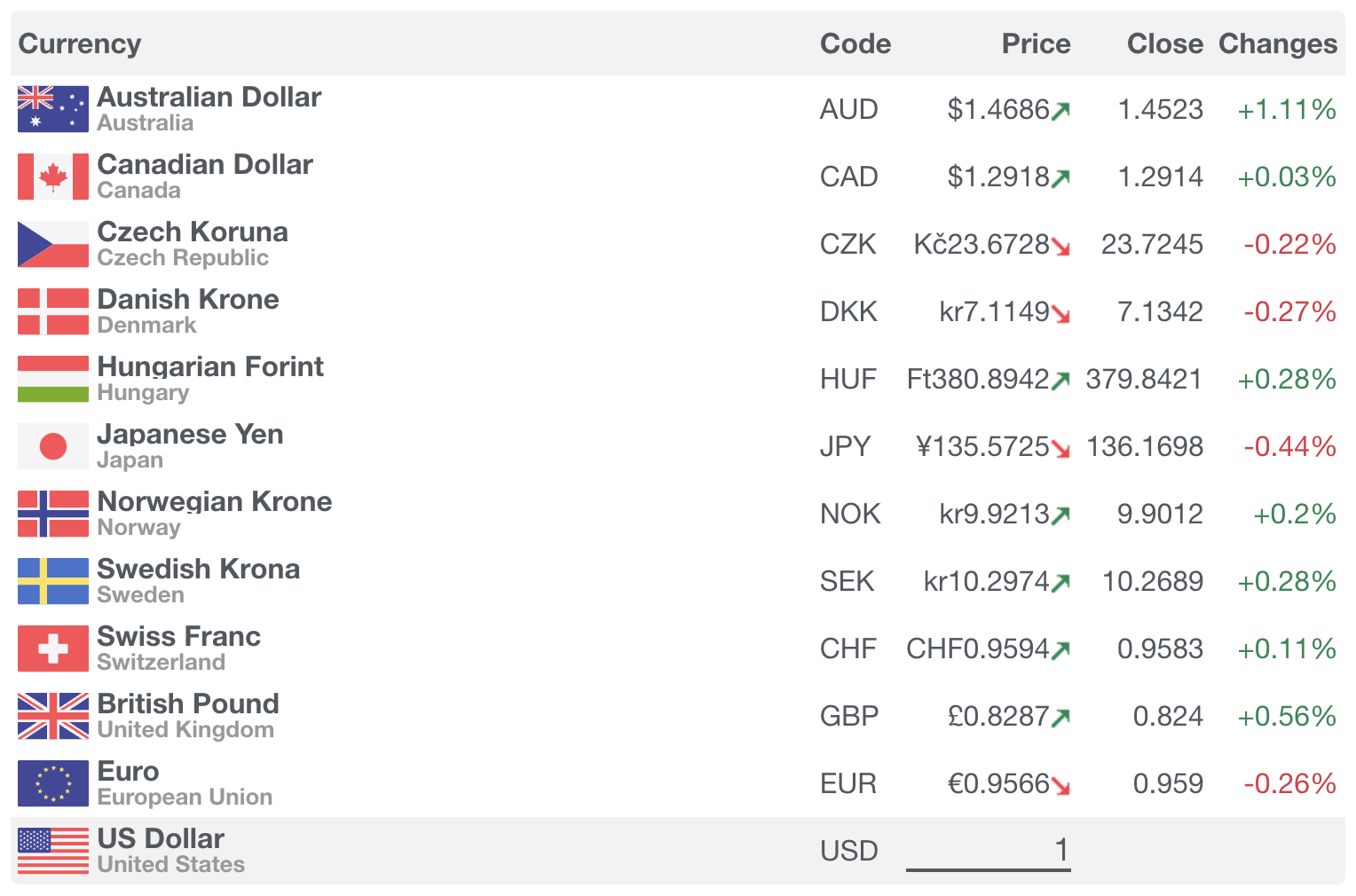
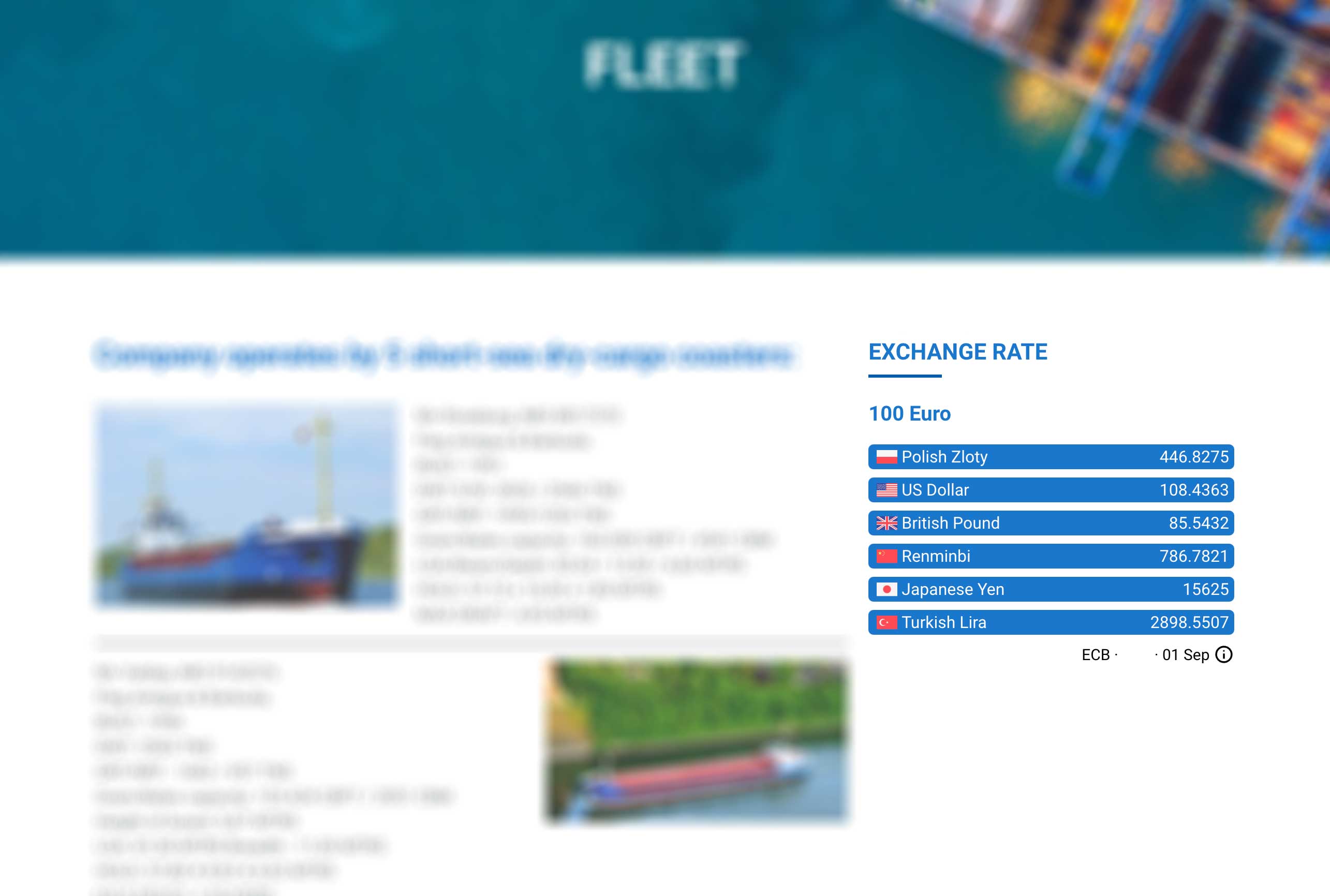
- Table layout: customize columns, headings, borders, and display options.
- Currency icons: choose rectangular, square, circular, or emoji flags, or hide flags where supported.
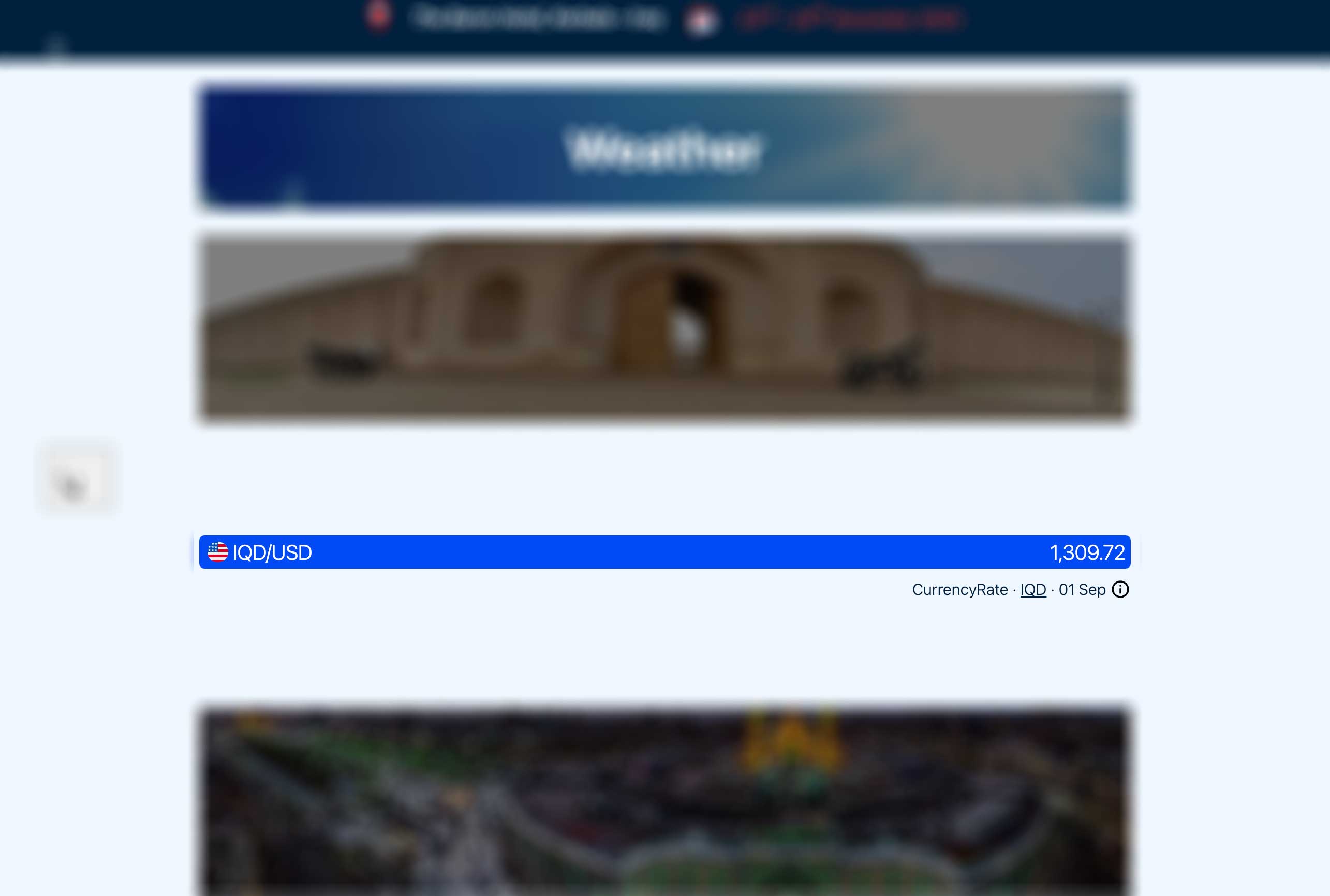
- Badge appearance: configure colors and currency labels.
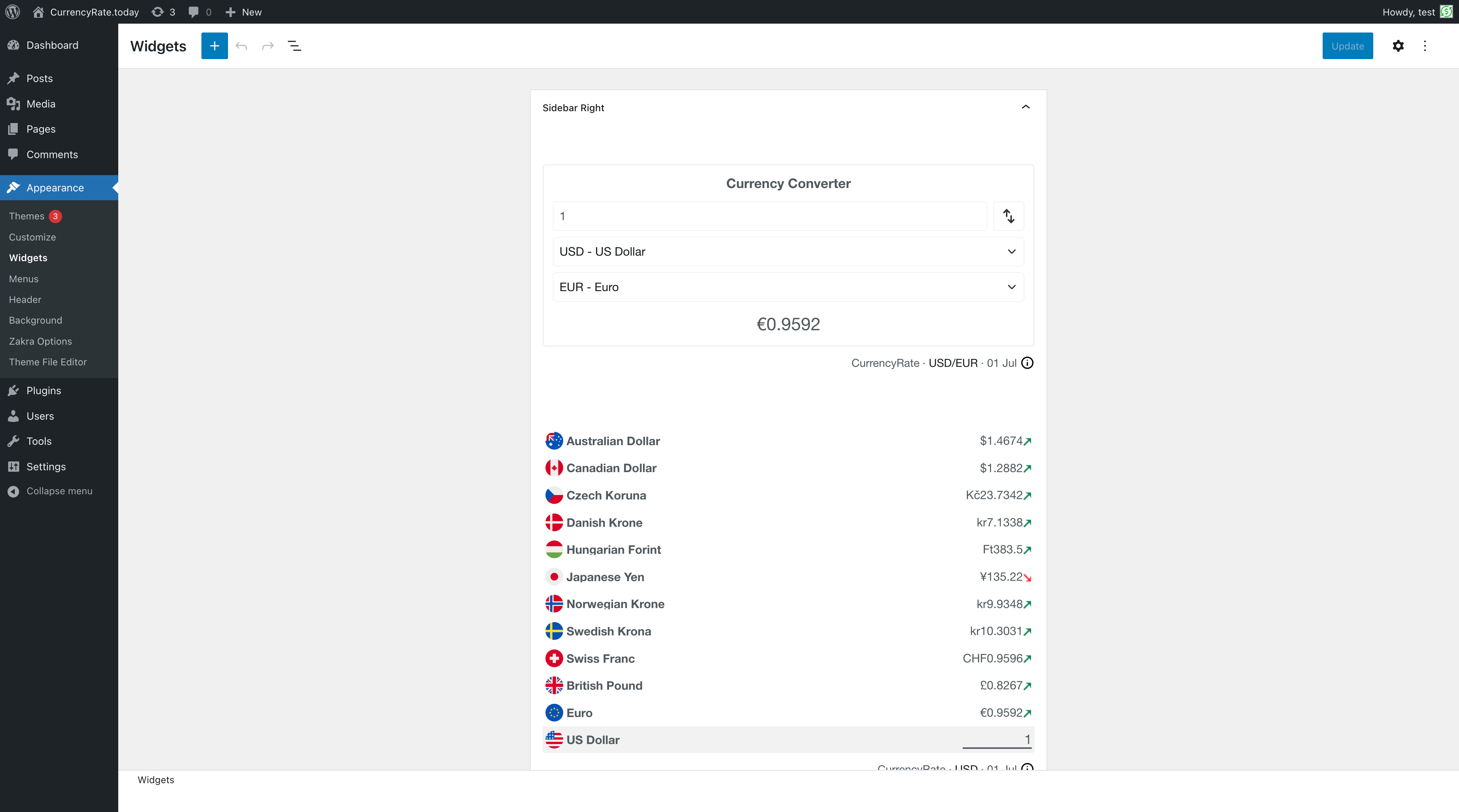
- Flexible placement: use widgets in your theme's widget areas or shortcodes in posts and pages.
- Travel websites and blogs: help readers compare budgets and local costs.
- News websites and financial portals: publish a selected exchange-rate table.
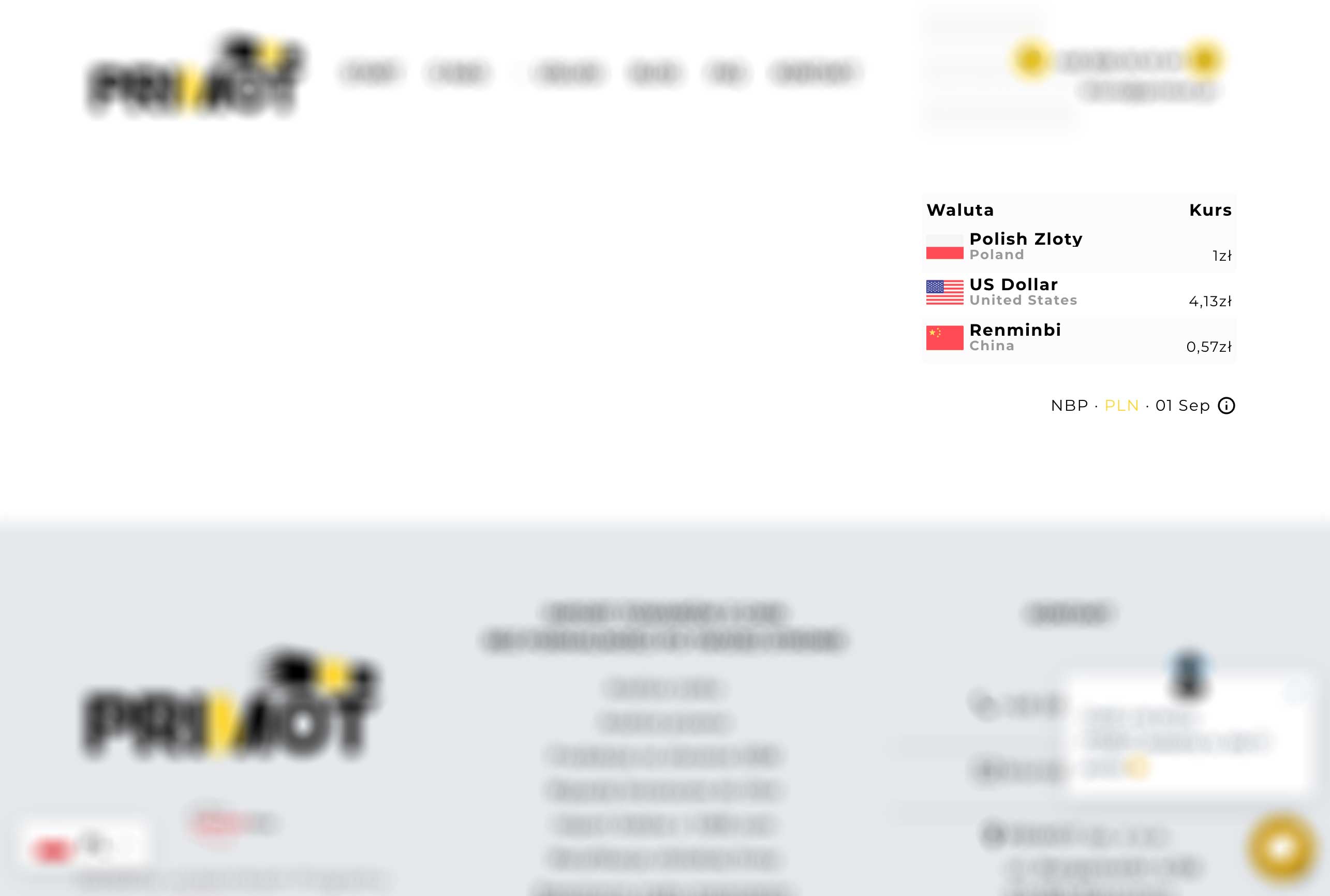
- Property and accommodation websites: show reference amounts for international visitors.
- Product and service pages: display currency equivalents alongside a quoted price.
安装:
- Go to Plugins → Add New.
- Search for "Exchange Rates".
- Click Install Now, then Activate.
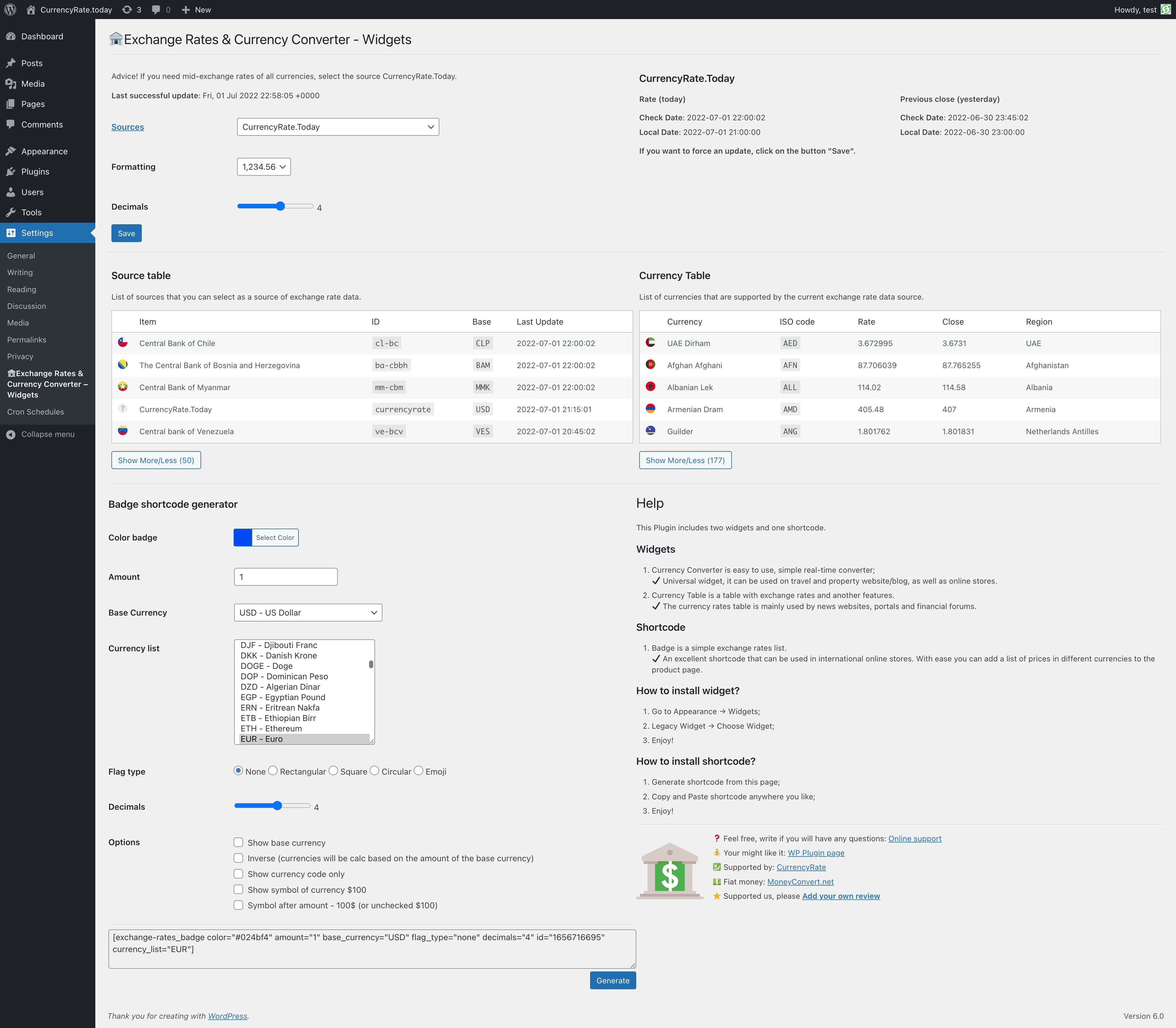
- Open Settings → Exchange Rates and choose your data source.
- Save your settings and check that exchange-rate data is available.
- Add a widget or shortcode, then preview the result on your site.
- Download the plugin ZIP file.
- Go to Plugins → Add New → Upload Plugin.
- Select the ZIP file, click Install Now, and activate the plugin.
- Open Settings → Exchange Rates to configure the data source.
- Add a widget or shortcode and preview the result.
屏幕截图:
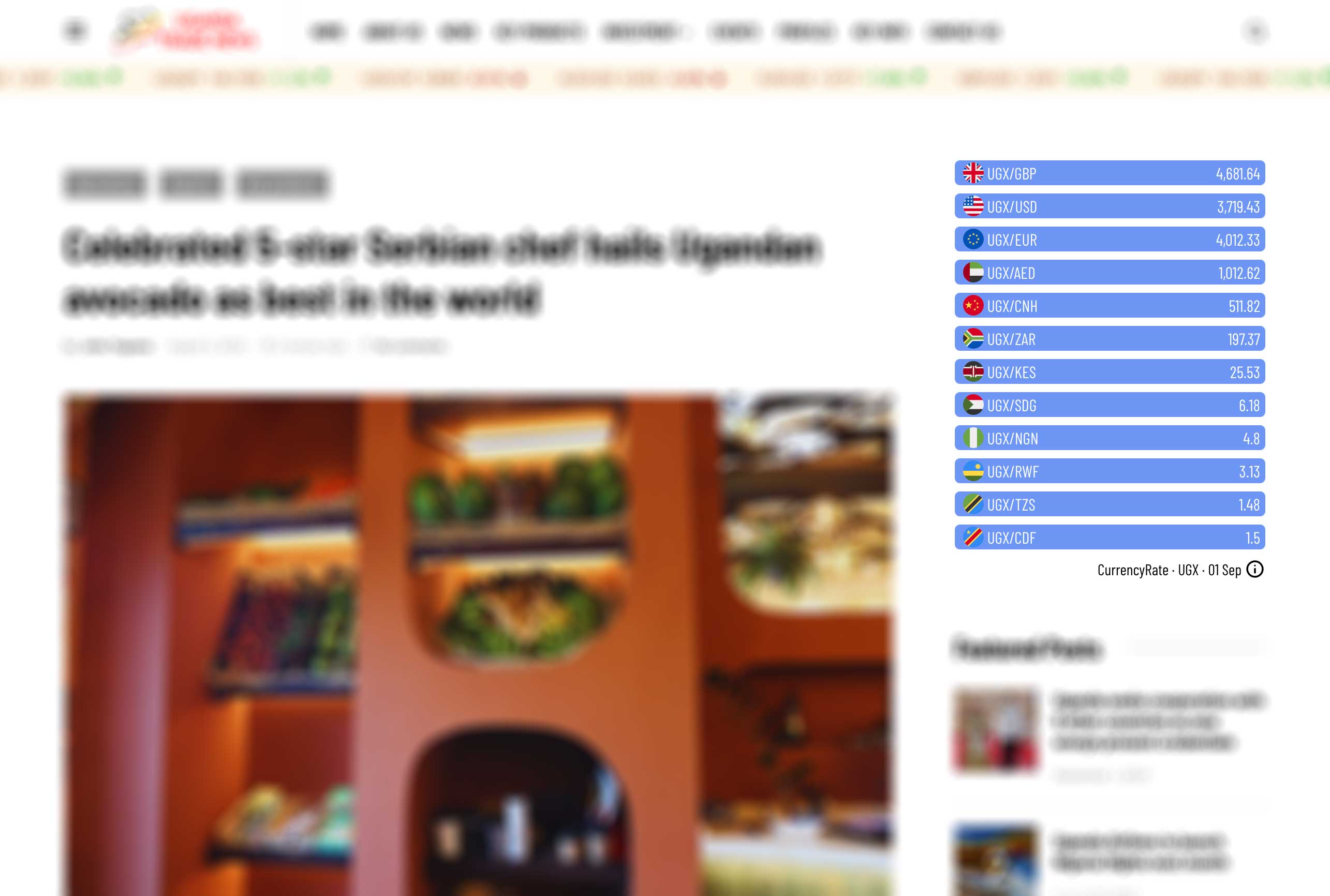
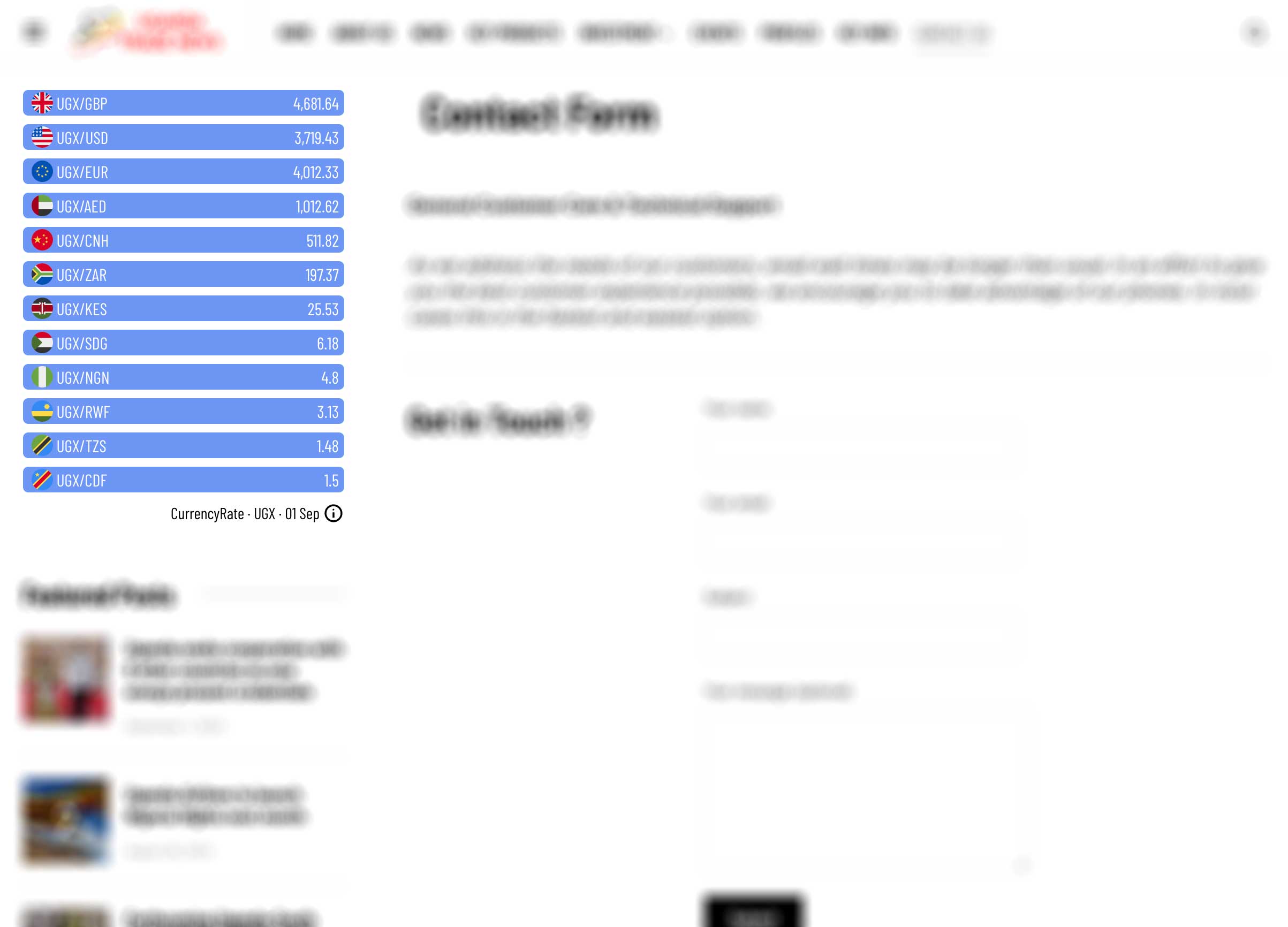
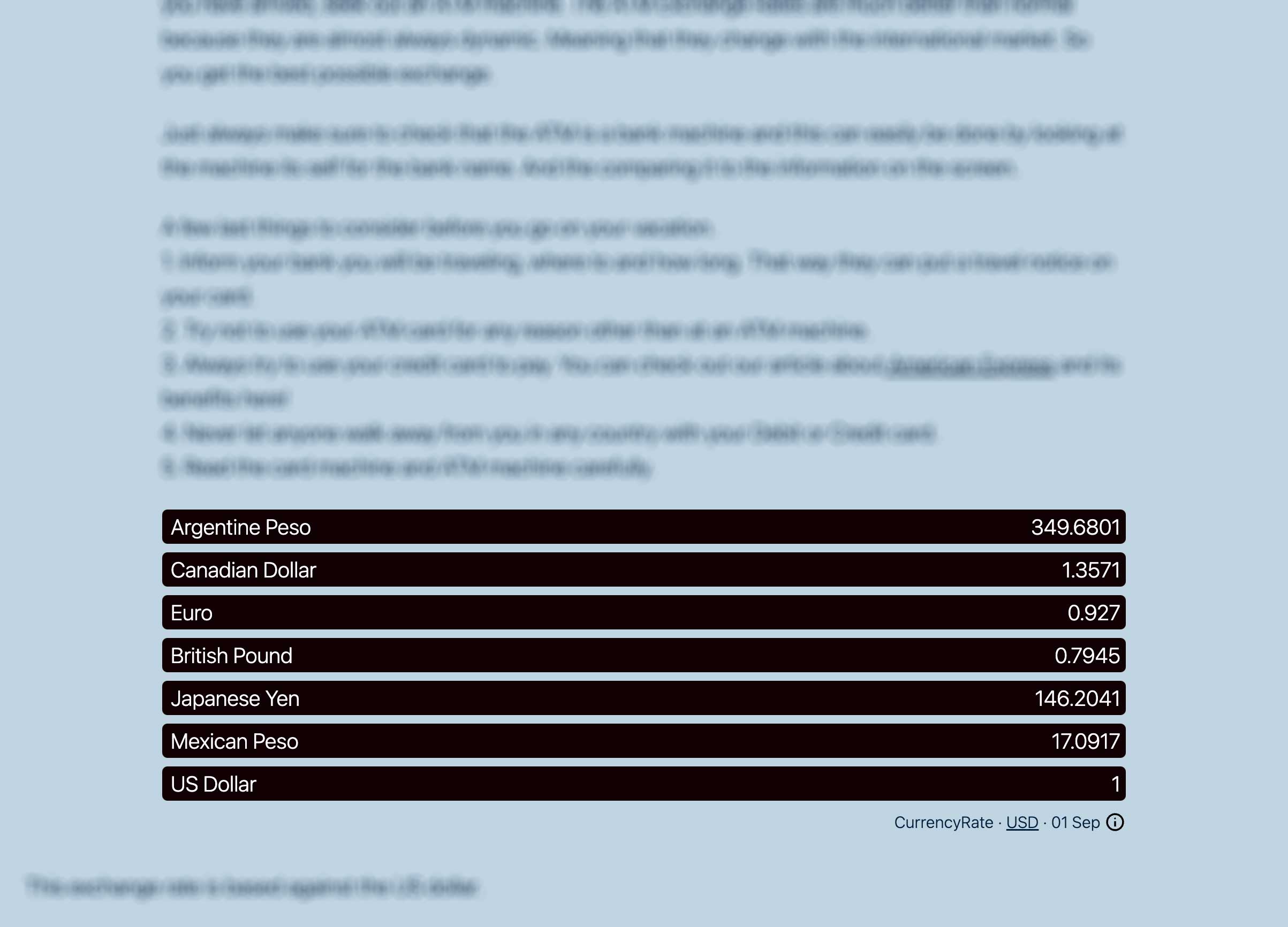
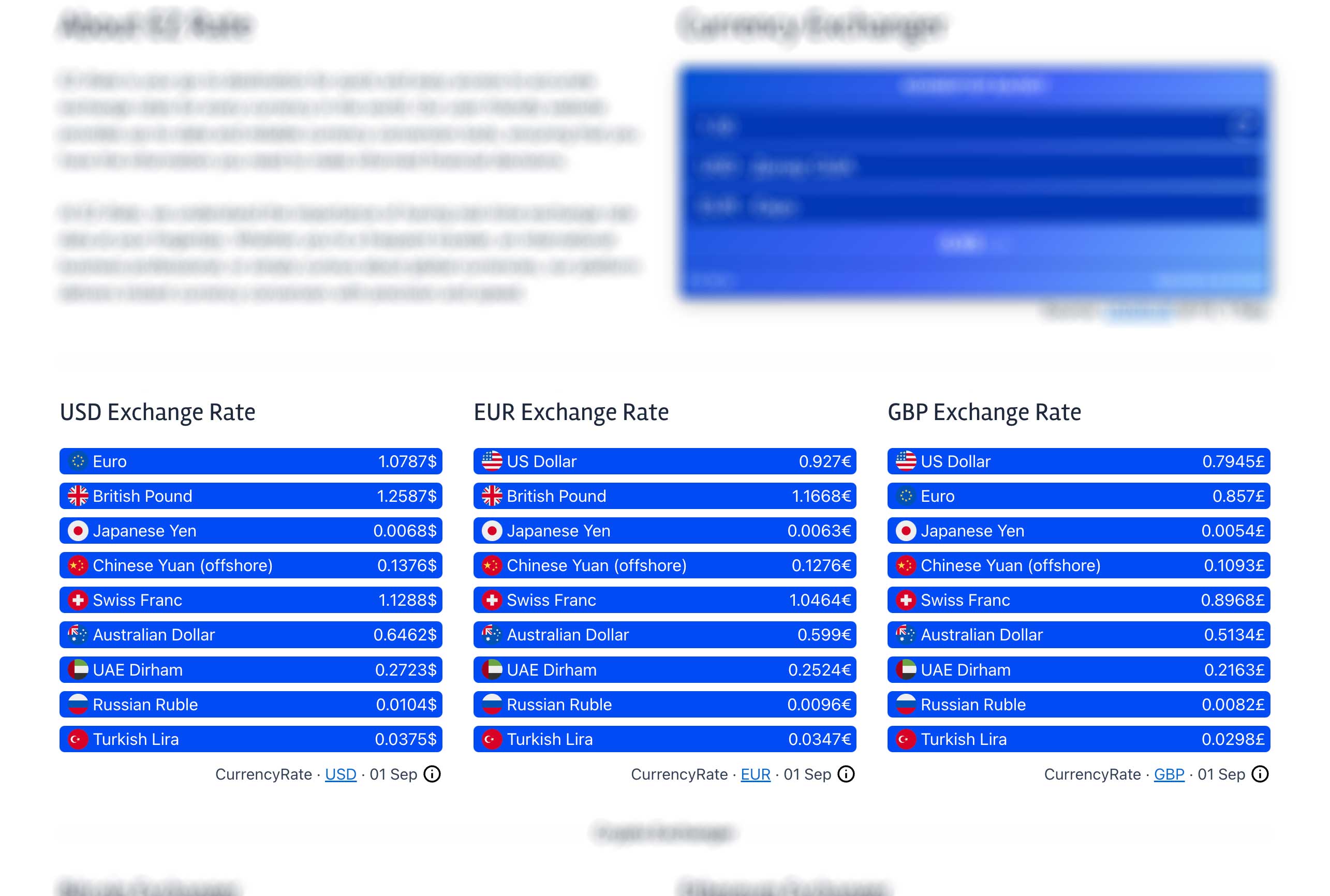
常见问题:
Do I need an API key or an account?
No. The plugin retrieves exchange-rate data from the public CurrencyRate service without requiring an API key or account. Your WordPress server needs an internet connection to retrieve new data.
How often are exchange rates updated?
The plugin schedules an update every 30 minutes through WordPress Cron. The actual execution time depends on your site's WP-Cron configuration and traffic. Each data source also has its own publication schedule, so a scheduled request does not necessarily mean that new rates are available. The converter recalculates amounts immediately using the rates loaded with the page. It does not request a new market quote for every conversion. Pages show saved rates immediately while WordPress Cron refreshes expired data in the background. If a refresh fails, the last saved rates and their original date remain visible, and another background attempt is scheduled after five minutes. Reload the page to see newly saved rates; open pages do not update automatically. When no rates have been loaded, the plugin displays an unavailable-data message. For updates without site visits, configure your hosting scheduler to run WordPress Cron. Full-page or CDN caches may continue showing older page content until they expire or are cleared.
How do I choose a data source?
Open Settings → Exchange Rates, select a source, and save your settings. Review the currency list and rate information shown on the settings page to check that the source provides the data you need. The selected source is shared by the plugin's converters, tables, and badges. You can use different display settings and currency lists for individual displays.
What should I check after changing a source?
After saving, confirm that the update succeeded in Settings → Exchange Rates. Review the source name, rate dates, and available currencies before using the displayed conversions. If the selected source cannot be loaded, previously stored rates retain their original source, conversion direction, and rate dates. The selection remains saved for the next update; it does not relabel or reinterpret the stored rates. Retry with Force Data Update and confirm that the selected source updates successfully.
Can I refresh the data manually?
Yes. Open Settings → Exchange Rates and use Force Data Update. The button is also available when the first attempt to load rates has failed. If the request fails, check the API connection or source availability and try again. Existing saved rates are retained. After a successful request, the settings page reloads and shows the last successful update time. Manual requests are subject to a one-minute interval after a successful update.
What happens when I deactivate or delete the plugin?
Deactivating Exchange Rates preserves its settings, widget configurations, and saved exchange rates. Deleting the plugin through the WordPress Plugins screen removes its settings, widget configurations, saved rates, and cached source directory. Posts, pages, and embedded shortcodes are not modified; the plugin must be active for its shortcodes and widgets to work. To update, reinstall, or roll back while preserving your configuration, replace the plugin files without deleting the plugin through WordPress first. Back up your database before uninstalling.
Can I use shortcodes in posts and pages?
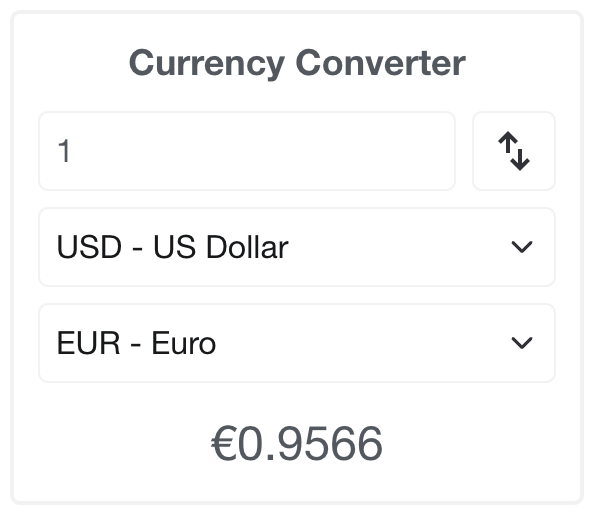
Yes. In the block editor, add a Shortcode block and paste the shortcode into it. Currency converter: [exchange-rates_currency-converter title="Currency Converter" amount="100" from="USD" to="EUR"] Exchange-rate table: [exchange-rates_currency-table base_currency="USD" currency_list="EUR,GBP,JPY" amount="1"] Exchange-rate table with an editable amount: [exchange-rates_currency-table base_currency="USD" currency_list="EUR,GBP,JPY" amount="100" amount_active="true"] Currency badges: [exchange-rates_badge base_currency="USD" currency_list="EUR,GBP,JPY" amount="100" code="true"] Use currencies available from your selected source. You can review that source's currency list on the plugin settings page.
Can I display more than one table on a page?
Yes. Tables can use different currency lists, starting amounts, and display settings. Changing the amount in one table recalculates that table only.
How should visitors enter amounts in an editable table?
Enter positive numbers without thousands separators or currency symbols. Use a period for decimals, for example 1000 or 1000.50. Table inputs do not correctly parse locale-formatted amounts such as 1,000 or 1 000; these can be read as 1. Number-format settings control the displayed results, not the accepted input format.
Does this change my store's checkout currency or product prices?
No. Exchange Rates displays conversions and reference amounts. It does not change your store's checkout currency, payment processing, or stored product prices. Badge amounts are supplied through the shortcode; they are not automatically synchronized with a product's price.
Why are some currencies or previous-close values unavailable?
Each source provides its own set of currencies and rate information. A currency listed in the plugin's catalog is not necessarily available from every source. Previous-close values and changes also depend on the data supplied. Check the selected source and its available currency list in Settings → Exchange Rates.
Can page caching affect the displayed rates?
Yes. A page cache or CDN can continue serving a previously generated page after the plugin has downloaded new rates. Configure the cache lifetime or purge the relevant pages so visitors receive updated content. After updating the plugin, purge cached pages and regenerate combined or minified assets so visitors receive the updated scripts.
Why are there source links below the displays?
Converters, tables, and badges include source captions to explain the origin and date of the rates. These captions link to currency-rate information on CurrencyRate.today or CurrencyConvert.online. The source-information panel also includes a link to the source website, check and latest-change times, and the API provider. It contains a rate disclaimer and a link to the plugin's WordPress.org page.
Which external services does the plugin use?
Exchange-rate data and source information are retrieved through api-bank.fex.to, the API interface for CurrencyRate.today. Requests are made from your WordPress server. Rate requests can occur on activation, scheduled background updates, source changes, and manual refreshes. Frontend rendering reads saved rates without waiting for the API. A page visit can queue a background refresh when data is missing or at least 30 minutes old; WordPress Cron performs the request separately. The settings page also requests source information when its cached copy needs refreshing. A rate request identifies the selected source. By default, the WordPress HTTP API sends the site's URL and WordPress version in the User-Agent header. The API server also receives the requesting server's IP address. Amounts entered into the converter are calculated in the visitor's browser; they are not sent to the exchange-rate API. When emoji flags are selected, the visitor's browser loads flag images from s.w.org, which receives the visitor's IP address and the browser's request headers. Other flag styles are included with the plugin. For information about the data provider, see CurrencyRate.Today, its Privacy Policy, and its Legal Disclaimer.
Which data sources are included?
The catalog below lists the sources included in this plugin version. Availability may change over time. Data is delivered through the CurrencyRate service. Source availability, currency coverage, and publication schedules may vary. This catalog includes central banks, commercial banks, exchange services, alternative market sources, and a virtual currency source.
- AE — Central Bank of the UAE
- AL — Bank of Albania
- AR — Central Bank of Argentina (retail)
- AR — Central Bank of Argentina (uva)
- AR — Central Bank of Argentina (wholesale)
- AR — Cronista Dollar Blue
- AU — Reserve Bank of Australia
- AZ — Central Bank of the Republic of Azerbaijan
- BA — The Central Bank of Bosnia and Herzegovina
- BD — Bangladesh Bank
- BG — Bulgarian National Bank
- BH — Central Bank of Bahrain
- BR — Banco Central do Brasil (USD)
- BT — Royal Monetary Authority of Bhutan
- BY — National Bank of the Republic of Belarus (Belta)
- CA — Bank of Canada
- CH — Swiss National Bank
- CL — Central Bank of Chile
- CU — Central Bank of Cuba
- CZ — Czech National Bank
- DK — Danmarks Nationalbank
- DZ — Crédit Populaire d’Algérie
- DZ — Devise Square (Black Market)
- EG — Central Bank of Egypt
- ET — National Bank of Ethiopia
- EU — European Central Bank
- GB — Bank of England
- GE — The National Bank of Georgia
- HU — Hungarian National Bank
- IL — Bank of Israel
- IN — Financial Benchmarks India
- IS — Central Bank of Iceland
- KH — Bank of Cambodia
- KR — Seoul Money Brokerage Services
- KZ — National Bank of Kazakhstan
- LB — Bank of Lebanon
- LB — Lebanese Lira Black Market
- LB — Lebanese Lira Sayrafa Rate
- MA — BANK AL-MAGHRIB
- MD — National Bank of Moldova
- MM — Central Bank of Myanmar
- MX — Bank of Mexico
- MX — Bank of Mexico (FIX)
- NG — Central Bank of Nigeria
- NG — Naira Black Market Exchange Rates Today
- NP — Nepal Rastra bank
- PE — Cambi
- PE — Cambia FX
- PE — Cambix
- PE — Dollar House
- PE — Hir Power
- PE — Instakash FX
- PE — oKane Cambio Online
- PE — Roblex
- PE — Srcambio
- PE — TKambio
- PE — Yanki
- PH — Central Bank of the Philippines
- PL — Polish National Bank
- RO — Banca Transilvania
- RO — National Bank of Romania
- RS — National Bank of Serbia
- RU — The Central Bank of the Russian Federation
- SE — Riksbank
- SG — Monetary Authority of Singapore
- SS — Bank of South Sudan
- TH — Bank of Thailand
- TJ — National Bank of Tajikistan
- TM — Central Bank of Turkmenistan
- TN — Central Bank of Tunisia
- TR — Central Bank of the Republic of Turkey
- TW — Central Bank of the Republic of China
- UA — Minfin Blackmarket USD
- UA — Monobank
- UA — National Bank of Ukraine
- UA — PrivatBank
- UZ — The Central Bank of the Republic of Uzbekistan
- VE — Central bank of Venezuela
- VN — Vietcombank
- ZA — South African Reserve Bank
- OECS — Eastern Caribbean Central Bank
- XX — CurrencyRate.Today
- XX — Transnistrian Republican Bank
- XX — West African Monetary Agency
- EG — Egypt Pound Black Market Rate
- Second Life Game Currency: Linden Dollar
Which currencies and other units are included?
The plugin's currency catalog contains the following 199 entries. The catalog includes national currencies, cryptocurrencies, precious metals, historical currencies, and other units. Inclusion in this list does not guarantee that a source currently supplies a rate for that entry. Currency codes help distinguish entries with similar names and older denominations. Available choices depend on the selected source.
- AFN — Afghan Afghani
- ALL — Albanian Lek
- DZD — Algerian Dinar
- AOA — Angolan Kwanza
- ARS — Argentine Peso
- AMD — Armenian Dram
- AWG — Aruban Florin
- AUD — Australian Dollar
- AZN — Azerbaijanian Manat
- BSD — Bahamian Dollar
- BHD — Bahraini Dinar
- BDT — Bangladeshi Taka
- BBD — Barbados Dollar
- BYN — Belarusian ruble
- BYR — Belarussian Ruble
- BZD — Belize Dollar
- BMD — Bermudian Dollar
- BTN — Bhutanese Ngultrum
- BNB — Binance Coin
- BTC — Bitcoin
- BTS — BitShares
- BOB — Boliviano
- BWP — Botswana Pula
- BRL — Brazilian Real
- GBP — British Pound
- BND — Brunei Dollar
- BGN — Bulgarian Lev
- BIF — Burundi Franc
- CVE — Cabo Verde Escudo
- KHR — Cambodian Riel
- CAD — Canadian Dollar
- XCG — Caribbean Guilder
- KYD — Cayman Islands Dollar
- XOF — CFA Franc BCEAO
- XAF — CFA Franc BEAC
- XPF — CFP Franc
- CLP — Chilean Peso
- CLF — Chilean Unit of Account
- CNH — Chinese Yuan (offshore)
- COP — Colombian Peso
- KMF — Comoro Franc
- CDF — Congolese Franc
- BAM — Convertible Mark
- CUC — Convertible peso
- NIO — Cordoba Oro
- CRC — Costa Rican Colon
- HRK — Croatian Kuna
- CUP — Cuban Peso
- CZK — Czech Koruna
- DKK — Danish Krone
- DASH — Dash
- DJF — Djibouti Franc
- DOGE — Doge
- DOP — Dominican Peso
- EAC — EAC
- XCD — East Caribbean Dollar
- EGP — Egyptian Pound
- SVC — El Salvador Colon
- EMC — EMC
- ERN — Eritrean Nakfa
- ETH — Ethereum
- ETB — Ethiopian Birr
- EUR — Euro
- FKP — Falkland Islands Pound
- FCT — FCT
- FJD — Fiji Dollar
- GMD — Gambian Dalasi
- GEL — Georgian Lari
- GHS — Ghana Cedi
- GIP — Gibraltar Pound
- XAU — Gold (ounce)
- GTQ — Guatemalan Quetzal
- GGP — Guernsey Pound
- ANG — Guilder
- GNF — Guinea Franc
- GYD — Guyana Dollar
- HTG — Haitian Gourde
- HNL — Honduran Lempira
- HKD — Hong Kong Dollar
- HUF — Hungarian Forint
- ISK — Iceland Krona
- INR — Indian Rupee
- IDR — Indonesian Rupiah
- IRR — Iranian Rial
- IQD — Iraqi Dinar
- ILS — Israeli Shekel
- JMD — Jamaican Dollar
- JPY — Japanese Yen
- JEP — Jersey Pound
- JOD — Jordanian Dinar
- KZT — Kazakhstani Tenge
- KES — Kenyan Shilling
- KWD — Kuwaiti Dinar
- KGS — Kyrgyzstani Som
- LAK — Lao Kip
- LBP — Lebanese Pound
- LSL — Lesotho Loti
- LRD — Liberian Dollar
- LYD — Libyan Dinar
- LD — Linden Dollar
- LTC — Litecoin
- MOP — Macanese Pataca
- MKD — Macedonian Denar
- MGA — Malagasy Ariary
- MWK — Malawian Kwacha
- MYR — Malaysian Ringgit
- MVR — Maldivian Rufiyaa
- IMP — Manx pound
- MRO — Mauritanian Ouguiya
- MRU — Mauritanian Ouguiya
- MUR — Mauritius Rupee
- MXN — Mexican Peso
- MDL — Moldovan Leu
- XMR — Monero
- MNT — Mongolian Tugrik
- MAD — Moroccan Dirham
- MZN — Mozambique Metical
- MMK — Myanmar Kyat
- NAD — Namibia Dollar
- NPR — Nepalese Rupee
- TWD — New Taiwan Dollar
- NZD — New Zealand Dollar
- NGN — Nigerian Naira
- NMC — NMC
- KPW — North Korean Won
- NOK — Norwegian Krone
- NVC — NVC
- NXT — NXT
- PKR — Pakistani Rupee
- XPD — Palladium (ounce)
- PAB — Panamanian Balboa
- PGK — Papua New Guinean Kina
- PYG — Paraguayan Guarani
- PEN — Peruvian Sol
- UYU — Peso Uruguayo
- PHP — Philippine Peso
- XPT — Platinum (ounce)
- PLN — Polish Zloty
- PPC — PPC
- QAR — Qatari Rial
- CNY — Renminbi
- OMR — Rial Omani
- XRP — Ripple
- RON — Romanian Leu
- RUB — Russian Ruble
- RWF — Rwanda Franc
- SHP — Saint Helena Pound
- WST — Samoan Tala
- STD — Sao Tomean Dobra
- STN — Sao Tomean Dobra
- SAR — Saudi Riyal
- RSD — Serbian Dinar
- SCR — Seychelles Rupee
- SLL — Sierra Leonean Leone
- XAG — Silver (ounce)
- SGD — Singapore Dollar
- SBD — Solomon Islands Dollar
- SOS — Somali Shilling
- ZAR — South African Rand
- KRW — South Korean Won
- SSP — South Sudanese Pound
- XDR — Special Drawing Rights
- LKR — Sri Lanka Rupee
- STR — STR
- SDG — Sudanese Pound
- SRD — Surinam Dollar
- SZL — Swazi Lilangeni
- SEK — Swedish Krona
- CHF — Swiss Franc
- SYP — Syrian Pound
- TJS — Tajikistani Somoni
- TZS — Tanzanian Shilling
- THB — Thai Baht
- TOP — Tongan Paanga
- PRB — Transnistrian ruble
- TTD — Trinidad and Tobago Dollar
- TND — Tunisian Dinar
- TRY — Turkish Lira
- TMT — Turkmenistan New Manat
- AED — UAE Dirham
- UGX — Uganda Shilling
- UAH — Ukrainian Hryvnia
- USD — US Dollar
- RUR — USSR Ruble
- UZS — Uzbekistan Sum
- VUV — Vanuatu Vatu
- VEF_BLKMKT — VEF BLKMKT
- VEF_DICOM — VEF DICOM
- VEF_DIPRO — VEF DIPRO
- VEF — Venezuelan Bolivar
- VES — Venezuelan Bolivar
- VND — Vietnamese Dong
- VTC — VTC
- WAUA — W-African Unit of Account
- XPM — XPM
- YER — Yemeni Rial
- ZMW — Zambian Kwacha
- ZWL — Zimbabwean Dollar
- ZWG — Zimbabwean ZiG
更新日志:
- Show the installed plugin version in the existing Info caption and HTML data attributes for widget diagnostics.
- Prevent a cron save error when a scheduled refresh and retry run together; let WordPress remove due retry events.
- Avoid a PHP warning when recreating a missing cron schedule on WordPress 5.6.
- Center small flags on the currency name, with the country below the group; flags of 40 px or more sit beside the combined name and country. Preserve single-row labels when the country is hidden.
- Check for updated rates every 30 minutes and migrate existing hourly schedules automatically without reactivation.
- Recover missing or expired cached data in the background using the same 30-minute interval; preserve the five-minute error retry and one-minute manual-update cooldown.
- Preserve number and currency-symbol order in RTL layouts and keep flags next to their currency labels.
- Replace legacy trend arrows with 14 px SVG icons while preserving rise, fall, and hidden states.
- Improve compact table captions, flag and region alignment, readable currency labels, compact Code/Price columns, and the full-width base-currency row.
- Normalize box sizing within converters so amount inputs, selectors, and swap buttons use consistent sizing in themes without a global reset.
- Validate source-directory fields and timestamps before display; retain the last valid directory with an error notice when refreshing fails.
- Discard an outdated update result when settings change during its request, preserving the newly selected source, saved rates, and preferences.
- Reject invalid API rates, mismatched sources, and missing or invalid rate dates without replacing the last saved rates; sources without previous-close data remain supported.
- Render cached rates immediately and refresh expired or missing data through WordPress Cron without frontend AJAX; retain hourly updates and retry failed background requests after five minutes.
- Calculate percentage changes relative to previous close; show unsigned percentages with trend colors and keep existing arrows consistent with displayed precision when amounts change.
- Preserve trailing integer zeros when formatting amounts with zero decimal places.
- Keep amount changes and number formatting local to the edited exchange-rate table.
- Associate settings labels with their existing controls while preserving the Sources link.
- Keep administrative JavaScript loop variables local to avoid overwriting other scripts' globals.
- Keep Force Data Update available after an initial API failure and clarify the difference between deactivation and deletion.
- Compare manual-update timestamps in UTC so the one-minute interval is independent of the site timezone.
- Persist successful update metadata through settings sanitization, verify stored data before reporting success, and retain the last successful timestamp after provider failures.
- Refresh a newly selected source after saving the selection, and display unknown update time without inventing a successful-update date.
- Preserve the cached source, conversion direction, and attribution when loading a newly selected source fails.
- Restrict the main admin stylesheet and common admin script to the plugin settings and widgets screens, preventing the stylesheet from being injected into the WordPress 7.1 block editor iframe. The separate manual-update script still loads on other admin screens.
- Verified compatibility with WordPress 7.1.
- Fixed handling of sources that provide current rates without previous-day close data.
- Hardened API response validation before saving exchange-rate data.
- Improved shortcode, widget, admin, and settings sanitization.
- Standardized boolean shortcode flags so only explicit false disables an attribute.
- Improved compatibility metadata for WordPress 7.0 and PHP 5.6+.
- Added: Caribbean Guilder (XCG) and Zimbabwean ZiG (ZWG).
- Security: fixed vulnerability.
- Minor bug fixes and improvements.
- Minor bug fixes.
- Improved compatibility with PHP 8.
- Security: fixed vulnerability.
- Minor bug fixes.
- Added RTL (Right-to-Left) style support.
- Minor bug fixes.
- Tested up to WordPress 6.5.
- Security: fixed XSS vulnerability.
- Performance optimizations.
- Accessibility improvements.
- Minor bug fixes.
- Tested up to WordPress 6.5.
- Minor bug fixes.
- Tested up to WordPress 6.4.
- Added source: 🇪🇬 Egypt Pound Black Market Rate.
- Added source: 🎮 Second Life game currency (Linden Dollar).
- Minor bug fixes.
- Minor bug fixes.
- Fixed shortcode generator.
- Fixed classic widget generator.
- Improved style compatibility.
- Added new sources including black markets, blue dollar, etc.
- Added Devises du Square Port-Saïd à Alger.
- Added Dólar Blue.
- Added Black Market Hryvnia.
- Added Black Market Naira.
- Added Sayrafa Rate LBP.
- Simplified translations by removing bank names.
- Minor bug fixes.
- Improved compatibility with other plugins (thanks @denver28).
- Improved PHP 8 compatibility.
- Minor bug fixes.
- Minor bug fixes.
- Added new sources.
- Minor bug fixes.
- Fixed decimal comma format for “amount form”.
- Fixed CSS caption color.
- Initial release.