
FizteQ Pulse - Monitoring and error tracking
| 开发者 | fizteq |
|---|---|
| 更新时间 | 2026年8月20日 23:06 |
| PHP版本: | 7.4 及以上 |
| WordPress版本: | 7.1 |
| 版权: | GPLv2 or later |
| 版权网址: | 版权信息 |
详情介绍:
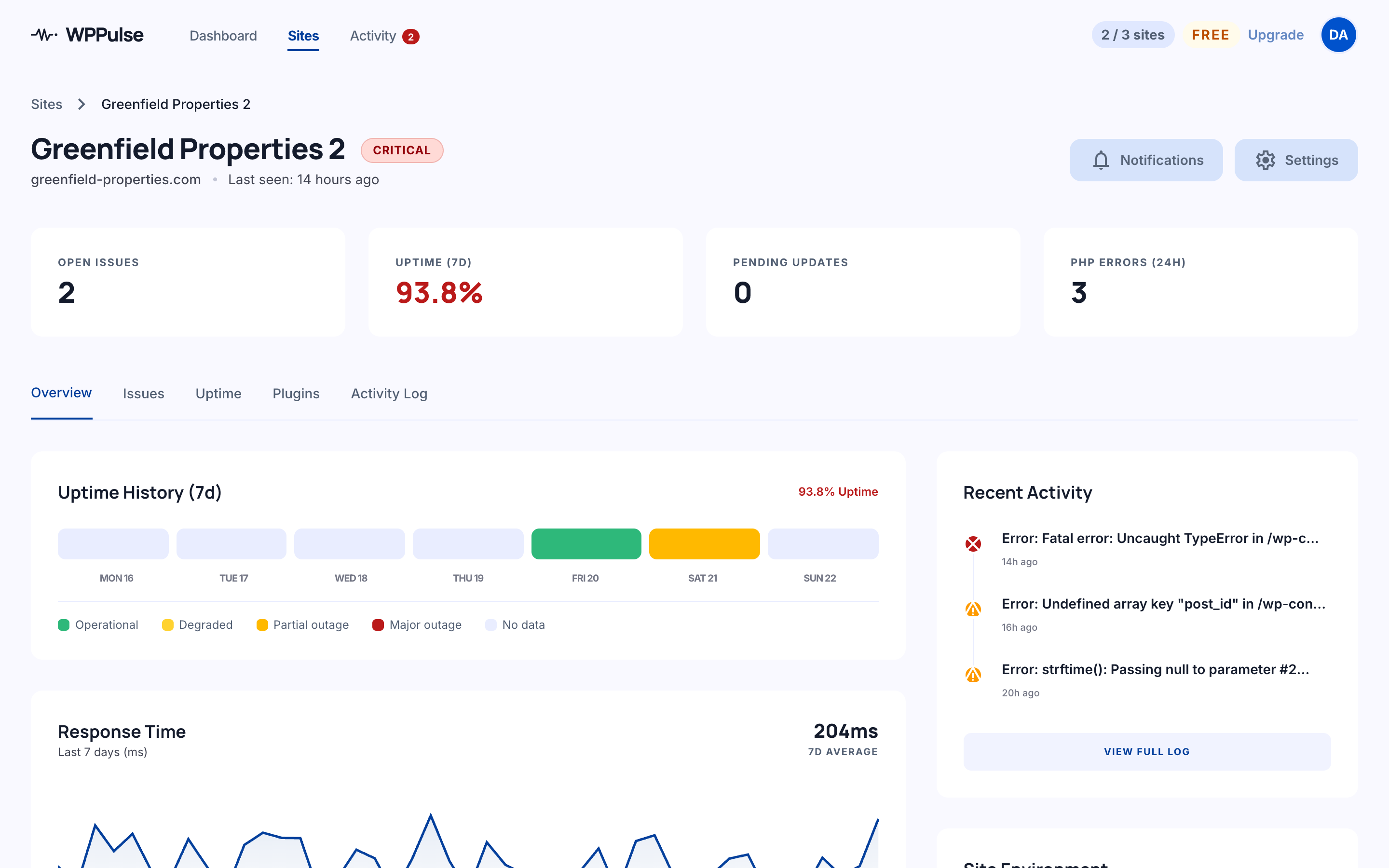
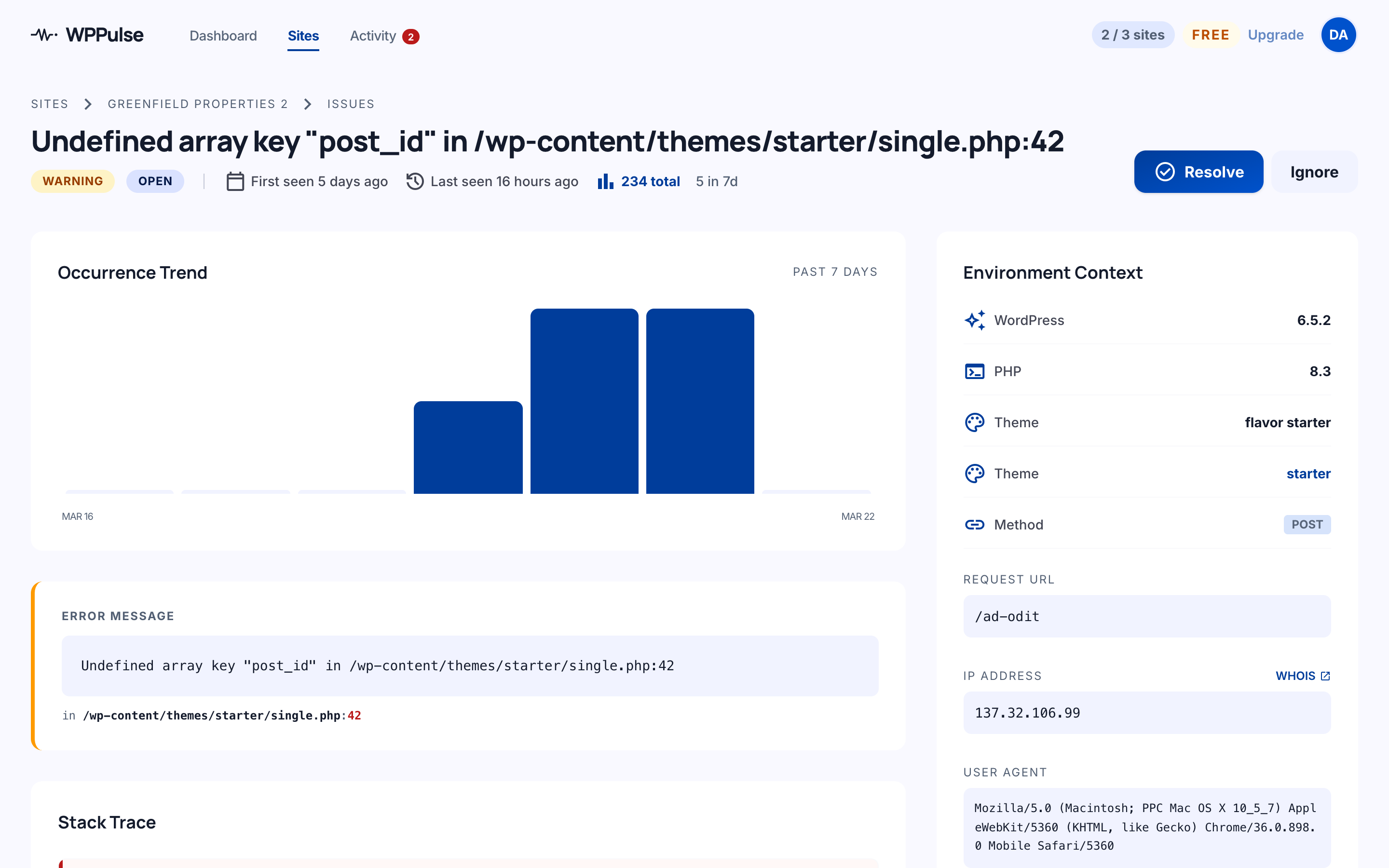
- PHP errors & exceptions — Fatal errors, uncaught exceptions, and user errors with full stack traces
- Plugin changes — Activations, deactivations, installs, updates, and pending updates
- WordPress core updates — Get alerted when a new WordPress version is available
- Security events — Admin user creation, deletion, and role changes
- Database errors — Query failures with sanitised error details
- REST API errors — 4xx and 5xx responses on WordPress REST endpoints
- Cron job failures — Detect overdue or silently failing scheduled tasks
- Server resources — Disk space and memory usage warnings
- Vulnerability exposure — Reports installed plugin and theme versions so the dashboard can flag published security vulnerabilities that affect your site
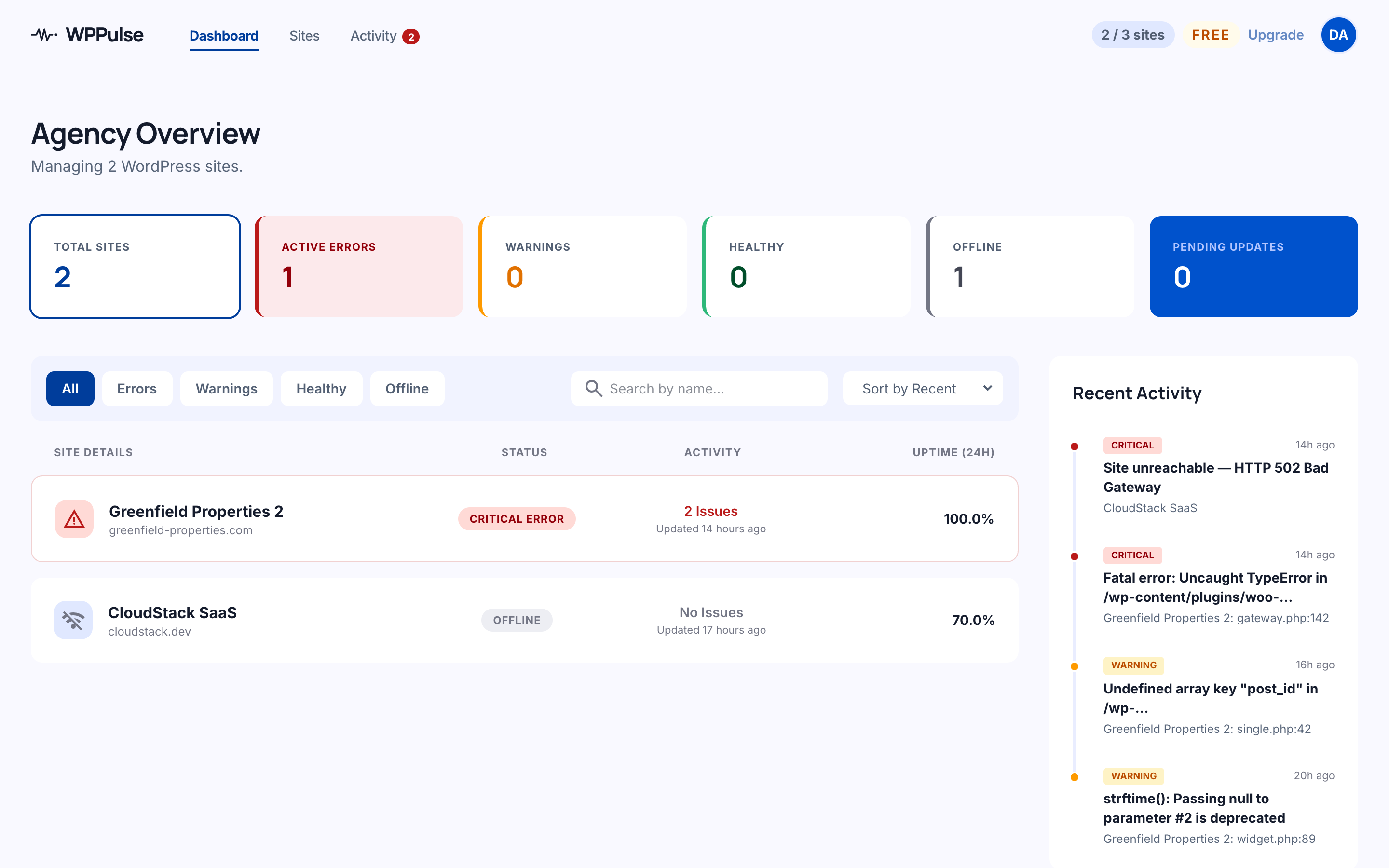
- Multi-site dashboard — See all your client sites at a glance with status indicators
- Smart alerts — Digest-based notifications so you don't get spammed
- 4 notification channels — Email, Telegram, Discord, and Slack
- WordPress-native — Purpose-built for WordPress, not a generic error tracker
- Privacy first — Sensitive data (passwords, tokens, PII) is automatically filtered before anything leaves your site
- EU-hosted & GDPR-compliant — Servers in Bucharest, Romania. No data leaves the EU.
- Lightweight — No frontend JavaScript, no database tables, no impact on your visitors
- Sign up at wp-pulse.app and add your site
- Install this plugin and enter the API key from your dashboard
- That's it — errors and events start flowing to your dashboard immediately
wp-pulse.app. No data is transmitted until you configure the plugin with your API key. The plugin does not contact any external server until you explicitly connect it.
Data transmitted to WPPulse:
- PHP error details: error class, message, file path (relative, server root stripped), line number, stack trace
- Plugin events: activation, deactivation, install, update, pending updates
- Security events: admin user creation, deletion, role changes (user ID and role only — no names or emails)
- Database errors: sanitised error message and query (all literal values replaced with placeholders)
- REST API errors: route, method, status code
- Cron failures: hook name and schedule
- Resource warnings: disk space and memory usage percentages
- Environment: PHP version, WordPress version, active theme name, multisite status, OS name, plugin version
- Installed software inventory: the directory slug, display name, version and active state of each installed plugin and theme, plus the WordPress core version. Used to check your site against published security vulnerabilities. No file paths or file contents are sent.
- Request context (on errors only): HTTP method, URL path (no query string), filtered headers, filtered POST/GET fields, user agent, IP address
[Filtered] before transmission. You can add custom fields on the settings page.
Service links:
WPPulse is operated by FizteQ Solutions SRL (Romania, EU). All data is processed and stored on servers located in Bucharest, Romania.
安装:
- Go to Plugins > Add New in your WordPress admin
- Search for FizteQ Pulse
- Click Install Now, then Activate
- Go to FizteQ Pulse in the admin sidebar
- Enter your Dashboard URL and API key (get these from wp-pulse.app)
- Click Test Connection to verify everything works
- Download the plugin ZIP file
- Go to Plugins > Add New > Upload Plugin
- Upload the ZIP file and click Install Now
- Activate the plugin and configure it under the FizteQ Pulse menu
- Dashboard URL — Pre-filled with
https://wp-pulse.app. No change needed unless directed otherwise. - API Key — Your site-specific key from the FizteQ Pulse dashboard
屏幕截图:
常见问题:
Do I need a WPPulse account?
Yes. The plugin sends monitoring data to your WPPulse dashboard at wp-pulse.app. You can sign up for a free account to get started.
What data does the plugin send?
The plugin sends error details (message, file, stack trace), plugin change events, environment information (PHP version, WordPress version, active theme), and the list of installed plugins and themes with their versions so your sites can be checked against published security vulnerabilities. Sensitive fields like passwords, tokens, emails, and credit card numbers are automatically filtered and never transmitted.
Does it slow down my site?
No. The plugin hooks into WordPress events and only runs when something happens (an error, a plugin change, etc.). It adds no frontend JavaScript, no database tables, and no queries to page loads. API calls use a 10-second timeout so they never block your site.
What happens if the connection to WPPulse is down?
Events are automatically queued locally (up to 50 events) and retried with exponential backoff. Once the connection is restored, all queued events are sent in a single batch. No data is lost.
Can I control which monitors are active?
Yes. Monitors are toggled from the WPPulse dashboard. After making changes there, click Sync Config in the plugin settings to pull the latest configuration.
Can I add custom fields to the privacy filter?
Yes. Go to the WPPulse settings page and add field names under Additional Filtered Fields (one per line). These are merged with the 34 built-in filtered fields. You can also use the wppulse_sensitive_body_keys and wppulse_sensitive_header_keys filters in code.
Is it GDPR-compliant?
WPPulse is built by an EU company (FizteQ Solutions SRL, Romania) and hosted entirely within the EU. Sensitive data is filtered before transmission, and the plugin does not use cookies or track visitors. See our privacy policy and DPA for full details.
Does it work with WP-CLI?
The plugin detects WP-CLI and command-line contexts. Error monitoring works in CLI mode, but request-specific data (URL, headers, POST body) is not captured since there is no HTTP request.
Does it work on multisite?
Yes. The plugin reports the multisite status as part of the environment data. Install and configure it on each site in the network where you want monitoring.
更新日志:
- Fix: when a plugin or theme update was installed, the dashboard was told once and never again. If that one message did not get through — the dashboard busy, briefly unreachable, or refusing the request — the site had already forgotten, and the dashboard went on listing an update as pending on a site that had installed it. The message is now kept until it is acknowledged
- Fix: installing this plugin twice no longer reports everything twice. WordPress identifies a plugin by its folder, and this one arrived under two —
fizteq-pulsefrom WordPress.org,wppulsefrom the dashboard download — so installing the second over the first added a copy instead of updating it, and both ran. The extra copy now stops itself and says so on the Plugins screen, rather than doubling every report and exhausting the dashboard's rate limits - Change: the zip downloaded from the dashboard now unpacks as
fizteq-pulse, matching the WordPress.org install, so uploading it by hand updates the plugin instead of adding a second one beside it - Fix: the uninstall report named a fixed plugin folder that was only ever right for one of the two installs, so uninstalling from a WordPress.org install reported a folder that was not there
- Fix: while the dashboard could not be reached, every PHP error on a page made the visitor wait for the connection to time out — up to ten seconds each, and up to five errors on one page load. Reports are now handed to the scheduler instead of being sent mid-page, so nothing this plugin does can slow a site down, whatever state the dashboard is in
- Fix: the plugin no longer keeps resending reports the dashboard has already refused. Repeating a rejected request changes nothing and, to a firewall, looks like an address worth blocking — which is how a site could end up unable to report at all
- Change: only the request headers that help explain an error are reported. The full set carried ordinary browser headers that security filters read as an attack, which was enough to get a reporting site blocked
- Fix: on a busy site WordPress can run its scheduler several times at once, which sent several heartbeats within the same second. The surplus was refused and then recorded as a failed report, so a healthy site accused itself of being unreachable
- Fix: the Flush button now says what actually happened. It reported "sent successfully" whenever the queue ended up empty, which is also what happens when the dashboard refuses the events outright — the one place an admin can check whether reporting works was capable of confirming it while nothing arrived
- Fix: a plugin or theme replaced on disk — over FTP, by a host's own updater, or by a deployment — was not reported until the next daily check, because WordPress announces no change in those cases. The installed list is now compared on every heartbeat, so an update made any way at all reaches the dashboard within minutes and clears any security advisory it fixes
- New: a Sync now button on the settings page reports the installed plugins and themes immediately
- The settings page now says when the installed list was last checked, not only when it was last sent. A site that has not changed in weeks was correctly showing a weeks-old report, which read exactly like reporting having stopped
- Fix: database errors were almost never reported. WordPress clears the last error every time it runs another query, so the old check — which ran once at the end of the request — could only ever see a failure from the very last query. Errors are now caught as they happen
- New: a database error arrives with the query that failed, the tables it touched, and the plugin or theme line that ran it, instead of just WordPress's own wording. Values in the query are replaced with ? before it leaves the site
- New: database and REST API errors say what the site was doing at the time — a page on the front end, wp-admin, an admin-ajax action by name, a REST route, WP-Cron, or WP-CLI
- Database errors that name a table, column or key now keep that name in the message. It used to be blanked along with the row data, which left errors such as "Table '[value]' doesn't exist" with the one fact they existed to report removed
- Each distinct failing query is now its own issue, rather than every database error on a site collapsing into one
- Verified compatibility with WordPress 7.1. No functional changes.
- New: the plugin settings page now shows when this site last reported, and says plainly what went wrong when it could not — a rejected API key, a key belonging to a different domain, a firewall in the way, or a dashboard that could not be reached at all
- New: a count on the FizteQ Pulse menu item when something needs your attention, so a site that has quietly stopped reporting is visible the moment you open wp-admin. Failures that clear on their own — a timeout, a rate limit, a brief dashboard error — are deliberately not counted
- New: detects a site that has stopped reporting, has never reported at all, or has been failing to reach the dashboard for hours. Previously each of these looked exactly like a healthy site from inside wp-admin
- Fix: on sites with a persistent object cache (Redis, LiteSpeed), the very first inventory report could be skipped because the API key was read from a stale cache and the site looked unconfigured
- Fix: a heartbeat answered with something other than JSON — usually a proxy or security service returning its own page — was treated as a successful report rather than the failed one it is
- Fix: pressing Test connection no longer hides the warning that this site's scheduled reporting has stopped. It proves the site can reach the dashboard right now, which is a different question
- Messages now name whichever scheduler the site is set to use, rather than always blaming WP-Cron
- New: PHP warnings, notices and deprecations are now reported with their actual error level, so the dashboard can rank them properly — deprecations and notices appear in your daily summary instead of alerting like a fatal error
- Fix: the error levels the plugin reports are now enforced inside the handler as well as declared. A theme or plugin that installs its own error handler and chains to ours could previously feed us levels we were never configured to collect
- The site's own error_reporting() level is now respected, so a host that has switched deprecation notices off is no longer overridden
- Fix: sites updating from an earlier version now report their plugin and theme inventory straight away, instead of waiting for the next daily check
- New: reports the installed plugin and theme inventory (slug, version, active state) so the dashboard can match your sites against published security vulnerabilities
- Inventory is sent once daily, and again whenever a plugin or theme is installed, updated, activated, deactivated or removed — unchanged inventories are not re-sent
- Verified compatibility with WordPress 7.0 — bumped "Tested up to"
- REST API errors now include request context (URL, method, IP, user, user agent, query params) and the underlying WP REST error code and message — no more blind 400/500 reports
- Shared request-context helper on the base monitor class — all future monitors get the same context for free
- Send structured user context (ID, login, role) with plugin and security events for richer audit trail
- Pre-fill Dashboard URL with https://wp-pulse.app on activation
- Update installation instructions with correct plugin name and search term
- New: subscription status awareness — admin notices for limited, past due, and cancelled subscription states
- New: handles 402 API responses when site monitoring is paused due to plan limits
- Improvement: subscription status stored as WP option for LiteSpeed Object Cache compatibility
- Rename plugin display name to "FizteQ Pulse" to comply with WordPress.org trademark guidelines
- Enqueue admin CSS and JS via wp_enqueue_style/wp_enqueue_script instead of inline tags
- Make configuration notice dismissible
- Sanitize filtered keys with sanitize_key() in register_setting
- Move WordPress.org directory assets out of plugin zip
- Fix: remove translation update tracking — produces misleading same-version alerts
- Fix: use hook name for cron failure fingerprint deduplication
- Fix: flush monitor config option cache on settings change
- Fix: persist monitor config in option to survive cache flushes
- Fix: add heartbeat diagnostics to test connection
- Send immediate heartbeat after successful test connection for faster wizard detection
- Fix: Send site domain header for server-to-server API authentication
- Remove placeholder text from WPPulse URL field
- Initial release
- 8 monitors: PHP errors, plugins, core updates, security, database, REST API, cron, resources
- Failsafe event queue with exponential backoff
- Sensitive data filtering (34 built-in fields + custom fields)
- Dual scheduling: WP-Cron or system cron
- HTTPS enforcement and SSL verification on all API calls
- Auto-resolve when issues are fixed
- GDPR-friendly: no cookies, no visitor tracking, EU-hosted