
Flexa Block – Blocks & Page Builder
| 开发者 | flexatech |
|---|---|
| 更新时间 | 2026年10月5日 11:44 |
| PHP版本: | 7.4 及以上 |
| WordPress版本: | 7.1 |
| 版权: | GPLv2 or later |
| 版权网址: | 版权信息 |
详情介绍:
- Lightweight and performance-focused
- Native Gutenberg experience
- Front-end inline editing — click text on the live page and edit it in place
- Responsive by default
- Clean and modern design
- Highly customizable
- No unnecessary bloat
- Regular updates
build/. The human-readable source code (src/), together with the build tooling used to generate those assets, is publicly available and maintained at:
https://github.com/flexatech/flexa-block
The assets are built with npm and @wordpress/scripts (webpack). To build them yourself:
- Install dependencies:
npm install - Build production assets:
npm run build(ornpm startfor a watched dev build)
build/ from the source in src/.
安装:
- Upload the plugin files to
/wp-content/plugins/flexa-block, or install through the WordPress Plugins screen. - Activate the plugin through the Plugins screen.
- Open Flexa Block from the admin sidebar (below Settings).
屏幕截图:
常见问题:
Do I need to know how to code to use Flexa Block?
No. Everything is controlled through the WordPress Block Editor. Just insert a block, adjust settings in the sidebar, and publish.
Which WordPress themes does Flexa Block support?
Flexa Block works with any theme that supports the Block Editor, including classic themes and Full Site Editing (FSE) themes.
What blocks are included?
Version 1.0.4 ships with a growing library of blocks, including: Container, Button, Heading, Image, Countdown, FAQ (with optional FAQPage schema), Social Icons, Grid, Testimonial, Separator, Text, Counter, Info Box, Slides, Social Share, Table of Contents, Before / After, Breadcrumb, Steps, Tabs, Video Popup, Comparison Table, Google Map, Images Gallery, Banner, CTA, a Subscribe Form, Pricing Table, Team Member, Post Grid, Post Filter, Progress Bar, Timeline, Icon, Icon List, Lottie Animation, Modal, Star Rating, Notice, Data Table, Taxonomy, RSS Feed, Facebook Feed, Instagram Feed and twelve WooCommerce single-product blocks. All blocks include skeleton inserter previews and JavaScript translations. More blocks will be added in future releases.
Can I edit content directly on the live page?
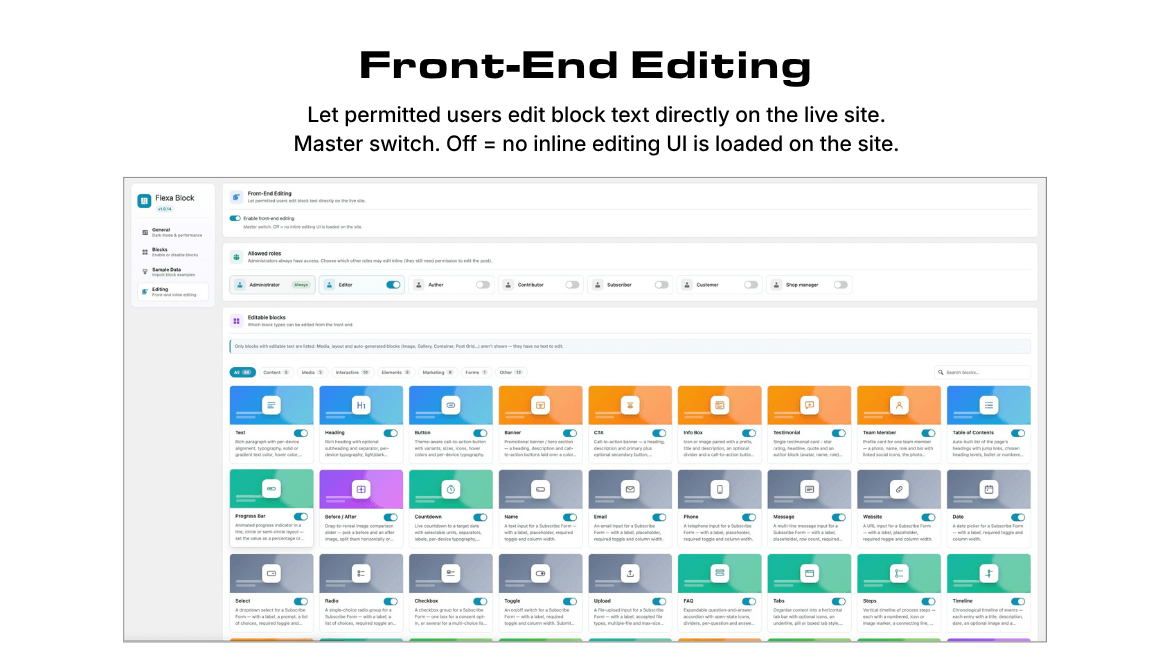
Yes. When you are logged in and allowed to edit the post, Flexa's editable blocks become click-to-edit on the front end: click a heading, paragraph, button label, list item or table cell, type your change, and press Save in the toolbar that appears. The edit is saved into the block itself — markup, block settings and generated CSS are preserved — and logged as a note on the post.
Which blocks can be edited from the front end?
Thirty-five blocks, covering every block whose text you type in yourself: Heading, Text, Button, Table of Contents, Progress Bar, Before / After, Star Rating, Modal, Notice, Banner, CTA, Info Box, Testimonial, Team Member, Countdown labels, all eleven Subscribe Form field labels, FAQ, Tabs, Steps, Timeline, Pricing Table, Counter, Icon List, Comparison Table and Data Table. Blocks that show generated or fetched content (Post Grid, Breadcrumb, WooCommerce product blocks, feeds) are not inline-editable, since their text does not live in the block.
Who is allowed to edit on the front end, and can I turn it off?
Administrators always can; Editors are allowed by default. Open Flexa Block → Editing to switch inline editing off entirely, change which roles may use it, or disable it for individual blocks. Users still need the normal WordPress permission to edit that particular post.
Will Flexa Block slow down my site?
No. CSS is generated once at save time and cached per post. Only the styles actually used on a given page are loaded — there are no large catch-all stylesheets.
Does Flexa Block support dark mode?
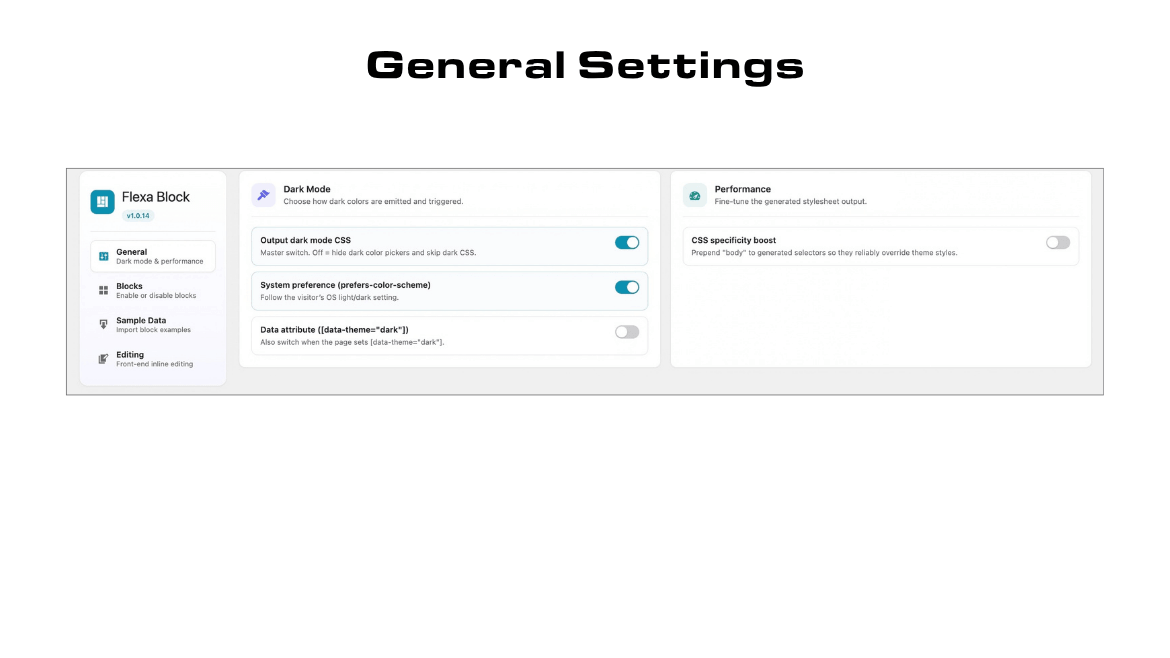
Yes. The Container block integrates with a site-wide dark mode toggle, which you can enable or disable from the Flexa Block settings page in the admin.
How do I disable a block I don't need?
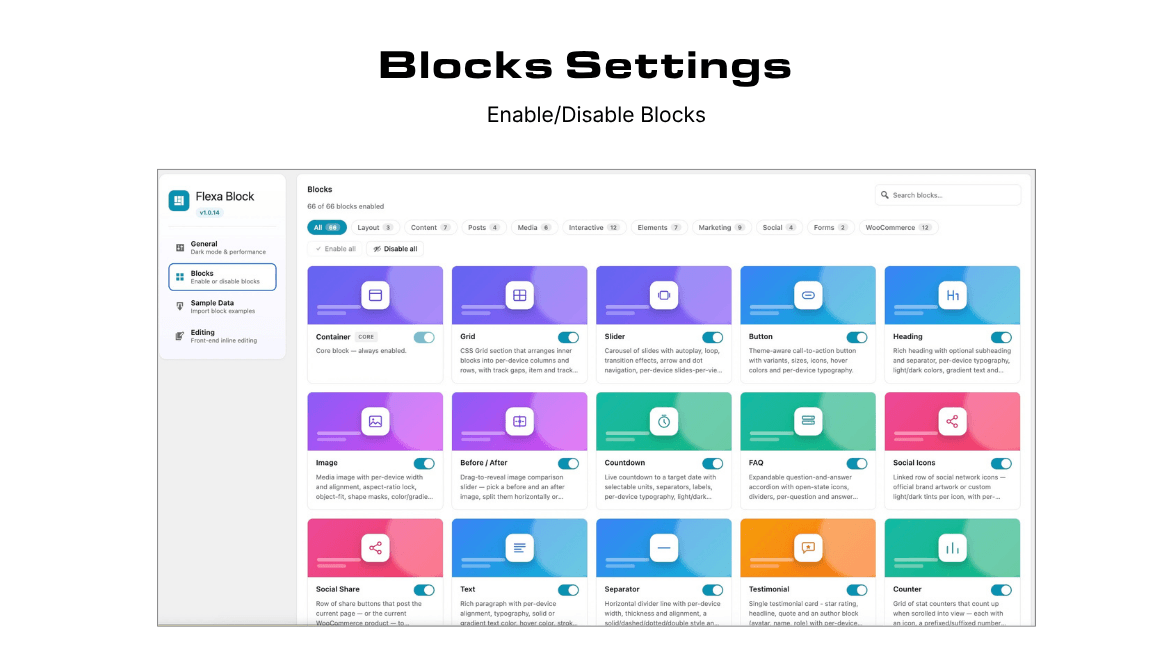
Go to Flexa Block in the admin sidebar and open the Blocks tab. You can toggle individual blocks off — disabled blocks are removed from the Block Editor inserter.
Where are the plugin settings?
In the WordPress admin sidebar, click Flexa Block (located below Settings). From there you can control dark mode, CSS specificity, and which blocks are active.
Is there a Pro version?
Yes. Flexa Block Pro adds additional blocks and advanced features. It works alongside this free plugin.
更新日志:
- New: an introduction to Flexa FormFlow, our free form builder with a visual email designer and a workflow engine. It shows as a Dashboard notice and as a banner on the Flexa Block screen, and only while FormFlow is not already installed. Choosing "not interested" once hides it everywhere, permanently.
- The suggestion is coordinated with our other plugins. If another Flexa plugin is active, the Dashboard shows one card rather than one per plugin, and turning it down anywhere turns it down everywhere.
- Accessibility and SEO: every "Read more" button in Post Grid and RSS now carries the post or feed item title in its accessible name, so screen readers, voice control and site audits see which card each button belongs to. Previously a page of cards handed them a list of identical "Read more" links. The visible button text is unchanged.
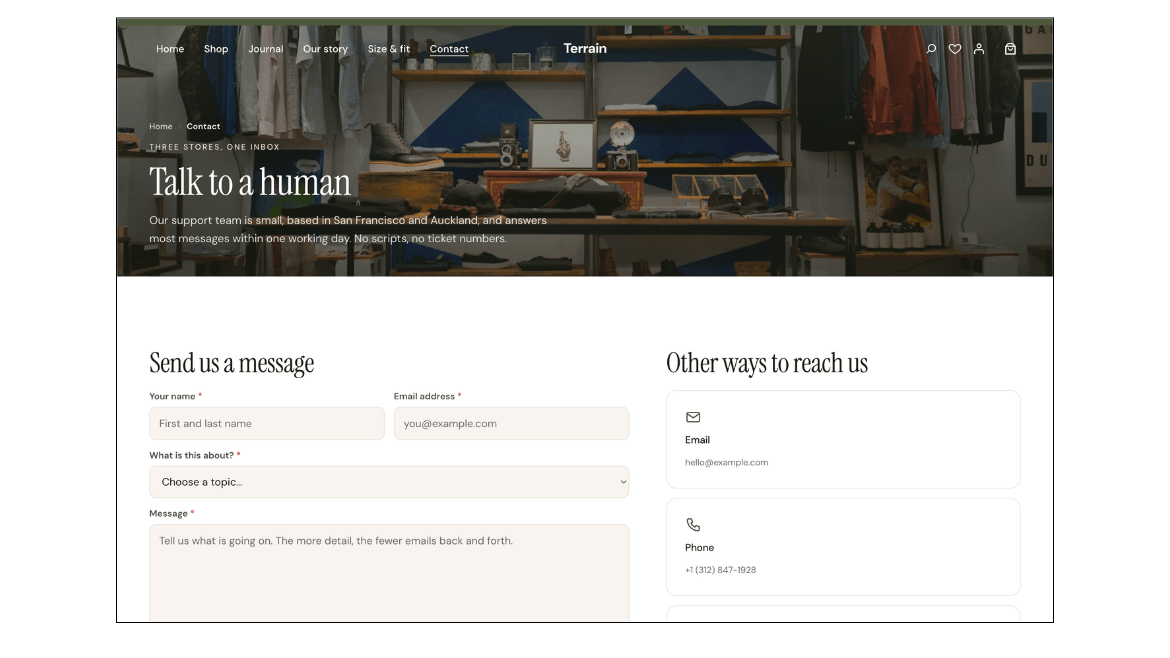
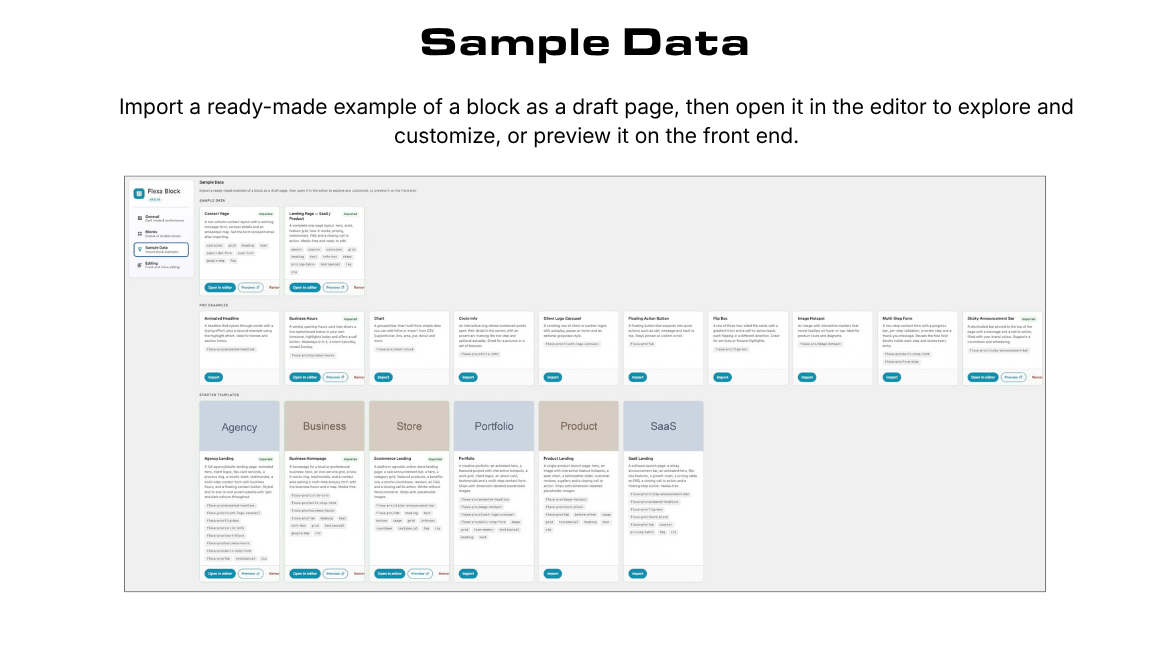
- Sample Data: the bundled starter pages (Contact and SaaS Landing) now ship with a finished visual design instead of a plain layout. Each sample card has a single Preview action that opens the page on the front end, and removing an imported sample now asks you to confirm first.
- Admin: refreshed the dashboard with a cyan accent and rounded buttons, and added a Settings link next to the plugin on the Plugins screen.
- Fix: the deactivation feedback survey no longer opens more than one "Before you go" dialog. With several Flexa plugins active at once, each bundled its own copy of the survey script and every copy added a handler to the Deactivate link, so the dialog stacked and needed one click to dismiss each copy. Each Deactivate link now opens a single dialog.
- Hardened how block background images are written into generated CSS. Image URLs are now quoted and stripped of any characters that could break out of the CSS
url()value, closing a potential CSS-injection path. Background and mask images render exactly as before.
- Added seven more WooCommerce single-product blocks (shown only when WooCommerce is active): Add to Cart (quantity field and button with your own label and cart icon, full normal/hover styling, and matching styling for variable-product attribute dropdowns), Product Description (the long description with an optional heading, styled body, links, nested headings/lists/tables, and an optional line clamp behind a Read more toggle), Product Excerpt (the short description, falling back to a trimmed long description, capped by word count or number of lines), Product Field (a single line of product data: SKU, categories or tags, with a label, inline/badge/list terms and a copy-to-clipboard SKU), Product Meta (stacks Product Field rows into one list with a shared label column, row gap and divider), Related Products (a grid or list of related products with per-device columns and gaps, card styling, image ratio and hover, and toggles for image, title, price, rating and add-to-cart) and Product Stock (stock status as text or a badge, with your own wording for in stock / out of stock / on backorder, an optional icon, the remaining quantity and a low-stock threshold with its own colors).
- Social Share: added a Product Share variation that shares the current WooCommerce product, carrying its title and featured image with the link.
- Banner: the "Any blocks" content option now works again. The inner-blocks area added in 1.0.7 was missing from the released source, so a banner set to "Any blocks" rendered the built-in placeholder text instead of the blocks inside it. Existing banners are unaffected and need no changes.
- Tabs: restored the Tab child block introduced in 1.0.7, which the released source was also missing.
- Added an optional, admin-only deactivation feedback survey so we can learn why the plugin is being removed. It runs only on the Plugins screen, never blocks deactivation, and can be disabled with a filter. See the "External services" section for exactly what is sent.
- WordPress 7.1 compatibility: inspector controls (Text, Select, Range and Search) now use the new 40px default control size, matching WordPress 7.1 and clearing the related deprecation notice. Tested up to 7.1.
- Tabs: each tab can now hold any blocks, not just text. A new Tab child block keeps the tab's label, icon and an optional line of default text, with its own inner-blocks area below for images, buttons, columns and more. Existing Tabs are migrated automatically the first time they're opened.
- Post Grid: added a card style option — Stacked (image over text, the default) or Overlay (image as the background with the text on top) — plus a "Feature first post" toggle that makes the first post span the full row with its image beside the text.
- Post Grid: added an optional reading time in the meta line, estimated from each post's own length (with a configurable reading speed / words-per-minute).
- Banner: added an optional inner-blocks area above the heading, so a breadcrumb, an eyebrow or a meta line can sit inside the hero.
- Banner: added a Content choice — Fields, the built-in heading, description and buttons (how every banner has always worked, and still the default), or Any blocks, which hides those fields and lets you build the banner from blocks instead: columns, images, a form, anything. The heading, description and button text are kept, not cleared, so switching back to Fields restores them unchanged. Existing banners are untouched.
- Table of Contents: added a "Highlight active section" (scroll-spy) option that marks the link of the section currently in view, with its own active-link colour.
- Pricing Table: each feature can now be marked included or not included (a ✓ or a muted ✕ per line), edited with a per-feature toggle. Older plans that stored features as plain lines keep working.
- Added six new brand icons to the Social Icons and Social Share blocks — Messenger, Zalo, WhatsApp, Telegram, TikTok and YouTube — in both official-colour and monochrome (tinted) modes. WhatsApp and Telegram are also available as share buttons in the Social Share block.
- Added a shared image hover effect (zoom, zoom-out, slide, blur, grayscale, sepia and more) to the media blocks — Image and Images Gallery now share the same hover controls, and the Timeline media follows suit.
- Collection blocks (Gallery, Grid, Slides and more): border and shadow are now split between the wrapper and each item, so you can style the container and its items independently. Existing content is migrated automatically.
- Notice: the icon can now be aligned along the cross axis (top / center / bottom).
- Table of Contents: numbered markers now reflect the heading hierarchy (e.g. 3.1, 3.2) using CSS counters.
- Added inserter previews for the Post Filter child blocks (Search, Taxonomy and Reset).
- Fixed the Lottie block so its animation SVG is kept out of React's conditional render, preventing the animation from disappearing.
- WordPress.org review fixes: documented the external services the plugin can connect to (Facebook Graph, Instagram and Google Maps) with their Terms/Privacy links, and added build-tool instructions alongside the public source-code link.
- Feed blocks: the editor-only demo media for the Facebook Feed and Instagram Feed blocks now uses self-contained inline placeholders instead of loading sample images from a remote host.
- Subscribe Form: uploaded file attachments are now staged through WordPress's own
wp_handle_upload()instead ofmove_uploaded_file().
- Banner: added a Content Box Width control that caps the width of the content box while keeping the background full-bleed, so a full-width banner can align its content with the site grid.
- Reworded the plugin name, description and tags around the WordPress block editor, and added a demo link to the readme.
- Plugin-check / WordPress.org review cleanups: output-escaping and input-sanitization tidy-ups in the Post Filter fields and the Filter: Reset, Search and Taxonomy blocks.
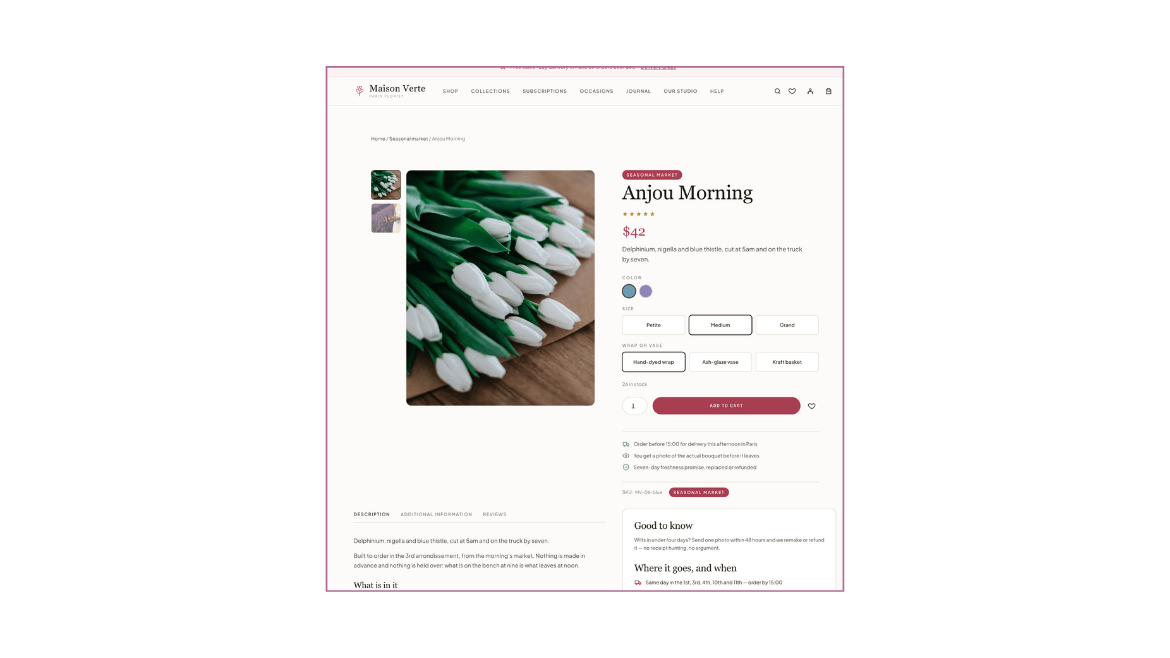
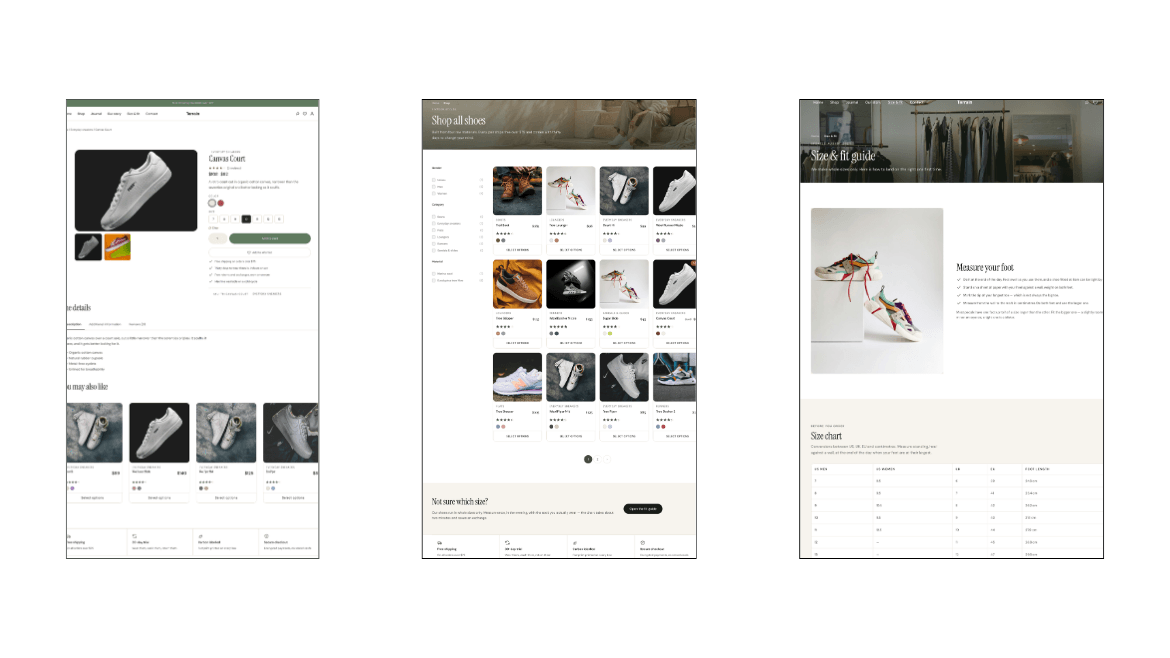
- Added five WooCommerce single-product blocks (grouped under a new WooCommerce category, shown only when WooCommerce is active): Product Name, Product Price (regular/sale price + configurable strike-through), Product Rating (stars / number / count with per-part styling), Product Image (thumbnail carousel with arrows, positions, autoplay and a fixed image height) and Product Details (Description / Additional information / Reviews tabs with a sliding indicator, real WooCommerce reviews, numbered/load-more pagination and per-tab styling).
- Added a Post Filter block with Search, Taxonomy and Reset children: a filter bar that drives a chosen Post Grid — search as you type, narrow by one or more taxonomies (dropdown or checkbox list) and clear everything with a reset link that appears only once there is something to clear. Each field has its own background, border, shadow and focus colour.
- Added a Notice block (info / success / warning / danger / neutral callout with an icon, title, message and an optional dismiss that can be remembered).
- Added a Data Table block (own columns and rows, styled header, striped rows, hover and first-column highlights, per-column alignment, cell borders, padding and typography, horizontal scroll past a max width).
- Added a Taxonomy block (terms of any taxonomy as a list, inline row, dropdown or grid, with counts, hierarchy, prefix/suffix, separator and styled term chips).
- Added an RSS Feed block (entries from any RSS/Atom URL as a list or grid, with item count, cache time, sort order, thumbnail, date, author, source, excerpt and a read-more link).
- Added Facebook Feed and Instagram Feed blocks — posts and media fetched server-side and cached (tokens never reach the browser), in grid, list, masonry, carousel, hover-overlay or card layouts.
- Post Grid: a styleable result count, aligned read-more buttons, a blockId that survives a reload, one typography panel per element, pagination that previews the active state on hover, and an empty state that no longer repeats itself.
- Block CSS is now generated for the current block-theme template (e.g. the WooCommerce single-product template), so blocks placed directly in a site-editor template render their styles on the front end.
- Front-end inline editing extended to five more blocks — Star Rating, Modal, Notice, Icon List and Data Table — bringing the total to 35 editable blocks.
- Added five new blocks: Pricing Table, Team Member, Post Grid, Progress Bar and Timeline.
- Front-end inline editor: logged-in users with edit permission can click text on the live page and edit it in place — changes save per block (markup and generated CSS preserved) and are recorded as post notes.
- Editable blocks (30): Heading, Text, Button, Table of Contents, Progress Bar, Before / After, Banner, CTA, Info Box, Testimonial, Team Member, Countdown, the Subscribe Form fields (Name, Email, Phone, Message, Website, Date, Select, Radio, Checkbox, Toggle, Upload), FAQ, Tabs, Steps, Timeline, Pricing Table, Counter and Comparison Table.
- New Editing settings tab: toggle the inline editor, choose which roles may edit (administrators always allowed, Editor on by default) and which blocks are editable.
- Admin dashboard redesign: a left sidebar with General / Blocks / Editing sections; blocks shown as a searchable, group-filtered card grid with previews and enable/disable-all controls.
- Added many new blocks: Counter, Info Box, Slides (with Slide), Social Share, Table of Contents, Before / After, Breadcrumb, Steps, Tabs, Video Popup, Comparison Table, Google Map, Images Gallery, Banner, CTA and an AJAX Subscribe Form with field child blocks.
- Container: added position and offset controls; Table of Contents supports a scrollable list.
- Video Popup: added an inline play mode and MP4 upload; Comparison Table gained dedicated badge styling.
- Grid layout refinements and a refreshed admin dashboard.
- Added ten new blocks: Button, Heading, Image, Countdown, FAQ (with optional FAQPage schema), Social Icons, Grid, Testimonial, Separator and Text.
- Added JavaScript translations and skeleton inserter previews for all blocks.
- Security: hardened CSS value sanitization — colour, gradient, enum, position and numeric attributes are validated against allow-lists at generation time before being printed inline.
- Fixed the admin menu position and the text-domain load hook.
- Initial release with the Container block.