
FlyBackup - Auto backup manager
| 开发者 | jshossen |
|---|---|
| 更新时间 | 2026年6月3日 22:43 |
| PHP版本: | 7.4 及以上 |
| WordPress版本: | 7.0 |
| 版权: | GPLv2 or later |
| 版权网址: | 版权信息 |
详情介绍:
- Simple & Intuitive - Clean, modern interface that anyone can use
- Reliable - Built with WordPress best practices and tested thoroughly
- Fast - Optimized for performance with chunked processing
- Flexible - Backup everything or just what you need
- Safe - Secure backup storage with proper file permissions
- Free - Core features available at no cost
- Bloggers who want peace of mind
- Business owners protecting their online presence
- Developers working on client sites
- E-commerce stores running WooCommerce
- Anyone who values their website data
- One-Click Backups - Create full or partial backups instantly
- Automated Scheduling - Set hourly, daily, weekly, or monthly backups
- Selective Backup - Choose what to backup: database, uploads, plugins, themes, wp-config
- One-Click Restore - Restore your site from any backup with a single click
- Backup Health Monitor - Visual health score shows your backup reliability
- Smart Retention - Automatically keep only your most recent backups
- Detailed Logs - Track every backup with comprehensive logging
- Modern Interface - Beautiful, intuitive dashboard built with React
- WordPress Database
- Uploads Folder
- Plugins Folder
- Themes Folder
- wp-config.php
- Custom Folders
- Full Backup - Everything in one archive
- Partial Backup - Select specific items
- Database Only - Quick database snapshots
- Manual (on-demand)
- Hourly
- Daily
- Weekly
- Monthly
- WordPress 5.8 or higher
- PHP 7.4 or higher
- MySQL 5.6 or higher
- ZIP PHP extension (enabled)
- MySQLi PHP extension (enabled)
- Minimum 256MB PHP memory limit (recommended)
- Minimum 300 seconds PHP execution time (recommended)
- 1GB available disk space (recommended)
- Write permissions on wp-content directory
- Cloud Storage (Google Drive, Dropbox, Amazon S3, OneDrive)
- Incremental Backups
- Real-Time Backup
- Migration Tool
- Emergency Restore Mode
- Malware Scanning
- WooCommerce Priority Backup
- White Label Mode
安装:
- Log in to your WordPress admin dashboard
- Navigate to Plugins → Add New
- Search for "FlyBackup"
- Click "Install Now" button
- Click "Activate" after installation completes
- Navigate to "FlyBackup" in your WordPress admin menu
- Review the system requirements checker on the dashboard
- Configure your backup settings
- Create your first backup!
- Download the plugin ZIP file from WordPress.org
- Log in to your WordPress admin dashboard
- Navigate to Plugins → Add New → Upload Plugin
- Choose the downloaded ZIP file and click "Install Now"
- Click "Activate Plugin" after installation completes
- Navigate to "FlyBackup" in your WordPress admin menu
- Configure your settings and create your first backup
- Download and extract the plugin ZIP file
- Upload the
flybackupfolder to/wp-content/plugins/directory via FTP - Log in to your WordPress admin dashboard
- Navigate to Plugins → Installed Plugins
- Find "FlyBackup" and click "Activate"
- Navigate to "FlyBackup" in your WordPress admin menu
- Check System Requirements - Visit the dashboard to see if your server meets all requirements
- Configure Settings - Set your preferred backup location and retention policy
- Create Test Backup - Create a manual backup to ensure everything works
- Set Up Schedule - Configure automated backups for peace of mind
- Test Restore - Try restoring to a test site to familiarize yourself with the process
屏幕截图:


常见问题:
Where are backups stored?
By default, backups are stored in /wp-content/flybackups/ directory on your server. Each backup is saved as a ZIP file with a timestamp. Pro version will add cloud storage options (Google Drive, Dropbox, Amazon S3, OneDrive).
How large can my backups be?
The plugin uses chunked processing to handle sites of any size without memory issues. It's been tested with sites over 1GB. There's no hard limit – it depends on your server's available disk space.
Can I restore a backup?
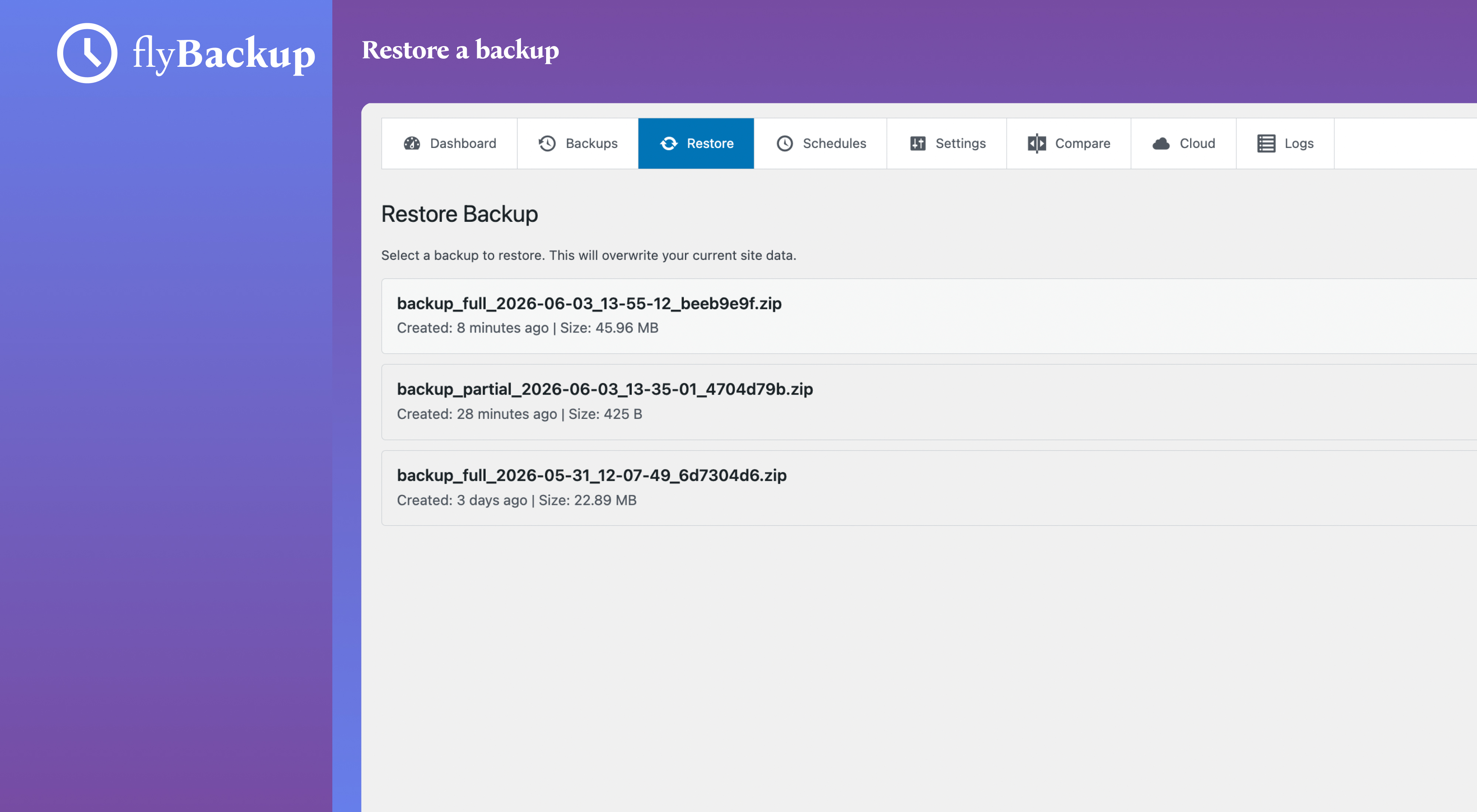
Yes! One-click restore is included. Simply select a backup from the list, choose what to restore (database, files, or both), and click restore. The plugin will handle everything automatically.
Does this work with WooCommerce?
Absolutely! FlyBackup works perfectly with WooCommerce and all other WordPress plugins. It backs up your entire database including all WooCommerce orders, products, and customer data.
How many backups are kept?
You can configure retention settings to keep 1-10 backups. When the limit is reached, the oldest backup is automatically deleted to save disk space. This ensures you always have recent backups without filling up your server.
Does this slow down my site?
No. Backups run in the background using WordPress cron and don't affect your site's performance or visitor experience. Scheduled backups run during low-traffic periods.
Can I download backups to my computer?
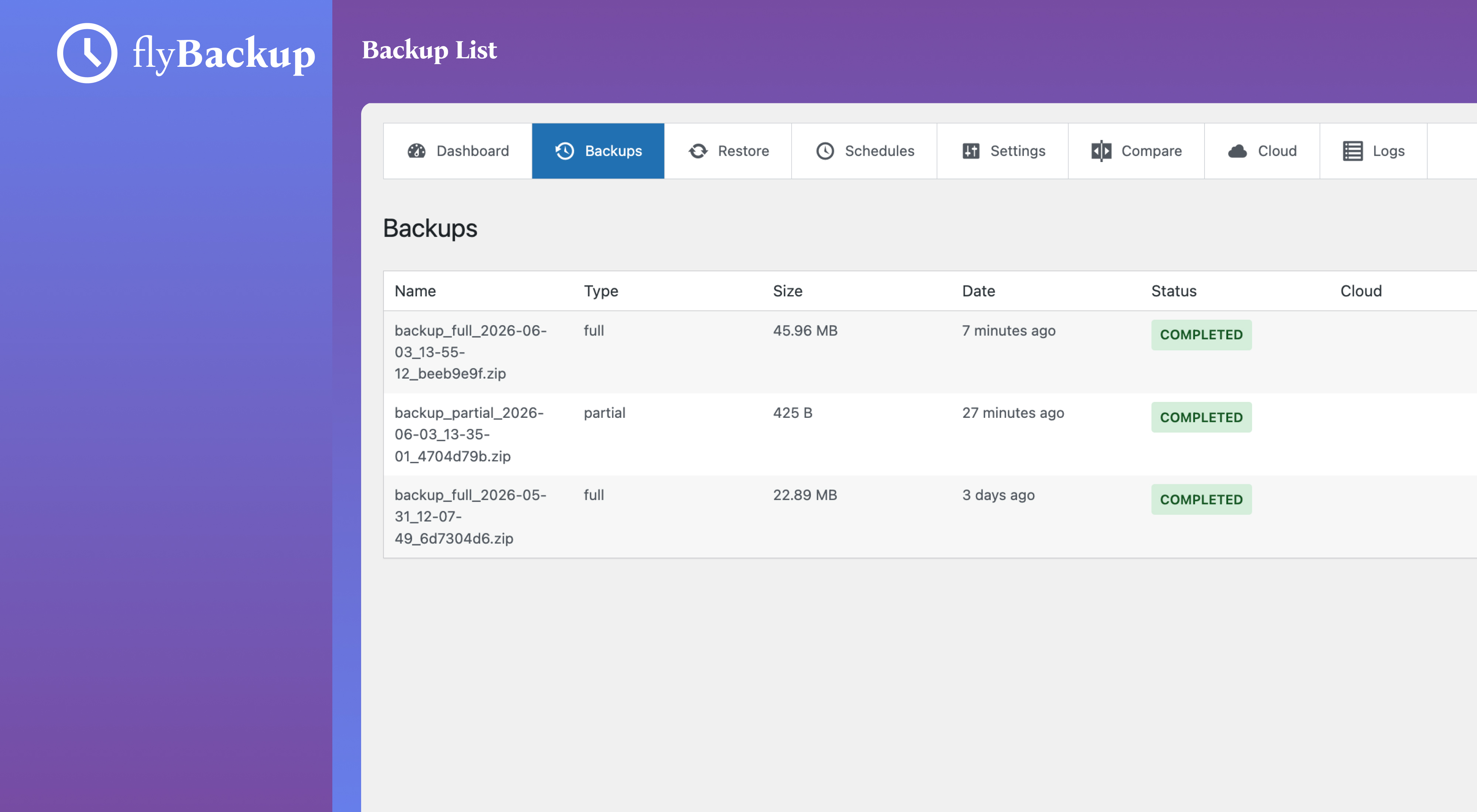
Yes! Each backup has a download button. You can download the ZIP file to your local computer for extra security or to transfer to another location.
What happens if a backup fails?
The plugin logs all backup activities. If a backup fails, you'll see the error in the logs section. Common issues include insufficient disk space or PHP timeout limits. The system requirements checker helps identify potential problems.
Can I backup just the database?
Yes! You can create database-only backups, which are much smaller and faster. This is perfect for frequent snapshots of your content and settings.
Is my data secure?
Yes. Backups are stored in a protected directory with proper file permissions. The plugin follows WordPress security best practices and doesn't transmit your data anywhere (unless you use cloud storage in the Pro version).
Can I schedule automatic backups?
Yes! You can set up automated schedules for hourly, daily, weekly, or monthly backups. Multiple schedules can run simultaneously with different backup types and retention settings.
Does it work on shared hosting?
Yes! FlyBackup is designed to work on shared hosting environments. It respects server limits and uses efficient processing methods. Check the system requirements to ensure your host meets the minimum specifications.
Can I compare backups?
Yes! The plugin includes a backup comparison feature that shows you the differences between backups or between a backup and your current site. This helps you see what changed over time.
What if I need help?
Check the plugin's documentation first. For additional support, visit the WordPress.org support forums or contact us through the plugin's support page.
更新日志:
- ✅ Manual backup creation with one click
- ✅ Automated backup scheduling (hourly, daily, weekly, monthly)
- ✅ Full site backups (database + files)
- ✅ Partial backups (select specific items)
- ✅ Database-only backups
- ✅ One-click restore functionality
- ✅ Selective restore (choose database, files, or both)
- ✅ Backup health monitoring with visual score
- ✅ Smart retention management (1-10 backups)
- ✅ Comprehensive activity logging
- ✅ Backup comparison tool (current vs backup, backup vs backup)
- ✅ Database table diff viewer
- ✅ System requirements checker
- ✅ Download backups to local computer
- ✅ Modern React-based admin interface
- ✅ WordPress REST API integration
- ✅ Chunked processing for large sites
- ✅ Backup metadata tracking
- ✅ Multiple schedule support
- ✅ WooCommerce compatible
- ✅ Multisite compatible (single site mode)