RIACO Frequently Bought Together for WooCommerce
| 开发者 | prototipo88 |
|---|---|
| 更新时间 | 2026年6月7日 22:41 |
| PHP版本: | 7.2 及以上 |
| WordPress版本: | 7.0 |
| 版权: | GPLv2 or later |
| 版权网址: | 版权信息 |
详情介绍:
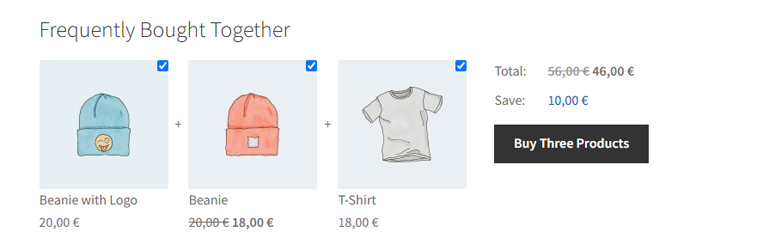
- Frequently Bought Together widget on WooCommerce single product pages
- Real-time JavaScript price calculator shows bundle total and savings as shoppers tick products
- Product image and title are clickable links to the product page (open in new tab)
- Shortcode
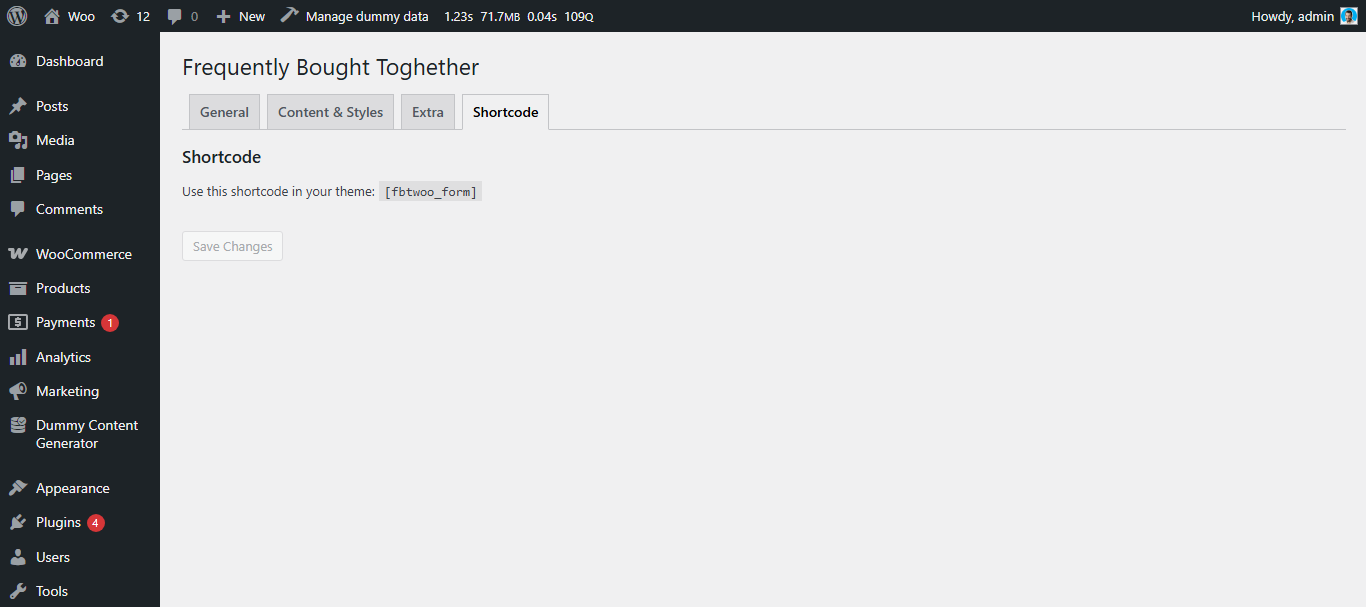
[fbtwoo_form product_id=""]embeds the widget on any page, post, or custom template
- Per-product discount configuration: percentage (%) or fixed amount
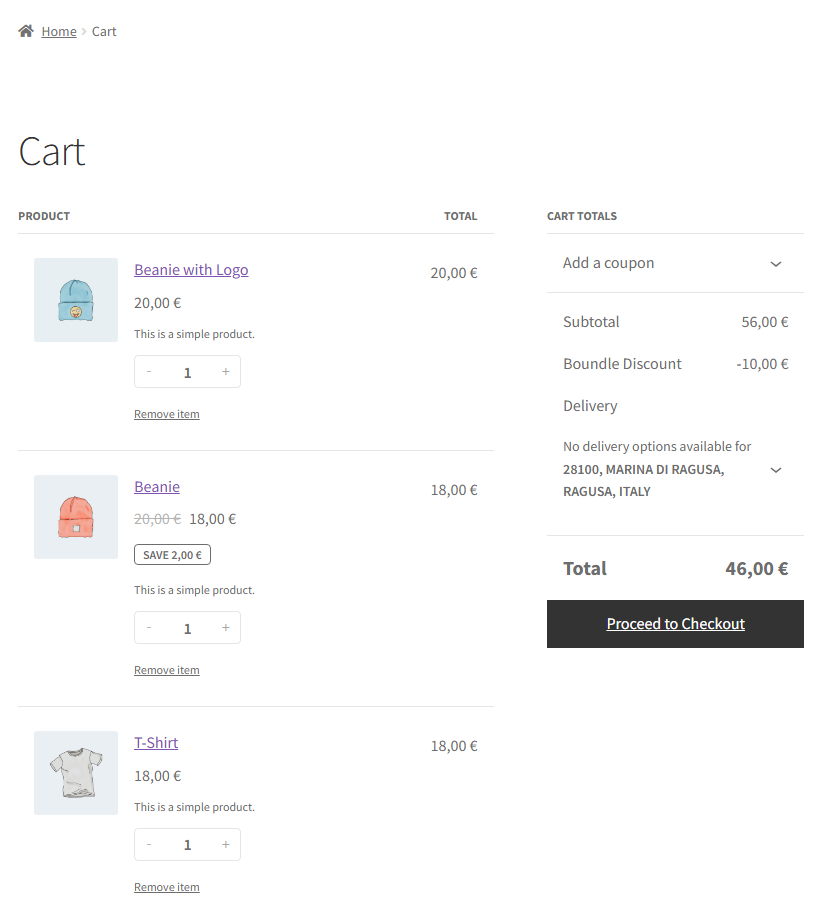
- Discount auto-applies to the cart fee line when the complete bundle is present
- Discount auto-removes if any bundle item is removed from the cart
- Clearly labeled "Bundle Discount" line item in the cart and checkout
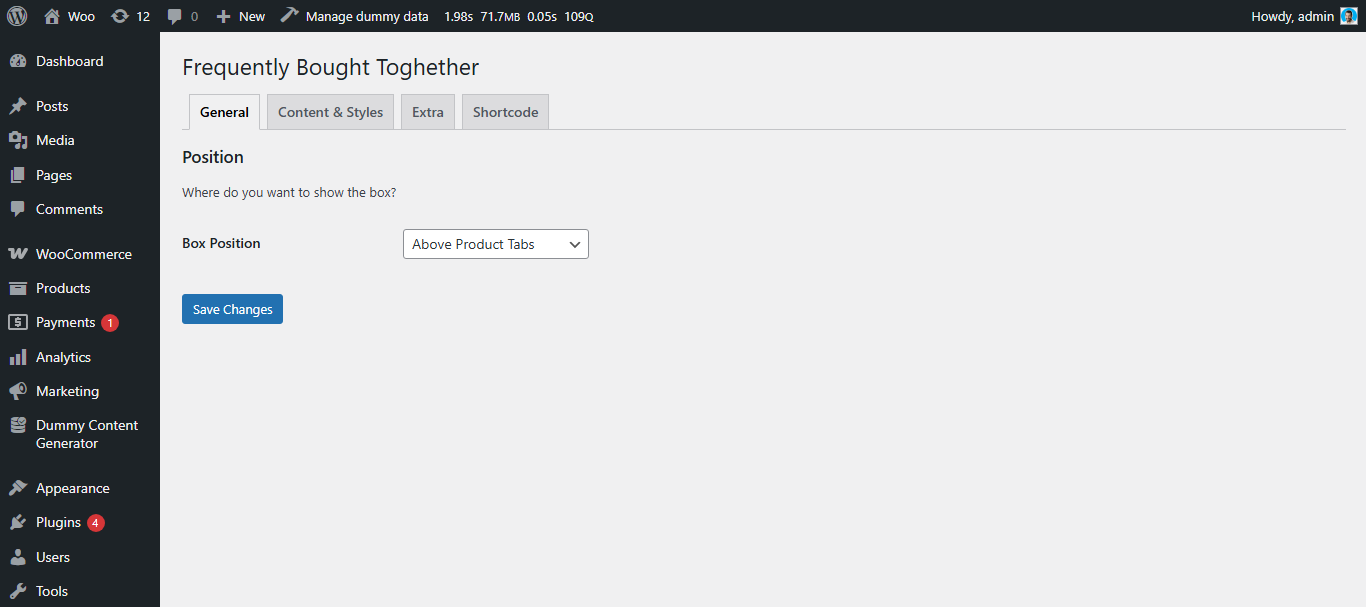
- 3 widget positions: Below Product Summary, Above Product Tabs, Below Product Tabs
- 2 layout presets: Default (horizontal) and Stacked (vertical) — switchable without code
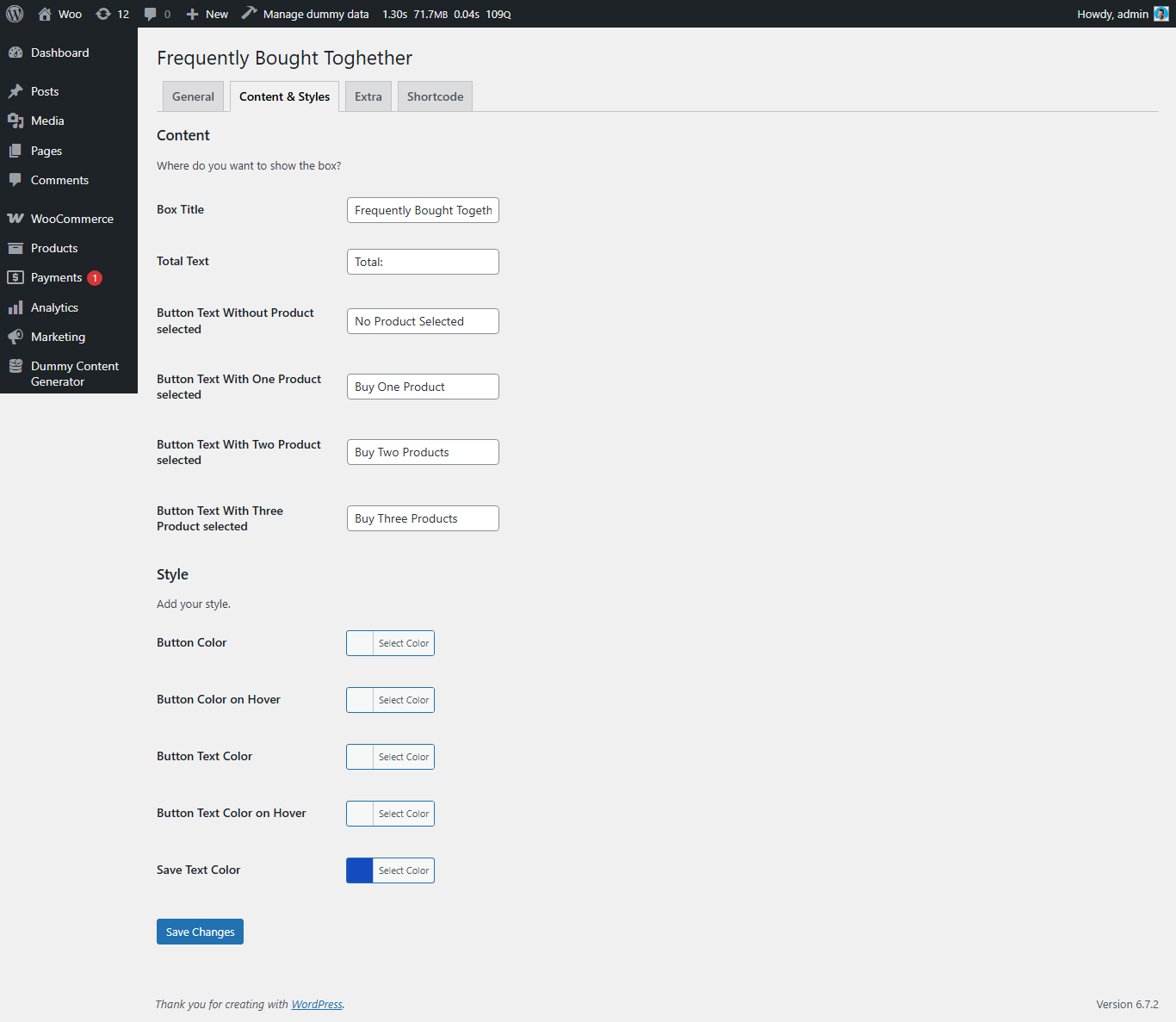
- Full style customization panel: button color, button hover color, button text color, button text hover color, savings text color, box background color, box padding, box border radius
- Impressions tracked once per browser session per product page
- Cart add events recorded with associated revenue
- Order revenue tracked per FBT product from completed WooCommerce orders
- Per-product breakdown table with conversion rate column
- One-click stats reset
- WooCommerce HPOS (High-Performance Order Storage) fully compatible
- Accessibility: ARIA labels and screen-reader text throughout the widget
- Frontend product data served from WordPress object cache
- Clean uninstall: optionally removes all plugin data on deactivation
- Install and activate the plugin.
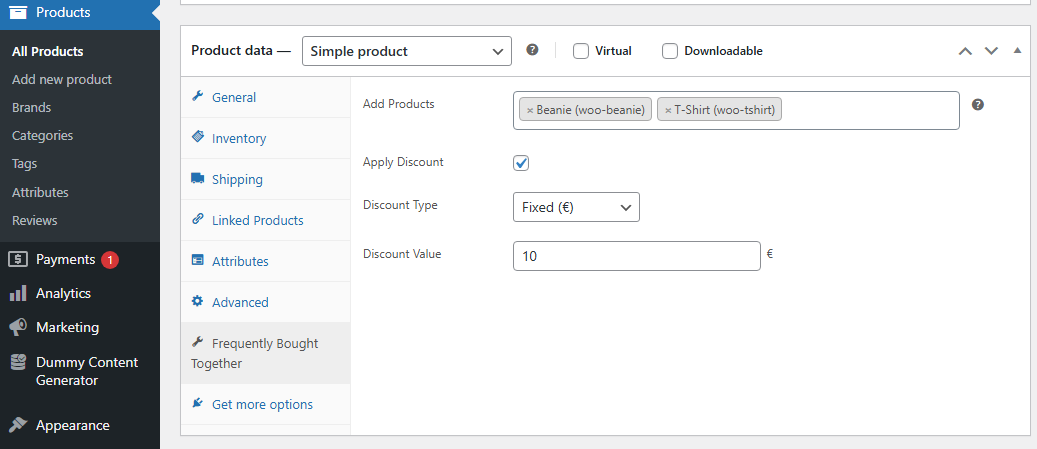
- Open any product in the WooCommerce editor and go to the Frequently Bought Together tab.
- Search for and select the companion products you want to recommend.
- Optionally enable a bundle discount and set the type and value.
- Save the product. The widget appears immediately on the frontend.
- Monitor performance in RIACO FBT > Analytics.
[fbtwoo_form product_id="42"]
| Parameter | Default | Description |
|---|---|---|
| product_id | Current product | ID of the product whose FBT widget to display |
| title | "Frequently Bought Together" | Custom heading for the widget |
| class | empty | Extra CSS class(es) added to the widget wrapper |
| style | empty | Inline CSS styles for the widget wrapper |
安装:
- In your WordPress admin, go to Plugins > Add New.
- Search for "RIACO Frequently Bought Together".
- Click Install Now, then Activate.
- Download the plugin zip from WordPress.org.
- In your WordPress admin, go to Plugins > Add New > Upload Plugin.
- Choose the zip file and click Install Now, then Activate.
- Go to RIACO FBT > Settings to configure the widget position, layout preset, and style.
- Edit any WooCommerce product and open the Frequently Bought Together tab.
- Search for companion products and add them to the list.
- To offer a bundle discount, check Apply Discount, choose Percentage or Fixed, and enter the value.
- Click Update to save the product. The widget is now live on the frontend.
- Use RIACO FBT > Shortcode to copy the shortcode for embedding in a custom location.
屏幕截图:


常见问题:
Does this plugin require WooCommerce?
Yes. WooCommerce must be installed and active. The plugin will not activate without it.
Is this plugin compatible with WooCommerce HPOS (High-Performance Order Storage)?
Yes. The plugin declares full HPOS compatibility and uses the WooCommerce order API throughout, so it works correctly whether you use the legacy post-based order storage or the modern custom order tables.
How does the bundle discount work exactly?
You set a discount per product in the product editor. When a shopper adds the complete bundle (the main product plus all linked FBT products) to the cart, the plugin automatically applies a negative cart fee labeled "Bundle Discount". If the shopper removes any item from the bundle, the discount is removed immediately. No coupon code is needed.
Does the plugin automatically suggest products, or do I need to configure each product manually?
The plugin does not auto-generate suggestions. You configure the "Frequently Bought Together" products manually for each product in the product editor. This gives you full control over which products are recommended together — you know your catalog and your customers better than any algorithm does. Open any product, go to the Frequently Bought Together tab, and use the search field to pick the companion products you want to show alongside it.
Can I show the widget in a custom location on the page?
Yes. Use the shortcode [fbtwoo_form product_id="42"] (replace 42 with your product ID) to embed the widget anywhere a shortcode is accepted: pages, posts, custom templates, or page builder blocks. The widget inherits all your global style settings.
Can I change what the widget looks like without writing CSS?
Yes. The Style tab in RIACO FBT > Settings lets you configure button colors (normal and hover states), button text colors, the savings text color, the widget box background color, padding, and border radius — all through color pickers and number inputs, no code required. For deeper customization you can also add your own CSS targeting the .fbtwoo-form-container wrapper.
What layout options are available?
Two layout presets are available: Default (products displayed in a horizontal row) and Stacked (products displayed in a vertical list). Switch between them in RIACO FBT > Settings > Layout. Both layouts are responsive.
What does the Analytics dashboard track?
The Analytics dashboard (under RIACO FBT > Analytics) records:
- Impressions — how many times the widget was displayed (counted once per browser session per product page)
- Cart Adds — how many times the bundle was added to the cart via the widget
- Conversion Rate — cart adds divided by impressions, as a percentage
- Cart Revenue — total value of products added to cart through the widget
- Order Revenue — actual revenue from completed WooCommerce orders that included FBT bundle items
Does this plugin slow down my store?
No. On the frontend, FBT product data is stored in the WordPress object cache after the first load, so repeat requests do not hit the database. Analytics impressions are tracked asynchronously via AJAX so they do not block page rendering. The plugin loads its assets only on product pages where the widget is active.
更新日志:
- New: Analytics dashboard tracking impressions, cart adds, conversion rate, cart revenue, and order revenue per product.
- New: Order-level revenue attribution — completed order line items originating from the FBT widget are recorded and surfaced in the Analytics dashboard.
- New: Revenue milestone admin notice and soft review request when the plugin crosses a revenue threshold.
- New: Layout presets — choose between Default (horizontal) and Stacked (vertical) arrangements in Settings.
- New: Box style controls — background color, padding, and border radius added to the Style settings panel.
- New: Product image and title in the FBT widget are now clickable links to the product page (open in a new tab).
- New: Dedicated admin menu ("RIACO FBT") with Settings, Shortcode, and Analytics sub-pages.
- Improvement: Frontend product data cached via WordPress object cache to reduce database queries.
- Improvement: Accessibility improvements — ARIA labels and screen-reader text added to interactive widget elements.
- Fix: Various UI and functional bug fixes.
- Initial release.