
GameSync Game Data Importer
| 开发者 | gamesync |
|---|---|
| 更新时间 | 2026年11月1日 03:38 |
| PHP版本: | 7.4 及以上 |
| WordPress版本: | 7.1 |
| 版权: | GPLv2 or later |
| 版权网址: | 版权信息 |
详情介绍:
- Search & Import -- search IGDB by name from the WordPress admin and import a game with one click.
- Import by List -- paste game names, IGDB IDs, IGDB links or Steam store links, check what each line matched, and import up to 200 games in one run.
- Bulk Import -- filter by platform, genre, minimum rating and release year, preview the matches, then import up to 500 games in one batched run.
- Scheduled Imports -- save a Bulk Import filter as a recurring background task ("5 games every 6 hours", say). Each run skips games you already have, so a task keeps finding new matches.
- Cover art and screenshots go into your Media Library (the cover becomes the featured image), or link to IGDB's own image server if you prefer not to store them.
- Add games IGDB doesn't have by hand. Every field can be edited, and manual games are never touched by a re-sync.
- Setup guide -- a short guided screen walks you through creating the free Twitch app, pasting the credentials, testing the connection and importing your first game.
- Demo Content -- one click adds fictional demo games with placeholder art (no API keys needed), so you can preview a full site first.
- Re-sync any game with one click. Fields you edited by hand are left as you wrote them.
- Choose fields to re-sync -- see what you have next to what IGDB has now, and update only the fields you tick.
- Scheduled re-sync -- refresh the games you already imported in the background, every week or every month, a few at a time.
- Change history -- an "Updated" badge in the Games list, a list of what changed on each game, and a Dashboard widget showing which ratings, dates or platforms moved this week.
- Last synced column and a Site Health test that warns you when games are going stale or the IGDB connection stops working.
- Import Log -- see what each import did and why anything failed, and retry failed imports with one click.
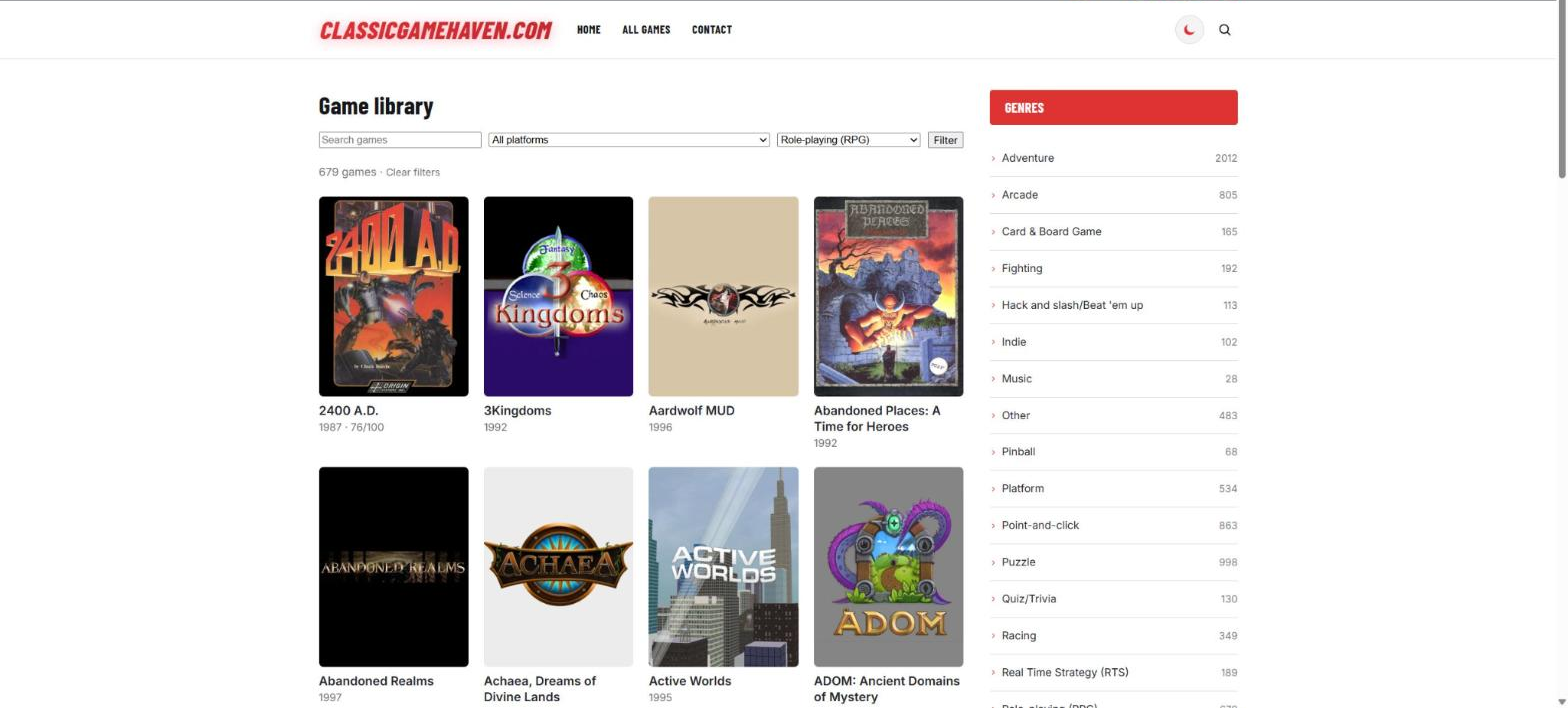
- Game library block -- a grid with a search box and platform and genre filters that update without reloading the page. It also works without JavaScript, and every filtered view has its own shareable address.
- Game card, Game grid and Release calendar blocks -- show a game, a grid or ranked list of games (top rated, recently added), or upcoming and just-released games.
- Game details, Screenshots, Trailers, Similar games and Store links blocks -- put any part of a game anywhere: on a game page, in a Query Loop, in a Site Editor template or on a page about one game.
- Browse, More from this franchise or developer, Game of the day, This day in gaming, Game links, Age ratings and Game search blocks for sidebars and landing pages.
- Member features for block themes -- Favorite button, Member status (Want to play, Playing, Completed) and My games blocks. Visitors who are logged in save favorites and track games, and see their own lists on a page you make.
- Live search suggestions -- the Game search block, and any Search block with the extra CSS class
ggdi-live-search, show matching games with cover, title and year as the visitor types. - Block patterns -- ready-made layouts under Patterns -> Games, including a complete game page, Top 10 games, Game library, Upcoming releases and Now playing.
- Works with core blocks -- a Block Bindings source (WordPress 6.5+) and a "Games" Query Loop variation, so you can build your own layouts with core blocks.
- Block themes and classic themes -- game pages use your theme's header, footer and layout, and the template can be overridden in your theme.
- Search-engine markup -- game pages carry schema.org VideoGame data (name, image, release date, genres, platforms, developer, publisher, rating and screenshots).
- Posts and games linked -- choose the game in a review post's sidebar, show it in the post, and list the posts about a game on its page. The Games panel suggests games from your library that are named in the post.
- My collection -- mark a game as Playing, Completed, Backlog, Wishlist or Dropped and give it your own score out of 10, with Quick Edit and Bulk Edit in the Games list. Use it for "Now playing" and "My top rated" lists and a Collection stats block. Imports never touch these fields.
- Shortcodes for every block, for example
[ggdi_game id="123"],[ggdi_games count="8" columns="4" orderby="date"]and[ggdi_releases mode="upcoming" count="10"]. - WP-CLI --
wp ggdi import,wp ggdi bulk,wp ggdi resync,wp ggdi status,wp ggdi testandwp ggdi scheduled list|run. - Filters such as
ggdi_output_schemaandggdi_schema_data, a theme-overridable single game template, and taxonomies for Platforms, Genres, Game Modes, Themes, Player Perspectives, Companies and Franchises. - Themes & Add-ons -- a screen listing the free GameSync themes and the Game Ratings, Related Games and Review Breakdown plugins, with download links and an activate button.
- Log in at dev.twitch.tv/console/apps with a Twitch account.
- Click Register Your Application, give it any unique name, set the OAuth Redirect URL to
https://localhost(required by the form, not actually used), and pick a Category such as "Application Integration". - Open the app, copy the Client ID, then click New Secret to generate and copy the Client Secret.
- Paste both into Game Data Importer -> Settings in your WordPress admin (or define
GGDI_CLIENT_ID/GGDI_CLIENT_SECRETas constants inwp-config.phpif you'd rather keep credentials out of the database).
- IGDB enforces a rate limit of roughly 4 requests/second per API key; the plugin throttles its own requests and batches bulk imports to stay well within it.
- Bulk Import runs are capped at 500 games per run -- run it again with different filters to keep going.
- Access tokens are cached and refreshed automatically.
- Deleting the plugin (Plugins -> Delete, not a plain Deactivate) removes its own saved settings, Scheduled Imports tasks/run log, and cached data, but never touches already-imported Game posts, their images, or the taxonomy terms attached to them.
安装:
- In WordPress, go to Plugins -> Add New -> Upload Plugin, choose the
gamesync-game-data-importer.zipfile, click Install Now, then Activate. - Go to Game Data Importer -> Settings and enter your IGDB/Twitch API Client ID and Client Secret (see "Getting your IGDB / Twitch API credentials" above), choose whether imported games default to Draft or Publish, and whether to download images into the Media Library or just link to IGDB's CDN.
- Click Save Changes, then Test IGDB connection to confirm everything works.
- Go to Game Data Importer -> Search & Import to import your first game, or Game Data Importer -> Demo Content to preview the plugin with placeholder data first.
屏幕截图:


常见问题:
Do I need to pay to use this plugin?
No. Every feature is free and fully functional, with no license key and no time, usage or feature limit.
Are the GameSync themes and the Game Ratings, Related Games and Review Breakdown plugins included? How do I get them?
They are all free, and they are separate downloads from gamesyncwp.com. Open Game Data Importer -> Themes & Add-ons for the list and the download link for each one, install it with Appearance -> Themes -> Add New -> Upload Theme (or Plugins -> Add New -> Upload Plugin), then come back to that screen to activate it. Installing a theme doesn't automatically make it your active one.
Can I add games that IGDB doesn't have?
Yes. Open Game Data Importer -> All Games, click Add New and fill in the fields, pick the developer and publisher, and add your own cover and screenshots. Games you add by hand work with every block and pattern, and re-sync and scheduled re-sync never change them.
Can I use it without any coding?
Yes. Insert the Game library, Game grid or a ready-made pattern from Patterns -> Games in the block editor. For a complete page, use the Game page layout pattern.
Do I need a Twitch account?
Yes -- IGDB's API is provided through Twitch. Registering a Twitch developer app to get a Client ID and Secret is free and takes a couple of minutes; see the Description tab above for the exact steps.
Will re-importing a game create a duplicate?
No. Re-importing or re-syncing a game you've already imported updates the existing post (matched by IGDB's internal game ID) instead of creating a second one. If you've hand-edited a game's title, description or excerpt in WordPress since the last import, re-syncing leaves that field as you wrote it.
Can I customize the game page layout?
Yes. Copy templates/single-ggdi_game.php from the plugin into your active theme and edit it -- WordPress automatically uses your theme's copy instead of the plugin's default. With a block (Site Editor) theme, the theme's own single template draws the page and the plugin adds the game details after the content; edit that template under Appearance -> Editor -> Templates.
Does the plugin add structured data for search engines?
Yes. Single game pages print schema.org VideoGame data in the page head, using only what the game actually has. Turn it off with add_filter( 'ggdi_output_schema', '__return_false' ); or adjust it with the ggdi_schema_data filter.
How do I show only the games I am playing?
Open a game's edit screen, find My collection in the side column and choose a status (and, if you like, your own score). Then add a Game grid block and set My status to Playing, or use [ggdi_games layout="list" status="playing"]. The patterns Now playing and My top rated games do this for you.
Can visitors search and filter the games?
Yes: add the Game library block (or the "Searchable game library" pattern) to a page. Use one library per page.
How do I keep my games up to date automatically?
Open Game Data Importer -> Settings, find Keep games up to date and choose Weekly or Monthly. The plugin refreshes the games you have already imported in the background, a few at a time, and never changes fields you edited by hand or your My collection status and score. The Games list shows when each game was last synced, with an Updated badge when something changed on IGDB.
Is there a WP-CLI command?
Yes. wp ggdi import <id|name|igdb-link|steam-link>... imports games, wp ggdi bulk --platform=... --min-rating=... --limit=... imports by filter (add --dry-run to preview), wp ggdi resync --all refreshes games already imported, and wp ggdi scheduled run runs any scheduled imports that are due. wp help ggdi lists every option.
Can I translate the plugin?
Yes. The plugin is translation-ready, and volunteers can translate it at translate.wordpress.org -- translations are picked up automatically once they are complete.
What happens to imported games if I deactivate or delete the plugin?
Deactivating changes nothing. Deleting the plugin (Plugins -> Delete, not a plain Deactivate) removes its own saved settings, Scheduled Imports tasks/run log, and cached data, but never touches already-imported Game posts, their images, or the taxonomy terms attached to them -- remove those manually via Game Data Importer -> All Games if you want a clean slate.
更新日志:
- New: Favorite button, Member status and My games blocks. Visitors who are logged in can save favorites and mark games Want to play, Playing or Completed, and see their lists on a page you make. The lists are kept in the visitor's own account, and are included in WordPress' Export and Erase Personal Data tools.
- New: live search suggestions. The Game search block, and any Search block with the extra CSS class ggdi-live-search, show matching games (cover, title, year) as the visitor types. Without JavaScript it is a normal search form.
- Themes & Add-ons: GameSync Blocks block theme updated to 1.1.0 (ready-made pages for Top 10, release calendar, platforms and My games, a game review layout, and favorite and status buttons on game pages).
- Themes & Add-ons: GameSync Blocks block theme updated to 1.0.2 (left-aligned home hero text, real screenshot).
- New: Storyline block -- shows a game's storyline in paragraphs, with an optional heading. It is part of the Game page layout pattern.
- New: GameSync Blocks, a free block theme (Full Site Editing) with the game blocks already placed in its templates, is available under Themes & Add-ons.
- Fixed: searching in the Game library block also matched words in game descriptions, so a search for "dragon" listed every game that mentions one. Search now matches game titles only.
- Fixed: games whose franchise, developer, genre or other list contains an "&" or an apostrophe (for example Dungeons & Dragons) were treated as edited by hand, so a re-sync never updated that list. Names also showed as "&" in the Choose fields to re-sync screen and in the change history.
- Fixed: the Storyline box showed "&" instead of "&".
- Changed: a clearer plugin page with new screenshots and a live preview.
- New: Game library block -- search and platform/genre filters that update without a page reload, with paging and shareable addresses; works without JavaScript too.
- New: Game details, Screenshots, Trailers and Similar games blocks, for building game pages and Site Editor templates. The Trailers block uses YouTube's privacy-enhanced player.
- New: My collection on each game (Playing, Completed, Backlog, Wishlist, Dropped, and your own score out of 10). The Game grid block and shortcode can filter by status and order by your score; a "My status" column is added to All Games.
- Fixed: a developer or publisher you pick by hand in the classic editor is now linked on the game page. Saving no longer drops it from the Companies list, and games already saved that way are repaired automatically.
- New: the Similar Games list on game pages now links to the games you have also imported.
- New: patterns Searchable game library, Now playing, My top rated games and Game page layout.
- New: Browse block -- a list of platforms, genres, franchises, game modes, themes or player perspectives with the number of games in each. Platform and genre buttons can open a page that has the Game library block, already filtered.
- New: More from this franchise or developer block -- other games in the same series, or from the same studio or publisher, for game pages and templates.
- New: Collection stats block -- how many games you are playing, have completed, plan to play and your average score.
- New: the game detail blocks (details, screenshots, trailers, similar games and the new ones) can show a heading, and it only appears when there is something under it.
- New: patterns Browse by platform and My collection at a glance; the Game page layout pattern now ends with More from this series or studio.
- New: link posts to games -- pick the game(s) in the Games panel of the post sidebar, show them with the Games in this post block, and list the reviews and articles written about a game with the Posts about this game block.
- New: connect core blocks to game data (WordPress 6.5 and later). A Paragraph, Heading, Button or Image can show a game's developer, release date, platforms, rating, store links, cover and more through the Connections panel. A block connected to something the game does not have is simply left out.
- New: a "Games" Query Loop variation -- order by rating, release date, title or your own score, and filter by platform, genre or play status.
- New: Game of the day (or a random game), This day in gaming, Game links, Age ratings and Game search blocks.
- New: Quick Edit and Bulk Edit of status and score for My collection in the All Games list.
- New: patterns Game in this review, Game of the day, This day in gaming, Game facts and Store buttons; the Game page layout also shows reviews, links and age ratings.
- New: Keep games up to date -- choose "every week" or "every month" in Settings and the plugin re-syncs the games you have already imported in the background, a few at a time, oldest first. Games that have not been released yet are refreshed more often. Things you edited by hand and your My collection status and score are never changed. There is also a "Refresh a batch now" button,
wp ggdi resync --due, a "Last synced" column on All Games and a Site Health check for out-of-date games. - New: see what changed on IGDB -- when a re-sync finds a new rating, release date, platforms, genres or developer, the game gets an "Updated" badge in All Games, a list of recent changes in its IGDB box, and a "Game changes this week" widget appears on the Dashboard.
- New: in the post editor, the Games panel now suggests games from your library that are named in the post, so linking a review to its game is one click.
- Changed: the Store links block (and
[ggdi_store_links buy="no"]) now also shows the Custom Buy Link from the game editor. - Fixed: game pages no longer carry two sets of structured data when a GameSync theme already provides them.
- Changed: the External services section now also lists YouTube and IGDB's image server.
- New: Store links block and
[ggdi_store_links]shortcode -- buttons for Steam, GOG, Epic Games Store, itch.io, App Store, Google Play and more, taken from the game's saved links, plus the download link. - New: block patterns under Patterns -> Games: Top 10 games, Recently added, Game library, Upcoming releases and Game of the month.
- New: schema.org VideoGame structured data on game pages (filters
ggdi_output_schemaandggdi_schema_data). - New: a Site Health test for the IGDB connection, and a Game Data Importer section in Site Health's Info tab.
- Fixed: on block themes the empty "Written by ... in ..." line under the title of a game page is hidden.
- Fixed: the message shown when no credentials are set now points to Game Data Importer -> Settings.
- New: a setup guide that walks you through the Twitch credentials, tests the connection and imports a first game. It opens from the welcome notice and from the Settings screen.
- New: WP-CLI commands --
wp ggdi import,bulk,resync,status,testandscheduled list|run. - New: the Game grid block and
[ggdi_games]shortcode have a List layout with optional numbering, for "Top rated" and "Recently added" lists. - Fixed: single game pages now work on block (Site Editor) themes such as Twenty Twenty-Five -- they use the theme's own header, footer and layout instead of the plugin's classic template.
- Changed: code clean-up for the WordPress.org Plugin Check: translator notes for the plural texts, a prepared query when cleaning up expired sessions, the CSV export builds its text in memory, and temporary files are removed with the WordPress function.
- Changed: the WordPress.org download no longer contains a hidden .htaccess file.
- Changed: the WordPress.org version no longer carries the theme and add-on zip files. The Themes & Add-ons screen now links to the free downloads on gamesyncwp.com and activates them once installed. The download from gamesyncwp.com still installs them in one click.
- Fixed: the plugin's "Visit plugin site" link now opens the Game Data Importer page on gamesyncwp.com.
- Refreshed bundles: Game Ratings 1.7.7, Related Games 1.13.4, PixelWire 2.13.5, Presswire 1.10.11, Ludexa 1.10.3 (their site links now point at the right pages).
- Changed: the "your theme isn't showing imported games" notice now points to the free GameSync PixelWire theme on the Themes & Add-ons screen instead of a theme search.
- Changed: every feature is now free and in this one plugin -- Bulk Import, Scheduled Imports, the Game Editor, Import by List, Choose fields to re-sync, Release calendar filters and the Themes & Add-ons installer. There is no license key and nothing to activate.
- Removed: the Freemius account, opt-in and license screens, and all upgrade prompts.
- Changed: the bundled themes and companion plugins are refreshed (PixelWire 2.13.4, Presswire 1.10.10, Ludexa 1.10.2, Nocturne 1.2.6, Arcade 1.1.4, Deals 1.4.4, Game Ratings 1.7.6, Review Breakdown 2.1.0 with every feature included).
- No changes to the free plugin's features -- this release refreshes the bundled GameSync Nocturne theme (1.2.5): the All Games rating filter and sort now also work for games rated with GameSync Review Breakdown.
- No changes to the free plugin's features -- this release refreshes the bundled GameSync Nocturne (1.2.4), Ludexa (1.10.1) and Presswire (1.10.9) themes, which now show the Review Breakdown box with Review Breakdown 2.0.7 and newer.
- No changes to the free plugin's features -- this release fixes small issues on the Import by List and Choose fields to re-sync screens.
- New: Game card, Game grid and Release calendar blocks for the block editor, with matching
[ggdi_games]and[ggdi_releases]shortcodes (the existing[ggdi_game]shortcode is unchanged). - New: Import Log (Game Data Importer -> Import Log). Imports and re-syncs are logged with the reason for any failure, and failed imports can be retried one by one or all at once.
- Changed: bulk, scheduled and bulk-action runs now also write their failures to the Import Log.
- Earlier releases: see 2.0.0.