HexaSync – ERP, Accounting & POS Integration for WooCommerce
| 开发者 | beehexa |
|---|---|
| 更新时间 | 2026年11月20日 23:47 |
| PHP版本: | 7.4 及以上 |
| WordPress版本: | 7.1 |
| 版权: | GPLv2 or later |
| 版权网址: | 版权信息 |
详情介绍:
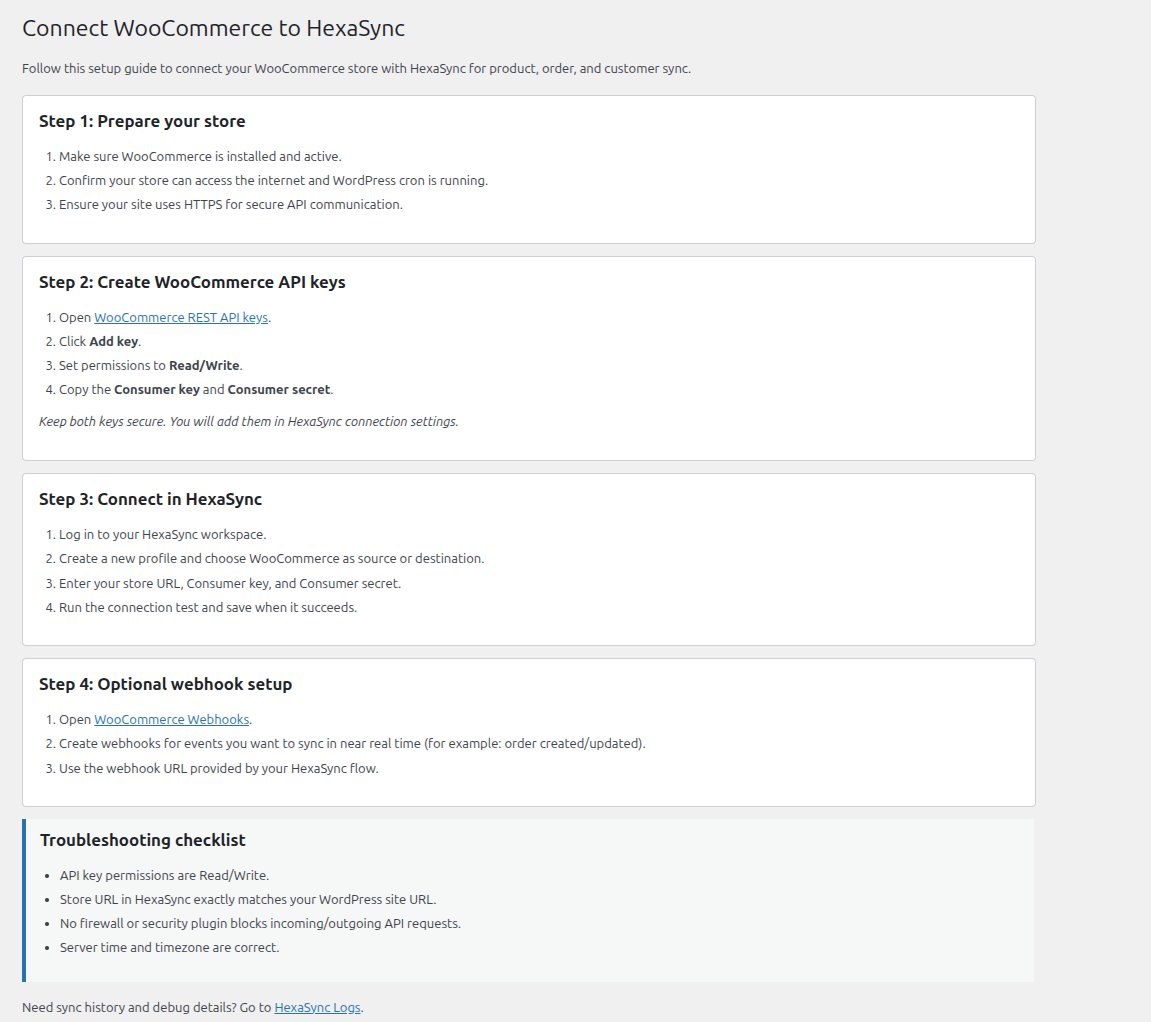
- Connection guide – a step-by-step page that walks you through creating WooCommerce REST API keys and connecting your store to a HexaSync profile.
- Sync log monitor – every sync transaction is listed under HexaSync → Logs with profile, task, status, message, error detail and retry count.
- Filters – narrow the log list by profile name, task name or reference info, such as an order number or SKU.
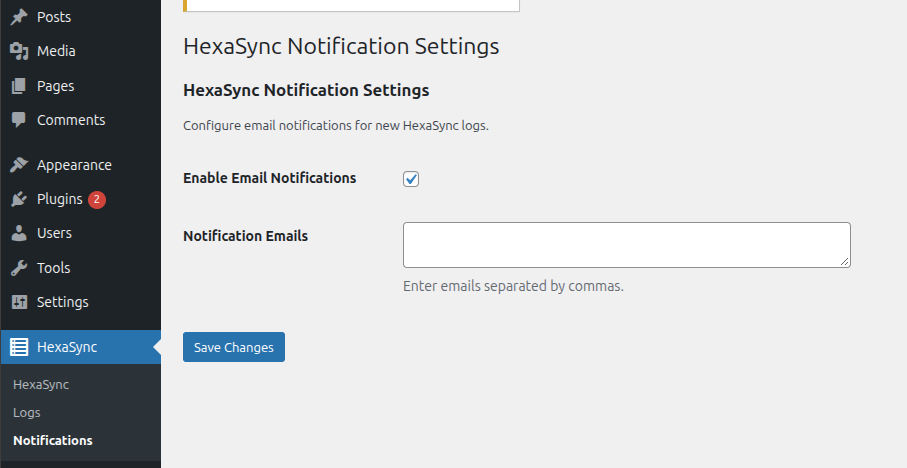
- Email notifications – get an email when new sync logs arrive, sent to the recipients you choose.
- Log retention – optionally delete logs older than a set number of days, so the log table stays small.
- One-click drill down – each log links to the matching job in your HexaSync workspace for the full sync history.
- REST endpoint for HexaSync – a secured endpoint that lets your HexaSync profiles write logs to your site.
- Middleware – HexaSync sits between your systems and moves data between them, so neither side needs custom code.
- Cell-based mapping – map any data point from one system to another.
- Customizable tasks – adapt each sync task to your business rules.
- Monitoring – know exactly when a sync transaction succeeded or failed, and why.
- Keep inventory accurate across every sales channel
- Automate order fulfillment and accounting entries
- Cut the time spent on manual catalog and order data entry
- Improve data quality and consistency between systems
- Catch and fix sync errors before customers notice them
- Your HexaSync profiles send sync log records (profile name, task name, status, messages, errors and reference info such as order numbers) to your site through the plugin's REST endpoint. This happens only after you connect a HexaSync profile to your store.
- The "View on HexaSync" links on the Logs page open the matching job at
https://app.hexasync.comin your browser. The plugin itself does not send your site data to HexaSync.
安装:
- Install the plugin from Plugins → Add New or upload it to
wp-content/plugins, then activate it. - Open HexaSync in the WordPress admin menu and follow the connection guide.
- In WooCommerce → Settings → Advanced → REST API, create an API key with Read/Write permission.
- In your HexaSync workspace, create a profile, choose WooCommerce, and enter your store URL, consumer key and consumer secret.
- Optional: open HexaSync → Settings to turn on email alerts for new sync logs and choose how long logs are kept.
屏幕截图:
常见问题:
Do I need a HexaSync account?
Yes. The plugin shows and stores the sync logs that your HexaSync profiles send to your site. The synchronization itself runs on the HexaSync platform.
Which systems can I connect to WooCommerce?
ERP, accounting, POS, CRM and marketplace software, including QuickBooks, Xero, Microsoft Dynamics 365 Business Central, NetSuite, SAP Business One, Odoo, Square, HubSpot and Salesforce. See the WooCommerce integration profiles for the current list.
Can HexaSync sync WooCommerce inventory in real time?
HexaSync runs sync tasks on the schedule you set in your profile, so stock levels stay aligned between WooCommerce and your ERP or POS. For near real-time updates, add WooCommerce webhooks that point to your HexaSync flow, as described in step 4 of the connection guide. Check the documentation for the options available to each connector.
Does it require WooCommerce?
WooCommerce is needed to sync products, orders and customers, and the connection guide is written for WooCommerce stores. The log monitor and notifications work on any WordPress site that HexaSync sends logs to.
Where are the logs stored?
Sync logs are stored in a dedicated table in your own WordPress database, not in posts, so the log history does not slow down your content. Logs are kept until you delete them, or for the number of days set under HexaSync → Settings → Log Retention. Deleting the plugin from the Plugins screen removes the table and the plugin's settings.
How does HexaSync authenticate to my site?
HexaSync writes logs through a REST endpoint that uses HTTP Basic Authentication for a WordPress user with administrator capability. We recommend creating a dedicated user for the integration and using a WordPress Application Password (Users → Profile → Application Passwords) instead of the account password, so access can be revoked at any time. Always use HTTPS.
Where can I get help?
Use the support forum for this plugin, or contact Beehexa.
更新日志:
- Fix: Application Passwords now work for the plugin's REST API. They were rejected as incorrect, which made the recommended setup fail.
- Fix: wrong credentials return
401with a plain-text message instead of500. - Fix: account passwords containing characters such as
<or%were altered before being checked.
- Add log retention: delete logs older than a set number of days, once a day (off by default).
- Database changes and scheduled tasks are now applied after an automatic plugin update, not only on activation.
- The plugin's Basic Authentication handler now applies only to its own
beehexa/v1REST routes. - The Notifications page is now HexaSync → Settings.
- Deleting the plugin removes its log table, settings and scheduled tasks.
- Fix a fatal error when the notification settings were saved from code rather than the settings form.
- Add Vietnamese translation; all admin pages, notices and notification emails are now translatable.
- Logs page shows "0 to 0" instead of "1 to 0" when there are no logs.
- Plugin name updated to match the WordPress.org listing.
- Add email notifications for new sync logs, with a Notifications settings page.
- Add filter by reference info on the HexaSync Logs page.
- Add a WooCommerce connection guide as the main HexaSync admin page.
- "View on HexaSync" links now open app.hexasync.com.
- Initial release of the HexaSync plugin for WordPress.
- Basic logging to monitor synchronization activity and troubleshoot issues.