
Insight Templates & Elements — Assign Block Templates
| 开发者 | basbuis |
|---|---|
| 更新时间 | 2026年11月19日 19:47 |
| PHP版本: | 7.4 及以上 |
| WordPress版本: | 7.1 |
| 版权: | GPLv2 or later |
| 版权网址: | 版权信息 |
详情介绍:
Insight Templates & Elements assigns a block template to Pages and Posts.
Per-page and per-post templates are a control often included with themes such as Kadence, Blocksy, GeneratePress, and Astra. This plugin adds that control without replacing the theme.
- Activate a block theme (or create templates under Appearance → Editor).
- Go to Settings → Insight Templates & Elements.
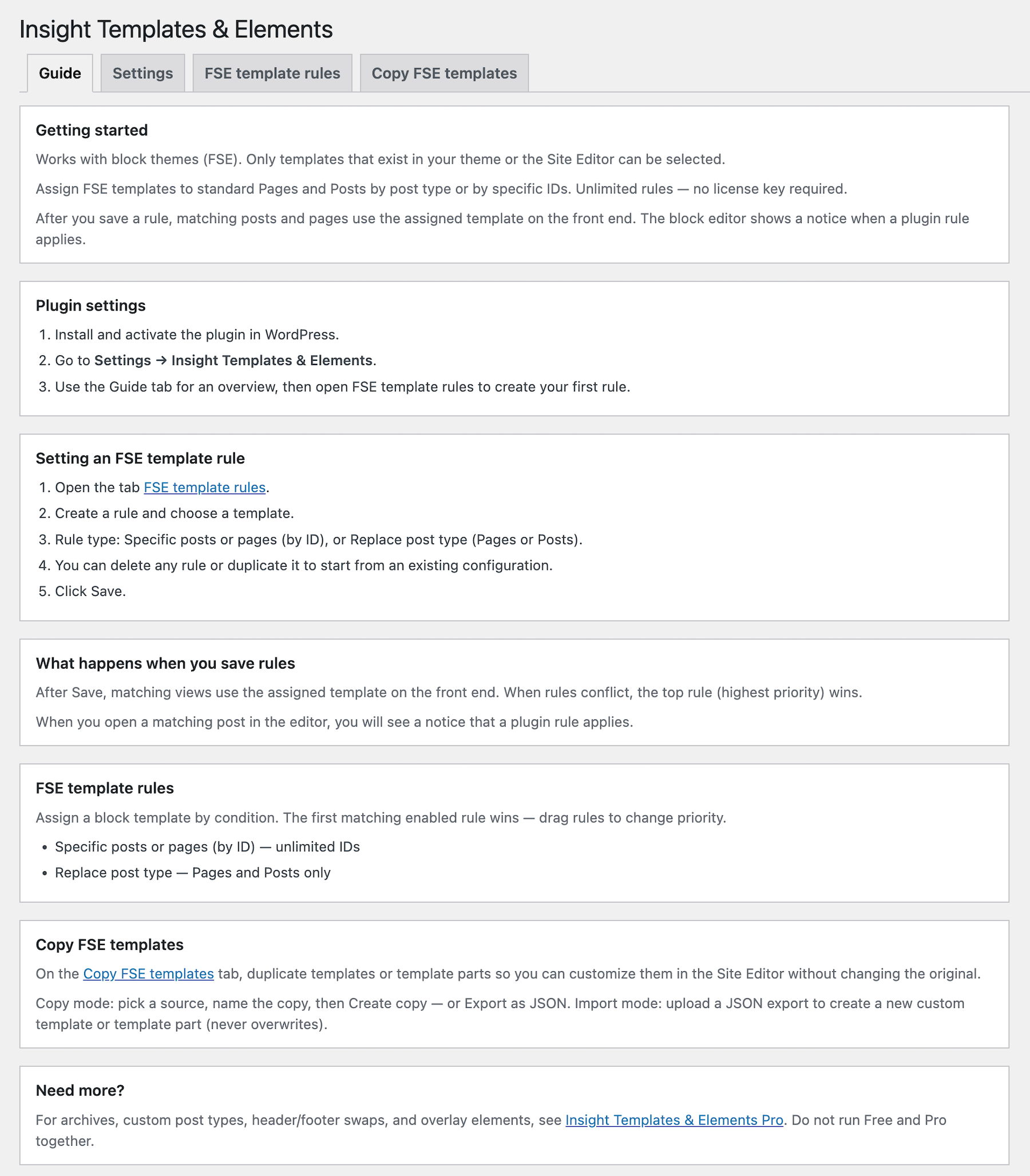
- Open FSE template rules and add a rule.
- Save — matching Pages and Posts use the assigned template on the front end.
- Unlimited template rules for Pages and Posts
- Rule type: Specific posts or pages (by ID)
- Rule type: Replace post type (Pages or Posts)
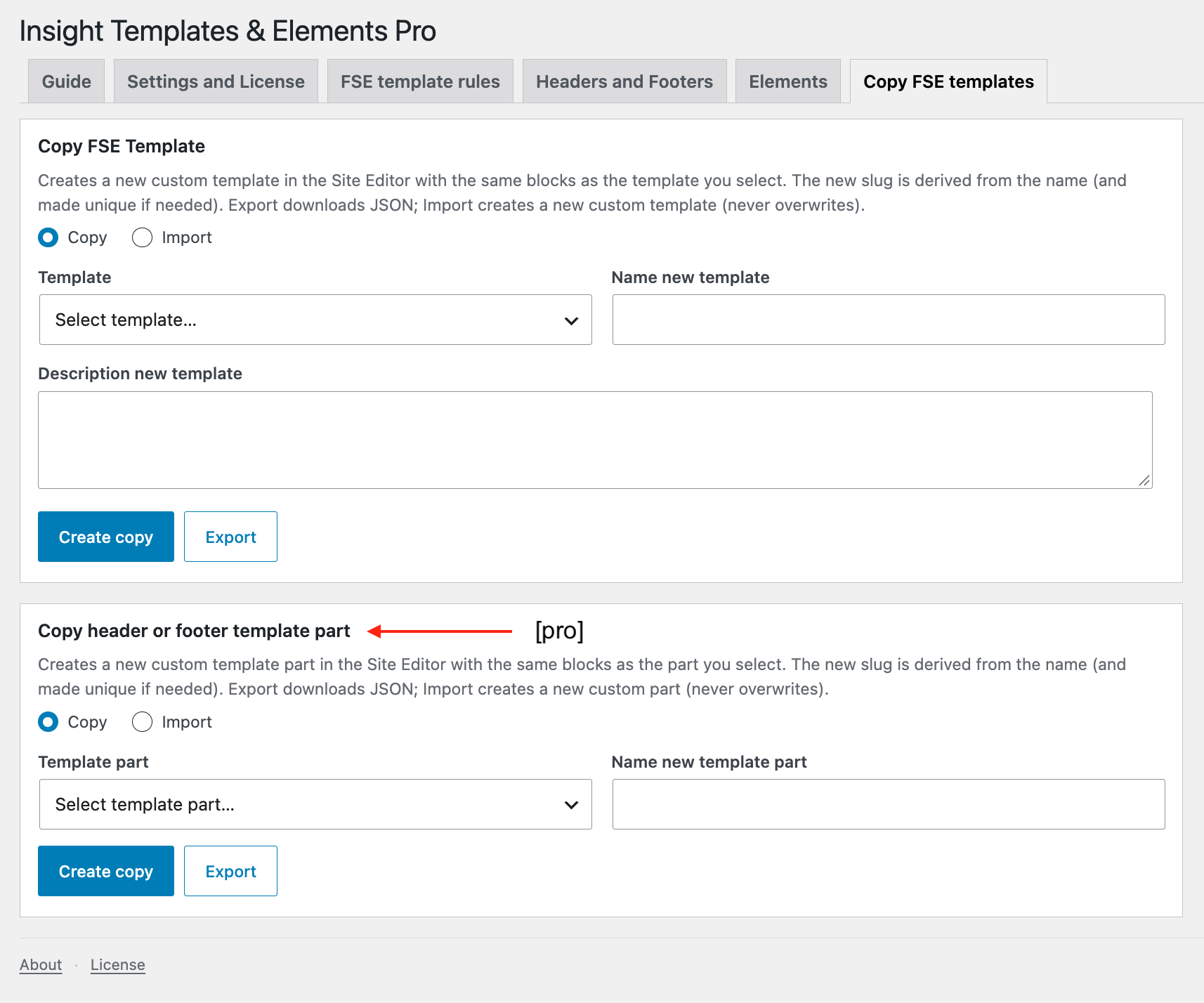
- Copy FSE templates (duplicate, Export, and Import templates and template parts; JSON; never overwrites)
- Guide tab with setup help
- Front-end resolver and editor notice when a rule applies
- Template rules for archives, categories, tags, the blog index, and the static front page
- Custom post types and WooCommerce views
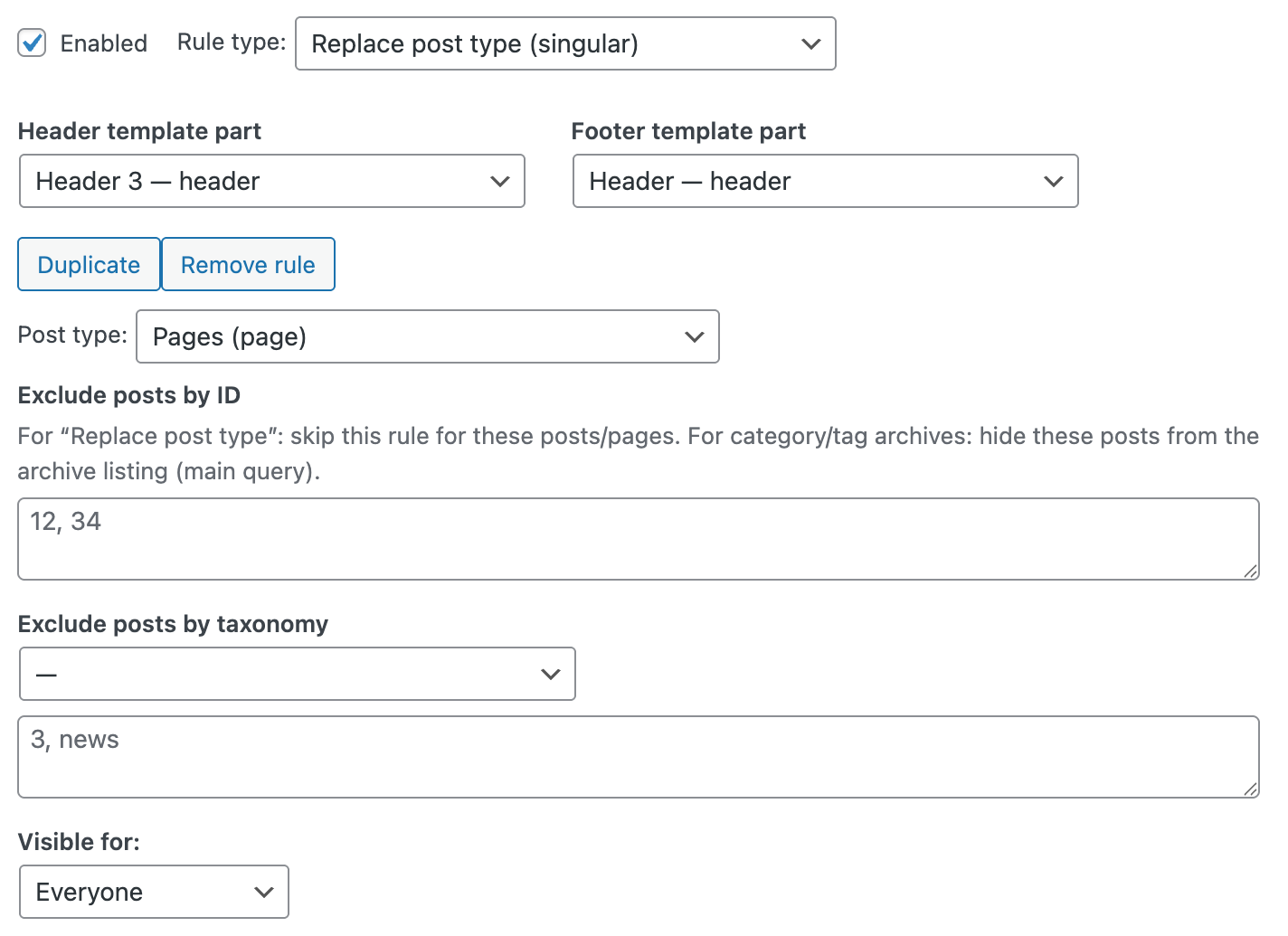
- Exclusions (post IDs, taxonomy) and visibility (logged-in / logged-out)
- Header and footer template part overrides, with an optional sticky header
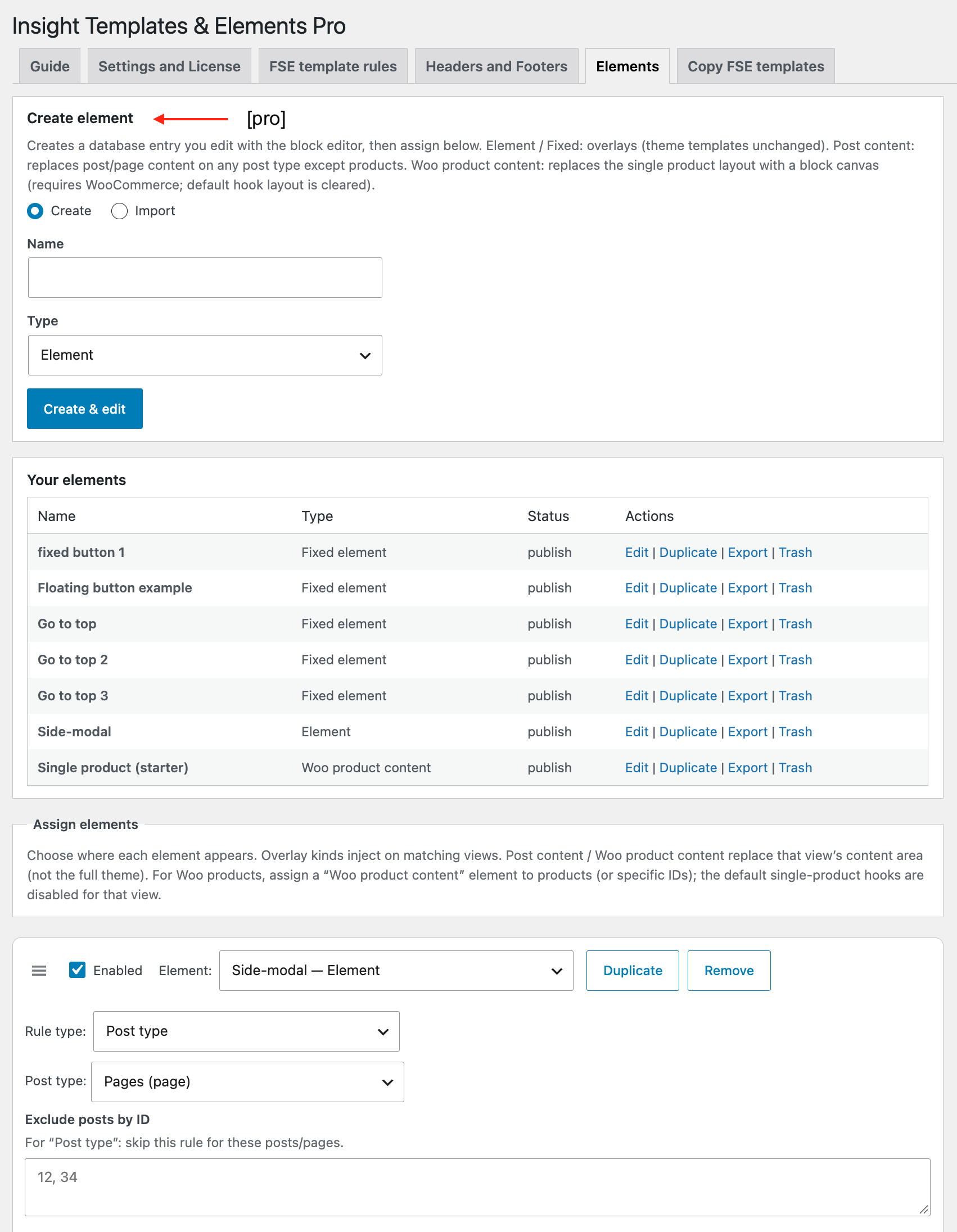
- Overlay elements (fixed UI, post content replacement, Woo product content canvas)
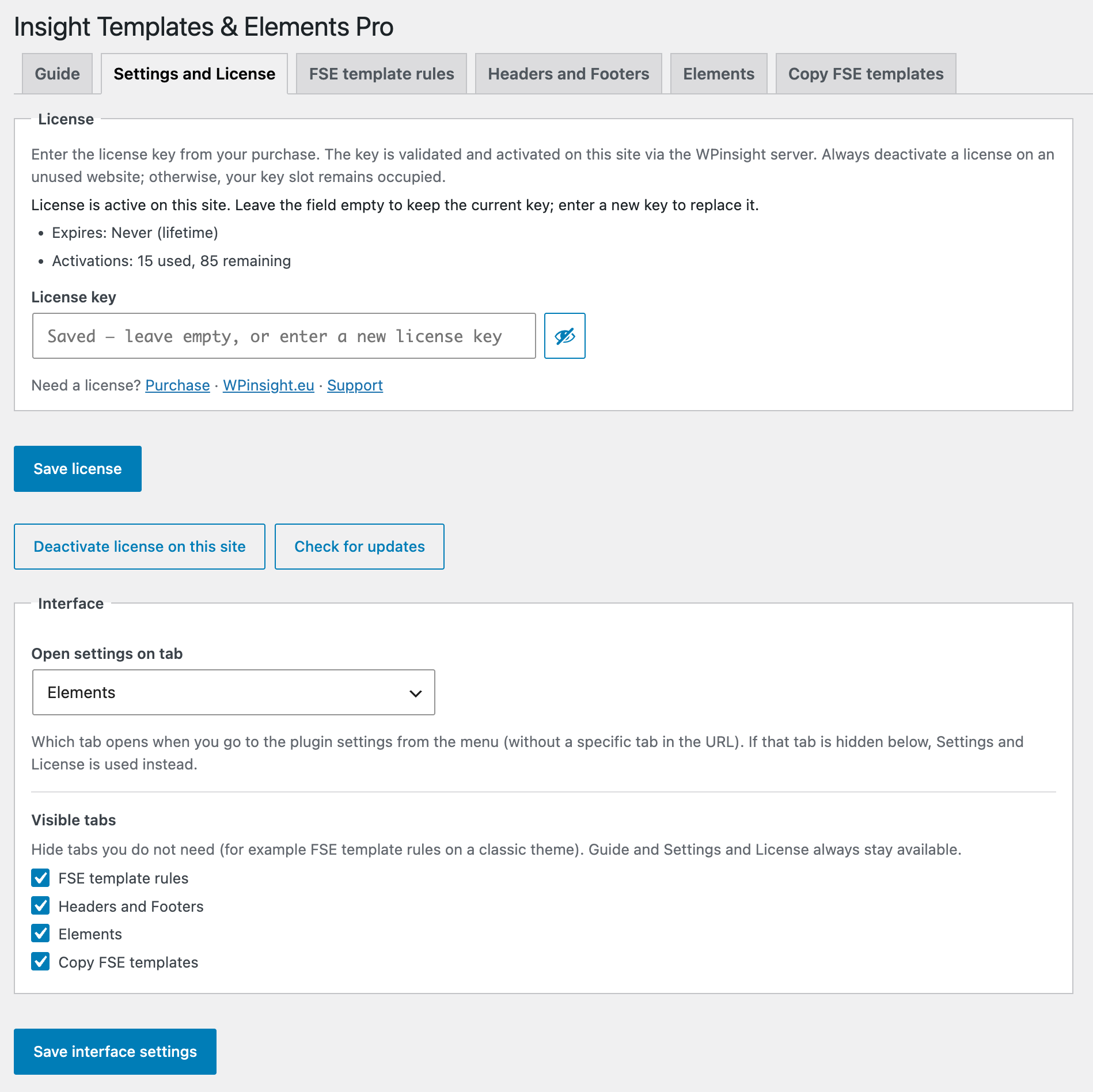
- Automatic updates for that plugin
安装:
- Install from WordPress.org, or upload the
insight-templates-elementsfolder to/wp-content/plugins/. - Activate the plugin.
- Go to Settings → Insight Templates & Elements.
- Open FSE template rules and create your first rule.
insight-templates-elements-pro). Use one or the other.屏幕截图:
常见问题:
Do I need a license key?
No. The free plugin runs fully for Pages and Posts. There is no license key field in Free.
Can I use custom post types or archives?
Those options are in the optional Insight Templates & Elements Pro add-on.
Will my rules transfer if I upgrade to Pro?
Yes. Rule storage uses the same option names (fse_ta_rules, and related keys).
What happens if Pro is already active?
The free plugin returns early and shows an admin notice. Deactivate Pro only if you want to run Free alone.
Is this a header or footer builder?
No. This plugin assigns the template. Header and footer swaps, archives, custom post types, and overlay elements are in the optional Pro plugin.
更新日志:
1.0.15
- Readme tag: block templates replaces classic theme.
- Patch release.
- Specific posts or pages (ID) accepts a comma while you type, same as the other ID fields.
- Plugin Check: Pro-active helper uses the fse_ta_ prefix, and admin query args are sanitized when read.
- Internal tested-up-to constant is 7.1.
- Tested up to WordPress 7.1.
- Plugin Check: prefixed the Pro-active helper, and sanitized admin input that was already nonce-checked.
- Contributors is basbuis.
- Saving Page and Post rules no longer deletes other stored rules. Header, footer, and Element options are left as saved. No license check turns features off.
- Readme: Contributors username set to BasBuis.
- Readme: Pro add-on list notes the optional sticky header for an assigned header (Pro setting, off by default).
- Rename install slug to
insight-templates-elements(plural Templates). Detect Pro atinsight-templates-elements-pro/.
- Detect Pro at
insight-templates-elements-pro/(still recognizes olddynamic-templates-elements/during transition).
- Guide tab always visible; default open tab is Guide when settings are missing/empty.
- Remove “Created by Blessed day” from the FSE template rules hint.
- Restore always-visible Guide tab (FSE rules + Copy only); keep Open-settings dropdown in sync with visible tabs.
- Truly unlimited Pages/Posts rules (no soft ID/rule caps in admin UI).
- Slimmed Free product gate: no license option shape, unlock lists, or remote licensing stubs.
- Resolver limited to page/post singular rules; archive/taxonomy/Woo/HF code paths removed from Free.
- Admin i18n limited to Free rule types; Guide/readme Pro add-on promo only (no enter-license UI).
- Initial free release: FSE template rules for Pages and Posts (by ID or post type), Copy FSE templates, Guide, and resolver. No license key or remote updater.