
ITMAROON EXTRA SETTINGS
| 开发者 | itmaroon |
|---|---|
| 更新时间 | 2026年9月18日 12:29 |
| PHP版本: | 8.2 及以上 |
| WordPress版本: | 7.1 |
| 版权: | GPLv2 or later |
| 版权网址: | 版权信息 |
详情介绍:
- Redirect Settings Makes the site accessible at the root URL of the domain, even if the site is installed in a subdirectory of the domain. Only the Site Address is changed, so the admin screen and the login URL keep working. The plugin checks whether the environment qualifies before enabling the option, confirms that the domain root really answers as this site before changing the Site Address, and reverts automatically if it stops answering afterwards.
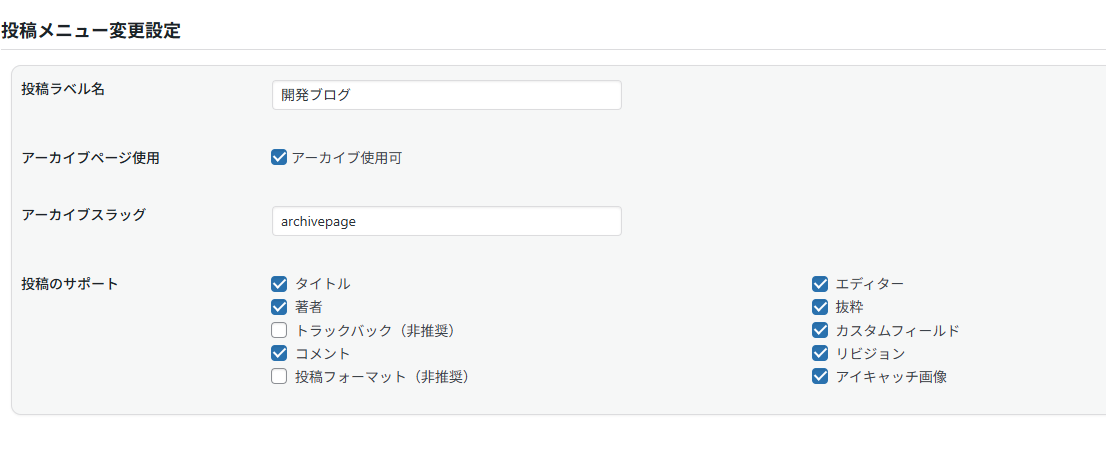
- Post menu change settings Provides the ability to change settings for the built-in post type, post, through a GUI. You can change the label, enable an archive with your own slug, and choose which features the post type supports.
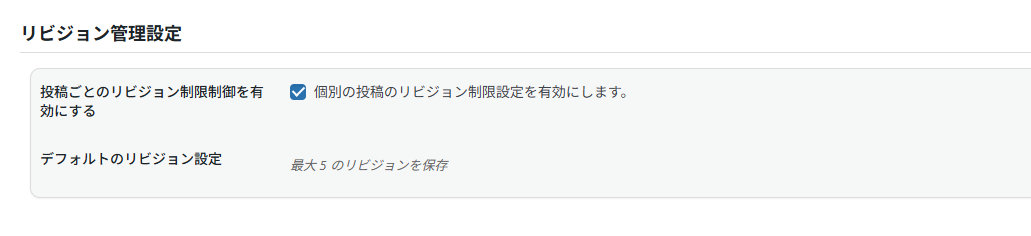
- Revision Control Settings Lets you limit how many revisions are kept. Set a site-wide default on the settings screen, and override it per post from the "Revision Settings" box in the sidebar of the edit screen. Applies to every post type that supports revisions.
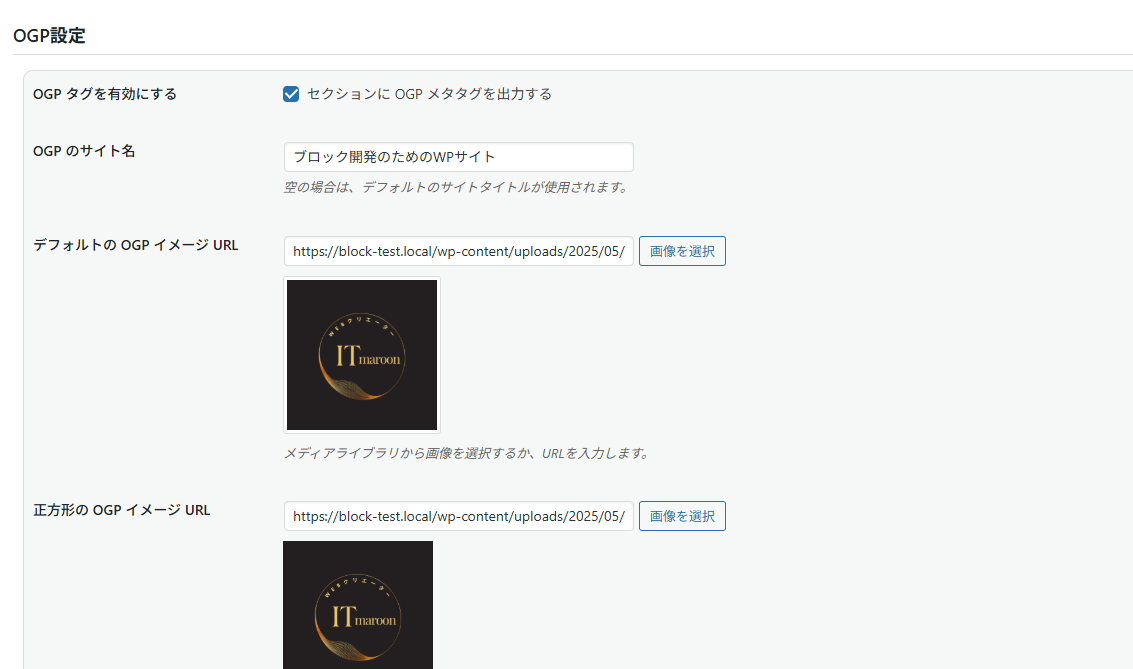
- OGP Settings Output OGP tags on each page of the site. On single posts and pages the title, excerpt, permalink and featured image of that content are used, so each page is shared correctly. We have confirmed that OGP tags are output on X, Facebook, and LINE.
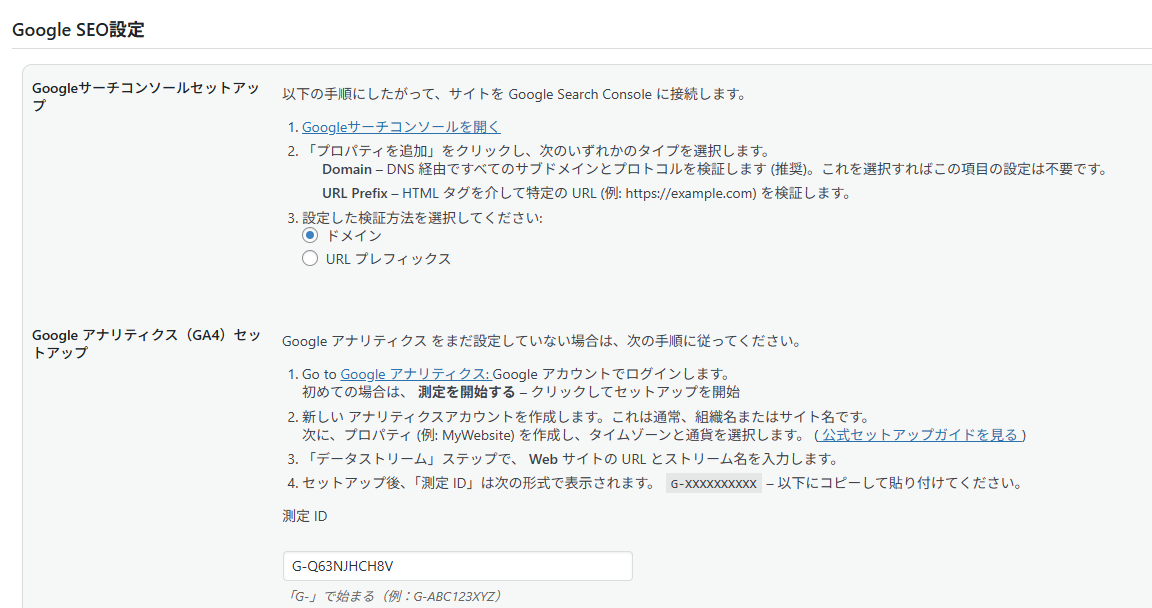
- Google SEO Settings Google Search Console, Google Tag Manager and Google Analytics (GA4) tags will be output on each page of the site. The GTM noscript tag is placed right after the opening body tag.
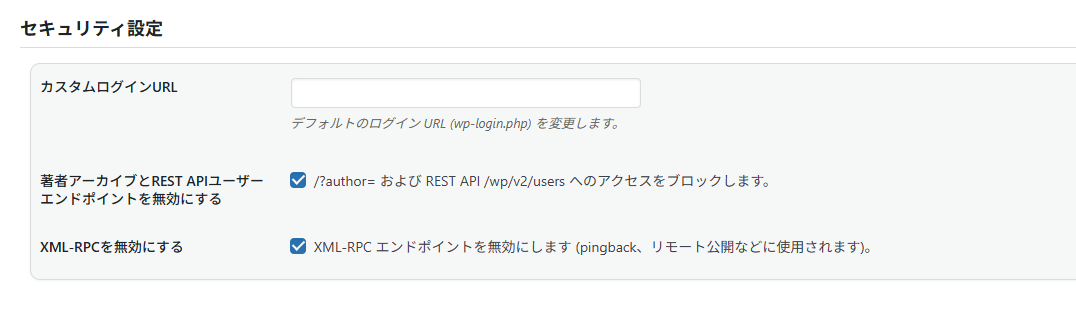
- Security Settings We will set three security settings:
- Change the default login URL (wp-login.php). Both GET and POST to wp-login.php are blocked while a custom slug is set.
- Block access to ?author= and the REST API /wp/v2/users for visitors who are not logged in.
- Disable the XML-RPC endpoint.
安装:
- From the WP admin panel, click “Plugins” -> “Add new”.
- In the browser input box, type “WP EXTRA SETTINGS”.
- Select the “WP EXTRA SETTINGS” plugin and click “Install”.
- Activate the plugin.
- Download the plugin from this page.
- Save the .zip file to a location on your computer.
- Open the WP admin panel, and click “Plugins” -> “Add new”.
- Click “upload”.. then browse to the .zip file downloaded from this page.
- Click “Install”.. and then “Activate plugin”.
屏幕截图:
常见问题:
Where do I set the number of revisions?
Set the site-wide default in "Revision Control Settings" on the settings screen. To override it for one post, use the "Revision Settings" box in the sidebar of that post's edit screen. Leaving the box blank means the post follows the site-wide default.
I changed the login URL and now I cannot sign in.
Open the settings screen from another logged-in session and clear the "Custom Login URL" field, then save. That restores wp-login.php. The current login URL is always shown under the field, so bookmark it before you leave the screen.
Can the domain root redirect lock me out?
No. Only the Site Address (home) is changed; the WordPress Address (siteurl) is left alone, and the admin screen and login URL are based on that. You can always reach the admin screen and uncheck the box. Beyond that, the setting is applied only after the plugin confirms that the domain root answers as this site, and it reverts on its own if the site stops answering right after the change. When the environment does not qualify at all — the site is not in a subdirectory, the domain root is not writable, or a foreign index.php is already there — nothing is changed and the reason is shown as an admin notice.
更新日志:
- Redirect Settings: saving with the setting already enabled now checks the domain root index.php and recreates it if missing. Previously, saving without changing the checkbox skipped this check, leaving the site inaccessible when the file was missing.
- Redirect Settings: existing index.php files are checked for the expected WordPress path. Files that fail validation are left unchanged and an admin notice is shown.
- Redirect Settings: repairing a missing index.php preserves the Site Address and its saved restoration value. Repair does not depend on an HTTP check that could remove the file after a temporary connection failure.
- Revision Control: added a site-wide default revision count. Until now the number could only be set per post, and there was no way to control it for the whole site.
- Revision Control: the per-post box is now shown for every post type that supports revisions, not only for posts.
- Redirect Settings: added safeguards so the front page cannot be left broken. On save the environment is checked and, when it does not qualify, nothing is changed and the reason is shown; the domain root is requested and verified before the Site Address is changed; and the change is reverted automatically if the root stops answering.
- Security: the current login URL is shown under the field once a custom slug is set, so it can be bookmarked before leaving the screen. Fixed
- Post type supports were wiped on a fresh activation. The activation default was stored as a list while the reader expected a map, which removed every support from the post type and registered meaningless ones. Existing sites with the broken value are repaired automatically on update.
- Revision Control: saving a post with the revision box left blank stored 0, which stopped revisions from being saved even though the description said blank meant no limit. Blank now clears the setting and follows the default.
- Security: POST requests to wp-login.php were always allowed, so brute-force attempts bypassed the custom login URL entirely. Both GET and POST are now blocked.
- Security: a login slug containing "login" disabled the block completely, because the check matched the string wp-login.php itself. The check no longer relies on the request URI.
- Security: blocking ?author= produced a bare error page instead of the theme's 404 template.
- Security: the REST /wp/v2/users endpoint was removed for logged-in users as well, which affected the block editor. It is now blocked only for visitors who are not signed in.
- SEO: OGP tags used the site name, tagline and home URL on every page, so sharing any page produced the same result. Single posts and pages now output their own title, excerpt, permalink, type and featured image.
- SEO: og:locale was hard-coded to ja_JP. It now follows the site language.
- SEO: the GTM noscript iframe was printed inside head. It is now printed right after the opening body tag.
- SEO: the noindex setting for archives also covered post type archives despite the label. It is now limited to taxonomy, date and author archives.
- SEO: GA4 and GTM IDs are validated before being written into the page, and a warning appears when both are set.
- Post settings: the activation default wrote itmar_post_archive_enabled while the code read itmar_post_has_archive, so the default never applied.
- Post settings: the admin submenu labels were matched by Japanese text, so they were never replaced when the admin language was not Japanese.
- Redirect Settings: the Site Address was rewritten on every save, and turning the setting off restored it from the WordPress Address instead of the value it had before. The previous value is now stored and restored.