Kopo Kopo for WooCommerce
| 开发者 | chemwen0 |
|---|---|
| 更新时间 | 2026年3月12日 00:08 |
| PHP版本: | 7.4 及以上 |
| WordPress版本: | 6.9 |
| 版权: | GPLv2 or later |
| 版权网址: | 版权信息 |
详情介绍:
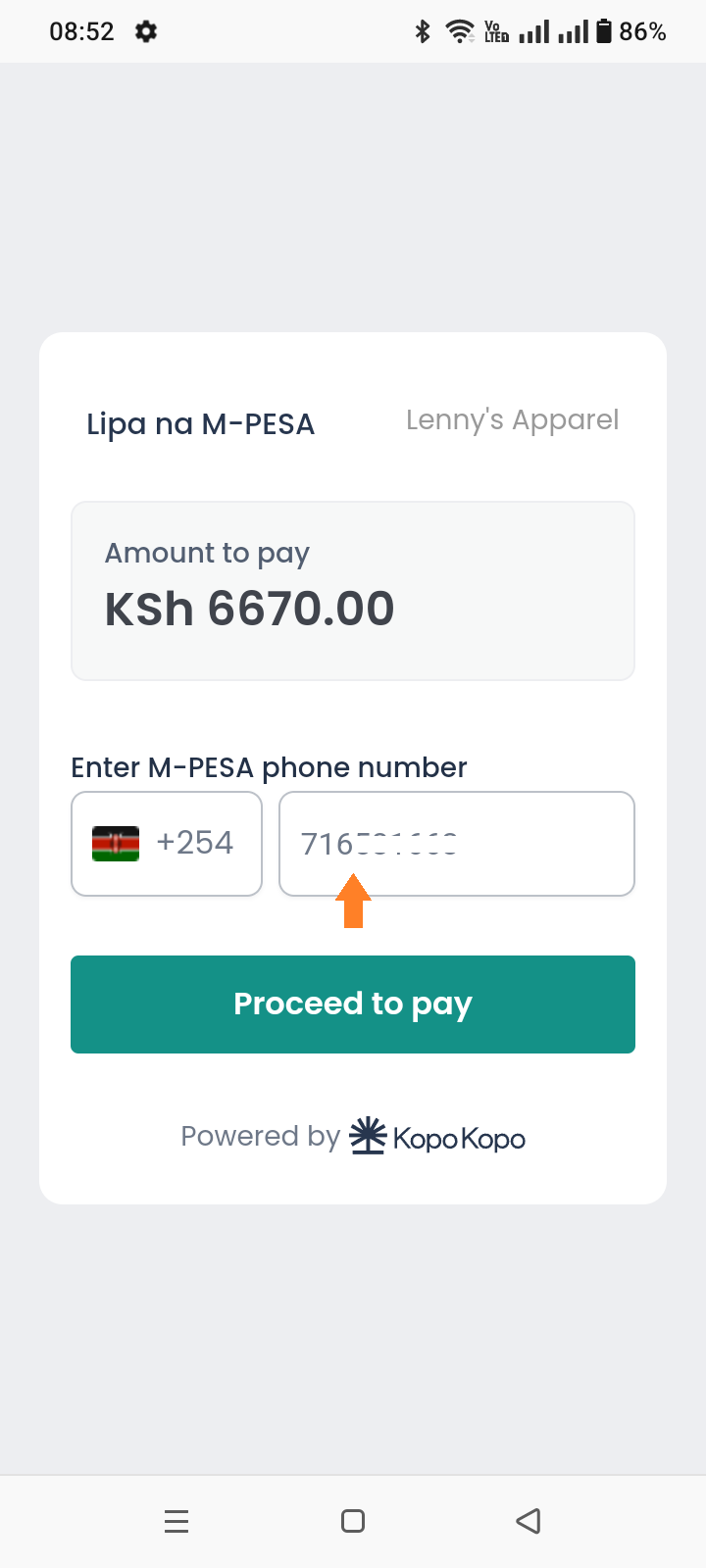
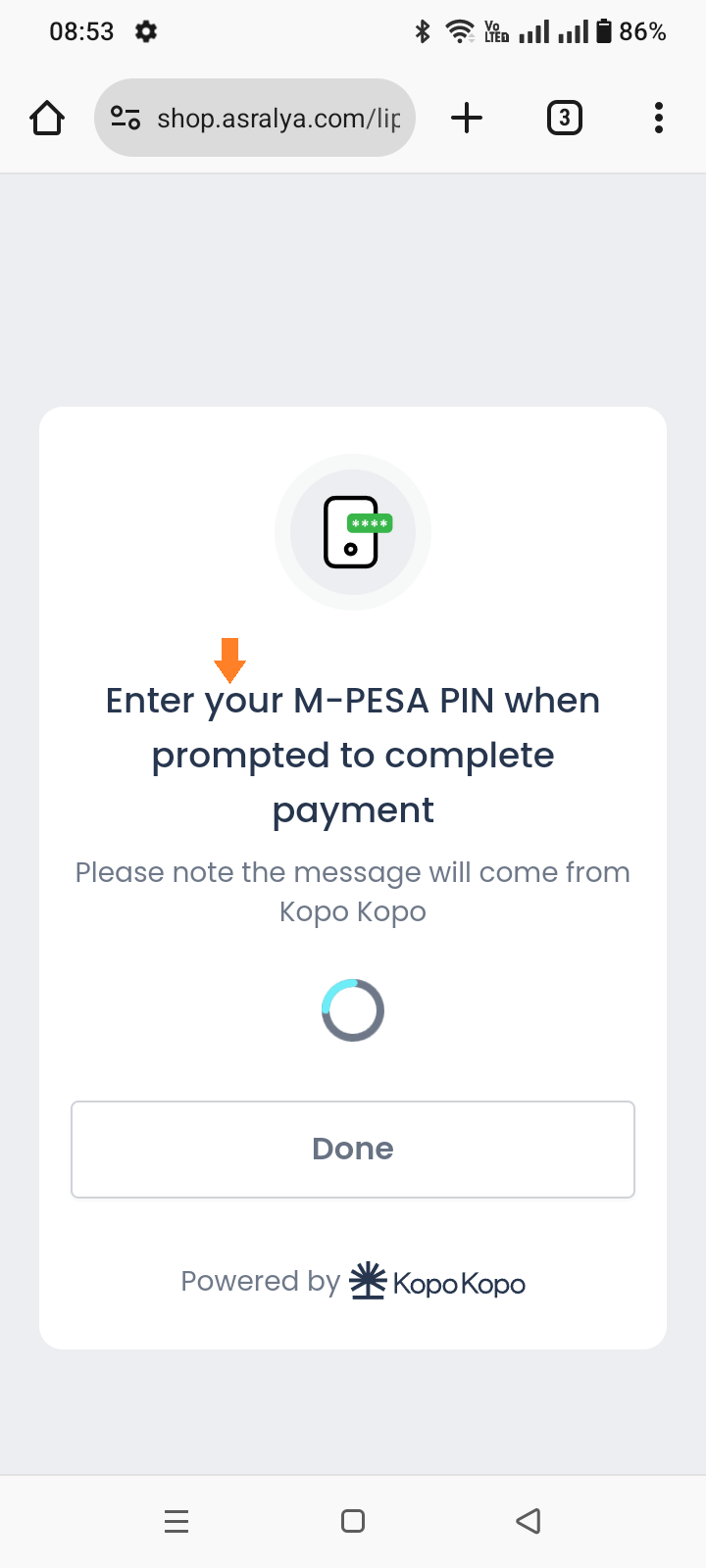
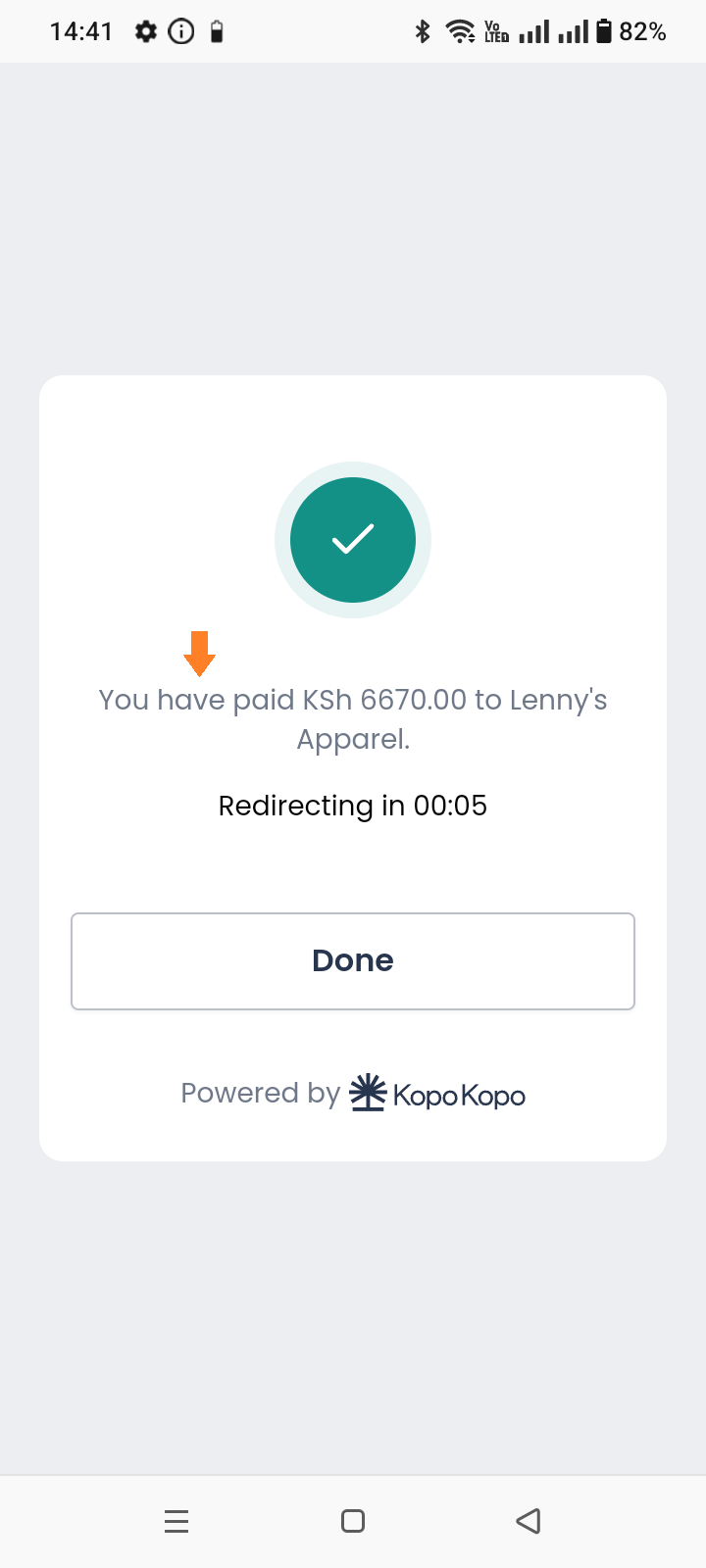
- Let your customers pay securely using Lipa na M-PESA at checkout.
- Receive funds directly to your Kopo Kopo account in real time.
- Provide a seamless checkout experience.
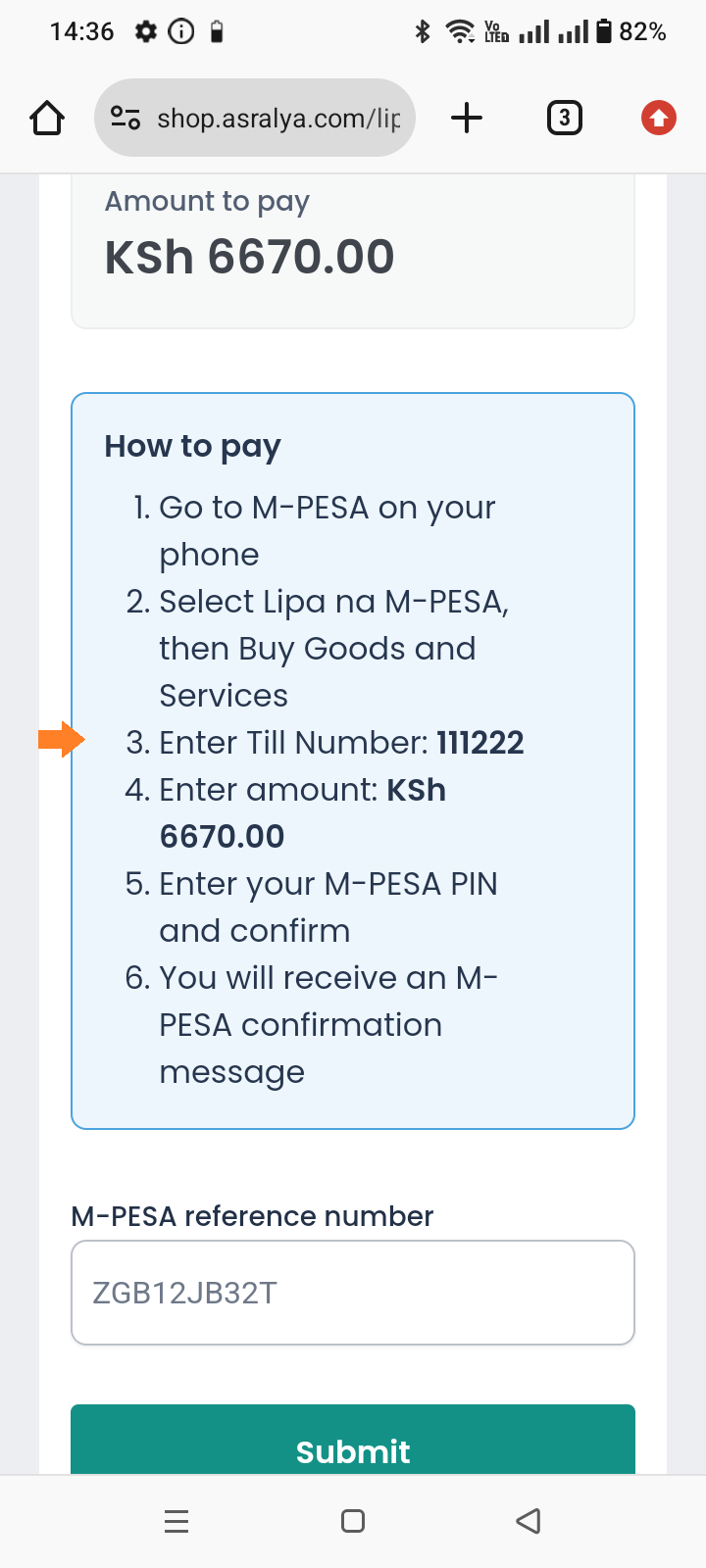
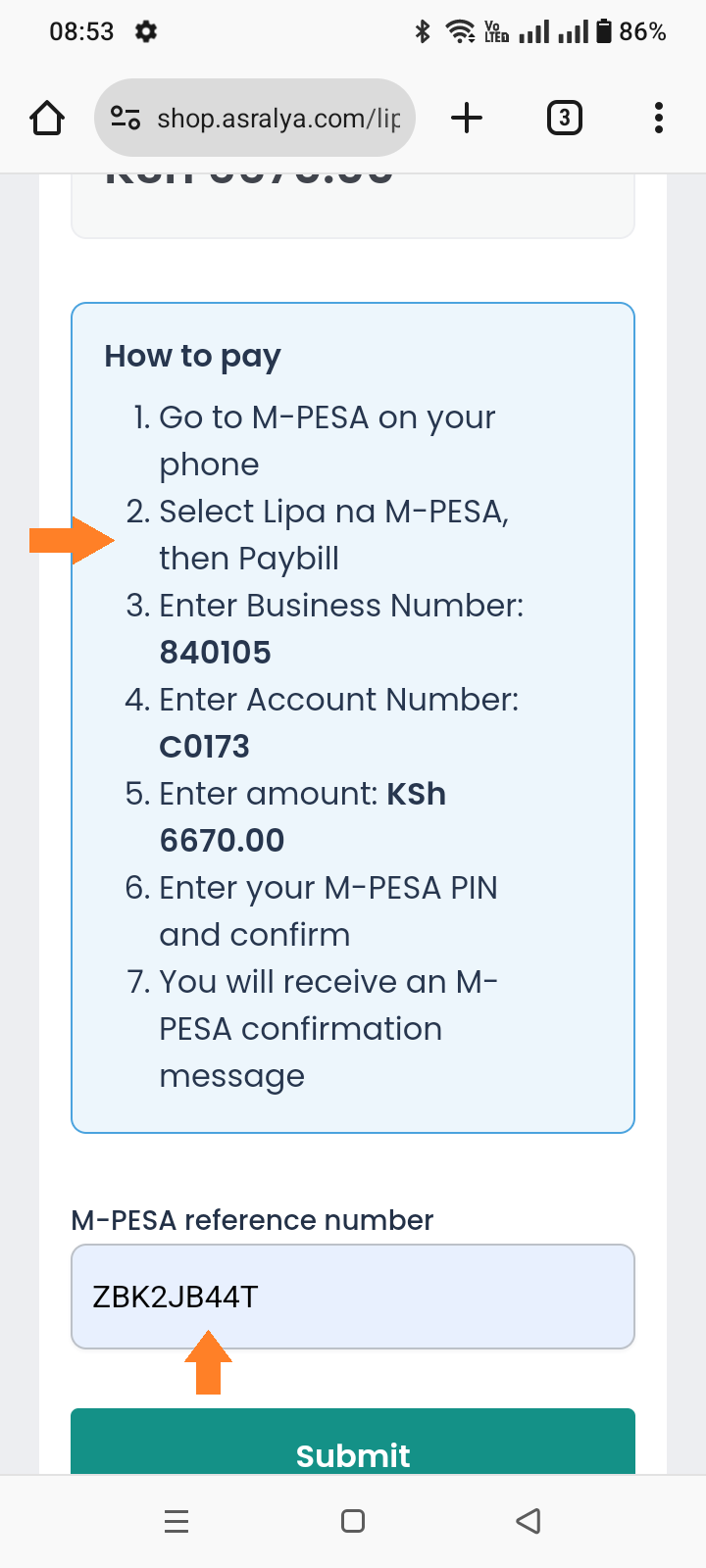
- Ensure no payment is lost with optional manual fallback via Lipa na M-PESA till number or Paybill.
- Connect your WooCommerce store to your Kopo Kopo account with a few simple steps.
- Use K2 Connect API keys for secure and reliable transactions.
- Keep track of payments, orders and reports from your WooCommerce dashboard.
- Automatically update orders when manual payments are received using Kopo Kopo Webhooks.
安装:
- WordPress Version 6.2 or newer (installed).
- WooCommerce Version 8.0 or newer (installed and activated).
- PHP Version 7.4 or newer.
- Kopo Kopo account.
- Log in to your WordPress admin dashboard.
- Navigate to Plugins > Add New.
- In the search bar, type Kopo Kopo for WooCommerce.
- Click Install Now and wait for the plugin to finish installing.
- After installation, click Activate Now to enable the plugin immediately. Note: You can activate it later via Plugins > Installed Plugins.
- Go to WordPress Admin > Settings > Permalinks.
- Select "Post name" or any structure other than "Plain".
- Click Save Changes.
- Go to WooCommerce > Settings.
- Click the Payments tab.
- Locate Kopo Kopo for WooCommerce and click Manage.
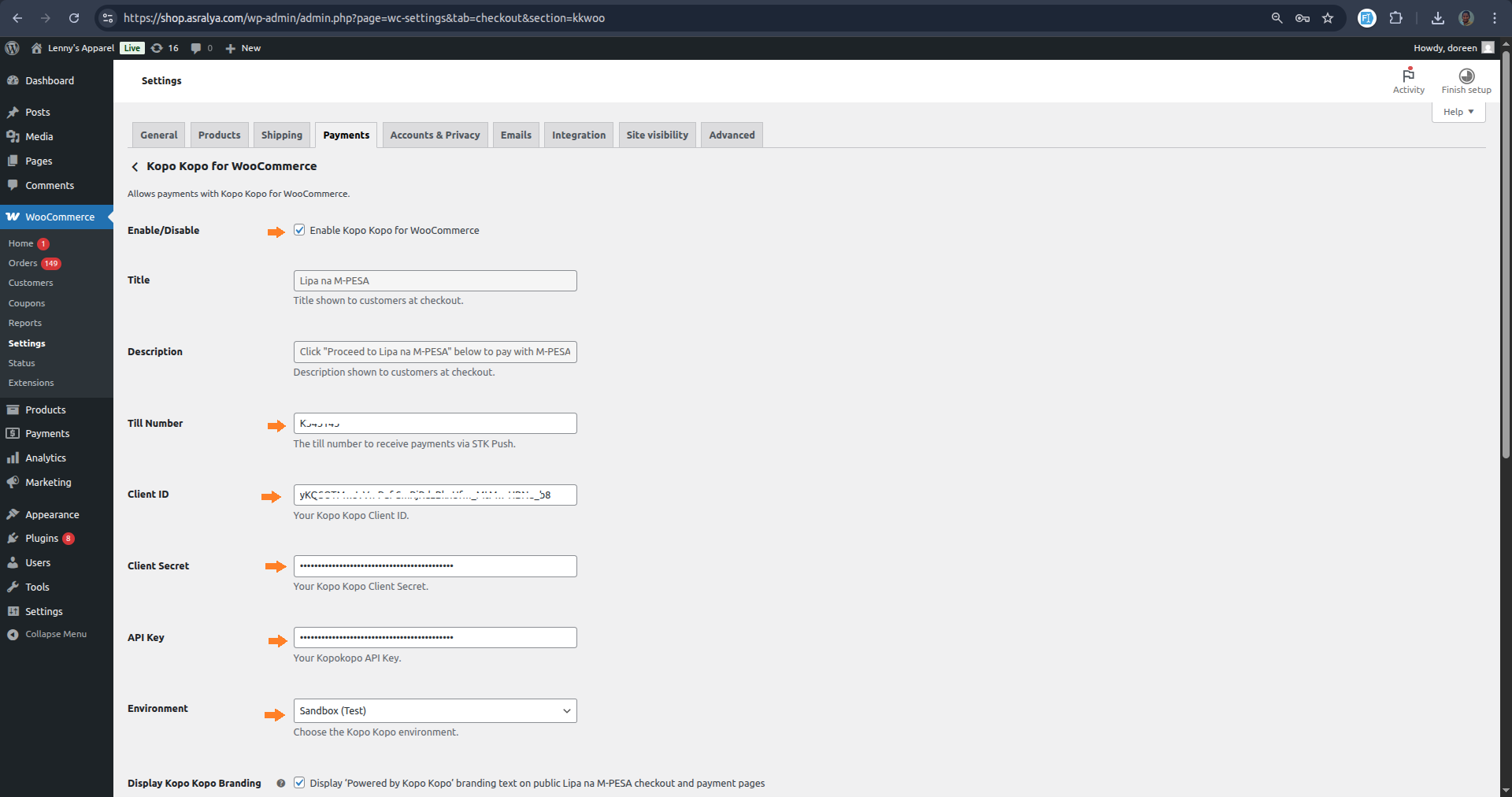
- Configure the plugin settings as described below:
- Enable/Disable - Check this box to activate Kopo Kopo for WooCommerce on your online shop checkout page.
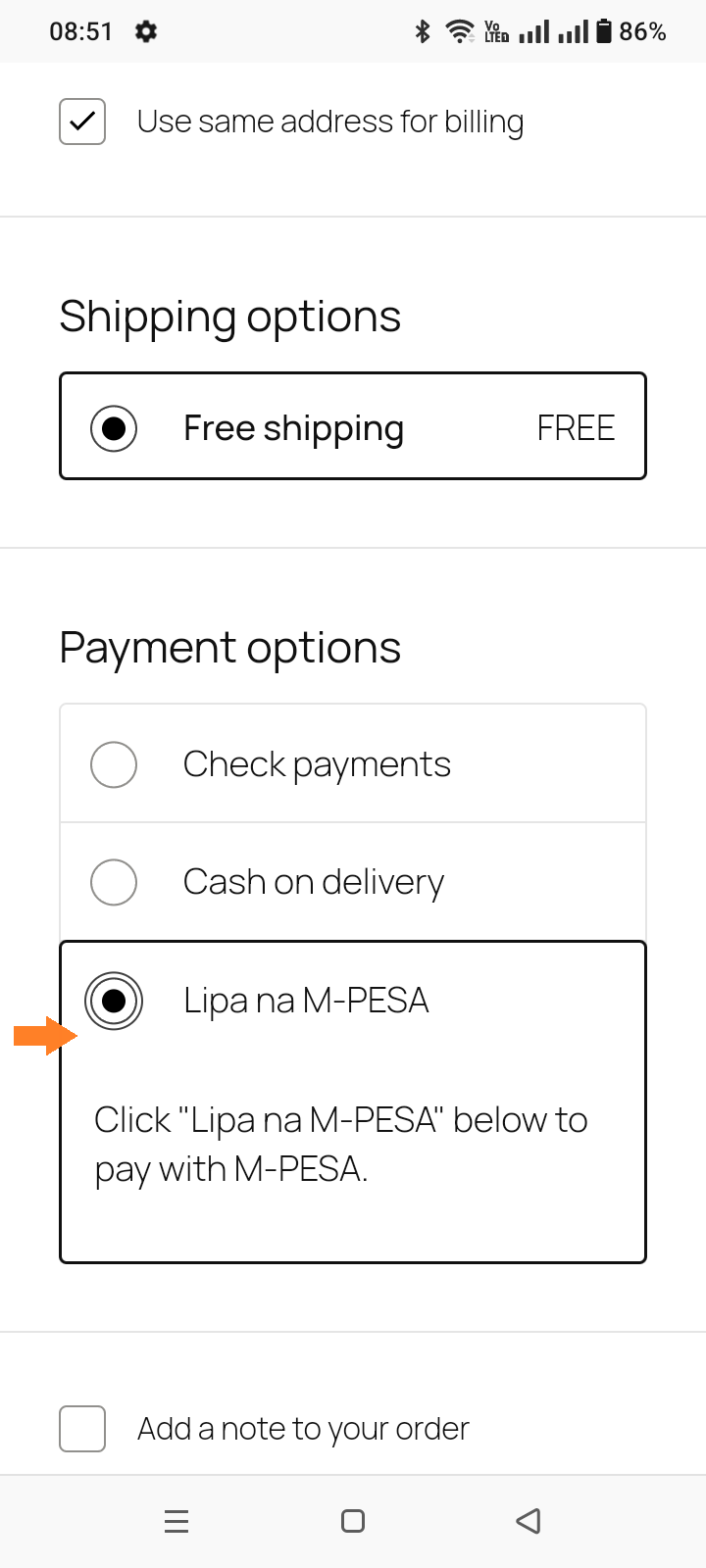
- Title - This appears as the payment option during checkout. The default title is Lipa na M-PESA. This cannot be changed.
- Description - This message appears under the payment fields to guide your customers. Default text: Click "Proceed to Lipa na M-PESA" below to pay with M-PESA. This cannot be changed.
- Till number - Enter the Lipa na M-PESA number that will receive STK Push payments. This must be an online payment account in your Kopo Kopo dashboard under My Tills.
- Client ID - Enter your K2 Connect Client ID.
- Client secret - Enter your K2 Connect Client Secret.
- API key - Enter your K2 Connect API Key.
- Environment - Select the environment you want to use: Sandbox for testing or Production for live payments. Ensure your credentials match the selected environment to avoid errors.
- Display Kopo Kopo Branding - Enables the display of a small “Powered by Kopo Kopo” notice on Lipa na M-PESA payment pages. This option is disabled by default and can be turned on or off at any time without affecting payment functionality.
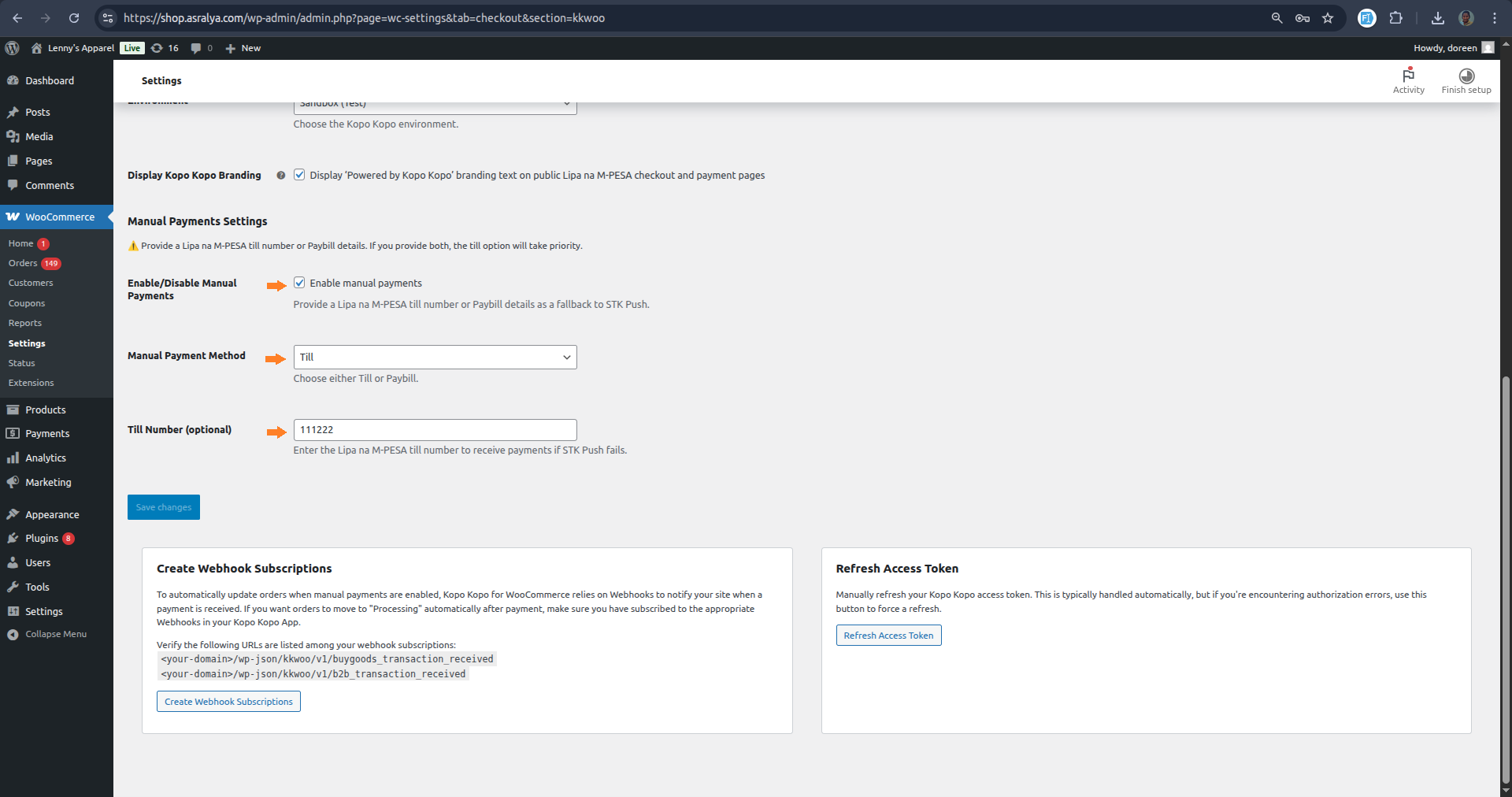
- Enable/Disable Manual Payments - Use this option to provide a Lipa na M-PESA till number or Paybill details as a fallback to STK Push. After enabling, click Create Webhook Subscriptions at the bottom of the page.
- Manual Payment Method - Choose either Till or Paybill from the dropdown. If both are provided, the Till option will take priority.
- Till Number / Paybill Business Number & Paybill Account Number - Enter the account details for the manual fallback.
屏幕截图:
常见问题:
What do I need to use the plugin?
- A Kopo Kopo account. Use an existing account or open an account.
- An active WooCommerce store.
- A valid SSL certificate.
Why is the Lipa na M-PESA payment page showing a 404 error?
This usually happens when Pretty Permalinks are not enabled. The Kopo Kopo for WooCommerce plugin creates custom payment URLs (such as lipa_na_mpesa_k2) using WordPress rewrite rules. If your site is using the default Plain permalink structure, these URLs cannot be recognised and will return a 404 error. To fix this:
- Go to WordPress Admin > Settings > Permalinks
- Select any option other than Plain
- Click Save Changes After updating your permalink settings, the payment pages should work correctly.
Is this plugin available outside Kenya?
No. This plugin is built specifically for businesses in Kenya with Kopo Kopo accounts.
What is K2 Connect?
K2 Connect provides everything you need, including powerful APIs and SDKs, to seamlessly integrate payments into your business, including your WooCommerce shop, helping you provide a smooth checkout experience for your customers. Learn more about K2 Connect.
Can I test payments before going live?
To test payments before going live, sign up for a sandbox account here and configure your sandbox credentials in the plugin settings.
What happens to my data if I uninstall the plugin?
When you uninstall the plugin, only the plugin settings are removed. All order-related payment data is retained to protect order history and payment records. This ensures existing orders remain verifiable and allows you to restore functionality if the plugin is reinstalled.
Where can I get support or talk to other users?
Reach out to our support team through any of the following channels: call 0709 376 000 or 020 790 3030, WhatsApp 0709 376 000, email support@kopokopo.com, or join our Discord channel.
更新日志:
- Initial release of k2_connect_woocommerce
- Support for Lipa na M-PESA STK Push payments at checkout.
- Webhooks for processing manual payments completed through Paybill and Till numbers acquired with Kopo Kopo.