
Lens Media Library Folders
| 开发者 | Neonic |
|---|---|
| 更新时间 | 2025年12月6日 06:06 |
| PHP版本: | 7.4 及以上 |
| WordPress版本: | 6.8 |
| 版权: | GPL v3 or later |
| 版权网址: | 版权信息 |
详情介绍:
- Unlimited Folders & Subfolders: Create unlimited nested folders and subfolders to organize your media files exactly the way you want
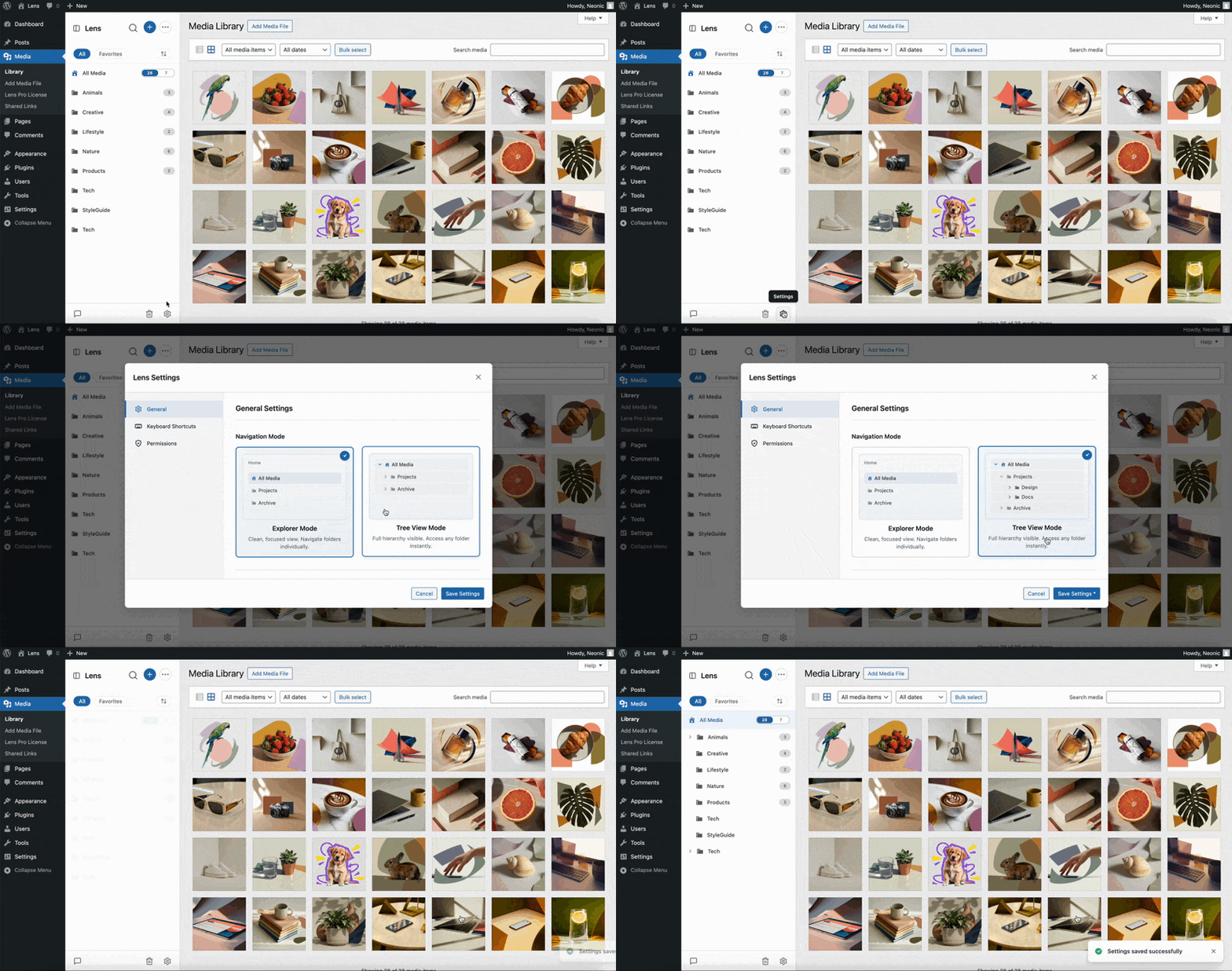
- Dual View Modes: Switch between Tree View (hierarchical folder structure) and Explorer View (visual grid layout) for flexible navigation
- Drag & Drop Interface: Intuitive drag-and-drop functionality for moving files and folders effortlessly
- Bulk Operations: Move, delete, or organize thousands of files at once with real-time progress tracking
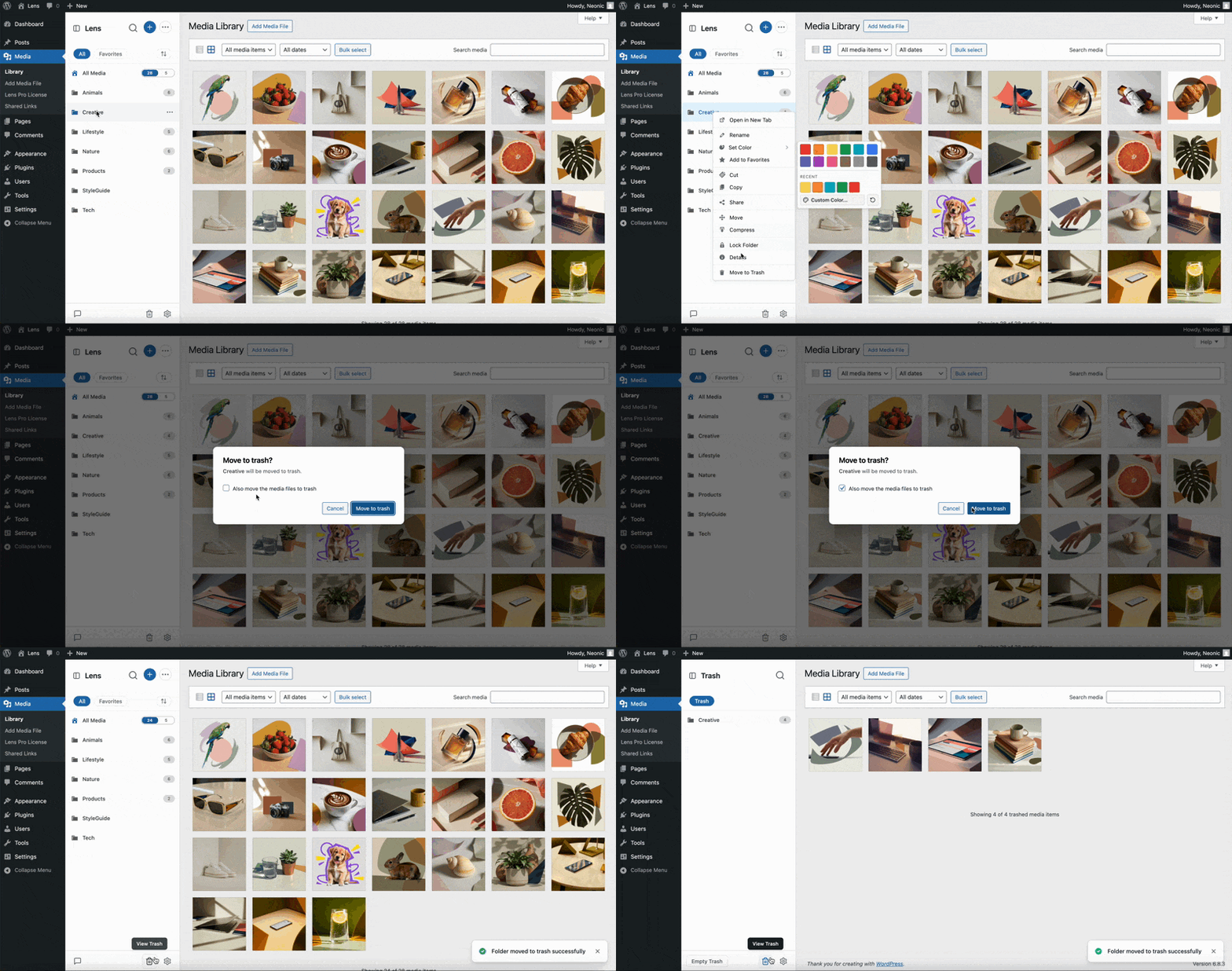
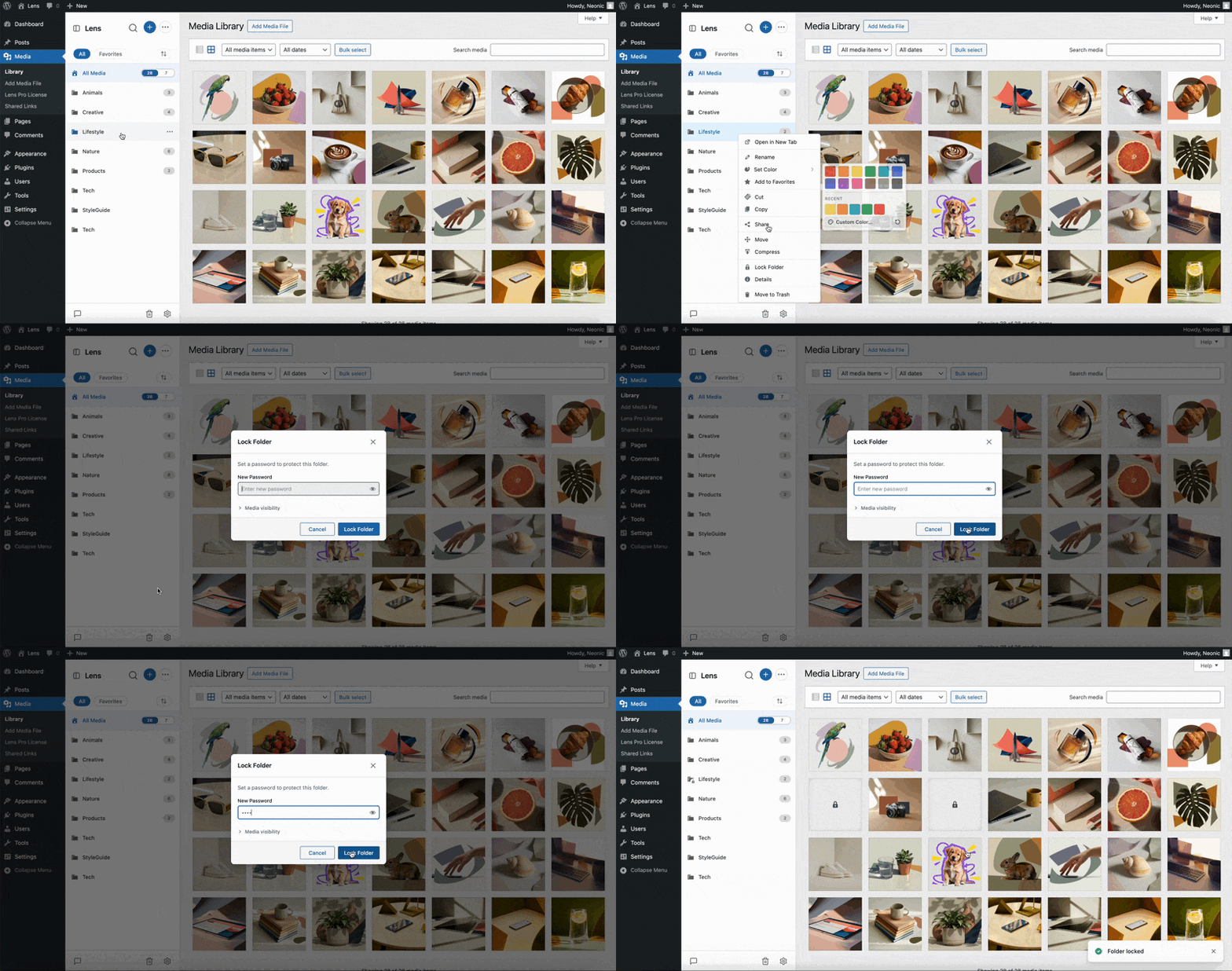
- Context Menu: Right-click folders for quick access to common actions like rename, move, delete, and more
- REST API Support: Integrate Lens with external applications using secure API keys and full WordPress REST API endpoints Search & Navigation
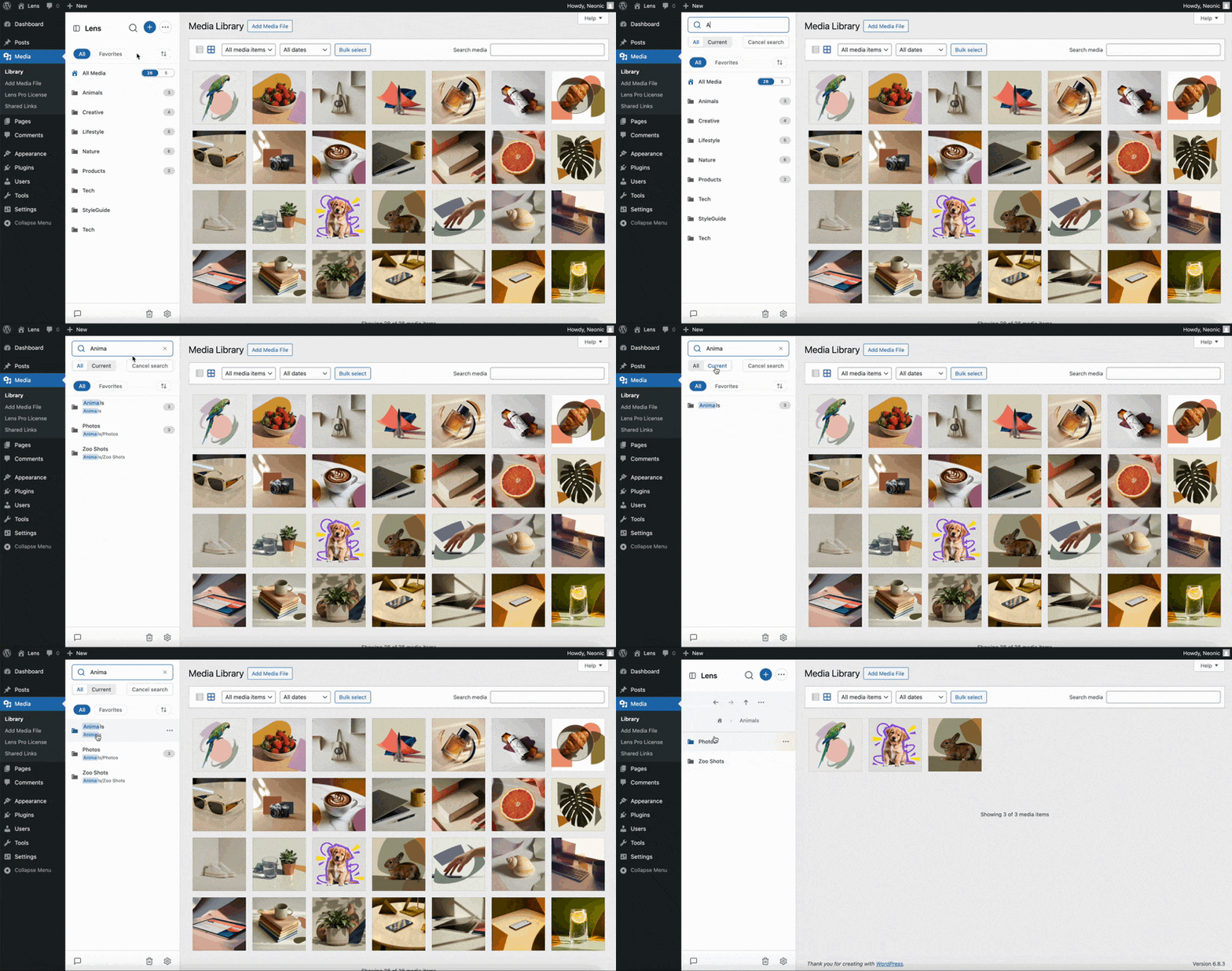
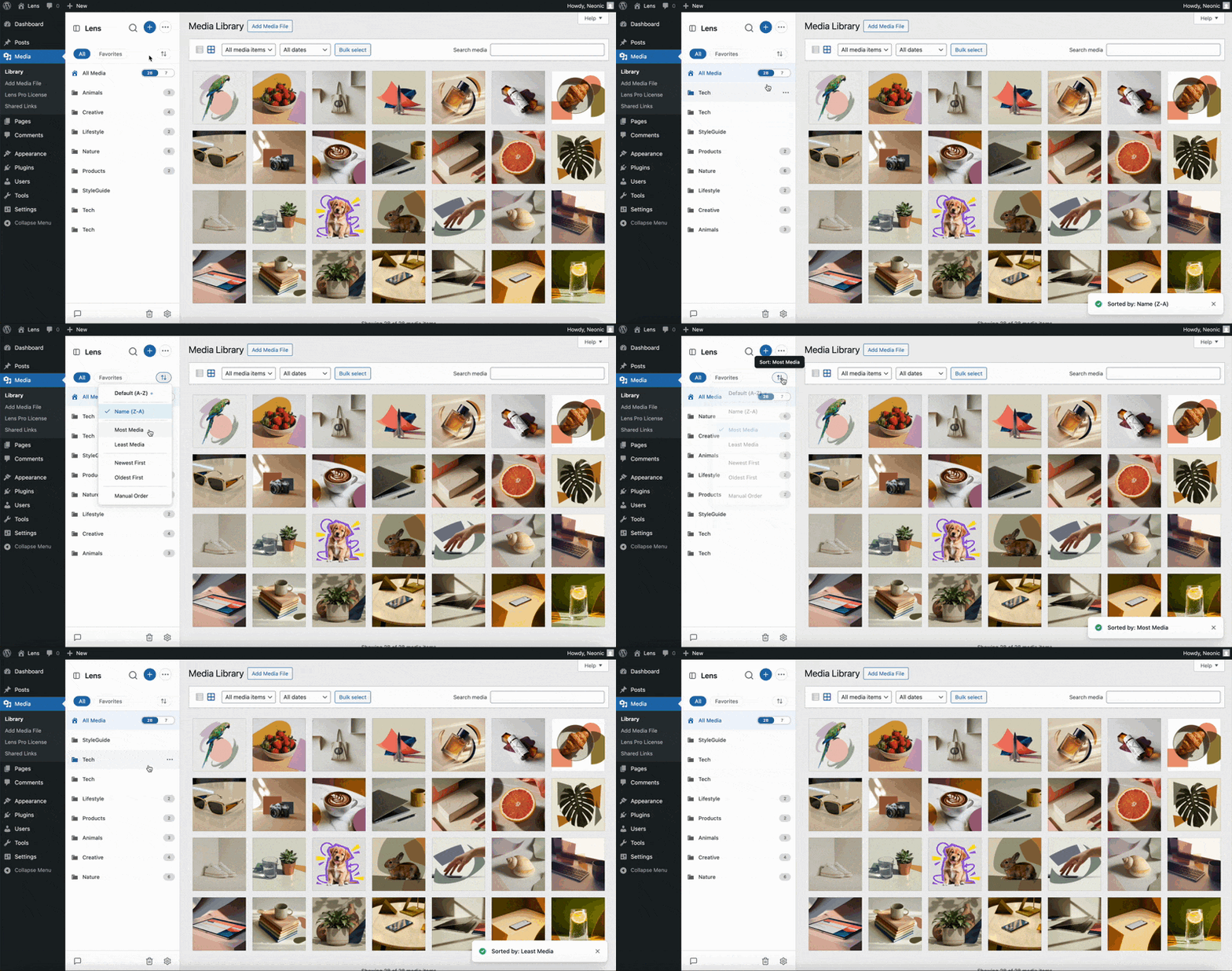
- Sidebar Search: Search folders directly within the sidebar with real-time filtering
- Search Modes: Toggle between "All" (search across all folders) and "Current" (search within current folder view)
- Smart Highlighting: See matching text highlighted in search results for quick scanning Organization Tools
- Cut, Copy & Paste: Use familiar keyboard shortcuts to move folders efficiently
- Favorites: Star your frequently used folders for instant access
- Folder Details: View comprehensive folder information including item counts, creation dates, and more
- Open in New Tab: Open any folder in a new browser tab for easier multitasking
- Move to Trash: Safely remove folders and media without permanent deletion
- Trash Management: Restore or permanently delete items from the trash when you're ready
- Undo/Redo: Easily revert changes with undo functionality (Cmd/Ctrl+Z to undo, Cmd/Ctrl+Shift+Z to redo) Seamless Integration
- Native WordPress Integration: Works perfectly with the WordPress media library
- Organize From Anywhere: Assign and update folder locations for your media from anywhere in WordPress - posts, pages, WooCommerce products, or the media library
- Post & Page Editor Integration: Manage and organize folders directly from your post, page, or product editor
- Page Builder Support: Compatible with Elementor, Gutenberg, WPBakery, Divi, Beaver Builder, and more
- WooCommerce Ready: Organize product images with ease directly from product editor
- Multisite Ready: Built for WordPress Multisite with clean installs and complete network cleanup on uninstall
- CDN & Cloud Compatible: Works perfectly with CDN and offload plugins — no setup or configuration needed
- Responsive Design: Manage your media library from any device - desktop, tablet, or mobile REST API Integration
- Secure API Keys: Generate unique API keys for external applications
- Full REST API Support: Access, create, update, and organize folders and media programmatically
- Granular Permissions: Control access per key - read-only, write-only, or full read/write
- External App Integration: Connect Lens with CRMs, DAM tools, automation platforms, mobile apps, or custom dashboards
- JSON Responses: Clean, standardized WordPress REST API endpoints for seamless development
- Advanced Developer Tools: Hooks, filters, and customizable access policies for complete flexibility 💎 PRO FEATURES
- Auto Organize: Automatically organize your entire media library in one click
- Upload Complete Folders: Upload entire folder structures directly from your computer with all files and subfolders intact
- Import Folders: Bulk import nested folder structures from CSV, JSON, XML, or ZIP files
- Export Folders: Export your entire folder structure or selected folders as ZIP files for backups or migrations
- Duplicate Detection: Automatic duplicate detection and conflict resolution during imports Advanced Search & Navigation
- Quick Switch: Press Cmd/Ctrl+K to instantly navigate to any folder from anywhere in your media library
- Advanced Filters: Filter folders by color, lock status, and more using simple syntax (e.g.,
color:blue,locked:yes) - Filter Chips: Visual filter chips make it easy to see and remove active filters
- Customizable Keyboard Shortcuts: Personalize shortcuts for every action to match your workflow Visual Organization
- Folder Colors: Add colors to your folders for easier visual organization and instant recognition
- Color Filtering: Quickly find folders by color to navigate your library faster Security & Permissions
- Locked Folders: Password-protect folders and optionally hide media files from public access
- Role-Based Permissions: Control who can access, edit, or delete folders and files by user role
- User-Level Permissions: Grant or restrict access for individual users without changing WordPress capabilities
- Fine-Grained Access Control: Manage who can create, move, lock, or share folders with precise control Compression & Archiving
- Compress Folders: Turn any folder into a ZIP file for easy downloads and backups
- Extract ZIP Files: Upload ZIP files and extract them directly into your folder structure
- Download & Export: Download folders as ZIP files or export your entire media library in one click for backups and easy migration to another site Sharing & Collaboration
- Share Links: Share folders with expiring download links
- Password Protection: Protect shared folders with passwords
- Download Limits: Set limits on how many times files can be downloaded
- Share Analytics: Track views and downloads with share activity analytics Transform your media library management with Lens Pro!
- Photographers managing large image collections
- Content creators organizing video and audio files
- E-commerce sites with extensive product images
- Agencies managing client media assets
- Bloggers keeping content organized
- Multi-author sites requiring access controls
- Enterprise websites with thousands of media files
- Lightning Fast: Optimized code ensures smooth performance even with thousands of files
- Efficient Loading: Lazy loading and pagination keep your media library responsive
- Database Optimization: Minimal database impact with efficient queries
- Caching Support: Compatible with popular caching plugins
- Minimal Resource Usage: Light footprint on server resources
- WordPress Media Library (native integration)
- Post & Page Editors (manage folders directly from post/page/product editor)
- Page builders (Elementor, Gutenberg, WPBakery, Divi, Beaver Builder)
- E-commerce plugins (WooCommerce, Easy Digital Downloads)
- Form plugins (Contact Form 7, Gravity Forms, WPForms)
- Gallery plugins (NextGEN, Envira, FooGallery)
- CDN & Cloud Storage (works seamlessly with offload plugins - no configuration needed)
- File management plugins
- Multisite networks (complete multisite support with network-wide cleanup)
- Avada - #1 selling website builder for WordPress
- Divi - Elegant Themes' visual page builder
- The7 - Most customizable WordPress theme
- Enfold - Responsive multi-purpose theme
- Bridge - Creative multipurpose WordPress theme
- BeTheme - Biggest WordPress theme with 700+ pre-built websites
- Uncode - Creative multiuse & WooCommerce theme
- Flatsome - #1 best-selling WooCommerce theme
- Salient - Creative multipurpose theme
- Jupiter X - WordPress website builder
- X Theme - Ultimate WordPress theme
- Newspaper - Best-selling news & magazine theme Page Builders & Editors:
- Elementor - The leading WordPress website builder
- Gutenberg - WordPress native block editor
- Divi Builder - Elegant Themes' visual page builder
- Beaver Builder - Drag-and-drop WordPress page builder
- WPBakery Page Builder - Frontend and backend page builder
- Classic Editor - WordPress classic editing experience E-Commerce:
- WooCommerce - The most popular eCommerce solution for WordPress
- Easy Digital Downloads - Complete eCommerce solution for selling digital products Multilingual & Translation:
- WPML - The WordPress multilingual plugin
- Polylang - Making WordPress multilingual
- TranslatePress - Translate your entire site directly from the front-end
- Weglot - Translate your WordPress site in minutes SEO Plugins:
- Yoast SEO - The #1 WordPress SEO plugin
- Rank Math - SEO plugin for WordPress
- All in One SEO - The original WordPress SEO plugin Performance & Caching:
- WP Rocket - Most powerful caching plugin
- W3 Total Cache - Web performance optimization framework
- LiteSpeed Cache - All-in-one site acceleration plugin Image Optimization & CDN:
- Smush - Optimize, compress and lazy load images
- ShortPixel - Image optimization & compression plugin
- Cloudflare - Cloudflare plugin for WordPress Backup & Security:
- UpdraftPlus - Backup and restoration made easy
- Wordfence - WordPress security plugin
- Jetpack - Security, performance, and growth tools And many more! Lens works seamlessly with virtually any well-coded WordPress theme or plugin. If you experience compatibility issues with any tool, please contact our support team and we'll be happy to help.
- Regular Security Audits: Continuous security testing and vulnerability assessments
- Secure Code Practices: Following WordPress coding standards and security best practices
- Data Protection: Secure file handling and encrypted storage options for sensitive folders
- Access Control: Granular permission system to restrict unauthorized access
- Regular Updates: Timely security patches and compatibility updates
- WordPress Security Integration: Full compatibility with leading WordPress security plugins Compliance & Privacy:
- GDPR Compliant: Full compliance with data protection regulations
- Privacy First: No data collection or tracking - all data stays on your server
- Database Security: Efficient database queries with sanitized inputs to prevent SQL injection
- User Data Protection: Role-based access ensures users only see what they're authorized to access Reliability:
- Regular Compatibility Testing: Tested with each WordPress release for seamless updates
- Backup Compatible: Works with all major WordPress backup solutions
- Error Handling: Graceful error handling to prevent data loss
- Transaction Safety: Database operations use transactions to ensure data integrity We encourage responsible security disclosure. If you discover a security vulnerability, please contact us directly at security@lensforwp.com so we can address it promptly.
安装:
- Log in to your WordPress admin panel
- Navigate to Plugins → Add New
- Search for "Lens Media Library Folders"
- Click "Install Now" and then "Activate"
- Access Lens from the Media menu in your WordPress dashboard
- Download the plugin zip file
- Log in to your WordPress admin panel
- Navigate to Plugins → Add New → Upload Plugin
- Choose the downloaded zip file and click "Install Now"
- After installation, click "Activate Plugin"
- Access Lens from the Media menu
- Go to Media → Library in your WordPress dashboard
- You'll see a new sidebar on the left side of the media library
- Click the "Create Folder" icon in the sidebar header to create your first folder
- Drag and drop media files into folders to organize them
- Use the sidebar search to quickly find folders
- Right-click any folder to access more options like rename, move, delete, and favorites
屏幕截图:
常见问题:
How do I install Lens?
To install the free version of Lens, follow the steps below: From your WordPress dashboard -> Go to Plugins -> Click on 'Add New' -> In the Search field, enter Lens and choose Lens – WordPress Media Library Folders. Press Install Now -> After installation, click Activate.
Does Lens work with my existing media library?
Absolutely! Lens works seamlessly with your existing WordPress media library - there's no need to re-upload or move any of your files. It integrates directly with WordPress's native media system, so everything you already have stays exactly where it is.
Will Lens impact my site performance?
Not at all. Lens loads its assets only inside the admin media screens, not on the public site. Its data is stored in optimized, indexed tables, and background tasks automatically adjust based on your server's capacity - keeping everything smooth and responsive.
Is Lens compatible with WooCommerce and WordPress multisite?
Yes! Lens works seamlessly with WooCommerce and any public post type. It's also fully multisite-aware, so every site in your network stays clean and isolated during uninstall.
Is Lens compatible with Gutenberg?
Yes! Lens works seamlessly with both Gutenberg and the Classic Editor. You can access your organized media library directly from either editor when adding images, videos, or any media to your posts and pages.
Does it work with other WordPress plugins?
Lens works with almost all WordPress plugins. It's fully compatible with popular page builders (Elementor, Divi, Beaver Builder), WooCommerce, form plugins, gallery plugins, and more. If you experience an incompatibility issue, please report it to us.
Will Lens slow down my website?
No, Lens is optimized for performance and uses efficient database queries and caching. Your site performance will not be affected. We prioritize speed and performance in every update.
Is my site secure with Lens?
The security of your website is extremely important to us. We follow WordPress coding standards and security best practices. We conduct regular security audits and provide timely updates. We encourage responsible security disclosure - if you discover a vulnerability, please contact us at security@lensforwp.com.
Does Lens affect my media URLs?
No, Lens does not change your media file URLs or physical file structure. It uses a virtual folder system that organizes files within WordPress without affecting their actual locations or URLs.
How do I get support?
You can reach us anytime by clicking the Support icon at the bottom of the Lens sidebar in your media library, or email us directly at support@lensforwp.com. Our team is always happy to help.
What's the difference between Lens Free and Lens Pro?
Lens Free includes all core folder management features: unlimited folders, drag & drop, sidebar search, favorites, cut/copy/paste, trash management, and undo/redo. Lens Pro adds advanced features like Quick Switch (Cmd/Ctrl+K), folder colors, advanced filtering, customizable keyboard shortcuts, locked folders, permissions, compression, sharing, auto-organize, and import/export. See all features at https://lensforwp.com/features.
更新日志:
- Unlimited folders and subfolders
- Dual view modes: Tree View and Explorer View
- Drag-and-drop interface for files and folders
- Bulk operations with real-time progress tracking
- Instant search with All/Current modes
- Context menu with rename, move, delete, and more
- Cut, copy, and paste folders (clipboard operations)
- Favorites system for quick access
- Folder details panel
- Open folders in new tab
- Trash management
- Undo/Redo functionality
- Native WordPress media library integration
- Post & Page editor integration
- Page builder support (Elementor, Gutenberg, Divi, etc.)
- WooCommerce compatibility
- Multisite ready with network cleanup
- CDN & Cloud storage compatible
- Responsive design for all devices
- Multi-language support with .pot file
- RTL language support
- Accessibility features (WCAG 2.1 compliant) Pro Features (Available with Lens Pro)
- Quick Switch (Cmd/Ctrl+K)
- Folder colors with color-based filtering
- Advanced filter syntax (color:blue, locked:yes)
- Customizable keyboard shortcuts
- Locked folders with password protection
- Role-based permissions system
- User-level permissions
- Compress & extract ZIP files
- Share links with analytics
- Auto organize media
- Import/Export folders
- And more!