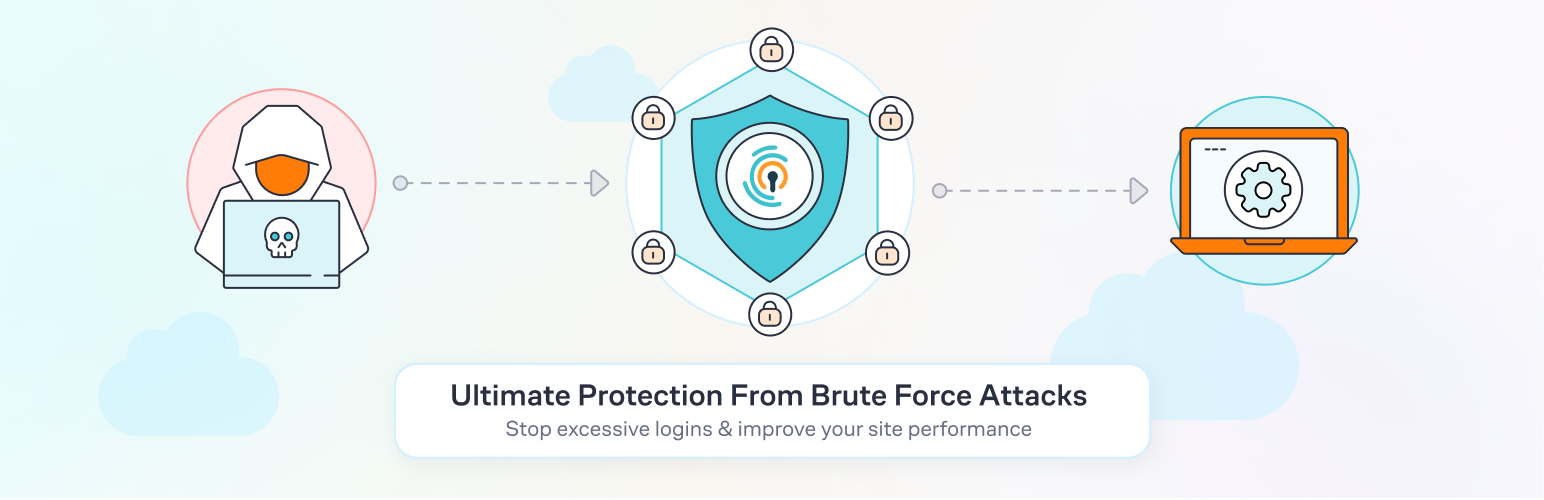
Limit Login Attempts Security - Login Security, 2FA, Firewall, Brute Force Prevention
| 开发者 |
wpchefgadget
nikitaglobal |
|---|---|
| 更新时间 | 2026年5月19日 21:32 |
| 捐献地址: | 去捐款 |
| PHP版本: | 5.0 及以上 |
| WordPress版本: | 7.0 |
| 版权: | GPLv2 or later |
标签
下载
详情介绍:
- Brute force attacks
- Bot login attacks
- Credential stuffing attacks
- XML-RPC attacks
- Unauthorized login attempts
- WooCommerce login abuse
- Malicious IP access attempts
- Limit login attempts by IP address and username
- Automatically lock out suspicious login activity
- Adjustable lockout duration and retry limits
- Protect wp-login.php from automated attacks
- Prevent brute force login attacks
- Built-in two-factor authentication (2FA)
- Add an additional layer of login protection
- Improve WordPress account security
- Secure administrator and user logins
- Block malicious login requests
- Detect suspicious login behavior
- Reduce bot-based login attacks
- Lightweight firewall-focused login protection
- WooCommerce login pages
- XML-RPC login requests
- Custom login pages
- WordPress multisite installations
- Wordfence
- Sucuri
- Ultimate Member
- MemberPress
- WPS Hide Login
- Cloudflare and reverse proxy setups
- Failed login attempt logs
- Lockout email notifications
- Denied attempt tracking
- Login retry visibility for users
- IP safelist and denylist support
- Username safelist and denylist support
- IPv6 range support
- Custom IP origin configuration
- Real-time malicious IP intelligence
- Global denylist protection
- Synchronized lockouts across websites
- Auto IP denylist generation
- Cloud-based login attack mitigation
- Offload excessive failed login requests from your server
- Reduce server strain during attacks
- Improve stability under heavy attack conditions
- Country-based login blocking
- Enhanced throttling and lockout escalation
- Registration page protection
- Successful login tracking
- Enhanced lockout analytics and geolocation data
- Shared safelist and denylist syncing
- Shared lockout protection between domains
- Cloud backups of IP security data
- CSV exports of login and IP activity
- Access to security-focused support specialists
- Faster troubleshooting and assistance
- Faster performance
- Less server overhead
- Easier configuration
- Strong protection without unnecessary bloat
- wp-login.php
- XML-RPC
- WooCommerce logins
- Custom login forms
- Registration pages
- Multisite logins
- A personal blog
- WooCommerce store
- Membership website
- Agency
- Business website
- Enterprise WordPress network
- Remove the old Limit Login Attempts plugin
- Install Limit Login Attempts Security
- Your settings will remain intact
- Spanish
- French
- German
- Dutch
- Turkish
- Swedish
- Russian
- Romanian
- Chinese (Traditional)
- Brazilian Portuguese
- And more
- Login security
- Two-Factor Authentication (2FA)
- Brute force protection
- Firewall security
- Bot protection
- XML-RPC protection
- WooCommerce login protection
常见问题:
What do I do if all users get blocked?
If you are using contemporary hosting, it's likely your site uses a proxy domain service like CloudFlare, Sucuri, Nginx, etc. They replace your user's IP address with their own. If the server where your site runs is not configured properly (this happens a lot) all users will get the same IP address. This also applies to bots and hackers. Therefore, locking one user will lead to locking everybody else out. If the plugin is not using our Cloud App, this can be adjusted using the Trusted IP Origin setting. The cloud service intelligently recognizes the non-standard IP origins and handles them correctly, even if your hosting provider does not.
How do I know if I'm under attack?
An easy way to check if the attack is legitimate is to copy the IP address from the lockout notification and check its location using a IP locator tool. If the location is not somewhere you recognize and you have received several failed login attempts, then you are likely being attacked. You might notice dozens or hundreds of IPs each day. Visit our website to learn how can you prevent brute force attacks on your website.
How can I tell that the premium plugin is working?
After you upgrade to our premium version, you will see a new dashboard in your WordPress admin that shows all attacks that will now relay through our cloud service. On the graph, you'll see requests and failed login attempts. Each request will represent the cloud app validating an IP, which also includes denied logins. In some cases, you may notice an increase in speed and efficiency with your website. Also, a reduction in lockout notifications via email.
Could these failed login attempts be fake?
Some users find it hard to believe that they could experience numerous unsuccessful login attempts, particularly when their site has just been established or has minimal human traffic. The plugin is not responsible for generating these failed login attempts. Newly created websites are frequently hosted on shared IP addresses, making it easy for hackers to discover them. Additionally, newly registered domain names are often crawled soon after creation, rendering a WordPress website susceptible to attacks. Such websites are attractive targets as security is not a primary concern for their owners. We've created an article that delves deeper into the issue of fake login attempts in WordPress.
What happens if my site exceeds the request limits in the plan?
The premium plan’s resource limits start from 100,000 requests per month, which should accept almost any heavy brute-force attack. We monitor all of our sites and will alert the user if it appears they are going over their limits. If limits are reached, we will suggest to the user upgrading to the next plan. If you are using the free version, the load caused by brute force attacks will be absorbed by your current hosting bandwidth, which could cause your hosting costs to increase.
What URLs are being attacked and protected?
The URLs being protected are your login page (wp-login.php, wp-admin), xmlrpc.php, WooCommerce login page, and any custom login page you have that uses regular WordPress login hooks.
Why is Limit Login Attempts Security more popular than other brute-force protection plugins?
Our main focus is protecting your site from brute force attacks. This allows our plugin to be very lean and effective. It doesn’t require a lot of your web hosting resources and keeps your site well-protected. More importantly, it does all of this automatically as our service learns on its own about each IP it encounters. In contrast, a firewall would require manual blocking of IPs.
What to do when an admin gets blocked?
Open the site from another IP. You can do this from your cell phone, or using Opera browser and enabling free VPN there. You can also try turning off your router for a few minutes and then see if you get a different IP address. These will work if your hosting server is configured correctly. If that doesn’t work, connect to the site using FTP or your hosting control panel file manager. Navigate to wp-content/plugins/ and rename the limit-login-attempts-reloaded folder. Log in to the site then rename that folder back and whitelist your IP. By upgrading to our premium app, you will have the unlocking functionality right from the cloud so you’ll never have to deal with this issue.
What settings should I use In the plugin?
The settings are explained within the plugin in great detail. If you are unsure, use the default settings as they are the recommended ones.
Can I share the safelist/denylist throughout all of my sites?
By default, you will need to copy and paste the lists to each site manually. For the premium service, sites are grouped within the same private cloud account. Each site within that group can be configured if it shares its lockouts and access lists with other group members. The setting is located in the plugin's interface. The default options are recommended.
更新日志:
- Added compatibility with WordPress 7.
- Broadened MFA state cookie scope to the site root for wider path coverage.
- Fixed Active Lockouts counter not showing on the local Logs page.
- Improved MFA rescue link compatibility on hosts with external object cache enabled.
- Fixed rescue link behavior and updated the format.
- 2FA is pre-selected for administrators; when no user groups are selected, 2FA stays disabled.
- Improved WooCommerce registration protection in cloud mode.
- Refactored third-party integrations into a unified architecture (WooCommerce, MemberPress).
- Added technical details to the network issue notice.
- Fixed logo rendering in Gmail MFA notifications.
- Improved local risk indicator thresholds and refactored rendering.
- Improved compatibility with WPS Hide Login, WooCommerce, and MemberPress login flows; added WooCommerce cloud registration checks.
- Hardened admin tab parameter (whitelist, strict checks) before loading tab views.
- Onboarding: redirect to Dashboard when setup is incomplete and a tab other than Dashboard is opened.
- Failed-login email subject: numbered placeholders for translation-friendly word order (e.g. for Dutch).
- Onboarding popup: hide body scroll while open, restore on close; focus modal content.
- Hardened MFA security.
- MFA UI improved.
- Refactored the codebase.