
Listdom: AI-powered Business Directory with Classifieds Ads Listings
| 开发者 |
totalery
webilia |
|---|---|
| 更新时间 | 2026年10月4日 09:07 |
| 捐献地址: | 去捐款 |
| PHP版本: | 7.4 及以上 |
| WordPress版本: | 7.1 |
| 版权: | GPLv2 or later |
| 版权网址: | 版权信息 |
标签
下载
详情介绍:
安装:
- Log in to your WordPress admin dashboard.
- Go to Plugins > Add New.
- In the search bar, type Listdom and press Enter.
- Click the Install Now button next to the Listdom plugin.
- Once installed, click Activate.
- Download the Listdom plugin
.zipfile from the current page. - Log in to your WordPress admin dashboard.
- Go to Plugins > Add New > Upload Plugin.
- Click Choose File, select the downloaded
.zipfile, and click Install Now. - After installation, click Activate Plugin.
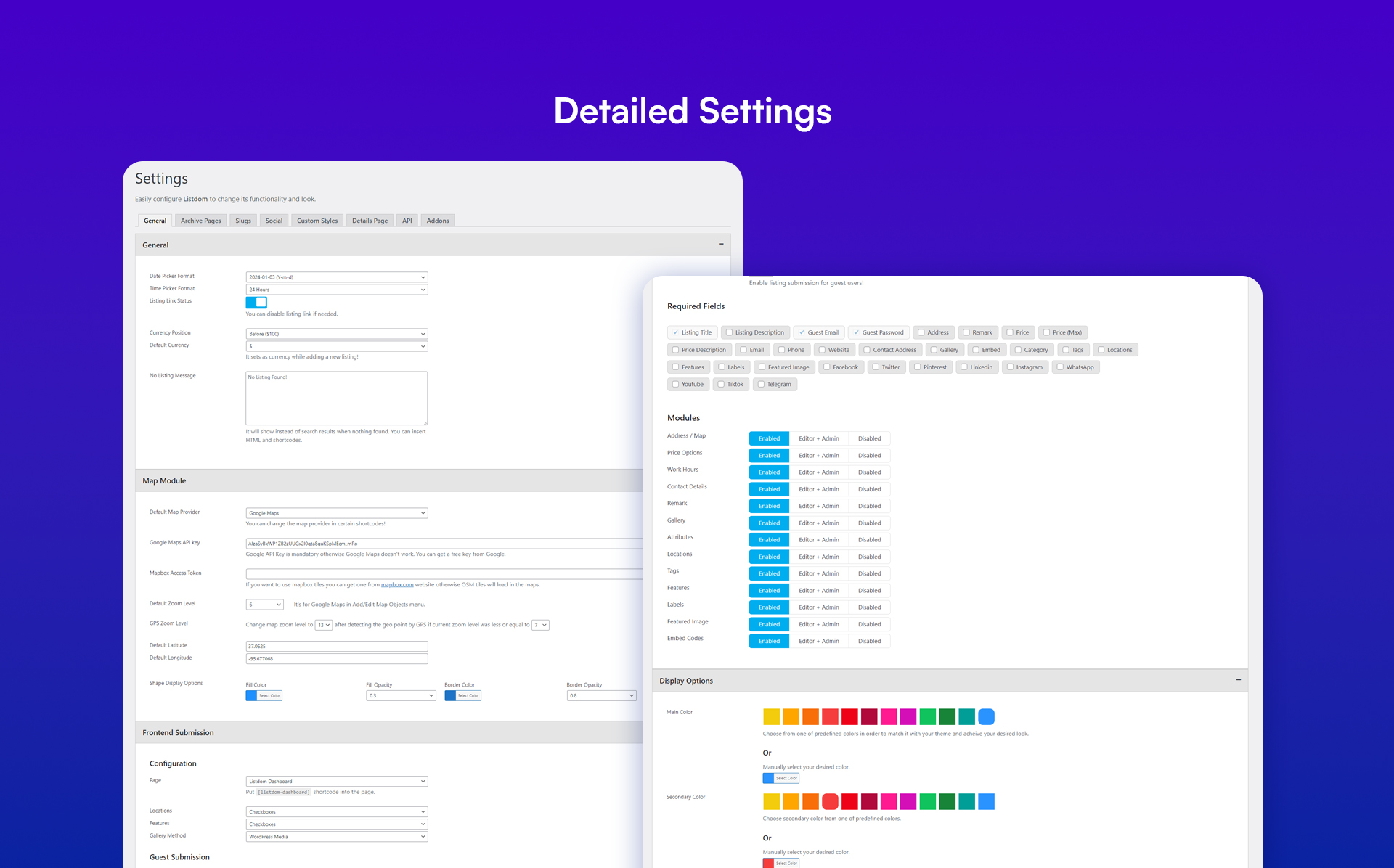
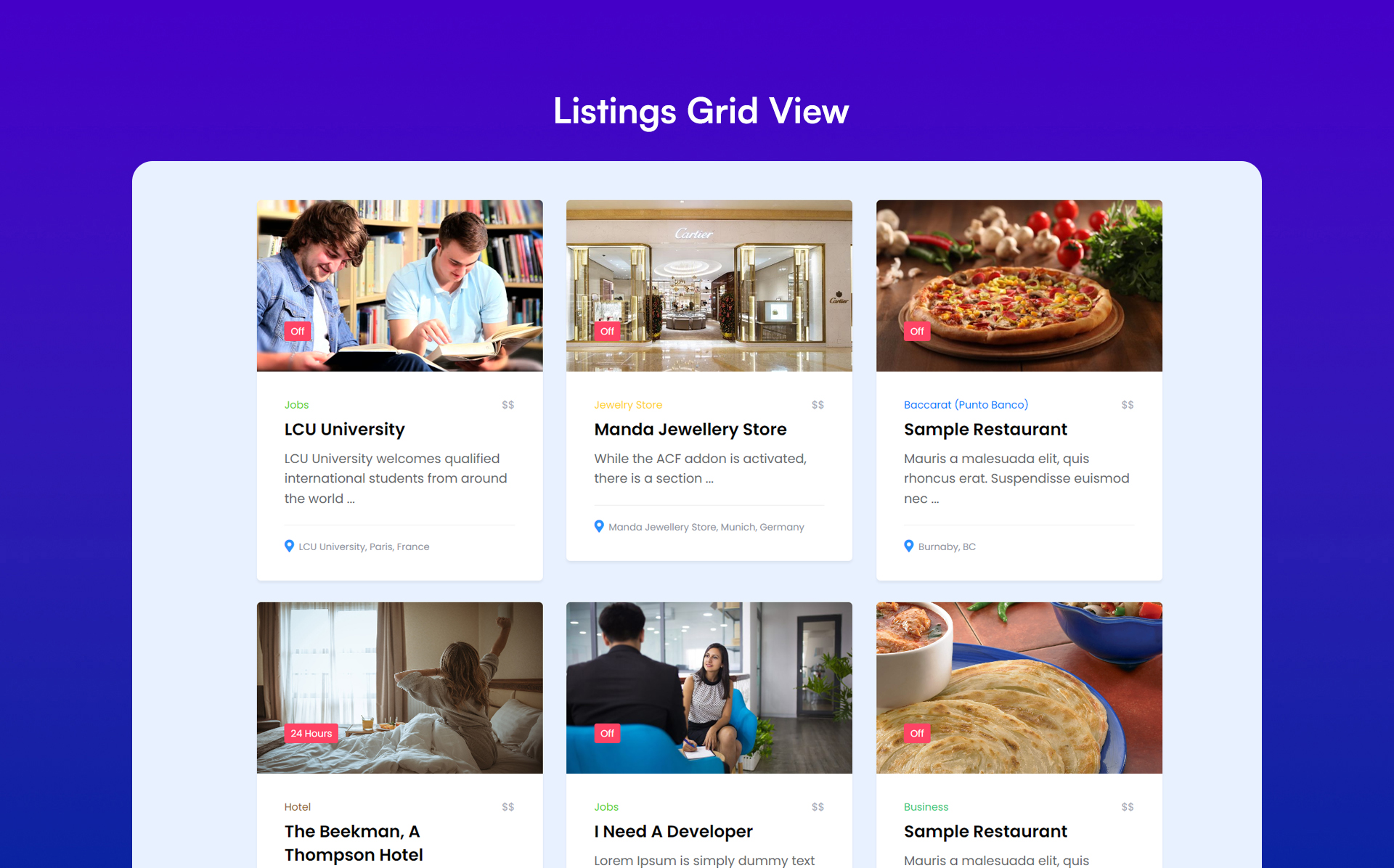
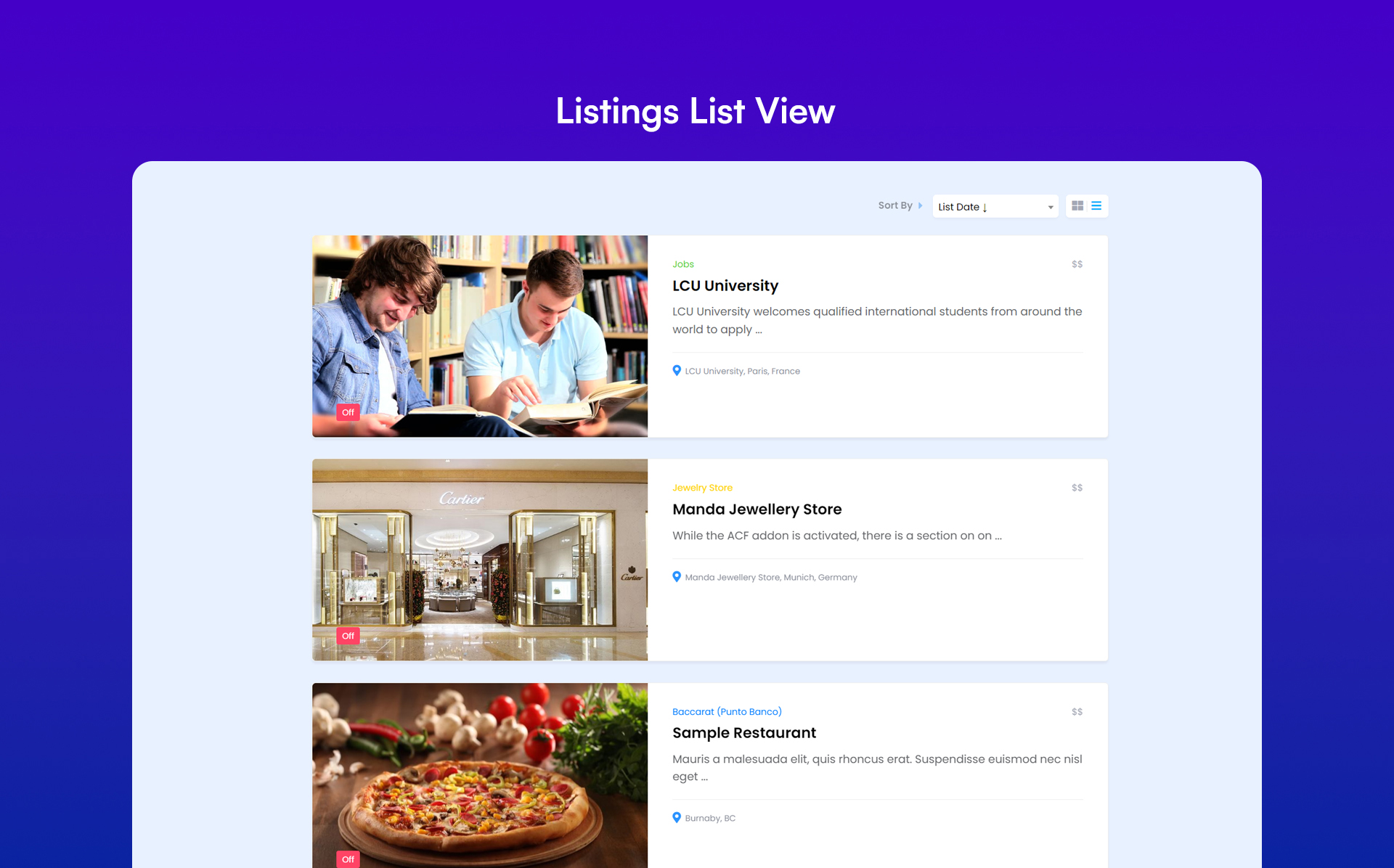
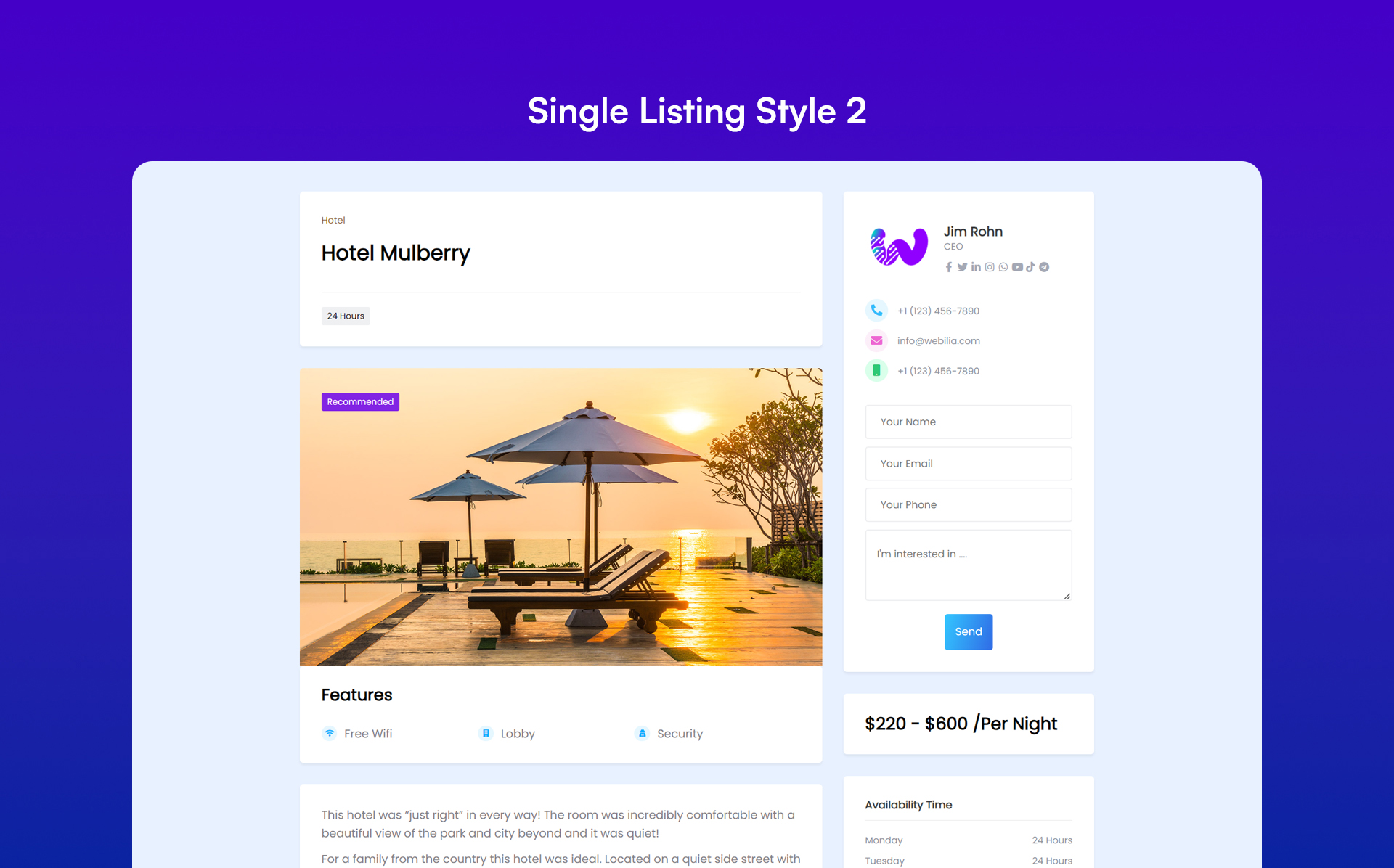
屏幕截图:

常见问题:
Does Listdom have a feature to show listings on a map?
Absolutely! Listdom supports both Google Maps and OpenStreetMap, so you can use your desired map provider.
Does Listdom support custom fields?
Yes, of course! You're able to create your desired custom fields in Listdom. You're even able to create category-specific fields!
Is it possible to manage single listing page modules?
Yes, using our advanced configuration options you're able to disable/enable the modules on the single listing page, and also you're able to change their positions if you're using Style 1.
Do I have to use Google Maps? it's a little expensive!
Listdom supports free OpenStreetMap! It's possible to use both of them at once. For example, on the single listing page you can use Google Maps but in List, Grid and other skins you can use OpenStreetMap.
I like to use OpenStreetMap but with more beautiful tiles! What can I do?
You're able to insert your Mapbox API key in configuration options and use Mapbox tiles instead of OpenStreetMap tiles.
Which page builders are supported?
Listdom uses shortcodes to display the listings grid, carousel, etc. so you can insert the shortcodes into any page builder.
How do I translate Listdom?
You can translate Listdom using translation plugins like Loco Translate or by creating .po/.mo language files for your desired language.
更新日志:
- Added Webilia Business Data to discover businesses worldwide and import selected results as Listdom draft listings, with taxonomy assignment, duplicate protection, and optional enrichment of missing business details.
- Added native Divi 5 integration for all Listdom Divi modules, while preserving support for existing Divi 4 layouts.
- Added Listdom records to the WordPress admin Command Palette, making it faster to find and edit listings, shortcodes, taxonomy terms, and supported add-on content.
- Added reversible switches for Remark, Embed & Featured Video, and FAQ components, allowing them to be disabled without deleting saved data and re-enabled at any time.
- Improved paid checkout with configurable required billing fields, Business Data map preference saving, listing editor forms, comparison table styling, and Frontend Dashboard widget settings.
- Fixed file validation for JSON, CSV, and Excel imports and resolved several listing workflow, dashboard, and interface issues.
- Improved Webilia Connect system.
- Improved user interface of taxonomy editing screens.
- Fixed listing creation permissions in the frontend dashboard.
- Fixed unsafe listing remarks in the frontend dashboard and Template Builder.
- Improved compatibility with installed add-ons when their versions differ.
- Fixed guest dashboard listing changes to honor guest-submission permissions.
- Added an interactive setup wizard to help launch a directory site.
- Added Comparison and Frontend Dashboard widgets for Elementor.
- Added configurable alt text for listing images.
- Enhanced claim ownership, payment, and dashboard workflows.
- Fixed scheduled jobs with missing intervals.
- Fixed an issue in Google Places address copying.
- Fixed some user interface issues.
- Added Webilia Connect activation and account-based add-on updates.
- Added a streamlined action menu to the My Listings dashboard.
- Fixed default notification setup on new installations.
- Fixed an issue in payment-order handling when a gateway is unavailable.
- Fixed modal scrolling conflicts with Select2 fields.
- Added resume-able CSV and Excel imports with activity history and Resume or Discard controls.
- Added dedicated SEO and Geo settings menus for easier directory configuration.
- Improved import mapping reliability by preserving mappings and handling interrupted batches more clearly.
- Improved embedded search forms, Divi integration, API token notices, and frontend listing interactions.
- Improved multilingual archive shortcode compatibility, including Polylang-based sites.
- Fixed unsafe stored values in listing and price rendering.
- Improved Health Checklist performance on large sites.
- Fixed Health Checklist status badges and shortcode detection on multisite sites.
- Added a Template Builder for creating reusable listing layouts.
- Added a guided Health Checklist to help configure a new directory site.
- Added repeatable field mappings for CSV and Excel imports, including FAQ data and supported add-on content.
- Added sorting controls for shortcode results and a Table layout for custom fields.
- Added AI Visibility tools for structured listing discovery and indexing.
- Improved WordPress block editor compatibility with Block API version 3.
- Fixed password-reset redirection, profile image uploads, responsive frontend layouts, and admin bar conflicts.
- Added a new Frontend Dashboard payments area with order, subscription, billing, invoice, and Stripe payment flows.
- Added action-driven setup and demo blueprints to make directory setup, dummy data, categories, custom fields, and search forms easier to prepare.
- Added taxonomy count display options in search forms.
- Added search button controls for search fields and API search requests.
- Improved booking and membership experiences with richer dashboard views, availability handling, matched bookable cards, and subscription comparisons.
- Improved Table skin portability by using attribute slugs for custom field columns across imports and demos.
- Improved admin and frontend interface consistency with cleaner Listdom and Listdomer class naming.
- Fixed frontend AJAX sorting and search sanitization to prevent unsafe meta type queries.
- Added AI-powered search with structured and semantic options, model settings, and connector approval notices.
- Added a Back Button element for single listing pages.
- Added new single listing controls for attribute visibility, listing links, and timeline skin output in connected shortcodes.
- Added week-start options for date pickers and improved date fields in search forms.
- Added an image-centered taxonomy shortcode style.
- Improved map and direction button behavior, including refreshed cluster icons and cleaner Google map interactions.
- Refined frontend and backend UI details for search fields, modals, tooltips, badges, icons, and listing inputs.
- Improved AI search reliability with better caching, duplicate job prevention, and semantic search interface polish.
- Fixed import, API, and listing save reliability issues, including attribute slugs, metadata overwrite protection, and file size enforcement.
- Fixed duplicate notifications, frontend auth role handling, and safer listing data handling.
- Updated Italian translations for Listdom and its addons.
- Added more flexible date and time options for custom fields and search, along with more reliable imported values.
- Enhanced the security of frontend and backend elements and fixed several related issues.
- Improved listing imports with better defaults for work hours and cleaner handling of listing statuses.
- Enhanced the Licenses menus in the Listdom backend.
- Improved sticky sidebar behavior, popup interactions, and admin settings screens for a smoother experience.
- Refined listing cards and review displays for a cleaner frontend appearance.
- Improved dashboard reliability with better role recovery and profile image handling.
- Fixed privacy handling in RSS feeds, Stripe checkout notices, geo-search filtering, and several sharing and interface issues.
- [ADDON] Released the Bricks addon to help you build your Listdom directory using Bricks Builder.
- [APP] Released the White Label app, allowing agencies and site owners to replace Listdom branding.
- Added FAQ schema support.
- Added thousands and decimal separator options for better currency localization.
- Added "File" type to Listdom custom fields.
- Improved shortcode, search, and builder filters with cleaner attribute slug handling across listing integrations.
- Enhanced listing management with more reliable primary category handling, improved category-based filtering, and more stable export sorting.
- Improved the admin experience with clearer notifications, more responsive shortcode builder feedback, and consistent branded menu behavior.
- Enhanced account recovery and contact-related flows for more reliable frontend login and profile interactions.
- Fixed issues with rich custom field formatting and category-restricted attributes on single listing pages.
- Fixed several interface issues, including iOS search field styling and admin notifications.
- Added Mobile App style integration to the search builder with filterable search styles and improved desktop tab behavior.
- Added hierarchical category and location import support for CSV and Excel mapping.
- Added taxonomy label overrides with locale-aware settings and improved label handling across shortcode filters and import mapping.
- Added API improvements including the price classes REST endpoint and listing URL in API listing payloads.
- Added WP All Import map synchronization support for listing location data.
- Improved Frontend Dashboard UX with image aspect ratio controls and clearer maximum image size guidance.
- Improved authentication, custom field, and Select2 UI consistency across backend and frontend forms.
- Fixed payment flow issues including checkout privacy consent persistence and payments context handling in menus and exports.
- Fixed multiple UI and search issues across skins and widgets, including empty-state alerts and taxonomy slug sync behavior.
- Added new options to customize Frontend Dashboard menus.
- Added infowindow trigger and mouse wheel zoom settings to map options in shortcodes.
- Added options to enforce listing status for new submissions via the Frontend Dashboard.
- Optimized CSV export performance for large-scale websites.
- Enhanced JSON and CSV import/export functionality with support for new data fields.
- Resolved various issues in the search widget.
- Improved the user interface for search inputs, map markers, and call-to-action buttons.
- Added global and region-based tax options to the Listdom payment system.
- Added an FAQ element for listings.
- Added the ability to import and export working hours in JSON, CSV, and Excel formats.
- Added an option to control the login visibility of custom menus in the Frontend Dashboard.
- Added an option to customize the URL slug of the listings RSS feed.
- Enhanced recurring payment functionality in Listdom.
- Improved the Table skin.
- Fixed an issue with importing custom field values.
- Fixed several issues related to maps and directions features.
- Resolved multiple interface issues in both the Listdom backend and frontend.
- Added the ability to export/import custom fields and listing taxonomies using the CSV exporter/importer.
- [PRO] Added the ability to export/import custom fields and listing taxonomies using the JSON exporter/importer.
- [PRO] Improved the Timeline skin.
- Enhanced user email verification by adding the option to resend the verification link.
- Fixed an issue with displaying custom fields in the Listdom API.
- Fixed field and title visibility issues in the search module.
- Resolved an issue affecting the shortcode builder under certain conditions.
- Fixed an issue with listing editing in the "Frontend Dashboard".
- Resolved an issue with allowing HTML content in "Frontend Dashboard" custom menus.
- Fixed several issues in the Listdom payment engine.
- Resolved multiple interface issues in both the Listdom backend and frontend.
- Added new, modern styles for the listing editor in both the backend and frontend.
- Introduced a fully configurable RSS feature for displaying listings.
- Added a "Locate Me" option for address and radius searches.
- Added responsive column controls to the Table skin.
- Added new UI options, including menu type and column settings, for the frontend dashboard.
- Enhanced the radius search feature.
- Resolved various search and AJAX issues in the Masonry skin.
- Fixed an unintended visibility issue affecting the Call to Action feature.
- Fixed an issue related to saving advanced slugs.
- Fixed several issues affecting custom CSS code handling.
- Added the built-in Listdom payment engine.
- Introduced a comprehensive Call to Action component to display a CTA button on single listing and search results pages.
- [PRO] Added support for the Stripe payment gateway.
- [PRO] Enabled recurring payments for memberships and subscriptions.
- Enhanced the UI and responsiveness of pagination and sort bar components.
- Resolved multiple interface issues in both the Listdom backend and frontend.
- [Pro] Added a Timeline skin.
- Added comprehensive GDPR compliance.
- Improved various parts of the plugin based on WordPress team feedback.
- Fixed an issue with the standalone add listing form.
- Fixed several interface issues in the Listdom backend and frontend.
- [Pro] Added a new Gallery skin.
- Added Gemini 2.5 Flash and Gemini 2.5 Flash Lite to the Listdom AI models.
- Added Anthropic Claude Sonnet 4 and Anthropic Claude Haiku 3.5 to the Listdom AI models.
- Introduced AI module configuration options.
- Added new icons to the Listdom icon picker field.
- Rebuilt the Import/Export, Add-ons, and Licenses menus in the Listdom backend.
- Improved the Listdom settings, shortcode builder, and other backend interfaces.
- Enhanced the Listdom customizer by adding new controls and a unit selector.
- Fixed a login issue in the Listdom login shortcode.
- Fixed several minor UI display issues throughout the plugin.
- Added image field type for custom fields.
- Added telephone field type for custom fields.
- Added GPT-5 AI models.
- Added role-based redirection pages for the authentication feature.
- Added a frontend dashboard search widget.
- Added link labels for URL, telephone, and email custom fields.
- Improved the Listdom frontend bar and backend header.
- Enhanced the look and feel of Listdom skins.
- Disabled scroll wheel zoom on Leaflet maps.
- Fixed various issues in the frontend dashboard.
- Added OpenStreetMap integration to Listdom Core.
- Introduced listing visibility control to Listdom Core.
- Enabled creating new categories, locations, etc., directly from the frontend dashboard.
- Introduced the Related Listings feature.
- Added Google and OpenStreetMap address autocomplete support.
- Added an advanced components system to disable unused Listdom Core features.
- Integrated Mailchimp subscription support.
- Improved AI tools with automatic content and business hour generation.
- Added an option to create categories without icons.
- Completely rebuilt the settings menu and shortcode builder in the Listdom backend.
- Added padding controls and made various UI refinements.
- Fixed several issues with search fields.
- Added AI integration and support for creating multiple AI profiles tailored to different tasks.
- Introduced AI-powered field mapping for CSV and Excel imports.
- Redesigned the Listdom admin page for improved usability.
- Introduced radio and checkbox input types to Listdom custom fields.
- Added a "Clear All" button and enhanced the logic behind search forms.
- Added support for slug and parent fields in CSV/Excel import and export.
- Improved the custom fields editor and various UI elements.
- Fixed several issues related to pagination controls in skins.
- Resolved various UI issues.
- [PRO] Added Mosaic and Accordion skins.
- Added CSV Import/Export functionality to Listdom Lite.
- Introduced a numeric pagination option.
- Added a breadcrumb element to single listing templates.
- Enabled pagination support for the Masonry skin.
- Added a column width control for the Table skin.
- Improved custom fields UI, naming conventions, and overall user experience.
- Fixed issues related to listing and map-based searches.
- Resolved various UI inconsistencies in both the frontend and backend interfaces.
- Moved custom fields feature from Listdom Pro to Listdom Lite.
- Introduced responsive search builder to create different search forms per device type.
- Added new UI Customizer options for price fields and user profiles.
- Added an option to exclude the featured image from the listing gallery.
- Added camera control options to the map widget.
- Added dropdown and checkbox field types for tags in the frontend dashboard.
- Added linear layout option for the listing gallery element.
- Added an option to customize the search button label.
- Improved responsiveness of search forms and range slider fields on the frontend.
- Enhanced dropdown field usability in the frontend dashboard.
- Fixed various UI issues in the table skin.
- Added public profile functionality.
- Added user profile settings to the frontend dashboard.
- Introduced new user directory shortcode.
- Added support to open additional search options in a popup.
- Added a setting to customize the "More Options" label in the search widget.
- Added new customization options in the UI Customizer.
- [PRO] Added the ability to exclude listings from shortcodes by tags or authors.
- Added an option to display checkbox and radio fields in multiple columns in the search widget.
- Enhanced the performance of sliders and carousels.
- Improved the Map Bar responsiveness on smaller screens.
- Resolved search widget positioning issues in specific skins.
- Fixed a conflict with advanced asset loading feature.
- Fixed an issue where listing status could not be updated from the frontend dashboard.
- Added a comprehensive Game-Changer UI Customizer to Listdom Core.
- [PRO] Introduced a new option to set a custom Single Listing Style for the Side by Side skin.
- [PRO] Added a new option to customize the Single Listing Style for the Lightbox feature.
- [PRO] Enabled an option to display the Single Listing Page in right, left, or bottom panels.
- Added a built-in Authentication Form to the Frontend Dashboard.
- Introduced an option to make a shortcode non-searchable.
- Added a Zoom Level option for the Single Map element.
- Added a Title Visibility option for search fields.
- Introduced the Listdom Bar to help web designers easily access Listdom features from the frontend.
- Enabled the ability to update Listing Status in the Frontend Dashboard.
- Added a Listing Status Filter to the Frontend Dashboard.
- Introduced an option to set Custom Listing Cards in the Half Map skin.
- Improved the Table Skin for better usability.
- [PRO] Enhanced the Side by Side skin with additional refinements.
- Applied various UI and responsiveness improvements across Listdom views.
- [PRO] Fixed issues related to Hierarchical Dropdowns.
- Fixed compatibility issues with PHP 7.4 and lower.
- Added a Connected Shortcodes feature in the search builder, allowing multiple shortcodes to update dynamically with a single search widget.
- Introduced a new style for List, Grid, Masonry, and List + Grid skins.
- Enabled embedding via URL for the Embed and Featured Video elements.
- Introduced a new option to control the visibility of search fields.
- Added the ability to restrict certain user roles from accessing the WordPress backend.
- Added an Image Fit option to applicable skins.
- Added an option to adjust the map height across different shortcodes.
- Added listing excerpts to Listdom fields and frontend dashboard modules.
- Added a Thumbnail Status feature to the gallery element.
- Moved the entire Listdom Pro authentication feature to Listdom core.
- Improved the appearance and usability of search widgets.
- Enhanced the Listdom settings menu for better navigation.
- Improved the user interface and responsiveness of various elements.
- Fixed search-related issues on archive pages.
- Fixed an issue where multiple search widgets with More Options caused conflicts on the same page.
- Resolved various AJAX search issues in Table and Masonry skins.
- [PRO] Added an option to use Listdom authentication pages instead of WordPress default pages.
- [PRO] Introduced an advanced permalink system to include categories and locations in listing URLs.
- [PRO] Added the ability to connect different shortcodes to the Singlemap skin, allowing search results to update dynamically based on the map's position.
- Introduced the 'Optimize Assets Loading' feature to suppress Listdom CSS/JS file loading on specific WordPress pages.
- Moved the Frontend Dashboard feature from the Pro add-on to the Listdom core.
- Added an option to set custom titles for elements on the single listing page.
- Added left and right map display positions for applicable skins.
- Introduced the settings export to create JSON backups of Listdom options.
- Added settings import to restore Listdom settings.
- Added the ability to customize the placeholder for the address field in both the backend and frontend.
- Introduced a control option for the phone and name fields in the listing contact and report abuse forms.
- Added an option to disable the map info-window on the single listing page.
- Enhanced accessibility across Listdom.
- Improved backend management for listings and notifications.
- Refined the structure and organization of the settings menu and setting tabs.
- Improved the user interface of the search builder.
- Resolved several responsive UI issues.
- Fixed an issue with clearing selections in the search widget.
- Addressed a problem with WordPress Multisite integration.
- Fixed some icon display issues.
- Enhanced the performance of the Cover skin for better speed.
- Refined the Welcome Wizard and updated button styles for improved usability.
- Resolved one click handler issue to ensure smoother interactions.
- Fixed an issue with the include/exclude filter options for better usability.
- [PRO] Corrected a problem with price components when the price class was globally disabled.
- [PRO] Fixed some issues in dashboard menus for improved customization.
- Refined the user interface of the settings panel for a more intuitive experience.
- Enhanced the security measures for the search widget.
- [PRO] Added a new feature to dynamically add custom menus to the "Frontend Dashboard".
- [PRO] Introduced the "Exclusion Filter" to exclude listings with specific categories, locations, features, and labels from search results.
- [PRO] Implemented the "Price Components" feature to enable or disable specific price elements.
- [PRO] Added the "Custom Fields Filter" to allow filtering of listings based on attributes (custom fields) at the shortcode level.
- [PRO] Enabled bulk layout changes for specific listings using WordPress quick edit.
- [PRO] Introduced the ability to reorder "Frontend Dashboard" menus.
- Added an option to control the description length in applicable skins.
- Introduced a new element to display listing excerpts.
- Added an option to customize the dropdown style of search fields.
- Introduced a revamped interface for selecting different skins in shortcodes.
- Improved the overall design and usability of the frontend dashboard.
- Enhanced the structure and visual appeal of the settings menu in the backend.
- Improved the responsiveness of the "Side by Side" skin.
- Enhanced the Listdom welcome wizard by adding a theme installation step.
- Resolved an issue with customizing display options in WordPress Multisite environments.
- Fixed a display issue where the map appeared incorrectly when set to the bottom position in list and grid skins.
- [PRO] Added a shortcode for an independent "Add Listing" form.
- [PRO] Added responsive view support for the "Side by Side" skin.
- Introduced support for listing excerpts.
- Enabled featured image display in style 3 of single listing.
- Improved the listing contact element.
- Refined the settings loader style in the Listdom backend.
- Enhanced the structure of "Masonry" and "Halfmap" skins for better performance and usability.
- [PRO] Resolved an issue in the Frontend Dashboard.
- [PRO] Fixed several issues related to listing schema.
- Corrected various issues within the search module.
- Addressed UI and responsiveness issues across different views.
- Fixed certain issues with required attributes in listings editors.
- [PRO] Introduced authentication features including login, registration, and password recovery.
- [PRO] Added the option to customize the single listing layout per category.
- [PRO] Implemented the ability to restrict image size in the frontend dashboard.
- Introduced a table builder feature for the table skin.
- Added numerous configurable display options across different skins.
- Introduced a welcome setup wizard.
- Added a new "Listdom Publisher" user role with the capability to publish listings.
- Introduced an option to add the featured image to the gallery element.
- [PRO] Added the option to hide attribute titles within the attributes element.
- Introduced a layout option for the features' element.
- Added a new option to customize the sort bar layout.
- [PRO] Enhanced per-listing display options.
- Streamlined the licensing and activation process.
- Improved the search and filter form builder.
- Optimized the dummy data importer.
- Resolved display option issues in WP Multisite.
- Addressed issues with pre-made layouts in single listing.
- Fixed various UI and responsiveness issues.
- [ADDON] Released Connect addon!
- Added a design builder for creating flexible and visually appealing single listing pages.
- Added Style 3 and Style 4 for single listing pages.
- Added a slider type for the gallery element.
- Added a new sort option based on listing visits.
- Added duplicate listing, duplicate shortcode, duplicate notification, and duplicate search features.
- Added a dedicated key for the Google Geocoding API.
- [PRO] Added listing featured video element.
- [PRO] Improved frontend dashboard configurations.
- Improved the responsive view of skins, lightbox, and the frontend dashboard.
- Improved search widget styles.
- Enhanced the dummy data importer.
- Fixed various UI issues.
- Resolved some issues in search and filter widgets.
- Added listing author role for ease of user management in frontend submission.
- [PRO] Added lightbox option to listing link methods.
- [PRO] Added maximum gallery images to the frontend listing submission.
- [PRO] Added maximum description length to the frontend listing submission.
- [PRO] Added maximum number of tags to the frontend listing submission.
- Improved listdom interfaces in backend and frontend.
- Improved loading of Google Maps API.
- Improved listdom settings menu.
- Fixed some issues in trial and license activation.
- Fixed a scroll issue in sortbar.
- Fixed issue of not displaying the success and error messages in listdom dashboard.
- Fixed an issue when latitude and / or longitude are wrong.
- Added an option to disable contact form of owner element.
- Improved listdom interfaces in WordPress backend.
- Improved the license activation section.
- Fixed an issue in single map skin.
- [PRO] Added side by side skin.
- Added sort by price option.
- Added new icons for listdom and listings menus.
- Improved listdom dashboard.
- Improved the block editor integration.
- Fixed some issues in single listing page.
- Fixed an issue in assigning guest user to listing.
- Fixed some issues in image slider mode of listing image.
- Rebranded to Webilia.
- Fixed some PHP issues.
- Added telegram to the social options.
- Added left, right, and bottom positions for the search in the shortcode.
- Added Hierarchy structure to the checkbox field of the search form builder.
- Fixed an issue related to the empty values.
- [ADDON] Released Network addon!
- [ADDON] Released Ads addon!
- [PRO] Added ability to display image slider in archive shortcodes instead of featured image.
- Improved the listing translations.
- Improved the compatibility with some third party plugins including page builder plugins.
- Fixed some issues in multilingual websites.
- [PRO] Added an ability to manage required fields for frontend submission.
- [PRO] Added an ability to display radius field in search form.
- [PRO] Added radius-dropdown method to radius search.
- Added WhatsApp, Tiktok, and YouTube to the social networks.
- Added infinite scroll pagination method to list, grid, listgrid, halfmap and table skins.
- Disabled auto GPS when a geo request is made by user.
- Improved the interface of filter options in shortcode builder.
- Fixed some multilingual issues.
- Fixed a compatibility issue with Avada theme.
- Added new map routes to the API.
- Added an ability to disable marker click on maps.
- Improved the map render time.
- Disabled one finger drag in leaflet map for mobile devices.
- Fixed an issue in search widget in some multilingual websites.
- Fixed an issue in primary category.
- Fixed an issue in marker lightbox.
- [ADDON] Released Elementor Compatibility addon!
- [ADDON] Released Divi Builder Compatibility addon!
- Added webp image support.
- [PRO] Added pagination to frontend dashboard.
- [PRO] Fixed some issues in hierarchical dropdown.
- Fixed an issue regarding style 1 of single listing page.
- Added Instagram to social network options.
- [PRO] Improved guest user listing submission.
- Improved the social network options.
- Fixed some PHP notices.
- Fixed an issue in status change notification.
- Added an option to change date format of date picker fields.
- Added an option to disable "Listing Link" field.
- Added HTML editor to the remark field.
- Added an ability to switch languages in REST API.
- Added some new endpoints to the REST API for multilingual websites.
- Fixed an issue regarding halfmap skin.
- Fixed an issue in search module.
- [ADDON] Released Franchise addon!
- [ADDON] Released Compare addon!
- [ADDON] Released APS addon!
- [ADDON] Released Stats addon!
- [PRO] Added an ability to disable image display per short-code.
- [PRO] Added a feature to change the listing link method with normal, blank, and disabled options.
- Added new notification for listing status update.
- Added report abuse element.
- Fixed some issues regarding schema feature.
- Fixed some issues. For changelog entries before version 2.0.0, see the full Listdom changelog.