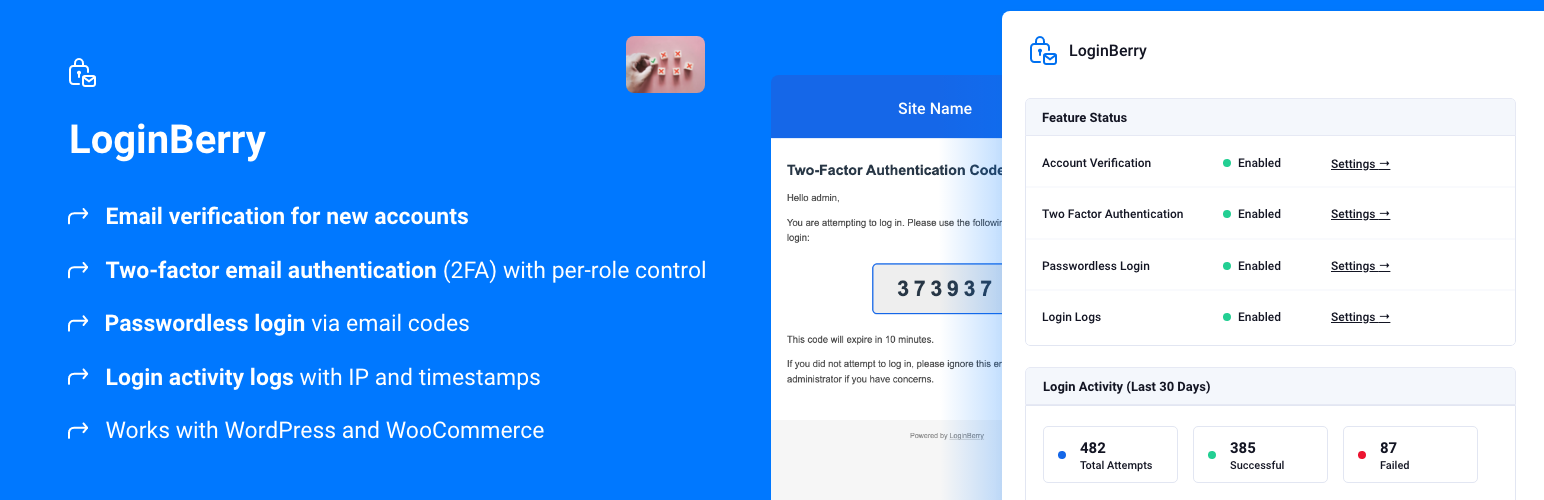
LoginBerry - 2FA, Passwordless & Email Verification
| 开发者 | berrypress |
|---|---|
| 更新时间 | 2026年7月22日 10:37 |
| PHP版本: | 8.0 及以上 |
| WordPress版本: | 7.0.2 |
| 版权: | GNU General Public License version 3 or later |
| 版权网址: | 版权信息 |
详情介绍:
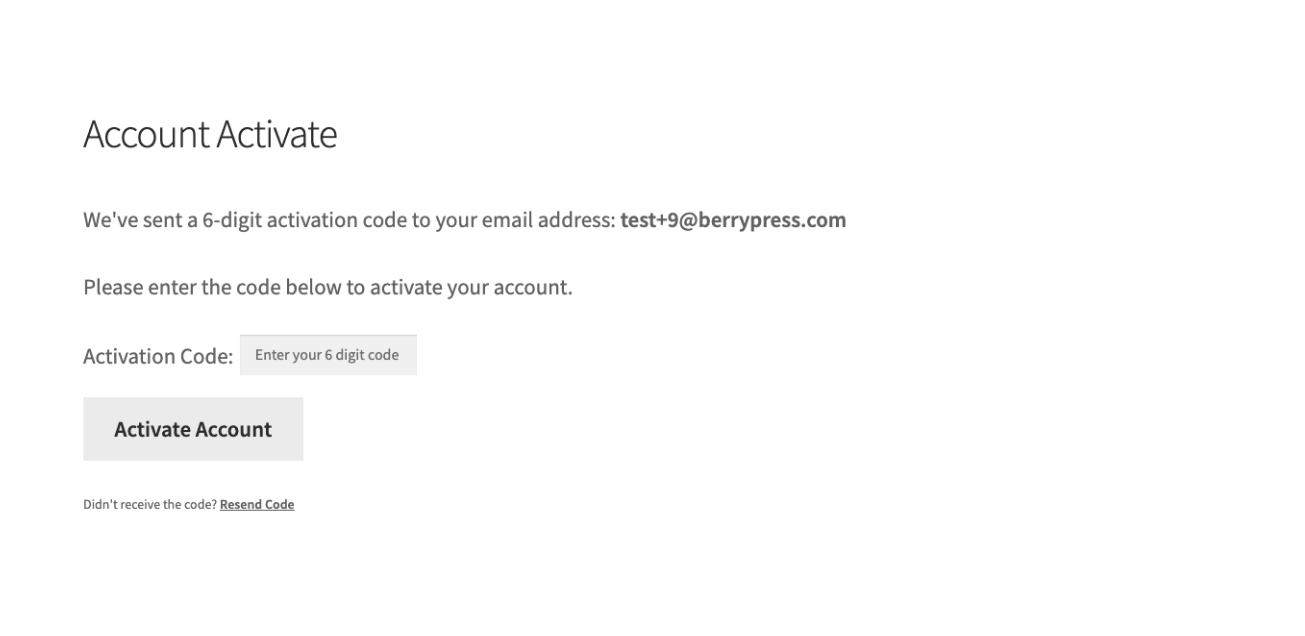
- Account verification: After registration, the user signs in and completes activation on the configured activation page using a six-digit code sent by email.
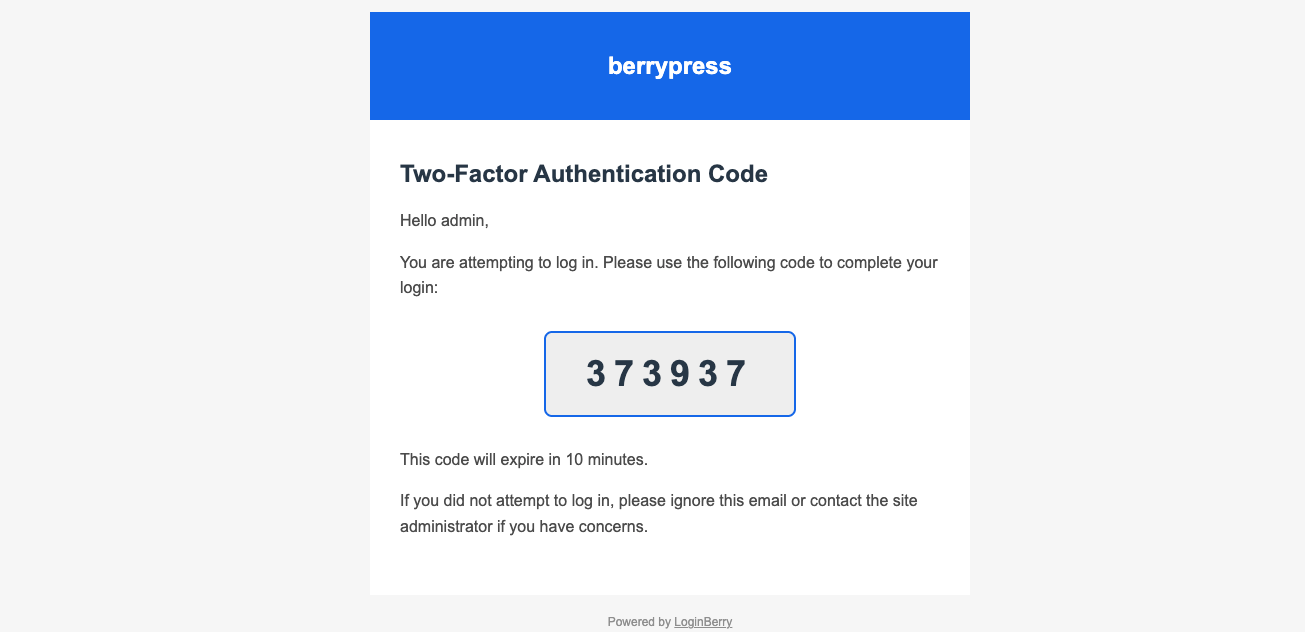
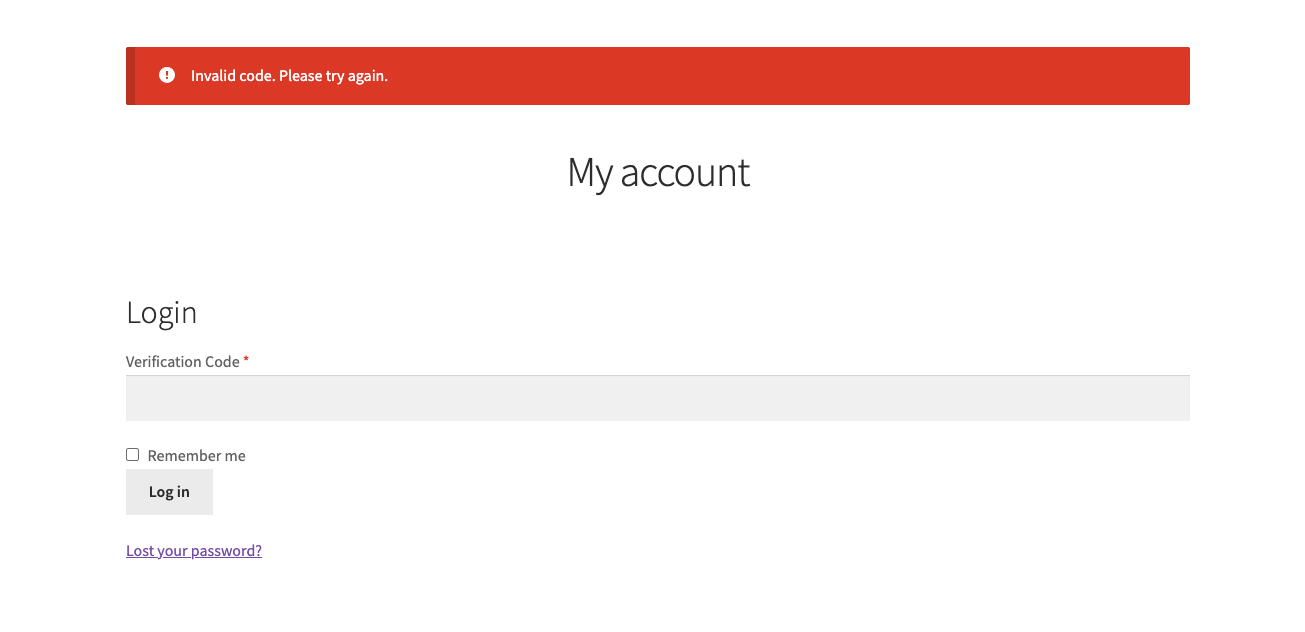
- Two-factor authentication: After a successful username and password, the user enters a second code sent by email. Per-role modes are Required, Optional, or Disabled.
- Passwordless login: On
wp-login.php, eligible roles may request a one-time email code instead of entering a password. - Login logs: Success and failure records are listed in the WordPress admin.
- Last-login tracking: Successful login times can be recorded and displayed in a Last Login column under Users → All Users.
- New accounts receive a six-digit activation code by email.
- After fifteen failed activation attempts, the account is locked until an administrator intervenes.
- Administrators can resend codes, activate accounts manually, and unlock accounts from Users → All Users.
- Per-role setting: Required, Optional, or Disabled.
- Optional mode allows users to enable 2FA from the profile when permitted by role.
- Supported on
wp-login.phpand on the WooCommerce My Account login form.
- Toggle between password and passwordless login on wp-login.php
- One-time email codes on
wp-login.php, controlled per role. - When both passwordless login and 2FA are enabled for the same role, the passwordless flow does not require a separate 2FA step (email possession is already verified).
- Optional automatic account activation when an WooCommerce order is created.
- Optional restriction so that only paid orders trigger activation.
- Integration points include classic checkout, block checkout (Store API), and paid-order completion hooks, as implemented in the plugin.
- Records successful and failed login attempts
- Logs username, email, IP address, and timestamp
- Stores login history in a dedicated database table for more efficient querying as the log grows
- View, search, filter, and delete logs from a dedicated admin page
- Optionally track each user's most recent successful login and show it under Users → All Users
- Identify patterns of brute force attacks and suspicious login activity
- Audit trail for security compliance and fraud investigation
- Centralized settings under BerryPress → LoginBerry, with separate screens per feature.
templates/ directory. To override, copy the desired template into the active theme or child theme under templates/loginberry/ (see each template file header for the exact path).
Email delivery
Reliable outbound email is required for codes to arrive. Typical setups use the hosting provider’s mail relay, a transactional email API (for example Brevo, Mailchimp Transactional / Mandrill, Postmark, SendGrid, Amazon SES), or a WordPress plugin that sends mail via SMTP or a provider API. Test delivery with a real signup or code request before relying on the feature in production.
Typical use cases
- Reducing unwanted or automated registrations and limiting abuse of disposable email addresses.
- Verifying that a customer or member controls the email address on file.
- Adding a second factor after password entry for selected roles.
- Reviewing login success and failure history in the admin.
- WooCommerce: applying optional post-order account activation, including a paid-order-only mode where configured.
- Configurable failed-attempt limits (instead of the fixed fifteen for activation lockout)
- Custom activation page URL
- Custom redirect URL after successful verification
- Rate limiting on code verification attempts
- Social login options
- Improved styling flexibility and theme compatibility
安装:
- Install LoginBerry from Plugins → Add New in WordPress, or upload the ZIP under Plugins → Add New → Upload Plugin.
- Activate the plugin.
- Open BerryPress → LoginBerry and enable the desired features (Account Verification, Two-Factor Auth, Passwordless Login, Login Logs).
- For account verification, create a page with the slug
account-activateand add the shortcode[loginberry_account_activate]. The Account Verification settings screen includes setup guidance. - Send a test code to an administrator account and confirm that email delivery works with your hosting or mail provider configuration.
屏幕截图:
常见问题:
Do I have to enable every feature?
No. Each feature is independent. You may enable only the components you need.
What are the server requirements?
WordPress 6.0 or newer, PHP 8.0 or newer, and reliable outbound email.
Why are users not receiving emails?
The site must be able to send email. Common approaches include the host’s SMTP relay, a transactional email provider, or a WordPress plugin that sends via SMTP or an HTTP API. Verify end-to-end delivery with a test message after any mail configuration change.
How do I enable two-factor authentication?
Go to BerryPress → LoginBerry → Two Factor Auth, enable the feature, and set each role to Required, Optional, or Disabled.
How does passwordless login work?
When enabled for a role, users on wp-login.php can request a six-digit code by email instead of entering a password.
How do I track users' last login time?
Go to BerryPress → LoginBerry → Login Logs and enable Last Login Tracking. After each successful login, the timestamp appears in the Last Login column under Users → All Users. This option does not require full login logging to be enabled.
Can I use 2FA and passwordless login together?
Yes. When both are enabled for the same role, the passwordless login flow skips the separate 2FA step because possession of the email inbox has already been verified.
Where are the email templates?
In the plugin templates/ directory: activation-email.php, 2fa-email.php, passwordless-login-email.php. Override by copying to the theme where supported.
Does it work with all themes?
The plugin uses clean WordPress markup. Layout may vary slightly depending on theme styles, so if you see any styling quirks, feel free to reach out.
Does LoginBerry work with WooCommerce?
Yes. WooCommerce is optional. Without WooCommerce, verification (if enabled), 2FA on wp-login.php, passwordless login (if enabled), and login logs remain available. With WooCommerce active, 2FA is also available on the My Account login form, and account verification may optionally be tied to order creation, including a paid orders only option.
Does passwordless login work on WooCommerce checkout or arbitrary custom login forms?
Passwordless login is implemented for the standard WordPress login screen (wp-login.php). WooCommerce My Account login supports two-factor authentication as described above; passwordless login on other forms is outside the current scope.
Can admins activate a user manually?
Yes. In Users → All Users you will see links to activate accounts, resend codes, or unlock accounts.
Can administrators help users who cannot activate or who are locked?
Yes. Under Users → All Users, administrators can view status, resend codes, activate accounts manually, and unlock locked accounts when applicable.
What if an administrator is locked out or no other administrator can help?
Another administrator can usually resolve the issue under Users → All Users. If the site cannot be accessed from wp-admin, deactivate the plugin using standard WordPress recovery methods (for example renaming the plugin directory via FTP or SFTP, using WP-CLI where available, editing the active_plugins option after a database backup, or WordPress Recovery Mode when applicable).
Deactivating plugins when wp-admin is unavailable: https://wordpress.org/documentation/article/how-to-deactivate-all-plugins-when-not-able-to-access-wp-admin/
更新日志:
- Important upgrade note: Existing login logs stored as custom posts by earlier versions are removed during the one-time database upgrade and are not migrated to the new table.
- Added: Optional last-login tracking records each user's most recent successful login and displays it under Users → All Users.
- Changed: Login logs now use a dedicated database table instead of WordPress custom posts, improving log queries, filtering, statistics, pagination, and bulk deletion.
- Fixed: Login log entries are prepared when the admin list page renders, preventing the list from loading too early.
- Fixed: Passwordless login role checkboxes and labels are correctly aligned in the settings table.
- Compatibility: Tested with WordPress 7.0.2.
- Fixed: "Paid orders only" auto-activation now triggers on the WooCommerce block checkout (Store API), in addition to the classic checkout.
- Two-factor authentication (2FA) via email codes; per-role Required, Optional, or Disabled; supported on
wp-login.phpand WooCommerce My Account login. - Passwordless login with one-time email codes on
wp-login.php; when both passwordless and 2FA apply to the same role, the extra 2FA step after passwordless is omitted. - Login logging with user, email, IP, and timestamp.
- BerryPress → LoginBerry admin area with separate settings pages per feature.
- Optional 2FA enrollment from the user profile when the role uses Optional mode.
- HTML email templates for activation, 2FA, and passwordless login (theme overrides supported).
- WooCommerce: optional automatic customer activation on order creation; optional paid orders only mode; hooks for classic checkout, block (Store API) checkout, and paid-order flows.
- Locked activation screen messaging and a log out link after repeated failed activation attempts.
- Default verification behavior for new installs; existing sites retain prior behavior via configuration versioning where applicable.
- Initial email-based account verification before site access (activation page and shortcode).