LW Simple Forms
| 开发者 | furao77 |
|---|---|
| 更新时间 | 2026年10月2日 14:00 |
| PHP版本: | 7.4 及以上 |
| WordPress版本: | 7.1 |
| 版权: | GPL2 |
| 版权网址: | 版权信息 |
详情介绍:
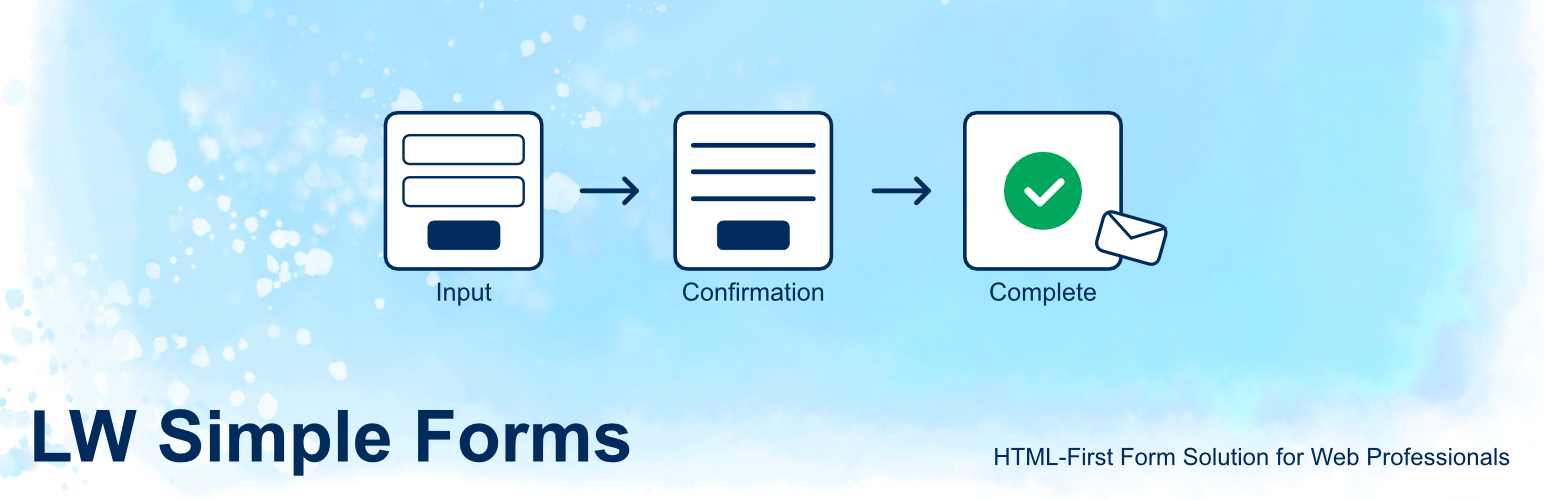
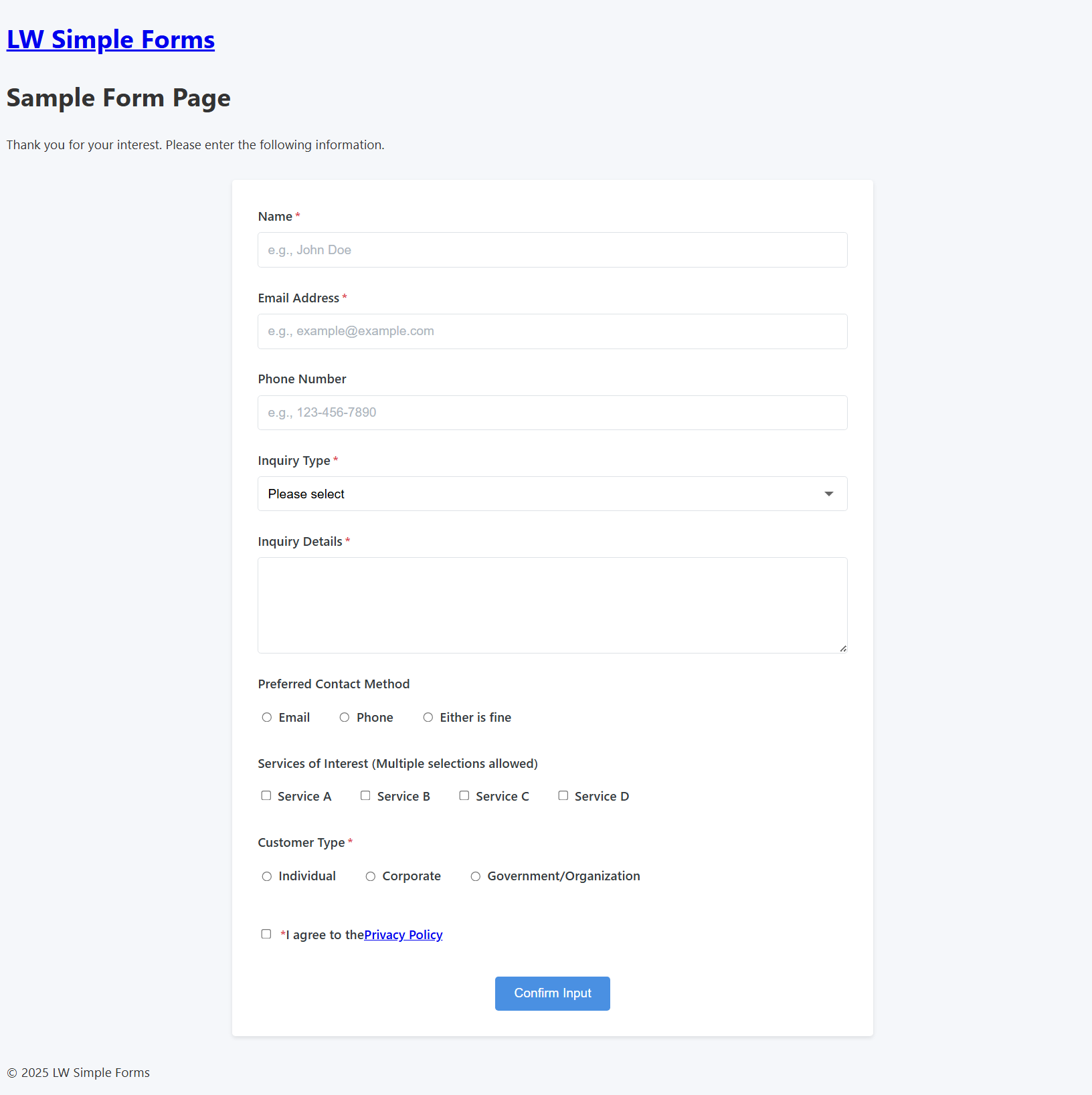
- Input screen - Users enter their information
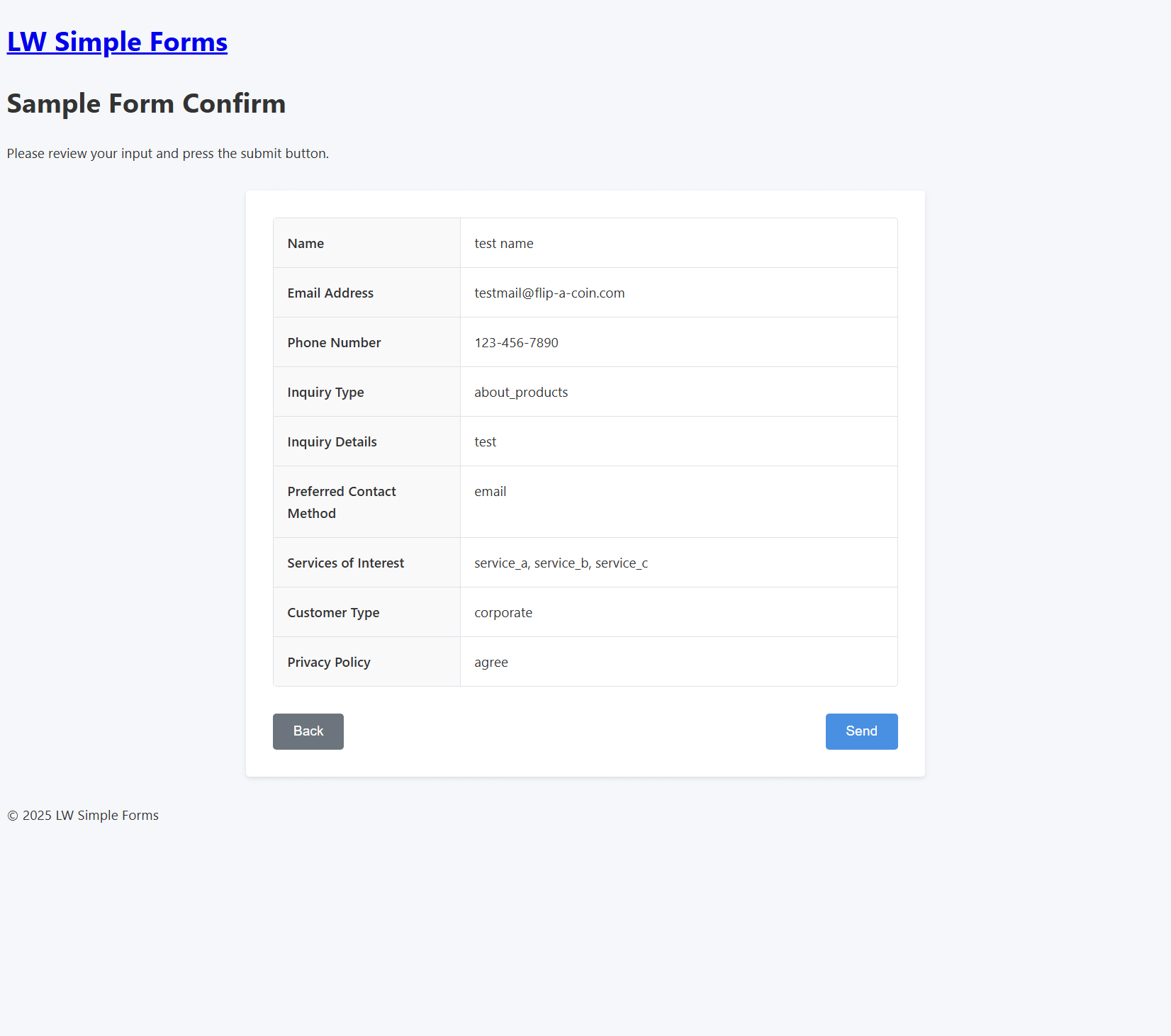
- Confirmation screen - Users review their input before submitting
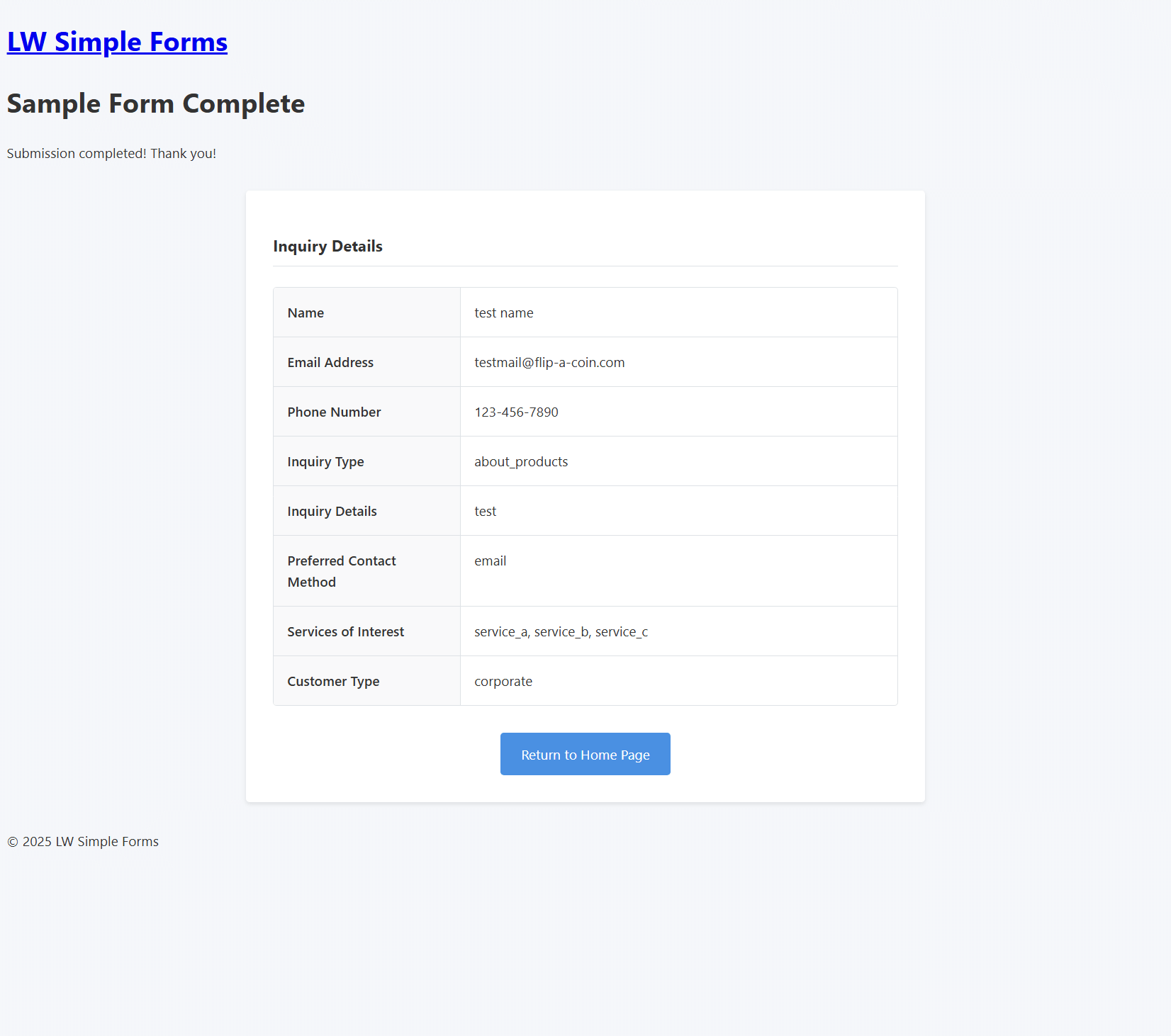
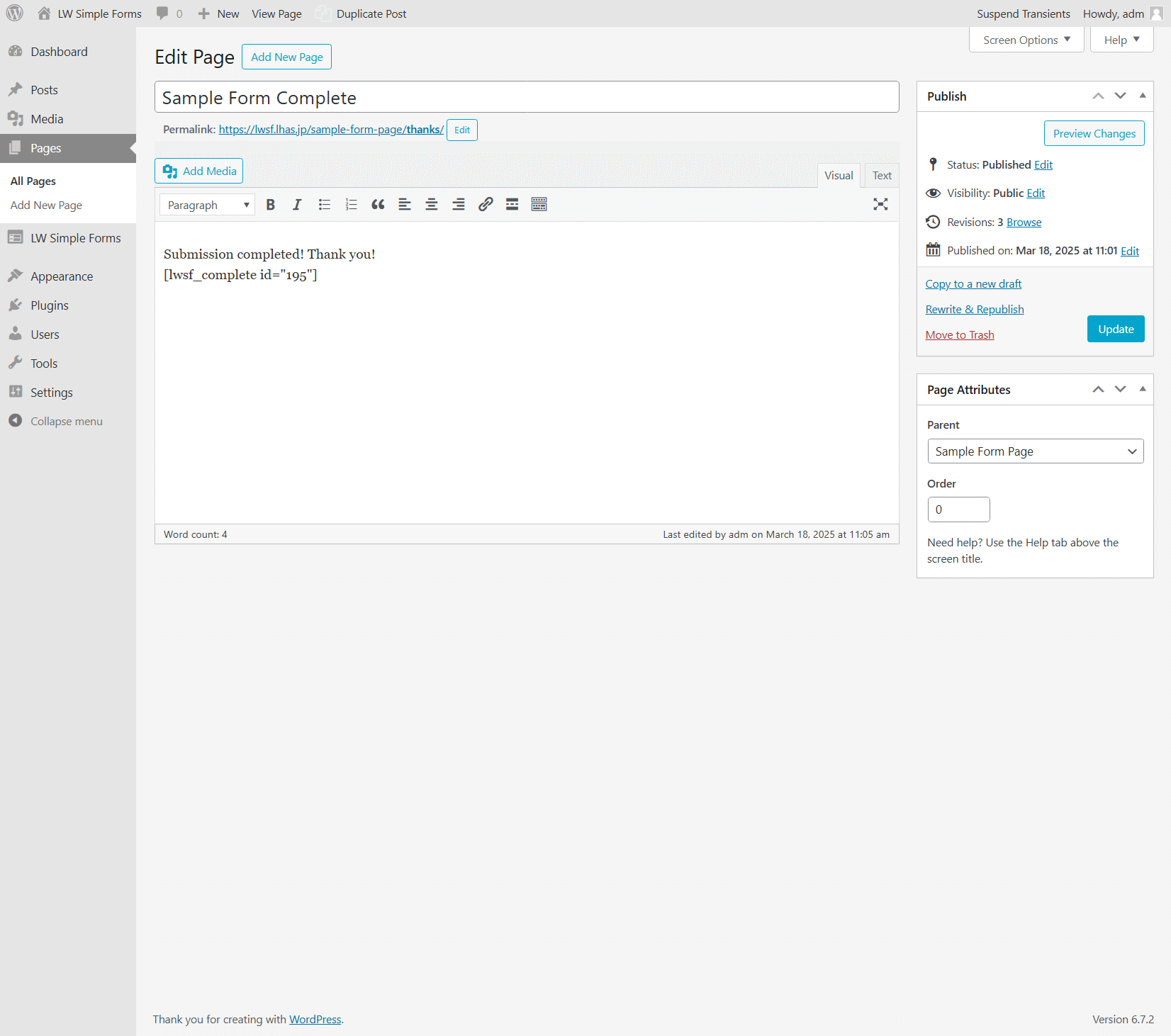
- Completion screen - Thank you message after successful submission
DONOTCACHEPAGE constant, which caching plugins such as WP Super Cache, W3 Total Cache, WP Rocket, and LiteSpeed Cache respect.
Some caches ignore these signals. Examples are a CDN rule that overrides the origin's cache headers (such as a Cloudflare Edge TTL setting that ignores the Cache-Control header), nginx FastCGI Cache or Varnish when configured to ignore them, and a hosting company's own page cache. If you use one of these, please exclude the form page URLs (input, confirmation, completion, error) from caching.
If you place a form outside the page content (in a widget, a synced pattern, or a theme template), caching plugins still skip the page, but the HTTP headers may already have been sent. In that case, exclude those URLs from CDN and server-level caches manually.
After updating to 1.3.0, please purge your page cache and CDN cache once so that previously cached copies of your form pages are removed.
CSS Styling
This plugin does not include any frontend CSS for form display. You are expected to style the forms using your own theme's stylesheet. HTML/CSS samples are available for reference on the plugin's website.
安装:
- Upload the
lw-simple-formsfolder to the/wp-content/plugins/directory - Activate the plugin through the 'Plugins' menu in WordPress
- Create a new form from the 'Forms' menu item
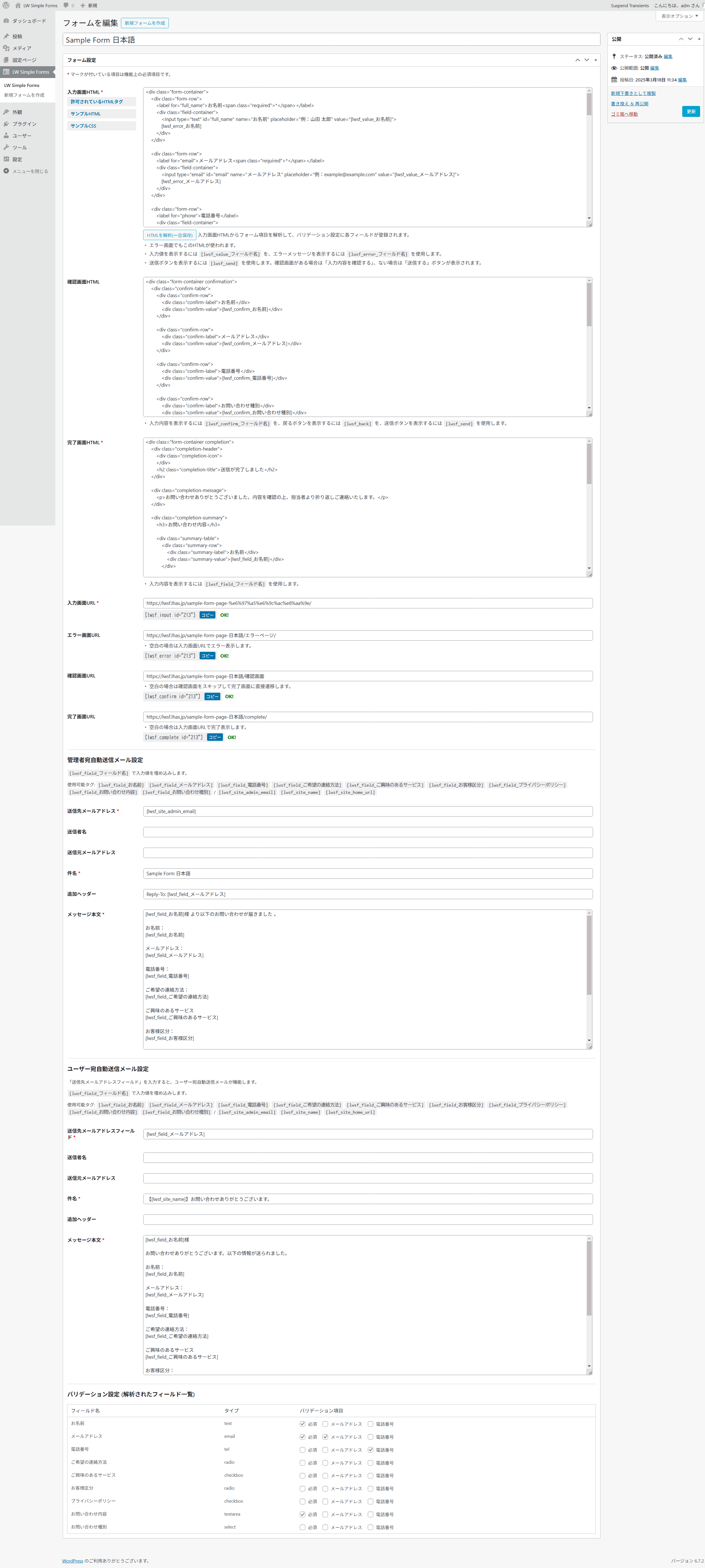
- Configure the form settings including HTML templates and email notifications
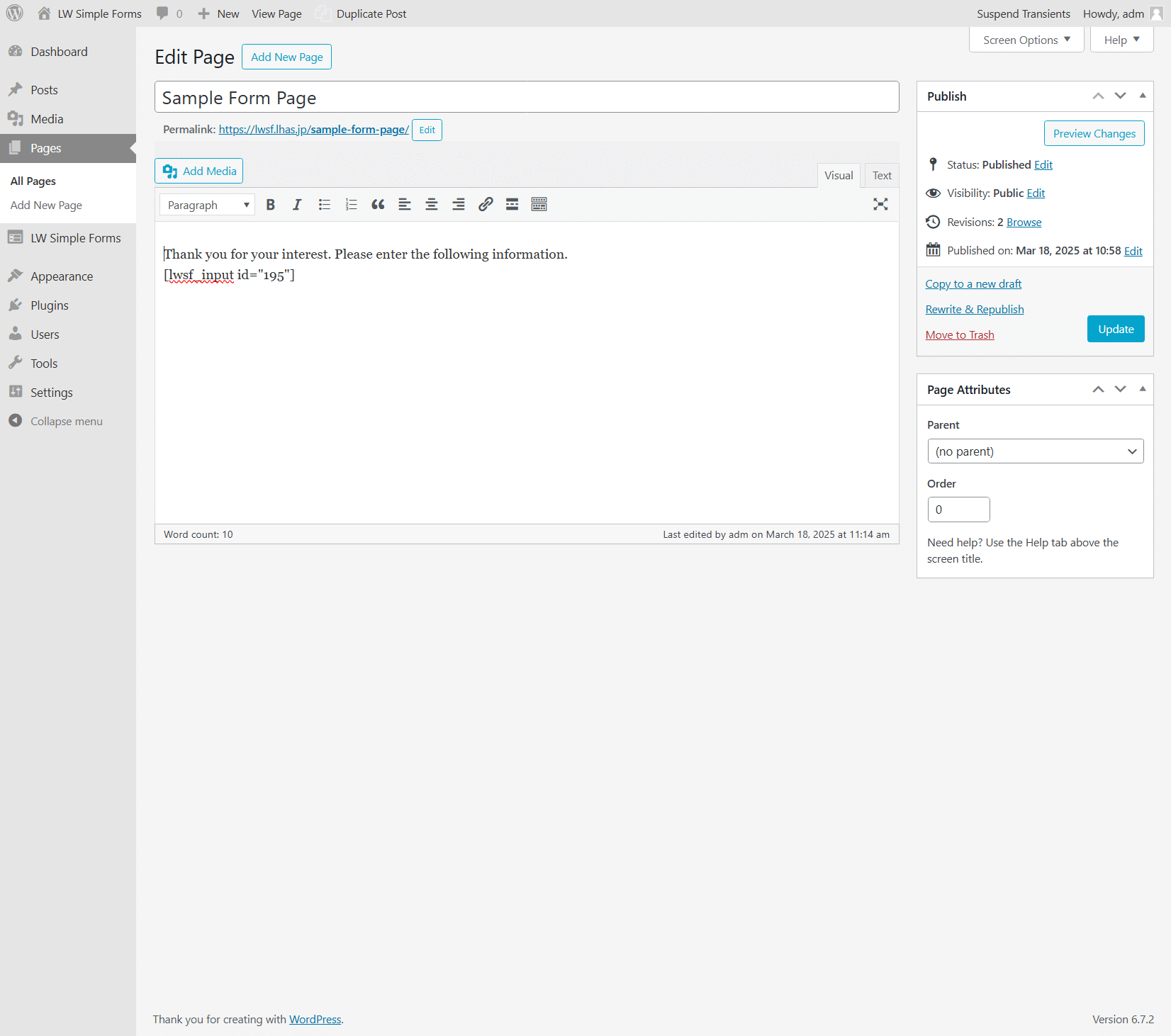
- Create pages for your form screens (input, confirmation, completion)
- Add the appropriate shortcodes to your pages:
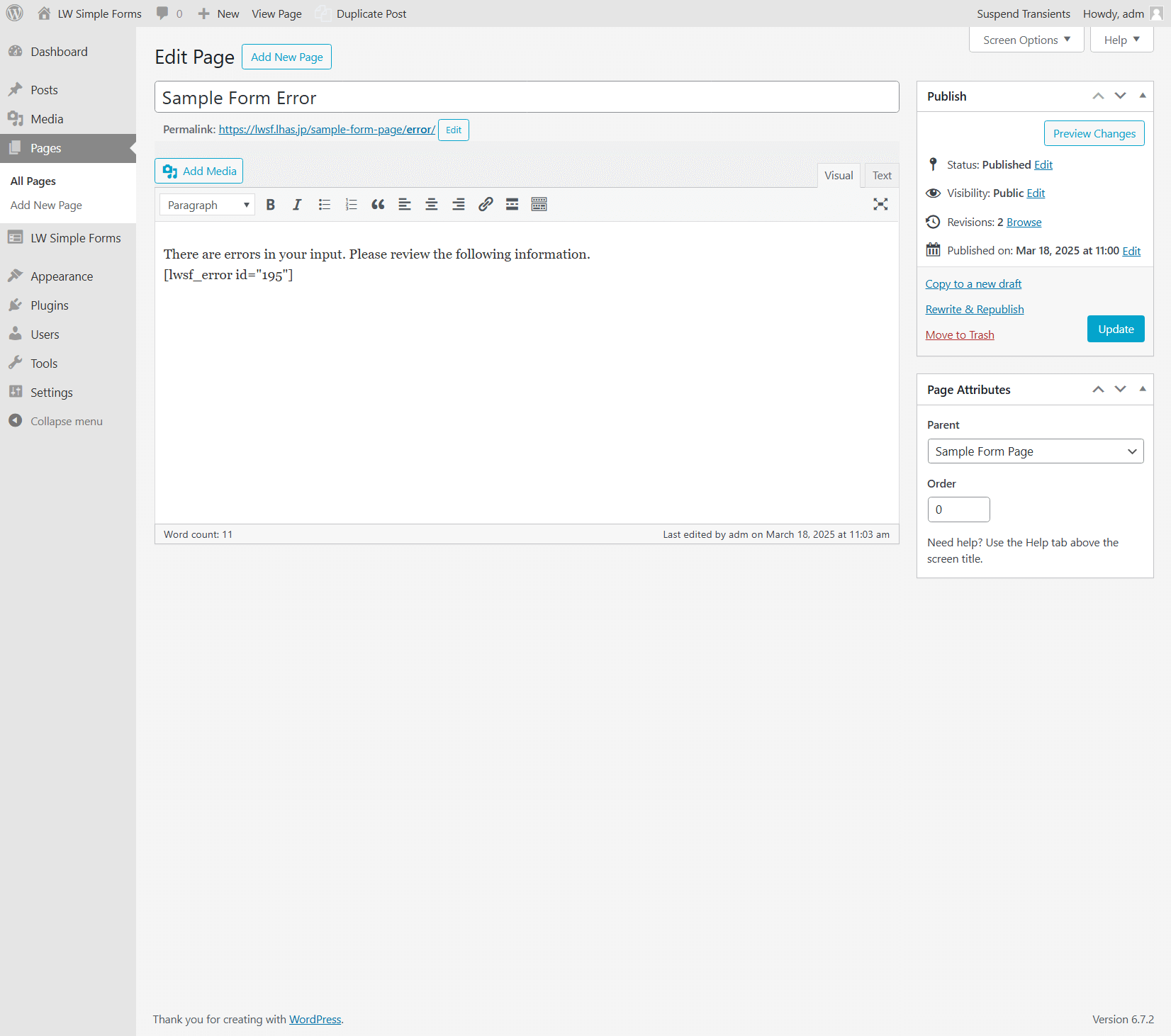
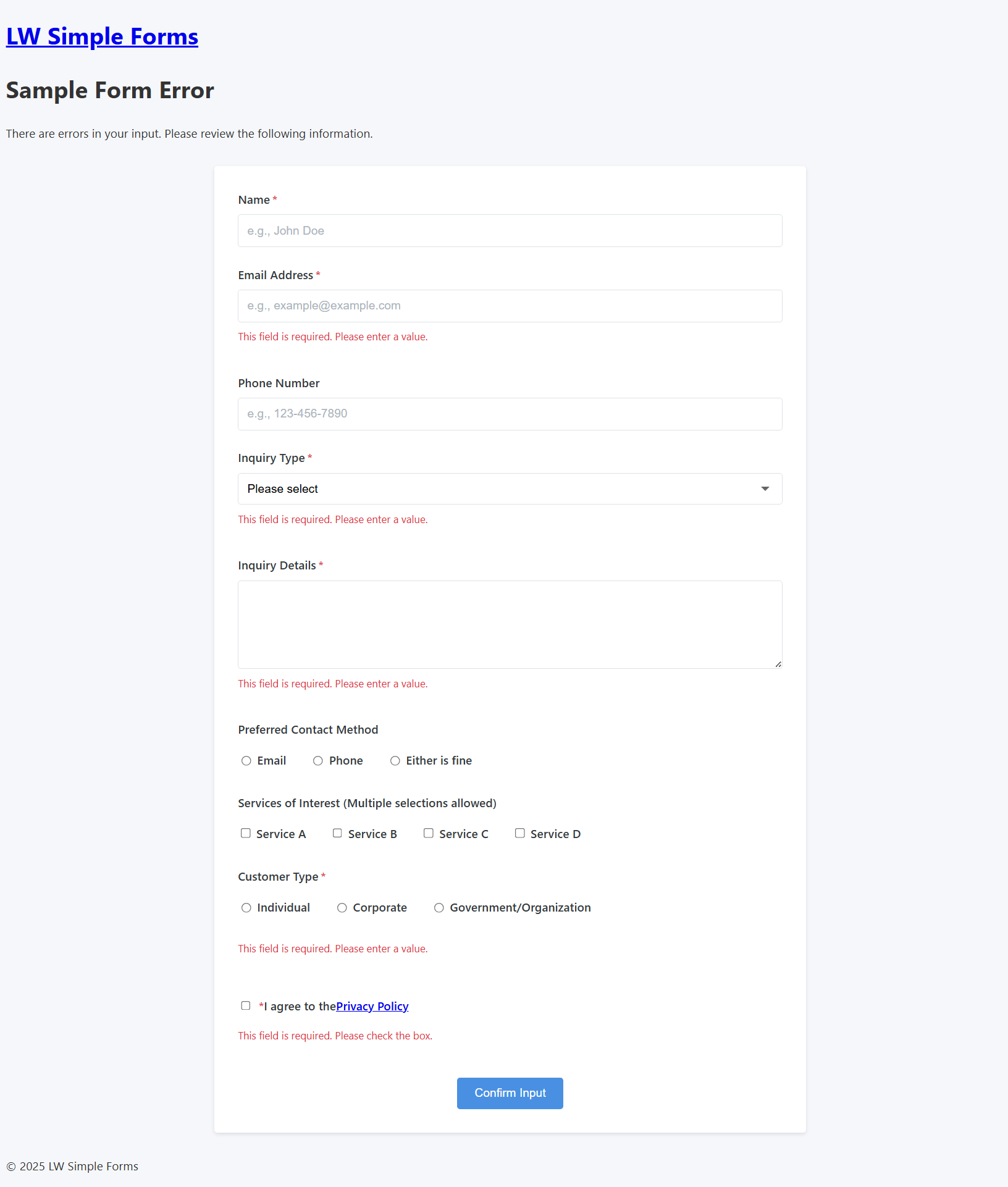
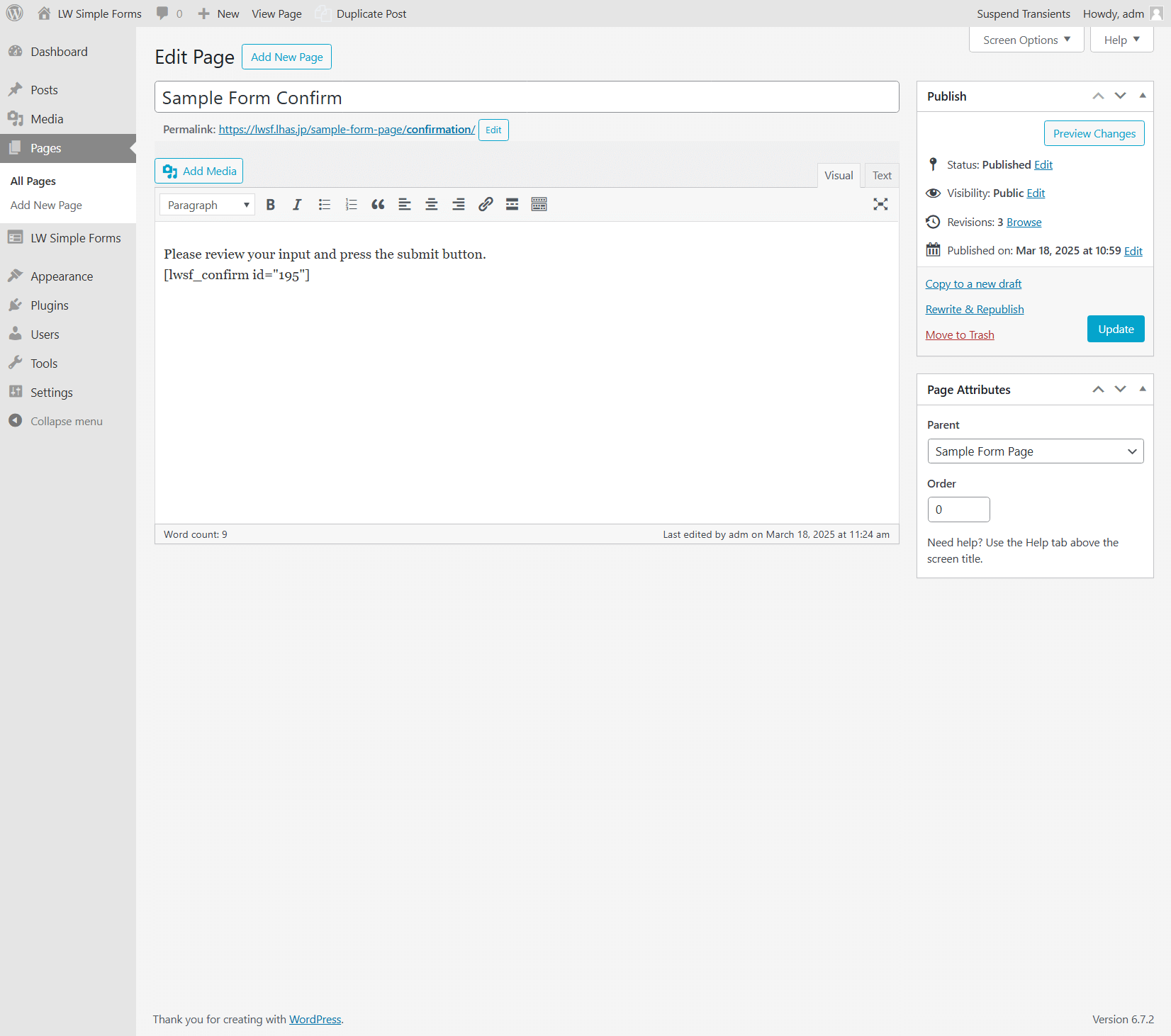
[lwsf_input id="123"]- For the input screen[lwsf_confirm id="123"]- For the confirmation screen (optional - leave empty to skip confirmation)[lwsf_complete id="123"]- For the completion screen (optional - displayed on the input screen URL if omitted)[lwsf_error id="123"]- For the error screen (optional - errors are displayed on the input screen if omitted)
屏幕截图:
常见问题:
How do I create a form?
Navigate to LW Simple Forms → Add New Form in your WordPress admin, configure the form settings, and save. You'll then need to add the appropriate shortcodes to your pages.
How do I set required fields?
After creating your form HTML, use the "Parse HTML" button to detect form fields automatically. Then you can mark fields as required in the "Validation Settings" section.
Can I skip the confirmation screen?
Yes. Simply leave the "Confirmation Screen URL" field empty, and the form will skip straight to completion after submission.
How long is submission data kept in the system?
Data is temporarily stored in the database for one hour. After this period, the data is automatically deleted.
Will the form work if a user has JavaScript disabled?
Yes. The plugin is designed to work both with and without JavaScript. All validations and form processing have server-side fallbacks.
Do I need to exclude my form pages from caching?
Since version 1.3.0, pages whose content contains a form shortcode are automatically excluded from caching by most caching plugins and by CDNs that follow the page's cache headers. You only need to exclude the form page URLs manually if your cache ignores these headers (for example a CDN rule that overrides the origin's cache headers, a server-level cache configured to ignore them, or a hosting company's own page cache), or if the form is placed outside the page content. Note that a form placed in a sitewide widget or footer turns off page caching on every page where it appears. See "Page Cache and CDN Compatibility" in the Description.
How do I show different error messages for different validation types?
Currently, the plugin uses standard error messages. Future versions may support customizable validation messages.
Can I use special characters in my forms?
Yes. The plugin properly handles special characters and different encodings, but it's recommended to use UTF-8 encoding.
How do I send confirmation emails to users?
Enter a field name (usually an email field) in the "Recipient Email Address Field" setting under "User Auto-send Email Settings". e.g. If the name attribute of the email field is set to "your-email", you should write it as [lwsf_field_your-email].
更新日志:
- Pages that contain a form shortcode are now automatically excluded from page caching. The plugin sends no-cache HTTP headers and defines the
DONOTCACHEPAGEconstant (respected by WP Super Cache, W3 Total Cache, WP Rocket, LiteSpeed Cache, and others), and also notifies LiteSpeed Cache through its API. This prevents submissions from failing because a cached input page kept an expired security token, and stops cached completion pages from showing one visitor's data to others. - The
no-storedirective is left out of the no-cache headers so that browsers can still restore typed values when a visitor presses Back on the confirmation screen.privatealready keeps CDNs and other shared caches from storing the page. For logged-in users,no-storeis kept as WordPress sends it. - New
lwsf_prevent_page_cachefilter. Return false to turn off the automatic cache exclusion. - After updating, purge your page cache and CDN cache once to remove copies of form pages that were cached before.
- When a visitor pressed the browser's Back button on the confirmation screen and the input screen was restored from the browser's back/forward cache, the submit button stayed disabled and the form could not be submitted again. The buttons are now re-enabled when the page is restored. If the form had already been sent (forms without a confirmation screen), the page is reloaded instead, so the same entry is not sent twice by accident.
- Rewrote the cache compatibility note: explains why form pages must not be cached and which caches still need manual exclusion
- Fixed a non-existent plugin name ("WP Total Cache") in the cache compatibility note
- Added an FAQ entry about excluding form pages from caching
- Tested up to WordPress 7.1
- IP-based rate limiting - Prevents the same IP address from submitting forms excessively within a configurable time window. Default: 5 submissions per hour. Configurable in Settings.
- Honeypot field - An invisible form field that catches automated bots. Bots that fill all fields are silently rejected. Enabled by default, can be toggled in Settings.
- Confirmation screen enforcement - When a confirmation screen is configured, the server now verifies that the confirmation screen was actually displayed before allowing completion. Prevents bots from bypassing the confirmation step.
- reCAPTCHA v3 score threshold increased from 0.3 to 0.5 (Google's recommended default) for better spam detection
- New "Spam Protection" settings section in the admin panel for configuring rate limiting and honeypot options
- Rate limit records are automatically cleaned up after 24 hours
- Added protection against automated SQL injection scanning attacks
- Bots that trigger the honeypot receive a fake success response to prevent detection of the security measure
- Sample form with all supported field types (text, tel, email, radio, checkbox, textarea, select, select multiple) is automatically created on first activation for easy reference
- Added cache plugin/CDN compatibility warning
- Added CSS styling note (no frontend CSS included)
- Marked optional shortcodes in Installation section
- Clarified PHP version compatibility (tested on PHP 8.3)
- Updated WordPress compatibility to 6.9
- reCAPTCHA v3 integration - Configure Site Key and Secret Key in LW Simple Forms > Settings. When enabled, reCAPTCHA tokens are automatically generated and verified on form submission. Fails open on API communication errors to avoid blocking legitimate users. Score threshold: 0.5.
- PRG (Post-Redirect-Get) pattern for duplicate submission prevention - After form completion, a cookie-based session key is stored and the browser is redirected to a clean URL via 302 redirect. The completion screen is displayed once, and page reload redirects back to the input page.
- WordPress reserved word validation now blocks saving (previously only warned) when form field names use reserved query variables (e.g.,
name,p,s,page). Case-sensitive comparison:Nameis allowed,nameis blocked. - Extended wp_kses allowed HTML tags to include
<form>,<button>, and<textarea>with their common attributes. This ensures confirmation screen buttons and form elements retain their HTML attributes (e.g., class, id). - Frontend CSS externalized - The plugin no longer outputs inline CSS. Error messages and button styles should be defined in your site's stylesheet.
- POST data now properly handled with
wp_unslash()to prevent double-escaping issues caused by WordPresswp_magic_quotes()(e.g.,I'mno longer becomesI\'m). - Improved HTML sanitization warnings - Normalized comparison to avoid false positives from
wp_ksesremoving trailing semicolons in style attributes. Warning messages now show the actual changed lines instead of a generic message. - Updated admin notes to clarify that style attributes are allowed (only script tags are blocked for security).
- Confirmation button default label changed from "Confirm Input" to "Confirm".
- Fixed direct submission mode (without confirmation screen) - Replaced query parameter approach (
?lwsf_complete=1&key=...) which caused 404 errors due to WordPress interpreting query parameters. Email is now sent within the REST API call, and a flag is returned to JavaScript. - Fixed reCAPTCHA token regeneration - Tokens are now regenerated before the final form submission since reCAPTCHA tokens can only be used once.
- Documented incompatibility with async-javascript plugin - The plugin adding
asyncattribute tolwsf.jsbreaks form functionality. Workaround: excludelwsf-form-handlerin the async-javascript plugin settings.
- Initial release