
Magic Linking – Internal Links
| 开发者 | dcarrero |
|---|---|
| 更新时间 | 2026年11月1日 21:31 |
| PHP版本: | 8.1 及以上 |
| WordPress版本: | 7.1 |
| 版权: | GPL-2.0-or-later |
| 版权网址: | 版权信息 |
详情介绍:
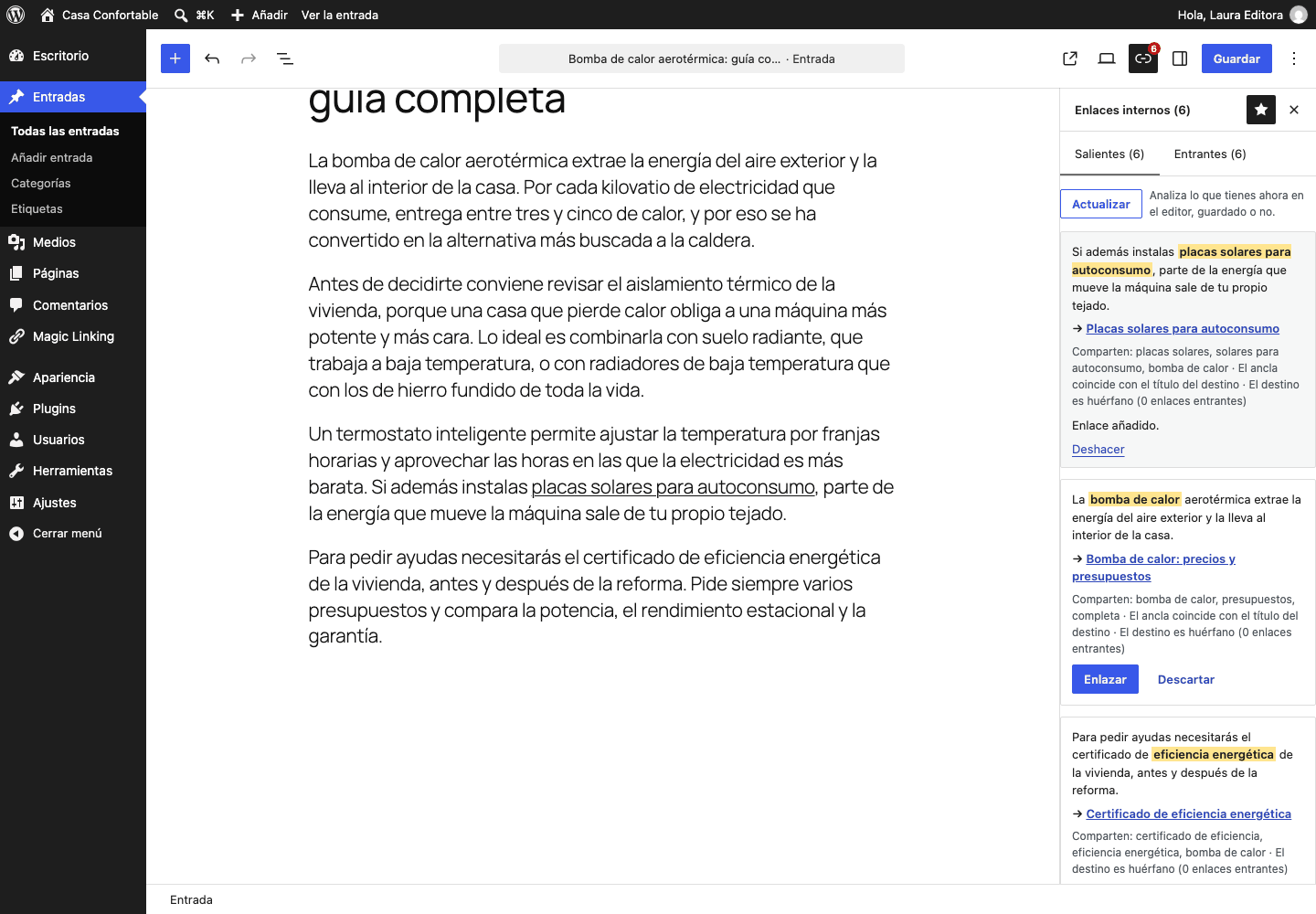
- Outbound suggestions: a Magic Linking panel in the block editor (and a box in the classic editor) proposes phrases of the text you are writing that could link to other entries of your site. Each suggestion shows the phrase with the anchor text highlighted in the editor, the destination and the reason.
- One click to link: press Link and the link is added in the editor itself, on that phrase only. It is part of your unsaved changes until you save, and you can undo it with the Undo button of the card or with the editor's own undo.
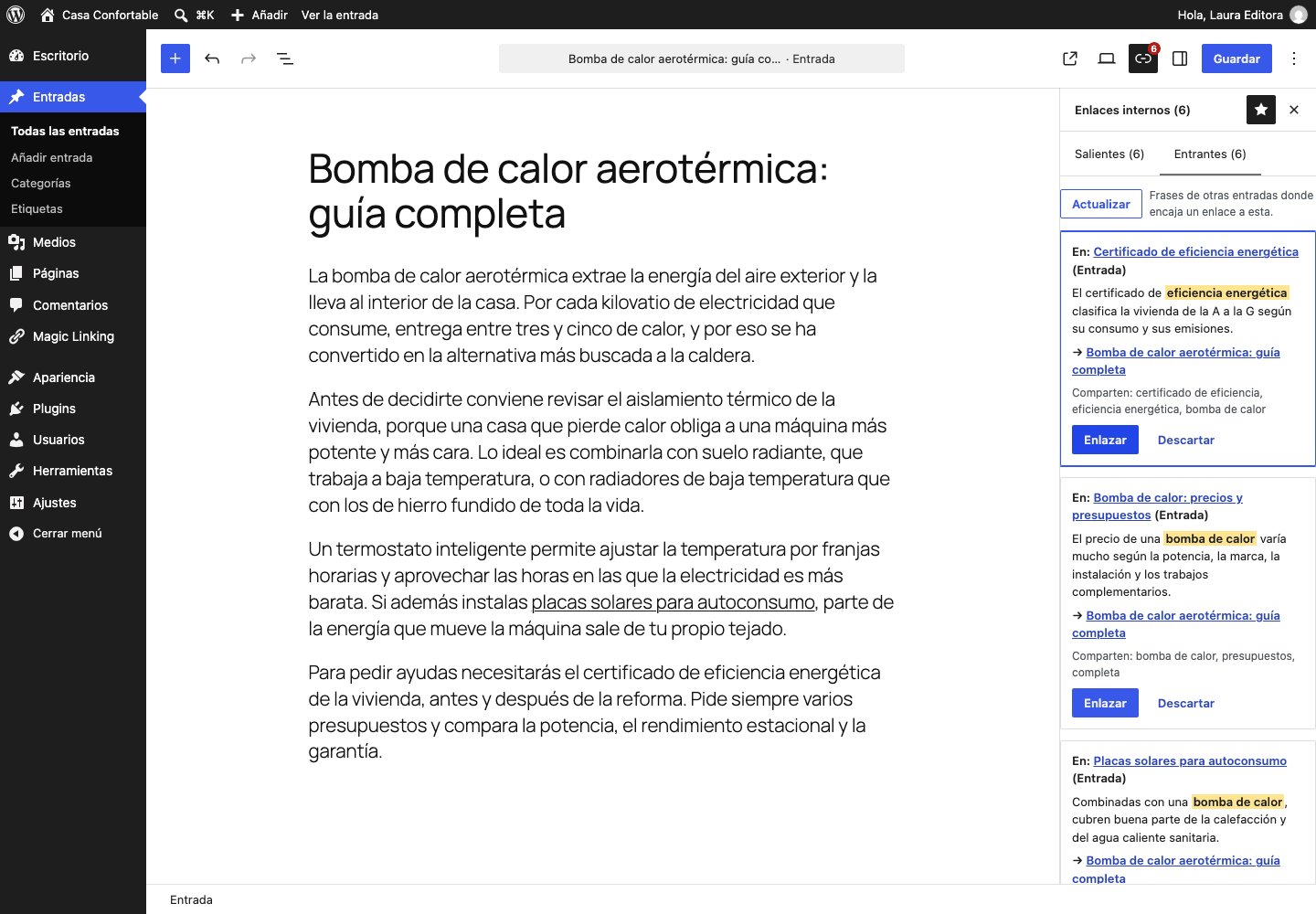
- Inbound suggestions: the same panel lists other entries whose text mentions the one you are editing and could link to it. Pressing Link writes the link in that other entry, see "How and when it changes your content".
- Only the entries and block types where a link can be inserted safely are proposed. Paragraphs and lists are always used; headings, quotes and tables are left alone unless you turn them on in Settings (or a developer allows them with a filter).
- Pillar content and filters: mark your main entries as pillar content (the mark of an active Yoast SEO or Rank Math also counts) so links to them rank higher. In Settings > Suggestions you can ignore, consider or require the same content type, category or tag.
- More phrases and adjustable anchor: the card can offer alternative sentences (off by default, Settings > Suggestions) and lets you adjust the anchor text before linking. Each suggestion warns when the anchor already links somewhere else or is repeated too often, and a collapsible list shows what is already linked.
- Your own target phrases: for each entry you can write the phrases you want it to rank for, so other entries link to it with them.
- Exclude: leave an entry (from the report) or whole categories (Settings > General) out of the analysis. Excluded entries are neither suggested nor a source of links.
- Dismiss: a suggestion you do not want can be dismissed for good, from either side, and restored with Undo.
- Improve with AI (optional): with an AI connector (WordPress 7.0 or later), Improve with AI sends the best 20 suggestions to your AI provider in one request. It reorders them, marks the ones it does not recommend, may propose a better anchor text from the same sentence and shows what the request cost. See "AI and your privacy".
- Rules: a screen where you say "this phrase links to this entry". A rule has a phrase and its variants, a destination (a published entry), how many links to add per entry, whether to link only the first appearance, and an optional gap of one word (so "heat pump" also matches "heat water pump"). You can leave out post types and categories, and pause or edit a rule at any time. There is no limit on the number of rules.
- Applied by themselves when you publish or update: when a published entry is saved with new text, the rules are applied in the background, not during the save. If the entry is open in someone's editor, Magic Linking waits and tries again later instead of touching it. Drafts are not linked; they are when you publish them.
- Applied to what you already have, one entry at a time: Apply to existing entries lists the entries where the rule fits, shows the sentence with the link that would be added and an Add link button for each one, with Undo. There is no "apply to all" button.
- Quality limits: a rule only adds links. It never removes or changes a link you already have, never links inside a link, and respects your limits: words per link, links to the same target from one entry (Settings > Suggestions) and entries that can use the same anchor text for the same target.
- A link you undo does not come back: if you undo a link added by a rule, the same rule does not add it again to that entry (unless you edit the rule).
- WP-CLI:
wp magic-linking rules(list, add, delete, scan, apply).
- Nothing is changed until you press Link on a suggestion, apply a rule to an entry, or publish or update an entry that matches a rule you created. Suggestions never change anything by themselves, and rules only add links.
- For the entry you have open, the link is inserted in the editor; saving is up to you.
- For inbound suggestions, the link is written into the other entry on the server. Before saving, Magic Linking checks that the rest of that entry stays exactly as it was: only the link is added. If the check fails, it writes nothing and tells you why. WordPress keeps a revision of the entry as usual.
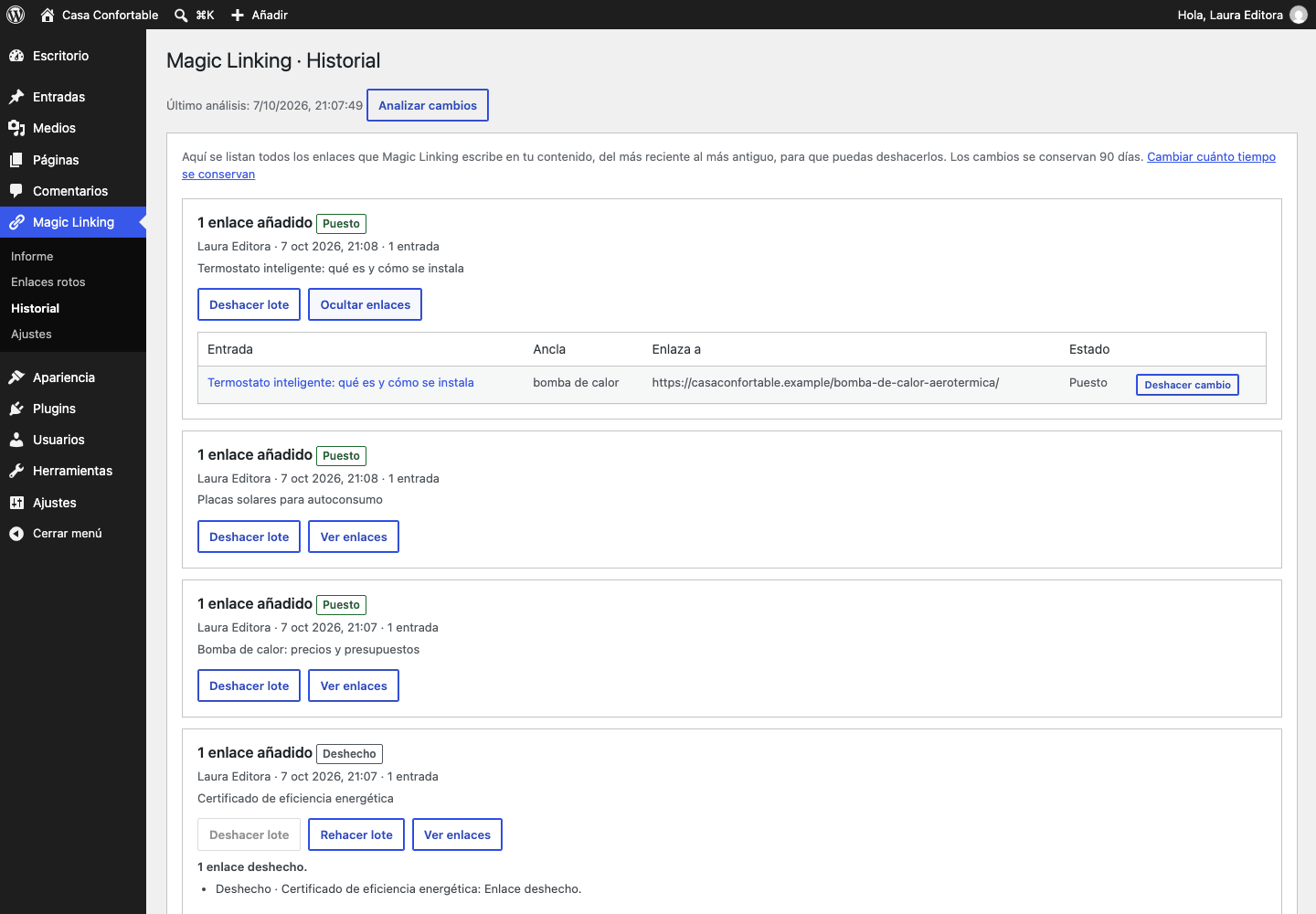
- Every change is recorded in History, where you can undo it and redo it; links added by a rule are marked "Automatic rule". Links you add from the editor panel are listed there too once you save the entry; Magic Linking only records them. Undo removes only that link; if the text around it was edited since, it tells you instead of guessing.
- An entry that is open in someone's editor is never modified from the server.
- Links already written in your content are never removed or rewritten, except to undo a link Magic Linking added or when you fix a broken link from its list.
- Every link Magic Linking changes is listed with who did it, when, where and the anchor text: links from inbound suggestions, from the editor panel (once you save the entry), from rules and fixes from the broken links list.
- Changes are grouped by entry, newest first. Filter by status, source or title, view by batch, and undo or redo one change, an entry or a whole batch.
- Undo and redo also with WP-CLI (
wp magic-linking history undo --post=<id>). - Export to CSV, with no row limit, from Export CSV (what the current filters show) or with WP-CLI (
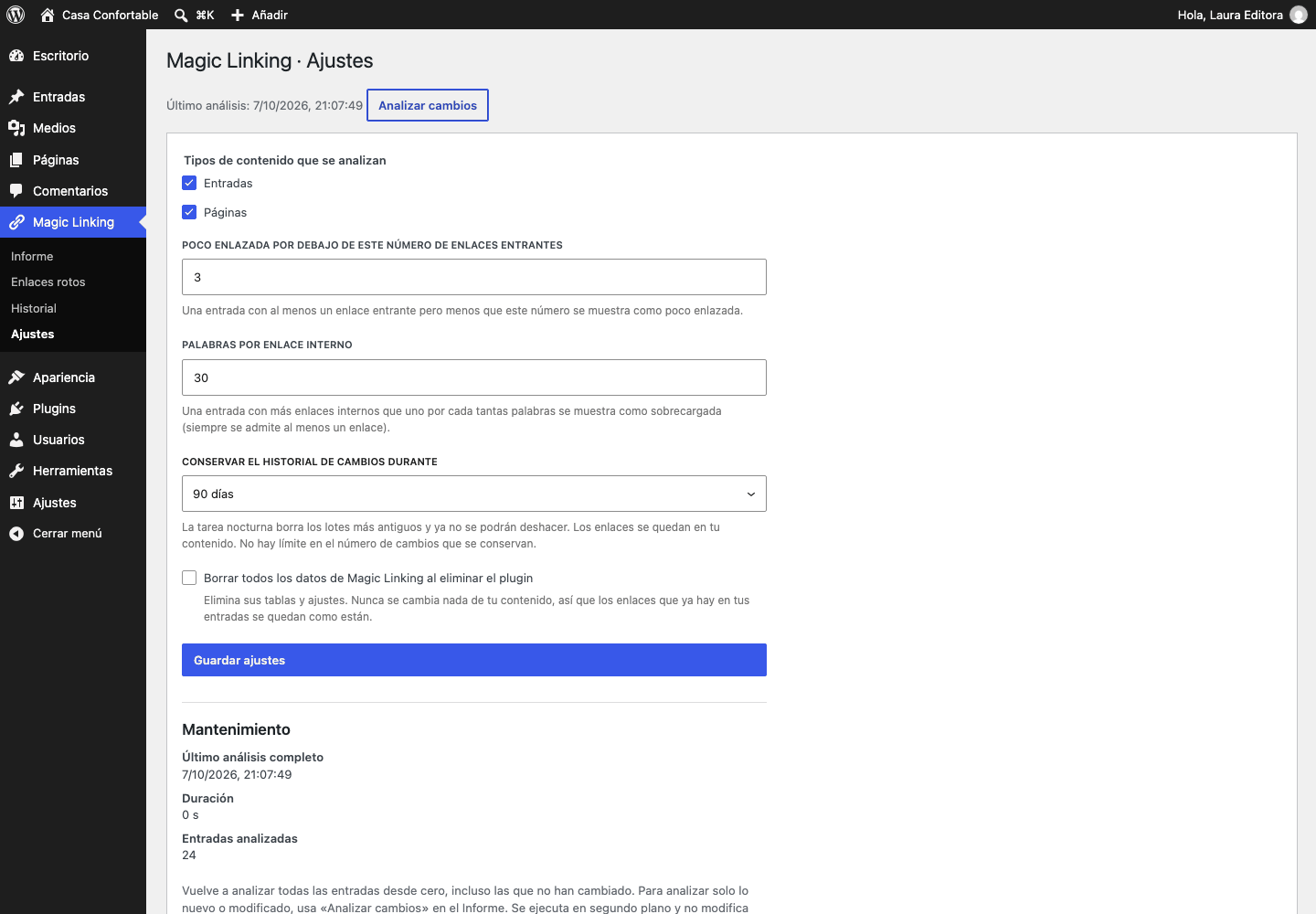
wp magic-linking history export --format=csv). It includes whether the AI recommended each link and with which model. - The history is kept 90 days by default; you can choose 30 days, a year or forever.
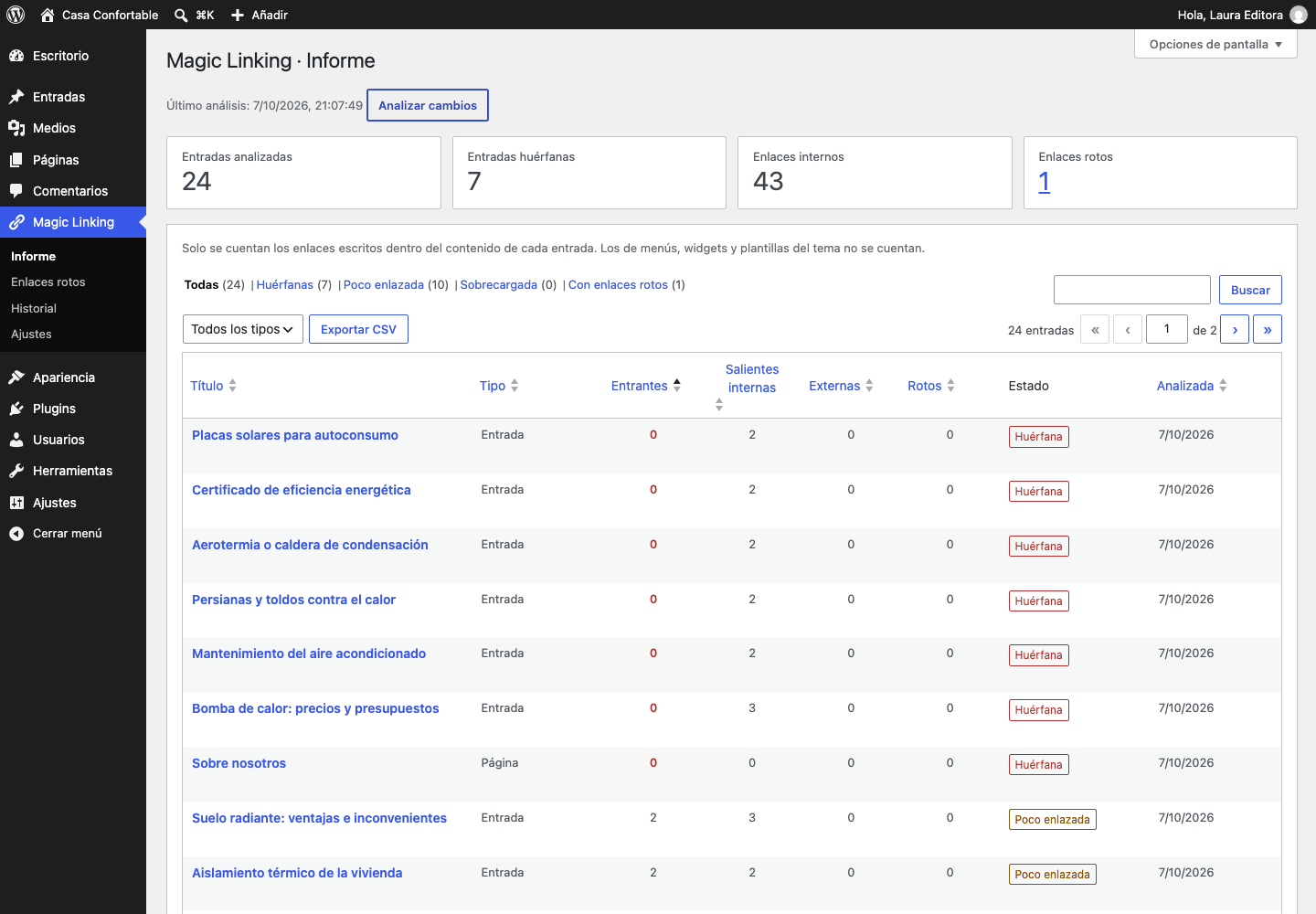
- Orphan pages: entries that no other entry links to.
- Under-linked pages: entries with some inbound links, but fewer than you consider enough (2 by default, you can change it).
- Over-linked pages: entries with more internal links than one for every 100 words (you can change that too). A short text may always have one link.
- Broken internal links: links to an entry that is in the trash, is a draft or private, or does not exist. The complete list, with the anchor text and the reason. Fix each one from the list: change its destination to another published entry, or remove the link and keep its text. Magic Linking checks that nothing else in the entry changes, and you can undo it from History.
- Numbers for every entry: inbound, internal outbound, external and broken links.
- Add links from the report: Inbound suggestions and Outbound suggestions on each row open a side panel with the suggested sentences. Press Link on the ones you like, one at a time, without opening the editor of the entry; the row updates its numbers and you can undo each link right there or from History.
- Filters, search by title, sorting, pagination and CSV export of the view you are looking at.
- WP-CLI: analyse the site, print reports and manage the history from the terminal.
- Multilingual: the language of each entry comes from WPML, Polylang or, if you use neither, from the site language. Suggestions never link entries of different languages. An optional setting detects the language from the text itself (tested on Spanish and English).
- Status tab: The Status tab shows how long the last suggestions took, so you can see whether the engine is slow on your server.
- Made for big sites: the analysis and the index of suggestions are built in the background in small batches with Action Scheduler (bundled), and every entry is updated when you save it. Suggestions for an entry are calculated in a few milliseconds even with thousands of entries.
- Light: no scripts, no styles and no database queries from this plugin on your public pages.
- Private: no telemetry, no cookies, no email requests, no notices outside its own screens, and nothing leaves your server unless you press Improve with AI with an AI connector (see "AI and your privacy").
- It does not check links over the network: a link is "broken" when it points to an address on your own site that leads nowhere, according to WordPress. Links to other sites are counted, not checked.
- It does not add links by itself, except for the rules you create. Suggestions always need a click of yours.
- Magic Linking has no AI of its own and asks for no key. It uses the AI client and the Connectors screen of WordPress 7.0 or later. On WordPress 6.9 the AI options are turned off and the plugin works as usual.
- Nothing is sent until you press Improve with AI, and then only to the provider you configured (a local model never leaves your server). You set a daily token limit in Settings > AI (0 turns AI off). See "External services" for exactly what is sent.
安装:
- Install the plugin and activate it.
- Go to Magic Linking in the admin sidebar and press Analyze my site. Nothing is analysed until you do it. The first time it also builds the index used for suggestions, in the background.
- Open any post or page. In the block editor, open the Magic Linking panel from the top bar (or the three dots menu); in the classic editor, use the Magic Linking box.
- Read the suggestions and press Link on the ones you like.
- For the site-wide picture, use the filters Orphans, Under-linked, Over-linked and With broken links in the report, or open Broken links to change the destination of each one or remove it.
wp magic-linking index analyses the site and wp magic-linking report --filter=orphans --format=csv prints the orphan pages as CSV.屏幕截图:
常见问题:
Does it change my posts or pages?
Only when you press Link on a suggestion or apply a rule, or when you publish or update an entry that matches a rule you created. In every case it only adds a link.
- Outbound suggestions (for the entry you are editing): the link is inserted in the editor itself. You save the entry when you want, as with any other change.
- Inbound suggestions (links from other entries to this one): the link is written into the other entry on the server. The rest of that entry must stay identical, byte for byte, or nothing is written. WordPress creates a revision, and the change is listed in History, where you can undo it.
- Automatic rules (the ones you create in Magic Linking > Rules) add their links in the background after you publish or update an entry, with the same check and the same entry in History.
- It never modifies an entry that is open in an editor, and it only edits, removes or rewrites a link you already had when you ask for it from the broken links list (change its destination or remove it, keeping its text), with the same check and undo.
How do automatic rules work?
Go to Magic Linking > Rules, add a rule (a phrase, its variants and the entry it should link to) and save it. From then on, when you publish or update an entry whose text contains the phrase, the link is added in the background. To use a rule on entries you already have, press Apply to existing entries on the rule, review the sentence shown for each entry and press Add link on the ones you want. You can create as many rules as you like. Rules never remove or change a link and respect your limits in Settings > Suggestions.
Can I apply a rule to all my entries at once?
No. In this version you add the links one entry at a time, after seeing the sentence. Each one is recorded in History as "Automatic rule" and can be undone.
I undid a link that a rule added. Will it come back?
No. A rule does not add again a link you undid in that entry. If you edit the rule (phrase, destination or options), it counts as a new rule and may add its link again.
Can I add links from the report without opening the entry?
Yes. On each row of the report, Inbound suggestions and Outbound suggestions open a side panel with the same suggestions as the editor. Press Link on the ones you like; the numbers of the row update and you can undo each link there or from History. You need permission to edit that entry.
How do I undo a link?
Right after adding it, press Undo on the card. Later, open Magic Linking > History and undo it there. You can also redo it. If the text around the link has been edited since, Magic Linking tells you instead of changing anything it cannot be sure about.
How do I leave an entry or a category out?
For one entry, press Exclude from the analysis on its row in the report. For whole categories, go to Settings > General and pick them under Categories left out. An excluded entry is neither suggested nor used as a source of links; links that other entries already have to it still count. You can include it again at any time, and the report lists the excluded entries with the reason.
What are target phrases?
Phrases you write for an entry (in the Target phrases section of the editor panel, up to 10, each with a few variants) to say "link to this entry when the text says this". They are used by the suggestions like the entry's own focus keyword, and they never add a link by themselves.
Can it detect the language of my entries?
Yes, if you turn on Detect the language of each entry from its text in Settings > General. It is off by default, does nothing while WPML or Polylang is active (they take priority) and, when it is not sure, uses the language of the site. It is checked on Spanish and English texts; other languages are not validated yet, so do not rely on it for them.
What is the Status tab?
The Status tab shows the time of the last 20 suggestion requests, split by phase, with the budget each should meet. It is a diagnostic: nothing is sent anywhere.
Where do I change the sensitivity of the suggestions?
In Settings > Suggestions > Show advanced settings: the key terms kept per entry and the score threshold. The defaults are right for most sites; changing the number of terms rebuilds the index in the background.
How are links counted?
- Only the links written inside the content of each entry are counted. Links in menus, widgets, theme templates or blocks that are pulled from somewhere else are not, so your home page or a page that is only linked from the menu can appear as an orphan.
- Content that a page builder keeps outside the normal post content is not read. If your builder saves rendered HTML in the post content, it is read.
- Inbound = how many different entries link to this one, counting only links that work. Outbound = internal links to other pages; every appearance counts. Links to the same entry, to files or to
mailto:andtel:are not counted. - Category, tag, author, date and search pages, the home page and feeds are valid destinations and are never reported as broken.
- Tracking parameters (
utm_*,gclid,fbclid…) and anchors (#…) are ignored when matching a link to an entry.
Does it need AI, an API key or an account?
No. It works entirely on your server, with no key, no account and no credit. AI is an optional extra: if you connect a provider in Settings > Connectors (WordPress 7.0 or later), the Improve with AI button appears. Magic Linking never asks for an API key of its own and does not sell credit; your provider charges you for what you use.
Does it send my content anywhere?
Not by itself. The only time text leaves your server is when you press Improve with AI, and then it goes to the AI provider you set up in Settings > Connectors, as described in "AI and your privacy" and "External services". With a local model such as Ollama it does not leave your server.
How much does Improve with AI cost?
The button shows an estimate before you press it and the real number of tokens afterwards. A request uses a few thousand tokens, which with a small model costs a fraction of a cent. You can set a daily token limit in Settings > AI. A local model costs nothing.
Why is there no AI button?
Because the site has no AI connector (add one in Settings > Connectors), WordPress is older than 7.0, the daily limit in Settings > AI is 0, or the site blocks AI requests.
Why does the panel say there are no suggestions?
The suggestions come from the index of your site, which is built in the background after you press Analyze my site. Until it is ready the panel says so. Also, suggestions need text: a very short entry has little to suggest, and entries in another language, drafts, private entries and password-protected ones are never proposed as destinations.
Can I favour my main pages, or only link within a category?
Yes. Tick Pillar content in the panel (while Yoast SEO or Rank Math are active, their cornerstone or pillar mark also counts, without asking you anything): links to those entries rank a little higher. In Settings → Suggestions you can ignore, take into account or require the content type, category and tag. These are quality settings, never limits.
Why can't I link from this phrase?
Links are only inserted in paragraphs and lists, and never inside an existing link. Headings, quotes and tables are off by default: turn them on in Magic Linking > Settings > Links > Where links can be inserted. A developer can allow more block types with magiclinking_insertable_blocks.
Does it work in the classic editor?
Yes, with a Magic Linking box. Links are inserted in the Visual tab; in Text the box explains how to switch.
Why does my home page (or another page) appear as an orphan?
Because it is not linked from the content of any other entry. If it is linked from your menu, the menu is not counted. See "How links are counted".
Why is a link not listed as broken if the page is really gone?
A link is reported when it points to an entry in the trash, unpublished or private, or to an address of your site that WordPress does not recognise. If a redirect plugin sends the old address elsewhere, the link may still work for your visitors. Developers can tell Magic Linking about redirects with the magiclinking_resolve_link filter.
Does it work with WPML or Polylang?
Yes. It records the language of every entry, never suggests a link between two languages and, when WPML or Polylang is active (or the analysis finds more than one language), shows it in the report, lets you filter by it and adds it to the CSV. On a single-language site those columns are hidden.
How long does the first analysis take?
A few seconds for a small site; thousands of entries per minute on ordinary hosting. It runs in the background; you can keep working and watch the progress on the screen.
The analysis does not move.
It needs Action Scheduler to run, which WordPress triggers with WP-Cron. On sites with very little traffic, use a system cron, or run wp action-scheduler run --group=magic-linking, or analyse directly from the terminal with wp magic-linking index.
How do I analyze only what changed?
Press "Analyze changes" in the report (or run wp magic-linking index). It goes through every entry but skips the ones whose content has not changed since the last analysis, and tells you how many were new or modified. Entries are also analysed again automatically when you save them.
How do I analyze the whole site again from scratch?
Go to Magic Linking > Settings, open the General tab, find the "Maintenance" section and press "Analyze everything again from scratch" (or run wp magic-linking index --force). It asks you to confirm and then runs in the background, even for entries that have not changed. It never changes your content.
What happens when I delete the plugin?
By default your data is kept. If you tick "Delete all Magic Linking data when the plugin is deleted" in the settings, its tables (index, links, history), processes, settings and metadata are removed. The links already written in your content stay where they are; your content is never touched.
Is it multisite compatible?
Each site of a network has its own report, history and settings.
Which hooks can developers use?
magiclinking_link_inserted: action that runs after a link has been inserted from the server.magiclinking_batch_undone: action that runs after a group of links has been undone.magiclinking_link_fixed: action that runs after a broken link has been fixed (destination changed or link removed), or that fix has been redone.magiclinking_insertable_blocks: filter for the block types where links can be inserted.magiclinking_post_lock_timeout: filter for the seconds to wait when another insertion or undo is writing the same entry.magiclinking_undo_sync_limit: filter for how many changes are undone at once before the rest goes to the background.magiclinking_post_language: set the language of an entry.magiclinking_internal_hosts: extra hosts that count as your site.magiclinking_resolve_link: say where an internal address leads.magiclinking_post_html: add HTML that a builder keeps outside the content.magiclinking_before_ai_request: filter to veto or change a request to the AI connector before it is sent (return false to veto). The WordPress filterwp_ai_client_prevent_promptis respected too.magiclinking_local_ai_providers: filter for the AI providers that count as local (the text does not leave your server).magiclinking_is_multilingual: tell the plugin whether the site is multilingual.magiclinking_batch_max_entriesandmagiclinking_batch_time_budget: size and time of each background batch.
更新日志:
- New: your own target phrases per entry, with variants, in the editor panel.
- New: exclude an entry from the analysis, or whole categories (Settings > General). Excluded entries are listed in the report with the reason.
- New: alternative sentences for a suggestion (optional) and adjustable anchor text, checked on the server before linking.
- New: each suggestion tells you when its anchor already links elsewhere or is repeated too often, and lists the links already there.
- New: a Status tab with the time of the latest suggestion requests.
- New: advanced suggestion settings (key terms and score threshold) and an optional detection of the language from the text, tested on Spanish and English.
- New: notices appear only inside the plugin screens, one at a time, and each can be closed for good. After 20 links inserted and 30 days of use, one asks for a review; it is shown for a week at most.
- New: translations complete in all bundled languages, plus Catalan, German (formal), English (UK, Australia, Canada), Spanish (Argentina, Mexico), Dutch and Romanian.
- Improved: inbound suggestions are about twice as fast on long entries, and dates follow the time zone and format of the site. Memory use per request is now measured in tests.
- Database: the schema moves to version 8 with two new indexes, created in the background after updating.
- New: pillar content. Tick Pillar content in the editor panel and links to that entry rank a little higher in the suggestions. The cornerstone mark of Yoast SEO and the pillar mark of Rank Math also count while those plugins are active.
- New: filters by content type, category and tag in Settings > Suggestions: ignore (default), consider (entries that share them rank a little higher) or require (only entries that share them are suggested, never in another language). Suggestions use the categories and tags selected in the editor, even before you save, and the panel says when a filter is why there are no suggestions.
- Improved: dates in the Report, Maintenance and AI settings follow the language of the site, like History, and a malformed date no longer breaks the screen.
- Fixed: the plugin page on WordPress.org cut off the end of the readme (Privacy and Third-party libraries) because the description was too long. The description is shorter; the plugin does not change.
- New: automatic rules. In Magic Linking > Rules, say that a phrase (and its variants, with an optional gap of one word) links to an entry; there is no limit on the number of rules. They are applied in the background when you publish or update an entry, waiting if it is open in an editor, and you can apply a rule to the entries you already have, one by one, with a preview and Undo.
- New: rules respect quality limits and only add links. The new setting "Links to the same target from one entry" (Settings > Suggestions) caps how many links one entry gets to the same target, and a link you undo does not come back.
- New: History marks the links added by rules as "Automatic rule", also in the filter, the CSV export and WP-CLI (
wp magic-linking rules). - New: add links from the report. On each row, Inbound suggestions and Outbound suggestions open a panel with the same cards as the editor, so you can link one by one without opening the entry, with History and Undo. The numbers of the row update by themselves.
- Fixed: in an entry whose whole content is a Classic block inside the block editor, the Link button now adds the link (it said "the text has changed"). Only the link is added: the rest of the block's HTML stays byte for byte as it was. When the sentence is somewhere the panel cannot link (a heading, quote or table you have not allowed, or a shortcode), it now says so instead of claiming the text changed.
- Fixed: History shows the titles of entries as text (no "…" or "&"), also in the CSV export.
- New: History marks the links the AI recommended ("Editor panel · AI"), with the model and whether its anchor text was used, and you can filter by them. This adds three columns to the history table; the update runs by itself.
- New: export the History to CSV (button and
wp magic-linking history export), one row per change, with the filters you have on screen. - Improved: the download package is smaller.
- Fixed: "Improve with AI" now uses exactly the model you choose. Before, with some providers such as OpenRouter, WordPress could silently send the request to another model and it ran out of time.
- Fixed: model names from OpenRouter (such as "openai/gpt-4.1-mini") are recognized, so the automatic choice and the cost estimate work. Batch-only variants are never used.
- Improved: the automatic choice now prefers small, cheap and fast models, and the model list in Settings > AI shows a "Recommended" group first, with prices.
- Improved: Settings > AI shows the reason of the last failed AI request, without keys or text from your entries.
- Improved: cloud providers get more time to answer (up to 50 seconds), and the editor panel says how long it may take.
- New: optional "Improve with AI" button in the editor panel. If your site has an AI connector (WordPress 7.0 or later, Settings > Connectors), one click sends the best suggestions to your AI provider in a single request: it puts the best ones first, marks the ones it does not recommend and may propose a shorter, better anchor text taken from the same sentence, only used if you accept it. Without a connector everything works as before.
- New: before each request the button shows the provider, the model and an estimate of the tokens; local models such as Ollama are shown as free. A daily token limit (Settings > AI) is checked before anything is sent, and requests are limited to 10 per minute.
- New: Settings > AI shows what your connector can do, lets you choose the model and the daily token limit (0 turns AI off), and lists the tokens used and the estimated cost per model. Only the date, user, provider, model, tokens and cost are stored, never the text sent.
- New: if the AI does not answer, the panel says so and keeps the suggestions without AI.
- Improved: the package no longer includes the JavaScript tests or the translation template.
- New: fix a broken internal link from the list, one by one: change its destination to another published entry, or remove the link and keep its text. The rest of the entry is verified unchanged, and you can undo it from History.
- New: History also records the links you add from the editor panel, once you save the entry, and marks them as undone if you remove them and save. This adds two columns to the history table; the update runs by itself.
- Improved: History is more compact and grouped by entry, with the date of every change, filters, "Undo all" and "Redo all" per entry (in the background when there are many) and a view by batch.
- New: WP-CLI
wp magic-linking history undo|redo --post=<id>. - Improved: Settings are organized in tabs (General, Suggestions, Links, History and data) with a save bar that stays in view.
- Improved: the editor panel is more compact after you link or dismiss a suggestion; its title no longer repeats the count, which is still announced to screen readers.
- Improved: History says where each link came from: "Editor panel", "Another entry's panel" or "Broken links".
- Improved: translations are up to date in all six bundled languages.
- New: dismiss a suggestion for good. A dismissed pair (entry, target) is not proposed again, in either direction, and you can undo it. A target dismissed from more than 10 published entries is ranked slightly lower across the site.
- New: bundled translations into Spanish (Spain), French, German, Italian and Portuguese (Brazil and Portugal). Translations approved on translate.wordpress.org take precedence when available.
- Improved: translations are complete in all six bundled languages.
- New: setup assistant for new sites, and new settings: where links can go (headings, quotes, tables), open links in a new tab, extra rel values, suggestions shown, ignored addresses and words.
- Changed: links in quotes are now off by default, as in the new settings. Before, a paragraph inside a quote block could receive an automatic link; now it only does if you turn on "Quotes" in Settings.
- New: link suggestions in the block editor and in the classic editor. A Magic Linking panel proposes phrases of your text that can link to other entries, with the anchor highlighted and the reason.
- New: add a link with one click. In the editor it is inserted in the editor itself, only on that phrase.
- New: inbound suggestions: link to the entry you are editing from other entries that mention it. The link is written in the other entry after checking that nothing else in it changes, and WordPress keeps a revision.
- New: History with undo and redo for every link added from the server, with a configurable retention (30 days, 90 days, a year or forever). Large groups are undone in the background.
- New: the index used for suggestions is stored in the database and built in the background. After updating from an earlier version it is built automatically, without you having to analyze again; no suggestions are shown until it is ready.
- Improved: cleaner anchor text. Suggested phrases no longer start or end with small words such as "the", "of", "el" or "de", and the reasons shown with each suggestion are cleaner too.
- New: WP-CLI
wp magic-linking history(list, undo, redo and purge). - New: new filters and actions for developers (see the FAQ).
- Improved: contrast of the secondary buttons in WordPress 6.9.
- Table schema rewritten without callable interpolation inside SQL strings (the generated SQL is identical).
- The package no longer contains development folders (such as
.claude); the build now fails if any hidden or development file gets into the ZIP. - Requirements (PHP 8.1, WordPress 6.9, mbstring) are checked before anything else loads. On activation without them the plugin deactivates itself with an explanatory message instead of failing.
- Added unit tests for the schema statements.
- Readme: the bundled Action Scheduler is 4.2.x (the third-party libraries section still said 3.9.x).
- No functional changes.
- First public version: "Analyze changes" (skips unchanged entries) and "Analyze everything again from scratch", report of orphan, under-linked and over-linked entries, complete list of broken internal links, CSV export, WP-CLI commands and settings. It never modifies content.
- Requires WordPress 6.9 or later and bundles Action Scheduler 4.2.0.