
Mobile-Refuel Table Reservation
| 开发者 | maksim85 |
|---|---|
| 更新时间 | 2026年8月22日 20:58 |
| PHP版本: | 7.4 及以上 |
| WordPress版本: | 7.1 |
| 版权: | GPLv2 or later |
| 版权网址: | 版权信息 |
详情介绍:
安装:
- In your WordPress admin area, navigate to “Plugins” > “Install.”
- Search for “Mobile-Refuel Table Reservations Pro.”
- Click “Install Now” and then “Activate.”
- After activation, configure the plugin under the new menu item “Reservations.”
- Add the shortcode "[reservation-form]" to the page where you want the form to appear.
- Download the plugin file (“.zip”).
- Unzip the “.zip” file on your computer.
- Upload the plugin folder to the “/wp-content/plugins/” directory on your server.
- Go to “Plugins” in your WordPress admin area and activate “Mobile-Refuel Table Reservations Pro.”
- Insert the shortcode "[reservation-form]" on the desired page.
屏幕截图:
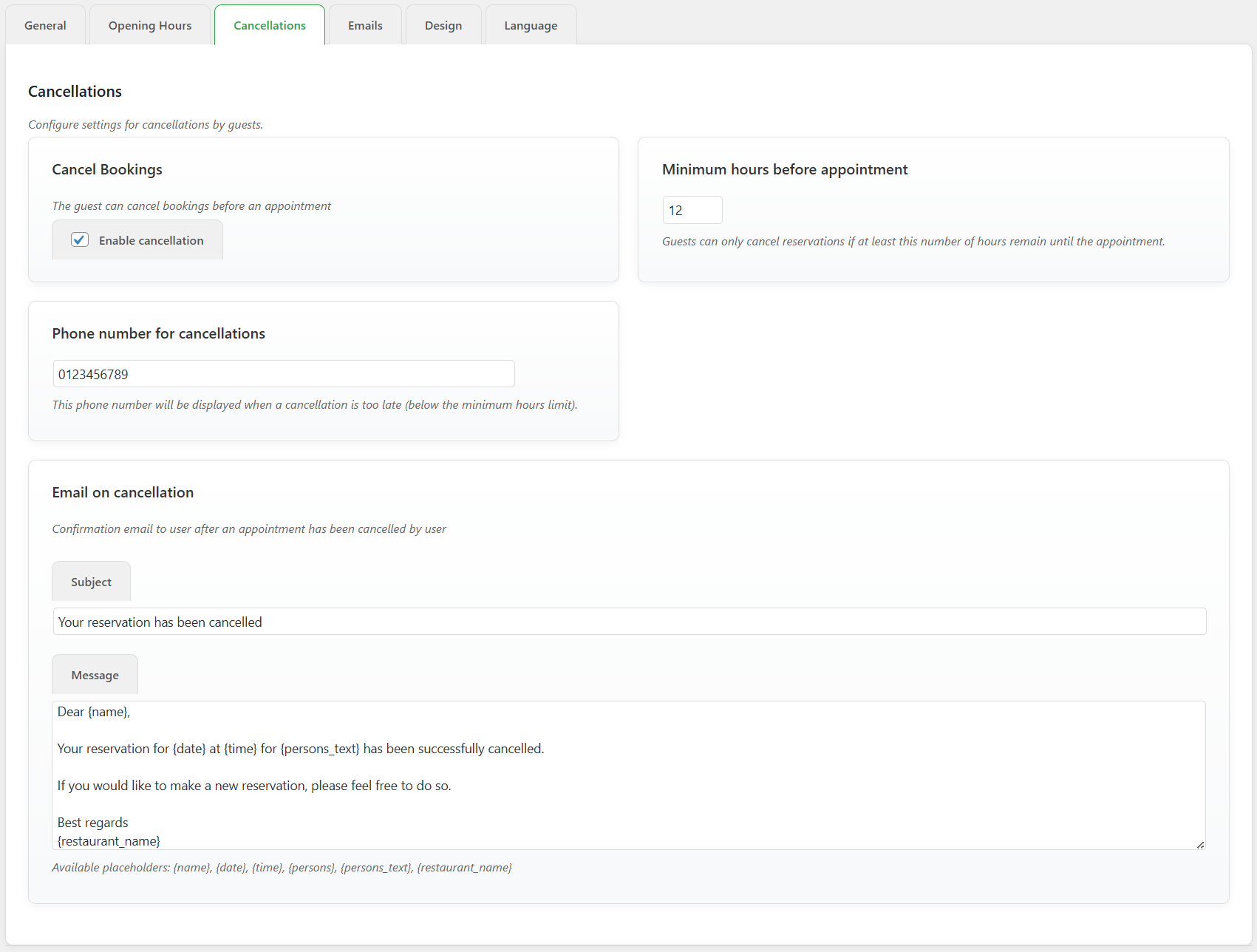
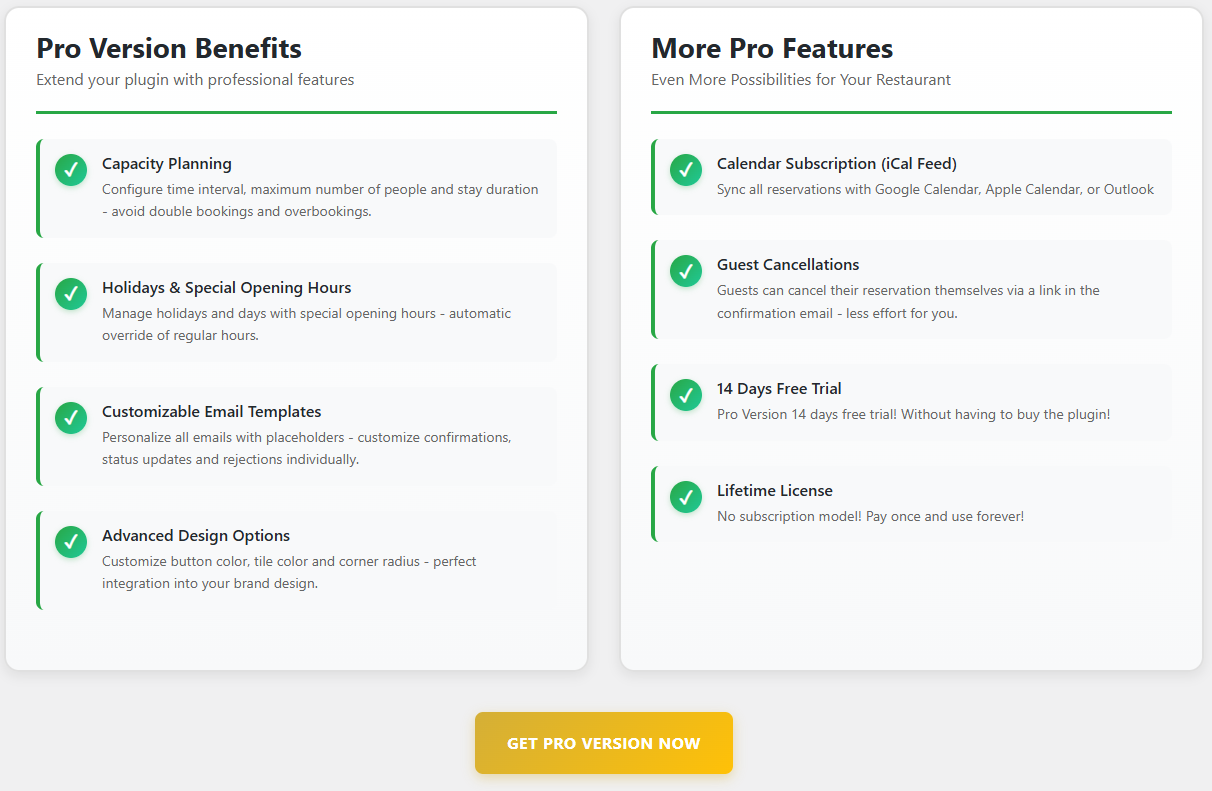
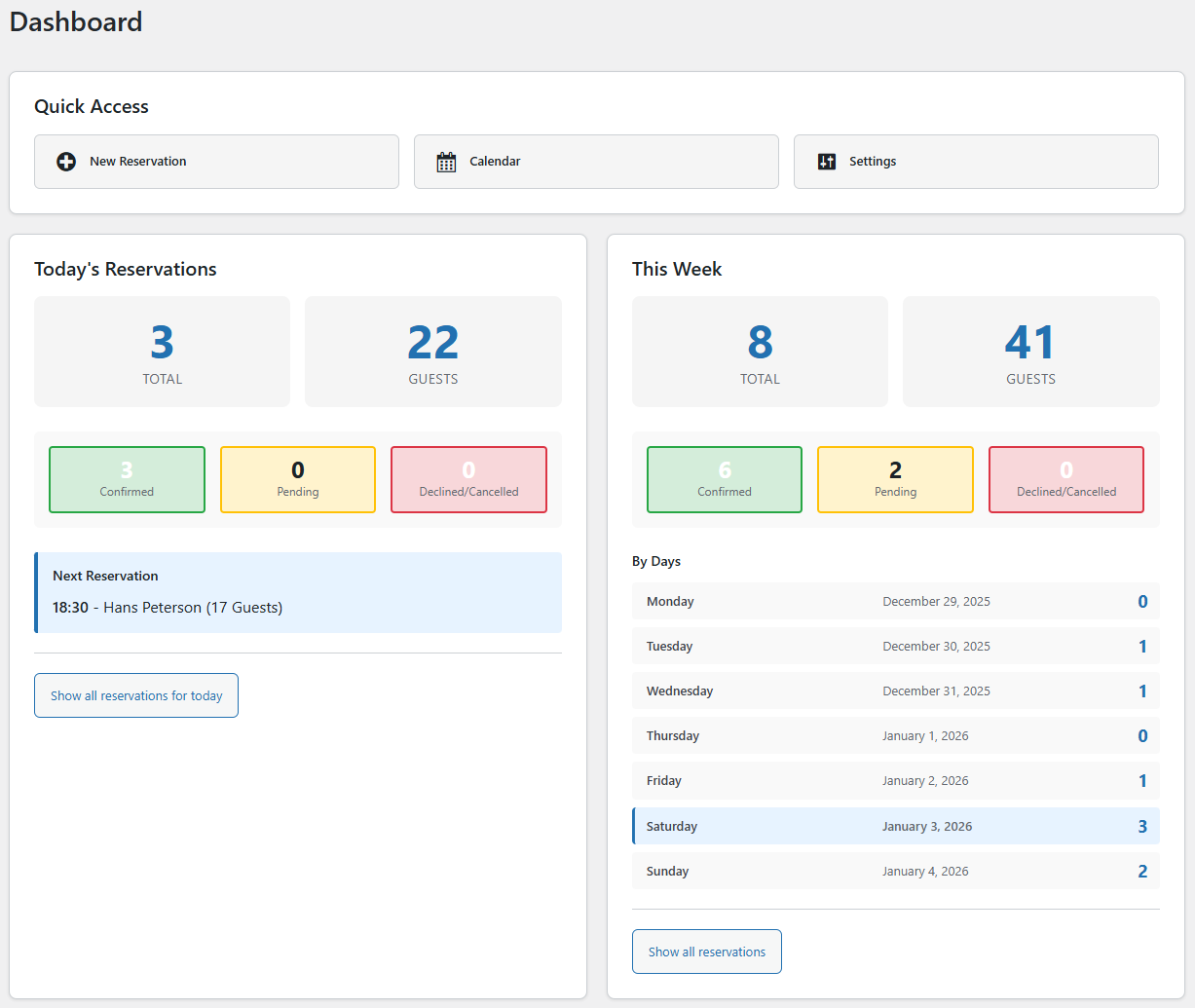
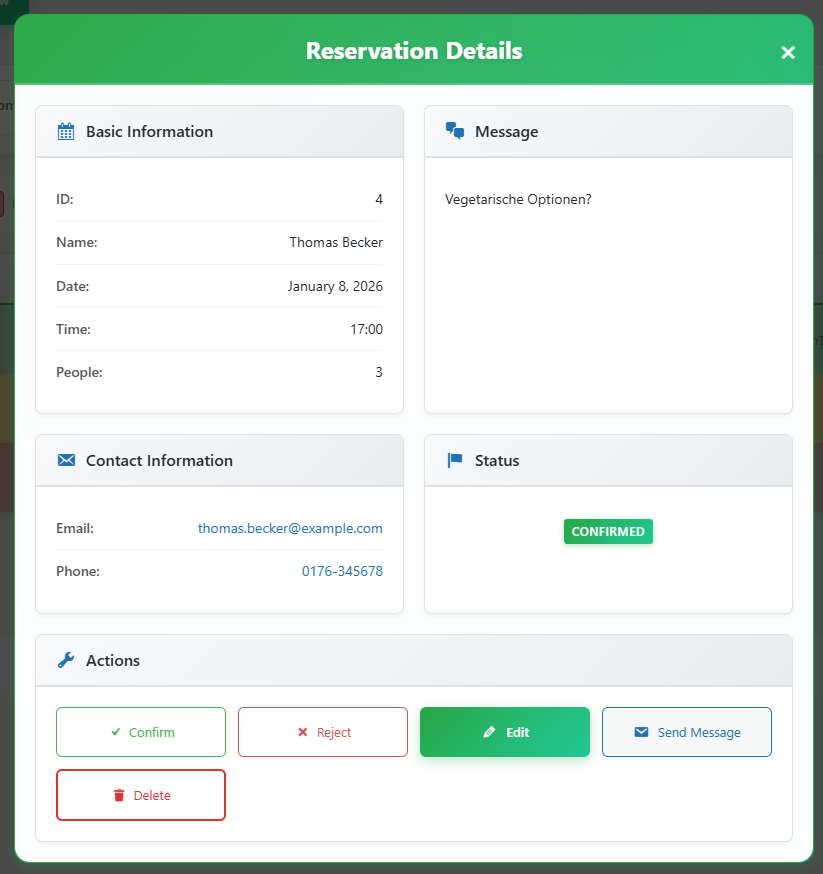
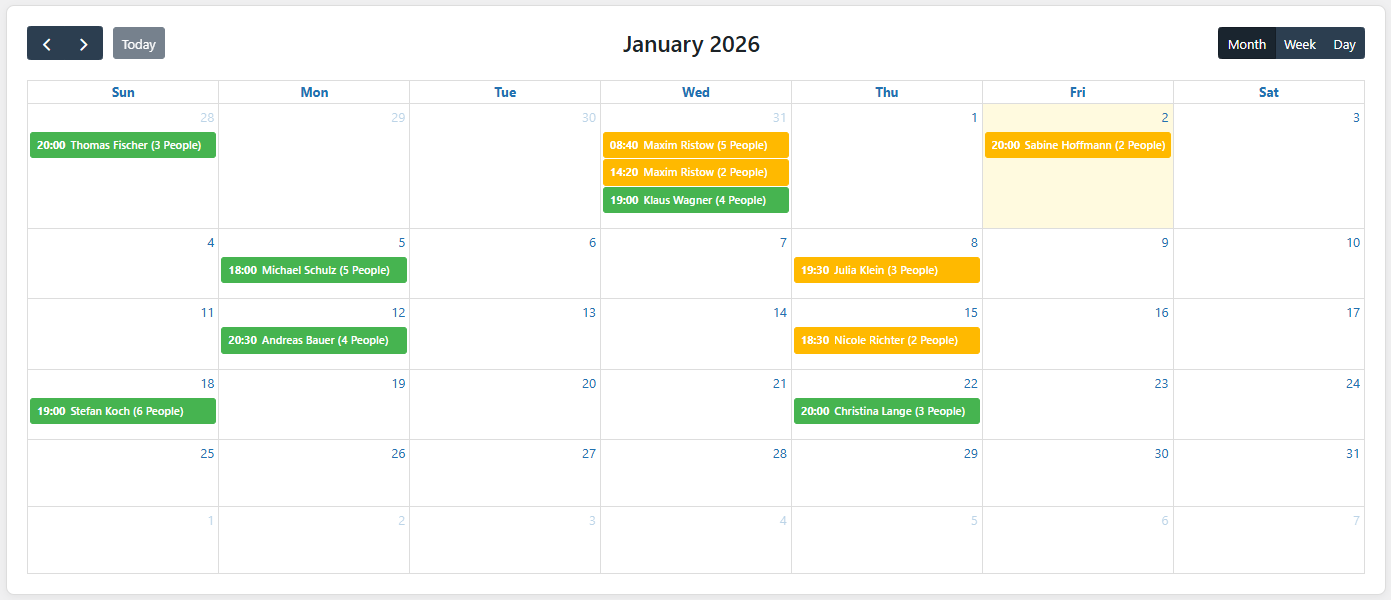
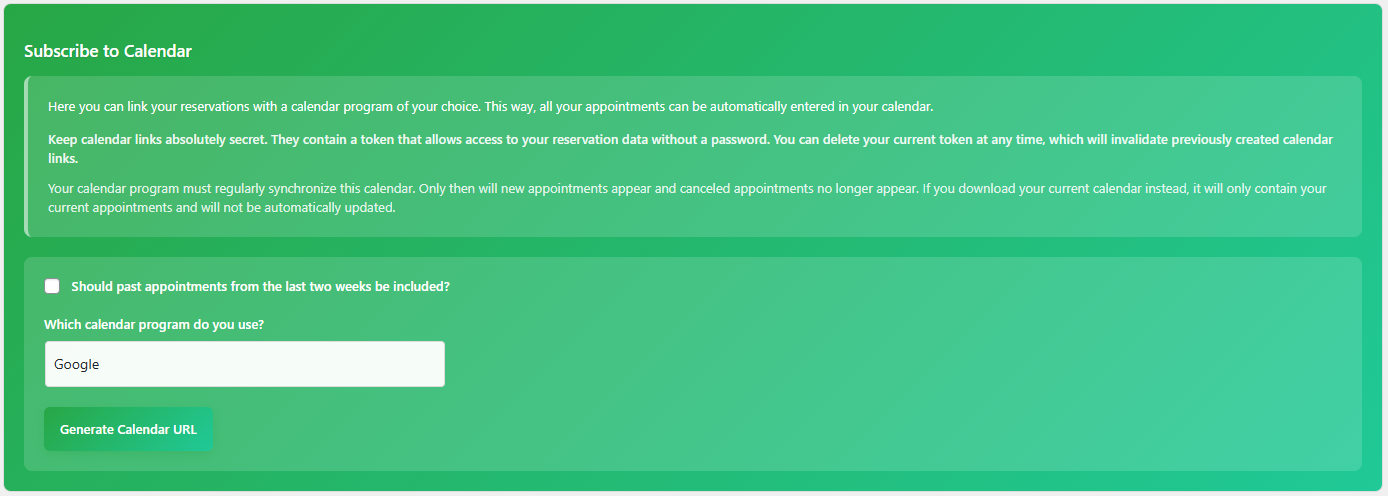
常见问题:
How do I add the reservation form to my website?
Insert the shortcode [reservation-form] into the text editor of any page or post.
Can I customize the colors of the form?
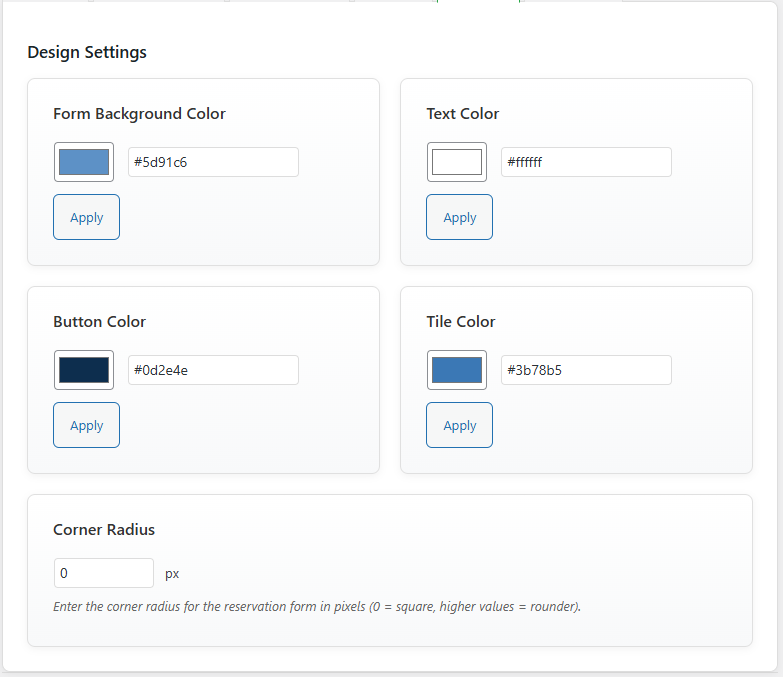
Yes. Go to Reservations > Settings > “Design” tab. There you can customize the background and text colors. The color of the buttons (Pro), the tile color (Pro), and the corner radius* (Pro) are available in the Pro version.
How do I set a day off, e.g., Monday?
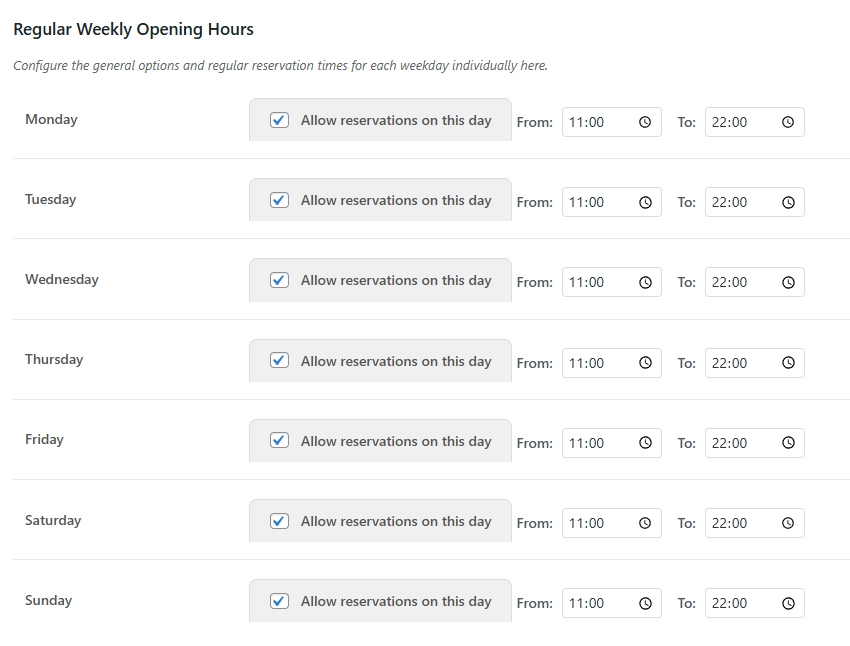
Go to Reservations > Settings > Opening Hours tab > Regular Weekly Opening Hours. Simply uncheck Allow Reservations on this Day for Monday and save your changes.
How do I close my restaurant on a specific holiday?
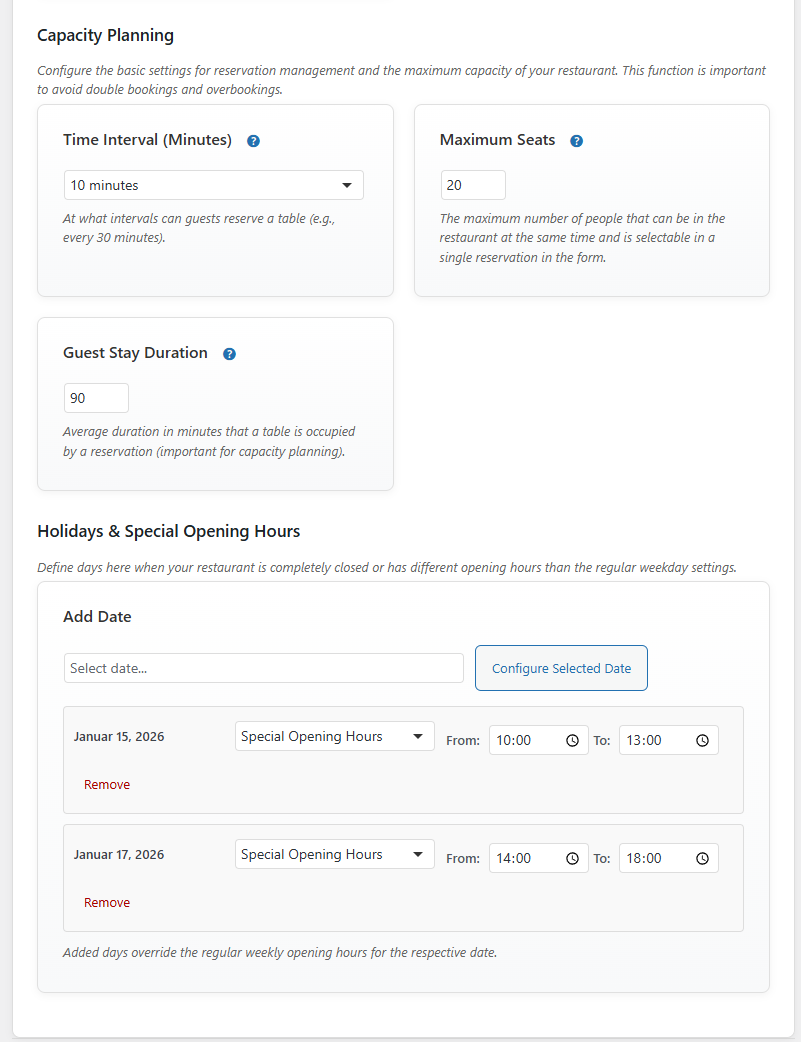
- (Pro) Go to “Reservations” > ‘Settings’ > “Opening Hours” tab > “Holidays & Special Opening Hours.” Select the desired date on the calendar and click “Configure Selected Date.” Ensure that the “Closed all day” option is selected and save the settings.
How do I set special opening hours for a day, e.g., December 24 from 2 p.m. to 6 p.m.?
- (Pro) Go to “Reservations” > ‘Settings’ > “Opening Hours” tab > “Holidays and Special Opening Hours.” Select the date (e.g., December 24) in the calendar, click “Configure selected date,” select “Special opening hours,” and enter the times (2:00 p.m.–6:00 p.m.). Save the settings.
Which languages are supported?
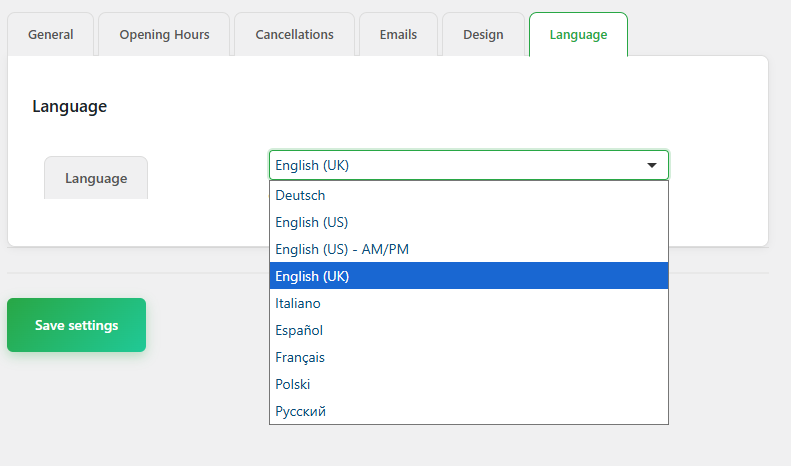
The plugin supports 9 languages: German (de_DE), US English (en_US), UK English (en_GB), US English AM/PM (en_US_AMPM), Italian (it_IT), Spanish (es_ES), French (fr_FR), Polish (pl_PL), and Russian (ru_RU). The default language upon initial installation is English.
How do I change the language of the plugin?
Go to “Reservations” > ‘Settings’ > “Language” tab and select the desired language. After saving, the entire user interface will be displayed in the new language.
Are emails sent in the selected language?
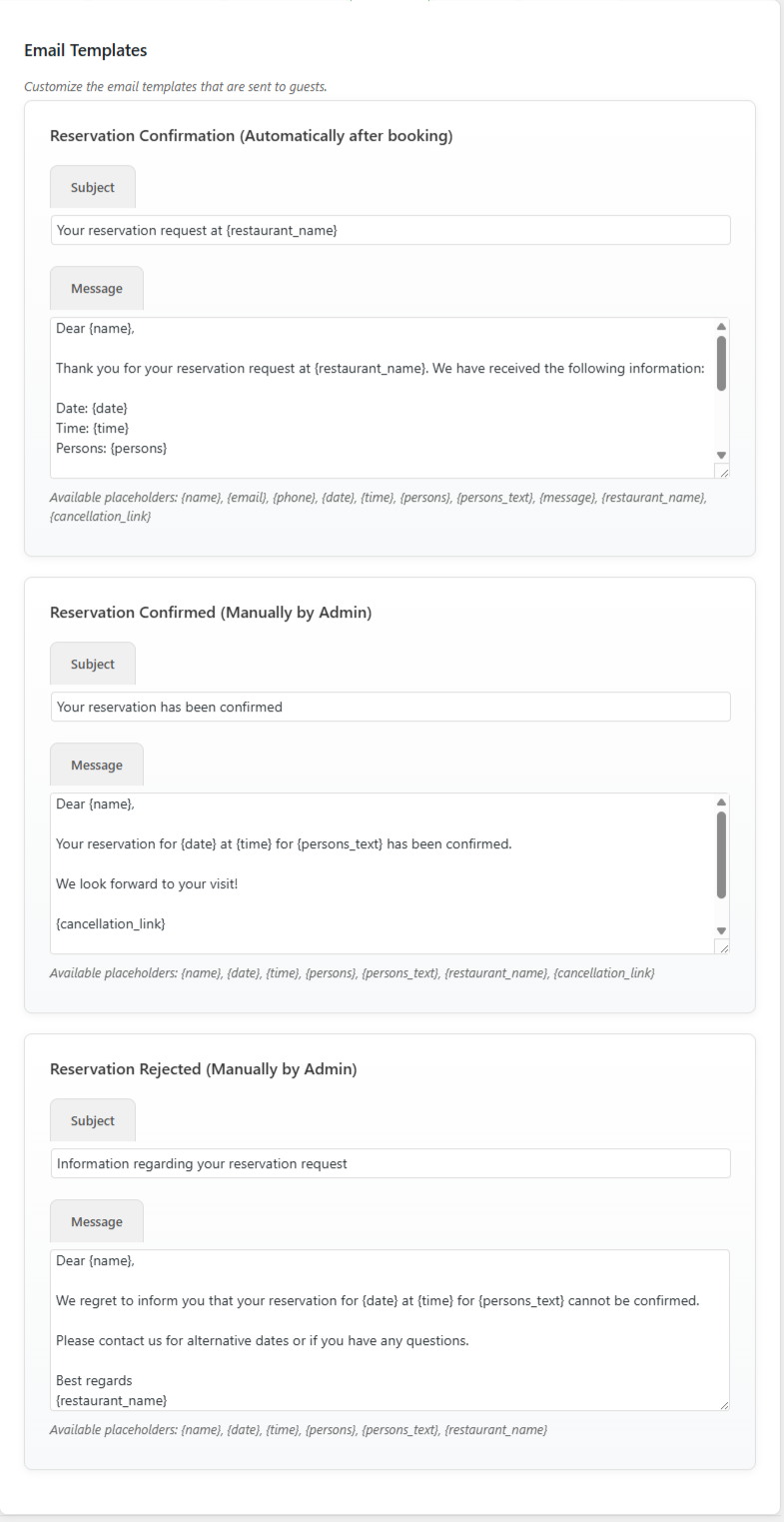
- (Pro) Yes. Emails are automatically sent in the language selected in the plugin settings. You can create separate email templates for each language.
Can I design different email templates for different languages?
- (Pro) Yes. Switch to the desired language in the settings and customize the email templates. Each language has its own templates.
How does the availability check work?
The system takes into account:
- Regular opening hours on weekdays
- Special opening hours* (Pro) for the selected date (if available)
- Existing reservations
- Maximum number of people* (Pro)
- Length of stay* (Pro) per reservation
- Minimum lead time
Is this plugin free?
The plugin offers a free version with basic features. Advanced features marked with * (Pro) are available in the Pro version. You can upgrade under “Reservations” > “Upgrade.”
更新日志:
- FIXED: Dashboard weekly breakdown no longer triggers PHP warnings for undefined weekday array keys when wp_date() returns localized day names.
- TESTED: Plugin fully tested and verified compatible with WordPress 7.1.
- IMPROVED: Various CSS adjustments to ensure consistent admin UI rendering in WordPress 7.1.
- NEW: All guest emails are now sent as styled HTML emails in the free version, including request confirmation, reservation confirmation, and reservation decline emails. Admin notification emails for new reservations are also sent as HTML emails with a clear data table layout.
- IMPROVED: HTML email templates are Outlook-compatible with table-based layouts, inline CSS, and conditional VML support for action buttons.
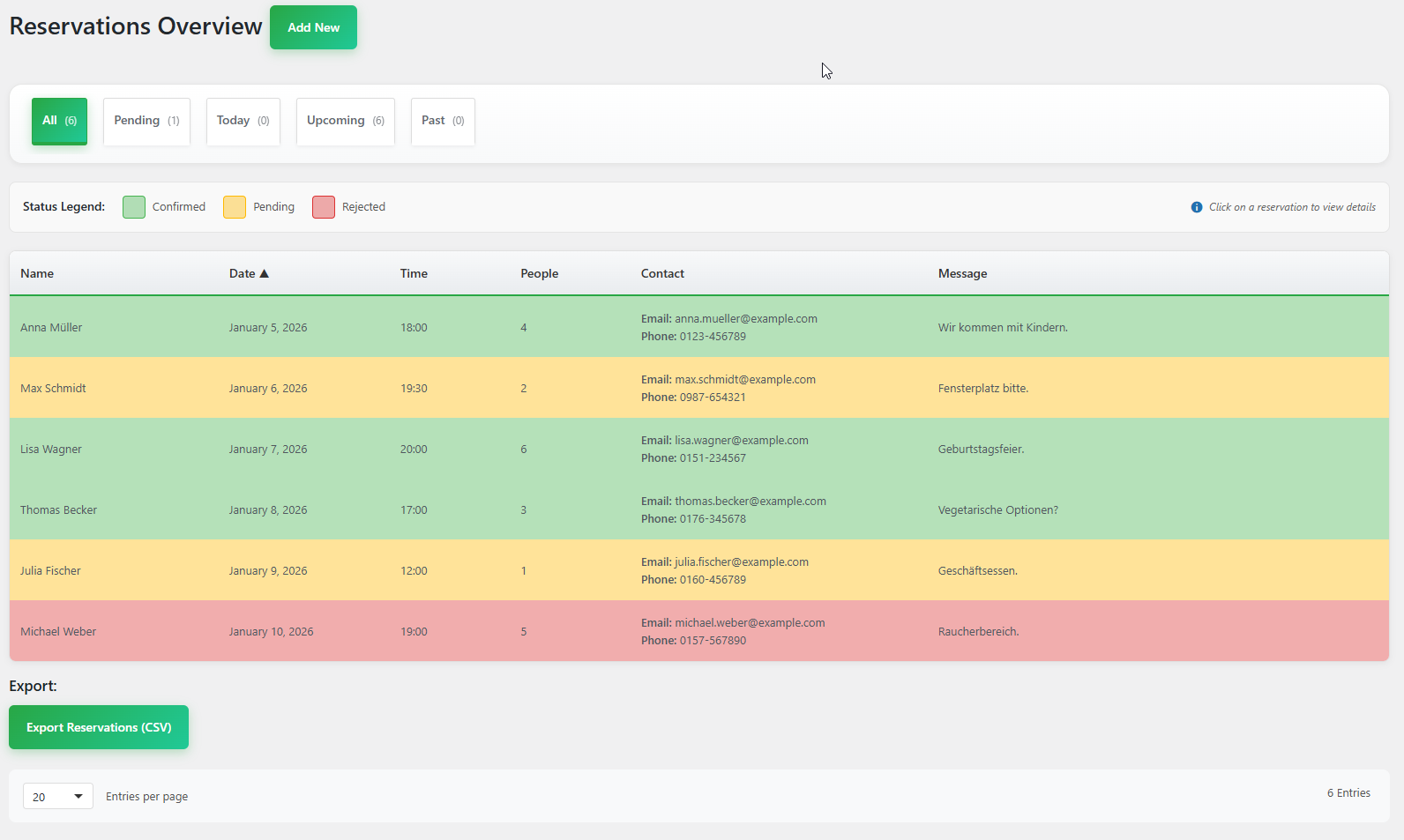
- FIXED: Reservations list view (page=db-reservierungen) now correctly defaults to card view on first load instead of showing both table and card view simultaneously.
- FIXED: View toggle (table/card) on the reservations list page now works reliably on desktop (≥1200px) – switching between table and card view was broken due to conflicting CSS
!importantrules and duplicate rule blocks in the stylesheet. - FIXED: Below 1200px (tablet/mobile), the card view is now always enforced automatically – previously, if the user was in table view and resized the window below 1200px, the table remained visible.
- FIXED: A CSS
@media (max-width: 1199px)override added to ensure.desktop-reservierungen-tabelle.activecannot override the responsive card-only layout on smaller screens. - IMPROVED: View toggle logic refactored to match Pro version – replaced jQuery
.show()/.hide()with.addClass/.removeClass+.removeAttr('style')and removed unnecessaryisLargeScreen()complexity. - IMPROVED: Added
checkScreenSize()with debounced resize handler in JS – automatically switches to card view when screen drops below 1200px and restores the user's previous preference when returning to desktop width.
- IMPROVED: Occasion and Dwell time fields in "New Reservation" and "Edit Reservation" now display a transparent golden overlay instead of an opaque block – the full field UI remains visible and a tooltip on hover indicates that this feature is available in the Pro version only.
- NEW: Translations for all new admin reservation form strings (Occasion, Dwell time, hint tile) added for all 10 supported languages (de_DE, en_GB, en_US, en_US_AMPM, nl_NL, it_IT, es_ES, fr_FR, pl_PL, ru_RU).
- FIXED: Internationalization line updated – Dutch (nl_NL) was missing from the list of supported languages despite being fully implemented since v1.1.7.
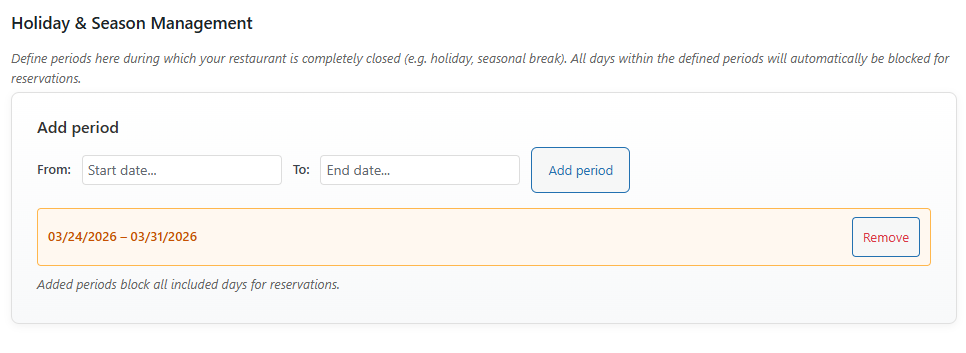
- NEW: Vacation & Season Management section added to the Opening Hours settings tab (Pro) – define closed periods (e.g. company holidays, seasonal breaks) that automatically block all days within the range for reservations.
- NEW: Translations for all Vacation & Season Management strings added for all 10 supported languages (de_DE, en_GB, en_US, en_US_AMPM, nl_NL, it_IT, es_ES, fr_FR, pl_PL, ru_RU).
- FIXED: Datepicker month and day names for
de_DEwere incorrectly set to English — corrected to proper German names (Januar–Dezember, Sonntag–Samstag) - FIXED:
fr_FRmonth nameMaycorrected toMai; min day name abbreviations corrected to French (Di, Lu, Ma, Me, Je, Ve, Sa) - FIXED:
it_IT,es_ES, andpl_PLmin day name abbreviations corrected — several entries contained wrong English values (e.g.Thu,Sat,Sun) - NEW:
ru_RUadded tomrtr_get_datepicker_month_names()andmrtr_get_datepicker_day_names()— Russian was a supported language but missing from the translation arrays - FIXED: All datepicker language lookups now use
mrtr_get_current_language()instead ofmrtr_get_option()directly — ensures the language override and WordPress auto-detection are respected in frontend, admin new reservation, admin edit reservation, and settings pages
- FIXED: "Tomorrow" date option in reservation form displayed the same date as "Today" —
current_time()does not accept a timestamp offset; replaced withdate()usingcurrent_time('timestamp')+ 1 day
- FIXED: Duplicate Google Calendar translation entry removed from all .po files — the sync script had added a second entry with incorrectly double-escaped quotes that WordPress could not resolve
- CHANGED: Shortcode renamed from
[reservierungsformular]to[reservation-form]for better readability and international usability
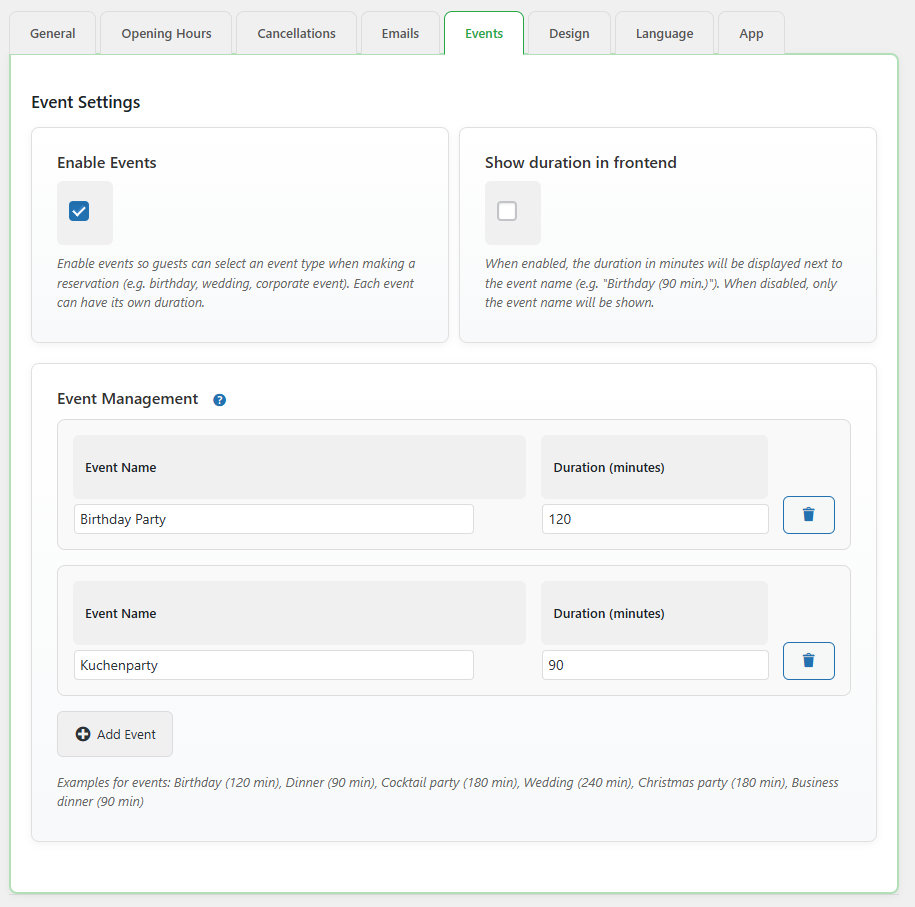
- FIXED: "Enable Events" and "Show Duration in Frontend" toggles in the Events tab replaced with standard checkboxes to match the styling of all other settings fields
- FIXED: Language dropdown in settings now correctly displays "Russian" instead of Cyrillic "Русский" - msgid changed from Cyrillic to English in PHP source, POT, and en_GB translation file
- CHANGED: Complete migration of plugin base language from German (de_DE) to English (en_US) - All hardcoded strings in PHP and JS files now use English as the source language
- NEW: Dutch (nl_NL) language support added - Full translation, email templates, calendar locale, and date/day formatting
- NEW: Occasion Types tab in settings - Preview of Pro feature (Pro)
- NEW: Occasion Types management in Pro version - Create different types of occasions guests can select (Birthday Party, Wedding, Business Dinner, Anniversary, etc.) with individual durations for each type (Pro)
- NEW: Occasion Types are displayed as selectable options in the reservation form (Pro)
- NEW: Live form preview in Design tab - See all color and style changes applied to a real form preview in real time (Pro)
- NEW: Form Headings section in Design tab - 8 customizable heading cards for each form step (Pro)
- NEW: Language tab completely redesigned with 3-card layout: auto-detected WordPress language, manual language override, and active language display
- NEW: Language override option - Override the automatic WordPress language detection with a manually selected plugin language
- NEW: App settings tab now visible in free version with PRO lock overlay to showcase PWA capabilities
- IMPROVED: Settings page fully redesigned - All tabs now use a modern card-based layout replacing the old form-table layout
- IMPROVED: Language loading now consistently uses the language override setting across all plugin components
- IMPROVED: Dutch (nl_NL) removed from free version language selection (available in Pro)
- IMPROVED: Complete translation updates for all 9 language files (de_DE, en_US, en_GB, en_US_AMPM, es_ES, fr_FR, it_IT, pl_PL, ru_RU) with Language tab and Form Headings strings
- FIXED: Language tab content no longer bleeds into other settings tabs due to missing HTML wrapper
- FIXED: Language override selection now correctly saves and applies on the next page load
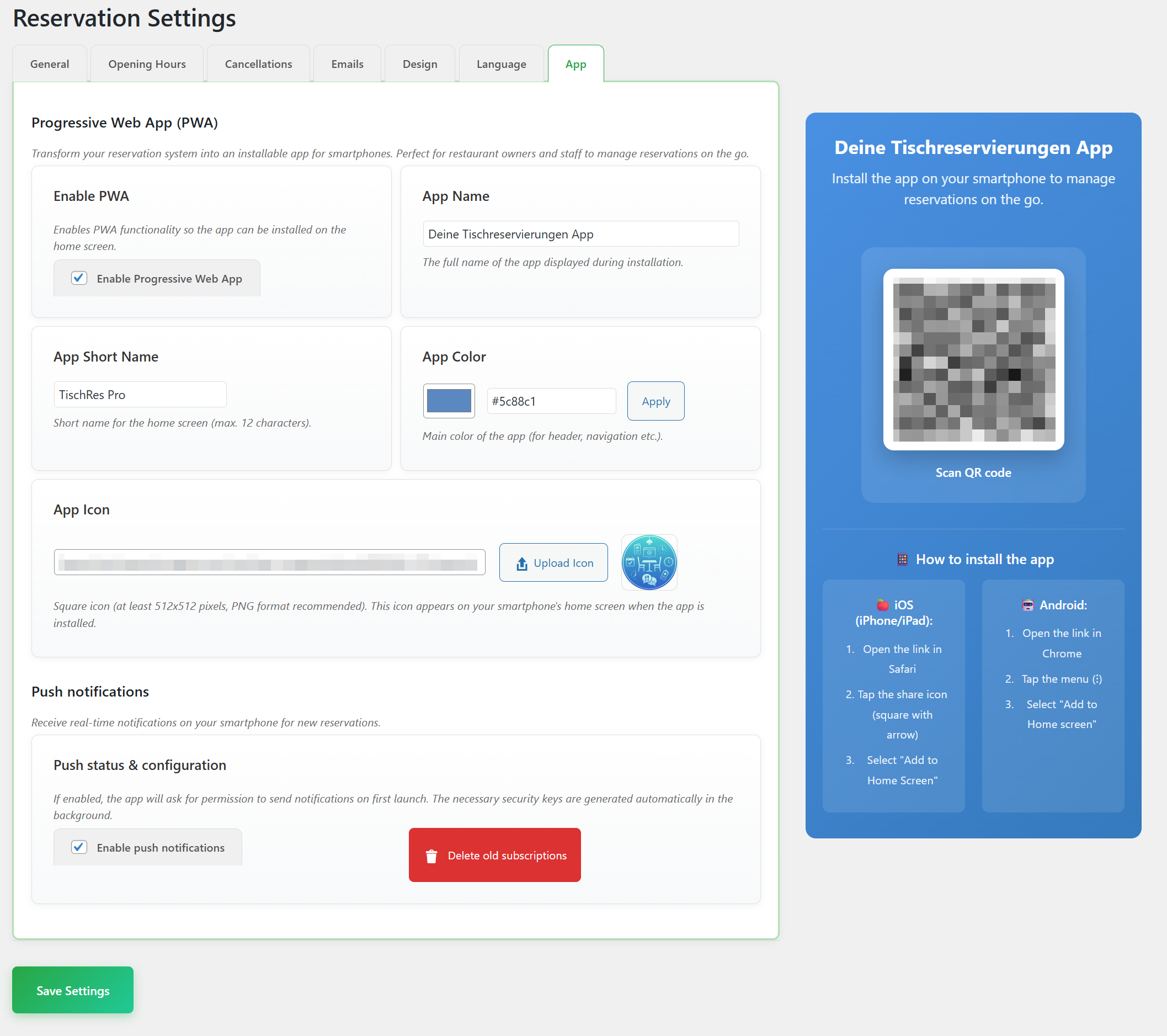
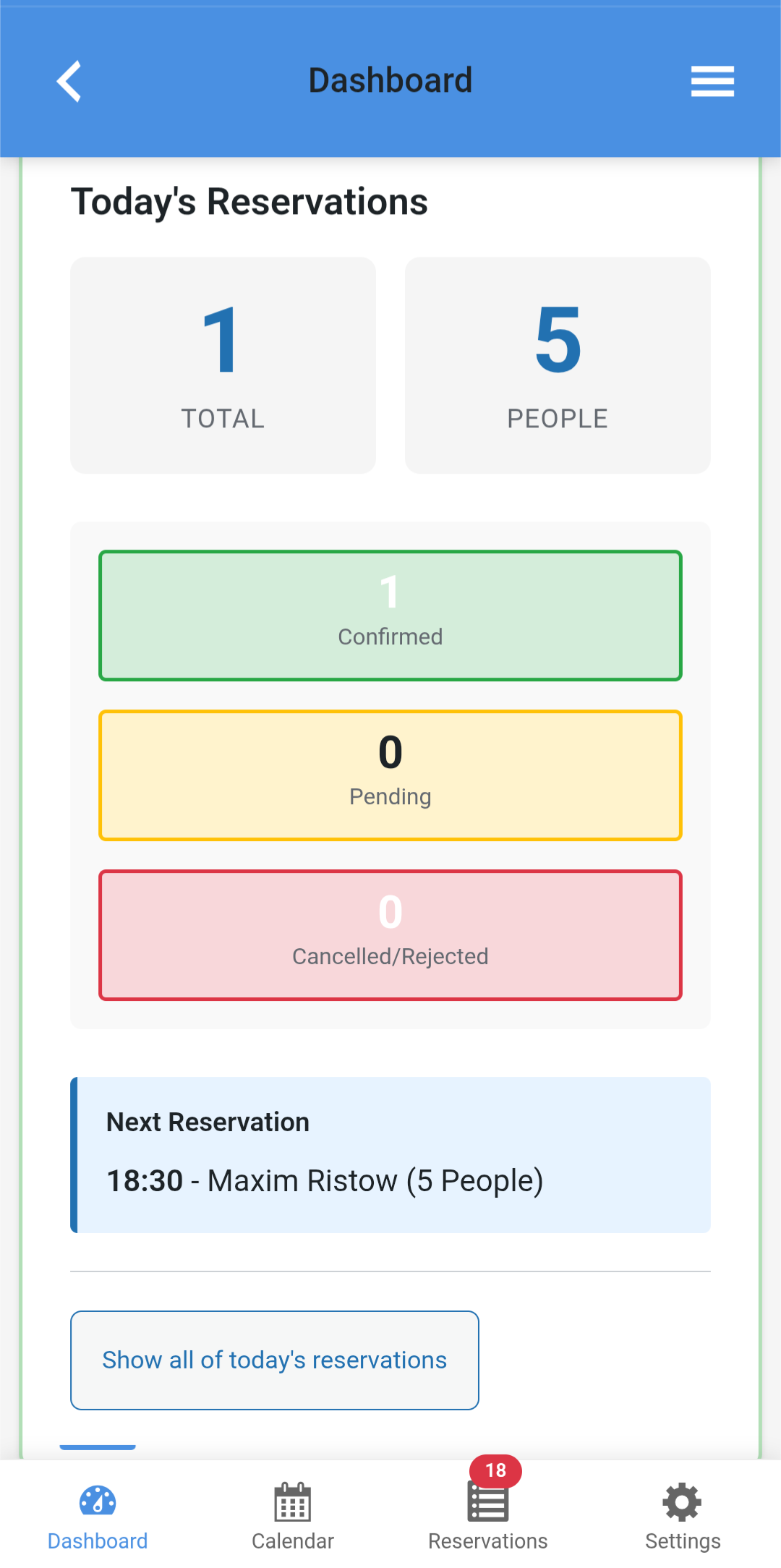
- NEW: Progressive Web App (PWA) functionality in Pro version - Transform your reservation system into a smartphone app
- NEW: App installation feature with QR code generation for iOS and Android
- NEW: Push notifications for reservation confirmations and reminders (Pro)
- NEW: Offline functionality with automatic synchronization (Pro)
- NEW: Custom app branding - Configurable app name, icon, and theme colors (Pro)
- NEW: "App" settings tab with PWA configuration options (Pro)
- NEW: PWA feature card on upgrade page showcasing app capabilities
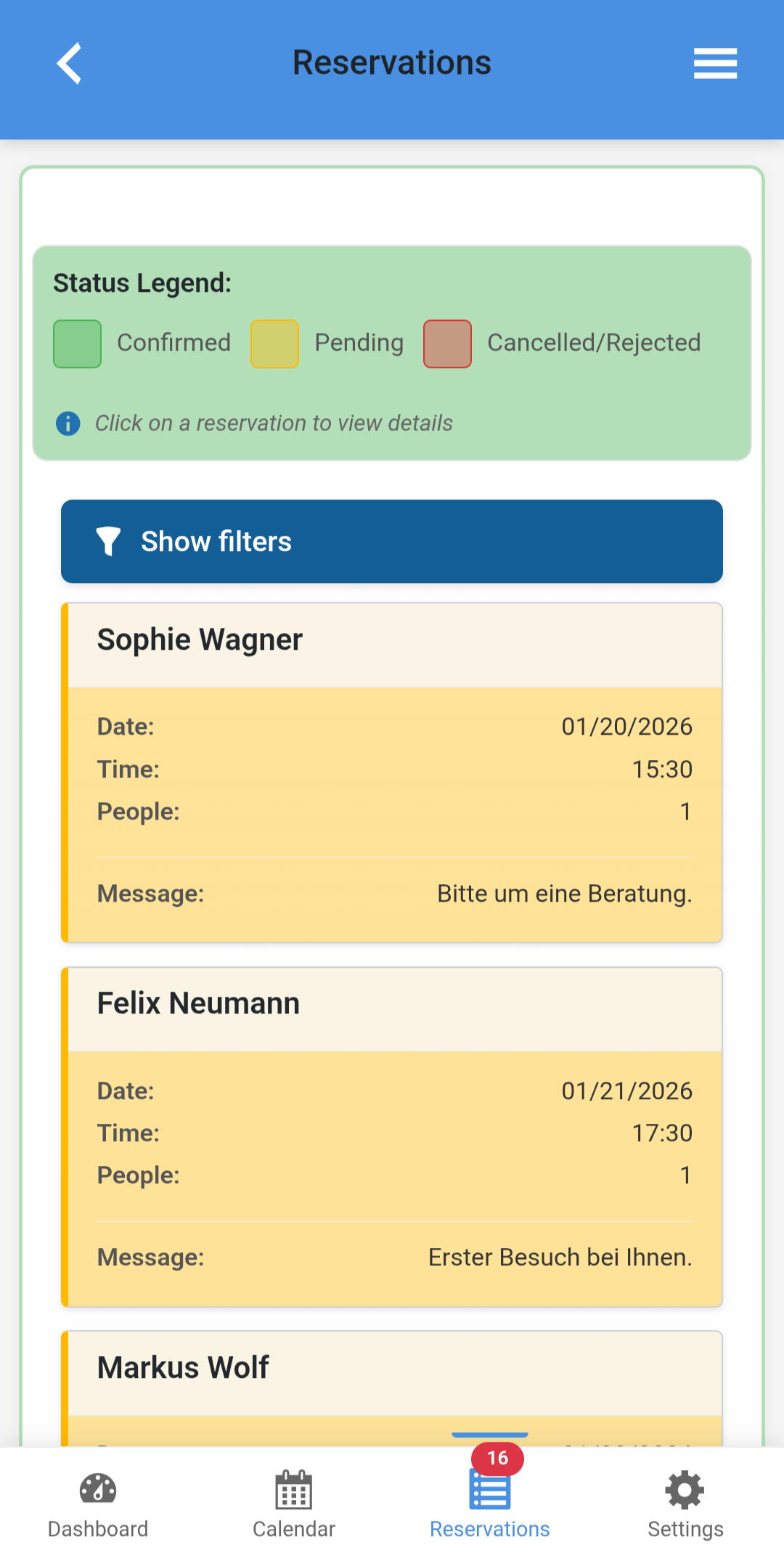
- NEW: View toggle for reservation list - Switch between table view and card view
- NEW: Optimized card view with responsive grid layout (4/3/2/1 columns based on screen size)
- IMPROVED: Card view simplified for cleaner, more focused display
- IMPROVED: Responsive design - Card view automatically adapts to screen size
- IMPROVED: Backend admin menu styling with gradient effects and emoji icons
- IMPROVED: Enhanced visual hierarchy in reservation list
- IMPROVED: Mobile optimization for reservation management
- IMPROVED: Complete translation coverage for all new PWA-related strings in 9 languages
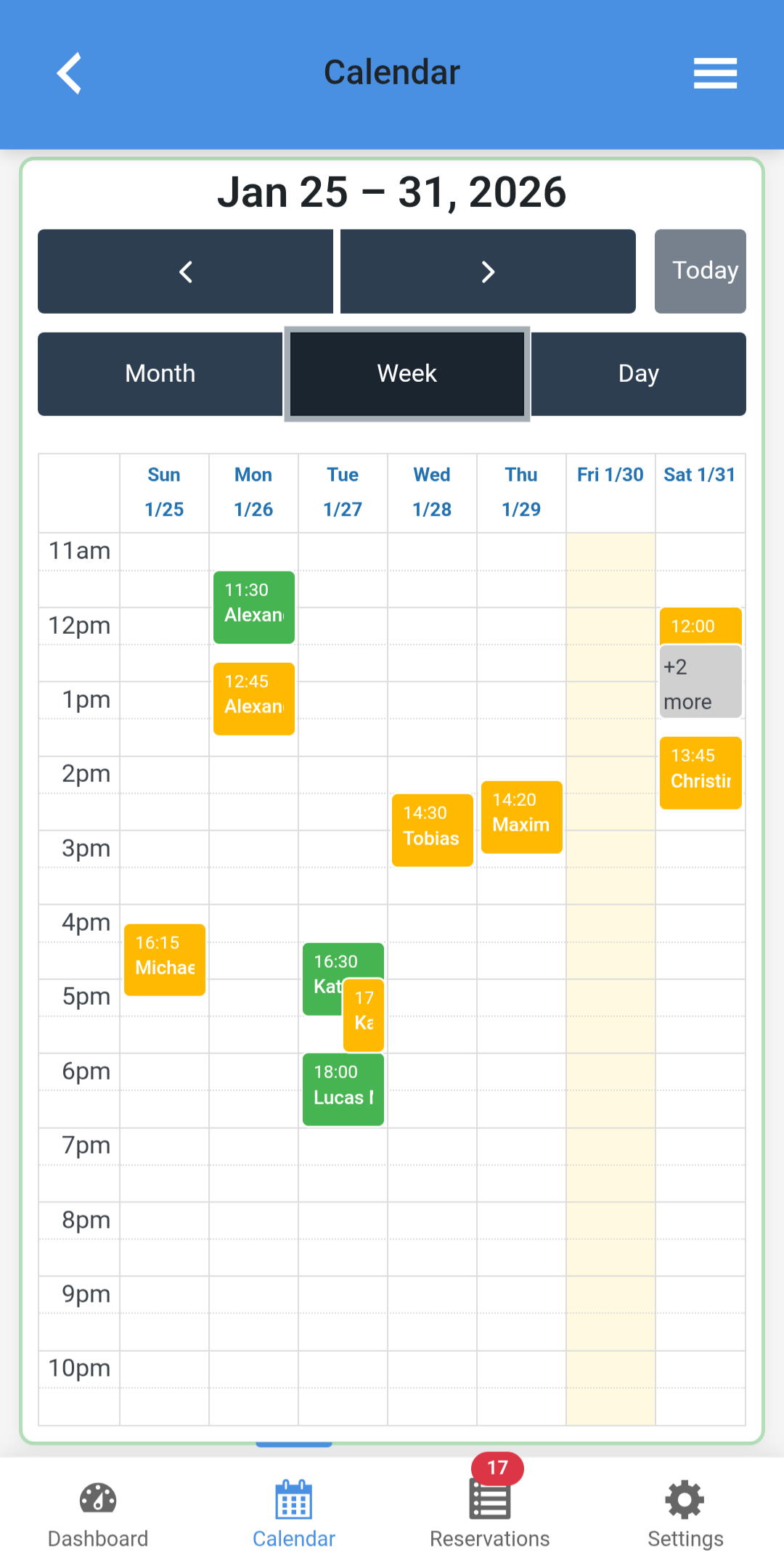
- NEW: Dynamic calendar time slots - Week and day views automatically adjust to opening hours
- IMPROVED: Week view now shows earliest to latest time across all weekdays
- IMPROVED: Day view displays only the specific day's opening hours
- IMPROVED: Closed days automatically fall back to global time range
- IMPROVED: All calendar view buttons (Month/Week/Day) now visible on mobile devices
- NEW: Russian (ru_RU) language support added
- NEW: English (UK) (en_GB) language support added
- NEW: Complete internationalization with 6 supported languages (DE, EN, IT, ES, FR, PL)
- NEW: Language-specific email templates with standard templates for all languages
- NEW: Translated calendars (months and weekdays) in frontend and backend
- NEW: Corner radius setting for form design
- NEW: Special opening hours are considered when manually creating reservations
- NEW: Management for holidays and special opening hours added. Days can now be completely closed or given different hours.
- NEW: CSV export function for reservations.
- First release of the plugin.
- Main features: Online reservation form, backend management, customizable emails, and weekly opening hours.