
Modulary Export – Order Export to Excel & CSV for WooCommerce
| 开发者 | vldmoraru |
|---|---|
| 更新时间 | 2026年11月13日 23:51 |
| PHP版本: | 8.1 及以上 |
| WordPress版本: | 7.1 |
| 版权: | GPLv2 or later |
| 版权网址: | 版权信息 |
详情介绍:
- Choose orders – a date range, statuses, and filters for product, category, customer, payment method, shipping method and coupon.
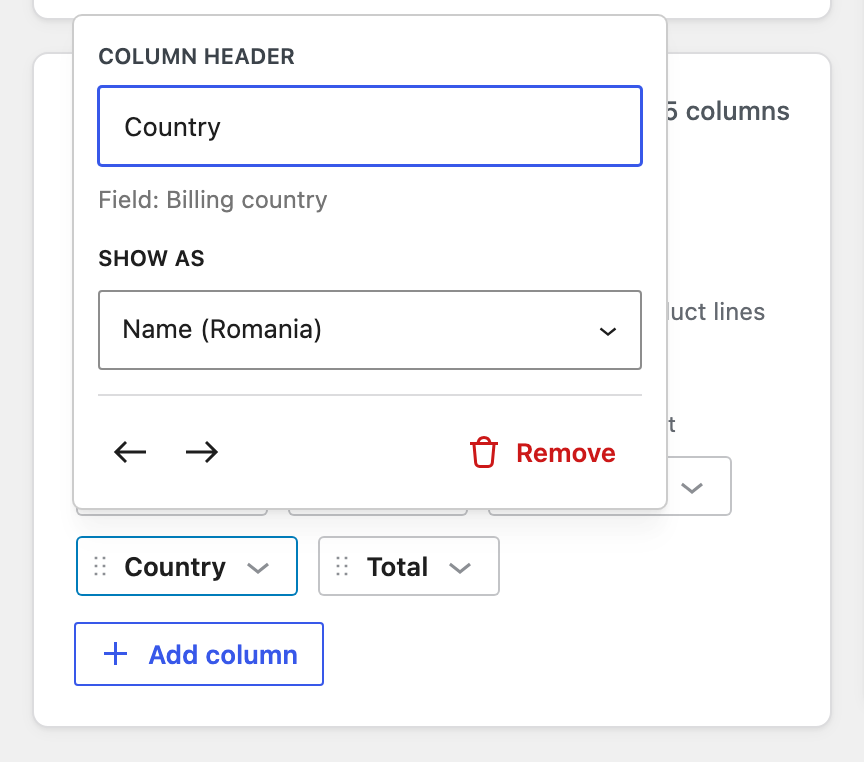
- Columns – choose whether each row is an order or a product line, add columns by search, drag to reorder, rename headers.
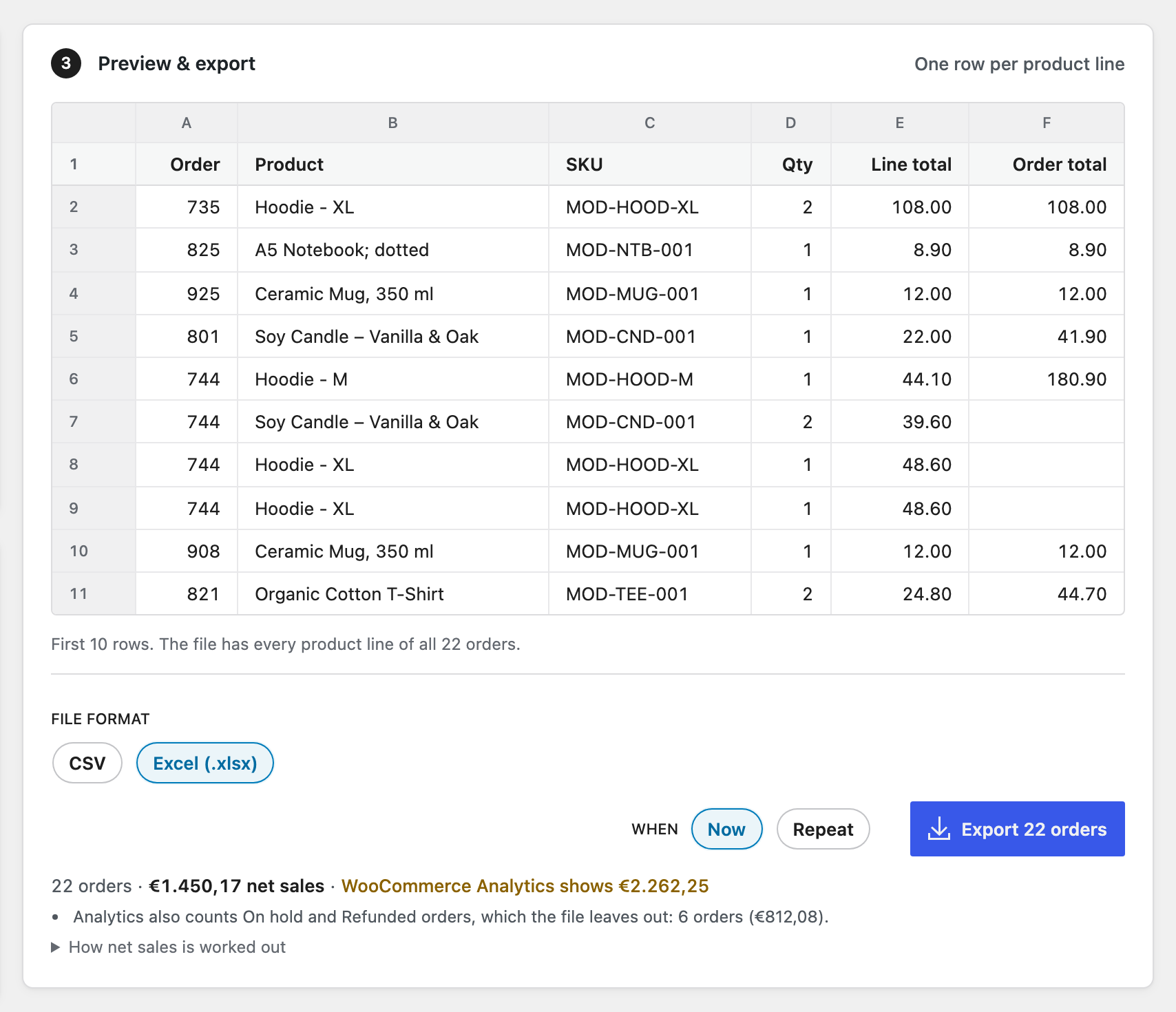
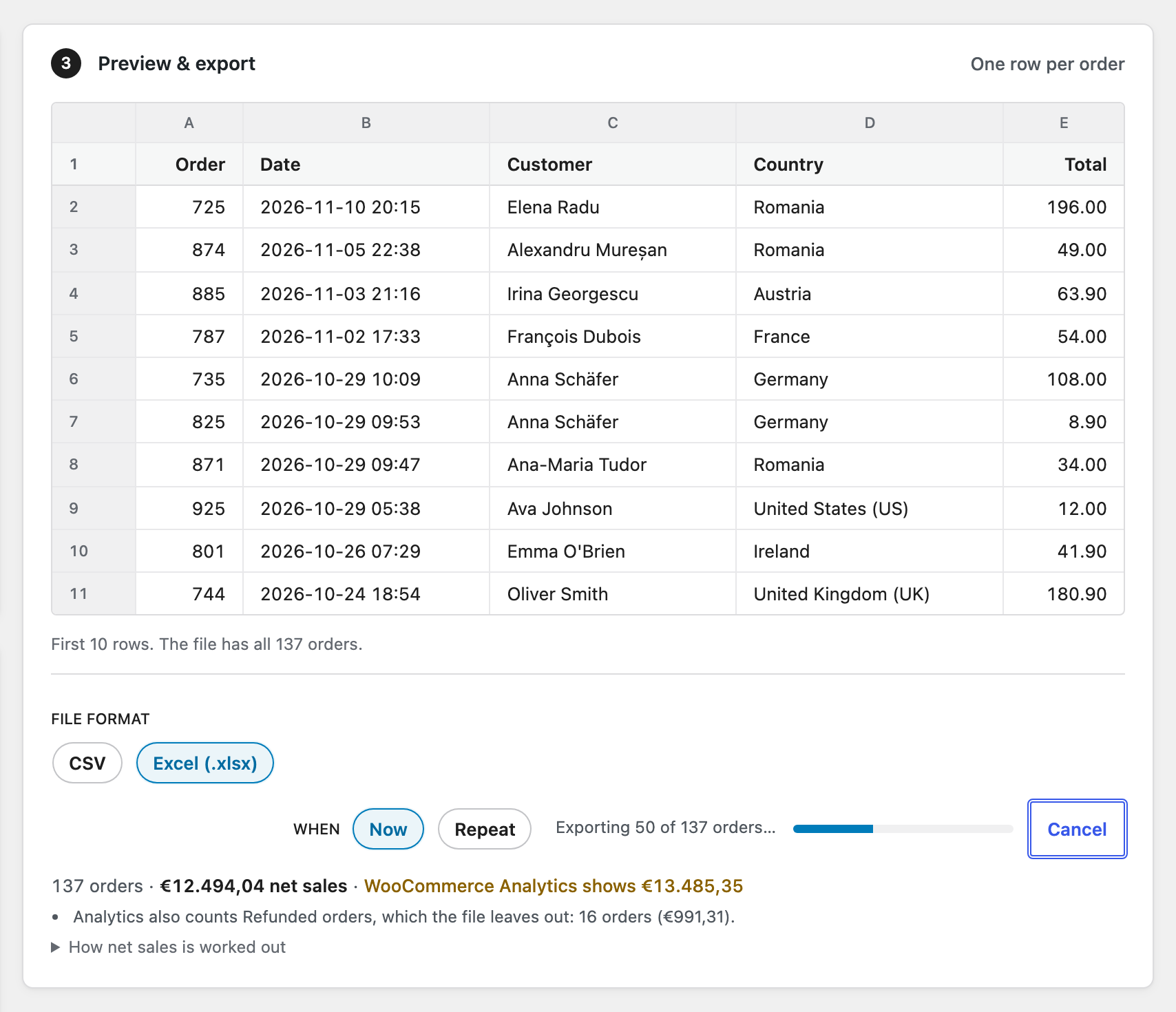
- Preview & export – the first rows exactly as your spreadsheet will show them, then download the file.
- Opens correctly in Excel, Numbers and Google Sheets (UTF‑8 with BOM, delimiter matched to your locale).
- Excel (.xlsx) download too: totals, quantities and dates are real numbers and dates, the header row is bold and frozen.
- Presets for the exports merchants actually run: Last 30 days, Completed this month, Products sold last month, Needs shipping.
- Last export loads the store's most recent export again, ready to run.
- Saved templates: name an export once, then it is a click away, for every shop manager on the store. Dates like Last month move on by themselves.
- Export selected: tick orders on the WooCommerce Orders screen and open them straight in the builder.
- One row per order, or one row per line item – your call. In product-line mode, order totals fill each order's first line only, so column sums are right.
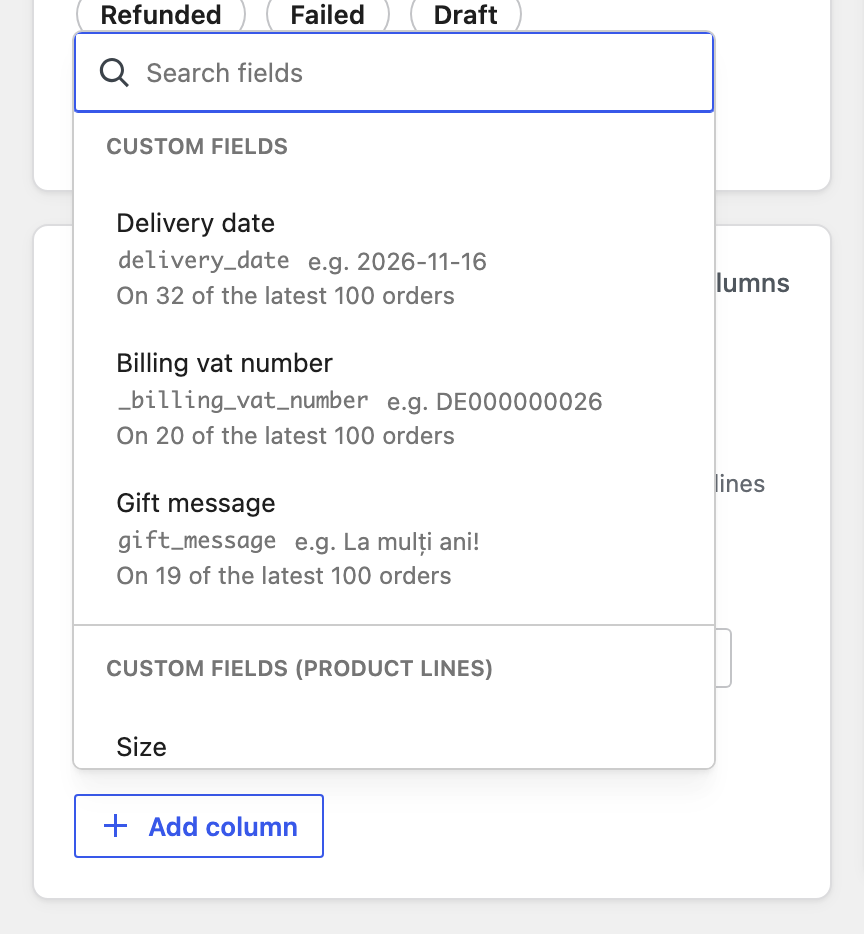
- Custom fields: Add column finds the fields other plugins store on your orders and product lines (delivery dates, VAT numbers, gift messages, engravings), shows an example value for each, and warns when one is only a copy of a built-in column.
- Country and state names instead of codes, and the date format you choose.
- Totals check: the footer shows how many orders the export holds and their net sales, and whether that matches WooCommerce Analytics.
- Big exports run in the background with a progress bar and a Cancel button. No timeouts, no half-finished files, even on hosts that stop requests after 30 seconds.
- Full High‑Performance Order Storage (HPOS) support.
- Works with the block checkout.
- No external services, no accounts, nothing leaves your site.
- Ready for your store's language: everything from the builder to the column headers in the file is translatable.
安装:
- Upload the plugin files to
/wp-content/plugins/modulary-export, or install through the WordPress plugins screen. - Activate the plugin. WooCommerce must be active.
- Go to WooCommerce → Export.
屏幕截图:
常见问题:
How do I export WooCommerce orders to Excel?
Go to WooCommerce → Export, pick a preset such as Last 30 days (or your own dates and statuses) and the columns you want, choose Excel (.xlsx) in step 3, then click Export. The preview shows the first rows exactly as the file will.
Can I export product names, SKUs and quantities?
Yes. In step 2 set "Each row is" to A product line and add the Product, SKU, Quantity, Unit price and Line total columns. Each order's totals stay on its first line, so the column sums are right.
Can I export customer emails, phone numbers and addresses?
Yes: email, phone, company, billing and shipping addresses, countries and states (as names or codes), the customer note, and the custom fields other plugins save on your orders.
Can I export orders from a date range or with a certain status?
Yes. Pick a ready range like last month or the last 30 days, or your own dates; any order statuses; and whether the dates mean when an order was placed or completed. Filters for product, category, customer, payment method, shipping method and coupon narrow it further.
Does it work with HPOS?
Yes. Modulary Export reads orders exclusively through the WooCommerce order API, so it works with both High‑Performance Order Storage and the legacy posts storage.
Is it really free?
Yes. Excel and CSV files, custom fields, saved templates, every filter, the totals check and background exports are all in the free plugin, with no order limits and no licence key. Pro is a separate add-on for exports that run on a schedule without you.
My export totals don't match WooCommerce Analytics
The footer under the preview shows how many orders the file holds and their net sales, and checks them against WooCommerce Analytics. When they differ, it says why in plain words, for example orders Analytics hasn't imported yet or that changed since, test payments, order statuses Analytics leaves out, or refunds made outside your dates. In A product line mode each order's totals sit on its first line only, so the sums aren't inflated.
Which file formats are supported?
Excel (.xlsx) and CSV, both in the free version.
Can I export line items as separate rows?
Yes – in step 2 set "Each row is" to A product line, or pick the Products sold last month preset.
Can I export custom fields (order meta)?
Yes, in the free version. In step 2 open Add column: below the built-in columns are the custom fields found on your latest 100 orders and their product lines, with an example value and how many orders have each. A field that only exists on older orders can be added by typing its exact key.
How big an export can it handle?
Exports run as a background job in small steps, each well inside a typical 30‑second host limit, so tens of thousands of orders export fine on shared hosting. Keep the export page open until the progress bar finishes.
Where are export files stored?
While an export runs, its files sit in a temporary folder inside wp-content/uploads/modulary-export/ with an unguessable name. Only shop managers can download them, and they are deleted after download, on Cancel, or when they are left behind. Your uploads folder must be writable.
Does it send any data anywhere?
No. The free plugin makes no external requests, has no telemetry and needs no account.
What does Pro add?
Automation only: scheduled exports, "only orders not sent yet", delivery by email, SFTP, FTPS or FTP, and failure alerts. Pro is a separate plugin that adds to this one; nothing in the free plugin is locked.
Where is the source code of the admin screen?
In the client/ folder of the plugin. build/ is generated from it with @wordpress/scripts: run npm install && npm run build in the plugin folder.
My CSV shows everything in one column in Excel
Pick Excel (.xlsx) as the file format in step 3. To stay with CSV, change "Separator": Excel in countries that use a decimal comma needs the semicolon option; it is picked for you from your store's settings.
更新日志:
- Fix: WooCommerce's own bookkeeping (address copies for its order search, the checkout's debug log, coupons held for unpaid orders) no longer shows up as custom fields under Add column.
- Fix: custom fields under Add column no longer overlap on WordPress 7.1, and a long example value stays on two lines.
- New: the Products sold last month preset downloads an Excel (.xlsx) file.
- New: after your third export, the builder asks once for a review on WordPress.org. Dismiss it and it doesn't come back.
- Changed: the plugin is now called Modulary Export – Order Export to Excel & CSV for WooCommerce.
- Changed: translations are no longer inside the plugin. They arrive with WordPress's language updates once your language is reviewed on translate.wordpress.org; until then the plugin shows in English.
- Changed: the "requires WooCommerce" notice shows only on the Plugins screen, and the export screen leaves WordPress's version in the footer.
- Fix: the "Completed this month" preset picks orders by the date they were completed, so an order placed late last month and completed this month is in this month's file. Templates you saved from this preset before 0.2.1 still use the order date: open the template, set the date to Completed and save it.
- Requires WordPress 6.6 or newer (the export screen needs it).
- New: Excel (.xlsx) download.
- New: filters for product, category, customer, payment method, shipping method and coupon, and a choice between order date and completed date.
- New: saved templates, next to the presets.
- New: custom fields and product-line meta as columns, with example values.
- New: Export selected, from the WooCommerce Orders screen.
- New: country and state names, and date formats, per column.
- New: totals check against WooCommerce Analytics.
- New: big exports run in the background with progress and Cancel.
- New: translations in Romanian, German, French, Spanish, Italian, Dutch, Polish and Portuguese (Portugal and Brazil).
- Initial release.