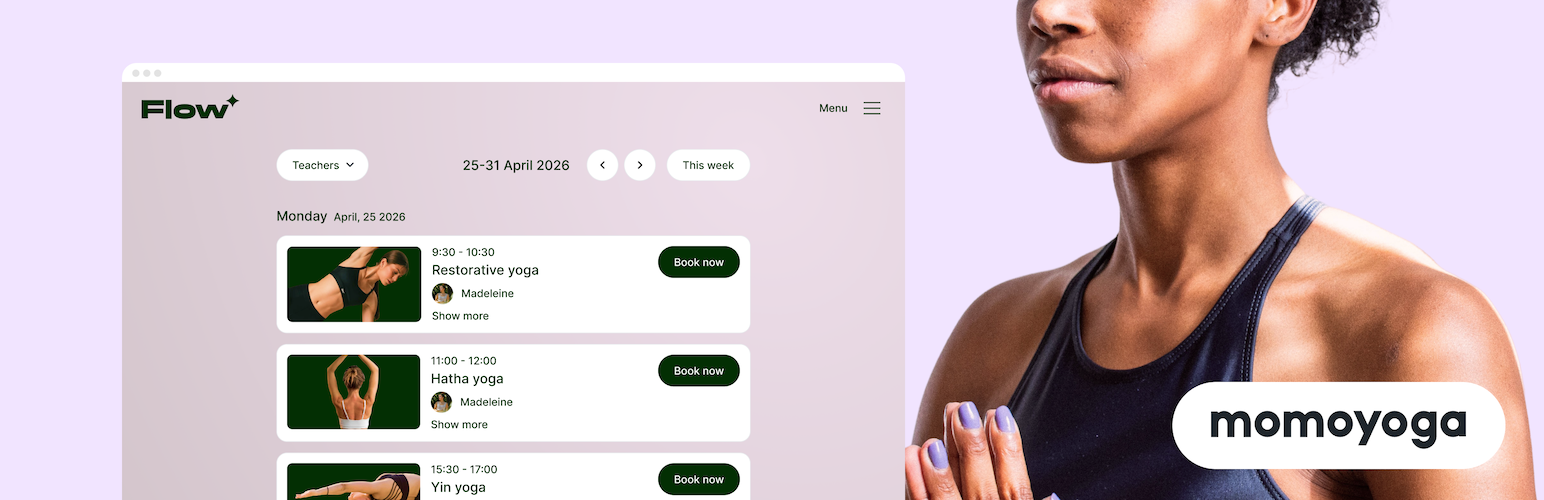
Yoga Schedule Momoyoga
| 开发者 |
momostefan
ingomomoyoga nilsmomo momojoris momoplamen |
|---|---|
| 更新时间 | 2026年10月6日 22:11 |
| PHP版本: | 6.5 及以上 |
| WordPress版本: | 7.1 |
| 版权: | GPLv2 or later |
详情介绍:
Display your Momoyoga schedule directly on your WordPress website and allow your yogis to explore and book classes and events in just a few clicks.
The Momoyoga Website Integration makes it easy for yoga studios and teachers to show their live schedule on their website. Visitors can browse upcoming classes and events, filter by teacher, view class details, and book sessions through Momoyoga, all from the “book now” button on your website.
Your website schedule stays automatically synchronised with your Momoyoga account, so when you update classes, events, or teachers in Momoyoga, the changes appear instantly on your site.
You'll need an active Momoyoga account to use this plugin.
Key Features
Display your live schedule on your website
Embed your Momoyoga schedule on any WordPress page.
Weekly schedule view or List view
Visitors can explore your schedule week by week or in a list, depending on your desired appearance.
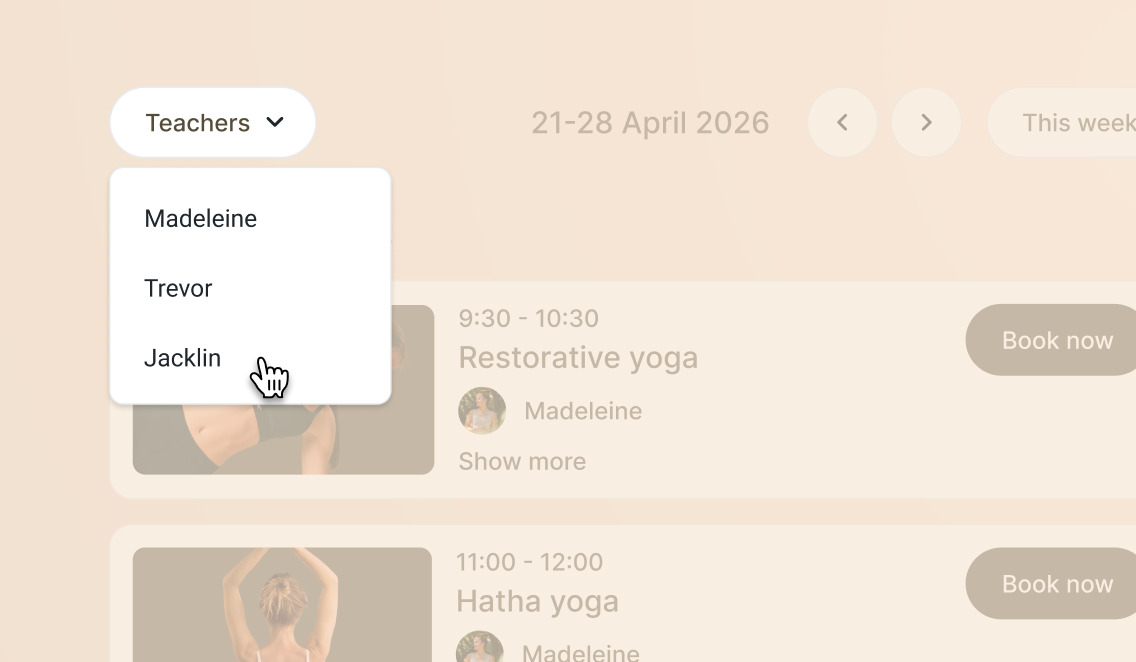
Teacher filters
Students can filter classes by teacher and find the instructors they enjoy practicing with.
Images for classes, events, and teachers
Visual elements in your schedule reflect the personality and identity of your studio’s brand.
Customisation options
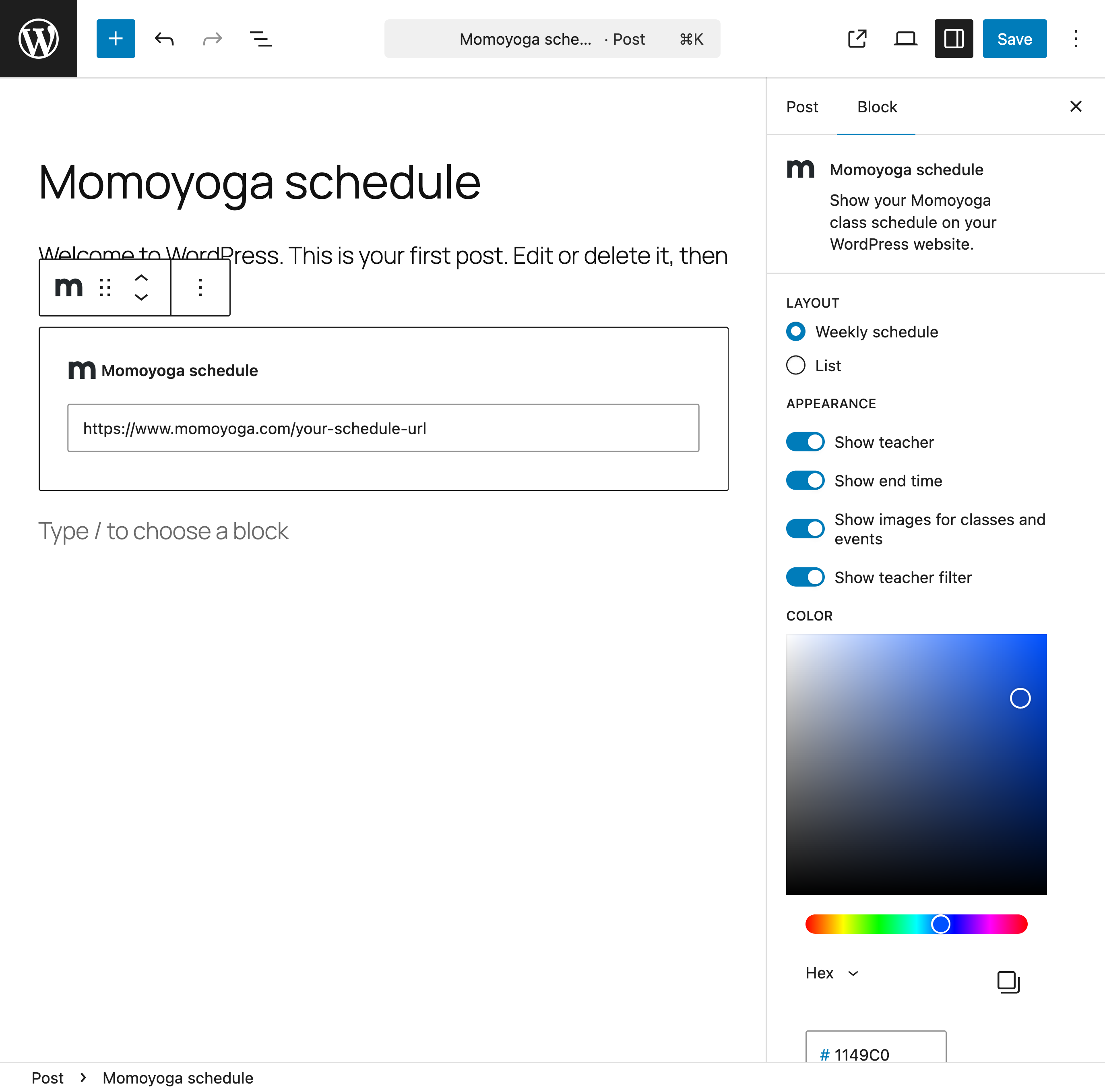
Choose which information appears in your schedule, including:
* Teachers
* Class and Event end times
* Images
Apply your brand colours so the schedule integrates naturally with your website design.
安装:
- Log in to your WordPress admin area.
- Go to Plugins in the left-hand menu.
- Click on Add Plugin.
- In the search bar, type “Momoyoga”.
- Find the Momoyoga plugin and click Install Now.
- Once installed, click Activate.
- Go to Pages.
- Select the page you want to add the schedule to.
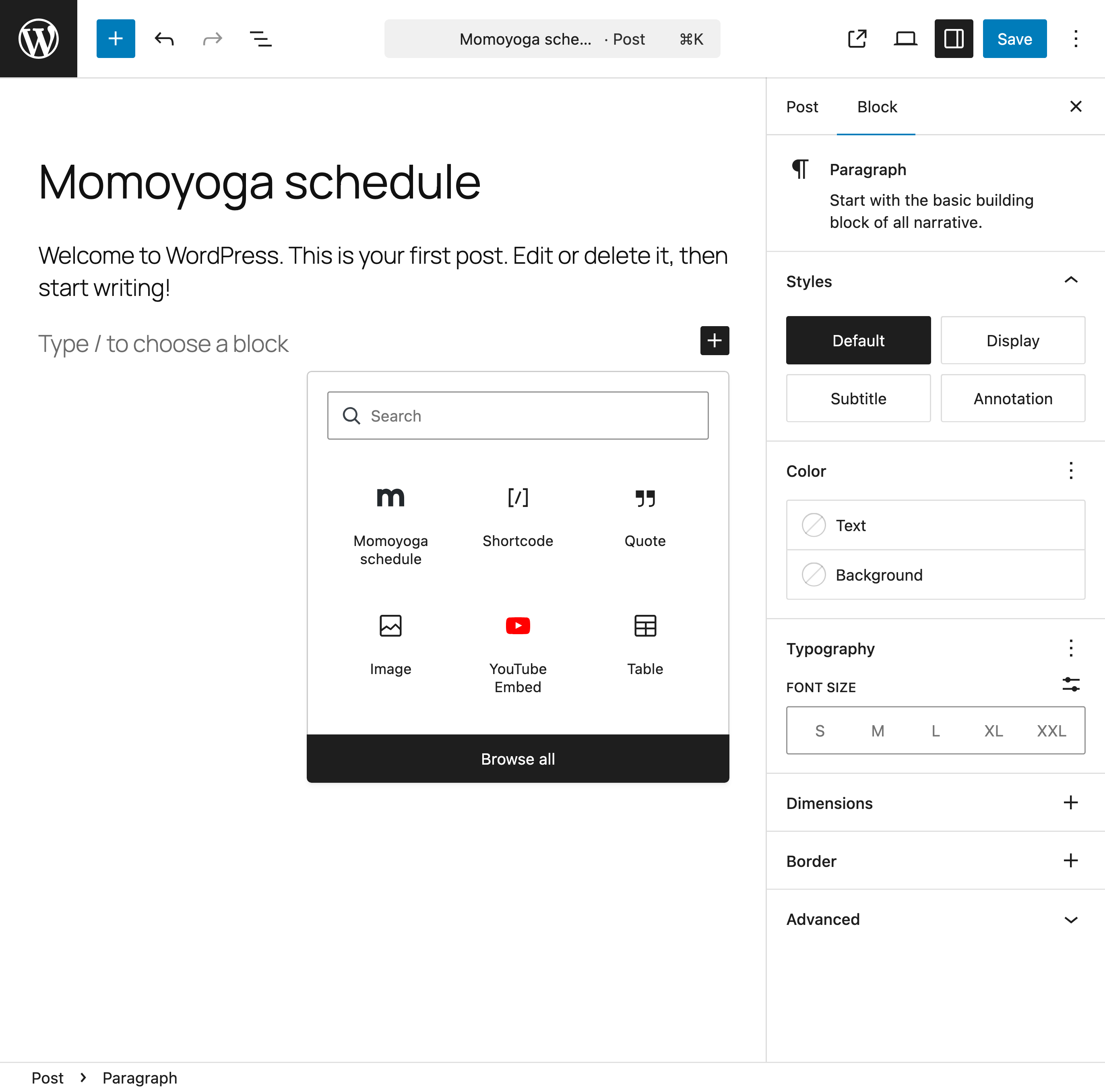
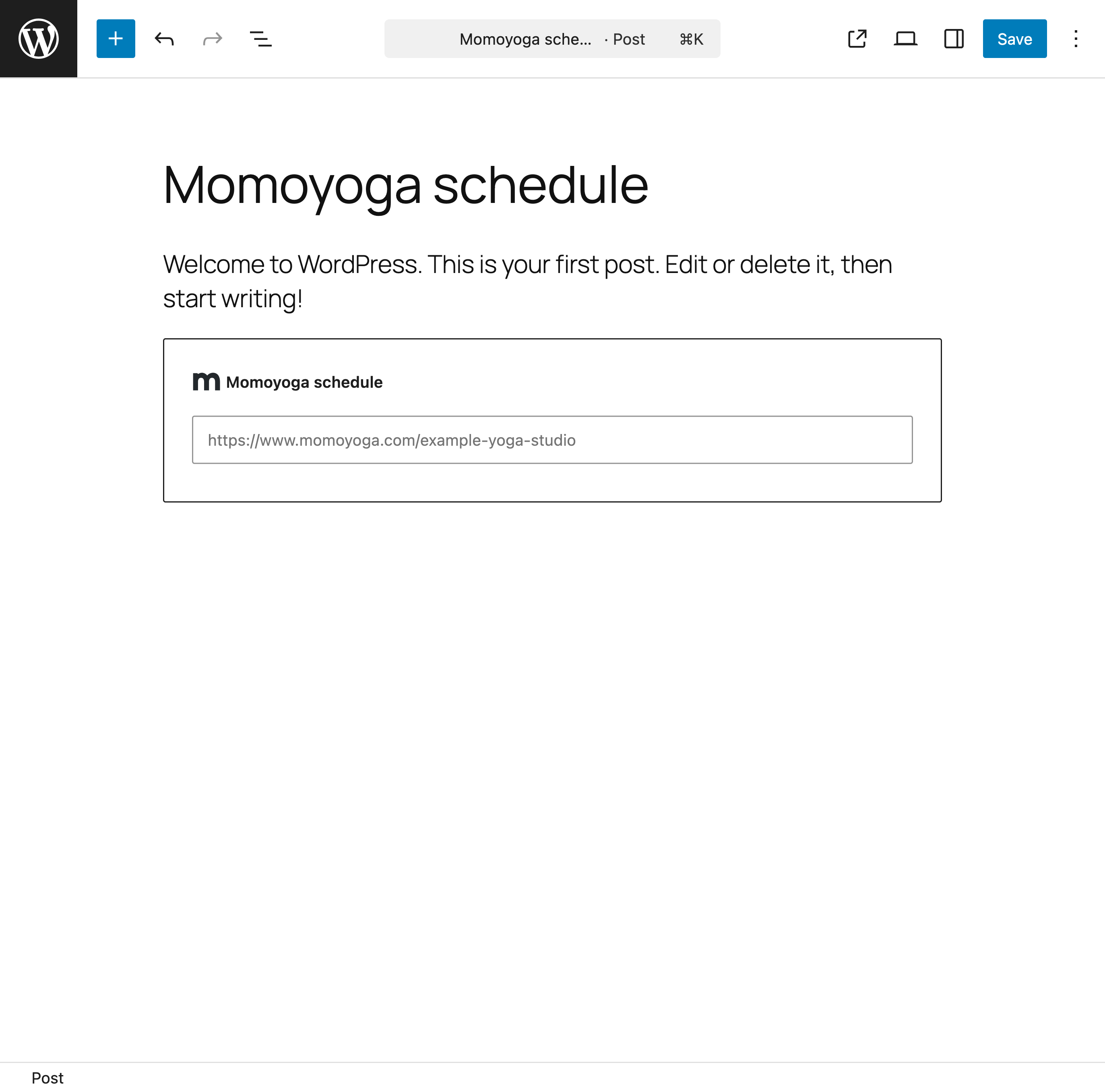
- Add a block (+ icon).
- Click on Momoyoga Schedule (you can find this below Widgets).
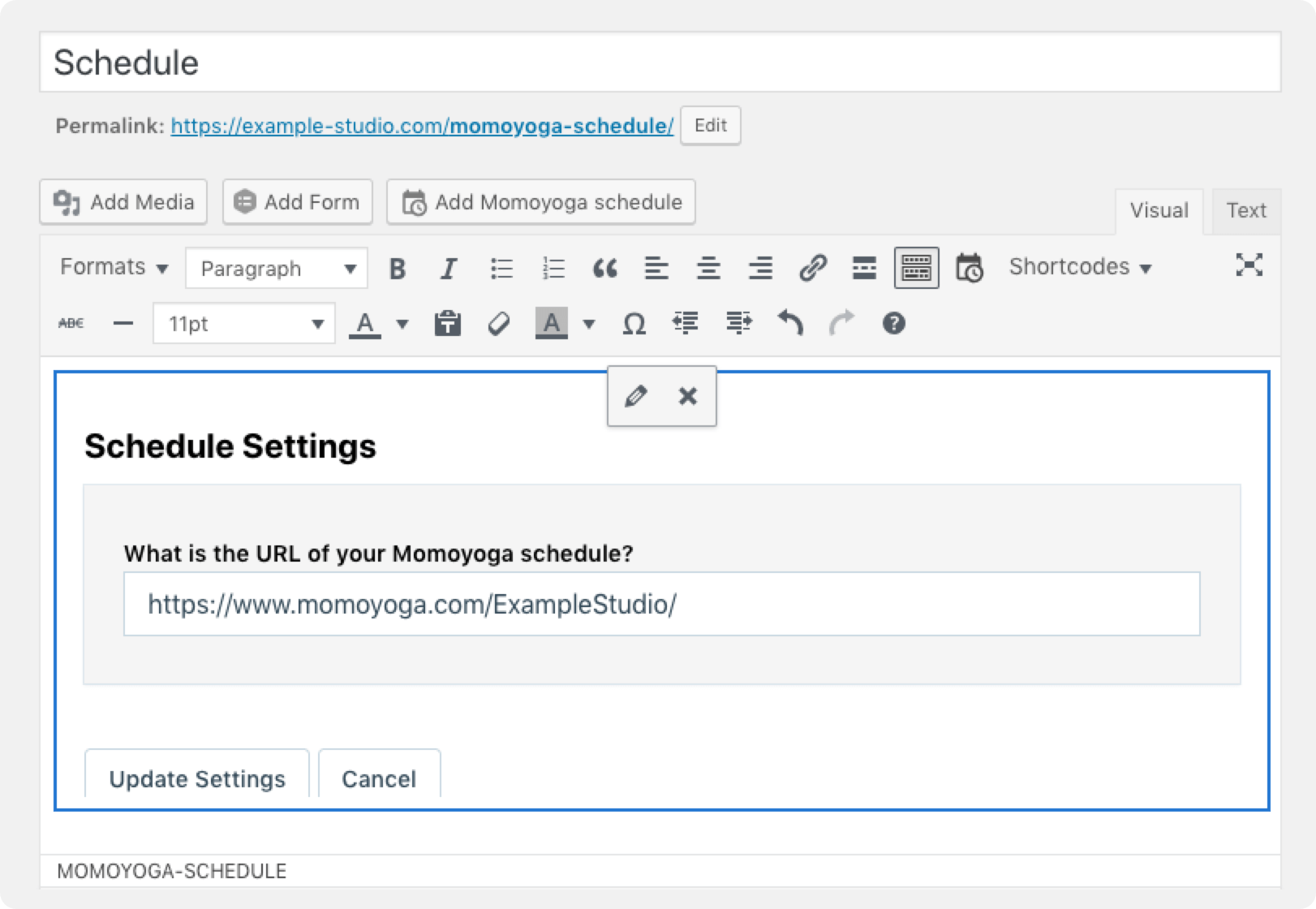
- Enter the URL of your Momoyoga schedule. For example:
https://www.momoyoga.com/your-studio-schedule. - Click on Save.
schedule_url value with the URL of your Momoyoga schedule.
[momoyoga-schedule schedule_url="https://www.momoyoga.com/your-studio-schedule/"][/momoyoga-schedule]
Manual installation
- Upload the
momoyoga-integrationto the/wp-content/plugins/directory. - Activate the Momoyoga plugin through the Plugins menu in the WordPress admin area.
- Follow the steps above to add the schedule to a page.
屏幕截图:
常见问题:
Do I need a Momoyoga account?
Yes. This plugin is designed for yoga studios and teachers who manage their schedule with Momoyoga.
Will my schedule update automatically?
Yes. When you update classes, teachers, or events in Momoyoga, the changes automatically appear on your website.
Can I customise the schedule?
Yes. Through the Block settings in WordPress, you can choose which information appears on your schedule and apply your brand colours.
Can visitors book classes through the schedule?
Yes. Visitors can browse your schedule and book classes through Momoyoga directly from your website.
更新日志:
3.0.0
Release Date - 31 March 2026
- Released the new Momoyoga integration
- Added customisation options to the schedule block
- Removed the classic editor button
changelog.txt file of the plugin.