
Mustang WPO - See Your Performance Clearly
| 开发者 | tyronbache |
|---|---|
| 更新时间 | 2025年12月22日 09:26 |
| 捐献地址: | 去捐款 |
| PHP版本: | 7.4 及以上 |
| WordPress版本: | 6.9 |
| 版权: | GPLv3 |
| 版权网址: | 版权信息 |
详情介绍:
- Dashboard Widget - At-a-glance performance overview on your WordPress dashboard showing Mobile and Desktop scores
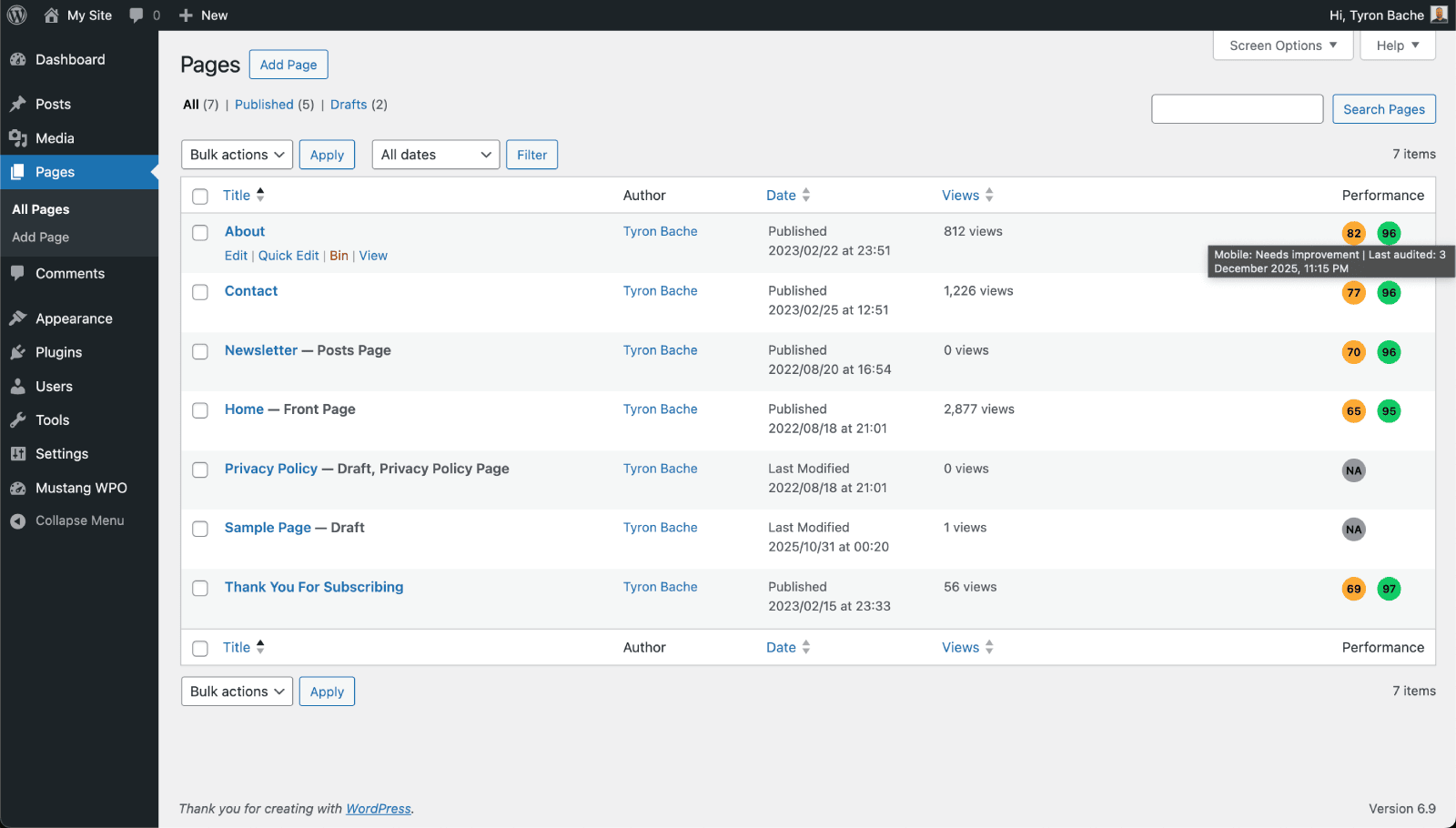
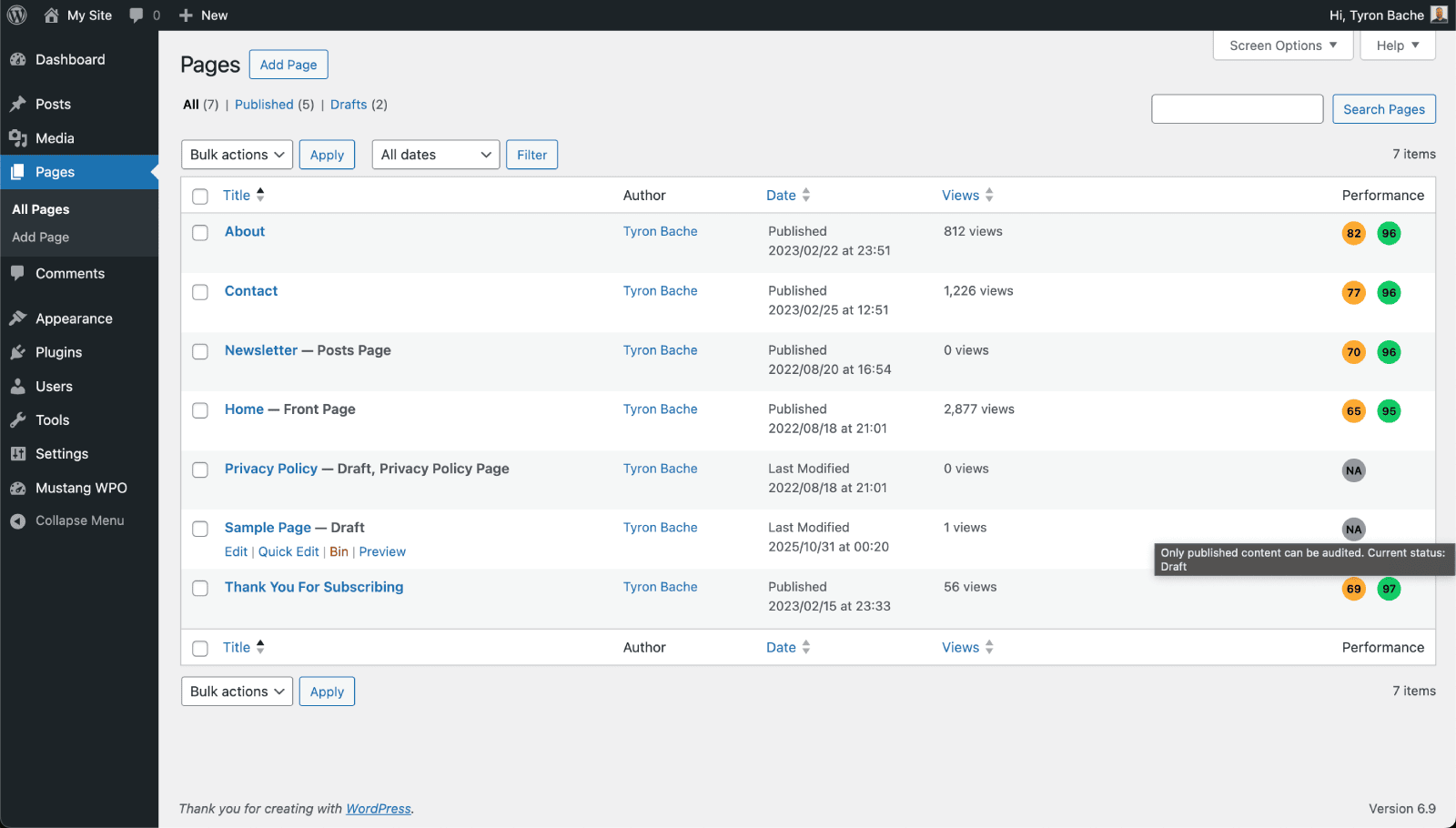
- PageSpeed Performance Scores in List Tables - View mobile and desktop PageSpeed Performance scores directly in your post/page list tables
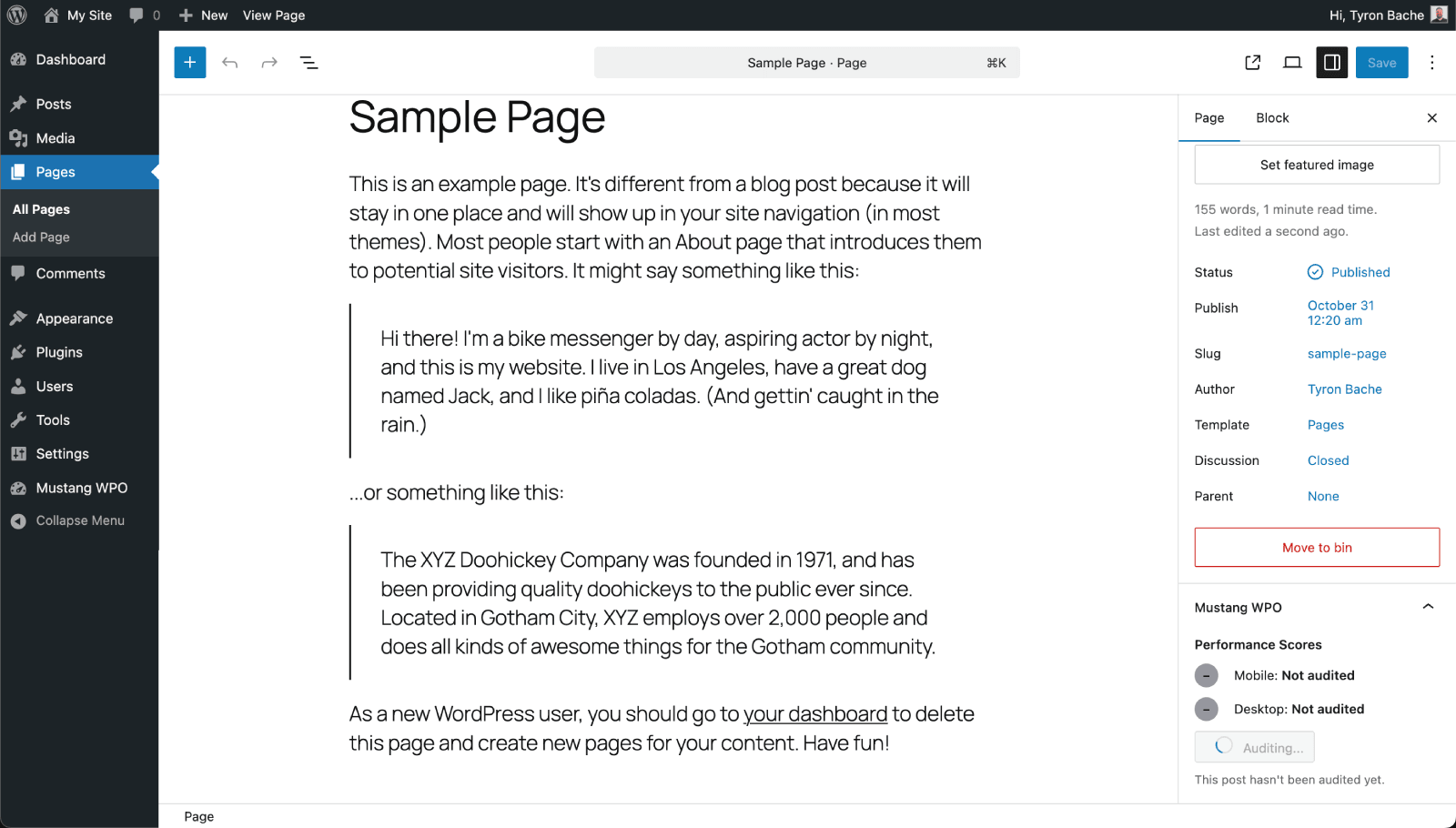
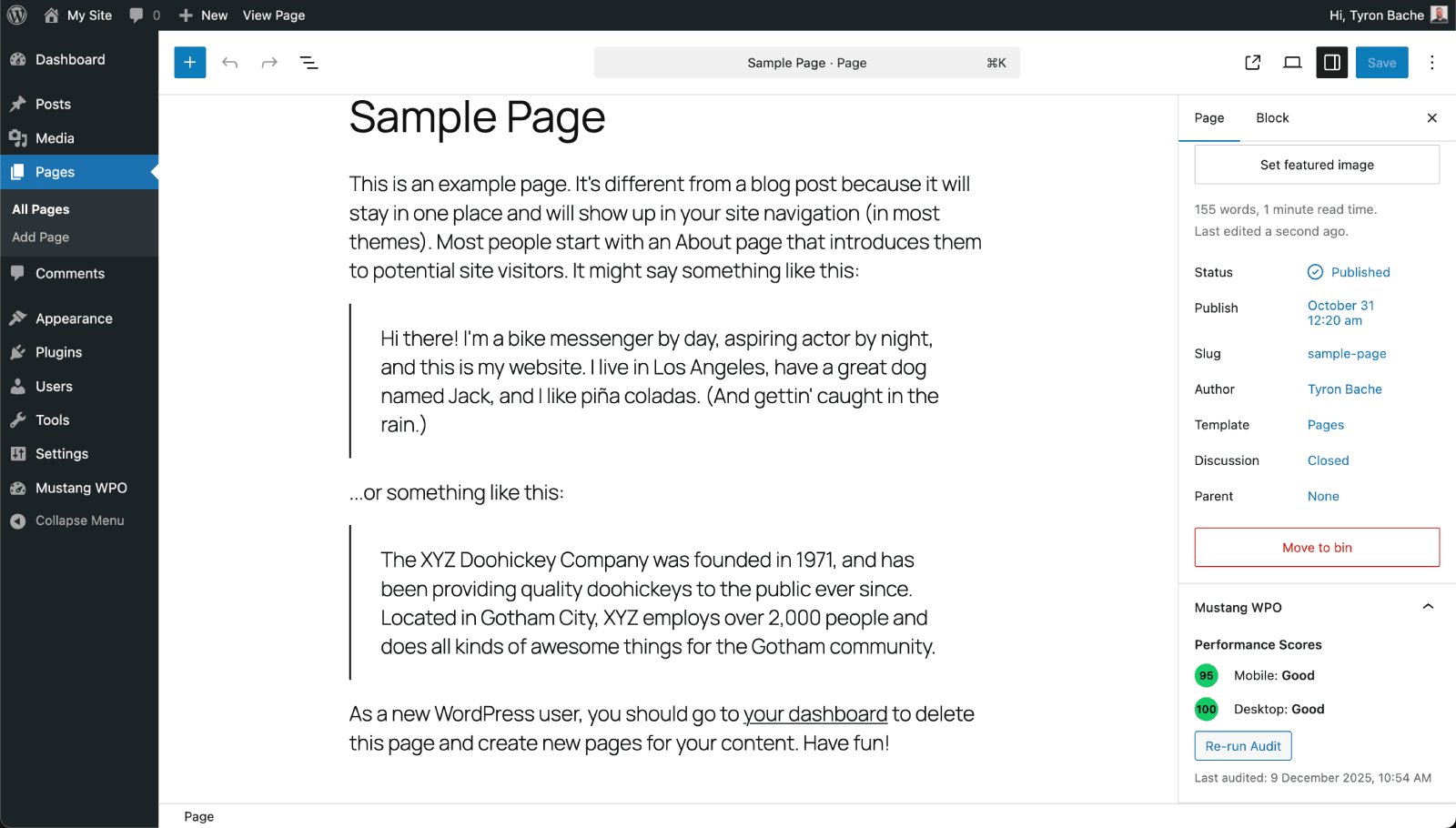
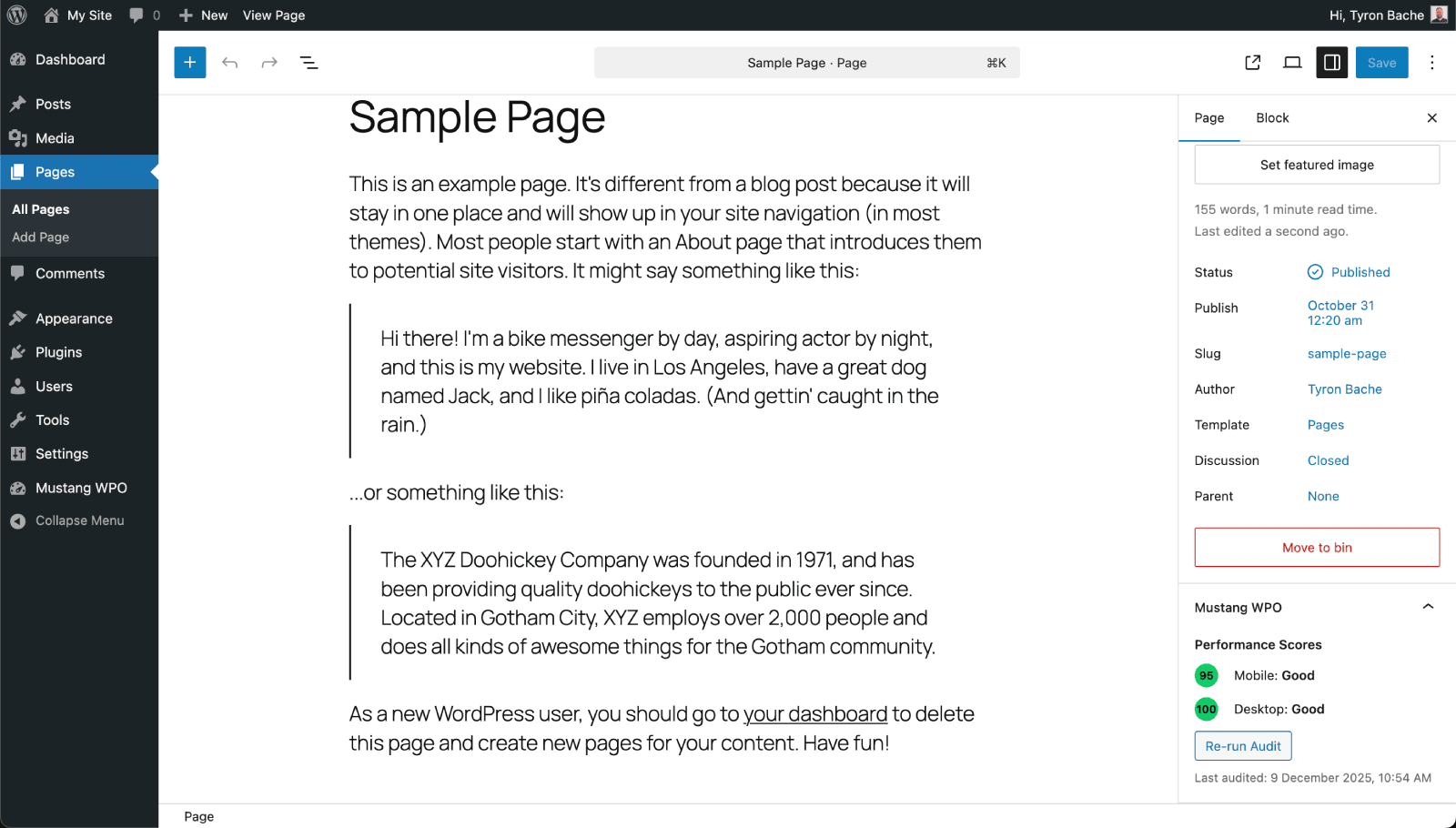
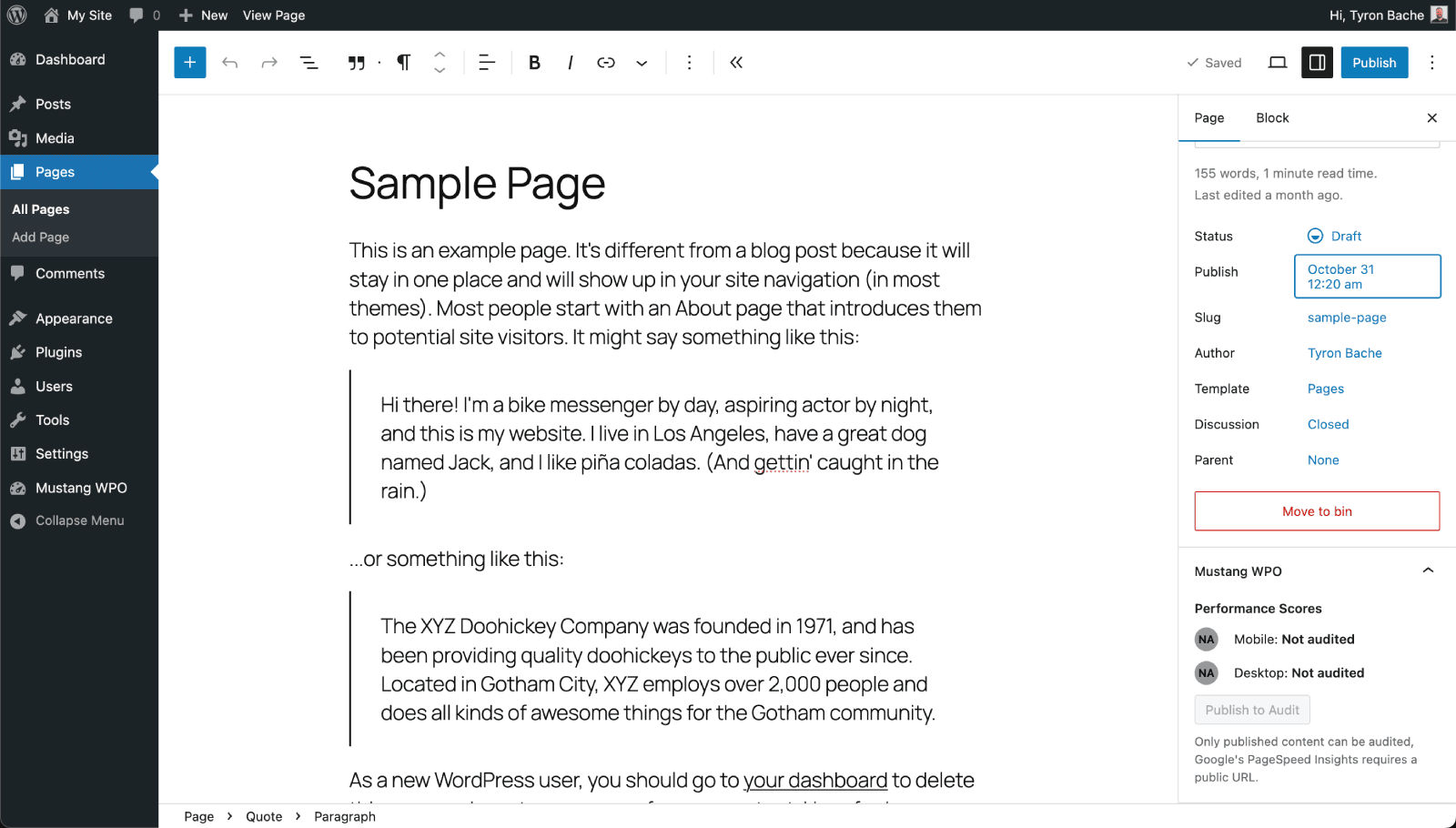
- Block Editor Integration - Run PageSpeed audits and view results in the Gutenberg editor sidebar
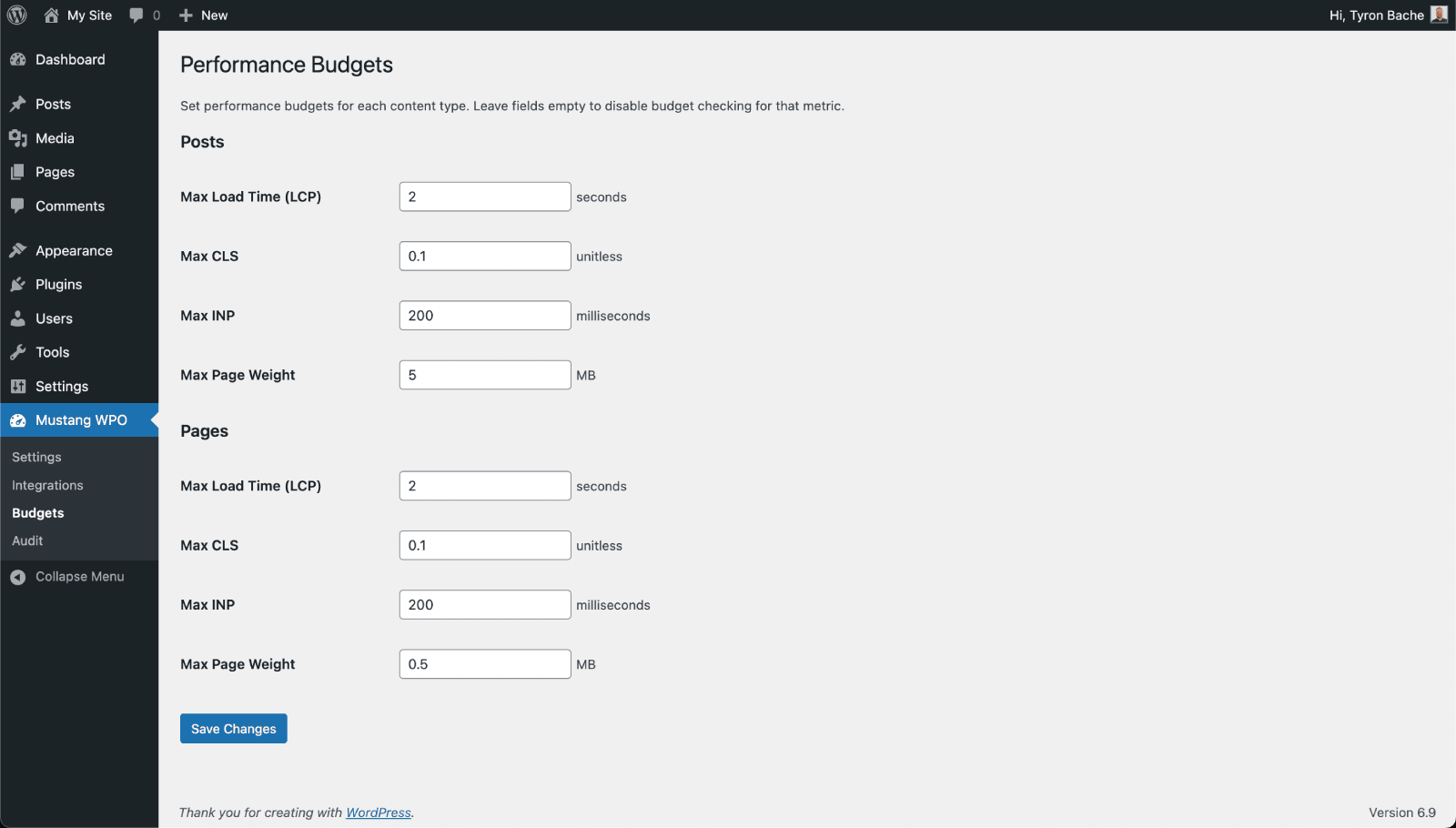
- Performance Budgets - Set performance budgets per post type
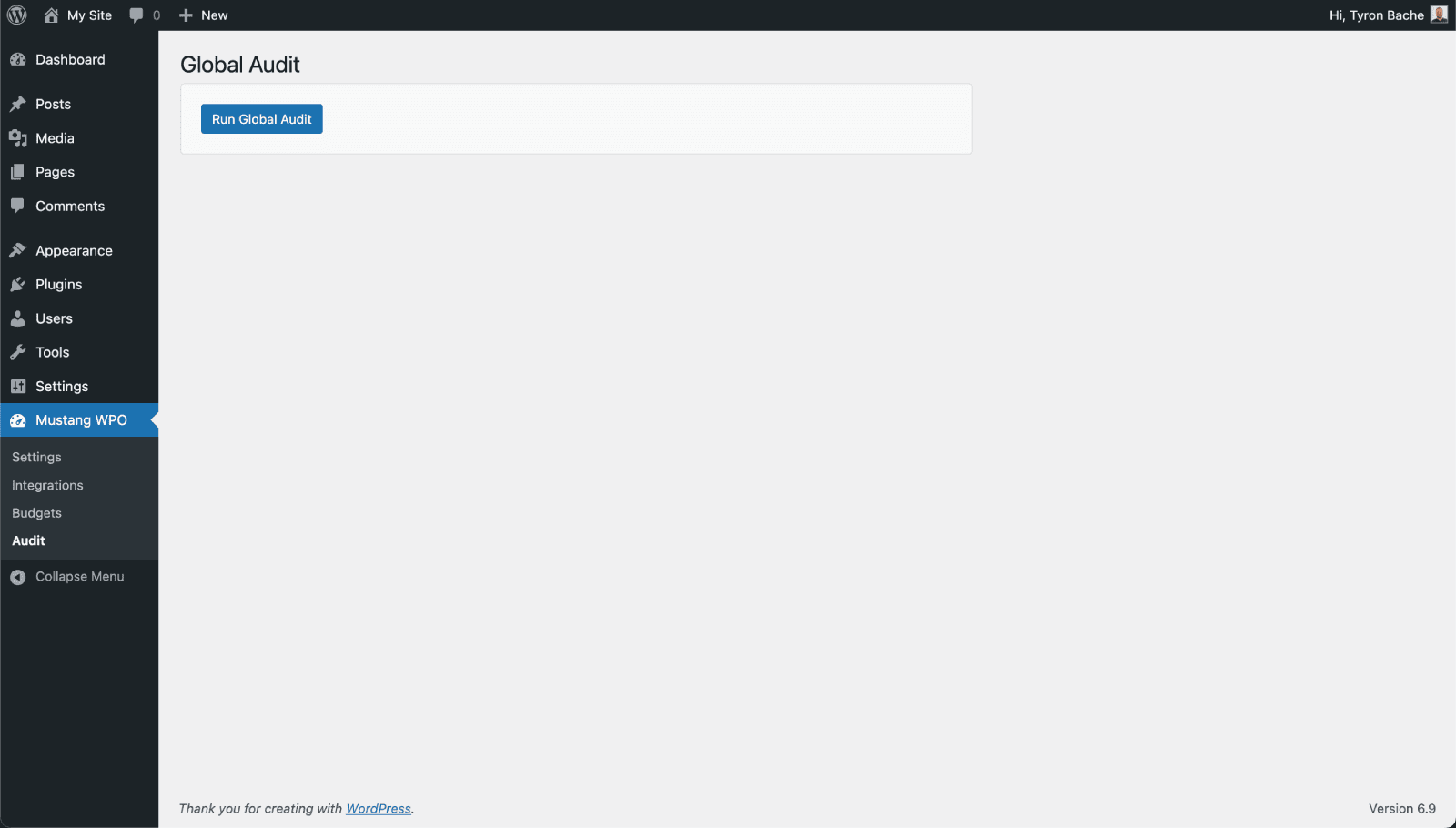
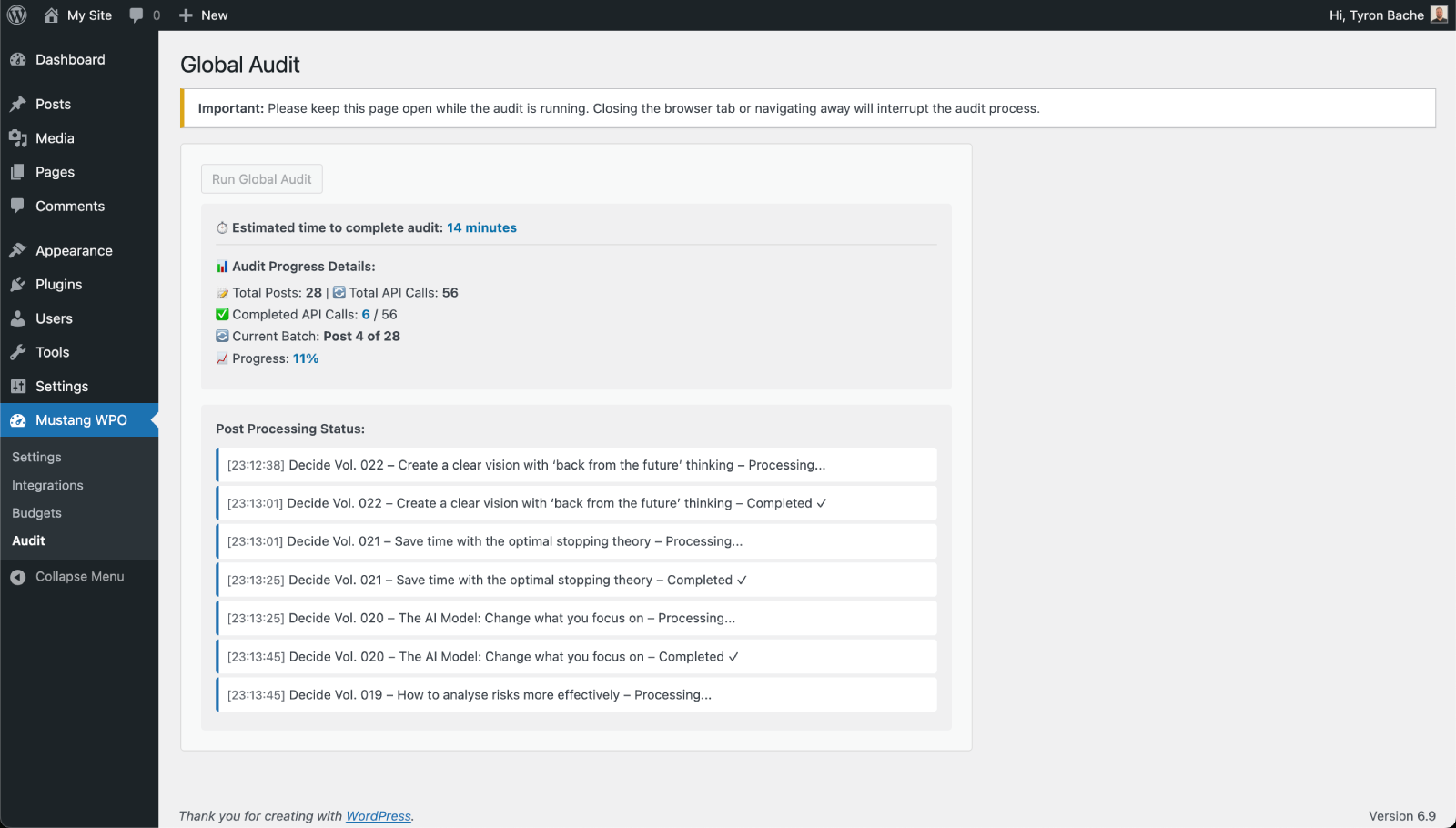
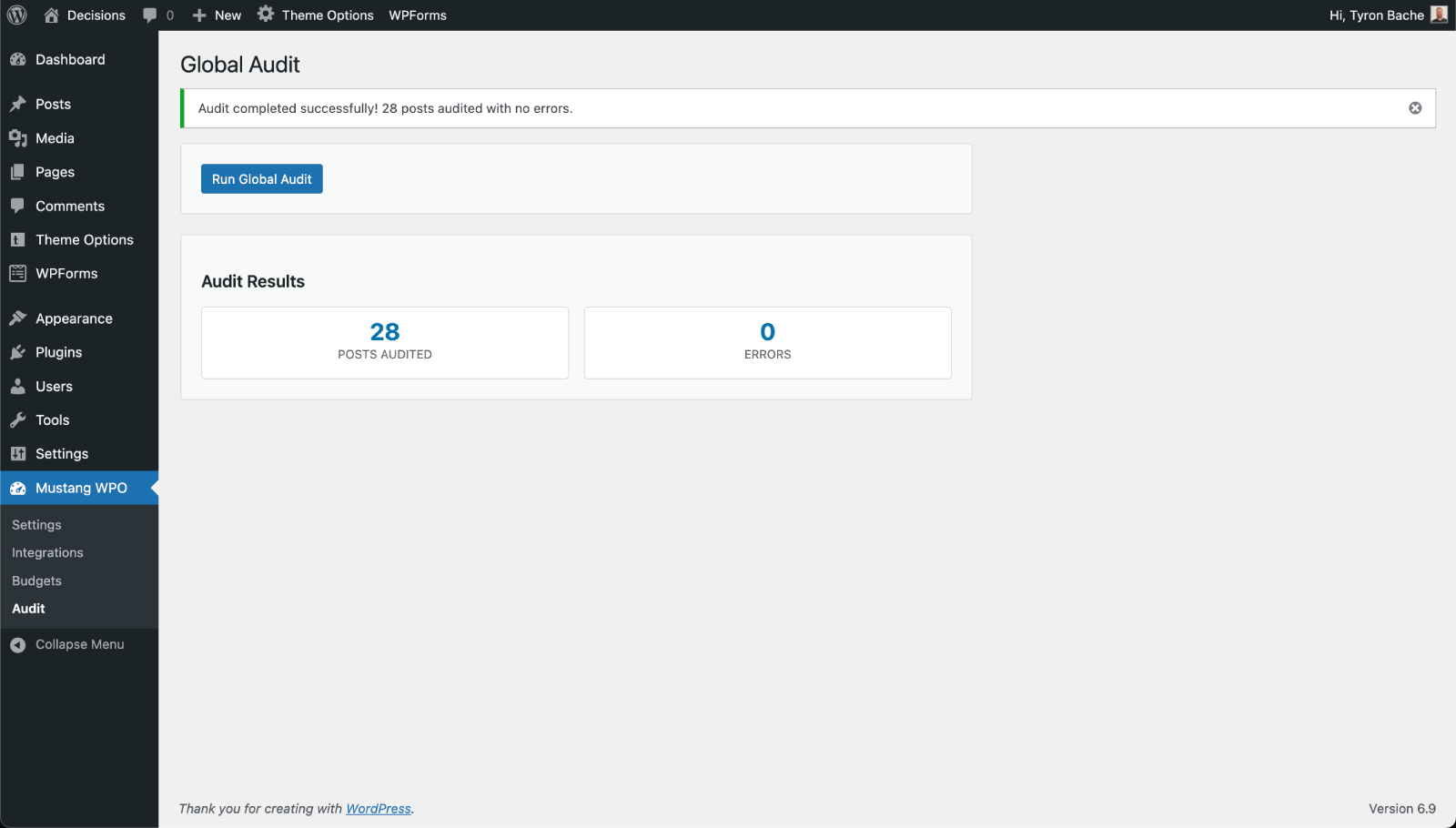
- Global Audit - Audit all your content at once with batched processing
- Install and Activate - Install the plugin and activate it
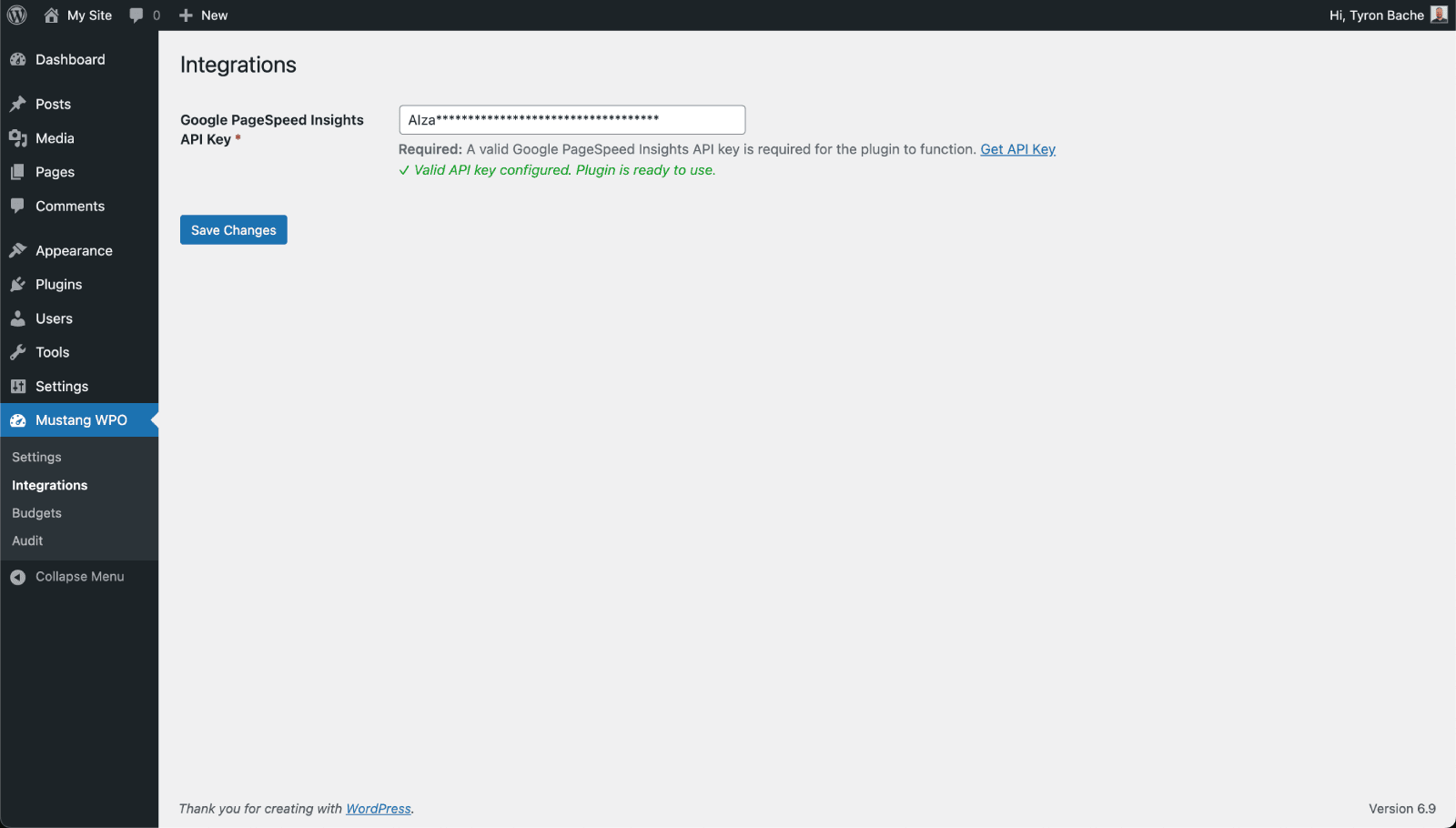
- Configure API Key - Add your valid Google Cloud API Key with the PageSpeed Insights API enabled in Mustang WPO > Integrations
- Set Budgets - Configure performance budgets for different content types
- Run Audits - Use the editor sidebar or global audit to measure performance
- Monitor Results - View scores in list tables
- Max Load Time (LCP) - Largest Contentful Paint in seconds
- Max CLS - Cumulative Layout Shift (unitless)
- Max INP - Interaction to Next Paint in milliseconds
- Max Page Weight - Total page size in MB
- Required API Key - A valid Google PageSpeed Insights API key is mandatory
- Supports both mobile and desktop strategies
- Handles API quotas and rate limiting (240 requests/minute)
- Graceful error handling for network issues
- Secure API key storage with encryption
安装:
- In your WordPress admin panel, go to Plugins > Add Plugin, search for Mustang WPO and click "Install now"
- Alternatively, download the plugin and upload the contents of
mustang-wpo.zipto your plugins directory, which usually is/wp-content/plugins/. - Activate the plugin
- Get API Key - If you don't have an API key, visit Google Cloud Console to create one
- Configure API Key - Navigate to Mustang WPO > Integrations and add your Google PageSpeed Insights API key
- Start managing the performance of your site!
- Visit Google Cloud Console
- Create a new project or select an existing one
- Enable the PageSpeed Insights API
- Create credentials (API key)
- Restrict the API key to your domain for security (Recommended) Step 2: Configure in WordPress
- Go to Mustang WPO > Integrations in your WordPress admin
- Paste your API key in the "Google PageSpeed Insights API Key" field
- Click "Save Changes"
- The plugin will validate your API key Important Notes:
- The API key is required for the plugin to function
- Your API key is encrypted and stored securely
- API requests are rate-limited to 240 requests per minute
屏幕截图:
常见问题:
Do I need a Google PageSpeed Insights API key?
Yes, a valid Google PageSpeed Insights API key is required for the plugin to function. The plugin will not work without this API key. You can get a free API key from Google Cloud Console.
How do I get a Google PageSpeed Insights API key?
- Visit Google Cloud Console
- Create a new project or select an existing one
- Enable the PageSpeed Insights API
- Create credentials (API key)
- Restrict the API key to your domain for security (recommended)
Is my API key secure?
Yes, your API key is encrypted using WordPress security salts and stored securely in your database.
What happens if I don't have an API key?
The plugin will not function without a valid API key. You'll see warning notices on all pages directing you to configure the API key in Mustang WPO > Integrations.
How often should I run audits?
For most sites, running audits weekly or after major content changes is sufficient. The plugin includes rate limiting to prevent overwhelming the API.
What if I hit API quotas?
The plugin handles quota exceeded errors gracefully and will show clear messages. Consider adding an API key or reducing audit frequency.
Can I audit custom content types?
No, the free version of the plugin only supports Pages and Posts.
更新日志:
- NEW: Dashboard widget - "Mustang WPO Overview" provides at-a-glance performance scores on your WordPress dashboard
- Dashboard widget shows separate Mobile and Desktop performance breakdowns
- Intelligent verdict system with clear recommendations (e.g., "Mobile performance is holding back overall site performance")
- Directional hints when one device needs attention
- Tooltips on performance bars showing score ranges and counts
- Empty state messages with helpful CTAs for fresh installs Other
- Updated terminology from "Content Types" to "Post Types" per WordPress standards
- Added device status classification system (Strong/Mixed/Weak)
- Improved overall verdict logic covering all Mobile vs Desktop combinations
- Added WordPress admin notices after audit completion (success/warning/error)
- Improved progress tracking accuracy during global audits
- Enhanced error messages for timeout and Cloudflare errors
- Better retry logic with exponential backoff for gateway errors
- Added PHP execution time limit warning on audit page Bugfixes
- Fixed 504/524 Cloudflare timeout errors by reducing batch size
- Fixed progress indicators not updating during audit processing
- Fixed incomplete batch processing when timeouts occurred
- Fixed "Non-JSON response" errors when Cloudflare timeout pages were returned Other
- Reduced batch size from 10 to 1 post per batch for better reliability
- Removed configurable batch size setting (now hardcoded to 1 post)
- Removed "Processing batch X of Y" progress text from top of page
- Initial release
- PageSpeed Performance scores in post/page list tables
- Block editor sidebar integration
- Performance budgets per content type
- Global audit functionality
- Rate limiting and error handling
- Secure API key encryption and storage