
Product Bundles for WooCommerce – Frequently Bought Together by Nanflows
| 开发者 | spexoid |
|---|---|
| 更新时间 | 2026年10月25日 01:12 |
| PHP版本: | 7.4 及以上 |
| WordPress版本: | 7.1 |
| 版权: | GPLv2 or later |
| 版权网址: | 版权信息 |
详情介绍:
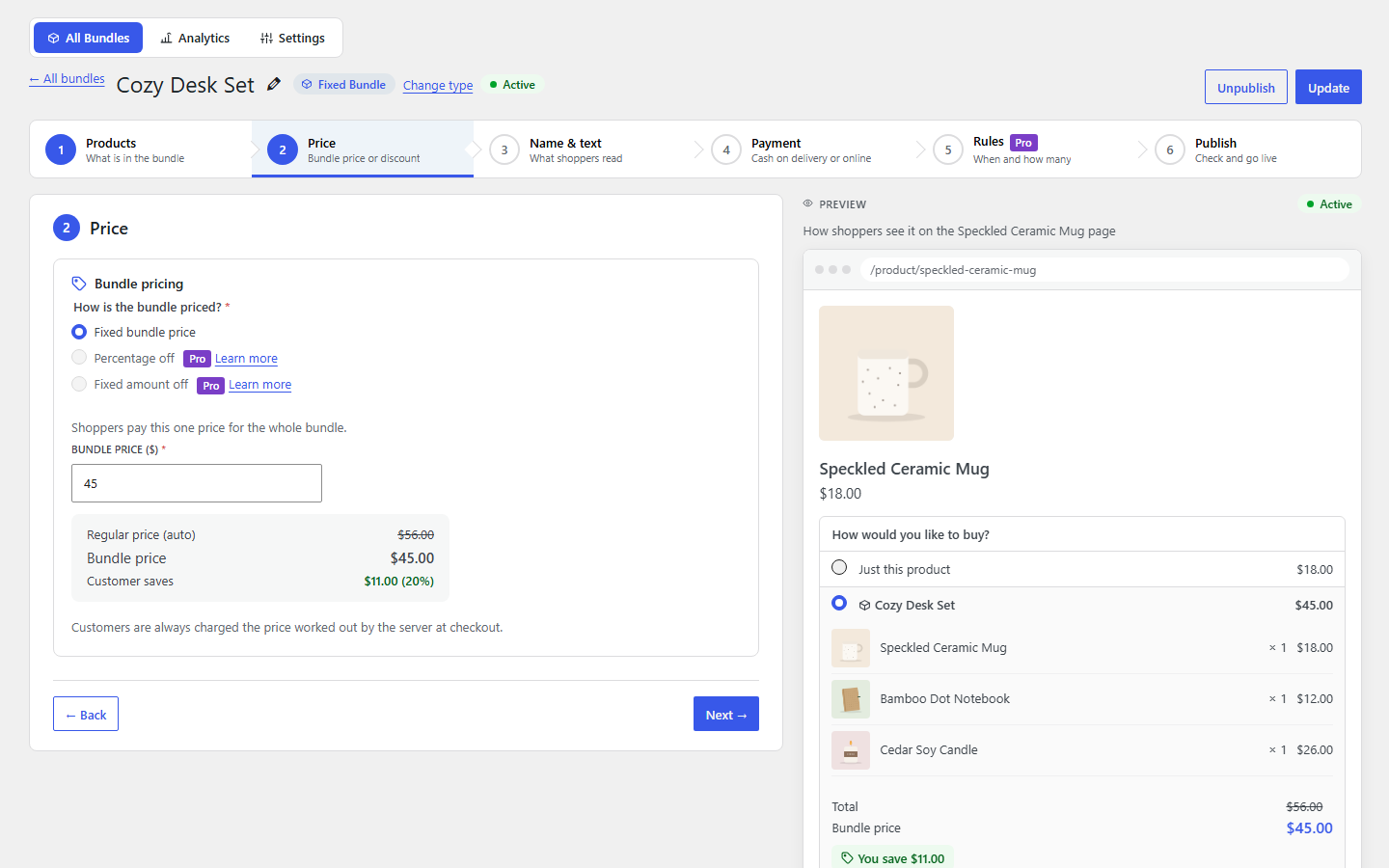
- Fixed bundles: you choose the products and quantities, and customers buy them together at one price. Set your own bundle price, lower than buying the products one by one.
- The saving is shown: the regular price and what the customer saves are worked out for you and shown on the product page.
- Customer chooses the option: put a variable product in a bundle and let the customer pick the size or colour, or fix the variation yourself.
- Combo offers, kits and gift sets: "Shampoo + Conditioner combo", "Starter kit", "The full routine". One product in the cart, one click to buy.
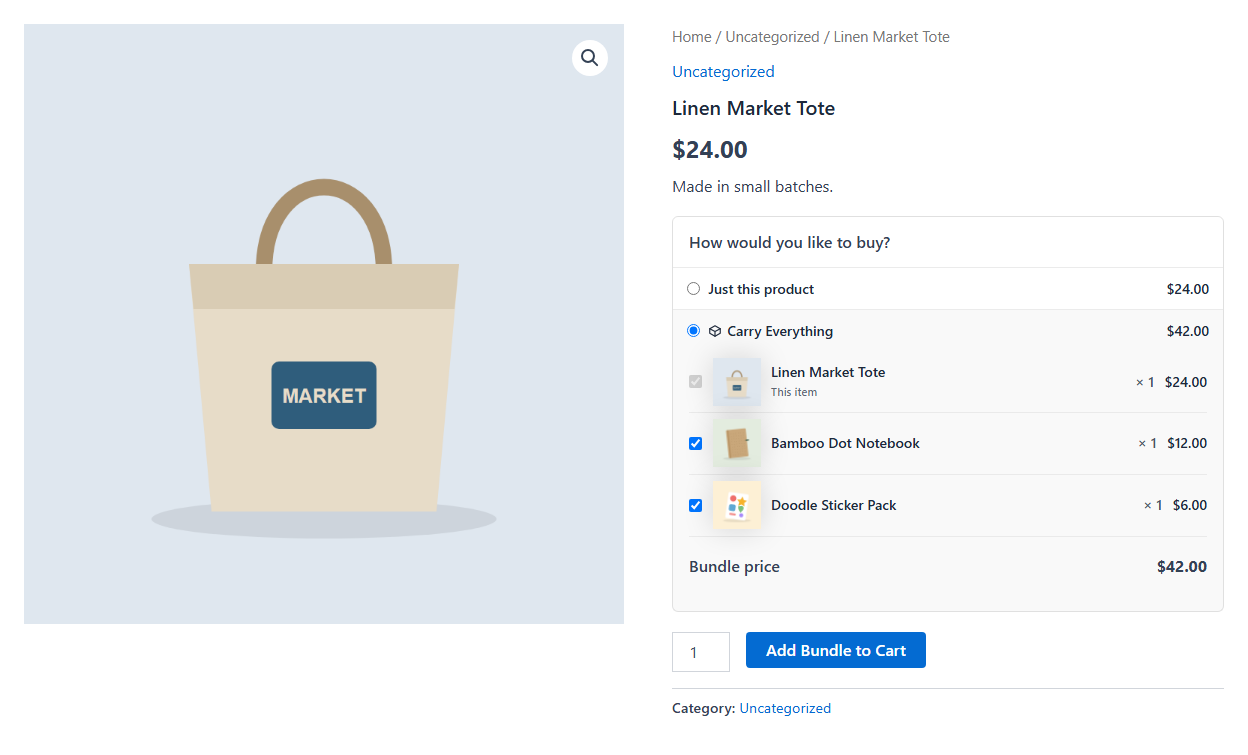
- A main product plus up to 4 extras, already ticked, that the customer can untick before adding the lot to the cart in one click.
- Shown on the main product's page, where the decision is made. WooCommerce's own cross-sells only appear in the cart.
- With every extra unticked, the main product goes to the cart on its own.
- No separate bundle stock: a bundle is available while every product inside is in stock, and each sale takes stock from them.
- Overselling is stopped at add to cart, in the cart and at checkout.
- Stock goes back on cancellation or a restocking refund, by WooCommerce itself.
- Accept both, prepaid only, or COD only for each bundle. Make big or expensive combos prepaid only, and keep COD for the small ones.
- The plugin checks that the payment method is really switched on in WooCommerce before a bundle goes live.
- If a cart holds bundles with different rules, only the methods all of them allow are offered.
- Pick product pages, or whole product categories: every product in them, and products added later.
- One button, the customer's choice: shoppers pick "Just this product" or a bundle with a radio button, and one Add to cart button adds what they chose. Separate bundle cards are available in the settings instead.
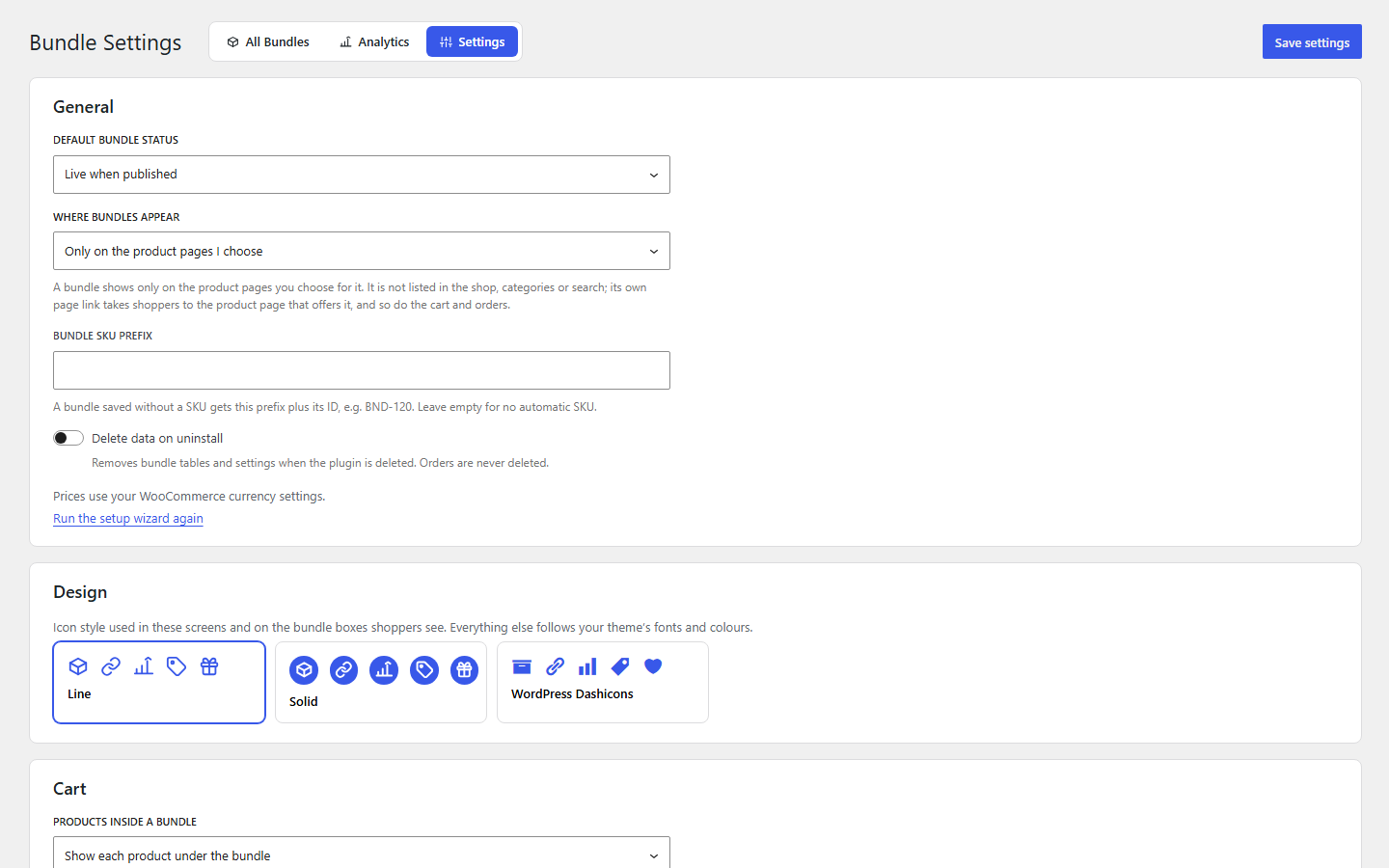
- Only on those pages, or also as its own product: by default a bundle is not listed in the shop, categories or search, and its own page link takes shoppers to the product page that offers it. Or list each bundle as a product of its own (Settings > General).
- Block and shortcode: show a bundle anywhere else with the Bundle block or
[nanflows_bundle id="123"]. - Several bundles on one product: one by default, up to three if you change it in Settings.
- A page of its own: switch it on for any bundle and it gets a page with only that bundle, in your theme's design, to share in ads, WhatsApp, emails or your menu. Put a heading or a banner at the top (with a second banner for phones if you like).
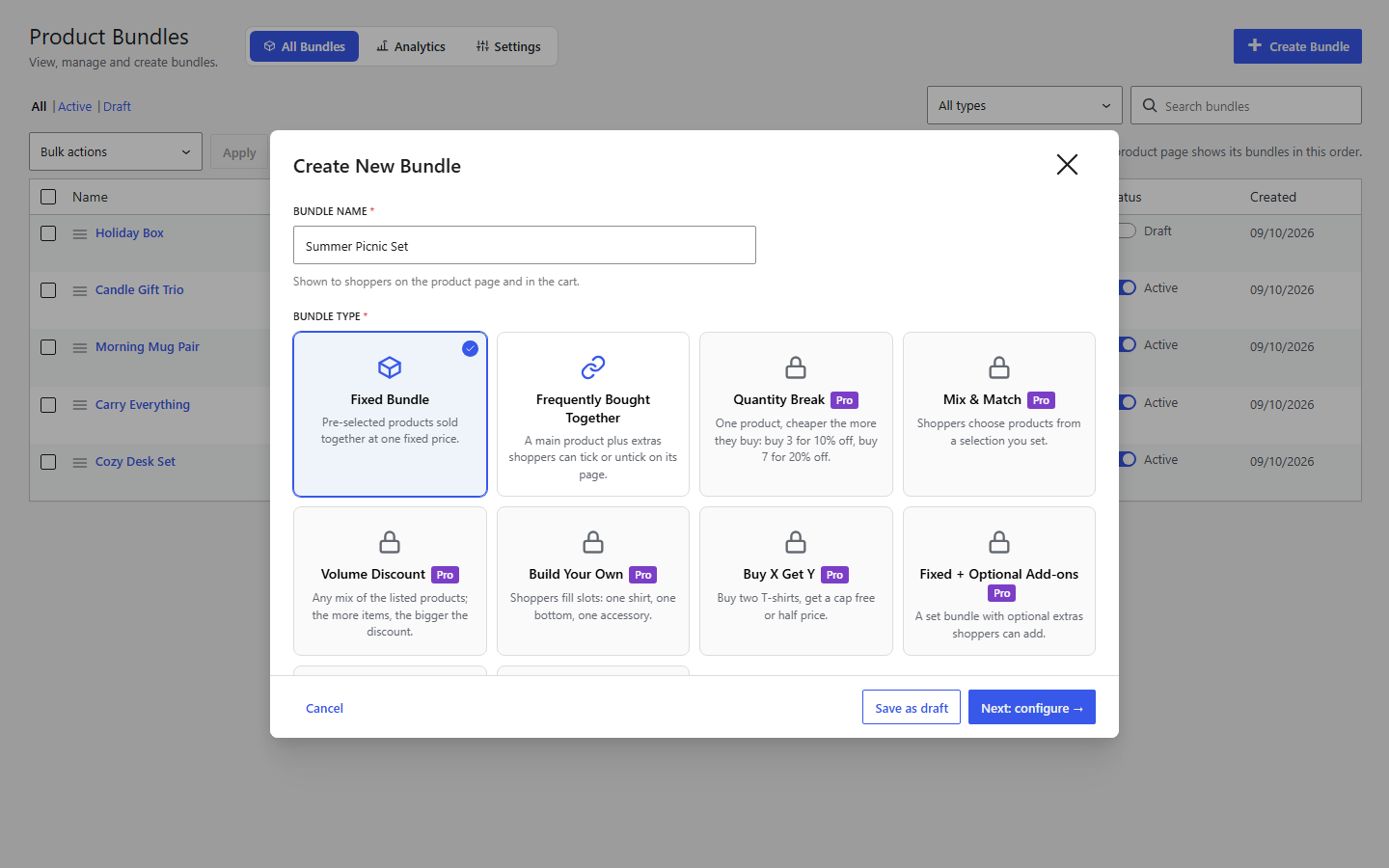
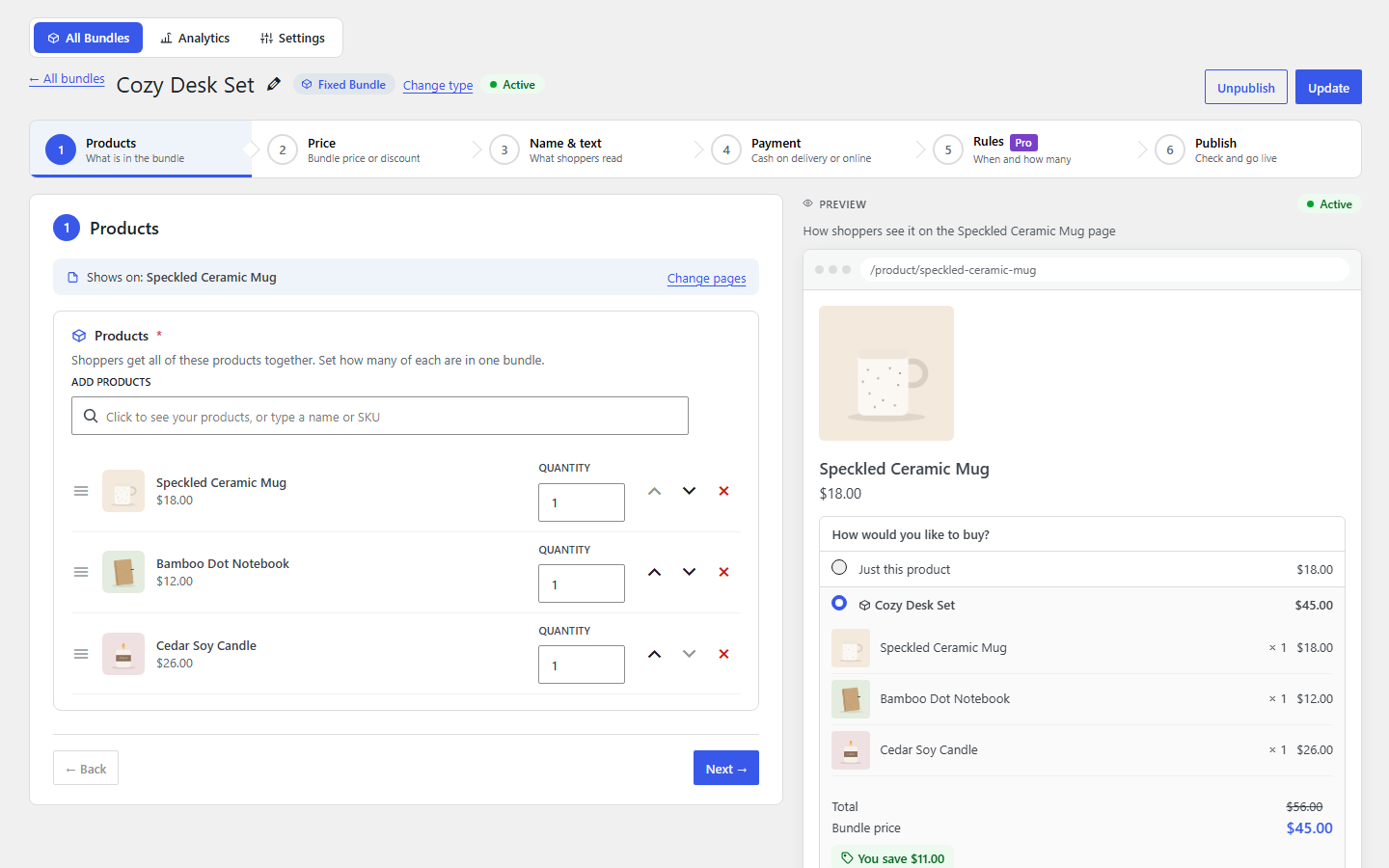
- Guided set-up: "Create Bundle" asks for a name, a type and its products, then takes you through the bundle's products and pages, offer, details and payment, with a live preview of the card shoppers will see.
- Drafts: half-finished bundles can be saved and finished later. Drafts are never shown to shoppers.
- Bundle picture: made automatically from the product pictures (updated when they change), or choose your own from the Media Library. Shown in the cart, orders and emails.
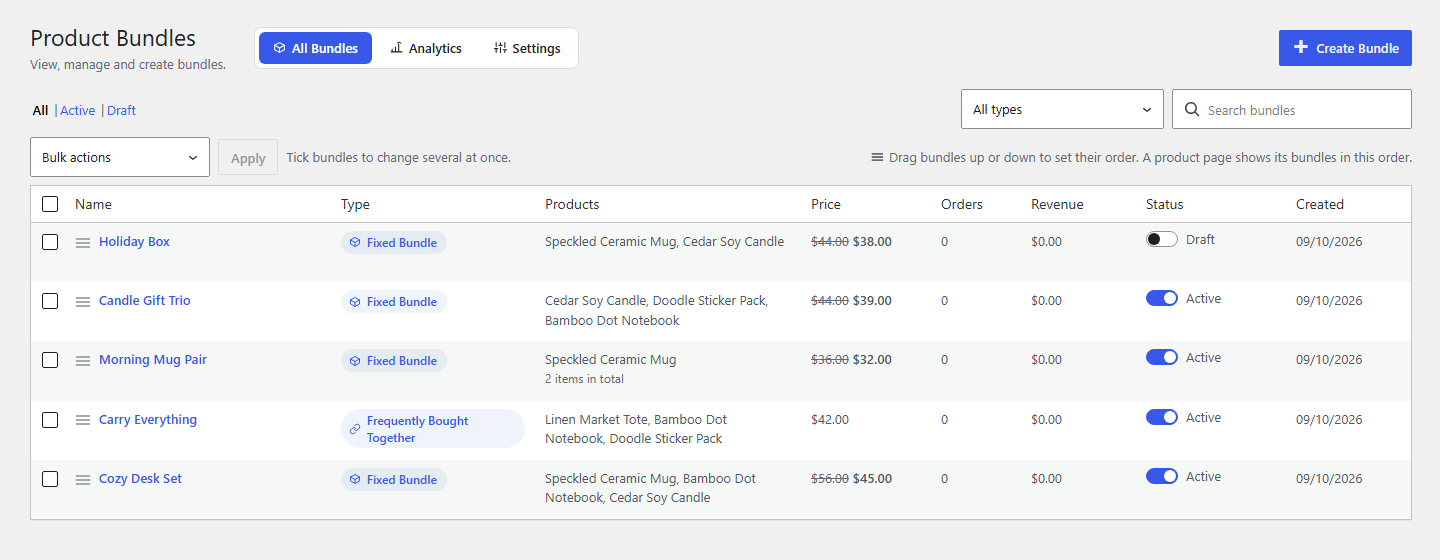
- Bundles list: search, filter by type or status, change several bundles at once, and drag bundles or the products inside them to set the order.
- Setup wizard and icon styles: a short first-run wizard, and a choice of line, solid or WordPress Dashicons icons.
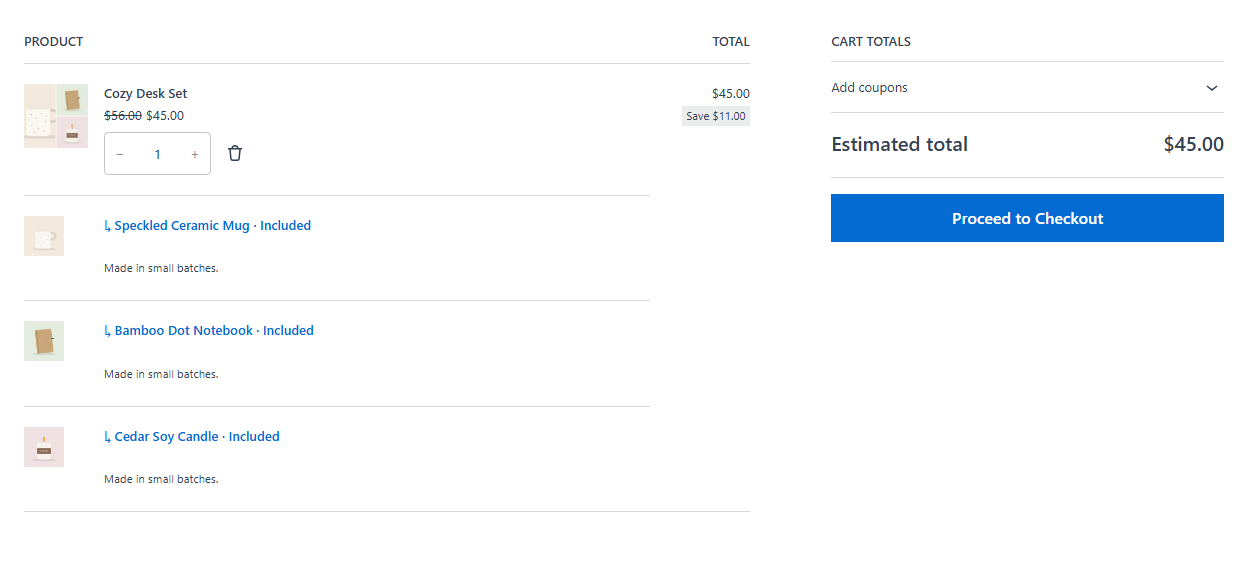
- Clear cart: the bundle and its products are shown together; products inside cannot be removed on their own.
- Simple products, physical or virtual and downloadable (customers get their downloads as usual).
- Variable products: a set variation, or the customer chooses.
- Your payment gateways, taxes, shipping and coupons.
- The classic cart and checkout, the Cart and Checkout blocks, and checkouts built on WooCommerce's checkout or Store API.
- HPOS (high-performance order storage).
- Eight more bundle types: Quantity Break (buy 3, save 10%; buy 7, save 20%), Volume discounts, Mix & Match, Build Your Own, Buy X Get Y and BOGO, fixed bundles with add-ons, gift boxes with gift wrap and a message, and variety packs.
- Bundle discounts as a percentage or an amount off, and a percentage off "frequently bought together" offers, with up to 10 extras.
- Sales rules: sell from and until a date, and a minimum and maximum number of bundles per order.
- Badge and urgency: a "Best value", "Most popular", "Limited offer" or your own badge, a countdown to the offer's last day, and free shipping with the bundle.
- Suggestions from your orders: products your customers often buy together, made into a "frequently bought together" offer in one click.
- Reports: a views-to-purchase funnel for each bundle, the most bundled products, customers, COD vs prepaid failure rates, placements, CSV exports and an email report.
安装:
- Install and activate WooCommerce.
- In WordPress, go to Plugins > Add New, search for "Nanflows Product Bundles", then install and activate it.
- Open Bundles: a short setup wizard asks how bundles should appear. Then press Create Bundle and follow the steps.
屏幕截图:
常见问题:
How do I create a product bundle in WooCommerce?
Open Bundles and press Create Bundle. Give it a name, choose "Fixed bundle", add the products and how many of each, pick the product pages or categories it shows on, and set the bundle price. Publish, and it appears on those product pages.
How do I make a combo offer?
A combo offer is a fixed bundle: add the products that go together (for example a shampoo and a conditioner), set one price for the combo that is lower than buying them separately, and choose the pages it shows on. Shoppers see the saving next to the price.
How do I add "frequently bought together" to a product page?
Press Create Bundle and choose "Frequently bought together". Pick the main product and up to 4 extras. The box shows on the main product's page, with the extras ticked; shoppers untick what they don't want and add the rest in one click.
Can I give a discount on a bundle?
Yes. Set the fixed bundle's price lower than the total of the products inside, and the saving is shown to shoppers. A percentage or amount off, and a discount on "frequently bought together", are in Nanflows Bundles Pro.
Where do I set a bundle's products and price?
In Bundles: press Create Bundle (or Edit on an existing one). The WooCommerce product screen still edits the title, images, description and tax class.
How is stock handled?
A bundle has no stock of its own. The product with the least stock (for the quantity the bundle needs) decides how many bundles can be sold. Stock is taken from the products inside when an order is paid, and put back on cancellation or a restocking refund, by WooCommerce itself.
Which product pages show a bundle?
The product pages and categories you pick when you create it (you can change them later on the Products step), plus the main product's page for "frequently bought together". With a category, every product in it (and in the categories under it) shows the bundle, products added later too. The other products inside a bundle do not show it on their pages.
Can a bundle have a page of its own, to share in ads?
Yes. On the bundle's Products step, switch on "Also give this bundle its own page". The page shows only that bundle, in your theme's design, at the bundle's link. On the Name & text step, choose what goes at the top: the bundle name, your own heading, no heading, or a banner (1600 × 450 px is best; add a 400 × 200 px one for phones if you like). Under it come the bundle's description and the bundle itself. "Frequently bought together" offers belong on their product's page, so they have no page of their own.
Is a bundle also a product of its own in my shop?
Every bundle is a WooCommerce product underneath, which is how it goes in the cart and takes stock from its products. By default it is not listed in the shop, categories, search or the sitemap, and its own page sends shoppers to the product page that offers it. In Bundles > Settings > General, choose "Also as its own product in the shop" to list bundles like any other product.
Where does a bundle's picture come from?
Until you choose one, a bundle gets a picture made from up to four of its products' pictures (saved in the Media Library, and made again when those pictures change). Choose your own on the "Name & text" step; it always wins, and the made one is removed. On servers without the GD image library, the first product's picture is used.
Several bundles are set to show on one product page. What do shoppers see?
The page offers up to the number of bundles set in Bundles > Settings (one by default, three at most). With one bundle, it opens by itself; with more, shoppers pick one from the list. They appear in the order of the Bundles list: drag bundles up or down there to change it.
Can I save a bundle before it is finished?
Yes. "Save as draft" keeps it, with or without products and a price. Drafts are never shown to shoppers; every check runs when you publish.
Can a customer pay cash on delivery?
Yes, unless you set a bundle to "Prepaid only". If a cart holds bundles with different rules, only the methods all of them allow are offered.
Does it work with the block checkout and HPOS?
Yes. It works with the classic cart and checkout, the Cart and Checkout blocks, and high-performance order storage (HPOS).
Does it slow my shop down?
Its CSS and JavaScript load only on pages that show a bundle, the cart and the checkout. Reports read summary tables, never every order.
更新日志:
- Fix: on a product page with "How would you like to buy?", the bundle's price next to its name now changes when the shopper ticks or unticks an extra or picks an option, like the price inside the bundle box.
- A clearer plugin name and description on wordpress.org.
- A one-time, dismissible request for a review on the Bundles screens, after two weeks of use or three orders with a bundle.
- The bundle box shows the saving as a percentage too, e.g. "You save $28.25 (25%)".
- "Upgrade to Pro" link on the Plugins screen.
- With Bundles Pro: volume and quantity tiers can take a percentage or a flat amount off, and the bundle box says how to reach the next discount ("Add 1 more and get 10% off").
- A bundle can have a page of its own, with a heading or a banner (computers and phones) at the top, in your theme's design.
- The bundle editor stops at a step with something missing and says what to fill in, from Next and from the steps at the top.
- The preview shows the bundle's own page and how it looks in the cart, picture included.
- Simpler wording in the bundle editor.
- New plugin name and a clearer description: product bundles, combo offers and frequently bought together.
- First release: fixed and "frequently bought together" bundles, guided bundle creation with drafts and a live preview, a setup wizard, icon styles, stock from the products inside, COD or prepaid per bundle, and analytics.