
News in 100 Words
| 开发者 | kahkashan1507 |
|---|---|
| 更新时间 | 2026年1月28日 14:19 |
| 捐献地址: | 去捐款 |
| PHP版本: | 7.4 及以上 |
| WordPress版本: | 6.9 |
| 版权: | GPLv2 or later |
| 版权网址: | 版权信息 |
详情介绍:
- AI-Powered Summary Generation
- Uses OpenAI's advanced language models (GPT-3.5 Turbo, GPT-4, GPT-4 Turbo)
- Generates concise, accurate summaries automatically
- Supports multiple summary lengths (1, 2, or 3 paragraphs)
- Intelligent content extraction and summarization
- Lightning Bolt Icon Display
- Eye-catching lightning bolt icon (⚡) appears next to post titles
- Fully customizable size (Small, Medium, Large)
- Customizable color to match your theme
- Per-post control to show/hide icon
- Responsive design that works on all devices
- Beautiful Popup Modal
- Elegant popup displays summaries with smooth animations
- Shows featured image, post title, date, and category
- Light/Dark/Auto theme support
- Fully responsive and mobile-friendly
- Accessible with ARIA labels and keyboard navigation
- Customizable colors for buttons and bullet points
- Thunderbolt News Feature
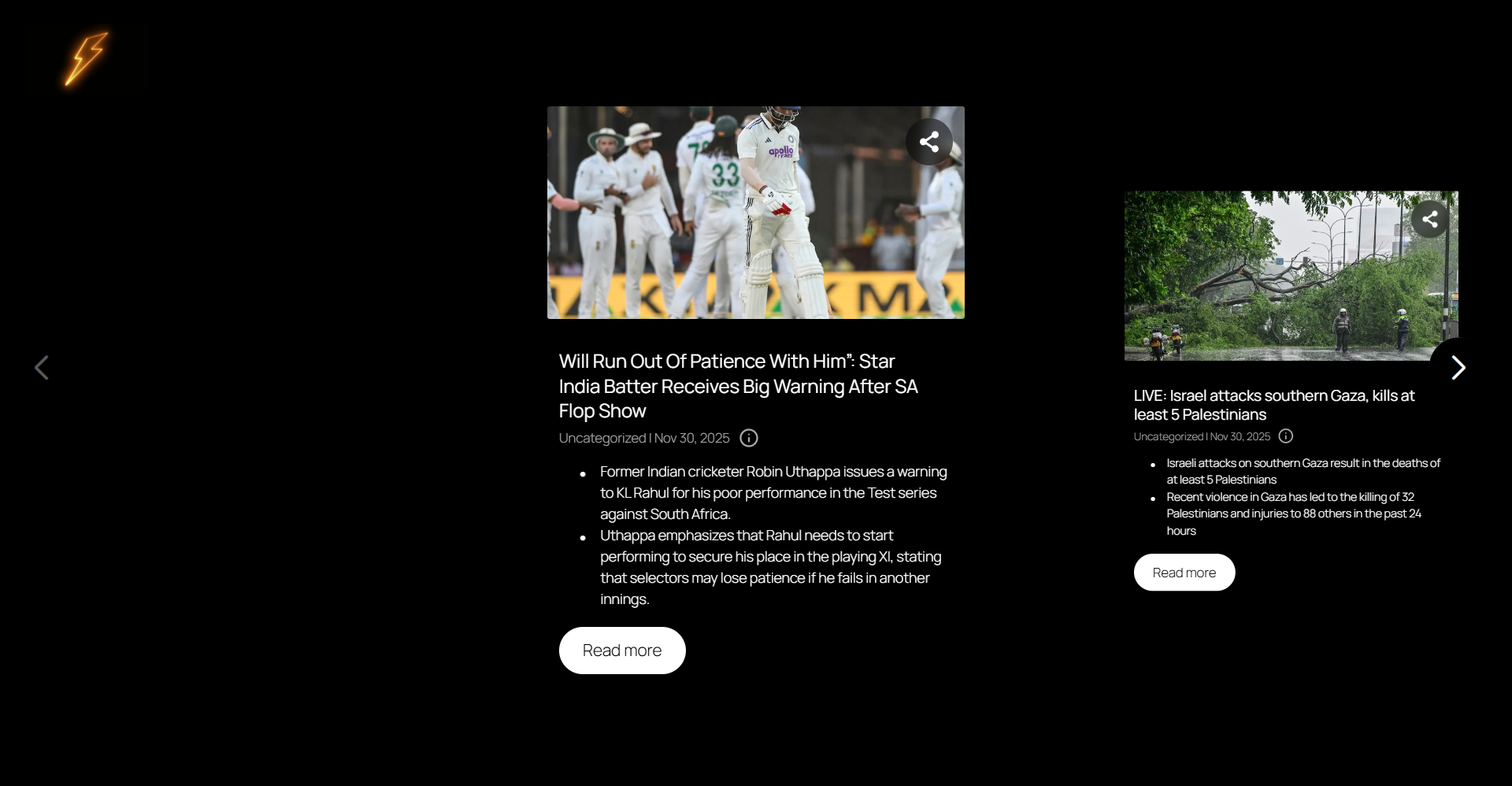
- Full-page news carousel for showcasing featured articles
- Swipeable card-based design with Swiper.js
- Beautiful animations and transitions
- Customizable logo, colors, and typography
- Navigation arrows with customizable position
- Share buttons for social media (Facebook, Twitter, WhatsApp, Reddit, Email)
- Responsive design for all screen sizes
- Universal Editor Support
- Works seamlessly with Gutenberg Block Editor
- Full support for Classic Editor (TinyMCE)
- Meta box appears automatically for all supported post types
- Multi-Language Support
- Generate summaries in multiple languages:
- English
- Arabic (العربية)
- Hindi (हिन्दी)
- Kannada (ಕನ್ನಡ)
- send a request or comment to add new language
- Future Enhancements: Interaction Tracking
- Track clicks on summary icons
- Per-post engagement metrics
- Global statistics dashboard
- REST API endpoints for custom analytics
- Comprehensive Settings
- API configuration and model selection
- Summary generation preferences
- Icon customization (size, color)
- Popup styling (theme, colors, fonts)
- Thunderbolt page customization:
- Logo and branding
- Background colors
- Typography settings
- Navigation controls
- Card styling
- Auto-generation toggle
- Rate limiting and timeout settings
- Auto-Generation
- Automatically generate summaries when posts are published
- Only generates if no summary exists
- Respects API rate limits with built-in delays
- Can be disabled for manual generation only
- Customizable Summary Length
- Short (1 paragraph) - Quick, concise summaries
- Medium (2 paragraphs) - Balanced detail and brevity
- Large (3 paragraphs) - Comprehensive summaries
- Formatted as bullet points for easy reading
- Security & Performance
- Secure API key storage
- Nonce verification for all requests
- Proper data sanitization and escaping
- Optimized database queries
- Minimal front-end overhead
- Cached summaries for fast loading
- Accessibility
- ARIA labels and roles
- Keyboard navigation support
- Screen reader friendly
- High contrast support
- Semantic HTML structure
- News websites and online magazines
- Blog publishers who want quick summaries
- Content creators looking to improve engagement
- Websites wanting to showcase featured news
安装:
- Log in to your WordPress admin dashboard
- Navigate to Plugins → Add New
- In the search box, type "News in 100 Words"
- Click Install Now when you see the plugin
- After installation, click Activate Plugin
- Download the plugin ZIP file from WordPress.org
- Log in to your WordPress admin dashboard
- Navigate to Plugins → Add New
- Click Upload Plugin button at the top
- Click Choose File and select the downloaded ZIP file
- Click Install Now
- After installation completes, click Activate Plugin
- After activation, you'll see a new menu item "News in 100 Words" in your WordPress admin sidebar
- Click on News in 100 Words to open the settings page
- Navigate to the API & Model tab
- Get your OpenAI API key:
- Visit https://platform.openai.com/api-keys
- Sign up or log in to your OpenAI account
- Click "Create new secret key"
- Copy the API key (you won't be able to see it again)
- Paste your API key into the API Key field in the plugin settings
- Select your preferred AI model:
- GPT-3.5 Turbo - Fast and cost-effective (recommended for most users)
- GPT-4 - More accurate but slower and more expensive
- GPT-4 Turbo - Best balance of speed and accuracy
- Configure timeout settings (default: 30 seconds)
- Set API delay to avoid rate limits (default: 500ms)
- Click Save Changes
- Click on the Summary Generation tab
- Set your Default Length:
- 1 paragraph - Short, concise summaries
- 2 paragraphs - Medium-length summaries (recommended)
- 3 paragraphs - Longer, detailed summaries
- Select your Default Language:
- English, Arabic, Hindi, or Kannada
- Enable Auto-Generate if you want summaries created automatically when posts are published
- Click Save Changes
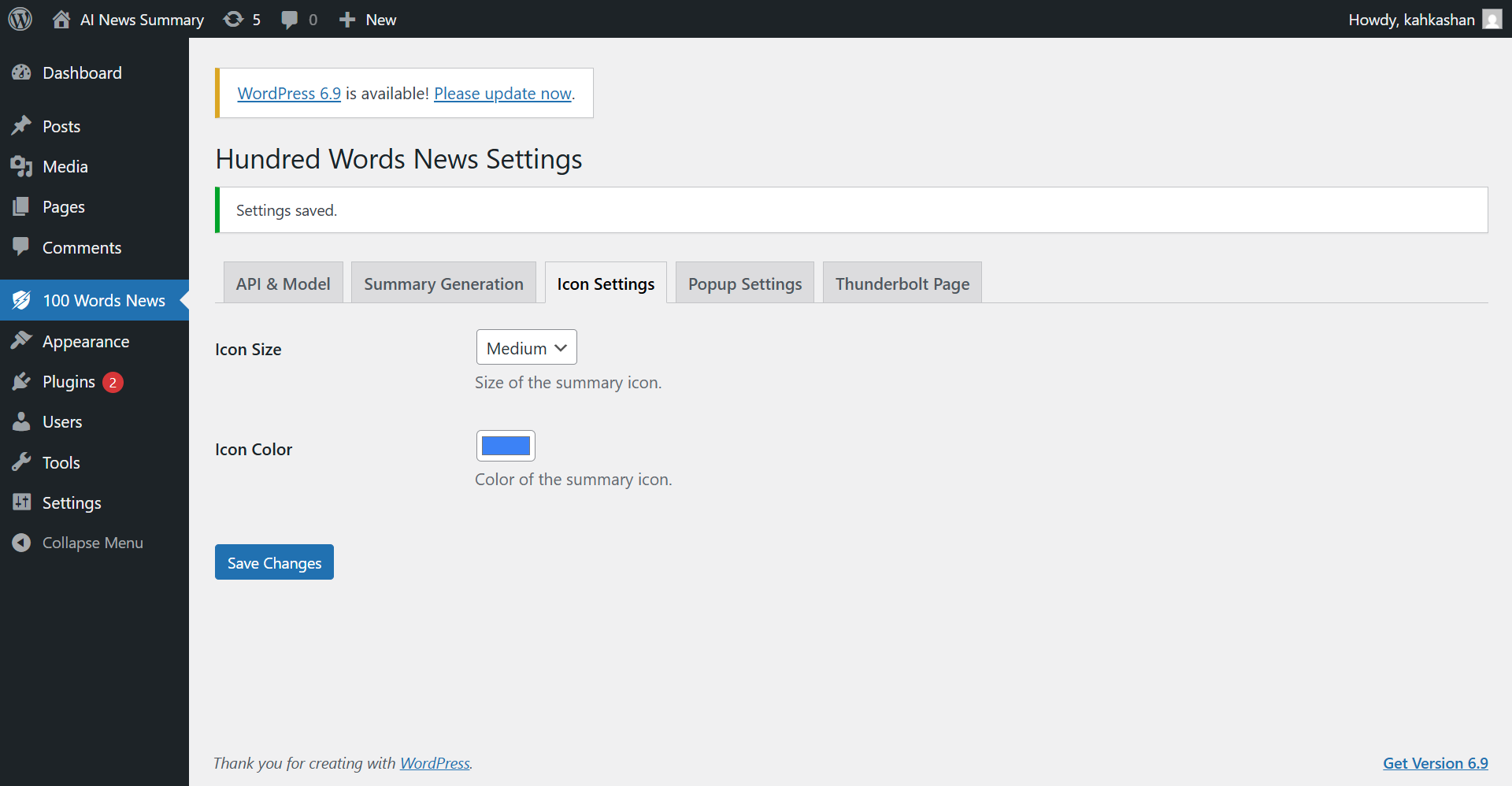
- Icon Settings Tab:
- Choose icon size (Small, Medium, Large)
- Select icon color using the color picker
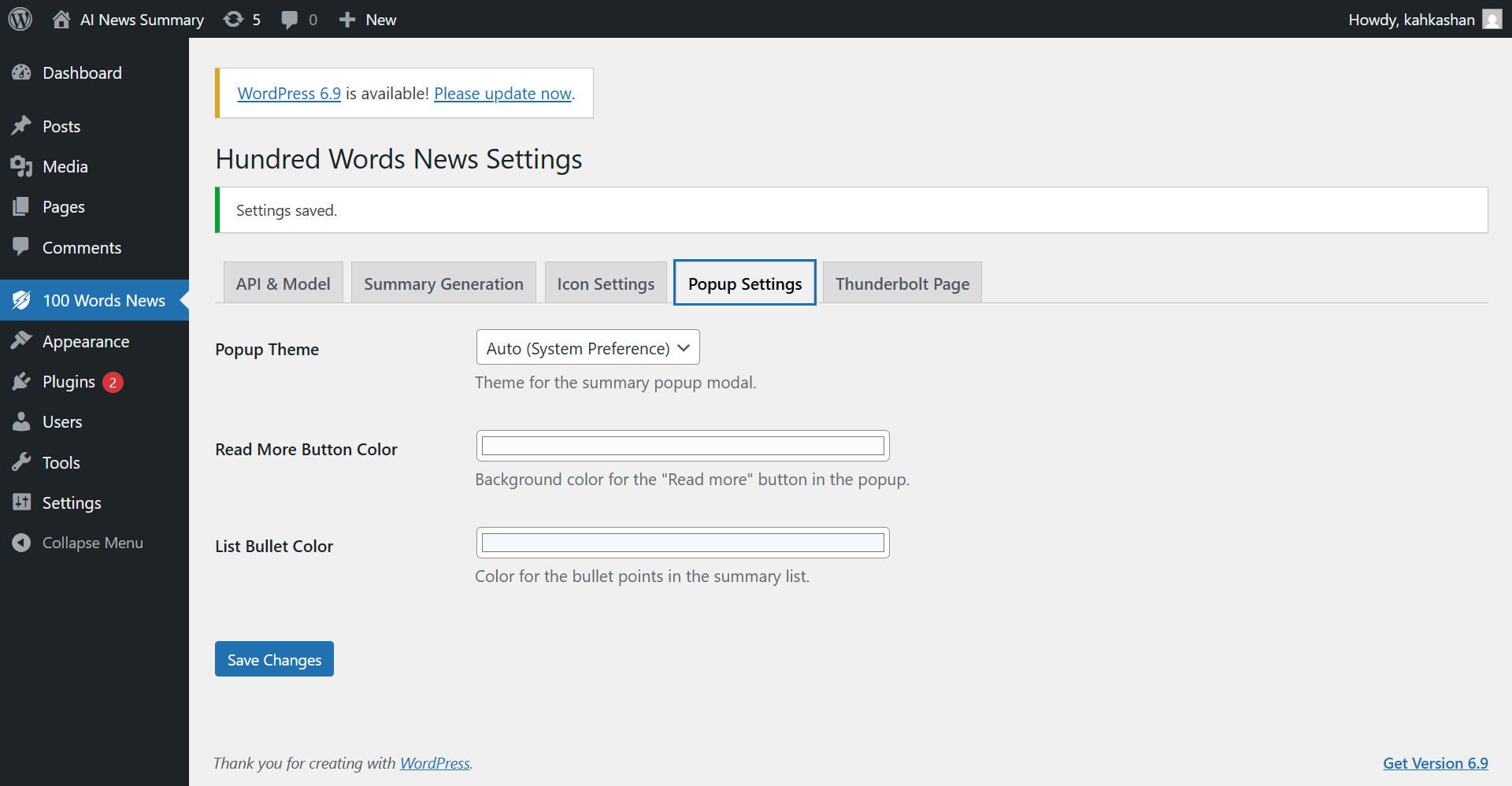
- Popup Settings Tab:
- Choose popup theme (Light, Dark, or Auto)
- Customize "Read More" button color
- Set list bullet point color
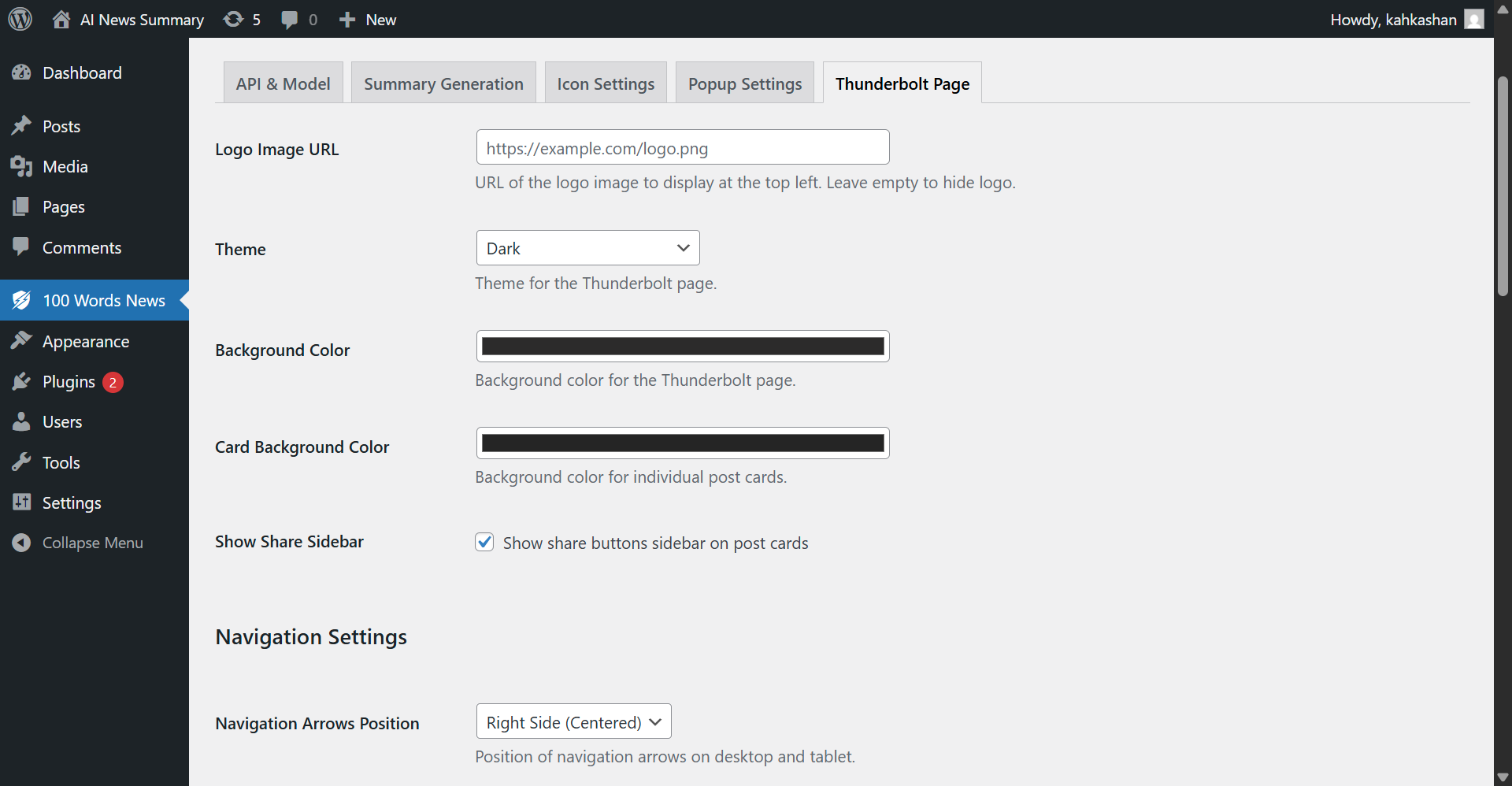
- Thunderbolt Page Tab (Optional):
- Upload logo image URL
- Choose theme (Dark, Light, or Auto)
- Customize background colors
- Configure typography settings
- Set navigation arrow position and colors
- Click Save Changes after each customization
- Edit any existing post or create a new post
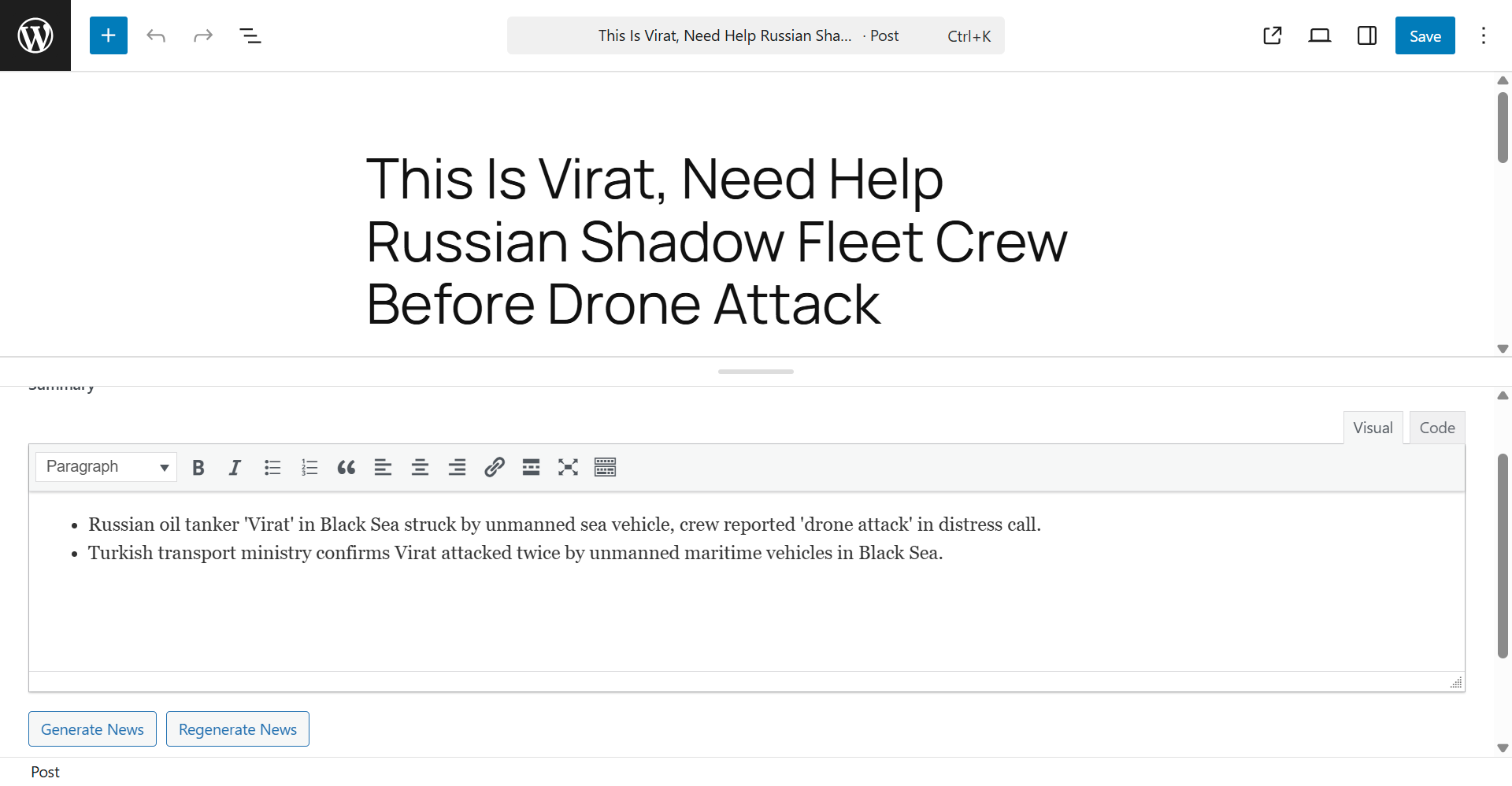
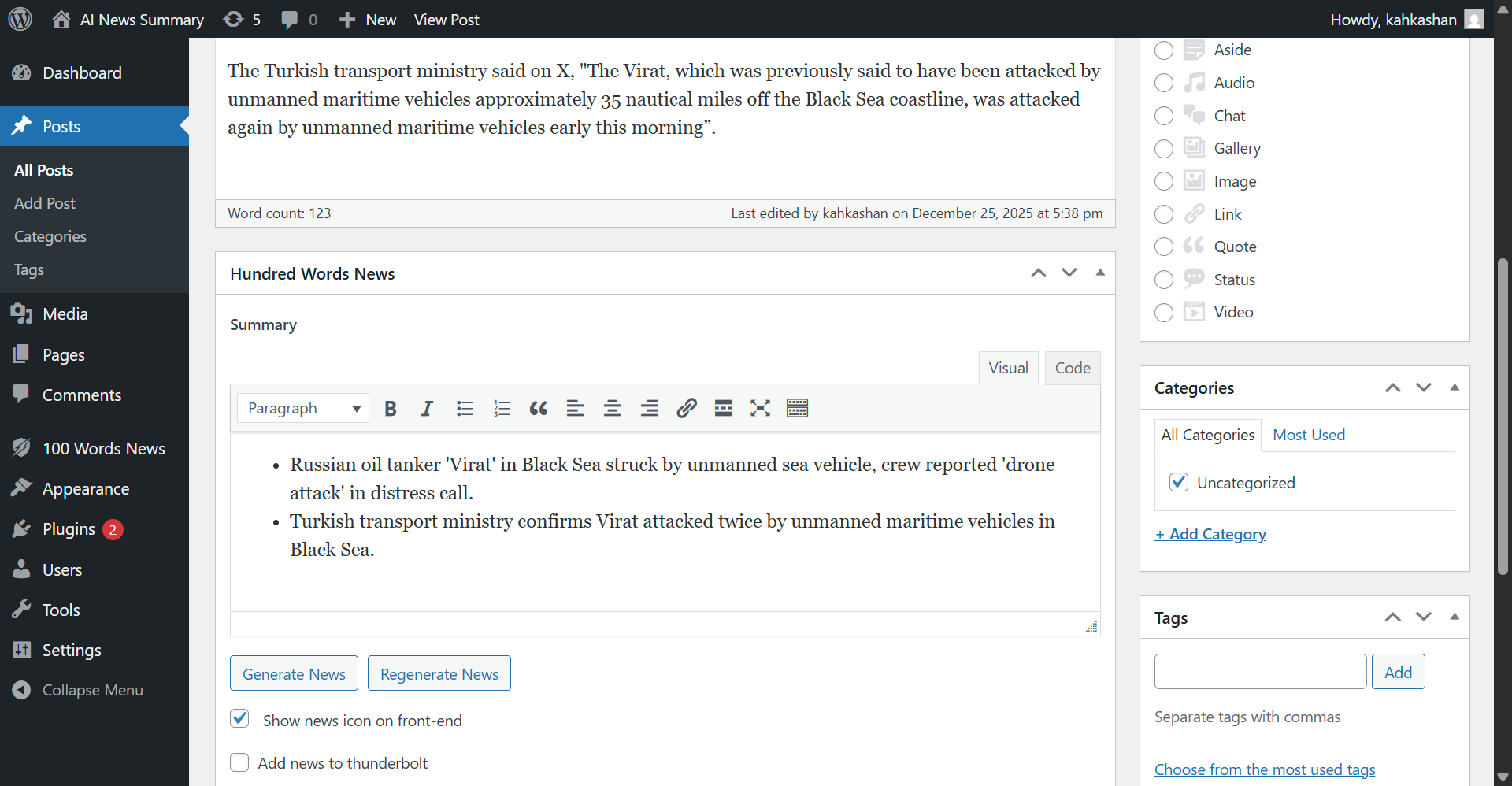
- In the post editor (Gutenberg or Classic), scroll down to find the "News in 100 Words" meta box
- Click the "Generate News" button
- Wait a few seconds for the AI to generate the summary
- Review the generated summary in the editor
- Edit the summary if needed (it's fully editable)
- Check the box "Show news icon on front-end" to display the lightning bolt icon
- Optionally check "Add news to thunderbolt" to include this post in the Thunderbolt carousel
- Publish or update your post
- Visit your website's front-end to see the lightning bolt icon (⚡) next to the post title
- Click the icon to see the beautiful popup with your summary
- Create a new page in WordPress
- Add the shortcode
[hundred_words_news_thunderbolt]to the page content - Optionally customize the shortcode:
[hundred_words_news_thunderbolt posts="10"]- Show 10 posts[hundred_words_news_thunderbolt posts="5" orderby="date" order="DESC"]- Custom query- Publish the page
- Visit the page to see your Thunderbolt news carousel
- Only posts with "Add news to thunderbolt" checked will appear
屏幕截图:


常见问题:
Do I need an OpenAI API key?
Yes, you need an OpenAI API key to generate summaries. You can get one for free (with credits) from https://platform.openai.com/api-keys
Does this work with all WordPress editors?
Yes! The plugin works with Gutenberg Block Editor, Classic Editor, and all major page builders including Elementor, Divi, WPBakery, and more.
Can I customize the appearance?
Absolutely! You can customize icon size, color, popup theme, button colors, and Thunderbolt page styling through the settings page.
What languages are supported?
Currently supports English, Arabic, Hindi, and Kannada. More languages can be added based on demand.
Can I edit the generated summaries?
Yes! Generated summaries are fully editable in the WordPress editor before publishing.
What is Thunderbolt News?
Thunderbolt News is a full-page news carousel feature that displays multiple news articles in a beautiful, swipeable format. Perfect for showcasing featured news on a dedicated page.
Does the plugin slow down my site?
No, the plugin is optimized for performance. Summary generation happens asynchronously and summaries are cached. The front-end display adds minimal overhead.
Can I use this with custom post types?
Yes, the plugin automatically supports all public post types that have an editor.
Is there a limit on how many summaries I can generate?
The limit depends on your OpenAI API plan. The plugin includes rate limiting and retry logic to handle API limits gracefully.
Can I disable auto-generation?
Yes, you can disable auto-generation in the settings and only generate summaries manually when needed.
更新日志:
- Security improvements: Enhanced sanitization for all settings fields
- Security improvements: Improved REST API permission callbacks with per-post capability checks
- Security improvements: Proper escaping for filter callbacks (the_title filter)
- Standards compliance: Updated shortcode name to use proper prefix (hundred_words_news_thunderbolt)
- Standards compliance: Updated JavaScript object names to use consistent prefixes
- Documentation: Added comprehensive external services documentation for OpenAI API usage
- Code quality: Improved input validation and sanitization using WordPress best practices
- Initial release
- AI-powered summary generation with OpenAI integration
- Universal editor support (Gutenberg and Classic)
- Lightning bolt icon display on front-end
- Beautiful popup modal with animations
- Thunderbolt news carousel feature
- Multi-language support (English, Arabic, Hindi, Kannada)
- Comprehensive admin settings page
- Auto-generation on post publish
- Interaction tracking
- Customizable styling and colors
- Responsive design
- Accessibility features