
NiroHelp – AI-Native Helpdesk for Knowledge Base, Tickets, AI Chatbot, AI Ticket Responder and more
| 开发者 |
easycommerce
nirosuite |
|---|---|
| 更新时间 | 2026年10月14日 18:25 |
| PHP版本: | 7.4 及以上 |
| WordPress版本: | 7.1 |
| 版权: | GPLv3 or later |
| 版权网址: | 版权信息 |
详情介绍:
- A customer writes in. A new ticket or client reply schedules one AI reply.
- The AI searches the docs you synced for a real answer.
- Above your threshold, it replies, after your response delay (5 minutes by default). Each new client message restarts the delay.
- Below it, a human takes over. Nothing is posted, the attempt is logged, and the ticket stays in your queue. An agent reply cancels the pending one.
- Product companies answering the same questions daily, whose docs can carry the load.
- Support teams needing real ticketing without per-agent pricing.
- Agencies running support for client sites, with a chatbot branded for each one.
- Native WordPress docs: a standard post with a featured image, written in the editor. Drafts stay drafts, private docs stay private.
- Topics and products. Nested topics, plus product tags shared with tickets, and drag-and-drop ordering for both. See topics and products.
- Archive with search.
[nirohelp_docs]renders topic cards and a search box answering in place, without a reload; limit it to one product with theproductattribute. - Doc voting. "Was this doc helpful?" Yes and No, counts only: no IP address, no visitor identity. Totals appear in the admin list and dashboard. See doc voting.
- Nine URL structures from your docs page, topic and product, with or without the docs base, to keep your old plugin's shape. See doc URLs.
- Reader navigation: sidebar, breadcrumbs, previous and next links, rating buttons and comments, each switchable on its own.
- Archive sizing: docs per page, and how many show under a topic before "View all".
- Code and images. Highlighted code with
[nirohelp_code lang="php"](Prism.js) and click-to-zoom images (Fancybox). See code blocks and images. - Fast at scale. Doc lists cached in your object cache (Redis, Memcached) or transients for a lifetime you set, cleared when a doc changes.
- Content insights. Views, votes and failed searches feed the dashboard's most-read, never-read, unhelpful, not-updated-in-a-year and missing-docs panels.
- Front-end ticket form.
[nirohelp_new_ticket], so customers never touch wp-admin. - Form builder. Show, hide, reorder and require the built-in fields (subject, description, product, topic, urgency, order ID), and add custom text, number, email, textarea or select fields. See ticket form fields.
- File attachments. Images, PDFs and ZIPs (10 MB by default) on tickets and replies, kept outside the media library in a protected folder, served only to people allowed to see the ticket.
- Eight ticket statuses, changing automatically when the client or an agent replies (see below), each change noted in the thread with who made it.
- Urgency and reasons. Four urgency levels (Low, Medium, High, Severe) and a reasons taxonomy showing why customers contact you.
- Agent queue.
[nirohelp_all_tickets]: status tabs, search, filters (agent, product, reason, urgency, date), quick edit and a rich-text reply box. - Client portal.
[nirohelp_tickets]: each customer's own tickets and conversations. - Automatic assignment: random, round-robin or least-loaded, with a per-agent ticket cap, or off to assign by hand. See auto-assigning agents.
- Agents page. Each agent's open and total tickets, an "At capacity" badge and a link to their queue.
- Roles: NiroHelp Manager, NiroHelp Agent and a minimal NiroHelp User for customers, alongside Administrators. See roles and permissions.
- Embeddable ticket widget: a theme-free "Need Help?" button and form for other sites, served from
/nirohelp/tickets/embed/. See embedding the ticket UI.
- Verification code: a 6-digit code by email (default).
- Magic link: one-click sign-in, valid for 5 minutes.
- Password: a standard login, with email-verified sign-up.
- Seven notifications: login code, magic link, new ticket (to the client and to the agent), agent reply, client reply, ticket resolved.
- Edit each one's header, subject and body, with placeholders such as
##client_name##,##ticket_subject##and##ticket_link##(a one-click sign-in link to the ticket). - Shared branding (logo, footer text, brand colour, background and content width), set once for all of them.
- Sent through
wp_mail, so any SMTP plugin works. More in notification emails.
- One snippet, any website: a single
<script>tag, or a mini plugin to download for WordPress sites. See embedding the chatbot. - Answers from your docs, once synced, following your AI instructions.
- Conversation memory. Follow-ups keep context, and the thread survives a page change.
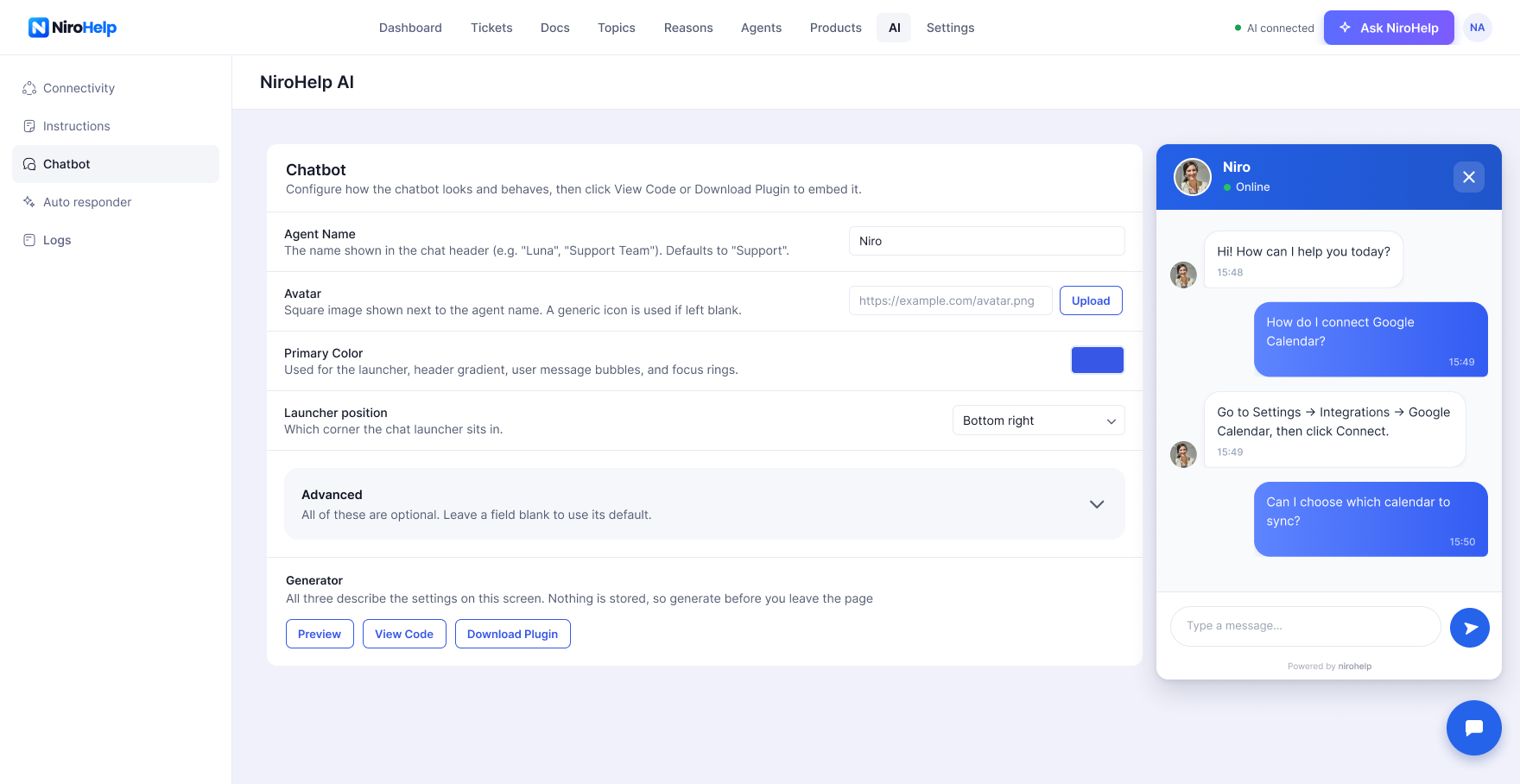
- Your brand: agent name, avatar, accent colour, position, welcome message, suggested questions, input placeholder, launcher label, panel size (400 × 620 by default, capped to small screens) and the "Powered by NiroHelp" footer, on or off. See customizing the chatbot.
- Auto-open triggers: after a delay, at a scroll depth or on exit intent, at most once per visit.
- Page targeting. Show or hide it on URL paths such as
/docs/*or/checkout/*. Hide rules win. - Business hours like
mon-fri:9-17in the visitor's local time; outside them, show an offline message or hide the widget. - Route to a human: a support email and ticket page it shares when a visitor needs one.
- Optional lead capture. Ask for a name and email early on, matching known addresses to their WordPress account. Off by default.
- Live preview before you copy the code.
- Private by design. Conversations live in the visitor's browser session and clear when the tab closes. See chatbot conversation storage.
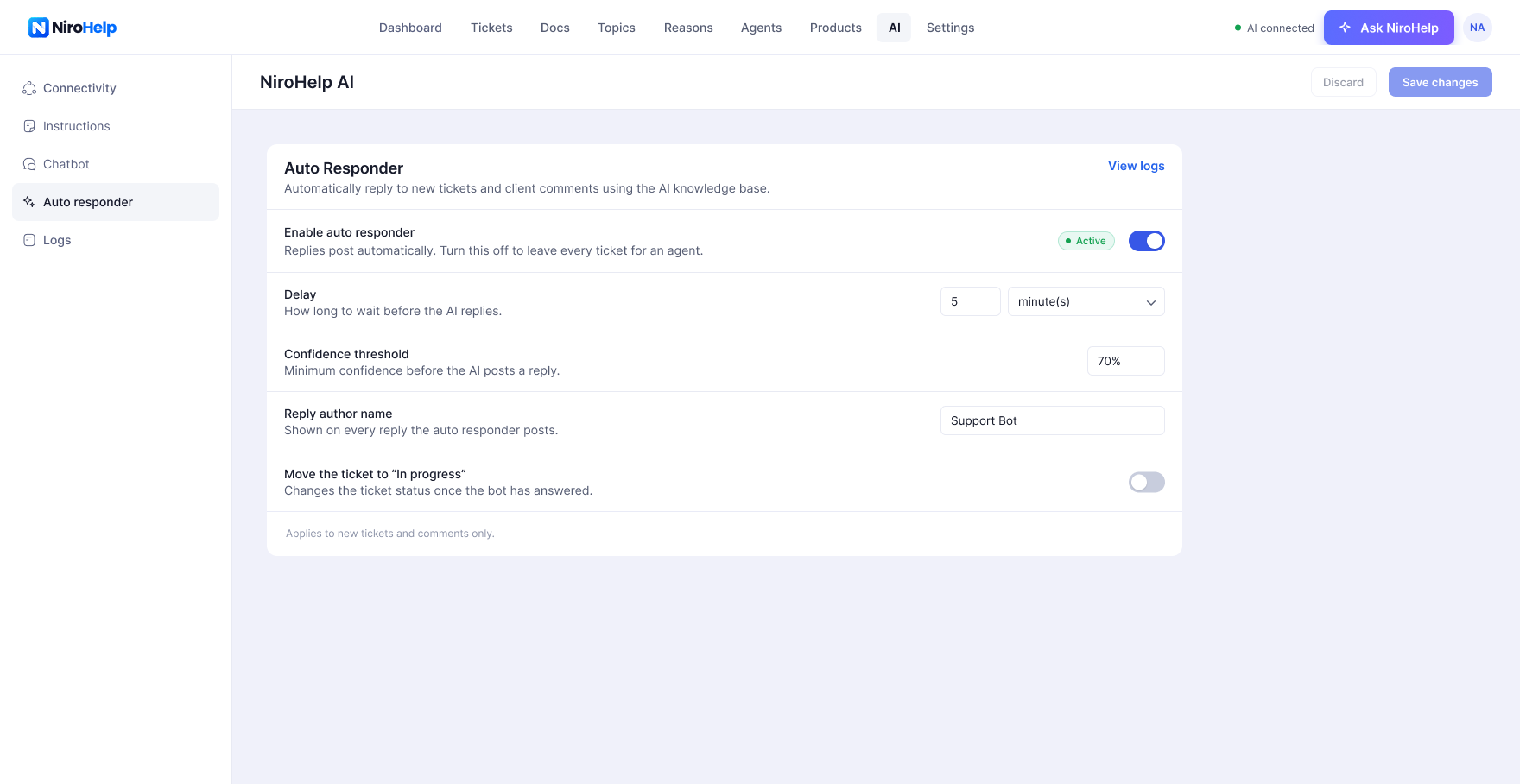
- Answers new tickets and client replies from your synced docs, after a delay set in minutes, hours or days.
- Withheld answers are logged with their score and the reason it held back.
- Cancels when an agent replies or the ticket is resolved, closed or cancelled, so it never answers stale context.
- One attempt per client message: it never replies to itself and never sends twice for the same message.
- Posts under an author name you choose ("Support Bot" by default), and can move the ticket to In Progress.
- Every ticket is labelled positive, neutral or negative, with a note on what is blocking the customer.
- Classified about two minutes after a new ticket or client reply, with an hourly catch-up, so nobody waits on an AI call to file a ticket.
- Terminal tickets too: an angry message on a resolved ticket is the strongest reopen signal a desk gets.
- An agent can override the label or re-analyse on demand from the ticket screen, and a manual label is never overwritten.
- Feeds the dashboard's mood split and the risk ranking behind Needs attention; a ticket it has not reached reads as undecided, not a guess.
- Generate response with AI. Agents draft a reply from your docs in one click, then edit before sending.
- AI instructions: standing guidance on tone and scope for the chatbot and auto-responder. See custom instructions.
- Ask NiroHelp. Administrators and managers ask plain-language questions about tickets, agents, chatbot activity and doc gaps. Answers cite their basis, and say "not enough history yet" rather than inventing a number. It can propose creating a ticket, changing a status or adding an internal note, acting only once you confirm. See Ask NiroHelp.
- Logs: separate feeds for chatbot answers, auto-responder replies and Ask NiroHelp questions, with the relevance score behind each attempt; auto-responder entries link back to their ticket.
- Usage: chatbot responses, auto-responder replies and plan credits left, with the renewal date.
- Connect and disconnect from one screen. Register the site, sync docs, and disconnect whenever you like, clearing the stored credentials on this site only. See registering for AI and syncing docs.
- Key numbers, each against the previous period: open tickets, waiting on your team, average first reply, resolved, AI deflection, AI replies sent, docs published and doc helpfulness.
- Work queues: Needs attention (ranked by risk: wait time, follow-up count, urgency and how the thread reads, reopened tickets first), Needs reply (oldest first) and New tickets.
- Daily briefing written each morning; plain figures when AI is off.
- Customer sentiment split across recent tickets.
- AI performance: replies sent, deflection, answers withheld below the threshold, and how often and how quickly a human took over.
- Chatbot outcomes: questions asked and most asked, sessions that ended in an answer, were handed to a ticket, or were abandoned.
- Agent workload: per-agent first reply and resolution times, the AI's share of their tickets, and how work is spread across the team.
- Busiest hours heatmap for tickets, agent replies and chatbot questions.
- Doc insights: most read, never read, read only once, marked unhelpful, untouched for a year, searches that found nothing, and ticket subjects your docs do not cover.
- Activity feed across tickets, docs and AI, plus Rescan to re-classify sentiment and regenerate the briefing.
- Slack. New tickets, customer replies, assignments and alerts post to a channel, one thread per ticket, with the ticket's card kept current. Route by product, and @mention or message the assignee. Runs on your own Slack app, created from a manifest NiroHelp writes. See Slack.
- Webhooks. Ticket events as signed HTTPS POSTs to a URL of your own, for Make, n8n or your own code, with retries, a delivery log and redeliver. An endpoint that fails five times in a row is switched off and flagged. See webhooks.
- Both deliver in the background, never replay a migration, and live under NiroHelp → Integrations for administrators.
- BetterDocs: docs, categories and votes.
- weDocs: parent pages become topics, articles become docs, votes included.
- Echo Knowledge Base: articles and categories from every knowledge base.
- BasePress: articles, knowledge bases, sections and votes.
- Awesome Support: tickets, replies, attachments, assigned agents, products and departments.
- SupportCandy: tickets, threads, customers, agents, categories, priorities, tags, custom fields and attachments.
- JS Help Desk: tickets, replies, departments, products, priorities, custom fields and attachments.
- Stored in WordPress. Docs and tickets are posts, replies are comments, attachments sit in your uploads folder. Three tables of the plugin's own hold webhook endpoints, their delivery log and the queue Slack and webhook deliveries wait in.
- Modular. Turn the knowledge base or ticketing off at any time; that hides it and deletes nothing. See enabling modules.
- Nothing lost on uninstall. Deleting the plugin leaves your docs, tickets and settings in the database.
- Translation-ready. Every string uses the
nirohelptext domain, and a.potfile is included. See translating NiroHelp.
[nirohelp_docs]: knowledge base archive with search.[nirohelp_new_ticket]: ticket submission form.[nirohelp_tickets]: the signed-in customer's tickets.[nirohelp_all_tickets]: the agent ticket queue.[nirohelp_login_form]: customer sign-in form.[nirohelp_code lang="php"]: highlighted code block.
- REST API under
/wp-json/nirohelp/v1/for docs, tickets, comments, attachments, settings, migration, AI, integrations, webhooks and the dashboard. See the REST API reference. - Ticket lifecycle actions, including
nirohelp-tickets-ticket_created,nirohelp-tickets-client_commented,nirohelp-tickets-agent_commented,nirohelp-tickets-agent_changedandnirohelp-tickets-ticket_status_changed. See action hooks. - Filters, including
nirohelp_settings_menus,nirohelp_product_post_types,nirohelp_auto_status_transition_on_comment,nirohelp_can_register_users,nirohelp_attachment_typesandnirohelp_attachment_max_bytes. See filter hooks. - Named, versioned events (
ticket.created,ticket.replied,ticket.assigned,ticket.status_changedand more) through thenirohelp_eventaction and signed webhooks, and an integration registry on thenirohelp_integrationsfilter. See webhooks. - A theme-free ticket portal for an iframe on any site: embedding the ticket UI.
- Point the AI features at another NiroHelp Cloud server with the
NIROHELP_CLOUD_SITEconstant. - Full guide in the developer documentation, and every setting in the settings reference.
安装:
- In your WordPress admin, go to Plugins → Add New Plugin and search for NiroHelp.
- Click Install Now, then Activate.
- Download the plugin ZIP file from nirohelp.com.
- Go to Plugins → Add New Plugin → Upload Plugin, choose the file and click Install Now.
- Activate NiroHelp.
[nirohelp_docs]), My Tickets ([nirohelp_tickets]) and Submit a Ticket ([nirohelp_new_ticket]). Existing pages that already hold those shortcodes are reused, so activating again never creates duplicates.
- Add the new pages to your site menu.
- Choose the modules you need under NiroHelp → Settings → General.
- Publish a few docs, so your knowledge base and your AI have something to answer from.
- Optional: create an All Tickets page with
[nirohelp_all_tickets]for your agents and select it under Settings → Tickets → Pages. - Optional: moving from another plugin? Keep it active and open NiroHelp → Settings → Migration.
- Optional, AI: open NiroHelp → AI, register with your name and email, enter the key you receive and click Sync Docs. Then set your confidence threshold and response delay under Auto Responder, and get your embed code under Chatbot.
屏幕截图:




常见问题:
What is NiroHelp?
NiroHelp is a WordPress help desk plugin that combines a knowledge base, a support ticket system and optional AI. The AI chatbot and auto-responder answer customers from the documentation you publish, and leave the conversation to your team when they are not confident. See what it does on nirohelp.com.
Is NiroHelp free?
Yes. The knowledge base, ticketing, email notifications, dashboard and migration tools are free, with unlimited agents, tickets and docs. AI features are optional and need a paid NiroHelp plan. See NiroHelp pricing.
What do the paid plans add?
The AI: the chatbot, the ticket auto-responder, AI reply drafts, sentiment, the daily briefing and the Ask NiroHelp copilot. Starter covers one site, Growth five and Agency ten, each with a monthly allowance of AI answers and unlimited agents. Everything else — docs, tickets, assignment, roles, emails, the dashboard's free panels and all seven importers — is in the free plugin.
What is an AI credit, and what happens when I run out?
One credit is one AI answer: a chatbot reply, an auto-responder reply or an Ask NiroHelp question. Length makes no difference. The allowance is shared across every connected site and renews monthly. If it runs out, the AI pauses until it renews and nothing else changes — tickets keep arriving, your team keeps answering, the knowledge base keeps working. The Usage panel on the AI screen shows what is left and the renewal date.
How does the AI decide when to answer a ticket?
It searches your synced docs and scores how well they answer the question. If the score clears your confidence threshold, the reply is posted after your response delay. If it does not, nothing is posted and the ticket waits for an agent.
Can I control how confident the AI has to be?
Yes. Set the confidence threshold from 0 to 100% (default 70%) and the response delay in minutes, hours or days (default 5 minutes) under NiroHelp → AI → Auto Responder. The AI auto-responder page walks through both settings.
What happens when the AI is not confident enough?
It stays silent. No reply is posted, the attempt is recorded in the AI logs with its score and the reason it held back, and the ticket stays in your queue for a human agent. The customer sees nothing unusual.
Will the auto-responder reply over my agents?
No. Each client message schedules at most one AI reply, and a new client message restarts the delay. Any agent reply, or resolving, closing or cancelling the ticket, cancels the pending AI reply.
Do I need an OpenAI API key?
No. There is no OpenAI, Anthropic or other model key to set up. You connect your site to NiroHelp Cloud once, from inside WordPress.
How does the AI learn my documentation?
Click Sync Docs under NiroHelp → AI. NiroHelp Cloud reads your published, publicly visible docs and indexes them. Syncing is manual, so unfinished drafts never reach answers, and NiroHelp reminds you to sync after you edit or publish a doc. See syncing docs.
How do I disconnect a site from the AI?
Open NiroHelp → AI and use Disconnect on the connection card. It clears the stored credentials on that site only, and you can connect again whenever you like — see disconnecting and reconnecting AI.
What does the dashboard show?
Key numbers for the range you pick (7, 30 or 90 days, this week or this month), three work queues, a busiest-hours heatmap, agent workload, doc insights and an activity feed. With AI connected it adds the daily briefing, the customer sentiment split, AI performance and chatbot outcomes. More on the dashboard page.
How does a ticket end up in "Needs attention"?
By risk rather than by date: how long the customer has waited, whether anyone has replied at all, the urgency on the ticket and how the recent replies read. Reopened tickets lead the queue. Tickets rise when several of those line up badly.
How is sentiment worked out?
The AI service labels each ticket positive, neutral or negative and notes what is blocking the customer, about two minutes after the latest message, with an hourly catch-up. A ticket it has not reached yet is shown as undecided rather than guessed at, and an agent can override the label or re-analyse the ticket from the ticket screen.
Can I use only the knowledge base, or only ticketing?
Yes. Switch either module off under NiroHelp → Settings → General. At least one must stay on, and turning a module off deletes nothing.
Do customers need a WordPress account?
Customers never use wp-admin and do not need a password. The first time someone submits a ticket, NiroHelp creates a minimal NiroHelp User account for them, and they sign in with an emailed code or magic link. New accounts are only created when your site allows it: either WordPress's "Anyone can register" setting or NiroHelp's "Create accounts for new clients" setting must be on.
Can visitors submit tickets without logging in?
Yes. Turn on guest submissions under Settings → Tickets → Submission. Visitors enter their name and email with the ticket and receive a sign-in link by email.
Can customers attach files to tickets?
Yes. Customers and agents can attach PNG, JPG, PDF and ZIP files, up to 10 MB by default, to tickets and replies. They never go through the media library: NiroHelp writes them into a protected folder and serves them through a route that checks who is asking, so the customer role needs no WordPress upload permission. Developers can change the allowed types and size with the nirohelp_attachment_types and nirohelp_attachment_max_bytes filters.
How do ticket statuses change on their own?
A client reply moves the ticket to Waiting (your team's turn) and an agent reply moves it to In Progress (the client's turn). Resolved, Cancelled and Closed tickets are left alone. Switch the behaviour off under Settings → Tickets → Behaviour, or filter it per ticket with nirohelp_auto_status_transition_on_comment. See ticket statuses.
Can I add the AI chatbot to a site that isn't WordPress?
Yes. The chatbot is a single <script> tag that works on any website. For another WordPress site, Download Plugin gives you a tiny plugin that adds the widget without touching code. See the AI chatbot page.
Can I show the chatbot only on certain pages?
Yes. List the URL paths to show or hide it on, with * wildcards such as /docs/*. Only the path is matched, not the query string, and hide rules win when a page matches both lists.
Can I customize how the chatbot looks?
Yes. Set the agent name, avatar, accent colour, position, welcome message, suggested questions, input placeholder, launcher label, panel size and business hours, switch the "Powered by NiroHelp" footer off, and preview the result before copying the code. Agencies can brand it separately for each client site — see customizing the chatbot.
Can the chatbot collect a visitor's name and email?
Optionally. Turn on lead collection and the bot asks for them early in the conversation, matching a known address to its WordPress account. It is off by default, and the widget works without it.
How are tickets assigned to agents?
New tickets are assigned automatically with random, round-robin or least-loaded assignment, skipping agents who have reached their ticket cap. You can also turn auto-assignment off and assign tickets by hand.
How many agents can I add?
As many as you like. NiroHelp has no per-agent limits and no seat pricing.
Can I customize the ticket form?
Yes. Under Settings → Tickets → Form fields, show, hide and reorder the built-in fields, mark fields as required, and add custom text, number, email, textarea or select fields.
Can I customize the notification emails?
Yes. Each of the seven emails has an editable header, subject and body with placeholders, plus a shared logo, footer, brand colour, background and content width. Emails are sent through wp_mail, so they work with any SMTP plugin.
Can customers open tickets by email?
Not in this version. Tickets are created from the ticket form, the embeddable ticket widget or the REST API, and notification emails bring customers back to their ticket with a one-click sign-in link. Email piping — piping a support mailbox into the queue over IMAP or POP3 — is on the roadmap.
How do I migrate from BetterDocs, weDocs, Echo Knowledge Base, BasePress, Awesome Support, SupportCandy or JS Help Desk?
Keep the old plugin active, open NiroHelp → Settings → Migration and click Migrate next to it. Each button stays disabled until that plugin is detected. The import runs in the background and is safe to run again. Use Clean only after checking the result: it permanently deletes the migrated data from the old plugin, and there is no undo. Each source has its own guide under Migrate.
Should I try a migration on a staging site first?
Yes, especially for tickets. An import is recorded as history, not news: replayed replies send no email, book no AI reply and keep the status the old help desk recorded, and nothing is posted to Slack or a webhook. A staging copy still shows exactly what lands, and how it reads, before your team sees it. See migrating from other plugins.
Where is my support data stored?
In your WordPress database. Docs and tickets are posts, replies are comments, and attachments are in your uploads folder; webhook endpoints, their delivery log and the delivery queue are in three tables of the plugin's own. The AI features send only the data listed under External services to NiroHelp Cloud, and Slack and webhooks send only what is listed there too.
What happens to my data if I disable a module or uninstall the plugin?
Nothing is deleted. Disabling a module hides its screens and shortcodes. Uninstalling NiroHelp leaves your docs, tickets, replies and settings in the database.
Does NiroHelp work with my theme?
Yes. Docs and ticket screens appear inside regular pages through shortcodes, so they work with classic and block themes.
Is NiroHelp translation-ready?
Yes. Every string uses the nirohelp text domain, and a .pot template is included in the languages folder.
Where can I ask a question that isn't answered here?
More answers are on the NiroHelp FAQ, common issues are in troubleshooting, and the full manual is at nirohelp.com/docs.
Does NiroHelp post to Slack?
Yes. Open NiroHelp → Integrations → Slack, create a Slack app from the manifest shown there, install it to your workspace, then paste its bot token and signing secret and click Connect. Pick a default channel, switch on the notifications you want, and each ticket gets one thread that later events reply in. See the Slack guide.
Can I send ticket events to Make, n8n or my own code?
Yes, with a webhook. Under NiroHelp → Integrations → Webhooks, add an HTTPS endpoint and choose its events. Each delivery is signed with that endpoint's secret in an X-NiroHelp-Signature header, so the receiver can check it came from your site. See the webhooks guide.
Is there a REST API?
Yes. The /wp-json/nirohelp/v1/ namespace covers docs, tickets, comments, attachments, settings, migration, AI, integrations, webhooks and the dashboard, and action and filter hooks cover the ticket lifecycle. Routes and hooks are listed in the REST API reference.
更新日志:
- Email inboxes on Integrations: connect a mailbox over IMAP, or add a webhook/forwarded address for Mailgun, Postmark or SendGrid, from one dialog. Adding a new inbox requires NiroHelp Pro; an inbox Pro already created keeps working — editing, rereading and deleting stay open — if Pro is later removed.
- Inbound mail becomes a ticket (or a reply on an existing one, matched by thread and sender), with attachments, pasted inline images, and quoted history/signatures stripped from the visible reply.
- Each inbox keeps its own agent pool for assignment, a log of the last 20 skipped messages with why, and a health warning when its pool is empty.
- Outbound mail threads so a client's reply finds its ticket; an agent's reply sends as the ticket's own reply.
- Imported backlog tickets can be backdated and left unassigned, and are found again by their Message-ID rather than duplicated.
- Generate docs: a dialog and editor panel that drafts a doc's title and body from the AI service, with an Instructions field and a running usage/log.
- Suggest reply: draft a ticket reply from
/suggest-reply, with the sources it drew from. - Leads: the AI rail lists the chatbot's leads and opens a ticket from one, with the conversation rebuilt from the service's log.
- Remote Sites: other sites connected to the same AI account, and their docs, are sent along with Sync Docs.
- The dashboard's chatbot card and heatmap now read from the service's
/stats. - Doc sync runs as a background job over incremental diffs instead of a full resync.
- SLA: a business-hours schedule and a clock that turns a ticket's history into a due time and an on-time/overdue verdict.
- Presence: agents on a ticket see who else is viewing it, live; the ticket list marks rows with another agent present.
- Follow-up: set or clear a follow-up date on a ticket, filter the queue by it, and see it on an agent's Follow-up card.
- A reply typed against a ticket that has since moved on is refused rather than silently overwriting the newer one; the unsent text is kept.
- A pasted image is drawn into a ticket's description and signed so only that ticket's own images render.
- The NiroHelp Manager now actually reaches the Dashboard, Agents, and the Topics/Reasons/Products screens, the AI dashboard panels, Rescan and Ask NiroHelp, and can start a ticket or a doc, use the AI doc writer, and edit an agent's details from a dialog — delivering what the 1.2.0 notes described.
- Attachments go through one shared upload gate on both the web form and email, get a real media entry, and stay out of the public media endpoints; WP Offload Media and optimiser plugins are told to leave ticket files alone. Permanently deleting a ticket removes its files.
- Auto-assignment skipped agents who had ever handled their limit's worth of tickets in total, not just open ones, eventually returning no eligible agent at all; now only open tickets count.
- The auto-responder's threshold now reads relevance only, not a mixed score.
- Ticket and reply text no longer loses backslashes; topic names keep literal escaped text and their hierarchy ids.
- A new ticket starts under a generated slug instead of a reused one.
- Tickets at
#/tickets: nine status tabs, search, product, agent (with Unassigned) and date filters behind a Filters toggle, agent avatars, reply counts and a relative "Updated". State lives in the address, so every filtered view is linkable. Rows have Edit and Delete permanently. - Docs at
#/docs: status tabs, filters, search, helpfulness, pager, bulk actions, a Trash tab and drag-to-reorder. - Agents at
#/agents: add an existing WordPress user or create one, from a dialog with a user picker. - Topics, Reasons and Products at
#/topics,#/reasonsand#/products: add, edit and delete terms one at a time or in bulk. Topics reorder by drag or keyboard. - Row deletes play an exit effect.
- Selects open below their trigger, scroll inside themselves and search when they have more than five options. They no longer lock page scroll or shift the admin bar.
- The NiroHelp submenu follows the dashboard top-bar order.
- Max open tickets per agent, on their WordPress profile (administrators only). 0 is unlimited; empty uses the global limit.
- Auto-assignment counts open tickets only. Resolved work no longer fills an agent up.
- Settings → AI → More content: choose posts, pages and, with WooCommerce or Easy Digital Downloads active, products and downloads for the AI to answer from.
- Change contact and Update address from the AI screens, with a pending-change badge.
- Delete data beside Disconnect: deletes what the AI service holds for the site, then disconnects. The dialog says it cannot be undone.
- WordPress's personal-data eraser now erases a user's ticket data at the AI service too, and the privacy policy text is published.
- The usage table lists credits per feature as the service charged them.
- Syncing docs also pushes the saved custom instruction.
- The Connectivity screens are rebuilt to the design.
- Docs cannot be synced from a local site, and the screen says so. A failed docs sync shows as a notice.
- Clients can attach GIF, WebP, MP4, WebM, MOV, TXT and CSV files as well as PNG, JPG, PDF and ZIP. Each type is still verified from the file's own bytes. SVG, HTML and JS stay refused.
- A Create a Ticket button on My Tickets, when the site has a new-ticket page.
- The app opens for doc managers, ticket managers and agents, with each route limited to the capability it needs.
- Managers can delete docs.
- Managers open the Dashboard, Agents and the Topics, Reasons and Products screens. Integrations, AI and Settings stay with administrators.
- Managers use the AI service — the dashboard's AI panels, Rescan and Ask NiroHelp — but cannot configure it.
- Managers can start a ticket or a doc from wp-admin, use the AI doc writer, and edit an agent's details and max open tickets from the Agents screen.
- REST routes under
nirohelp/v1:GET /tickets/admin,GET /docs/adminwith bulk, trash, restore and permanent-delete routes,/terms/{taxonomy},GETandPOST /agents,GET /agents/users, a publicGET /sources,/ai/sources,POST /ai/siteandPOST /ai/delete-data.
- Old list URLs for docs, tickets, the three taxonomies and the Agents page redirect to the matching app route. Managers are sent to the same app routes, and Trash stays on WordPress's list.
- The dashboard offers a free AI connection instead of an upgrade, and always shows Connect to AI when the site is not connected.
- Saving an agent's profile no longer drops the agent role.
- Term descriptions pass through core's filters, as on WordPress's own screen.
- Orphan topics stay among the roots, bulk-publishing a scheduled doc is refused, and a doc that was never updated shows its real date.
- The doc sidebar stacks above the article on narrow screens.
- The dashboard Volume card scrolls its terms instead of growing.
- The Connectivity card is the same width as the rest of the AI section.
- Live Preview: the plugin page on WordPress.org can now open NiroHelp in a WordPress Playground site, logged in and on the NiroHelp dashboard, without installing anything.
- A video embedded in a doc by pasting its URL (YouTube, Vimeo and other iframe embeds) showed in the editor but not on the published doc page.
- New tickets, customer replies, assignments, overdue and urgent tickets, AI escalations and negative sentiment, posted to a channel. Each ticket gets one thread, and its card is redrawn as the status, assignee and urgency change. Resolved can reply in the thread as well.
- Routing by product, with the option to repeat urgent alerts in the channel as well as the thread.
- An @mention for the assignee, or a direct message, matched to their Slack account by email address.
- Runs on your own Slack app, created from a manifest NiroHelp writes. The bot token is checked with Slack before it is saved, stored encrypted and never sent back to the browser. Disconnect revokes it.
- More than 20 notifications in a minute collapse into one digest. A revoked token, or a channel Slack refuses, switches that route off and says so in wp-admin. Slack's rate limit pauses delivery without using up a retry.
- Signed HTTPS deliveries (
X-NiroHelp-Signature, HMAC-SHA256) forticket.created,ticket.updated,ticket.replied,ticket.customer_replied,ticket.note_added,ticket.assigned,ticket.status_changed,ticket.resolved,ticket.overdue,ticket.sentiment_negative,customer.created,ai.answeredandai.escalated. - All public events keeps covering events added later. Private notes go only to an endpoint that picks them by name.
- A secret per endpoint, shown once and rotatable. Message bodies are opt-in; otherwise each event carries a 280-character excerpt.
- Retries after roughly 1 minute, 5 minutes, 30 minutes, 2 hours and 12 hours. Five failures in a row switch the endpoint off and raise an admin notice. An endpoint that answers
410 Goneis deleted. - A delivery log for each endpoint, with Redeliver, kept 14 days by default (1 to 90).
- Send test, which waits for the receiver's answer and shows it.
- Settings → Tickets → Behaviour → Overdue after: how many hours a ticket can wait on an agent before
ticket.overduefires. 24 by default, 0 to turn it off.
- Named, versioned events with ULID ids, fired through
nirohelp_eventandnirohelp_event_{name}. - New actions:
nirohelp-tickets-ticket_imported,nirohelp-tickets-sentiment_changed,nirohelp-tickets-ai_answeredandnirohelp-tickets-ai_escalated. nirohelp-tickets-client_commentednow passes the comment ID as its second argument, andnirohelp-tickets-agent_changedpasses the ticket as its third. Listeners registered for fewer arguments see no change.- The
nirohelp_integrationsfilter adds a card to the Integrations screen. - REST routes for integrations and webhooks under
nirohelp/v1, all for administrators only.
- Integrations has its own screen, placed between Products and AI in both the admin menu and the app bar.
- The plugin's first custom tables, holding webhook endpoints, their deliveries and the delivery queue. They are created on activation and on update, and kept on uninstall like the rest of your data.
- The AI auto-responder now reports it when an answer fails to arrive or cannot be posted, as well as when it holds one back below the threshold. Both reach Slack and webhooks as an escalation.
- Status changes are announced for every ticket, not just the first one in a request. A bulk edit, a WP-CLI loop, or a single cron run that answered several tickets sent the status email and added the status note for the first ticket only.
- Reassigning a ticket from its wp-admin edit screen, or during an import, is announced like an assignment made in the app. Only the app's route used to announce one, and a ticket could end up with more than one agent stored against it.
- A ticket can be assigned only to someone who can work tickets. The app's route used to store whatever it was sent, any user ID or any string, which could put a customer's name in the Assignee column.
- Imports no longer replay old replies as live ones. That meant emailing customers about messages they wrote long ago, booking an AI reply and a sentiment read on a finished conversation, and overwriting the status the old help desk recorded.
- Secrets stay out of the browser. The settings screen used to receive the entire settings option, AI site key included, in plaintext every time it loaded.
GET /settings/schema,POST /settingsandGET /optionnow strip secrets, and saving keeps the stored ones. POST /settingsnow discards anintegrationspayload rather than merging it in without the integrations' own validation.
- PHP strings are translated at last.
languages/nirohelp.pothas carried over a thousand of them all along, but nothing on the PHP side ever loaded a translation from thelanguagesfolder, so a.mofile dropped in there translated the admin app and left every PHP string in English. - An imported ticket reply is attributed to the customer who wrote it, not to the administrator running the import. Every migrated customer message was filed as an agent reply, which emailed that customer to say their ticket had been answered — once per imported comment — and forced the ticket to In Progress over the status the old help desk recorded.
- The dashboard's daily briefing ends on its own prose. The three links beneath it, and the note explaining them, are gone.
languages/easyhelp.potis removed, 8 KB left behind by an earlier name. Nothing read it; translations are built fromnirohelp.pot.
- A daily briefing written from the period's own tickets, searches and docs, naming the knowledge gaps behind them.
- A KPI band: open tickets, waiting on us, average first reply, resolved, docs published, doc helpfulness, AI deflection and AI replies sent, each against the previous period.
- Work queues ranked by risk — needs attention, needs reply and new tickets — with what is blocking each row on the row itself.
- Customer sentiment, AI performance, chatbot outcomes, an agent workload table, busiest-hours heatmaps, doc insights and an activity feed.
- Date ranges that govern every figure on the screen: this week, this month, and the last 7, 30 or 90 days, each with its comparison window. Rescan re-reads the period on demand.
- A section whose module is switched off says so, in place of figures that would read as zero.
- Plain-language questions about your own help desk: why first reply time moved, who is at capacity, which docs are missing. It cites the tickets it used.
- It reads your help desk only and never messages a customer.
- It can propose a change to a ticket, held until you confirm or decline it.
- Every turn is logged under its own tab, with the rest of the AI logs.
- Sentiment on every ticket, classified by the AI service and recorded with where it came from. An agent can overrule it or re-read one on demand, and a site can refuse to send ticket text to the classifier at all.
- AI reply drafts for agents, offered in the reply box and never posted on their own.
- File attachments on tickets and replies: uploaded before the reply is posted, listed beneath it in the thread, inline images served through a signed link, and unposted uploads pruned.
- Internal notes, drawn in the agent's thread and kept out of the client's.
- A ticket is now a route addressed by its slug, not a page addressed by its ID, with a redirect from the old permalink. Non-Latin titles produce a usable slug.
- A logs screen covering the chatbot, the auto responder and Ask NiroHelp, paginated, with the answer that was given.
- Plan credits and usage on the Connectivity screen, including when the credits run out.
- A warning when the service has nothing indexed, instead of an AI that quietly answers nothing.
- The auto responder keeps the reason it declined to answer, and reports it.
- The chatbot files the ticket itself, carrying the conversation onto it, and replies inside the visitor's existing open ticket rather than opening a second one.
- A chatbot embed can be scoped to chosen products, and a ticket's products travel with its question.
- Dashboard, AI and Settings are one React application on a single admin page, with loading skeletons, notices drawn inside the app, and redirects from the old query-string URLs onto the new routes.
- The public screens are React too: the ticket queue, the single ticket, the new-ticket form and the sign-in screen.
- Notification emails have a new template and branding controls — logo, footer text, brand colour, background and content width — read when a notification is sent rather than on every request.
- Settings renders every field type the schema declares, edits email bodies in the classic WordPress editor, and draws each permalink structure as the URL it produces.
- The migration screen moved off admin-ajax, and both destructive actions now confirm in a dialog before they run.
- All browser-to-server traffic goes through REST routes under
nirohelp/v1, each with a real permission callback. Nowp_ajax_*actions remain in the plugin. - Encryption is handled by mukto90/ncrypt.
- The admin application's strings are extracted and translatable; they were silently absent from the POT before.
- The PHP test suite runs against a real WordPress install rather than stubs.
- The plugin's namespaces are plural (
Traits,Interfaces,Abstracts). The singular forms are PHP reserved words before 8.0 and made most of the plugin unloadable on the PHP 7.4 floor it advertises. - Notification emails no longer send blank on a site that has not configured them, and an empty placeholder no longer leaves its punctuation behind.
- Doc content renders inline, the docs feed paginates, and turning a module off no longer leaves its screens half-drawn.
- Orphaned auto-responder cron events are cancelled with the ticket they belonged to.
- The chatbot no longer cross-links the same ticket twice.
- The ticket comment routes are authorized per ticket. They were authorized as "any logged-in member", which is the role every client holds, so a client could read another client's thread.
- Every superglobal read is unslashed and sanitized at the boundary.
- An anonymous ticket submission can no longer rename an existing account:
POST /ticketsis public so the widget can file tickets, and it named whichever account the supplied address resolved to. - Guest ticket submission creates an account only where account creation is actually allowed.
- Values substituted into notification emails are escaped, and a notification with no recipient is no longer sent to nobody.
- Update assets.
- First submission: knowledge base, tickets, emails, migration, AI chatbot and AI auto responder.