
Nota Cleanup – Database & Site Optimizer
| 开发者 | wpnota |
|---|---|
| 更新时间 | 2026年7月12日 01:51 |
| PHP版本: | 7.4 及以上 |
| WordPress版本: | 7.0 |
| 版权: | GPLv2 or later |
| 版权网址: | 版权信息 |
详情介绍:
- Expired transients (including site transients)
- Orphaned post meta, comment meta, term relationships and user meta
- Spam and trashed comments, trackbacks and pingbacks
- oEmbed caches
- Post revisions — with a "keep the most recent N" option
- Auto-drafts older than 7 days
- Old Action Scheduler entries (WooCommerce and other background tasks)
- Expired WooCommerce sessions
- Old WooCommerce logs (configurable retention window)
- Trashed posts and pages (high risk — never selected by default)
- Deletions use direct SQL for speed; other plugins' per-row delete hooks are not fired. Linked data (meta, comments, term relationships) is removed in the same run, so nothing is left dangling.
- Term relationships are only cleaned for taxonomies registered to post types — unknown plugin taxonomies are left alone.
- If your site uses an external object cache (Redis/Memcached), transients live there, not in the database; the plugin detects this and tells you, instead of silently doing nothing.
- On some MySQL/MariaDB setups, InnoDB reports table overhead as a shared figure rather than a true per-table number. When we detect this, the Tables tab shows "N/A" instead of a misleading number — Optimize still works normally.
安装:
- Upload the plugin files to
/wp-content/plugins/nota-cleanup, or install it directly through the Plugins screen in your WordPress admin. - Activate the plugin through the 'Plugins' screen.
- Go to Tools → Nota Cleanup (or click "Cleanup" under the plugin's own row on the Plugins screen) to run your first scan.
屏幕截图:


常见问题:
Is it safe to use?
Yes. Scanning never modifies anything. Cleaning shows you exact counts and requires confirmation; high-risk categories (like trashed posts) are never pre-selected. Every run is logged with a timestamp, category, and row count so you can see exactly what happened. We still recommend a backup before any cleanup — the confirmation dialog offers one-click access to our free Nota Backup & Restore plugin if you'd like one.
Will it time out on my cheap shared hosting?
No — that's the entire point of the plugin. Work happens in small batches inside a time budget derived from your server's own execution time limit, chained together in the background. If a batch is somehow interrupted, a "Resume" option picks up right where it left off.
Does it delete my trashed posts and pages?
Only if you explicitly select that category — it is off by default and clearly marked as high risk, since it's the one category that can't be undone by rescanning.
Does it work with an external object cache (Redis, Memcached)?
Yes, but transients are automatically excluded from the scan on those setups, since transients live in the object cache rather than the database there — deleting database rows wouldn't do anything. The plugin detects this and tells you.
Does it support multisite?
The plugin activates and runs per-site, cleaning that site's own tables. It does not currently offer a network-wide dashboard for cleaning every site at once.
Will this conflict with other cleanup or optimization plugins?
Nota Cleanup only ever touches its own settings, log, and scheduled events on uninstall — it doesn't modify how other plugins store or cache data. Running it alongside another cleanup plugin is safe, though you may see overlapping categories (like transients or revisions) reported by both.
更新日志:
- New: row-by-row review for Trashed posts/pages and Orphaned user meta — expand a category to see the actual rows found and delete a hand-picked subset instead of the whole category. Paginated, with a "select all" shortcut for large sets.
- New: WooCommerce cleanup — expired sessions and old logs, with a configurable log retention window.
- New: Unused options report — scans installed plugin/theme code for references to each non-core wp_options row, split into a "no reference found" tier and a weaker "found only in an inactive plugin" tier, each with a color-coded value preview.
- New: optional one-click delete for the strongest-signal ("no reference found") tier of the unused options report, behind a backup-nudged confirmation modal — the weaker tier stays report-only.
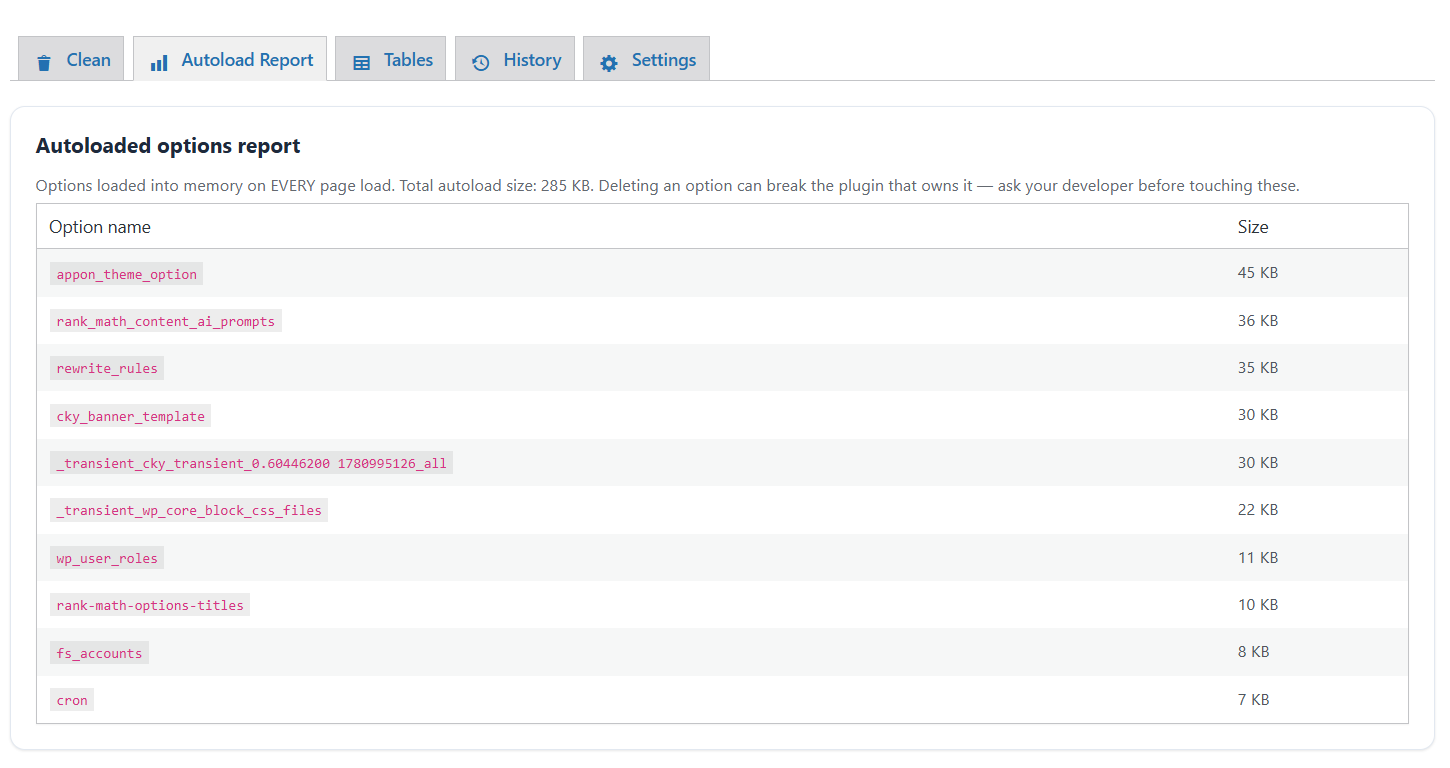
- Initial release: risk-tiered scanner, timeout-free chained cleanup engine, autoload options report, per-table size/engine/overhead report with one-click Optimize, weekly automatic cleanup, and a full cleanup history log.