
NotifyCrew - Team reminders for Slack
| 开发者 | ethicaladitya |
|---|---|
| 更新时间 | 2026年8月26日 22:02 |
| PHP版本: | 7.4 及以上 |
| WordPress版本: | 7.1 |
| 版权: | GPL-2.0-or-later |
| 版权网址: | 版权信息 |
详情介绍:
- No per-seat pricing. It is a WordPress plugin. Add as many teams and members as you want.
- No middleman service. Reminders go straight from your site to Slack. Nothing is routed through anyone else's server.
- Your Slack credentials stay encrypted. Webhook URLs and bot tokens are encrypted at rest with libsodium, not stored as plain text in the options table.
- Delivery you can trust. If Slack is down or your token expires, NotifyCrew retries automatically and tells you when something is wrong instead of failing silently.
- Your team does not need WordPress accounts. Members can be added by email address alone and still manage their own reminders through the optional portal.
- Send reminders to Slack on a schedule. Pick a date and time, or use a one-click preset like "In 4 hours" or "In 48 hours".
- Give every team its own channel. The design team posts to
#design, engineering posts to#eng-standup. A global fallback channel covers teams without one. - Ping the right people. Add
@channelor@hereper team so urgent reminders actually get seen. - Recover from failures automatically. Failed deliveries retry with exponential backoff, and you get an email plus an admin notice when a reminder keeps failing.
- Send rich, readable messages. Reminders arrive as Slack Block Kit messages with a header, the scheduled time, a task or ticket link, who submitted it, and any notes.
- Let your team file their own reminders. Drop a shortcode on any page for a Google-authenticated portal, restricted to the email domains you allow.
- Set it and forget it. Make any reminder repeat daily, weekly, or monthly. NotifyCrew auto-creates the next occurrence so standups, deadlines, and check-ins keep running.
- Keep a full audit trail. Every reminder event is logged with a timestamp, so you can always answer "was this actually sent?"
- Uninstall cleanly, or not at all. Your data is never deleted unless you explicitly opt in under Settings.
- Daily stand-up and scrum reminders for engineering teams
- Deploy windows, release freezes, and on-call handoffs
- Invoice, payroll, and compliance deadlines
- Content and social publishing schedules
- Client check-ins and recurring agency deliverables
- Nudges for anything your team keeps forgetting
[ncrw_frontend_reminder_form] to any page and your team signs in with Google, sees only the teams they belong to, and creates or edits their own reminders. No WordPress account required. Restrict access to your company's email domains so nothing else gets through.
Prefer read-only? [ncrw_upcoming_reminders] shows what is coming up, with filters and sorting, and nothing editable.
Building your own frontend? NotifyCrew exposes REST endpoints under ncrw/v1 so you can run the portal on any stack and keep WordPress as the backend. See the FAQ.
Requirements
- WordPress 5.8 or higher
- PHP 7.4 or higher, with the sodium extension (bundled with PHP 7.2 and later)
- A Slack workspace, plus either an Incoming Webhook URL or a Bot Token with the
chat:writescope
安装:
- Install and activate the plugin. A Reminders menu appears in your admin sidebar.
- Go to Reminders > Settings, choose Incoming Webhook or Bot Token, and paste your Slack credentials. They are encrypted before they are saved.
- Go to Reminders > Teams and create a team. Add members by picking WordPress users or by typing email addresses.
- Optionally give the team its own Slack channel, a mention tag, and quick-schedule presets.
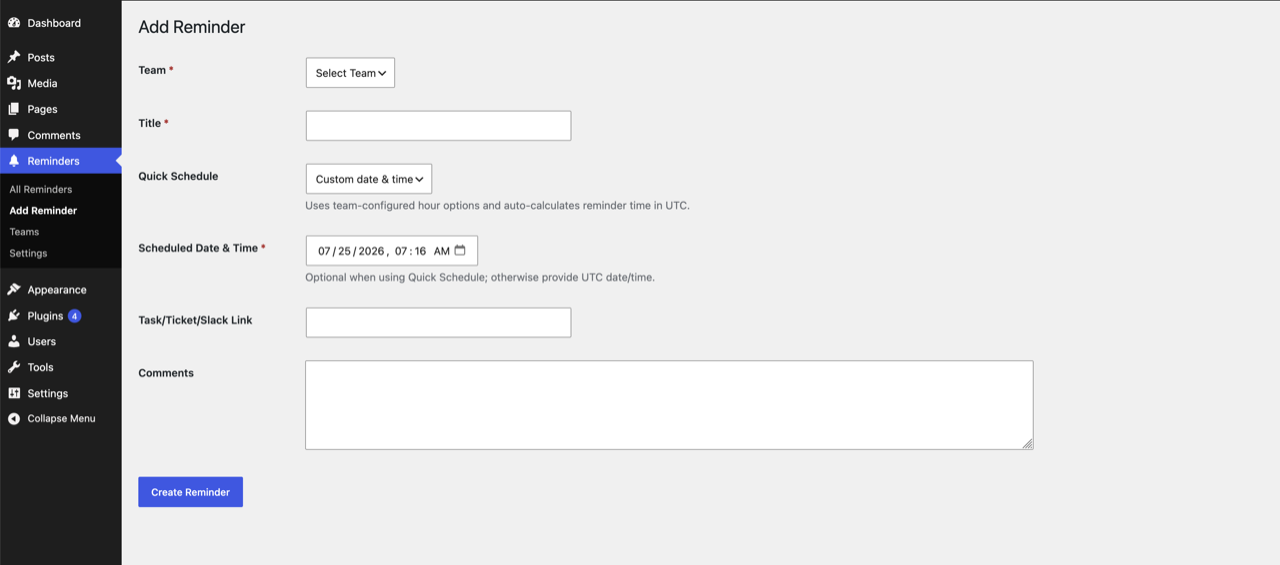
- Go to Reminders > Add Reminder and schedule your first one.
- In Reminders > Settings, enable Frontend Reminder Intake.
- Add your Google OAuth Client ID, created at Google Cloud Console.
- Set Allowed Email Domains, for example
yourcompany.com. - Add
[ncrw_frontend_reminder_form]to a page. For a read-only view, use[ncrw_upcoming_reminders]instead.
屏幕截图:
常见问题:
Is NotifyCrew free?
Yes. It is fully functional, GPL licensed, with no paid tier, no locked features, and no upsells.
Do I need a paid Slack plan?
No. Incoming Webhooks and Bot Tokens both work on Slack's free plan.
Do my team members need WordPress accounts?
No. Members can be added by email address alone. If you enable the frontend portal, they sign in with Google and manage their own reminders without ever touching wp-admin.
Can reminders repeat automatically?
Yes. Set any reminder to repeat daily, weekly, monthly, or on a custom interval. Choose how long to repeat — forever, after a set number of times, or until a specific date. When a recurring reminder fires, NotifyCrew auto-creates the next occurrence so you never have to set it up again.
How does the retry logic work?
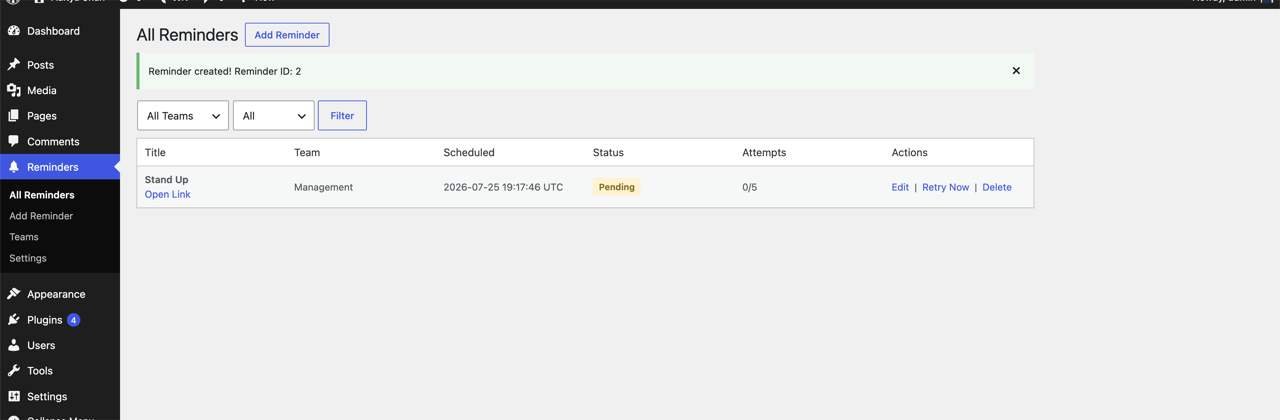
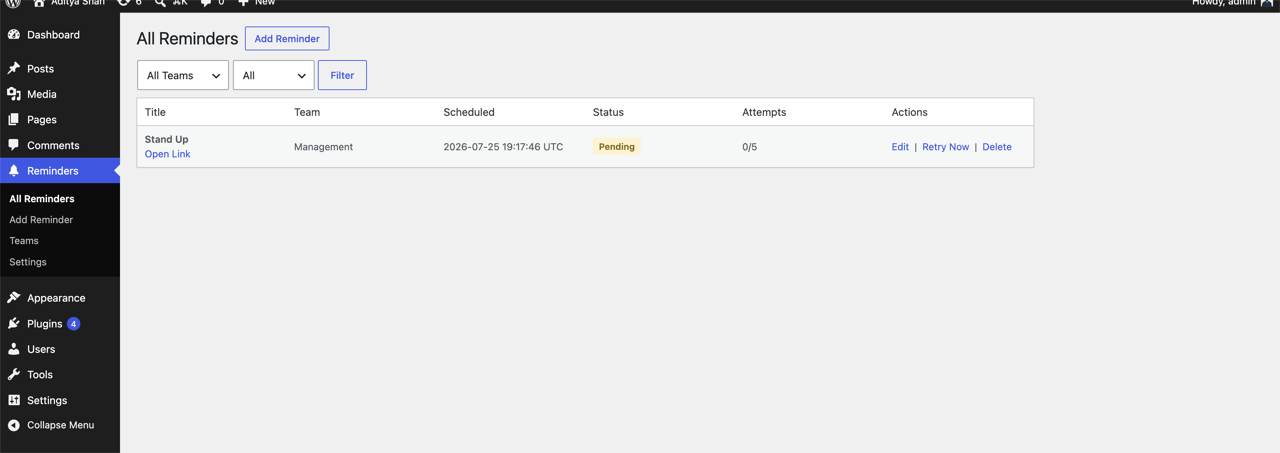
If a Slack delivery fails, NotifyCrew reschedules it with exponential backoff: 2 minutes after the first failure, then 4, then 8, then 16. After the fifth attempt it stops retrying and marks the reminder Completed so it cannot loop forever. You can also trigger a manual retry from the Reminders list at any time.
What happens when deliveries keep failing?
From the second failure onward, the site admin gets an email with the reminder title, the error Slack returned, and links back to the Reminders and Settings pages. A warning notice also appears in the admin area while failures are recent, and the latest error is shown inline next to the reminder's attempt count.
My reminders are not sending on time. What should I check?
NotifyCrew runs on WP-Cron, which only fires when someone visits your site. On low-traffic sites, reminders can be late. Disable WP-Cron and use a real server cron job hitting wp-cron.php every five minutes for reliable delivery. Also confirm your Slack credentials are still valid under Reminders > Settings.
Which Slack authentication mode should I use?
Use an Incoming Webhook for the fastest setup when all reminders go to one channel. Use a Bot Token with the chat:write scope if you want per-team channels. You can switch modes at any time.
Is my data deleted when I deactivate the plugin?
No. Deactivation only clears the cron schedule. Your reminders, teams, logs, and settings are preserved. Data is removed only when you delete the plugin, and only if you enabled Data Cleanup in Settings first.
What does the plugin store in my database?
Four tables prefixed ncrw_: teams, team memberships, reminders, and an audit log of reminder events.
Can I build my own frontend?
Yes. The ncrw/v1/portal/bootstrap and ncrw/v1/portal/reminder endpoints accept an API key in the X-NCRW-API-Key header along with a Google ID token, so you can run a decoupled frontend on any stack. Additional endpoints under ncrw/v1 cover listing reminders, triggering processing, and queuing retries for logged-in users.
Is NotifyCrew translation ready?
Yes. Every user-facing string uses WordPress i18n functions with the notifycrew text domain, and a .pot file is included.
更新日志:
- Tested with WordPress 7.1.
- New: Recurring reminders — daily, weekly, monthly, and custom intervals
- New: End conditions — stop after N occurrences or on a specific date
- Improved: Auto-reschedule creates the next occurrence when a recurring reminder fires
- Initial release of NotifyCrew.