
OptiForge Image Optimizer
| 开发者 |
xmaszcomm
jahanzaib mjahanzaib |
|---|---|
| 更新时间 | 2026年9月28日 05:32 |
| PHP版本: | 7.4 及以上 |
| WordPress版本: | 7.1 |
| 版权: | GPLv2 or later |
| 版权网址: | 版权信息 |
详情介绍:
libavif, cwebp, GD, and ImageMagick).
By generating ultra-compact AVIF and universal WebP formats alongside original media and delivering them seamlessly, OptiForge slashes media payloads by up to 60% to 85% without visual degradation.
Why Choose OptiForge Image Optimizer?
- Zero Monthly SaaS Costs: Unlimited conversions with no cloud credit limits, no subscription paywalls, and no external API latency.
- Dual Next-Gen Pipeline (AVIF + WebP): AVIF delivers up to 35% superior compression over WebP, while universal WebP acts as an airtight fallback for older legacy browsers.
- Chroma 4:4:4 Gaming Preservation: Preserves ultra-crisp text, HUDs, and fine details in gaming screenshots without color blurring.
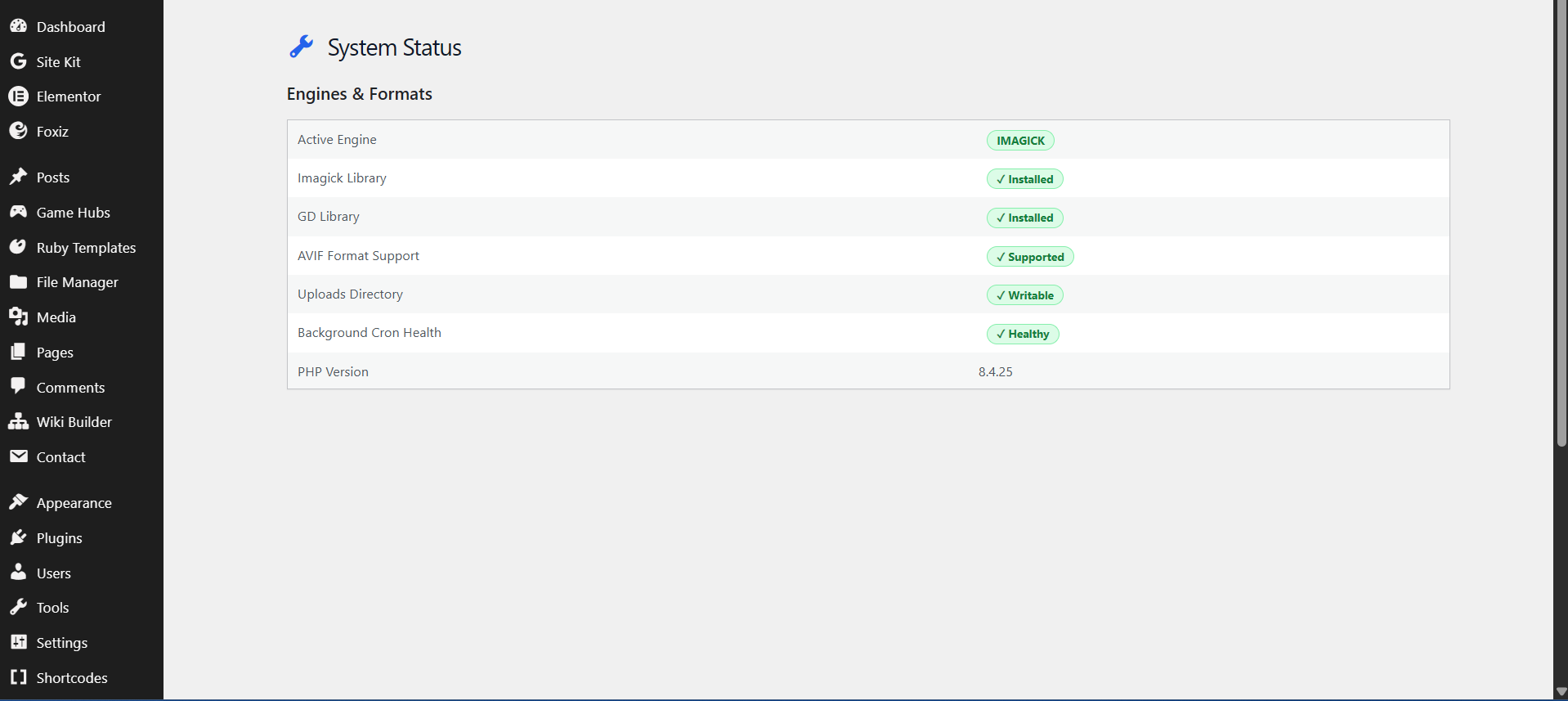
- Smart Server Compatibility Guard: Automatically scans host capabilities in real time. If your host lacks AVIF libraries, the engine gracefully locks AVIF to prevent 500 errors while WebP remains fully operational.
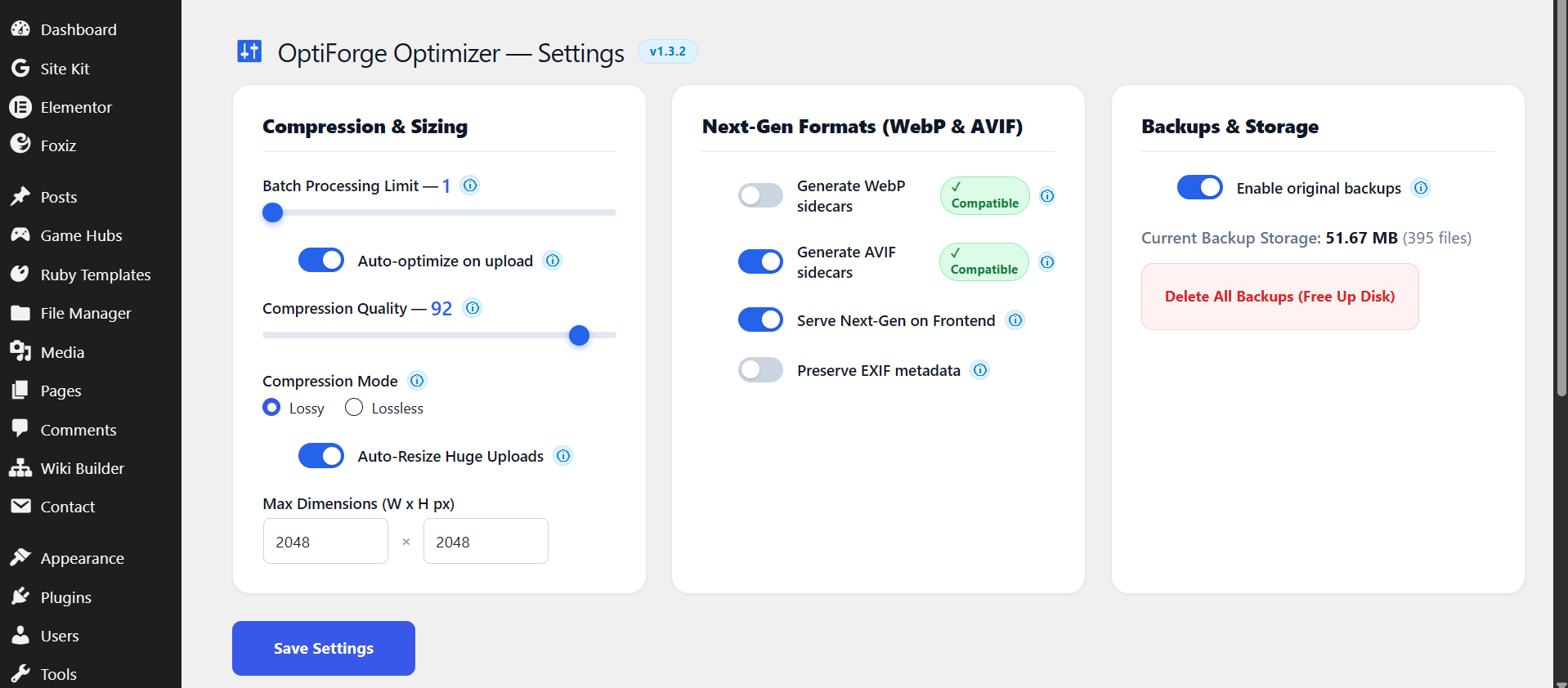
- Dynamic Batch Throttling (1 to 20 images): Fine-tune AJAX concurrency to match your exact hosting environment. Safely run on restricted shared hosting without memory exhaustion or unlock maximum throughput on dedicated multi-core VPS stacks.
- Non-Destructive Backups & Zero-State Restore: Untouched originals remain safely backed up in an isolated directory. Restore any individual image or initiate a One-Click Full Restore that purges generated sidecars and cleanly resets dashboard metrics to zero.
- Airtight Cache Harmonization: Fully synchronized with modern caching suites including FlyingPress, LiteSpeed Cache, WP Rocket, W3 Total Cache, WP Super Cache, and Autoptimize.
- Native WP-CLI Tooling: Automate headless, large-scale media optimizations directly via server command lines and cron jobs.
- JPEG (Original 2.4 MB): Compressed to WebP: 420 KB (-82%) | Converted to AVIF: 285 KB (-88%)
- PNG Graphics (Original 1.8 MB): Compressed to WebP: 310 KB (-82%) | Converted to AVIF: 215 KB (-88%)
- Core Web Vitals Impact: Up to 1.8s faster mobile Largest Contentful Paint (LCP) and improved Google PageSpeed scores.
安装:
- Log in to your WordPress Dashboard.
- Navigate to Plugins > Add New and search for OptiForge Image Optimizer.
- Click Install Now and activate the plugin.
- Navigate to OptiForge > Settings to verify your server's codec compatibility status.
- Download the
optiforge-image-optimizer.ziprelease archive. - Extract and upload the plugin directory to
/wp-content/plugins/. - Activate the plugin via the Plugins menu.
- Budget Shared Hosting (cPanel): Set Batch Processing Limit to 1 – 3 images.
- Standard Cloud VPS (1–2 vCPUs): Set Batch Processing Limit to 4 – 6 images.
- High-Performance VPS (aaPanel / LEMP / Dedicated): Set Batch Processing Limit to 10+ images.
屏幕截图:
常见问题:
How does OptiForge differ from cloud-based plugins like ShortPixel, Smush, or TinyPNG?
Most image plugins offload images to third-party external servers, which incurs recurring monthly costs, credit exhaustion, and privacy concerns. OptiForge executes 100% of optimizations locally on your web host using native PHP extensions. You retain complete ownership, zero recurring fees, and unlimited image processing.
What happens if my server does not support AVIF?
OptiForge includes an automated compatibility engine. If your PHP environment lacks native AVIF support (e.g., missing libavif), the AVIF toggle is automatically disabled and marked with an inline status badge to eliminate server crashes. Universal WebP compression remains fully active.
What Batch Processing Limit should I select?
- 1 – 3 Images: Best for entry-level shared hosting where PHP memory is constrained to 128 MB and script execution limits are strictly enforced.
- 4 – 6 Images: Ideal for standard VPS setups with 256 MB+ PHP memory.
- 10 – 20 Images: Tailored for high-performance VPS stacks (such as aaPanel with PHP 8.1–8.4 and OPcache), delivering ultra-fast batch runs across tens of thousands of media uploads.
Does optimization alter or delete my original media files?
No. OptiForge employs a strict non-destructive architecture. When backup mode is enabled, your untouched original assets are preserved in a secure, isolated folder (/wp-content/uploads/ofio-backups/). You can restore any image individually or run a complete restore at any time.
How does the One-Click Bulk Restore feature work?
When you click One-Click Bulk Restore All, the plugin reverts each image in your media library to its original state, unlinks all generated .webp and .avif sidecar files from server storage, deletes backup duplicates to reclaim disk space, and automatically resets the dashboard counters to zero.
How does OptiForge deliver AVIF and WebP to frontend visitors?
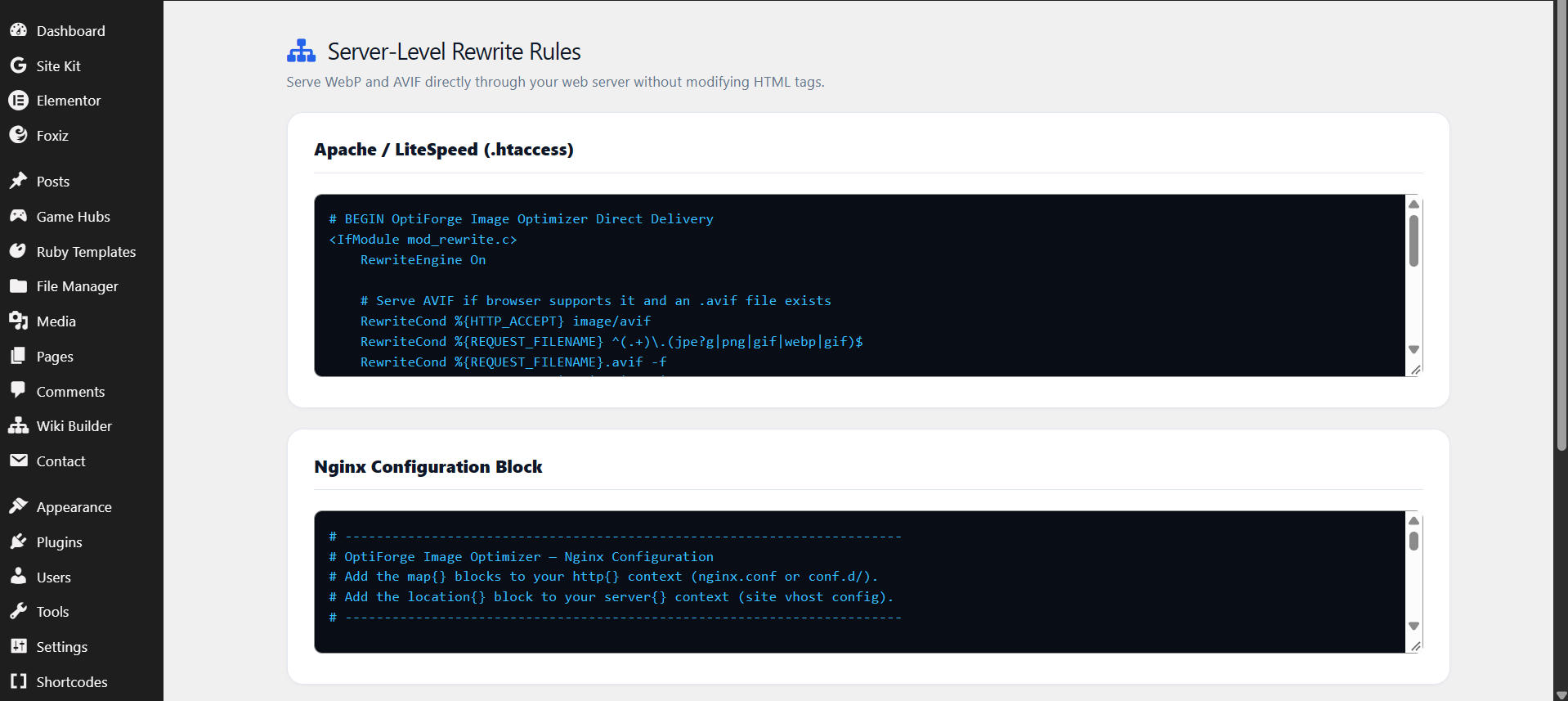
OptiForge supports dynamic server-level rewrite rules (for Nginx and Apache/LiteSpeed) as well as automated frontend rewrites. When a visitor's browser sends an Accept: image/avif or Accept: image/webp request header, your server transparently delivers the lightweight next-gen file without altering your HTML URLs.
Is OptiForge compatible with CDN and Page Caching plugins?
Yes. OptiForge features built-in cache-purging hooks compatible with FlyingPress, LiteSpeed Cache, WP Rocket, W3 Total Cache, WP Super Cache, and Autoptimize. Whenever an image is optimized or restored, stale page caches are automatically invalidated.
Can OptiForge optimize existing uploaded images in bulk?
Yes. Go to OptiForge > Dashboard and click Start Bulk Optimize. The background engine will continuously process all unoptimized media images with real-time DOM metric updates, visual progress bars, and an active console log.
Can I re-optimize previously converted WebP images into AVIF?
Yes. Check the Force re-optimize all images option on the Bulk Image Optimizer console before starting the process. The engine will inspect all existing media attachments and generate ultra-compact AVIF sidecars.
Does OptiForge support WP-CLI?
Yes. Advanced administrators and DevOps engineers can execute optimizations headlessly using standard WP-CLI commands.
Can I preserve photographer EXIF metadata?
Yes. You can toggle Preserve EXIF metadata in the Settings panel to retain camera settings, copyrights, and shutter details, or keep it disabled for maximum payload reduction.
更新日志:
- Feature: Added dynamic Batch Size Slider (1 to 20 images) with hosting recommendations tooltip for shared hosting, standard VPS, and dedicated servers.
- Feature: Implemented automated Server Compatibility Inspection displaying real-time visual status badges for AVIF and WebP codecs.
- Feature: Added Zero-State One-Click Bulk Restore logic that safely purges disk backups, unlinks all sidecars, and resets dashboard statistics to zero.
- Enhancement: Full PHP 8.4 Strict Mode compatibility: hardened EXIF orientation parsing against boolean returns to eliminate array offset warnings.
- Enhancement: End-to-end GIF pipeline integration: added static and animated GIF processing across GD, Imagick, upload hooks, custom folder scanning, and frontend rewrite rules.
- Enhancement: High-fidelity gaming optimization: enabled Chroma 4:4:4 preservation and unsharp masking for crystal-clear AVIF sidecars.
- Compliance: Added explicit WPCS annotations for indexed direct database queries in backup and restore queues.
- Fix: Replaced private cache purger invocations with native WordPress core
clean_post_cache()to eliminate fatal 500 errors during batch runs. - Fix: Added
is_callable()validations and fail-safetry-catchwrappers across third-party cache purgers (FlyingPress, LiteSpeed, WP Rocket). - Fix: Standardized admin console log icons to safe CSS Unicode escapes (
\2713,\2139) to eliminate encoding artifacts. - UI: Overhauled dashboard and settings interfaces with responsive metric cards and real-time DOM synchronization.
- Enhancement: Optimized batch memory management during AVIF generation loops on PHP 8.4 environments.
- Fix: Resolved database counter synchronization issues during media library bulk indexing.
- Initial public directory release with dual WebP and AVIF generation pipeline.