
PDEV Image Optimizer - WebP & AVIF
| 开发者 | grzegorzpuszka |
|---|---|
| 更新时间 | 2026年10月17日 20:40 |
| 捐献地址: | 去捐款 |
| PHP版本: | 8.0 及以上 |
| WordPress版本: | 7.1 |
| 版权: | GPLv2 or later |
| 版权网址: | 版权信息 |
详情介绍:
- WebP and AVIF support using Imagick or GD.
- Faster image delivery through smaller modern image formats.
- 100% local image optimization - images are not uploaded to an external service.
- Unlimited images - no monthly quota or conversion credits.
- No account or API key required for image conversion.
- No subscription or paid plan.
- No PRO version or feature paywall.
- Original images are never replaced or deleted during optimization.
- Automatic optimization of new uploads and WordPress thumbnails.
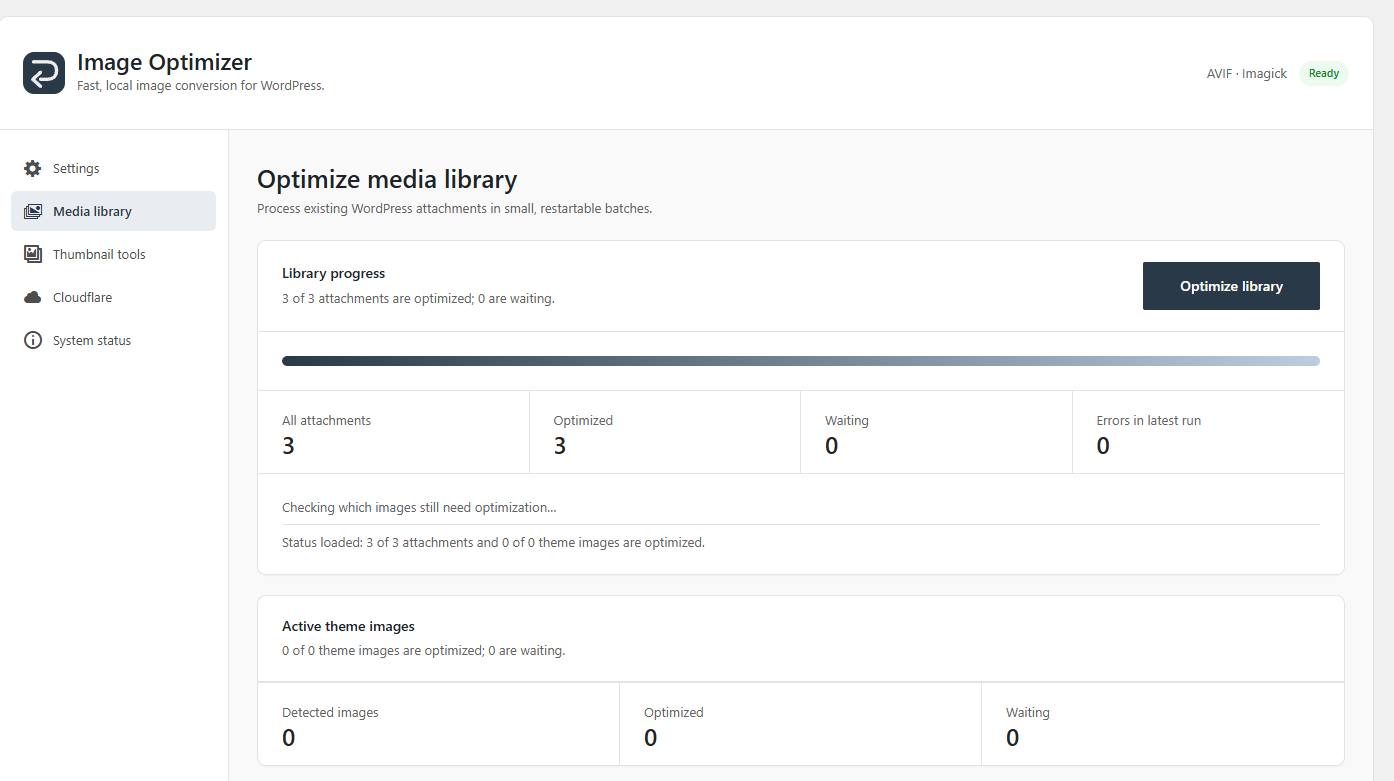
- Bulk optimization for an existing Media Library with restartable progress.
- Apache, LiteSpeed, and Nginx support.
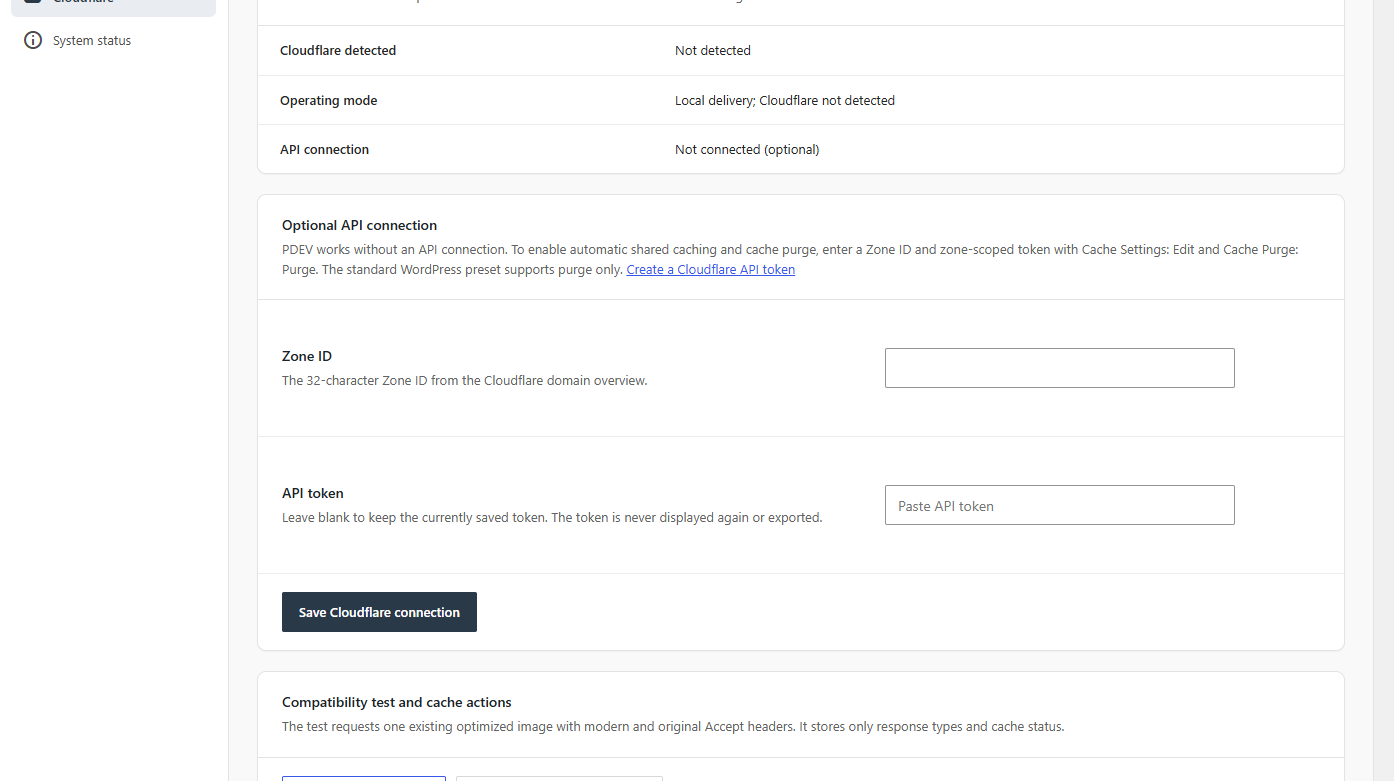
- Optional Cloudflare integration.
- Automatically optimize newly uploaded images.
- Convert an existing Media Library in small, restartable batches.
- Process WordPress thumbnail sizes.
- Optionally optimize supported images from the active theme.
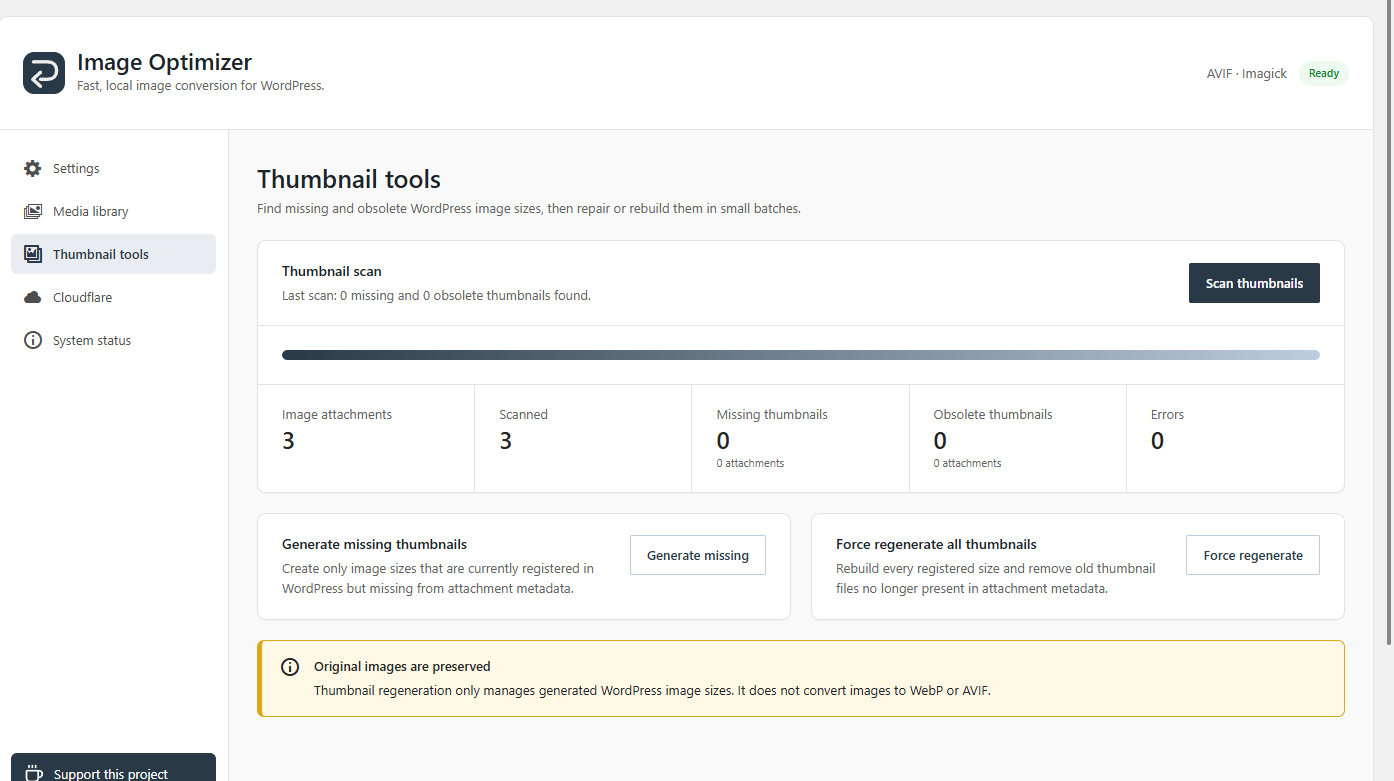
- Scan for missing or obsolete thumbnails.
- Regenerate missing or all registered thumbnail sizes.
- Preview and clean obsolete PDEV-generated optimized files.
- Show storage savings and estimated transfer savings.
- Detect conflicting image plugins and rewrite rules.
- Test whether optimized images are actually delivered to visitors.
- Generate ready-to-copy Nginx configuration.
- Integrate optionally with Cloudflare.
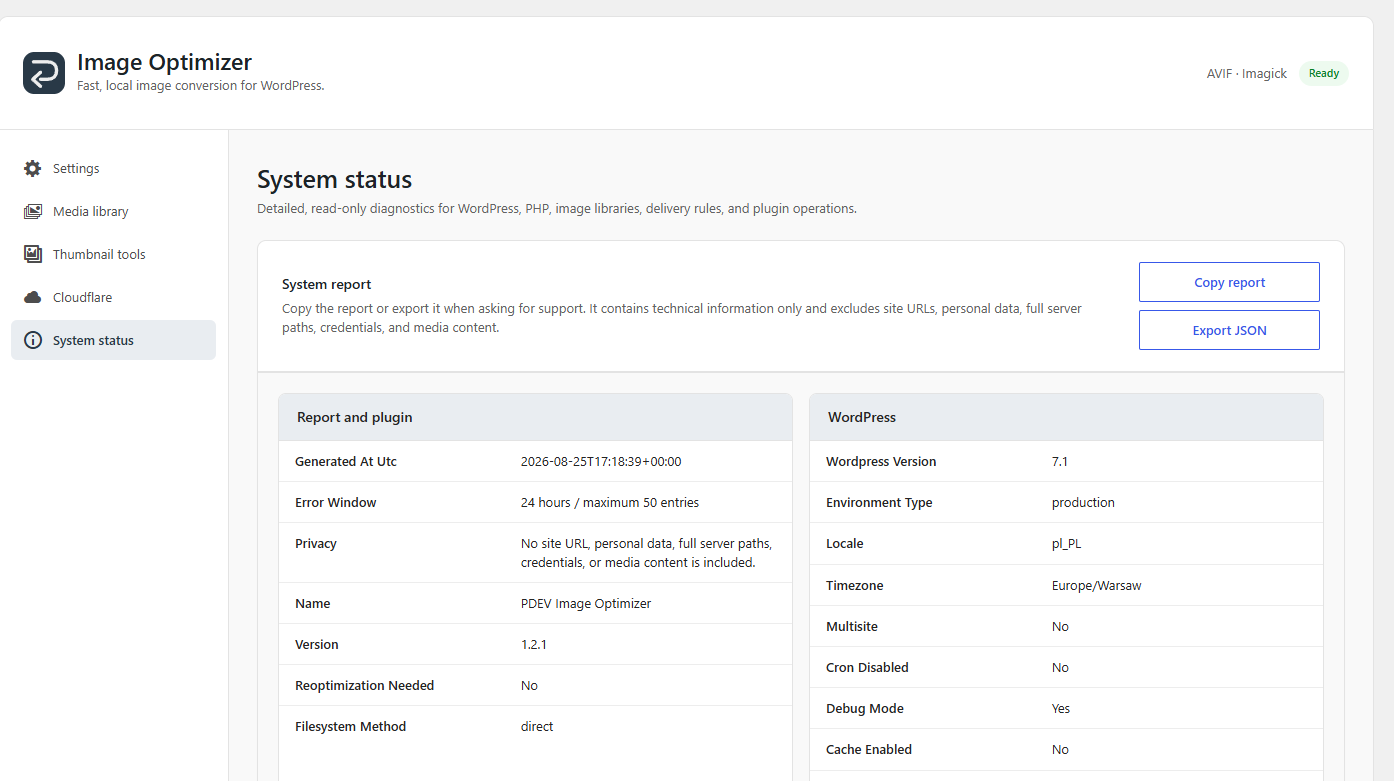
- Provide a privacy-safe system report for troubleshooting.
- Run bulk optimization, cleanup, the delivery test, and settings changes from WP-CLI with
wp pdevio.
- WebP or AVIF as the output format.
- Which source formats should be converted: JPEG, PNG, GIF, or WebP where applicable.
- Conversion quality.
- Whether new uploads should be optimized automatically.
- Whether supported images from the active theme should also be processed.
- Local WebP and AVIF image conversion with Imagick or GD.
- Automatic optimization of new WordPress uploads and generated thumbnails.
- Restartable bulk optimization of the existing Media Library.
- Optional optimization of supported images from the active theme.
- Thumbnail scan, missing-thumbnail repair, full regeneration, and obsolete-file cleanup.
- Cleanup that previews count and size before deleting only files whose name and location mark them as PDEV-generated (
image.jpg.pio.webp). - Cleanup modes for obsolete generated files or all PDEV-generated optimized files.
- Adjustable optimization speed, from a conservative shared-hosting profile to a fast profile for a VPS or dedicated server.
- Per-image safety limits that skip unsafe files without stopping the complete optimization job.
- WP-CLI command
wp pdeviofor optimization, targeted conversion, cleanup, status, the live delivery test, and format or speed changes. - Storage usage and estimated transfer savings statistics.
- Apache and LiteSpeed delivery through managed
.htaccessrewrite rules. - Generated Nginx configuration for servers where WordPress cannot modify the web-server configuration directly.
- General image-plugin and rewrite-rule conflict detection.
- Optional Cloudflare Free-compatible cache integration.
- Live HTTP delivery test for WebP and AVIF responses.
- Detailed privacy-safe system report with copy and JSON export.
- Tested encoder support, server requirements, delivery status, and conflict checks, summarised on the main screen and detailed under System status.
- Actionable recovery instructions when a configuration check fails.
- Error history from the last 24 hours, limited to 50 entries.
- No external conversion service, telemetry, tracking, subscription, paywall, or PRO version.
- WordPress stores an image such as
photo.jpgand usually creates thumbnail files such asphoto-768x512.jpg. - PDEV Image Optimizer uses Imagick, or GD as a fallback, to create an optimized file next to each source file.
- The optimized file is stored as a separate WebP or AVIF sidecar, for example
photo.jpg.webp,photo.jpg.avif, orphoto-768x512.jpg.webp. - The original image is not deleted, renamed, or replaced.
- WordPress content continues using the existing URL ending in
.jpg,.png,.gif, or.webp. - When a browser requests the original URL, the web server checks the browser's
Acceptheader. - If the browser supports the selected modern format and the optimized sidecar exists, the server returns WebP or AVIF instead.
- Browsers without support receive the untouched original image.
PDEV Image Optimizer block to .htaccess inside the uploads directory.
If theme image optimization is enabled, the plugin also manages a marked block inside the active theme directory.
The rules:
- Detect WebP or AVIF browser support.
- Serve the optimized sidecar when available.
- Set the correct MIME type.
- Add
Vary: Acceptso caches know that one URL can return different image formats.
.htaccess file must be writable when the plugin needs to add or update these rules.
Image delivery on Nginx
WordPress cannot safely edit Nginx server configuration.
PDEV Image Optimizer therefore generates ready-to-copy map and location blocks in System status.
A server administrator must:
- Add the generated
mapblock to the appropriatehttpcontext. - Add the generated
locationblock to the correctservercontext. - Test the Nginx configuration.
- Reload Nginx.
- Creates a temporary one-pixel source image and optimized sidecar inside uploads.
- Requests the original source URL with the appropriate
Acceptheader. - Checks the returned HTTP status and
Content-Type. - Immediately removes both temporary test files.
image/webp or image/avif.
The test runs only when an administrator starts it manually.
Server requirements
PDEV Image Optimizer needs both:
- A working PHP image conversion library.
- Correct web-server configuration for automatic delivery.
- WordPress 6.4 or newer.
- PHP 8.0 or newer.
- Imagick or GD installed and enabled in PHP.
- The selected image library must support the selected output format.
- WebP support does not automatically mean AVIF support.
- The WordPress uploads directory must be writable by PHP.
- The server must provide enough memory and execution time for the images being processed.
- Apache-compatible rewrite support (
mod_rewrite). - MIME support (
mod_mime). - Header support (
mod_headers). Without it the rewrite rules stay inactive, so caches never store an optimized file withoutVary: Accept. .htaccessfiles must be allowed and processed for the uploads directory.- On Apache, this normally requires an appropriate
AllowOverridesetting. - The uploads directory or its existing
.htaccessfile must be writable by PHP when the plugin manages delivery rules. - When theme image optimization is enabled, the active theme directory must meet the same requirements.
- If the site root
.htaccessalready has rewrite rules for the uploads or theme folder (for example a media protection plugin), PDEV does not write its own.htaccessthere, because that would switch those rules off. System status shows the generated rules to add to the root.htaccessbelow the existing rules.
- Access to the Nginx website configuration.
- Permission to add the generated
mapblock to thehttpcontext. - Permission to add the generated
locationblock to the correctservercontext. - Permission to test and reload Nginx after changing the configuration.
- Server-level
add_headerdirectives (HSTS, CORS) are not inherited by the generatedlocation; repeat them inside it. Deny rules for private upload folders must uselocation ^~.
- Whether Imagick or GD supports WebP or AVIF.
- Whether the required Apache modules are enabled.
- Whether
.htaccessoverrides are allowed.
- Maximum source file size: 64 MB.
- Maximum width or height: 16,384 pixels.
- Maximum total image size: 25 megapixels.
- GD conversion uses a conservative 256 MB per-request memory budget.
- The estimate includes decoded image pixels, the source file, current PHP memory usage, and a reserved safety margin.
- Your hosting provider or PHP configuration may impose a lower effective limit.
- Memory limit: 128 MB.
- Memory-map limit: 256 MB.
- Temporary disk limit: 512 MB.
- Processing time limit: 30 seconds.
- Thread limit: 1 thread.
- The original image.
- Multiple registered thumbnail sizes.
安装:
- Install and activate PDEV Image Optimizer.
- Open Tools > Image Optimizer > Settings.
- Review the Overview section and follow the instruction next to every yellow or red check.
- Choose WebP or AVIF as the output format.
- Select the source image formats you want to convert.
- Choose conversion quality.
- Configure automatic optimization and optional theme image optimization.
- Click Save settings.
- On Nginx, open System status > Nginx configuration, copy the generated configuration blocks to your server configuration, test it, and reload Nginx.
- Click Test image delivery in Overview.
- Confirm that the response is
image/webporimage/avif. - Open Media library and start optimization for existing images.
屏幕截图:
常见问题:
Is PDEV Image Optimizer free?
Yes. Every feature is available for free. There is no PRO version, paid feature unlock, image quota, subscription, or limited free plan.
Does the plugin upload my images to an external service?
No. Images are converted locally on your WordPress server using Imagick or GD. PDEV Image Optimizer has no image optimization API, cloud conversion service, telemetry endpoint, or analytics endpoint. Cloudflare is contacted only when an administrator explicitly configures the optional Cloudflare integration or runs its compatibility test.
Are original images deleted or replaced?
No. Original files remain untouched. PDEV Image Optimizer creates a separate optimized sidecar next to each converted source image. WordPress continues using the original image URL.
Does it optimize existing WordPress images?
Yes. The Media library optimization tool processes existing image attachments together with their registered WordPress thumbnail sizes. Work is divided into small restartable requests. A failed, oversized, or resource-intensive image is logged and skipped without stopping the remaining optimization job.
Does it optimize new uploads automatically?
Yes. Automatic optimization can be enabled for newly uploaded images and the WordPress thumbnails generated from them.
Does it support WebP?
Yes. WebP can be generated when the installed Imagick or GD library supports WebP encoding.
Does it support AVIF?
Yes, when the installed Imagick or GD build supports AVIF encoding. Many servers support WebP but were compiled without AVIF support. PDEV Image Optimizer cannot add AVIF support to PHP itself. If AVIF is unavailable, the PHP image library installed by your hosting provider must support it.
Why do I see WebP or AVIF files on disk but my website still sends JPEG or PNG?
Image conversion and image delivery are separate operations. If optimized files exist but visitors still receive JPEG or PNG, conversion is working but the required web-server delivery rules are not. On Apache or LiteSpeed, check:
.htaccess.mod_rewrite.mod_mime.mod_headers.AllowOverride.
Which image library is used?
Imagick is preferred when it supports the selected output format. GD is used as a fallback. The detailed System status report shows both libraries, their versions, supported image formats, and applicable resource limits.
How can I check whether WebP or AVIF is really being delivered?
Open Settings > Overview and click Test image delivery.
PDEV Image Optimizer creates temporary local test files, requests the original URL with the selected format in the Accept header, verifies the response, and immediately removes the test files.
A successful result confirms an image/webp or image/avif response.
The latest result remains visible until conversion or delivery settings change.
You can also verify a real image using your browser developer tools:
- Open the Network panel.
- Select an image request.
- Check the response
Content-Type.
.jpg while the response type is image/webp or image/avif. This is expected.
Why does the image URL still end in .jpg or .png?
This is intentional. PDEV Image Optimizer keeps existing WordPress URLs unchanged. The web server serves the optimized WebP or AVIF sidecar transparently when the browser supports it. This avoids replacing URLs stored in WordPress content, metadata, themes, or plugins.
Why was an image skipped because of a resource or safety limit?
The compressed file size does not indicate how much memory an image requires after decoding. PDEV Image Optimizer skips sources:
- Larger than 64 MB.
- Wider or taller than 16,384 pixels.
- Larger than 25 megapixels.
What are Thumbnail tools for?
Thumbnail tools scan the Media Library for:
- Missing registered WordPress thumbnail files.
- Obsolete files associated with image sizes that are no longer registered.
Can it optimize images stored in my WordPress theme?
Yes. Enable active theme image optimization in Settings. The active theme directory must be readable and writable, and the web-server delivery rules must also cover that directory. Development directories including the following are excluded from scanning:
node_modulesvendor.git.svn
Are animated GIF files supported?
Animated GIF files are detected and skipped so animation is not replaced with a static image. A non-animated GIF can be converted when GIF is selected as a source format.
Does the plugin use additional disk space?
Yes. Original files are preserved and optimized WebP or AVIF sidecars are stored next to them. The Storage savings card shows the disk space used by optimized sidecars and estimates the smaller transfer size visitors may receive.
Can I remove generated WebP and AVIF files?
Yes. Optimized file cleanup can scan PDEV-generated optimized files before deleting anything. You can choose to remove:
- Obsolete generated files.
- All PDEV-generated optimized files.
image.jpg.pio.webp. A real source extension must precede .pio., and the file must sit inside the uploads or active theme folder, so a file you happened to name something.pio.webp is always left alone.
What is removed when I uninstall the plugin?
Uninstalling removes:
- Plugin options.
- The generated-file registry table.
- The plugin error log.
- Managed
.htaccessdelivery rules.
.pio.webp and .pio.avif files remain on disk by default.
To remove them as well:
- Run Optimized file cleanup and choose Scan all generated files before uninstalling, or
- Enable Delete generated files on uninstall in the plugin settings.
Does it work with Cloudflare?
Yes. Local conversion and origin delivery work without a Cloudflare API connection. Without a confirmed shared-cache rule, PDEV Image Optimizer uses private-cache protection so Cloudflare does not cache the wrong image format for a shared original URL. The optional Cloudflare integration can:
- Configure a Free-compatible Cache Rule.
- Test image delivery.
- Purge cache.
- Cache Settings: Edit
- Cache Purge: Purge
wp-config.php:
define( 'PDEV_IMAGE_OPTIMIZER_CLOUDFLARE_ZONE_ID', 'your-zone-id' );
define( 'PDEV_IMAGE_OPTIMIZER_CLOUDFLARE_API_TOKEN', 'your-api-token' );
Does the plugin send images or usage statistics anywhere?
No. Images are converted locally. PDEV Image Optimizer has no telemetry or analytics endpoint. Cloudflare is contacted only when an administrator explicitly provides credentials or runs the compatibility test. The Ko-fi page is opened only after the user clicks its link.
What is included in the system report?
The system report includes:
- WordPress information.
- PHP information.
- Web-server information.
- Imagick status.
- GD status.
- Plugin settings.
- Image delivery status.
- Writable-directory checks.
- Cloudflare status.
- Optimization statistics.
- The latest live delivery test.
- Detected conflicts.
- Thumbnail status.
- Recent plugin errors.
- Site URLs.
- Credentials.
- Personal data.
- Media content.
- Full server paths.
How long are plugin errors stored?
Only errors from the last 24 hours are shown and included in the report, with an additional maximum of 50 entries. Paths, URLs, email addresses, and image names are redacted from the support report. The log is removed when the plugin is uninstalled.
Can I use WP-CLI?
Yes. Every bulk operation is available through the wp pdevio command:
wp pdevio optimize [--force] [--attachments-only] [--theme-only]- convert the Media Library, plus the active theme images when that option is enabled.--forcere-optimizes every image from the start. Image operations in CLI and the admin screen share a MySQL/MariaDB connection lock. The database must supportGET_LOCKon one server; an unavailable lock stops the operation. The lock is released when the operation finishes or its database connection closes.wp pdevio convert <id>... [--force]- convert one or more attachments by ID.wp pdevio cleanup [--all] [--dry-run] [--yes]- preview and delete generated optimized files.--allalso removes current-format files,--dry-runonly reports,--yesskips the confirmation prompt.wp pdevio status- show the output format, encoder, optimization speed, optimized and pending counts, delivery-rule status, and the last delivery test.wp pdevio test-delivery- run the live HTTP delivery test.wp pdevio set [--format=<webp|avif>] [--speed=<conservative|balanced|fast>]- change the output format or optimization speed, exactly like the Settings screen. Run without options to print the current values.
Is there a PRO version?
No. Every feature is free and the plugin will remain free.
更新日志:
- [Fixed] "Regenerate all thumbnails" now rebuilds sizes from the original upload instead of the
-scaledor-rotatedcopy, so existing thumbnail URLs keep working and the original image stays linked to the attachment. - [Fixed] A failed thumbnail regeneration (editor, memory or resource limit) restores the previous metadata and no longer deletes existing thumbnails. Files shared with another attachment are never removed.
- [Fixed] Thumbnail regeneration resumes from the last processed image after an interruption, retries a busy lock or transient server errors, and no longer slows down on large libraries.
- [Security] Optimized WebP/AVIF files are removed when their source image is deleted, even while another image operation is running, and Apache/Nginx rules only serve an optimized file while its source still exists.
- [Security] PDEV no longer writes rewrite rules into the uploads or theme
.htaccesswhen the site root.htaccesshas rewrite rules for that folder (for example media protection plugins); the rules are shown for manual placement instead. - [Security] On multisite, Cloudflare actions and theme image operations require network administrator rights.
- [Fixed] Apache rewrite rules are active only when
mod_headersis available, so caches never store an optimized variant withoutVary: Accept. The delivery test also checks theVaryheader. - [Fixed] The generated Nginx location is limited to the uploads and theme folders and documents how to keep server-level headers and private-folder deny rules.
- [Fixed] Cloudflare zone cache is purged only after a run that changed optimized files; the purge permission check no longer purges the whole zone.
- [Fixed] Deleting media no longer causes a fatal error when WordPress cannot initialize its filesystem, and non-array attachment metadata from other plugins no longer causes a fatal error.
- [Fixed] Animated PNG (APNG) images are skipped instead of being converted to a static first frame.
- [Fixed] Cleanup removes stale temporary files left by an interrupted conversion and works when the uploads folder is a symlink.
- [Fixed] Multisite: cleanup and uninstall on the main site no longer touch subsite files, uninstall cleans every site, and network deactivation removes rules for every site.
- [Fixed] Uninstall no longer stops halfway on an unreadable folder.
- [Fixed] Bulk optimization retries HTTP 500 responses so the crash-skip logic can move past a failing image, and refreshes an expired REST nonce during long runs.
- [Fixed] WP-CLI
optimizereports a lost lock as an error instead of a fatal error. - [Performance] Media Library status uses a single aggregate query; theme image runs write their state once per batch and cache the theme status for five minutes.
- [Performance] Failure tracking skips option updates for unchanged entries and avoids reading the failure list for empty batches.
- [Performance] Automatic conversion avoids repeatedly encoding unchanged images whose optimized result was not smaller during successive metadata updates in the same upload request. Content changes and conversion errors remain retryable.
- [Performance] Cleanup scans use resumable directory batches, skip unreadable directories with a warning, and stop at the preview limit instead of walking the remaining tree. WP-CLI completes the scan before reporting or requesting deletion.
- [Performance] Media Library status reads only optimization signatures in bounded batches instead of loading all attachment metadata.
- [Fixed] Retried bulk starts retain their run identity and checkpoints; the last completed response can be replayed after a lost connection.
- [Fixed] Image operations and settings changes share a connection-scoped database lock, including CLI, retries, thumbnail regeneration and cleanup.
- [Fixed] Cleanup invalidates optimization state before deleting current variants, including interrupted or partially completed batches.
- [Fixed] Theme image conversion persists crash markers and per-image results so resumed batches skip repeatedly crashing files.
- [Fixed] Distribution builds reject output paths that would delete plugin sources or traverse directory links.
- [Fixed] Apache cache headers now match generated .pio.webp and .pio.avif files.
- [Fixed] Re-conversion removes an older optimized variant when the new result is not smaller than the source; failed removal is reported as an error.
- [Fixed] The Cloudflare delivery test finds current sidecar names and validates both HTTP statuses, image MIME types and Vary: Accept headers.
- [New] WP-CLI support. Run bulk optimization, targeted conversion, generated-file cleanup, the live delivery test, and format or speed changes from the command line with
wp pdevio(optimize,convert,cleanup,status,test-delivery,set). Theoptimizecommand shares the same lock as the admin screen, so a command-line run and a browser run never process the same images at once. - [New] Optimization speed setting (Conservative, Balanced, Fast) on the Settings screen. Bulk optimization now grows to larger batches with shorter pauses while the server keeps up, and still drops back to one image per request the moment a batch runs long or memory gets tight. Balanced is the new default. Shared hosting that sees timeouts can switch to Conservative; a VPS or dedicated server can use Fast. Filters
pdev_image_optimizer_max_batch_limitandpdev_image_optimizer_min_cooldown_mstune the ceilings further. - [New] "Force optimize all" button on the Media Library screen re-optimizes every image from the start, next to the normal button that resumes where it left off. A "Stop optimization" button pauses a run with its progress saved; the button then reads "Continue optimization".
- [Changed] The main plugin screen is now a short summary: one line confirming that optimized images are being served, or only the checks that still need attention. The full diagnostic Overview moved to the top of the System status screen. When the live delivery test confirms visitors receive the optimized images, the summary is shown in green and a leftover competing rewrite rule from another plugin is treated as optional cleanup rather than a warning; the note about it now lives on System status.
- [Changed] Removed the database table that tracked generated files. A generated WebP or AVIF file is now identified only by its exact name (
image.jpg.pio.webp) and its location inside the uploads or active theme folder. Cleanup and uninstall never remove a file unless a real source extension precedes.pio.in its name and it sits in a managed folder, so a file you happened to namesomething.pio.webpis always left alone. The old table is dropped automatically on update. New filterpdev_image_optimizer_generated_rootsadds folders to the scan for sites that store media elsewhere. - [Changed] Overwriting a generated file no longer depends on a database record. Any file at the reserved
.pio.webpor.pio.avifpath derived from a real source image is treated as PDEV's own and refreshed normally.
- [Fixed] AVIF bulk optimization could stop with an "HTTP 409" error on some servers and never recover. A single image whose AVIF encode outruns the server's memory or time limit was killing the PHP worker before it could report a failure, so the job never advanced past that image and every retry hit it again and left the optimization lock stranded. That image is now detected after the first crash, recorded as a failed image, and skipped so the rest of the library finishes; AVIF batches also process one image at a time, the encoder runs at a bounded speed (filter
pdev_image_optimizer_avif_speed), a batch the web server kills mid-request no longer holds the lock for 90 seconds (kept fresh while running, reclaimed within 45 seconds otherwise), and the optimizer waits out a busy lock or a dropped connection instead of failing immediately. The crash-skip threshold is adjustable throughpdev_image_optimizer_max_attachment_attempts. - [Fixed] Large photos near the megapixel limit could fail with "cache resources exhausted" on Imagick. The Imagick pixel-cache limits are now large enough to process an image up to the safe megapixel cap, including its orientation pass, and stay adjustable through the
pdev_image_optimizer_imagick_resource_limitsfilter. - [New] Filter
pdev_image_optimizer_preferred_driver(gdorimagick) forces which encoder is tried first. The capability probe still runs, so forcing a driver that cannot encode the chosen format falls back to the other one. - [Fixed] After moving a site, migrating its database, or restoring from a backup, every previously generated file reported "a file with PDEV's reserved optimized-image name already exists and was not created by PDEV" and could not be optimized again. A valid WebP or AVIF sitting at the reserved
.piopath is now treated as an earlier PDEV conversion and re-created normally (the hard refusal is kept only for a file that is not a valid image of the target format), and the ownership table is recreated automatically if a migration left it behind. - [Changed] A competing WebP or AVIF rewrite rule from another plugin - often left in
.htaccessafter that plugin is removed - no longer disables PDEV delivery. PDEV now installs its own rules regardless and shows a warning that names the competing block, says whether the plugin that created it is still active, tells you which# BEGIN/# ENDblock to delete when it is not, and points to the live delivery test. - [Changed] Overview cleanup: removed the "View detailed status" button (it only opened System status, which repeats what Overview already shows); after a competing rewrite rule is detected, the live delivery test result now appears in the conflict block where the test button is, instead of only in the Image delivery row; and once that test passes, the loud competing-rule warning collapses to a short "delivery still works" note, leaving the details one click away.
- [Fixed] The 1.3.0 release package was incomplete: several class files were missing, which caused a fatal error (
Class "PDEV\ImageOptimizer\Rest\CleanupRoute" not found) on sites that installed or updated to 1.3.0. This release ships the complete plugin.
- [Feature] Added registry-backed, preview-first cleanup for obsolete PDEV-generated WebP and AVIF files, with an optional "all generated files" mode that also clears the optimization state so images are regenerated.
- [Feature] Added a "Delete generated files on uninstall" setting; when enabled, the uninstaller removes registered
.pio.webp/.pio.aviffiles (best effort, time-limited) while never touching originals. - [Changed] Generated files now use the unambiguous
.pio.webpand.pio.avifnaming contract; legacy sidecars are no longer served or removed automatically. - [Security] Cleanup accepts no browser-supplied paths and revalidates exact registry ownership immediately before deletion.
- [Fixed] The live delivery test no longer fails on a self-signed or mismatched certificate when the uploads URL is on this site's own host.
- [Release] First public build.