
PixelDial Image Optimizer
| 开发者 | mbimdev |
|---|---|
| 更新时间 | 2026年11月12日 01:01 |
| PHP版本: | 8.1 及以上 |
| WordPress版本: | 7.1 |
| 版权: | GPLv2 or later |
| 版权网址: | 版权信息 |
详情介绍:
- Automatic uploads: enable the switch, select a site-wide profile and let PixelDial process new Media Library uploads in the background. Automation is off until you enable it.
- One image: select a picture, compare Original and Proposal, adjust the quality or format, and approve only when you are satisfied.
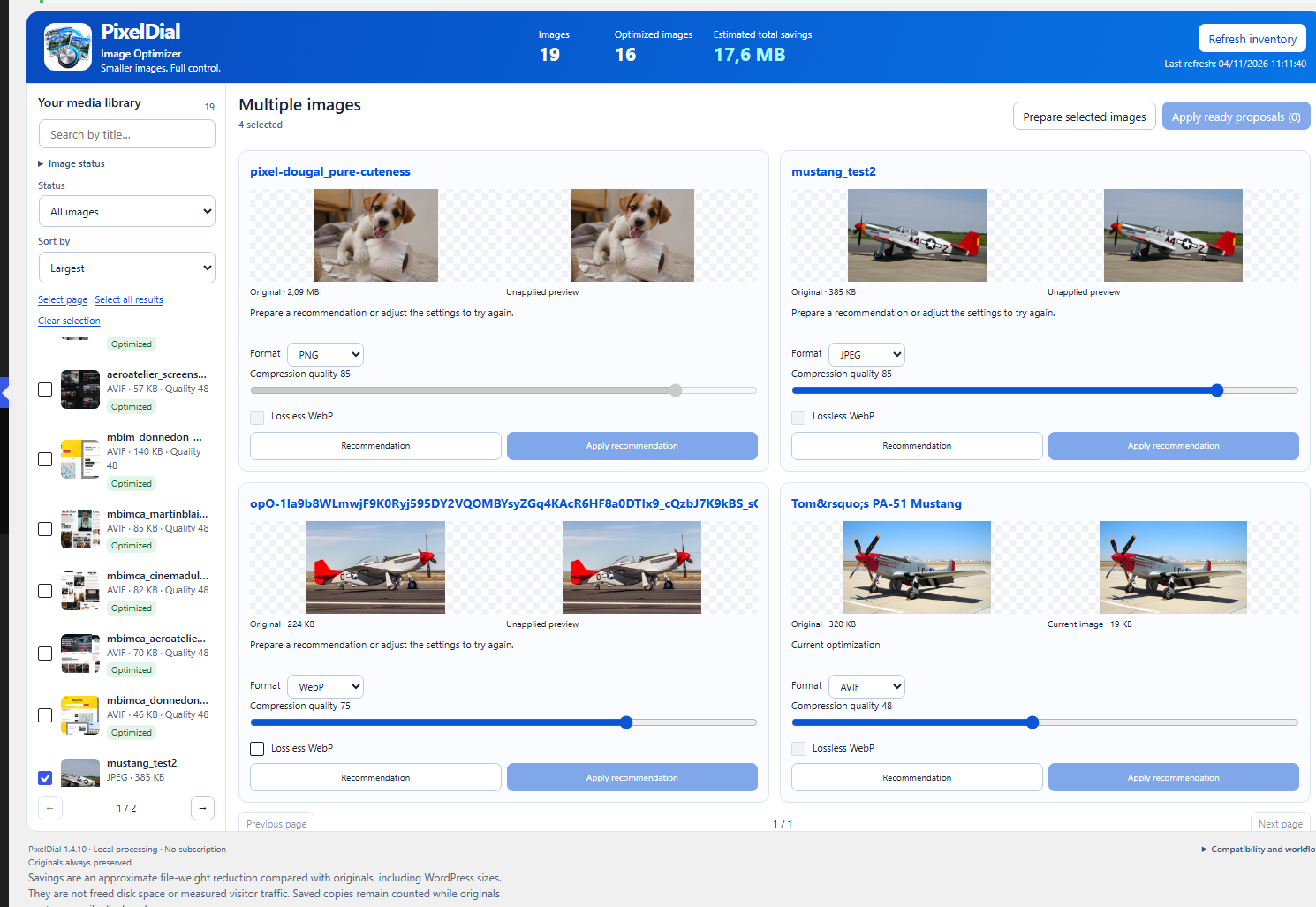
- Multiple images: prepare and review proposals for several selected images.
- Optimize all: choose a profile, try a four-image sample, and start a managed batch when you are ready. Progress can be paused and resumed.
- Shows actual encoded previews and measured before/after file sizes.
- Offers JPEG, PNG, WebP and AVIF processing when your server supports the format.
- Lets you change quality, set a maximum width and include existing WordPress image sizes and crops.
- Provides conservative, optional quality recommendations and keeps images when a proposal is not suitable.
- Keeps the original image files and WordPress attachment metadata. You can restore an image or temporarily display originals across the site.
- Preserves protected EXIF, ICC and XMP data when supported. If it cannot verify preservation, it keeps the original file instead of approving a lossy-metadata conversion.
- Recognizes verified Polylang media translations that share one physical image, while protecting ambiguous duplicates.
- Maintains saved profiles, batch progress and approximate savings statistics.
docs/GUIDE-EN.md or visit https://pixeldial.mbim.ca/. The plugin does not contact the project website automatically.
安装:
- In WordPress, go to Plugins > Add New > Upload Plugin and install PixelDial. Activate the plugin.
- In the admin menu, open PixelDial (or Media > PixelDial).
- Click Refresh inventory.
- Open One image, review the side-by-side preview, adjust the settings, and click Apply these settings only if the result is right for you.
- For multiple images or batches, select the relevant PixelDial menu. Review the proposed changes before approving them.
- After applying changes, clear any website/CDN cache and check the public page.
屏幕截图:

常见问题:
Does PixelDial overwrite my originals?
No. It stores approved optimized copies separately and can stop serving them or restore an image's original behavior. Deactivating the plugin stops its page rewrites. Full uninstall is different from deactivation and can remove stored plugin data. Keep a backup before major changes.
Does this free disk space?
No. Original images remain available and optimized copies use extra space. The displayed savings estimate is a file-weight comparison, not actual disk-space savings.
What if an image becomes blurry or a format is not supported?
Review the actual preview and choose a higher quality or keep the original. Unsupported formats and images whose important metadata cannot be preserved are kept unchanged. Automatic quality recommendations are guides, not guarantees.
Does it work with Polylang?
PixelDial recognizes verified, reciprocally linked Polylang media entries sharing the same physical files and WordPress crop paths. An approved shared optimization applies to the group, and changes from any language entry require confirmation. Titles, captions and alt text are not rewritten. Unverified shared files remain blocked for safety. Polylang is not required for normal operation.
Can I use it in my language?
English is the source language. Choose Follow WordPress to use approved WordPress.org language packs when available, or English in PixelDial's settings. Community translations are handled through translate.wordpress.org; the plugin does not translate images or posts.
Are my pictures uploaded to a third-party service?
No. Image processing is local to your WordPress installation. PixelDial does not require an external account, paid image-processing API or telemetry service.
I used an older PixelDial build with another plugin folder. How do I upgrade?
Older test versions used pixeldial-wp-image-optimizer. Back up the database and uploads, then deactivate the old build without deleting it before installing the current slug pixeldial-image-optimizer. Do not activate both at once or delete the old build before checking the migration: the old uninstall procedure can remove shared saved data. See docs/GUIDE-EN.md for details.
Where is the source code?
All PHP and CSS are human readable. The unminified JavaScript is included at src/admin.js; the deployed assets/admin.js is an identical copy. No npm or webpack build is required. The plugin is distributed under GPLv2 or later.
更新日志:
- Add opt-in automatic optimization for new Media Library uploads, with a shared header switch and site-wide profile selector.
- Add a saved Custom profile with size/quality preference, Auto/WebP/AVIF format and maximum width.
- Offer a separate, resumable queue for remaining untouched eligible images.
- Preserve upload-time settings, originals, protected decisions and manual batch workflows. Add queue progress, retry controls and cleanup/deactivation handling.
- Improve verification of JPEG-to-WebP EXIF, ICC and XMP metadata; reject proposals if protected data cannot be retained.
- Keep originals, metadata and verified shared-media protections in place.
- Correct a translation comment identified during Plugin Check review.
- Use the WordPress-managed template output enhancement on compatible WordPress versions; remove process-wide error reporting adjustments.
- Add verified Polylang shared-media handling with safety checks and batch deduplication.
- Prepare WordPress.org name, slug, translatable English source and readable JavaScript source.