Linux 软件免费装
Banner图

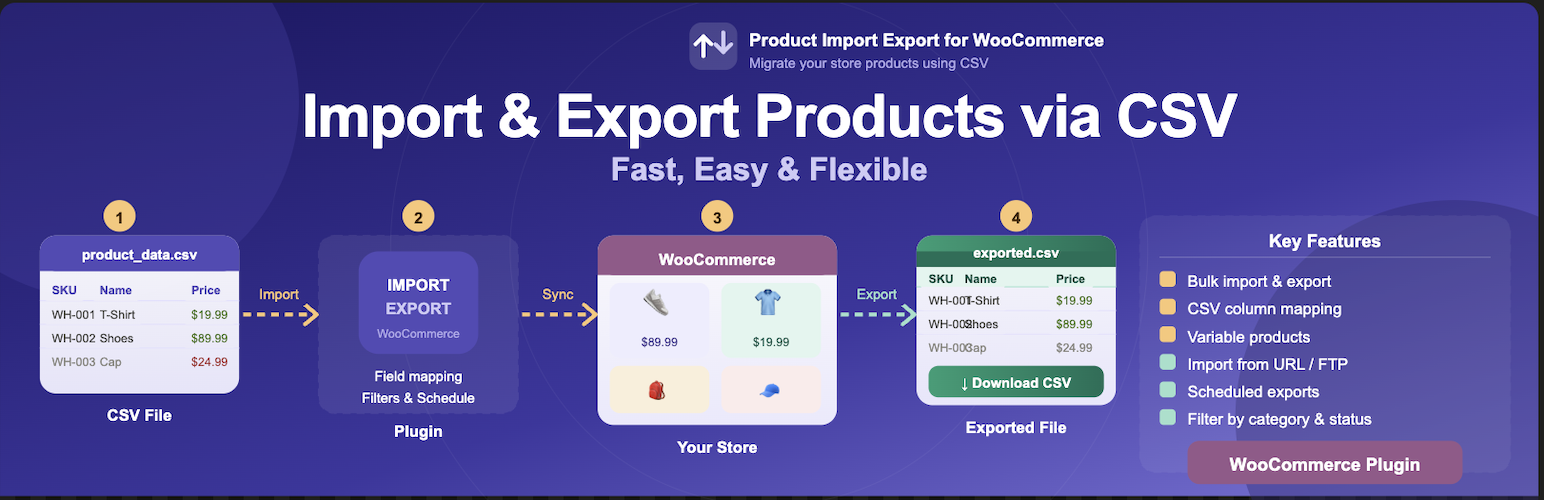
Product Import Export for WooCommerce - CSV Tool by PlusCodes

开发者 pluscodes
更新时间 2026年6月24日 19:06
PHP版本: 7.4 及以上
WordPress版本: 7.0
版权: GPLv3 or later
版权网址: 版权信息

标签

woocommerce product import product export CSV import export woocommerce csv import import export woocommerce

下载

1.0.2 1.0.3 1.0.4 1.0.1

详情介绍:

安装:

  1. Upload the folder pluscodes-product-csv-import-export-for-woocommerce to the /wp-content/plugins/ directory, or search for "PlusCodes Import Export" in the WordPress Plugin Directory and click Install Now.
  2. Activate the plugin through the Plugins menu in WordPress.
  3. Navigate to Import / Export in your WordPress admin sidebar to access the dashboard.

屏幕截图:

  • Export screen with filters: product type, category, stock status, and export by IDs.
  • Import screen with file upload, auto-map, and batch size control.
  • Column mapping screen — auto-mapped with manual override.

常见问题:

How is this plugin better than WebToffee Import Export for WooCommerce?

PlusCodes offers several features that WebToffee locks behind its premium tier — all for free. These include: full variable product CSV import export, custom batch size control, export by specific product IDs, a custom export filename field, and a custom CSV delimiter. PlusCodes is also built exclusively on WooCommerce's native CSV engine with zero third-party dependencies, giving you better performance and compatibility.

How is this plugin better than All-in-One Import Export for WooCommerce?

Unlike All-in-One Import Export plugins that try to do everything (products, orders, users, coupons) in one bloated interface, PlusCodes focuses 100% on WooCommerce product import and product export. This means a cleaner UI, faster processing, and a smaller plugin footprint with no unused code weighing down your store.

Does this plugin support variable products for free?

Yes — 100%. PlusCodes supports complete variable product import and product export in the free version, including all variation data (SKU, price, sale price, stock, weight, dimensions, and attributes). Competitors like WebToffee restrict variable product support to their paid plans.

How do I run a WooCommerce product import from a CSV file?

Go to Import / Export → Import in your WordPress admin. Upload your CSV file, use auto-map to match columns automatically (or map them manually), then click Run Import. The plugin processes your file in batches, shows real-time progress, and updates your store without timeouts.

How do I export WooCommerce products to CSV?

Go to Import / Export → Export. Optionally filter by product type, category, stock status, or enter specific product IDs. Set a custom filename and click Export. Your CSV will download immediately, ready to open in Excel, Google Sheets, or LibreOffice.

Can I update existing products without creating duplicates?

Yes. Enable Update existing products before running your product import. The plugin matches incoming rows by SKU or product ID and updates the existing records — no duplicates are created.

Does this plugin support images during import and export?

Yes. Featured images and all gallery images are supported in both product import and product export. For imports, provide the full URL to each image in your CSV and the plugin will fetch and attach them automatically.

What WooCommerce product types are supported in the free version?

The free version supports CSV import export for Simple, Variable, Grouped, and External/Affiliate products. For Subscription products or other custom product types, see the Pro version.

Can I filter my product export by specific product IDs?

Yes. Enter a comma-separated list of product IDs in the Export by IDs field to include only those products in your product export — a free feature that competitors charge extra for.

Can I set a custom filename for my exported CSV?

Yes. PlusCodes includes a Custom Filename field on the export screen so you can name your file before downloading. This keeps your exports organised and is unique to PlusCodes in the free tier.

What is the custom BATCH size feature?

For large stores, you can control how many products are processed per batch during a product import or product export. This prevents server timeouts on shared hosting and is configurable for free — competitors typically charge for this.

What CSV delimiter options are available?

You can choose comma (,), semicolon (;), tab (\t), or pipe (|) as the CSV delimiter — useful when your spreadsheet software exports in a non-default format.

Does the plugin work with WooCommerce HPOS (High-Performance Order Storage)?

Yes. PlusCodes is fully declared compatible with WooCommerce's High-Performance Order Storage (HPOS / custom order tables).

Will this plugin slow down my WooCommerce store?

No. PlusCodes is built on WooCommerce's own native CSV engine and adds no third-party scripts or libraries. The footprint is minimal and it only runs when you actively use the Import/Export dashboard.

Which CSV editors work best with this plugin?

We recommend Google Sheets, LibreOffice Calc, or Microsoft Excel (O365) for editing exported CSV files, as these tools handle UTF-8 encoding correctly and preserve data integrity for your next product import.

Does this plugin work with the latest version of WooCommerce and WordPress?

Yes. PlusCodes is actively maintained and tested with the latest versions of WooCommerce (up to 9.x) and WordPress (up to 7.0).

Where can I get support?

You can open a support thread in the WordPress.org plugin support forum. For priority support and advanced features, consider upgrading to Advanced Import Export for WooCommerce (Pro).

更新日志:

1.0.4 1.0.3 1.0.2 1.0.1