Pressidium Performance
| 开发者 |
pressidium
overengineer |
|---|---|
| 更新时间 | 2026年4月30日 21:19 |
| PHP版本: | 8.1 及以上 |
| WordPress版本: | 6.9 |
| 版权: | GPLv2 or later |
| 版权网址: | 版权信息 |
详情介绍:
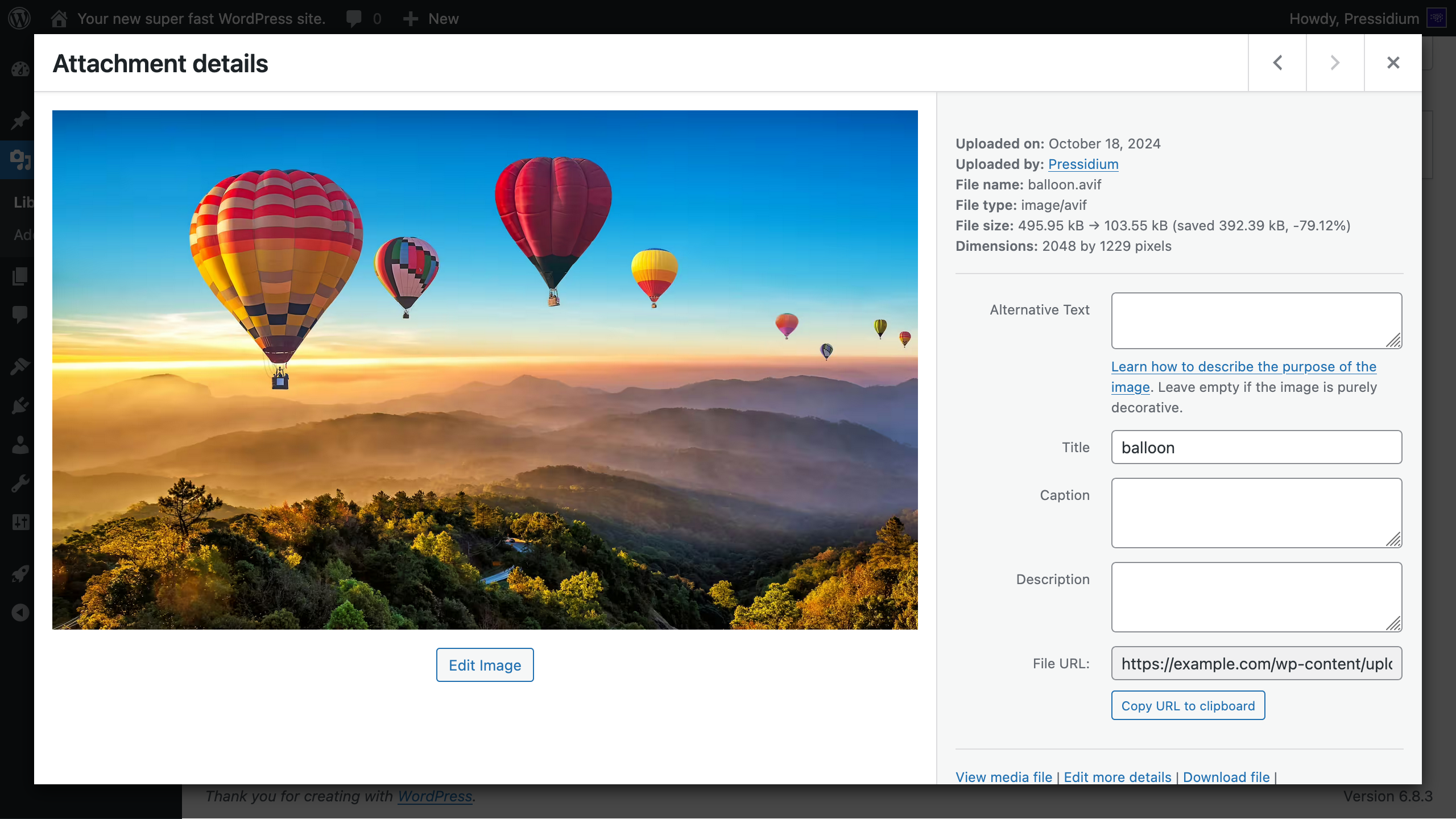
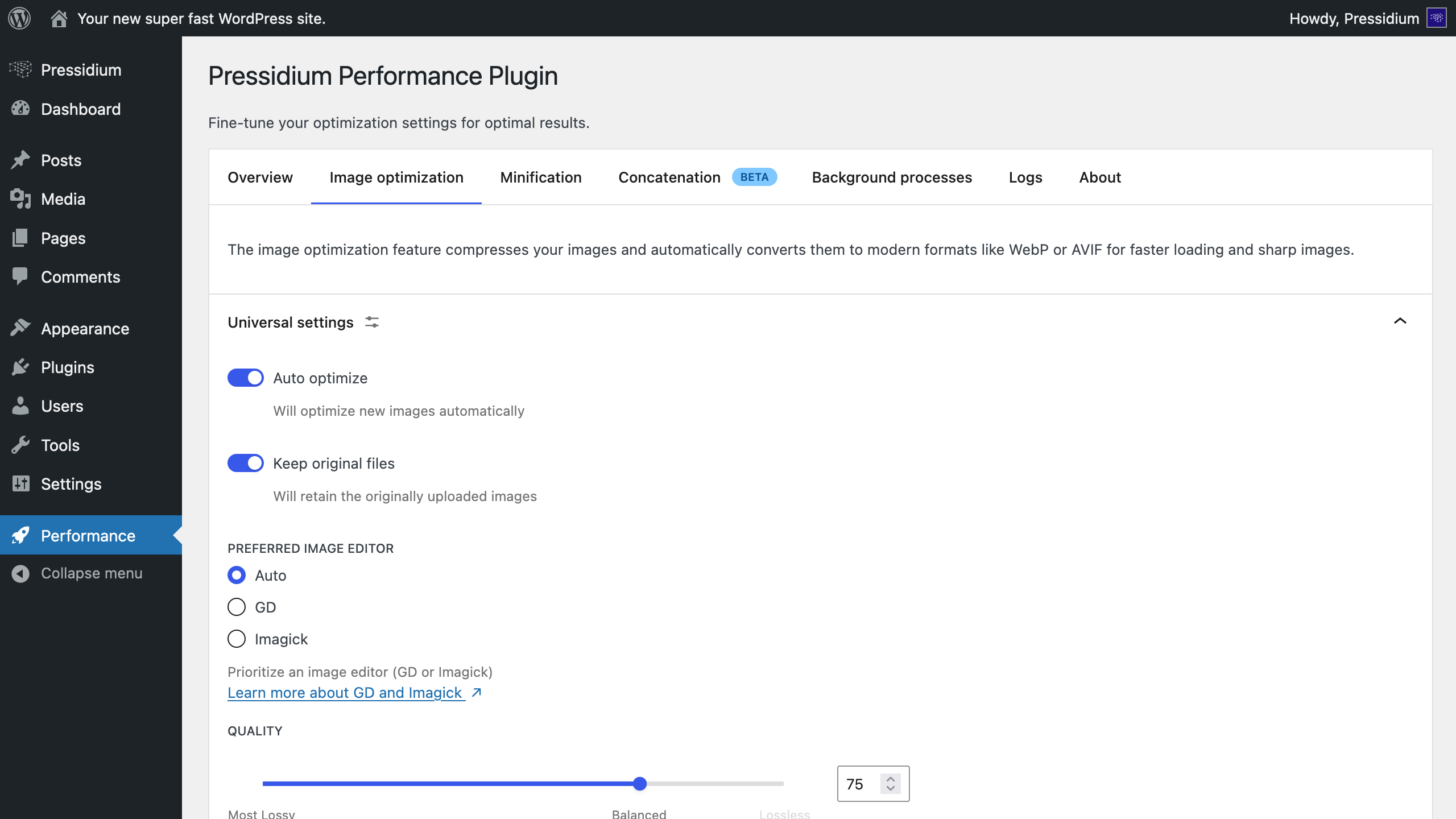
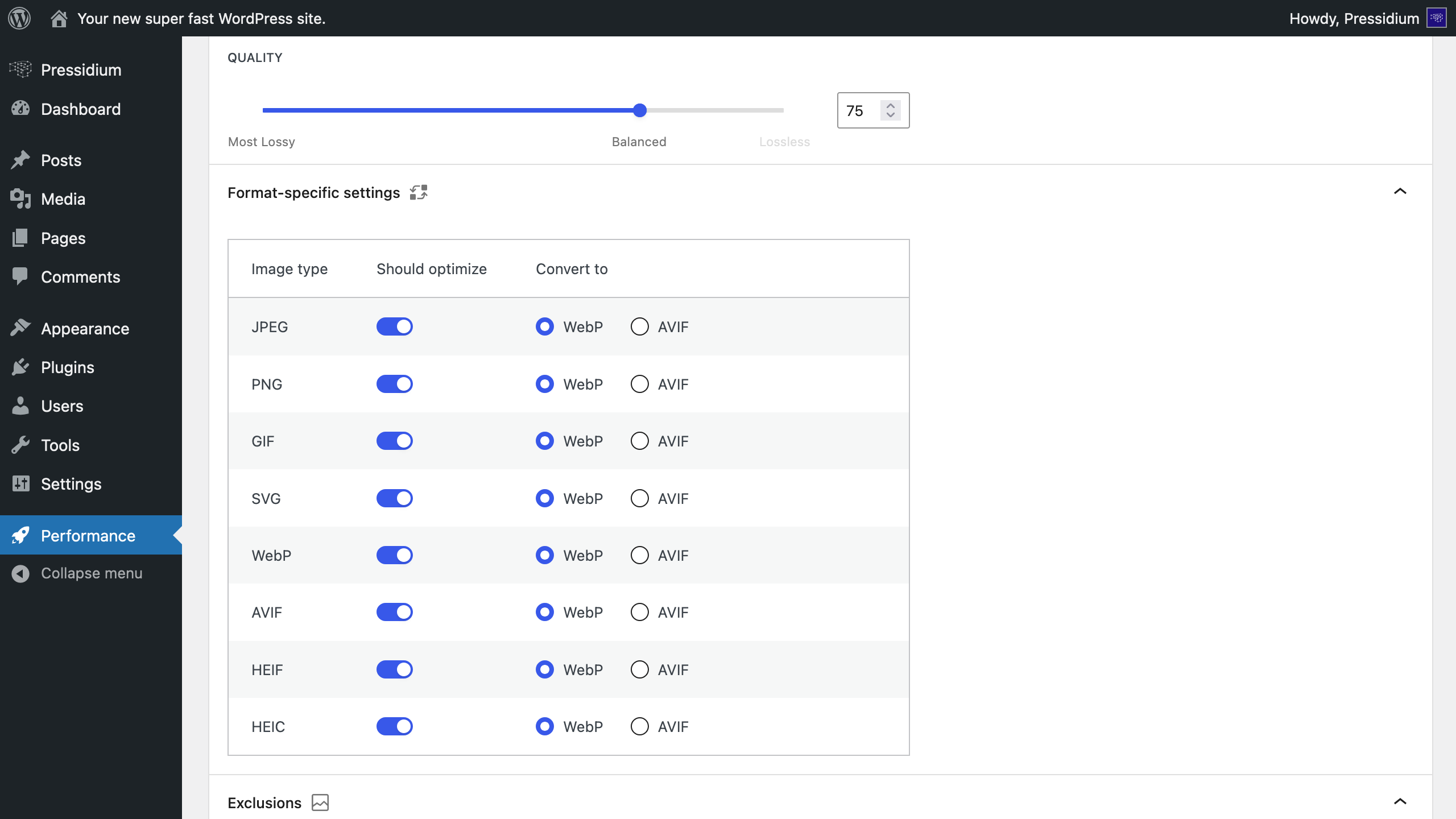
- Convert them to modern formats like WebP or AVIF
- Automatically optimize on upload or bulk-optimize your entire library
- Control quality by choosing between smaller file sizes or sharper images
- Optionally keep original files for peace of mind (automatically restored if you remove the plugin)
- All processes run seamlessly in the background to minimize site impact, conserve server resources and prevent performance bottlenecks or timeouts.
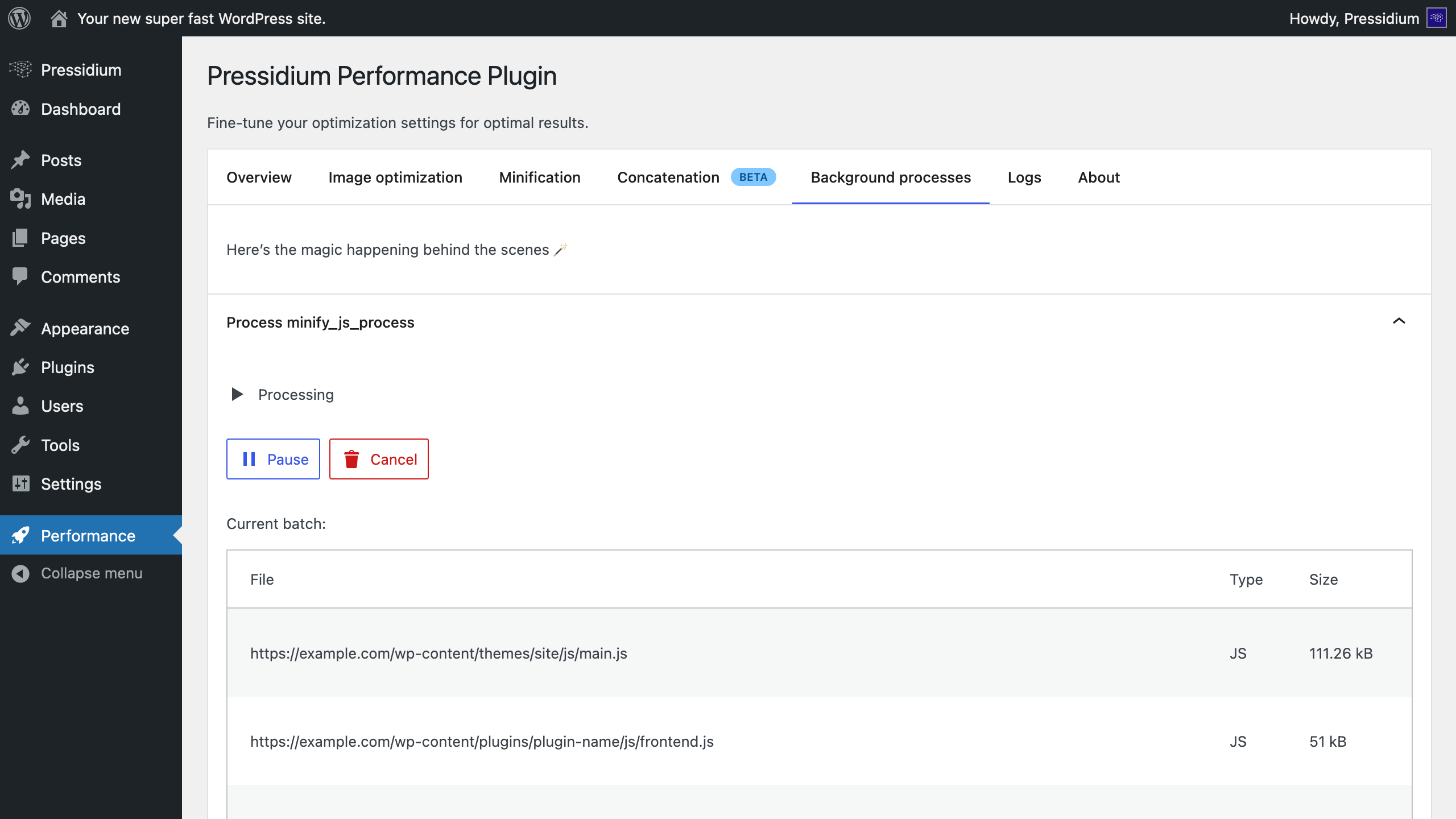
- Monitor every optimization task running behind the scenes. Pause, resume or cancel tasks instantly.
安装:
- Log in to your WordPress dashboard
- Navigate to the “Plugins” menu
- Search for “Pressidium Performance”
- Click “Install Now” and WordPress will take it from there
- Activate the plugin through the “Plugins” menu on WordPress
- Upload the entire
pressidium-performancefolder to thewp-content/plugins/directory - Activate the plugin through the “Plugins” menu on WordPress
- Go to the plugin settings page (Settings -> Performance)
- Select the optimizations you want to enable
- Click “Save” to save your changes
屏幕截图:
常见问题:
Is this plugin free?
Yes! This plugin is 100% free and open source.
How does this plugin improve my website’s performance?
The plugin improves your site’s loading speed by optimizing images (WebP/AVIF), reducing file sizes, and combining multiple scripts and stylesheets to limit HTTP requests. These optimizations work together to deliver a faster, more responsive site that both users and search engines love.
Will this plugin improve my Core Web Vitals scores?
Yes, in most cases. By reducing file sizes, optimizing images and using modern formats (WebP/AVIF), the plugin helps improve key Core Web Vitals metrics such as Largest Contentful Paint (LCP) and First Input Delay (FID). However, it is important to note that there are many factors that can affect your Core Web Vitals scores. This plugin is just one of the tools you can use to improve your site’s performance.
Do I need to have coding skills to use this plugin?
Not at all. The plugin is built for everyone, whether you’re just getting started with your first site or you’re a seasoned developer. You can enable optimizations with simple toggles and preset options. Advanced users can hook into WordPress filters for deeper control.
Does this plugin optimize my images automatically, and what formats are supported?
Yes. The plugin can automatically compress and convert your images to WebP or AVIF when you upload them to your Media Library. You can also choose to bulk-optimize all your existing images.
How does this plugin minify my JavaScript and CSS files?
The plugin automatically removes unnecessary characters such as whitespace, line breaks, and comments from your JavaScript and CSS files. This reduces their size without affecting functionality, allowing browsers to load them faster.
What is file concatenation, and how does it help speed up my site?
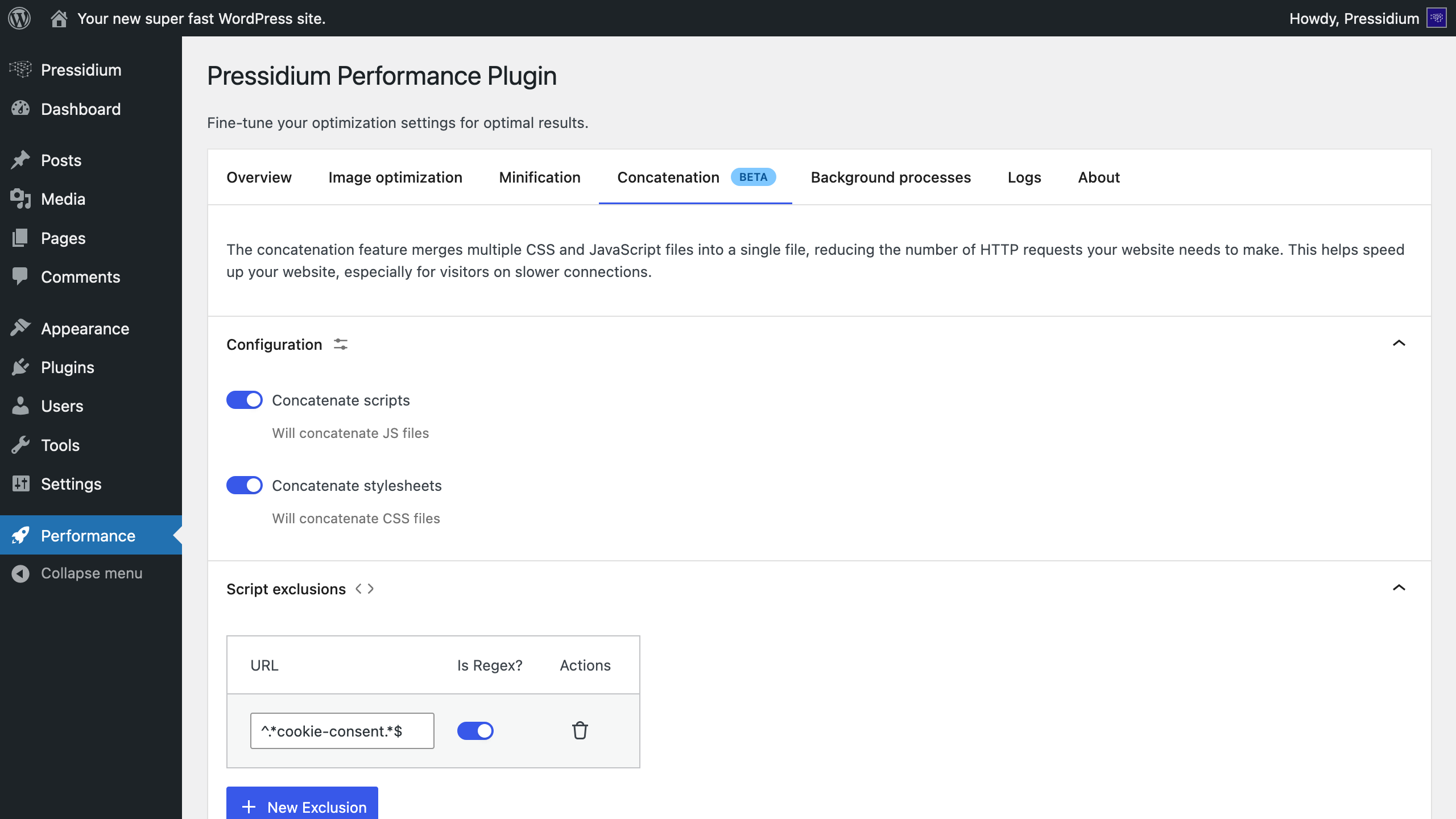
Concatenation means merging multiple JavaScript or CSS files into a single bundle. This reduces the number of HTTP requests your site makes, which helps browsers load your pages faster, especially on mobile networks or slower connections.
What are the server requirements for this plugin?
This plugin requires PHP 8.1 or higher, and WordPress 6.7 or higher to run. The image optimization feature requires GD and/or Imagick to be installed on your server.
Does this plugin provide caching options?
No, this plugin doesn’t include any caching options. However, we strongly recommend pairing it with a caching solution from your hosting provider or a dedicated caching plugin.
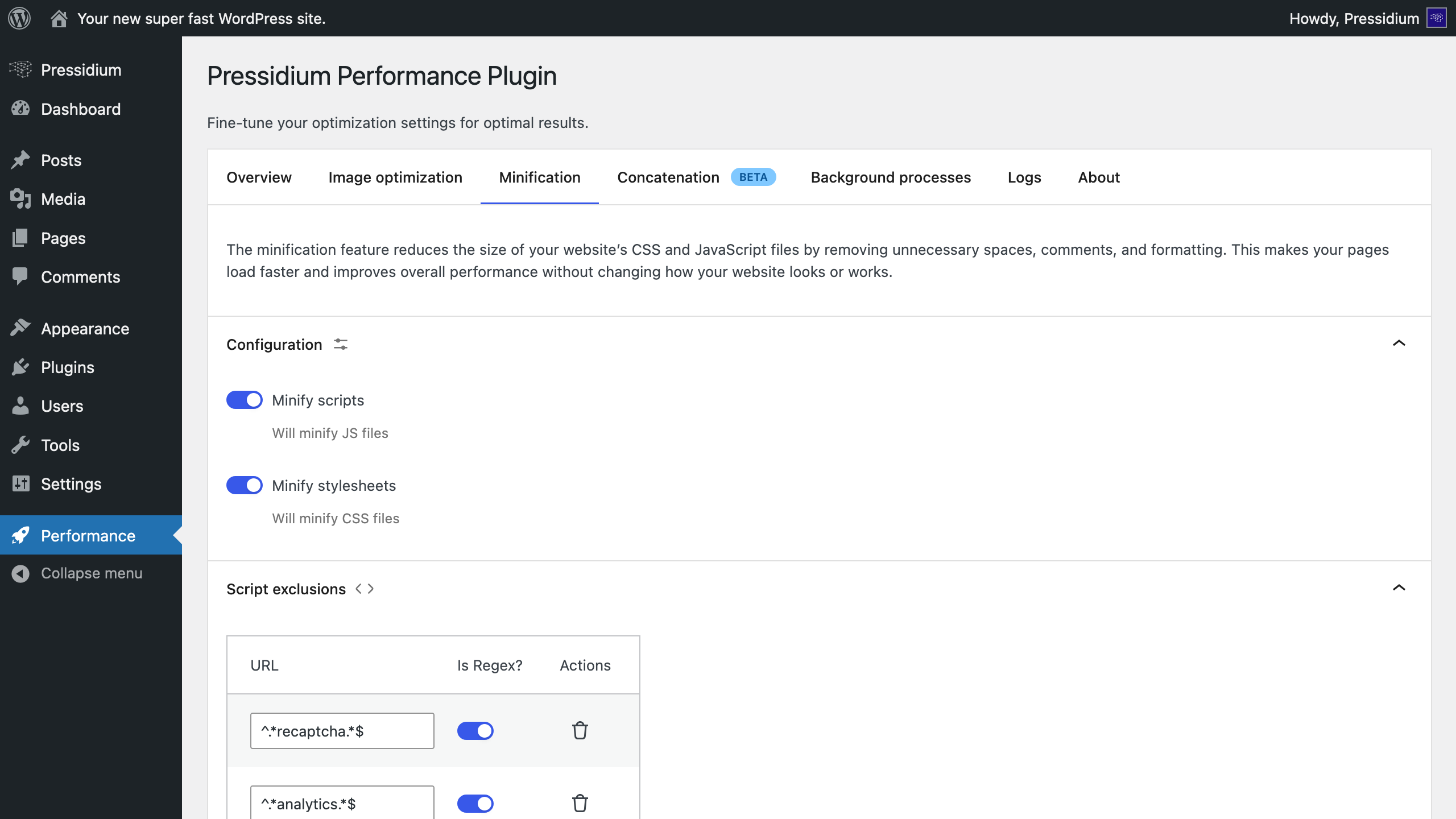
Can I exclude specific files from being minified or concatenated?
Yes. You can exclude specific files from being minified or concatenated by adding their paths under the “Script exclusions” or “Stylesheet exclusions” sections.
Can I exclude specific images from being optimized?
Yes. You can exclude specific images from being optimized by adding their paths under the “Exclusions” section of the “Image optimization” tab.
Is the image optimization lossless?
You can pick between lossless (no quality loss) or lossy (smaller files with some compression) optimization for your images. Just open the “Image optimization” tab and set your preferred quality level. Remember: Lower quality means smaller file size, higher quality means sharper images.
Can I revert my optimized images back to the originals?
Yes, as long as the "Keep original files" option was enabled under the "Image optimization" tab when the images were optimized. Navigate to wp-admin → Performance → Image optimization and click the "Revert optimized images" button. The plugin will restore the original files and metadata in the background. Please note that if the original files were not retained, the revert process will skip those images since there is nothing to restore.
Can I undo the changes made by the plugin?
Yes. Minification and concatenation changes are automatically reverted when you uninstall the plugin. However, optimized images will not be reverted automatically upon uninstall, they will remain as-is. If you wish to restore your original images before removing the plugin, navigate to wp-admin → Performance → Image optimization and click the "Revert optimized images" button. This will restore the original files and metadata in the background. Make sure the "Keep original files" option was enabled under the "Image optimization" tab, otherwise the original files will no longer be available to revert to.
Can I export/import the plugin settings?
Yes, you can export/import the plugin settings. On wp-admin, go to Settings -> Performance, and use the “Export Settings” and “Import Settings” buttons.
Do optimizations run in the background?
Yes. Optimizations run in the background and do not require any manual action. You can enable or disable optimizations anytime from the plugin settings page. If your Media Library contains many images, the process may take a while. You can track its progress directly on the plugin settings page.
Can I cancel an optimization process?
Yes. You can cancel an optimization process by clicking the “Cancel” button under the “Background processes” tab on the plugin settings page. Please note that any changes made up to that point won’t be reverted.
Why are my changes not getting saved?
Make sure you have clicked the “Save” button on the plugin settings page.
Where can I report any bugs and/or request additional features?
If you have spotted any bugs, or would like to request additional features from the plugin, please file an issue.
更新日志:
- Fix an issue where the Logs tab was failing to load entirely if the log file was too large
- Fix an issue where deleting an attachment that was scheduled for optimization could cause the process to get stuck
- Fix an issue where expired minified files were repeatedly refetched when their content was unchanged
- Fix an issue where optimizing images on sites with a large number of attachments in their Media Library could cause memory exhaustion errors
- Improve background process logging
- Introduce a new background process to revert optimized images back to their original state
- Introduce a new "Debug mode" option to log detailed information to a log file for troubleshooting (disabled by default)
- Log to server error logs instead of a custom log file by default to limit filesystem I/O
- Store in object cache the URLs of CSS and JavaScript files that should not be minified at all to prevent them from being repeatedly evaluated on every request
- Clean up expired minified files after a grace period to prevent files from accumulating on the filesystem
- Fix an issue where original images were overwritten when the source and target formats were the same
- Fix an issue where original images remained on the filesystem as orphaned files when optimized images were deleted from the Media Library
- Fix an issue where optimizing images resulted in double slashes in
srcsetattributes
- Initial version