ReplyPlex – AI Powered Help Desk, Customer Portal & MCP Server for WordPress Stores
| 开发者 | replyplex |
|---|---|
| 更新时间 | 2026年10月13日 11:46 |
| PHP版本: | 7.4 及以上 |
| WordPress版本: | 7.1 |
| 版权: | GPLv2 or later |
| 版权网址: | 版权信息 |
详情介绍:
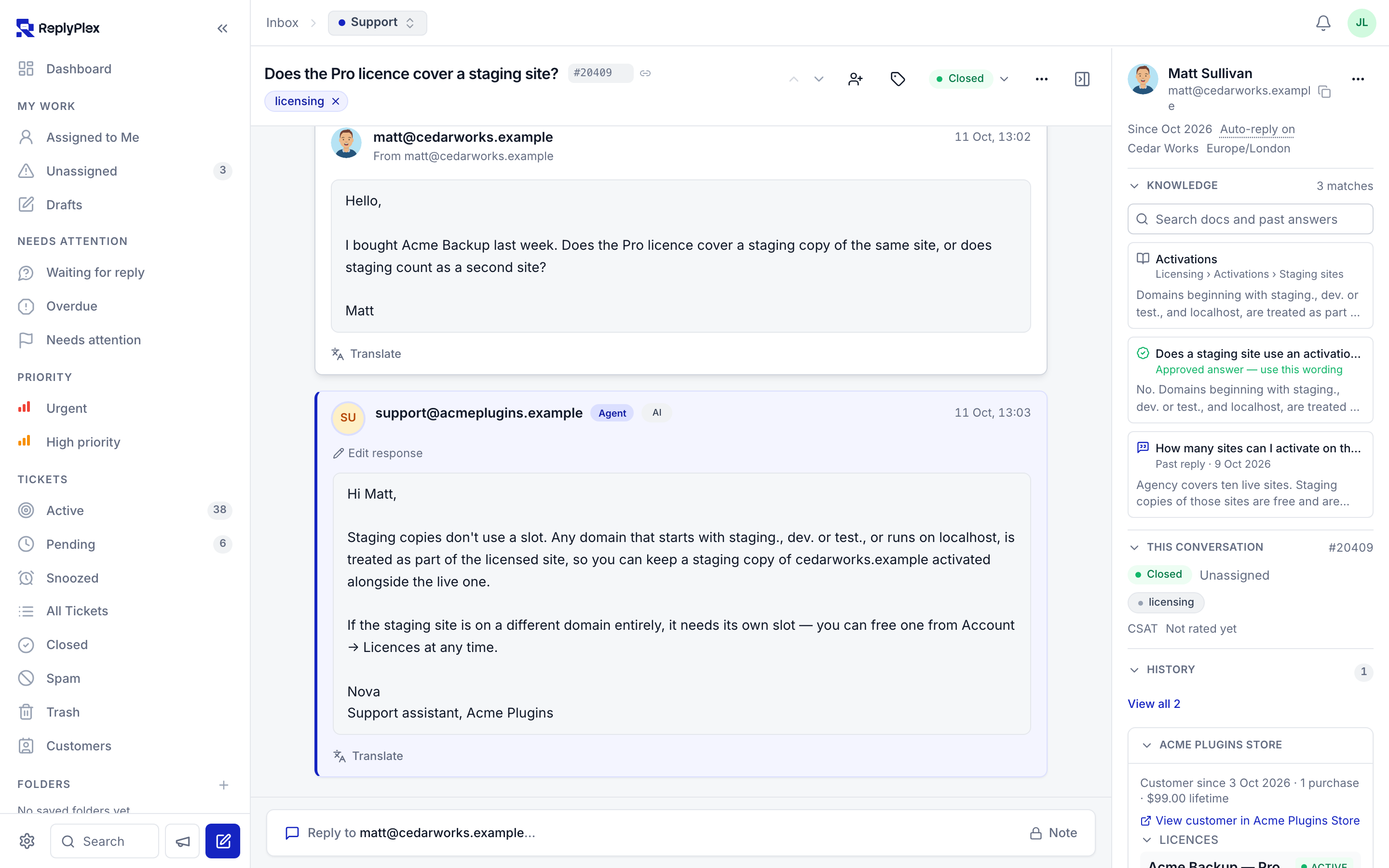
- Where the answer came from. Each claim taken from your docs, an approved answer or a past reply is linked, so the agent can open the source before sending.
- What the AI could not establish. Unknowns are listed above the Send button instead of being papered over. The model is told it cannot see system state it was not given, so it asks or defers rather than inventing a refund, a licence status or a promise.
- An Undo. One click restores exactly what was there before any AI action.
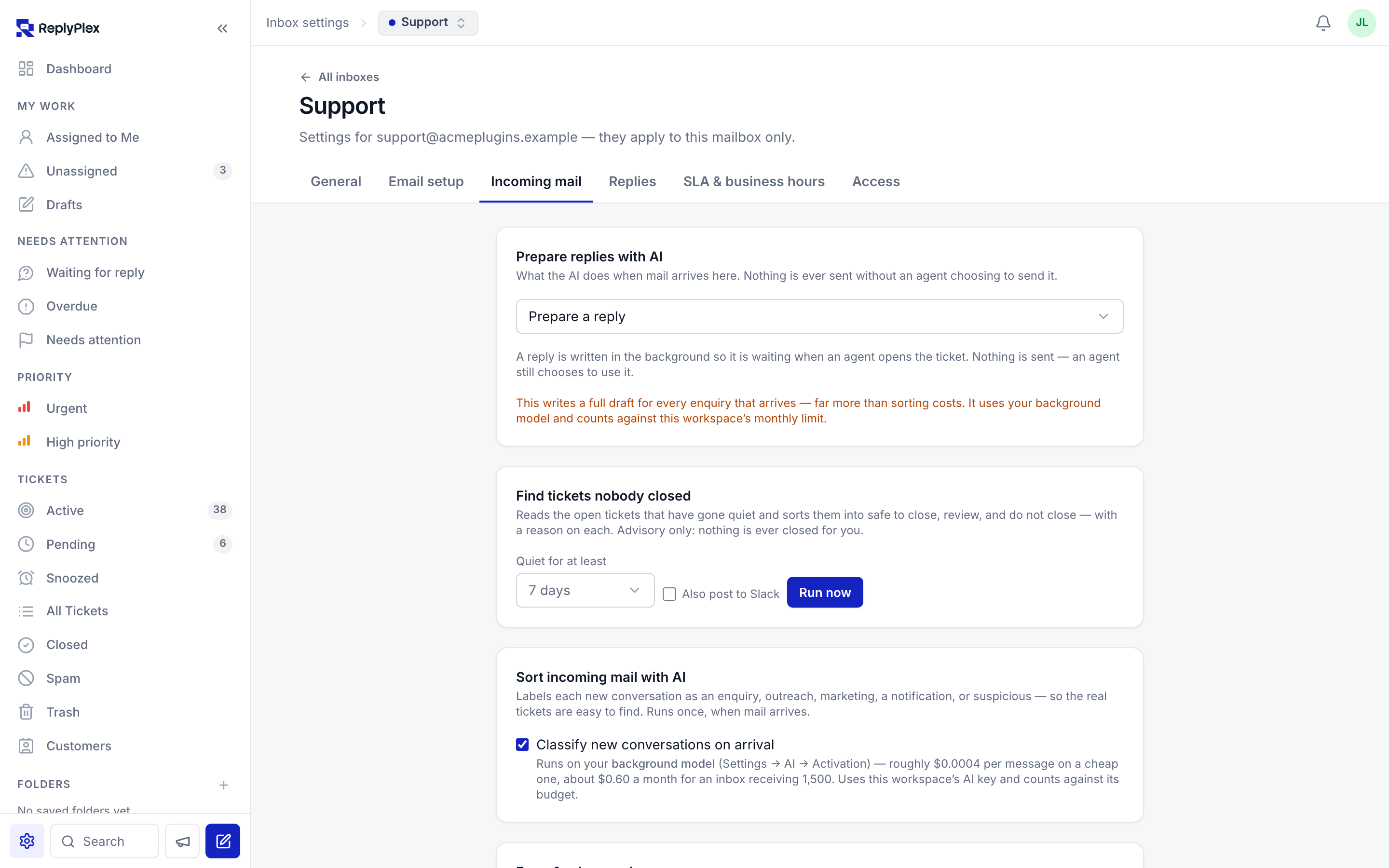
- Off — nothing is generated when mail arrives.
- Prepare a reply — a reply is written in the background and waits in the composer. A human still sends it.
- Reply automatically — Autopilot sends the reply itself, but only when it is confident, has nothing it could not establish, and can cite where the answer came from. Anything else is prepared for a person instead.
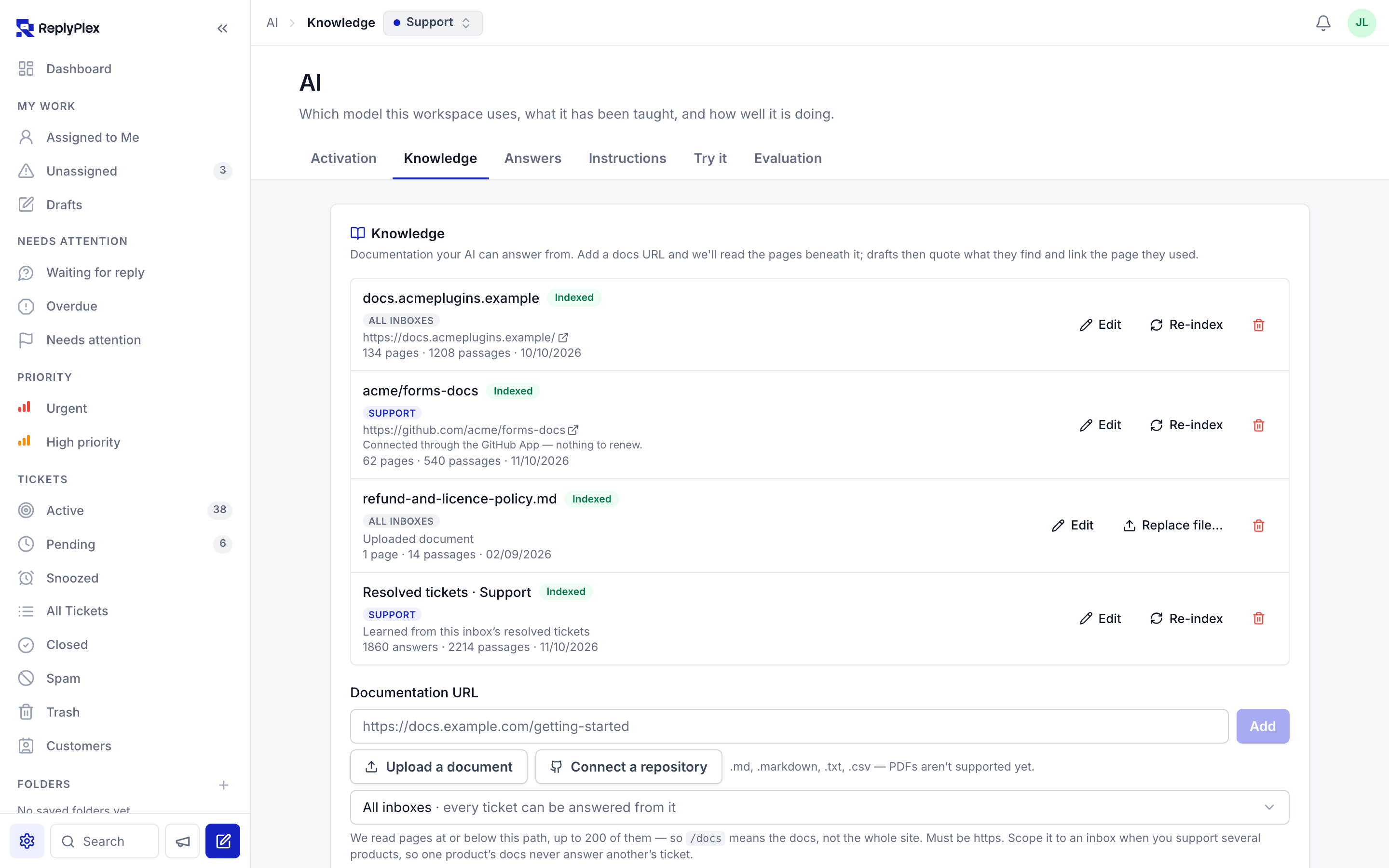
- Documentation sites. Add a docs URL and the pages beneath it are indexed.
- Markdown files. Upload
.md,.markdown,.txtor.csvfiles straight from your repository or your policy folder. A refund policy written as a.mdfile becomes something the AI can quote. - GitHub repositories. Connect a repo and index its docs folder, scoped to a path filter
such as
docs/**/*.md. Every re-index records the commit it answered from. - Resolved tickets. Learn from what your team already answered well.
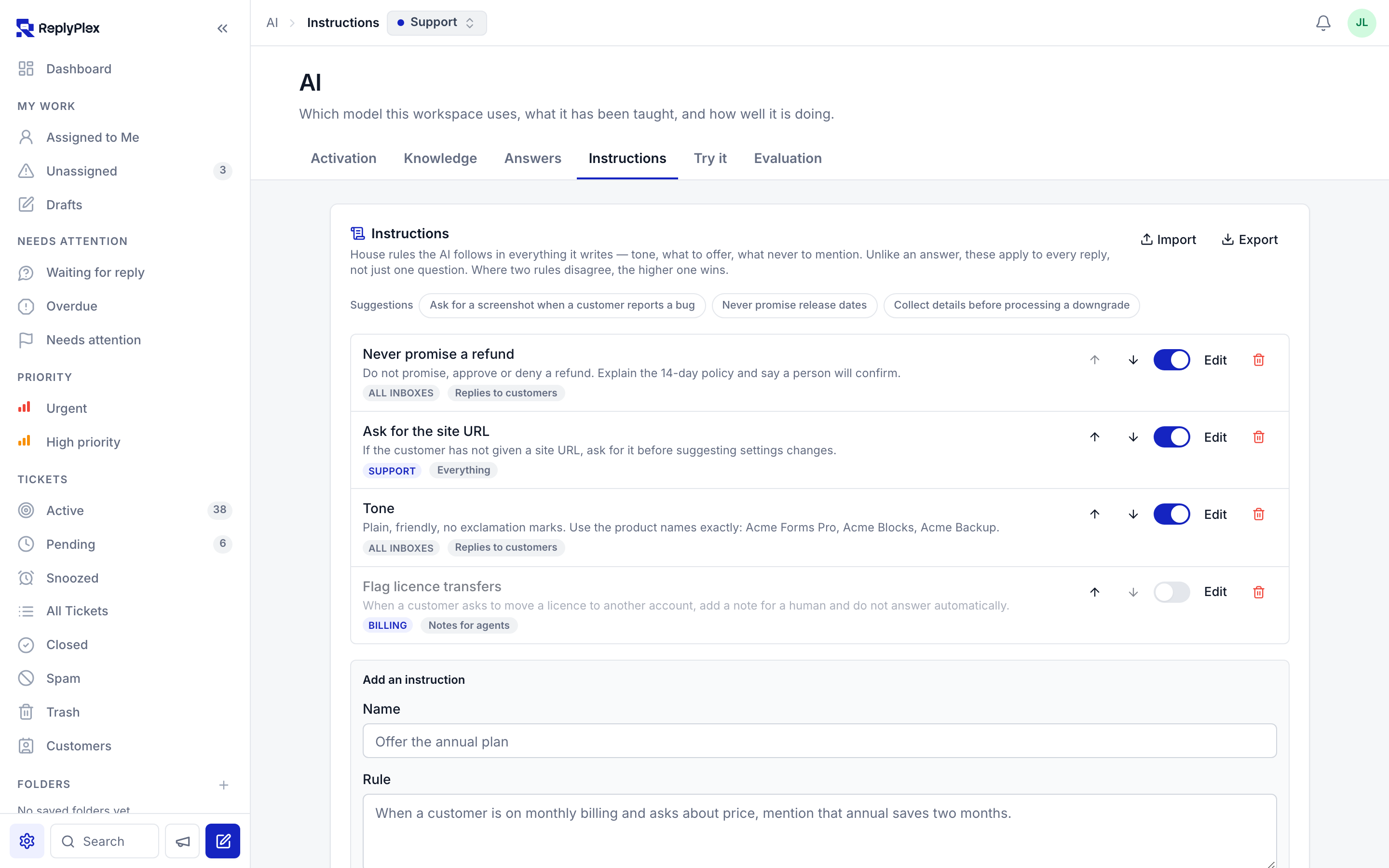
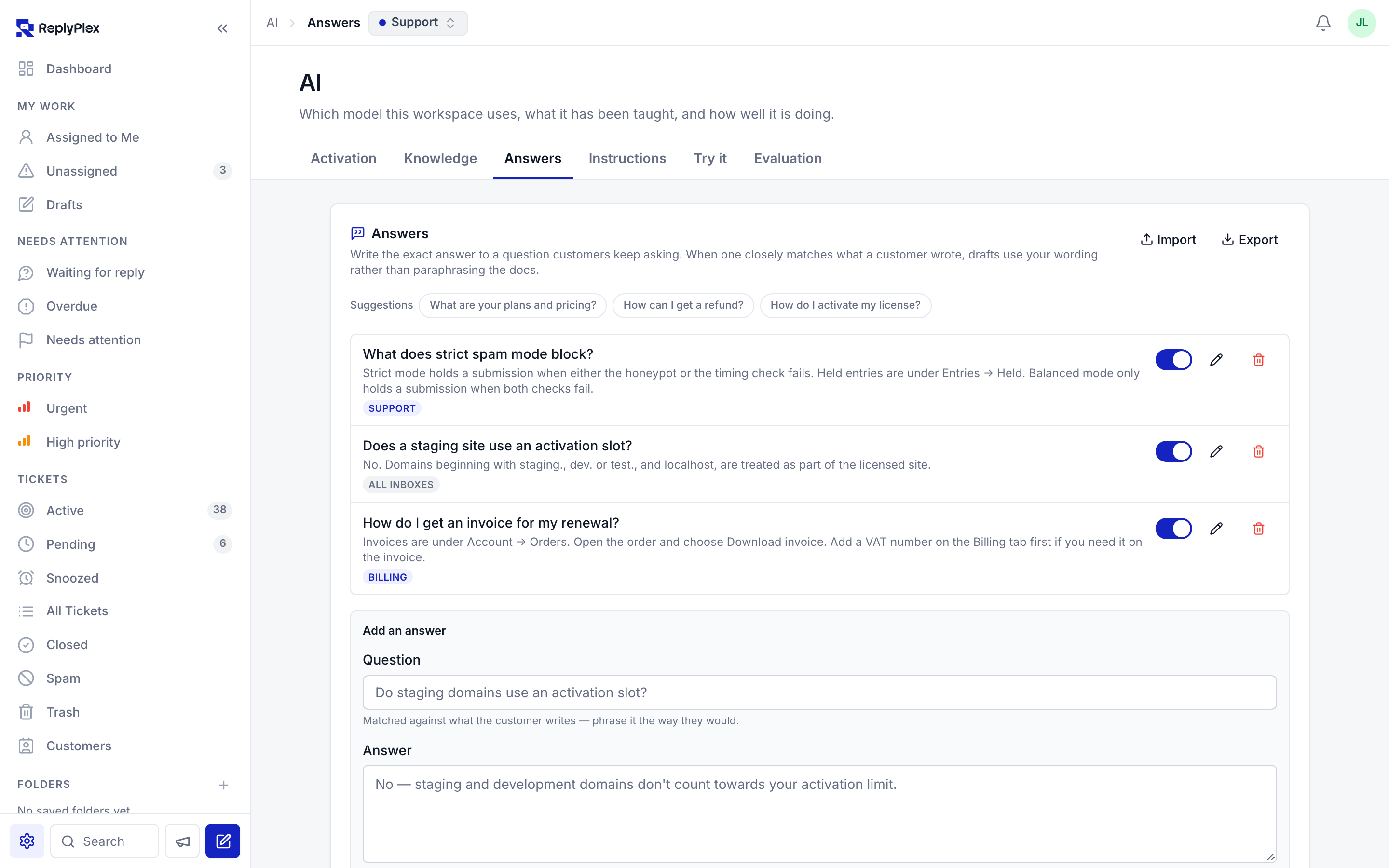
- Approved answers. Write the exact wording for the questions customers keep asking. When one closely matches, the draft uses your words instead of paraphrasing.
- WooCommerce — orders, and subscriptions through WooCommerce Subscriptions
- Easy Digital Downloads — purchases, licences through EDD Software Licensing, and subscriptions through EDD Recurring
- FluentCart — orders, and licences through FluentCart Pro
- Add the ReplyPlex Portal block or
[replyplex_portal]for "my tickets". - Add the ReplyPlex Ticket Form block or
[replyplex_ticket_form]for a new-ticket form. - Signed-in WordPress users are signed in to the portal automatically after a one-time email verification. Guests use an email code.
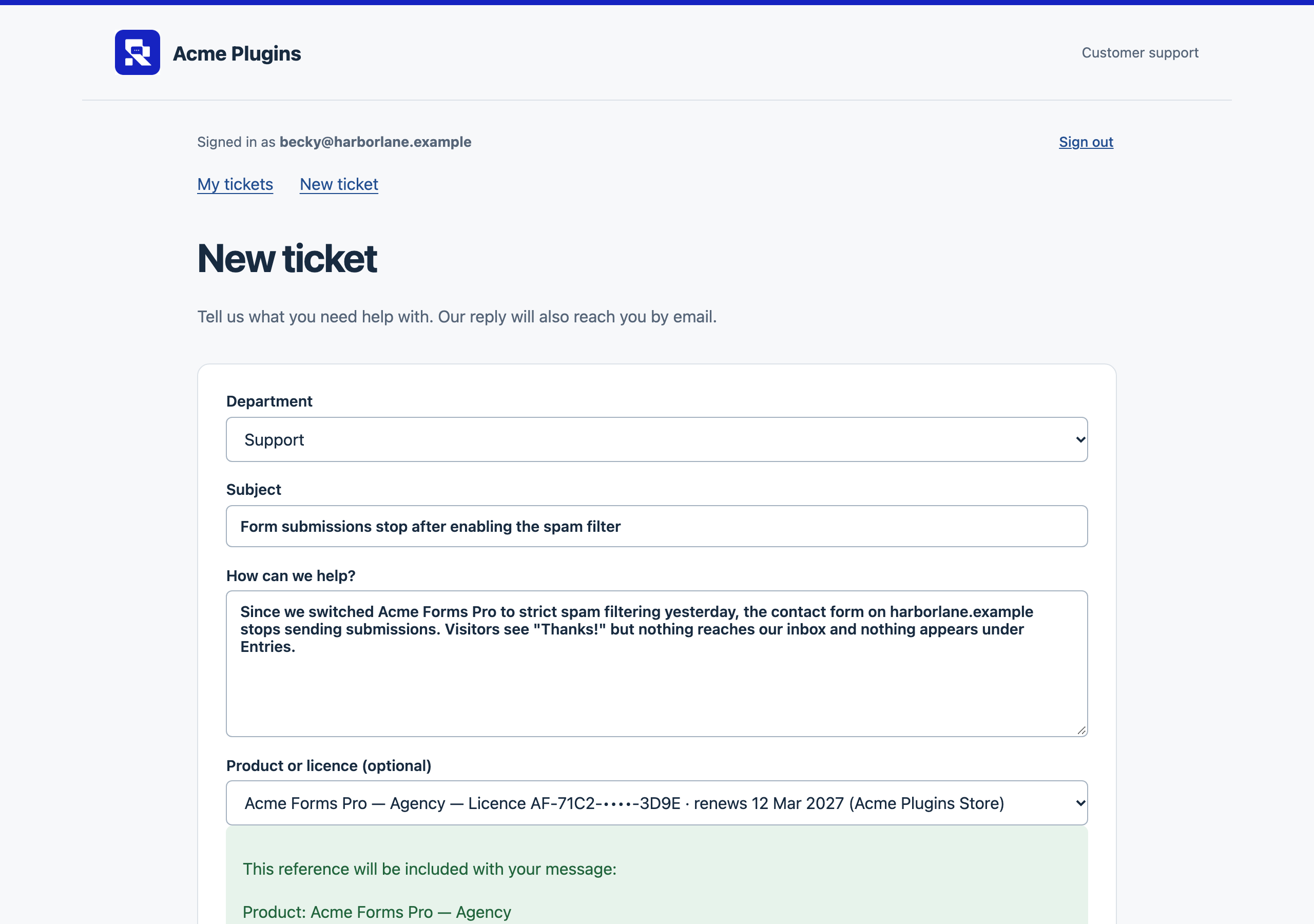
- The form can offer a product or licence selector drawn from the customer's own purchases, so the agent and the AI know which product the ticket is about before reading it.
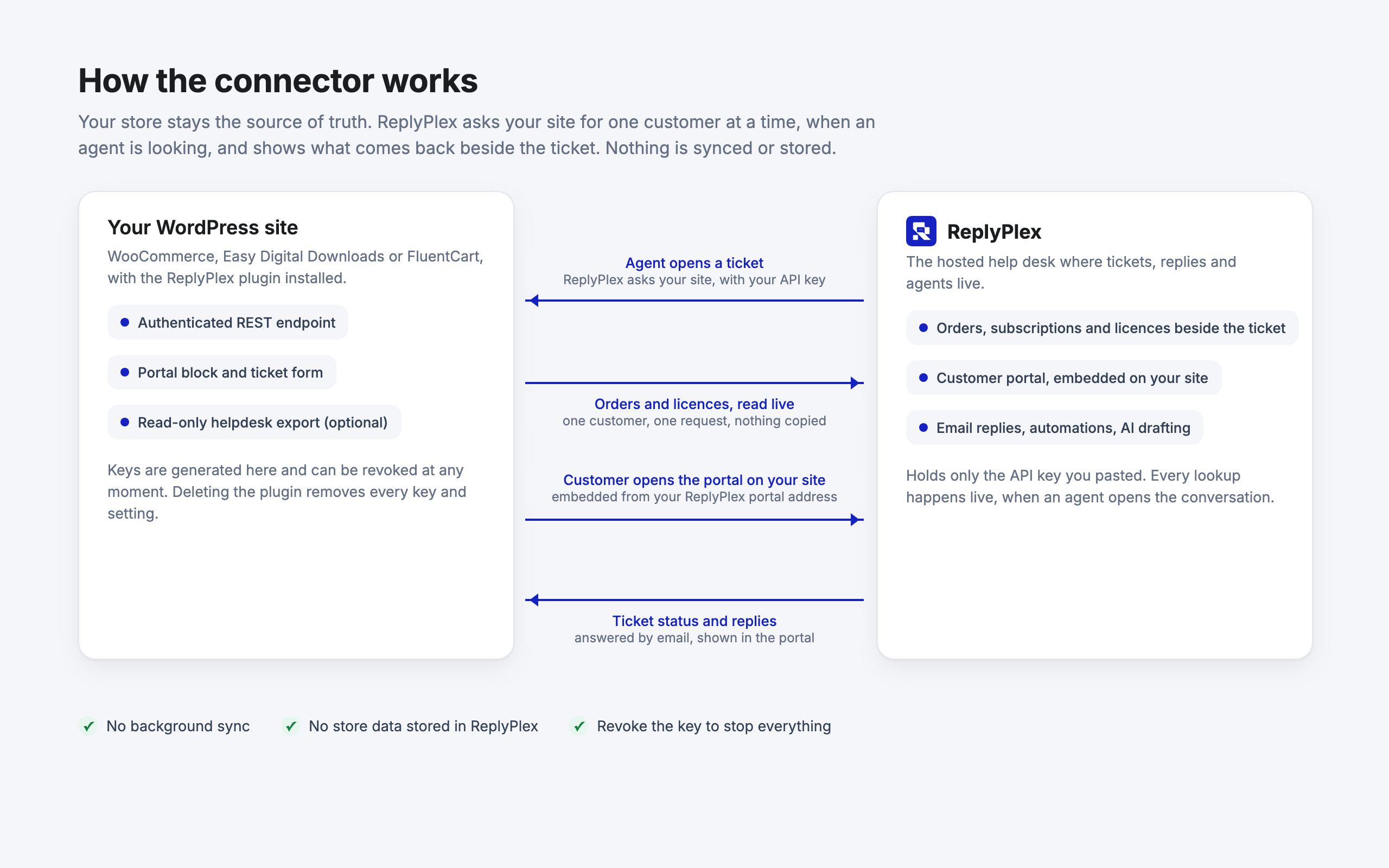
- Commerce context: inbound only. ReplyPlex calls your site with the API key you generated, one customer at a time, when an agent opens a ticket. No schedule, no background job.
- Portal: your page embeds the portal from your ReplyPlex portal address. For a signed-in WordPress user, your server makes one short-lived, signed request to that address to sign them in.
- AI: runs in the ReplyPlex service, on the model and key your workspace chose. This plugin makes no AI requests of its own.
安装:
- Install and activate the plugin.
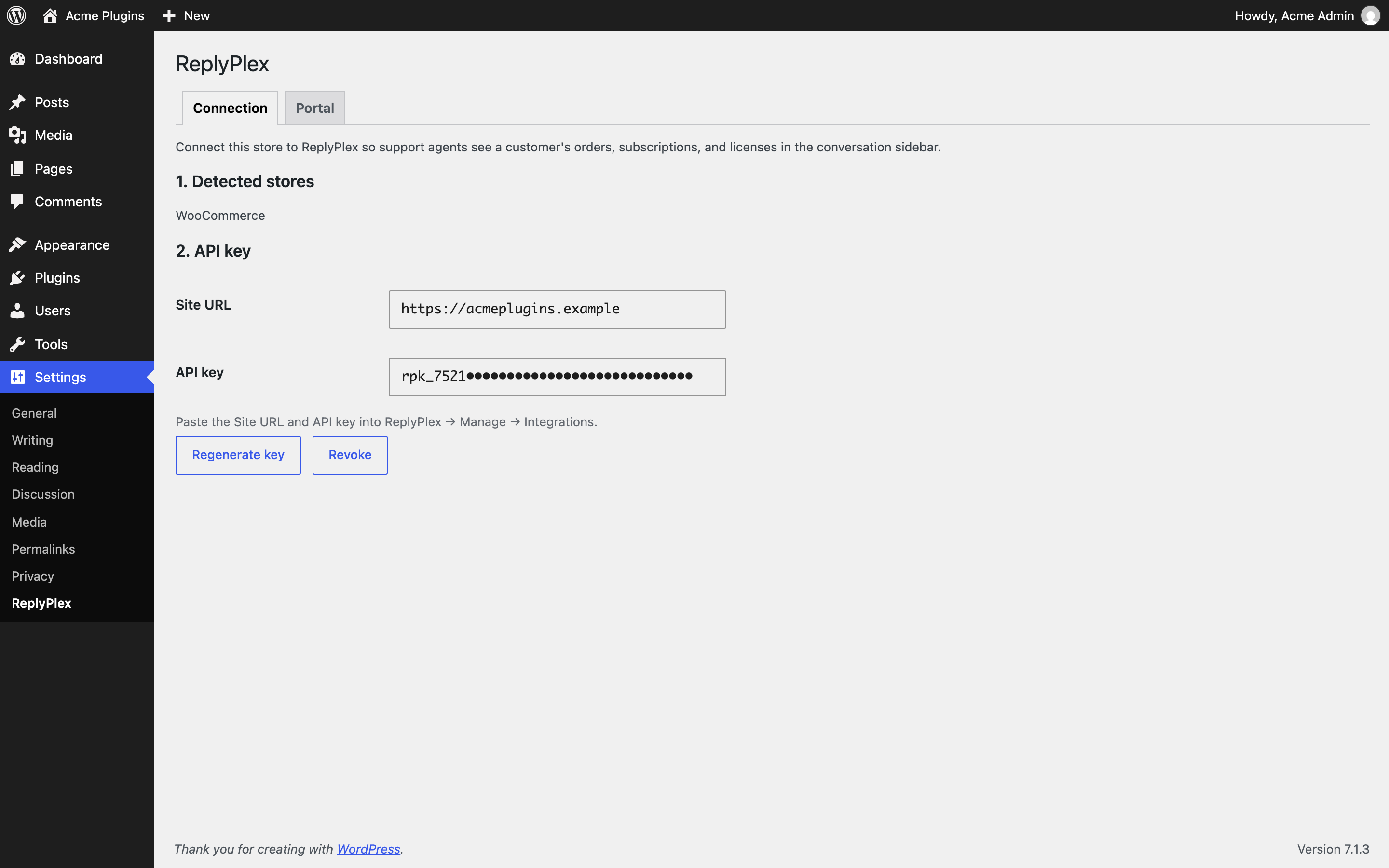
- Go to Settings → ReplyPlex and generate an API key. The page lists which stores were detected, so you can confirm the right one was found.
- In ReplyPlex, open Manage → Integrations, add a WordPress connection, and paste your Site URL and API key. Commerce context appears beside tickets from that moment.
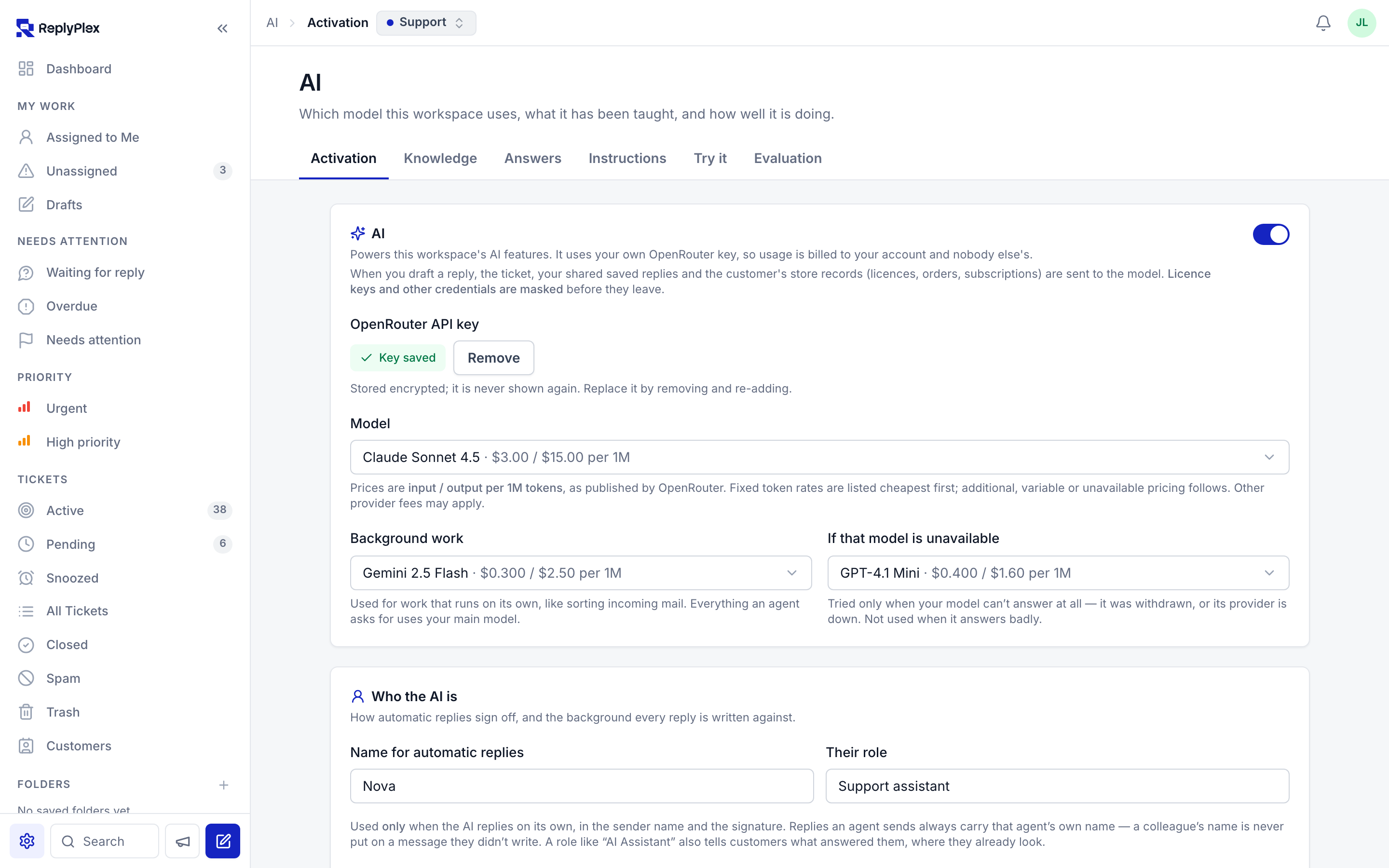
- In ReplyPlex, open AI → Activation, add your OpenRouter key and choose a model.
- Under AI → Knowledge, add a documentation URL, upload your
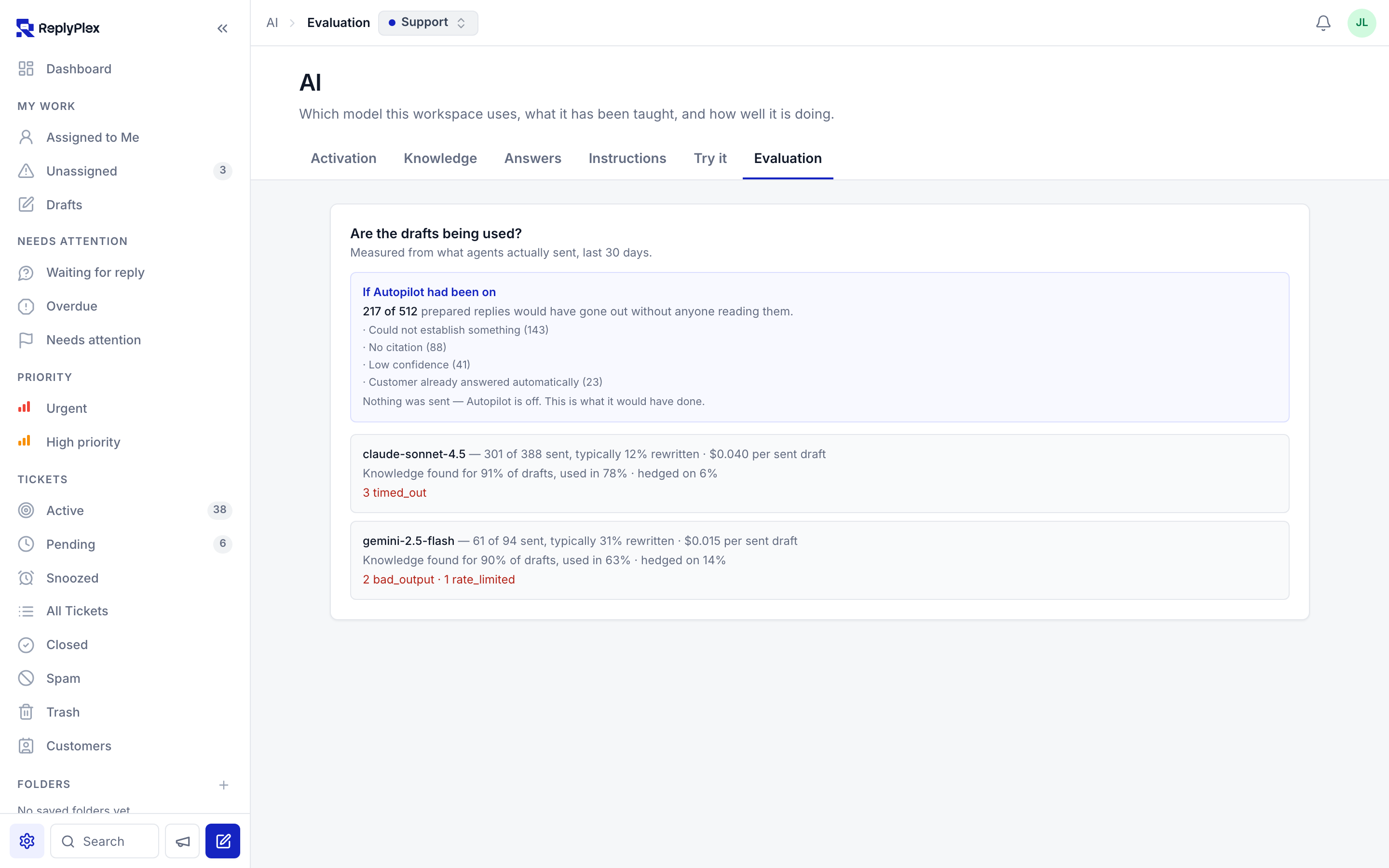
.mdfiles, or connect a GitHub repository. Add house rules under Instructions and exact wording under Answers. - Set each mailbox to Prepare a reply first. Read the "If Autopilot had been on" panel under Evaluation before switching any mailbox to Reply automatically.
- In ReplyPlex, activate the portal for your workspace and approve this site's exact HTTPS address and connection.
- Copy the portal URL, site ID and integration ID into Settings → ReplyPlex → Portal and enable it.
- Add the ReplyPlex Portal block (or
[replyplex_portal]) to a "My tickets" page, and the ReplyPlex Ticket Form block (or[replyplex_ticket_form]) to a contact page.
屏幕截图:
常见问题:
Is this a standalone help desk for WordPress?
No. It is the connector between your WordPress site and the hosted ReplyPlex service. Tickets, replies, the AI, automations and reporting live in ReplyPlex. If you want a ticket system that stores everything in your WordPress database, this is not that.
Do I need a ReplyPlex account? Is it paid?
Yes, you need a ReplyPlex workspace; the plugin does nothing without one. Plans are described at replyplex.com. The plugin itself is free and all of its code is GPL.
Does the AI send replies to my customers on its own?
Only if you switch a mailbox to Reply automatically, and even then only when the draft is confident, has nothing it could not establish, and cites a source. Every mailbox starts off. With Prepare a reply, the AI writes and a person sends. Autonomous replies are badged, logged, undoable, and never sent to the same customer twice in one thread.
Which AI model does it use? Do I need my own key?
Each workspace brings its own OpenRouter key and chooses any model from the live catalogue, with prices shown. You can set a cheaper model for background work and a fallback for outages. Until a key is added, no model is ever called. Usage is billed to your own account, and ReplyPlex enforces the monthly and per-conversation ceilings you set before each request.
What can I feed the AI? Can it read Markdown files?
Documentation URLs, uploaded .md, .markdown, .txt and .csv files, GitHub
repositories with a path filter, your resolved tickets, and curated question-and-answer
pairs. PDF is not supported yet. Knowledge can be shared across all mailboxes or scoped to
one.
How do I know a draft is not making things up?

Every claim taken from your knowledge is linked to its source, and the draft lists what it could not establish above the Send button. The model is told it cannot see any system state it was not given. Try it under AI shows the exact passages a draft would use, with scores, so you can check what the AI knows before customers ask.
What is the MCP server for?
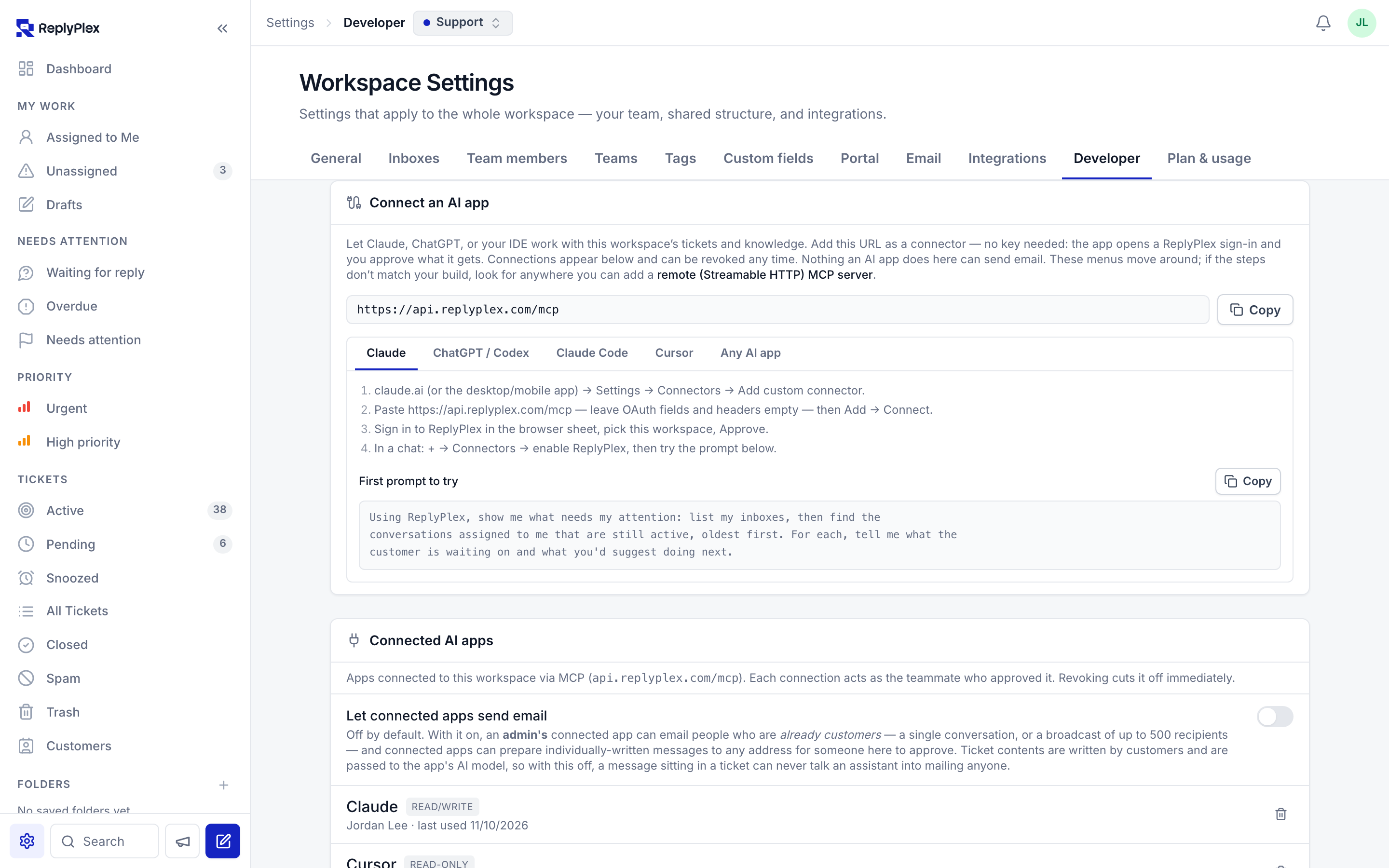

It lets an assistant you already use, such as Claude, ChatGPT or Cursor, work with your ReplyPlex workspace: triage, search tickets and customers, search your knowledge base and read reports. Sign-in is OAuth 2.1 with consent, every action is attributed to the app in the timeline, and connected apps cannot send email unless an admin turns that on.
Does the plugin send my customer data to ReplyPlex?
Commerce context never leaves your site unless ReplyPlex asks for it with your API key, one customer at a time, while an agent is reading that customer's ticket. Nothing is copied or mirrored. The one case where your server sends something first is portal sign-in for a signed-in WordPress user, and that request is described in full under External services.
Is my store data synced to ReplyPlex?
No. Every answer is read live from your store when it is asked for. There is no background job, no schedule and no stored copy.
Which stores and extensions work?
WooCommerce (orders; subscriptions with WooCommerce Subscriptions), Easy Digital Downloads (purchases; licences with EDD Software Licensing; subscriptions with EDD Recurring) and FluentCart (orders; licences with FluentCart Pro). You need at least one of them for commerce context. The settings page tells you what was detected.
Can guests use the portal, or only registered users?
Both. A signed-in WordPress user is signed in to the portal automatically after a one-time email verification. A guest signs in with a code sent to their email address.
Does this include live chat?
No. ReplyPlex is email-first: tickets opened in the portal are answered by email and the answer also appears in the portal.
Will this slow down my store?
No. Nothing runs on page loads, on cron, or for visitors who never open the portal. The commerce endpoint does work only while answering a request, and its queries are capped and indexed. The portal block loads one embedded frame on the pages where you place it.
Does it work with full-page caching?
Commerce context and migration are unaffected. For automatic WordPress sign-in to the portal, the page carrying the portal block should be excluded from full-page caching, because the sign-in handoff is tied to the visitor's session. If a cached page is served, the portal still works; the visitor is simply asked for an email code instead.
Does the history export change my existing helpdesk?
No. It only reads. Your helpdesk keeps running exactly as before, during the export and after it. The window closes on its own after 30 days and deletes its key.
How do I revoke access?
Revoke or regenerate the API key on the settings page: the commerce endpoint refuses every request from that moment. Disable the portal on the same page to remove its embeds, and remove this site's approval in ReplyPlex to end existing portal sessions. Revoke a connected AI app under Settings → Developer in ReplyPlex. Deleting the plugin removes every key and setting, on every site of a multisite network.
Does it work on multisite?
Yes. Each site in the network has its own keys, its own portal settings and its own connection.
更新日志:
- Updated the WordPress.org listing with AI, Autopilot, knowledge and MCP documentation, plus new fictional screenshots, banners and icons.
- Established verified releases from GitHub to WordPress.org. Existing commerce, migration and optional customer portal connections keep their settings and keys.
- First public release: EDD, WooCommerce and FluentCart commerce context for ReplyPlex, served over an API-key-authenticated REST endpoint.
- Optional customer portal and ticket-form blocks/shortcodes, with mailbox-verified WordPress sign-in.
- Separate authenticated product/licence references for the customer portal's optional ticket selector.
- The commerce card carries a link to the customer's profile in the store's own admin, and each EDD licence carries its pre-filled renewal checkout link (EDD).
- A ReplyPlex agent with permission can deactivate a single site from an EDD licence without leaving the ticket. The endpoint exists only when EDD Software Licensing can do it, is idempotent, and every use is recorded as a note on the ReplyPlex conversation.
- Move an existing helpdesk's history to ReplyPlex — tickets, replies, notes, customers, agents, tags, custom fields and attachments, with their original dates and authors. Supports Fluent Support. Read-only, off by default, uses its own key, and closes itself after 30 days.
- Upgrading from a hand-installed build: your API key still works and no reconnection is needed. This release adds multisite-aware cleanup on uninstall, a fully translatable admin screen, and restricts emitted links to http/https.