
Replyvane Chat Support
| 开发者 | daviak |
|---|---|
| 更新时间 | 2026年10月23日 16:33 |
| PHP版本: | 7.4 及以上 |
| WordPress版本: | 7.1 |
| 版权: | GPLv2 or later |
| 版权网址: | 版权信息 |
详情介绍:
- Built-in engine (no AI, free): typed questions are matched to your FAQ, then answered word for word from the most relevant section of your public pages, with a link to the page. Nothing leaves your site and there are no running costs.
- Optional WordPress AI engine (WordPress 7.0+): natural, conversational answers written by the AI provider you set up once for your whole site under Settings > Connectors, using the WordPress AI Client. The plugin never stores API keys and never contacts an AI service itself. The AI only receives the visitor's question and the most relevant public content from your site, and is told to answer only from it. If no answer comes back, the built-in engine answers instead, so the chat never breaks.
- Test connection checks your site's AI setup in one click.
- Reads every public page of your site, exactly as a logged-out visitor sees it.
- Creates starter questions from your content:
- FAQ sections and accordions (Elementor, Yoast, Rank Math and more)
- About, Contact, Prices, Services, Booking and policy pages
- contact details and opening hours
- WooCommerce products
- Keeps itself up to date when you edit pages, plus a full daily re-read. It works even if WP-Cron is disabled.
- Tick any page, post or product to keep it out of the chatbot. Its sub-pages are kept out too.
- Private, draft and password-protected content, login and account pages, WooCommerce cart and checkout, noindex pages and members-only pages are kept out automatically. They are shown pre-ticked with the reason.
- Visitors' accounts, orders, bookings and form entries are never read.
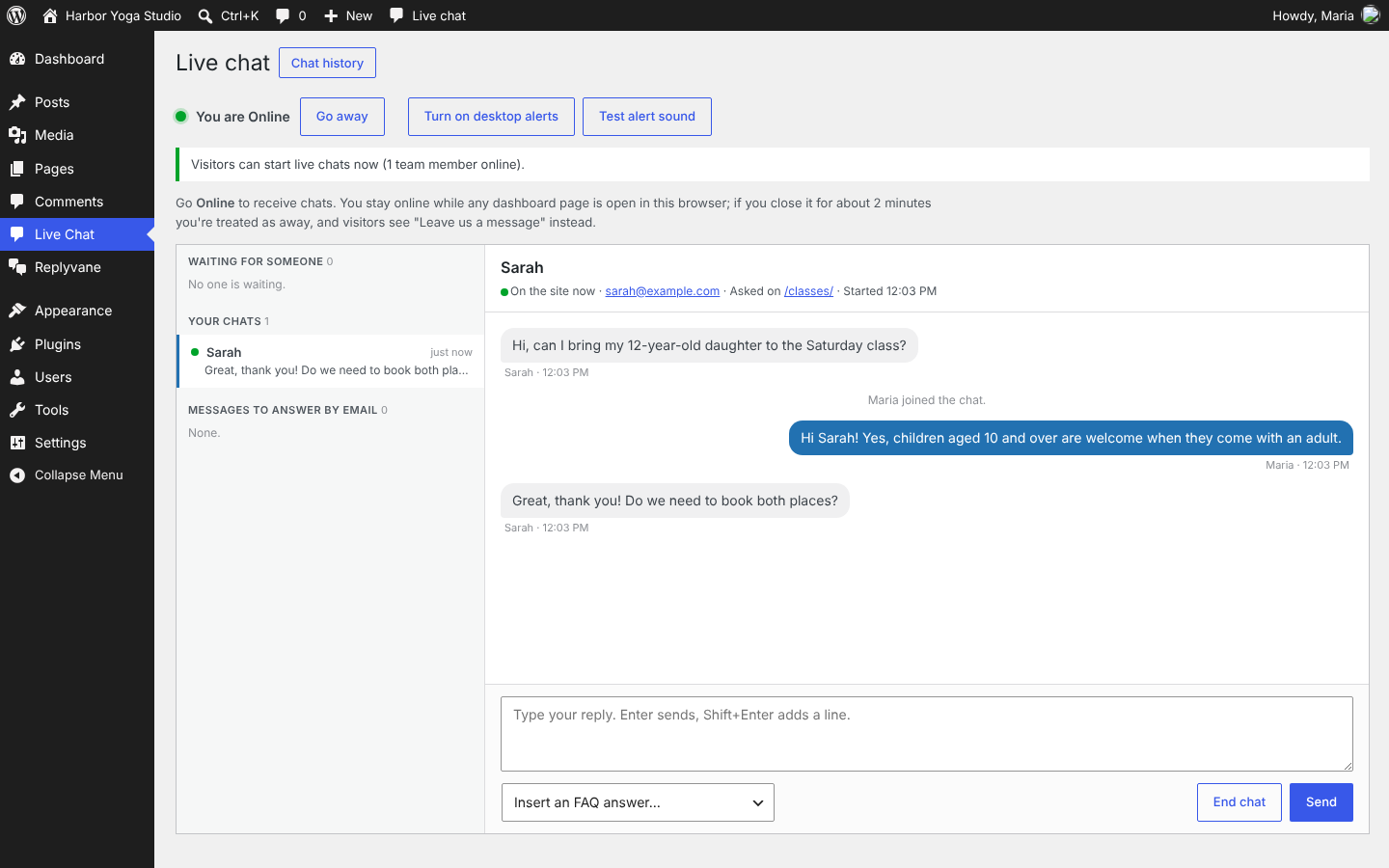
- Visitors chat with your team in the same window, and conversations continue when they move between pages.
- Team inbox in the dashboard: take a chat, reply, insert FAQ answers, end the chat, and see the chat history.
- Typing indicators both ways, team member photos, and a "who you're chatting with" header.
- Alerts for your team: sound, desktop pop-ups, a counter in the admin bar, a flashing tab title, and email alerts, including a reminder if nobody takes a chat.
- When nobody is online, visitors leave a message. Your team answers it with a built-in email form, and the message is marked as handled.
- Optional business hours, and a Live Chat Agent role for staff who shouldn't change the website.
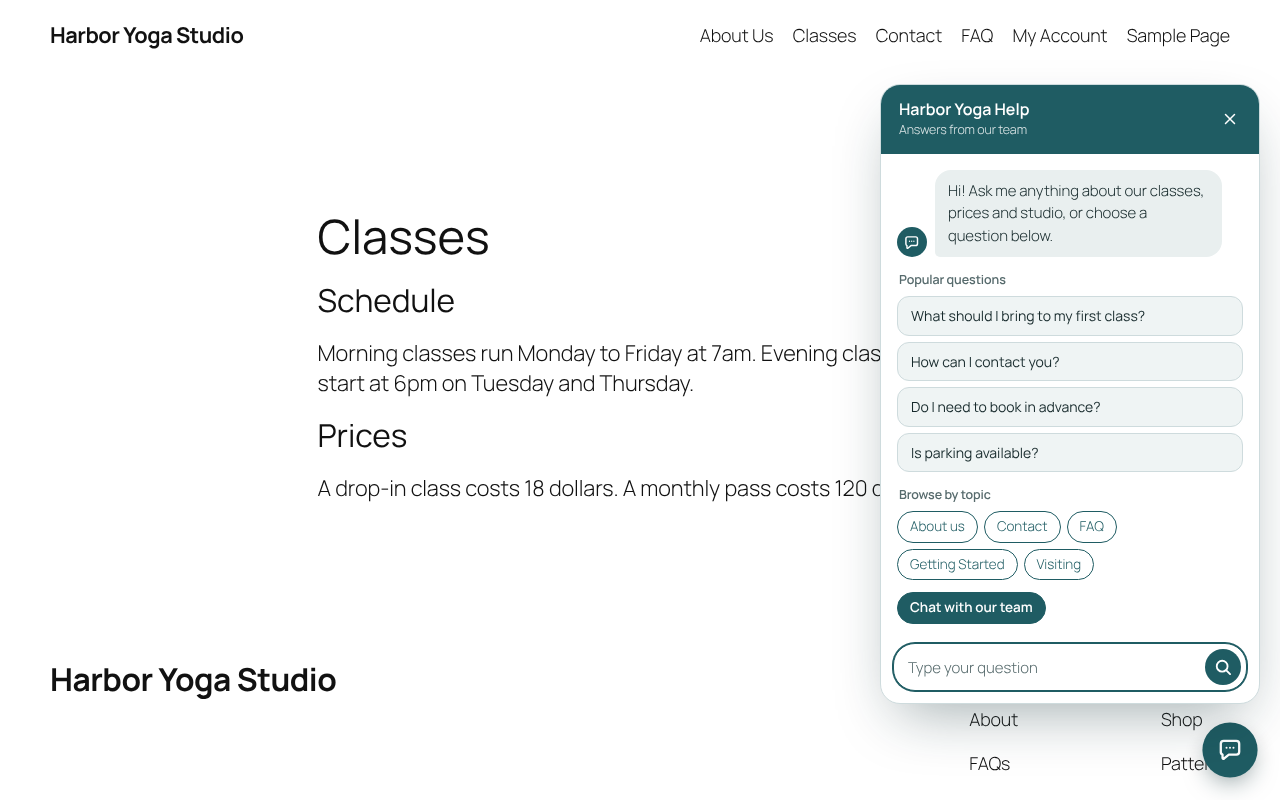
- Colours and font are taken automatically from your theme: Elementor Site Settings, block themes or the Customizer. Text colours are chosen for readability.
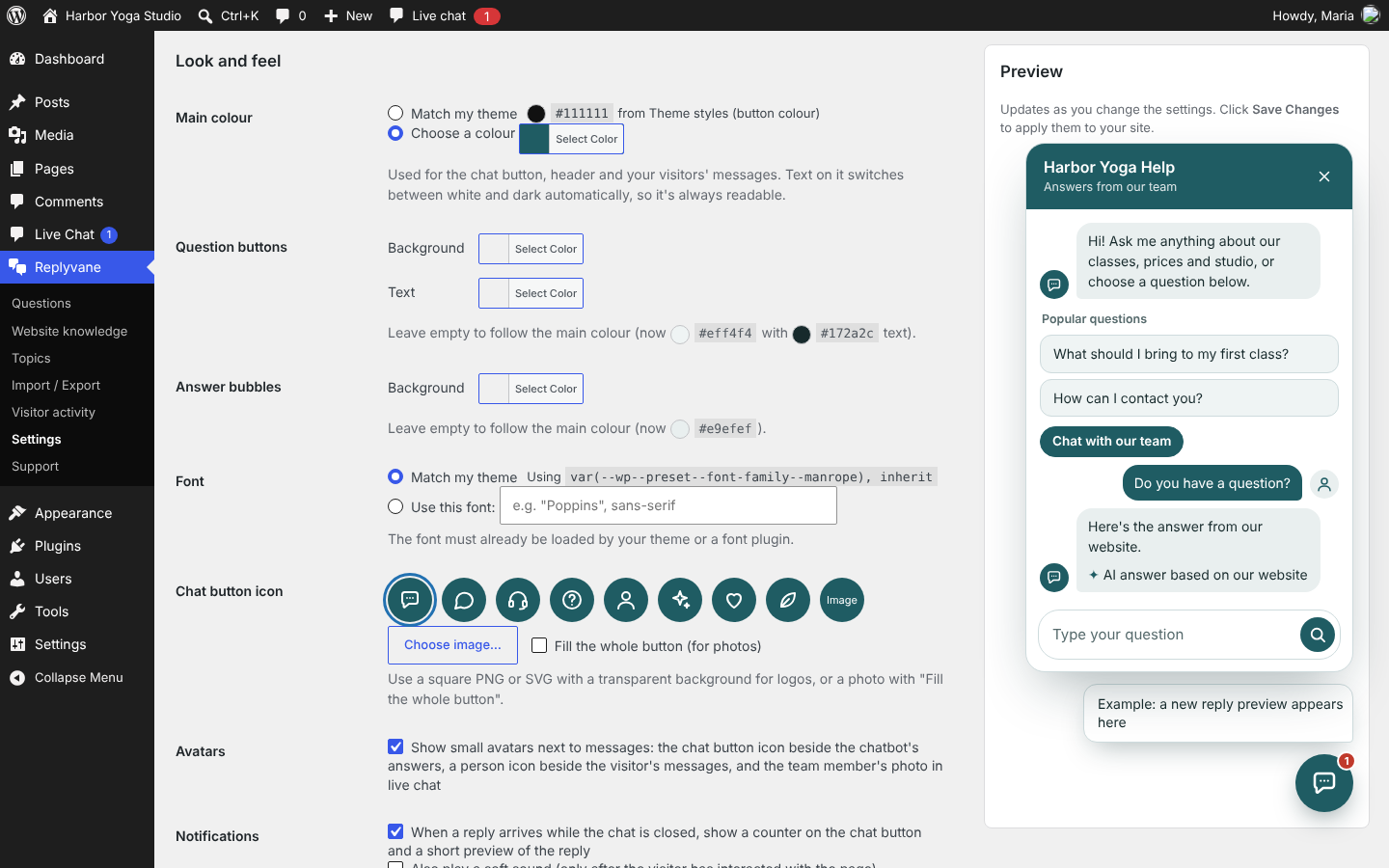
- Custom colours for the main colour, question buttons and answer bubbles.
- Choose from 8 chat button icons, or upload your own image.
- Avatars beside messages, and notifications on the chat button when a reply arrives while the chat is closed.
- A live preview on the Settings page shows your changes before you save.
- An Administrators only preview mode lets you test privately before going live.
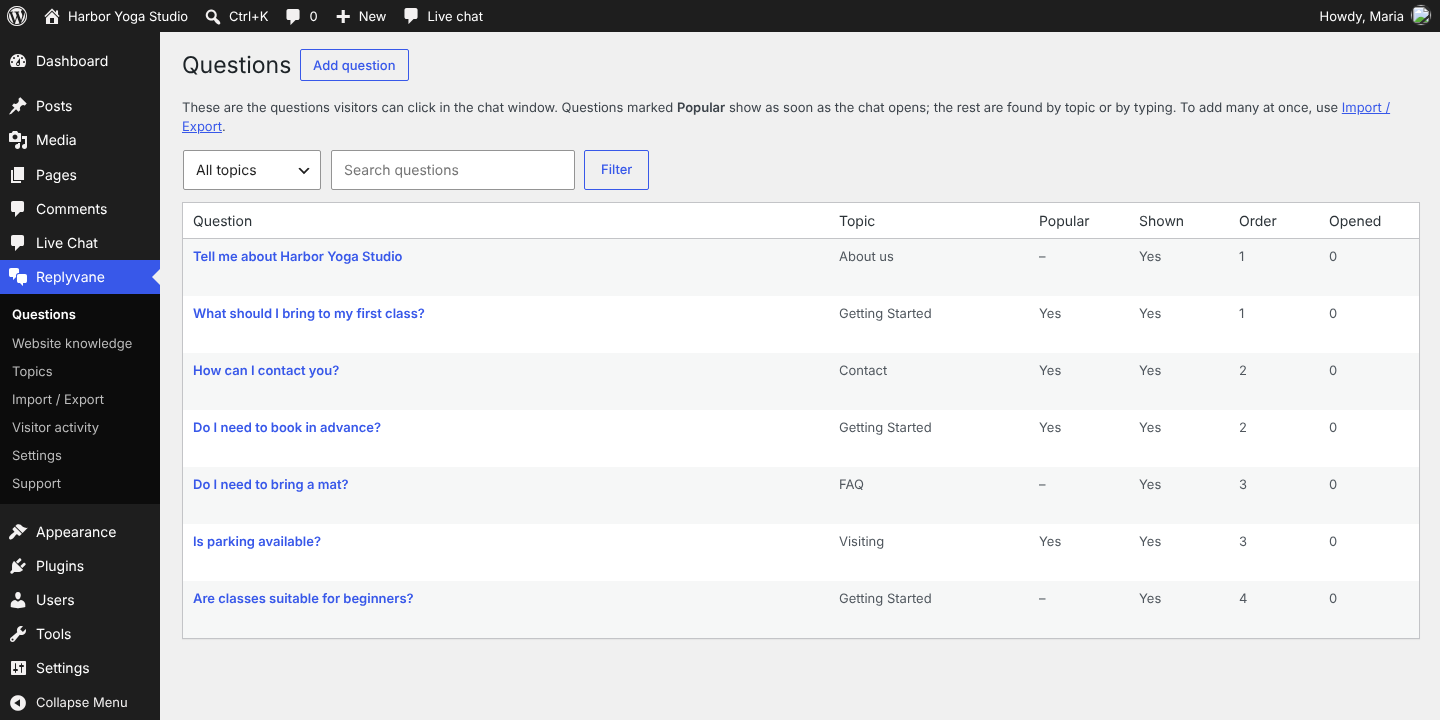
- Add and edit questions, topics and related questions in the dashboard, or import and export them as JSON.
- Visitor activity shows the most opened questions and the typed questions that had no answer, so you know what to add.
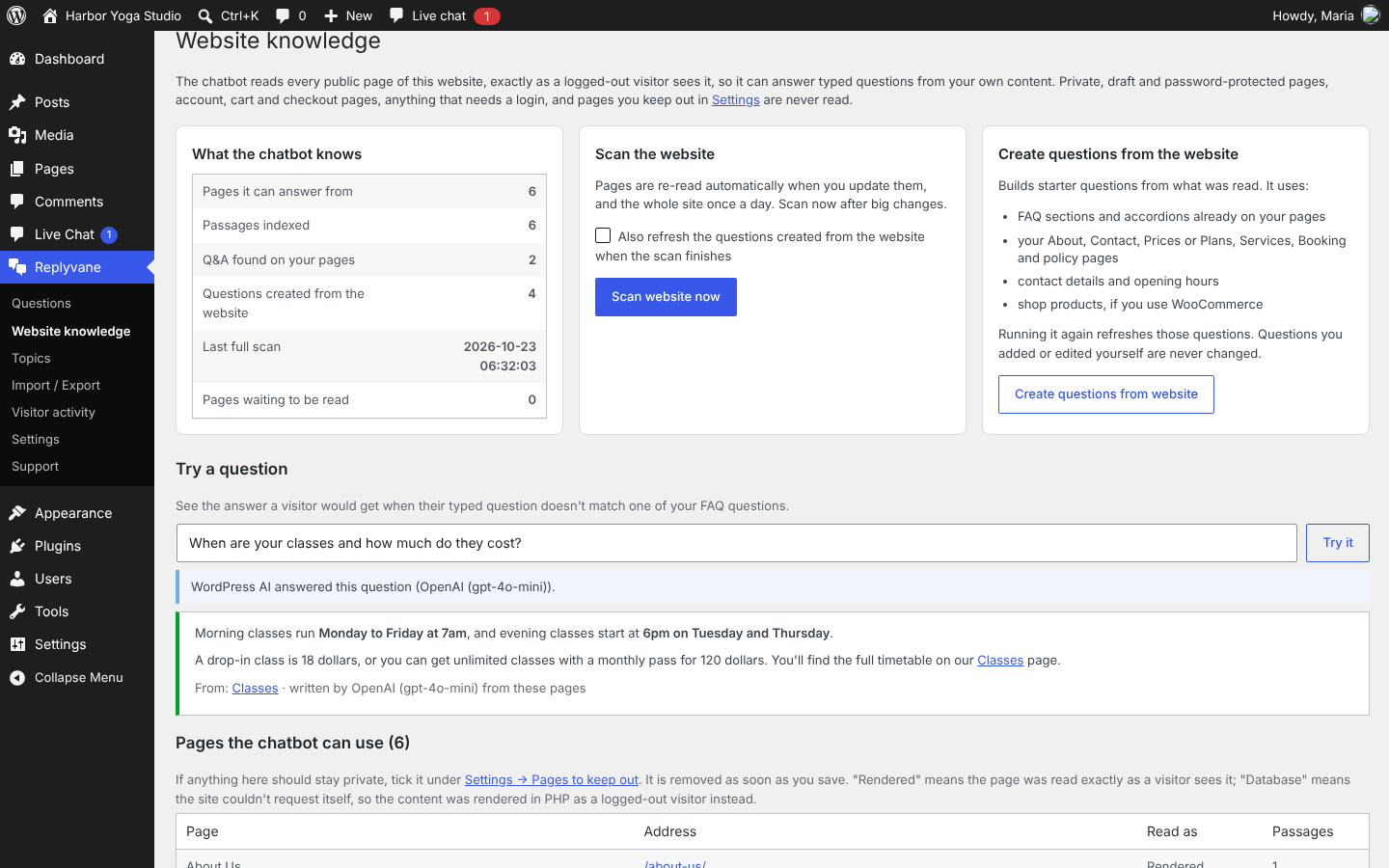
- Website knowledge shows every page the chatbot can use and lets you try a question.
- Support screen for sending suggestions and bug reports, with screenshots, to the plugin's developer.
安装:
- Upload the plugin zip under Plugins > Add New > Upload Plugin, then activate it.
- The plugin reads your website and creates starter questions. A notice shows progress.
- Review the questions under Replyvane > Questions.
- Adjust the look under Replyvane > Settings. The preview shows your changes.
- Optional (WordPress 7.0+): set up an AI provider under Settings > Connectors, then choose WordPress AI under Replyvane > Settings > Answer engine and click Test connection.
- Optional: switch on live chat under Settings > Live chat with your team, then go online in Live Chat.
- To test privately first, set Who can see the chat to Administrators only, then switch to Everyone to go live.
屏幕截图:
常见问题:
Do I need AI?
No. The built-in engine answers from your FAQ and your public pages without any AI or outside service.
Which AI providers are supported?
Any provider that works with the WordPress AI Client (WordPress 7.0 and later). You set it up once for your whole site under Settings > Connectors, and this plugin uses it. Usage is billed to your account with that provider. On WordPress versions before 7.0, the built-in engine is used.
Can the chatbot see private information?
No. It reads pages only as a logged-out visitor would see them, and never reads accounts, orders, bookings or form entries. You can also keep any public page out under Settings > Pages to keep out.
Typed questions only show "closest questions". Why?
The website hasn't been read yet, or it doesn't contain a clear answer. Open Replyvane > Website knowledge, click Scan website now, and use Try a question to check. If you use a caching plugin, clear its cache after updating the plugin.
How do team members answer live chats?
Administrators can answer automatically. For other staff, add a user with the Live Chat Agent role. They open Live Chat in the dashboard and click Go online.
I used an earlier version. How do I update?
Upload and activate this version. It moves your questions, settings, chats, visitor activity, support reports and Live Chat Agents from an earlier copy of this plugin automatically, and switches that copy off. You can then delete the earlier copy from the Plugins screen. If the earlier copy used an AI provider with its own API key, it now uses WordPress AI instead: set up your provider under Settings > Connectors. The keys the earlier copy stored are deleted.
Where is data stored?
In your WordPress database. Questions, the searchable copy of your public pages, chat conversations and visitor activity each have their own table. Activity and finished chats are deleted automatically after the number of days you choose.
更新日志:
- Website knowledge > Try a question shows bold text, links and lists the same way the chat window does.
- The question box no longer shows the theme's focus border inside the rounded field.
- Test connection explains when the AI provider is slow or can't be reached.
- WordPress AI: works with "thinking" models that returned no text when they reached the length limit, answers questions the website covers only in part, and falls back to the built-in engine when the AI finds no answer.
- Website knowledge > Try a question now says whether WordPress AI answered, and why not if it didn't. Visitor activity shows "Typed, answered by AI".
- Friendly replies to greetings, thanks and goodbyes ("Hi", "Thank you").
- WordPress AI also answers questions that don't match a page word for word, using an overview of your public pages.
- Answers given while the AI couldn't be reached are no longer kept for a day, so AI answers return as soon as the AI works.
- WordPress AI: chooses a fast, current model from the models your AI provider offers, and skips models the provider has retired.
- New optional Model setting, and clearer messages for problems such as no credits or a rejected API key.
- WordPress AI: works with models that don't accept a temperature or length setting (fixes "Unsupported parameter" errors), and prefers fast, low-cost chat models when the site's provider offers them.
- Renamed to Replyvane Chat Support (folder replyvane-chat-support). Updating from an earlier copy moves all data automatically and switches that copy off.
- AI answers now use the WordPress AI Client (WordPress 7.0+): the provider is set up once for the whole site under Settings > Connectors. The plugin no longer contacts AI services itself or stores API keys; keys saved by earlier versions are deleted.
- Dashboard scripts and styles are loaded as files with wp_enqueue_script() and wp_enqueue_style().
- All output is escaped; icons are filtered with an allow-list.
- New plugin folder and internal names. Updating moves your existing questions, settings, chats, visitor activity, support reports and Live Chat Agents automatically, and switches off the earlier copy.
- Security: every admin form and action checks the user's permission and a security token inside its own handler; uploaded files are checked before use.
- Database: every query passes table names through $wpdb->prepare() with the %i placeholder. Requires WordPress 6.2 or later.
- Performance: the questions shown to visitors are cached until they change.
- Code quality: passes WordPress Plugin Check with no errors or warnings.
- Pages to keep out: automatically hidden pages are shown pre-ticked and locked, with the reason. The address list was removed; addresses you had added are converted into ticked pages automatically.
- Simpler Settings preview.
- Added readme.txt and an updated plugin description.
- More AI providers, with Load models and Test connection.
- Pages to keep out became a searchable page picker.
- Live preview of the chat window on the Settings page.
- Full-width layouts for Website knowledge, Topics and Import / Export.
- Avatars beside all messages.
- Typing indicators in live chat, both ways.
- Colours and font taken from your theme, chat button icon choice, notifications on the chat button, team member photos, question colour settings, optional AI engine, Support screen.
- Reads the website even when WP-Cron is disabled. Answers questions that ask about two things.
- Answers typed questions from your website's pages without AI. Works on any site: scans it and creates starter questions. Email replies from the Live Chat inbox.
- Live chat with your team.
- FAQ chatbot with JSON import and export.