FormsDB - Save Elementor Forms to Google Sheets & Post Type
| 开发者 |
satindersingh
narinder-singh coolplugins |
|---|---|
| 更新时间 | 2026年7月31日 19:18 |
| 捐献地址: | 去捐款 |
| PHP版本: | 7.4 及以上 |
| WordPress版本: | 7.0 |
| 版权: | GPLv2 or later |
| 版权网址: | 版权信息 |
详情介绍:
Important Notice: From version 2.0.0, this plugin has been acquired, fully rebuilt, and rebranded as FormsDB by Cool Plugins. It has been redesigned with new features like Google Sheets sync and frontend post submission, as its earlier functionality is now available within Elementor Pro. If you were using older versions, you can export previous entries from the FormsDB → Old Submissions tab.FormsDB Plugin Features
- Sync Elementor Forms with Google Sheets\ Connect Elementor forms with Google Sheets and sync form entries in real time. Create a new sheet or select an existing one, add new tabs automatically, and choose which form fields to save. FormsDB acts as a secure connector and can store data like name, email, IP address, page URL, and submission date. Data is synced instantly using secure Google authentication, and no Google account or Drive data is stored by the plugin author.
- Send Form Submissions to Post Type\ Use Elementor forms as frontend post submission forms and create WordPress posts automatically from form entries. Send submitted data to any post type, including posts, pages, or custom post types. This is useful for testimonials, reviews, listings, events, job posts, or other user-generated content without giving admin access.
- Save Hello Plus Form Entries\ FormsDB saves Hello Plus form submissions in the WordPress admin, allowing you to view, manage, and export entries from a single dashboard.
- Modern Dashboard for Easy Management\ FormsDB includes a clean dashboard inside WordPress admin that shows all Elementor forms and their connection status with Google Sheets or post types. You can manage all integrations from Elementor → FormsDB.
- Website owners who want to save Elementor form submissions to Google Sheets for easy tracking and reporting.
- Marketing teams managing leads collected from Elementor or Hello Plus forms.
- Business owners who want frontend content submission without giving users admin access.
- Agencies and freelancers building lead forms, testimonial forms, or custom submission forms for clients.
- Hello Plus users who want to store form submissions inside WordPress.
- Developers who need a simple connector between Elementor Forms, Google Sheets, and WordPress post types.
- Conditional Fields for Elementor Form\ Add conditional logic to Elementor form fields and dynamically show or hide inputs based on user choices. This helps create cleaner forms and improves the overall user experience.
- Country Code for Elementor Form Telephone Field\ Add a country code dropdown to phone fields so users can easily select their country while entering mobile numbers, ensuring accurate and properly formatted submissions.
- Cool FormKit\ Cool FormKit is a complete form builder for Elementor Free and Pro. It extends Elementor Pro forms with advanced fields and also provides a dedicated form builder for Elementor Free users. Popular features include:
- Conditional Logic
- Range Slider Field
- Signature Field
- Select2 Field
- Image Radio & Checkbox Fields
- Rating Field
- Calculator Field
- Cloudflare Turnstile
- hCAPTCHA Support
- Loop Grid Extender for Elementor Pro\ Enhance Elementor Pro Loop Grids by adding support for ACF Repeater fields and advanced taxonomy-based filtering options.
- AutoPoly - AI Translation for Polylang\ Automatically translate Elementor pages using AI and build multilingual websites faster with Polylang integration.
- Timeline Widget for Elementor\ Create visually engaging vertical or horizontal timelines to display company history, milestones, roadmaps, or events inside Elementor pages.
- Events Widgets for Elementor\ Easily add The Events Calendar widgets to Elementor and display events in grid, list, or carousel layouts.
- LocoAI - AI Translation for Loco Translate\ Translate WordPress plugins and themes automatically using AI with one-click string translation inside Loco Translate.
安装:
- Go to Plugins → Add New in your WordPress admin.
- Search for FormsDB and install the plugin.
- Click Activate.
Note: FormsDB works with Elementor Pro or Hello Plus. Please make sure one of them is installed and activated.2. Access FormsDB Settings
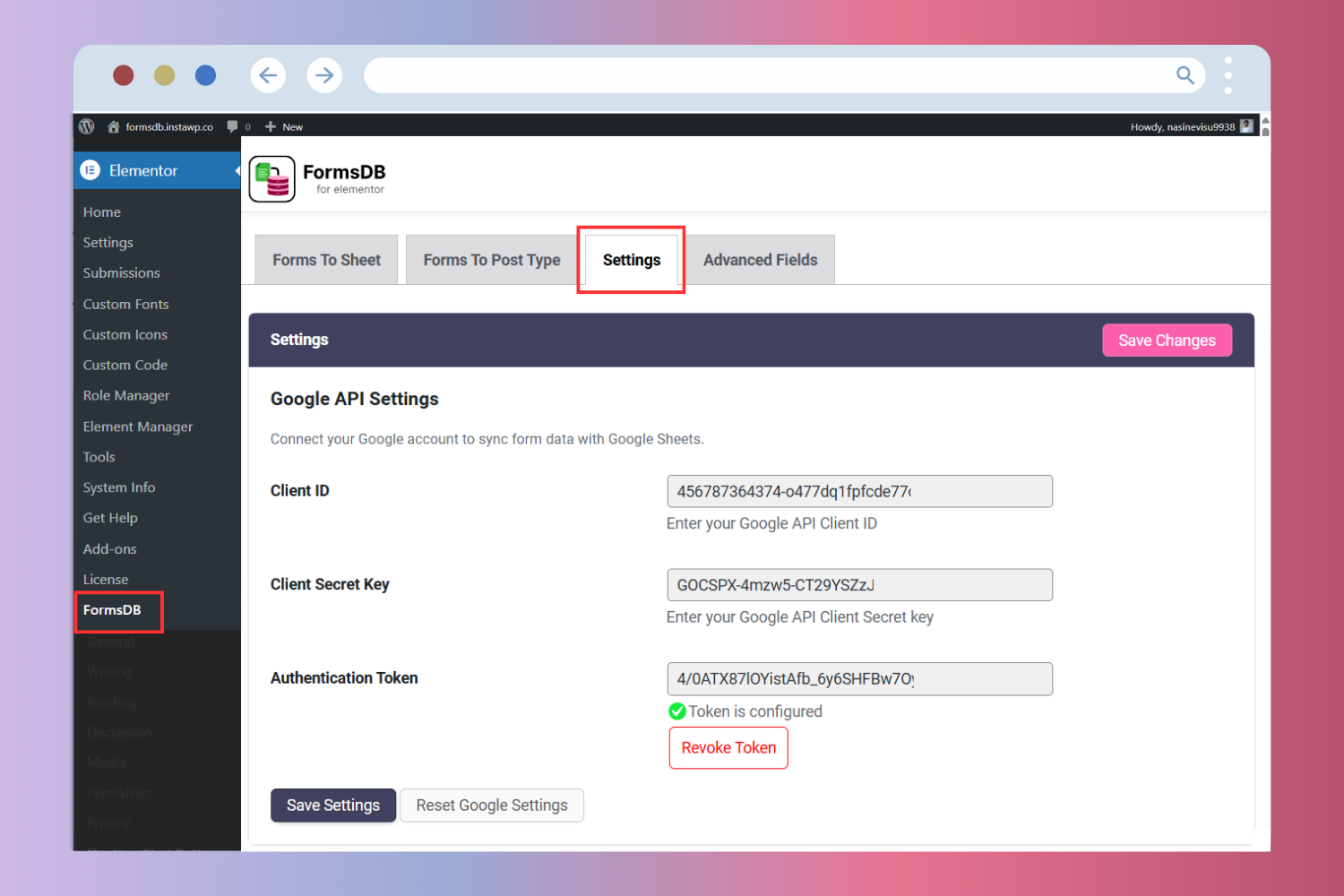
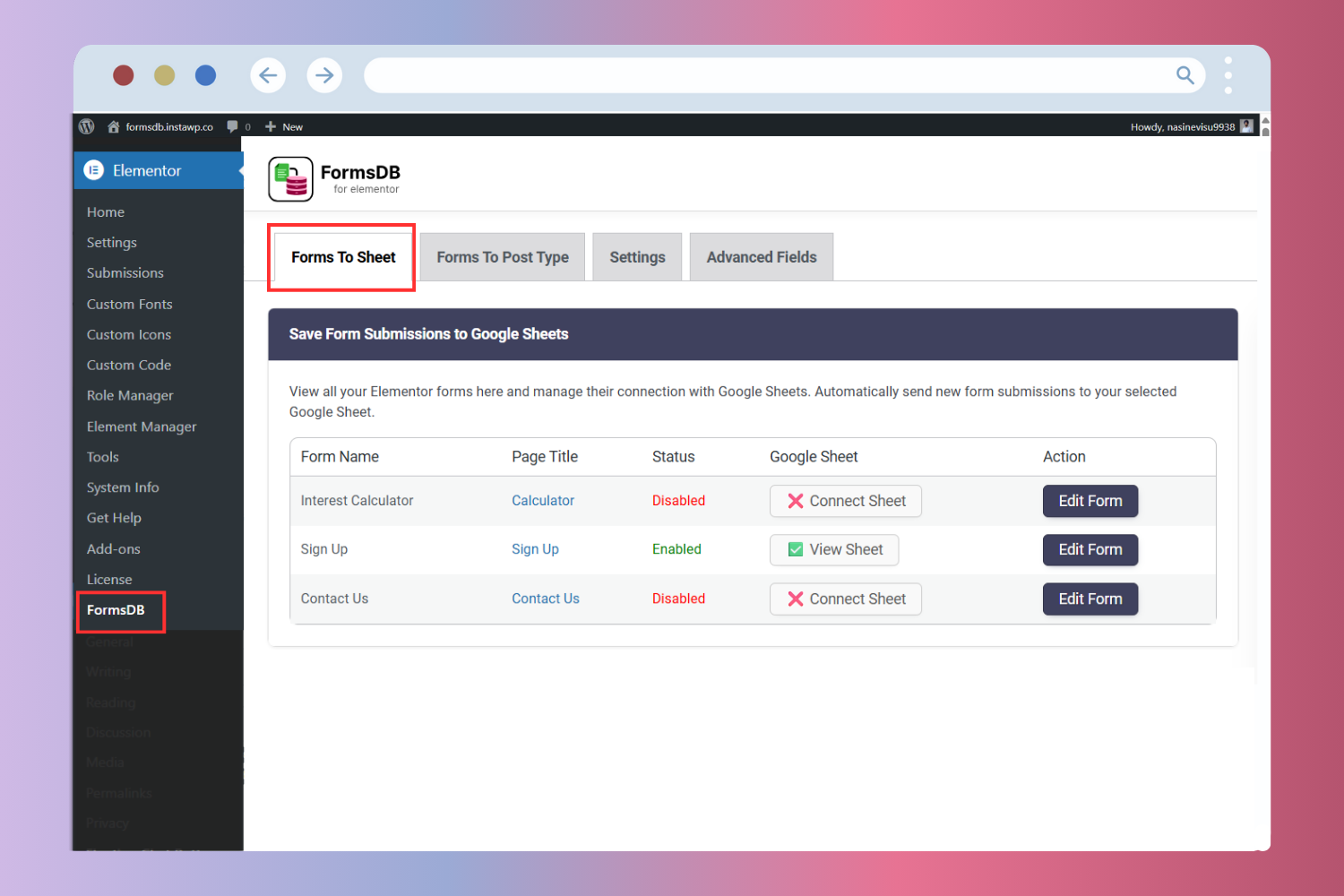
- After activation, go to Elementor → FormsDB in your WordPress admin.
- You will see the following sections:
- Forms to Sheets
- Forms to Post Type
- Settings
- Old Submissions (for users upgrading from older versions)
- Open Elementor → FormsDB → Settings.
- Enter your Google API Client ID and Client Secret.
- Connect your Google account to complete the setup.
- Edit your form using Elementor.
- Go to Actions After Submit.
- Select Save Submissions to Google Sheets.
- Choose the Google Sheet, tab, and form fields you want to save.
- Update the page. 👉 Sync Elementor Form with Google Sheets
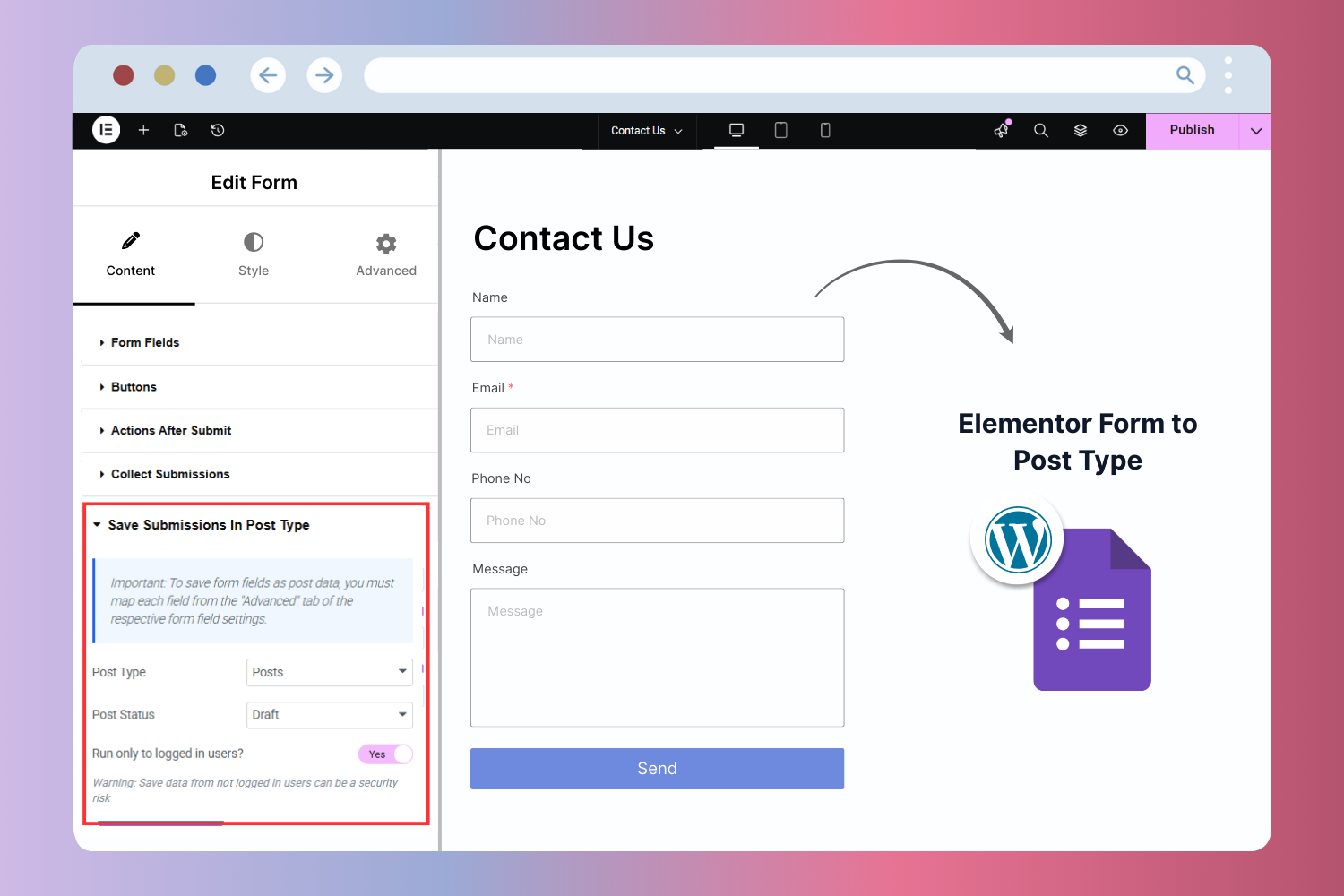
- Edit the form in Elementor.
- Under Actions After Submit, select Save Submissions to Post Type.
- Choose the post type, map form fields, and select the post status (Publish or Draft).
- Save the form.
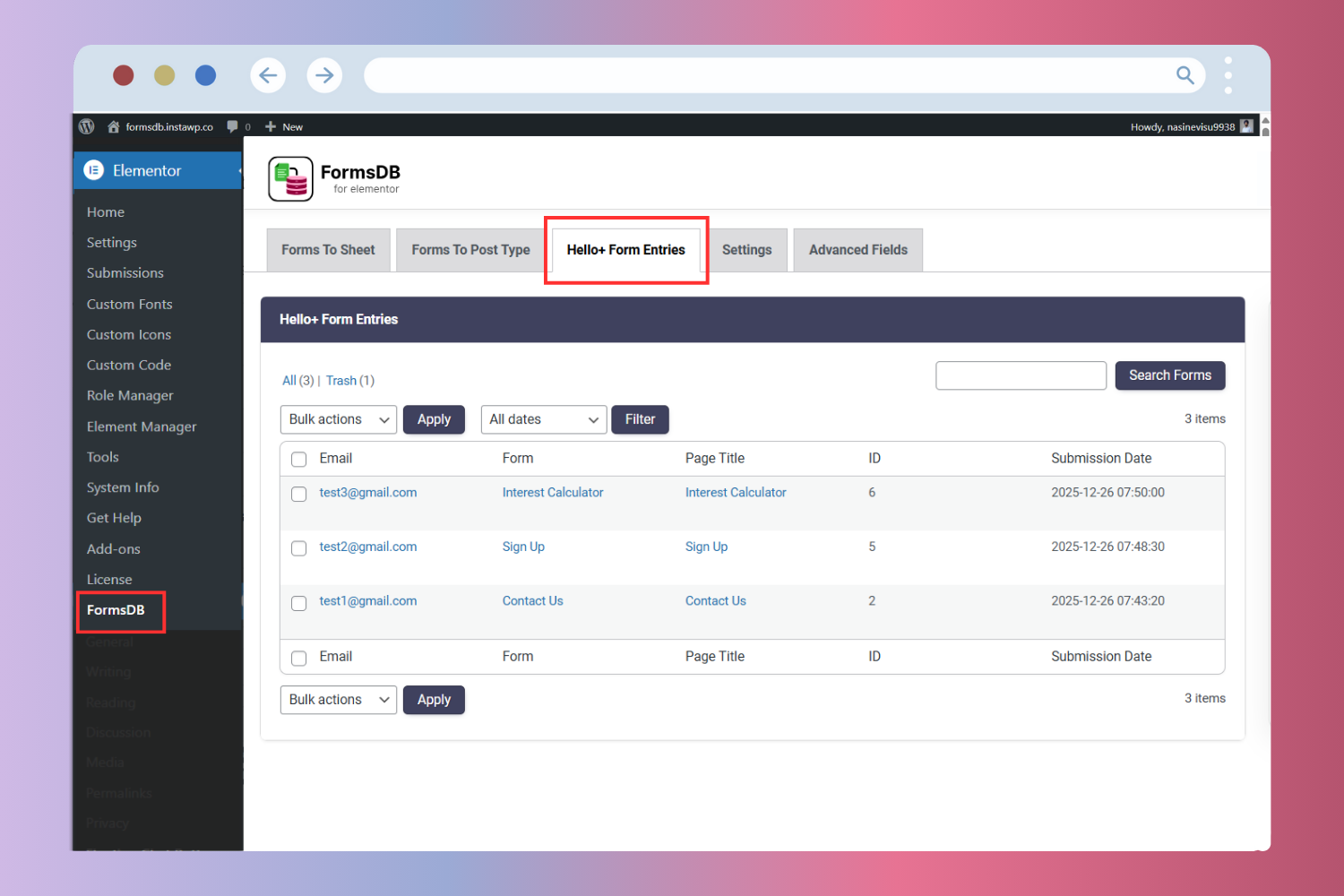
- Edit a Hello Plus form.
- Under Actions After Submit, enable Save Submission.
- Update the form.
屏幕截图:
常见问题:
Does FormsDB work with Elementor Free?
FormsDB works with Elementor Pro and Hello Plus forms. If you are using only Elementor Free, you can create forms using the Hello Plus form widget and use FormsDB to save form submissions in WordPress or sync them with Google Sheets.
Can I save Elementor form submissions to Google Sheets?
Yes. FormsDB lets you connect Elementor forms with Google Sheets and sync form entries in real time. You can create a new sheet or connect an existing one and choose which form fields should be saved.\ 👉 Learn more: Sync Elementor Forms with Google Sheets
Can I create WordPress posts from Elementor form submissions?
Yes. FormsDB allows you to send form submission data to any WordPress post type, including posts, pages, or custom post types. This is useful for frontend post submission, testimonials, reviews, listings, or other user-generated content.\ 👉 Learn more: Send Form Submissions to Post Type
Does FormsDB save Hello Plus form entries?
Yes. FormsDB saves Hello Plus form submissions inside the WordPress admin, making it easy to view, manage, and export entries from one place.
Can I export old form entries from previous versions of this plugin?
Yes. If you were using an older version, you can export previously saved entries from the FormsDB → Old Submissions tab after upgrading to version 2.0.0 or later.
Does FormsDB slow down my website?
No. FormsDB is lightweight and only runs when a form is submitted. It does not affect frontend performance or page load speed.
Who manages FormsDB and future updates?
From version 2.0.0, FormsDB is acquired and actively maintained by Cool Plugins. The plugin is now relaunched with a new feature set and will receive regular updates and improvements.\ If you need help or have any questions, you can create a support thread here:\ 👉 https://wordpress.org/support/plugin/sb-elementor-contact-form-db/ Cool Plugins also develops popular Elementor form addons like Cool FormKit (20,000+ active installs) and Conditional Fields (10,000+ active installs), so you are using a plugin maintained by an experienced team focused on Elementor form solutions.
更新日志:
- Tested up to Elementor 4.2.1 and Elementor Pro 4.2.1.
- Improved Plugin code quality.
- Improved Plugin code quality and security.
- Fixed Bug fixes.
- Improved Cleaned up the notice registration logic for better readability.
- Tested up to Elementor 4.1.3 and Elementor Pro 4.1.1.
- Added support to save Cool FormKit Lite form submissions to Google Sheets and a post type.
- Improved Other plugin recommendations for Elementor users.
- Fixed issues reported by “Plugin Check” plugin.
- Improved code quality.
- Tested up to Elementor 3.35.3 and Elementor Pro 3.35.0.
- Improved admin dashboard side functionality.
- Improved code quality.
- Improved plugin admin dashboard UI.
- Added an dashboard notice for user feedback (shown politely, no force).
- Minor fixes and code improvements.
- Fixed Security issue related to Settings permission check.
- Fixed Wrong initial version bug.
- Minor UI improvements and text updates across FormsDB admin screens.
- Added support for legacy users to continue using the old form submission saving method available in version 1.8.1 and earlier, based on user feedback.
- Added an option to enable or disable the legacy saving method from the Old Submissions tab (visible only to users upgrading from older versions).
- Minor UI improvements and text updates across FormsDB admin screens.
- Fixed issues reported by "Plugin Check" plugin.
- Improved code quality to follow WordPress coding standards.
- Plugin acquired, fully rebuilt, and rebranded as FormsDB by Cool Plugins.
- Introduced Google Sheets integration to sync Elementor form submissions.
- Added support to save form submissions to any WordPress post type.
- Added support to store Hello Plus form submissions in WordPress admin.
- Introduced a new modern dashboard under Elementor → FormsDB.
- Added Old Submissions tab for exporting data from previous plugin versions.
- Improved performance, security, and overall code quality.
- Deprecated old functionality now available in Elementor Pro.
- Fixed compatibility issues with Elementor 3.16+.
- Updated compatibility with PHP 8.1+.
- Minor bug fixes and stability improvements.
- Added settings to customize admin menu labels.
- Improved support for white-labeling.
- Improved backend admin security handling.
- Fixed a reported CSRF security issue.
- Recommended update for all users.
- Significantly improved export performance.
- Optimized for large databases with 1,000+ submissions.
- Tested successfully with databases containing 37,000+ entries.
- Added minor preventive security fixes.
- Fixed compatibility issues with newer Elementor versions.
- Added option to allow non-admin users to access the Export page.
- Fixed duplicate record issue when multiple email actions were configured.
- Added export functionality by Form ID and submitted page.
- Removed CSS restrictions to allow pagination and bulk delete.
- Added settings page with option to hide submission notification bar.
- Compatibility fixes for latest Elementor Pro version.