
ShopShelf – Product Grid & Carousel for WooCommerce
| 开发者 | shshakib2001 |
|---|---|
| 更新时间 | 2026年11月13日 01:04 |
| PHP版本: | 7.4 及以上 |
| WordPress版本: | 7.1 |
| 版权: | GPLv2 or later |
| 版权网址: | 版权信息 |
详情介绍:
- Choose the products. Use all products, or only featured, on-sale, best-selling, top-rated or free ones. You can narrow them by category, tag or attribute.
- Choose the look. Pick Grid, Carousel or List. Then use a ready-made card template, or build your own card by turning parts on and off and dragging them into order.
- Place it. Add the ShopShelf Layout block, an Elementor widget or the layout's shortcode wherever you want the products to appear.
- Three layouts in one plugin. Grid, Carousel and List, so you do not need separate plugins for a product grid and a product slider.
- Shoppers can filter without reloading. Category buttons, dropdowns and a search box update the products instantly. Load More, AJAX pages and infinite scroll work the same way.
- Ready-made templates or your own design. Start with a template, or control every part of the card down to the meta fields and typography.
- Works with the editor you use. It has a native Gutenberg block, four Elementor widgets and a shortcode for everything else.
- Self-contained. Scripts, styles, icons and fonts are served from your own site, with no external requests, and the scripts load only on pages that show a layout.
- Product Grid — products in rows and columns, with a column count for each of five screen sizes
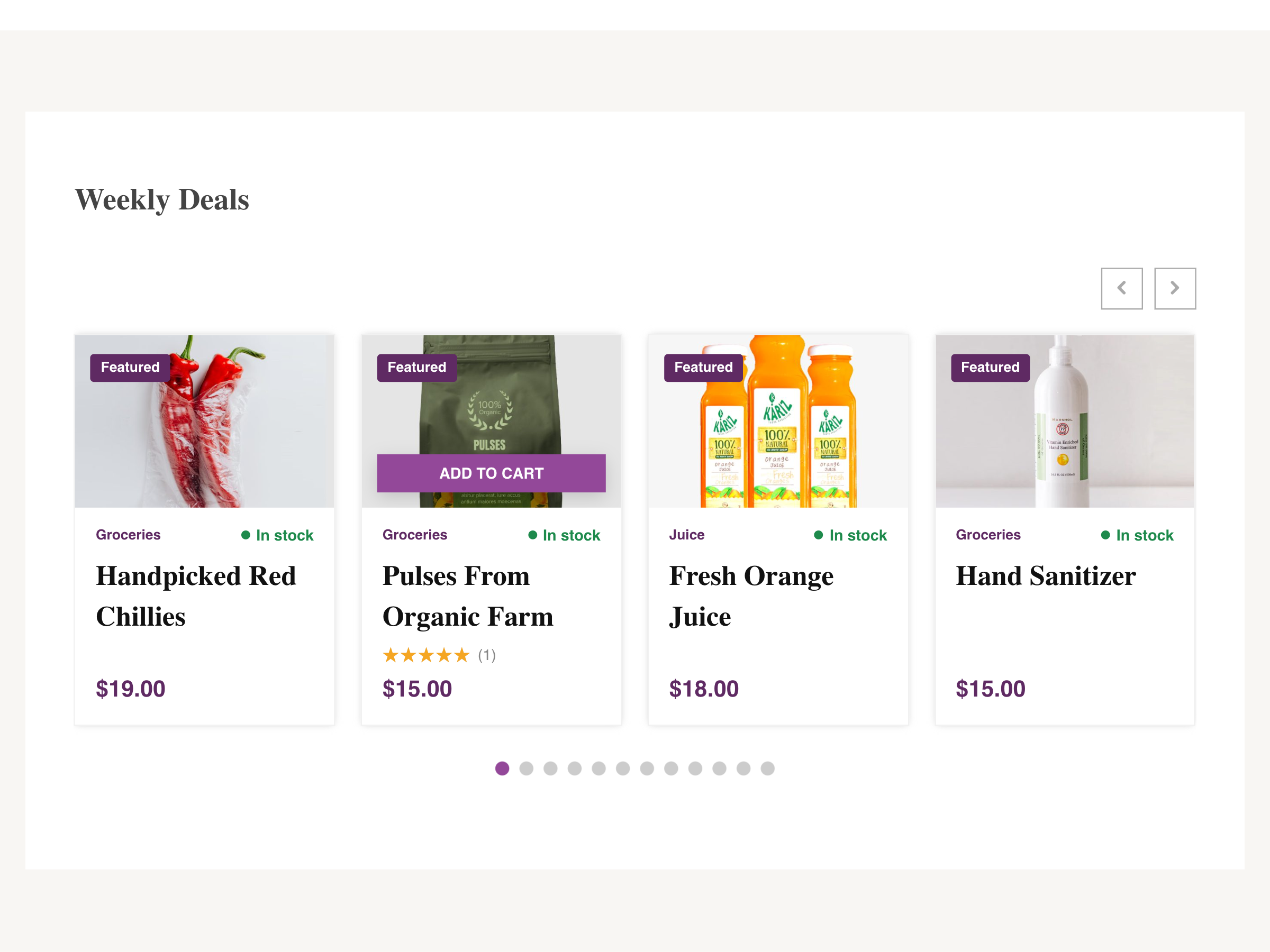
- Product Carousel — the same cards on a sliding track, in three modes: Standard, Center and Ticker
- Product List — horizontal product cards with the image beside the details, in one or more columns, with the image on the left or right, an adjustable image width, and an option to stack on mobile
- Template One — the price shown in a block on the product image
- Template Two — an Add to Cart button that appears over the image on hover
- Template Three — a classic shop card with the price and button side by side
- Draw from all products, or only featured, on-sale, best-selling, top-rated or free ones
- Limit to simple, variable, grouped or external products
- Show a set number of products
- Include only specific products, or exclude specific ones
- Filter by product category, tag or any product attribute, with IN / AND / NOT IN operators
- Hide out-of-stock, on-sale, free or image-less products, and show or hide catalog-hidden ones
- Sort by date, title, price, popularity, rating, modified date, menu order, ID or at random
- Filter by category, tag or attribute, shown as buttons, a dropdown, radio buttons or checkboxes, with optional product counts
- A keyword search box
- Results update with AJAX, without reloading the page
- Load More button, AJAX numbered pages, infinite scroll or ordinary page links for grids and lists
- Product image, at any registered size or a custom cropped size
- Title, with your choice of HTML tag and a length limit
- Meta fields — category or tag, star rating, SKU, stock status, stock quantity, units sold, weight, dimensions and date
- Description — the short description, a trimmed description or the full one
- Price, with a separate colour for the struck-through regular price
- Add to Cart, Read More button or Read More text link
- Social share links for Facebook, X (Twitter), LinkedIn, Pinterest and email
- Columns and gap per screen size, and equal card heights
- Card border, corner radius, shadow, background and inner padding
- Typography for every text element, with separate sizes for desktop, tablet and mobile
- A site-wide colour scheme that every layout falls back to
- Custom CSS and JavaScript, kept safe from theme and plugin updates
- Autoplay with pause on hover, speed and infinite loop
- Slide, fade, coverflow, cube and flip transitions
- Multiple rows, and slides-to-scroll per screen size
- Navigation arrows in nine positions, with a choice of icons and colours
- Dot or numbered pagination, with dynamic bullets
- Keyboard navigation, touch swipe, mouse drag and mouse wheel
- Editable screen-reader messages
- Block editor — the ShopShelf Layout block picks a saved layout and previews it in the editor, in posts, pages and templates
- Elementor — Product Grid, Product Carousel and Product List widgets with the full set of product, filter, card and carousel options plus Elementor's own style controls, and a Saved Layout widget for layouts built in ShopShelf
- Anywhere else — a shortcode for the classic editor, text widgets, other page builders and theme templates
- A live preview while you edit — including before you save
- Templates you can override from your theme
- Every setting is scoped to its layout, so two showcases on one page can look completely different
- All scripts, styles, icons and fonts are served from your own site
- Sample layouts, a settings backup and a system status report under Tools
- A built-in Help screen documenting every control
- Front end:
src/Frontend/assets/js/scripts.js,elementor.jsandsrc/Frontend/assets/css/style.css/shopshelf-grid.csssit beside their.minversions. - Block: the source of
src/Admin/assets/block/is in theshopshelf-block/folder. To rebuild it, runnpm installandnpm run buildinside that folder (Node.js 20 or newer). - Admin: the React source of
src/Admin/assets/app/shopshelf-admin-app.jsis in theshopshelf-admin/folder. To rebuild it, runnpm installandnpm run buildinside that folder (Node.js 20 or newer).
- Swiper 14.3.0 — MIT License. Both
swiper-bundle.jsandswiper-bundle.min.jsare the unmodified files from the official package. - IcoFont — the font is licensed under the SIL Open Font License 1.1 and its CSS under the MIT License.
- The admin bundle includes React, React Router, Radix UI, Lucide, Tailwind CSS, date-fns, React Day Picker, react-colorful, class-variance-authority, clsx and tailwind-merge, all under the MIT or ISC licenses. The full list with versions is in
shopshelf-admin/package.json.
安装:
- Install and activate WooCommerce, if you have not already.
- Go to Plugins → Add New, search for "ShopShelf", and click Install Now — or upload the plugin zip there.
- Activate the plugin.
- Go to ShopShelf → Add New Layout. Choose Grid, Carousel or List, pick your products under Filter Settings, set the look under Display Options, and publish.
- Add it to a page: insert the ShopShelf Layout block and choose the layout, use the ShopShelf widgets in Elementor, or paste the layout's shortcode, for example
[shopshelf id="12"].
屏幕截图:




常见问题:
Does this require WooCommerce?
Yes. ShopShelf displays WooCommerce products and calls WooCommerce directly, so it needs WooCommerce installed and active.
Is ShopShelf free?
Yes. Every feature described on this page is included in the free plugin.
How do I display WooCommerce products with ShopShelf?
Create a layout under ShopShelf → Add New Layout, choose the products and the design, and publish it. Then show it with the ShopShelf Layout block, a ShopShelf Elementor widget or the layout's shortcode, as described below.
Can I create a WooCommerce product carousel or slider?
Yes. Choose the Carousel layout. It has three modes (Standard, Center and Ticker), autoplay, five transition effects, arrows, dots and multiple rows, and you set the number of visible products for each screen size.
Can I show products from one category?
Yes. Under Filter Settings → Advanced Filtering, switch on Taxonomy, choose Category and pick the categories to include. Tags and product attributes work the same way. Turn on Show as Live Filter to let shoppers switch between those categories on the page.
Is ShopShelf responsive?
Yes. Columns, rows, slides to scroll and font sizes are set separately for each screen size, and the live preview lets you check the layout at desktop, tablet and mobile widths before you publish.
Can I customize how the products look?
Yes. Choose one of the three pre-made templates, or select Custom to build the card yourself: reorder its parts, choose which ones appear, and style borders, spacing, colours and typography. For anything else, add your own CSS under Settings → Custom CSS & JS.
How do I show a layout?
In the block editor, insert the ShopShelf Layout block and choose a layout from its list; it previews in the editor. An existing [shopshelf] shortcode or Shortcode block can be converted to it from the block toolbar.
Each layout also has a shortcode, shown in the layouts list and in the editor: [shopshelf id="12"]. Paste it into the classic editor, a text widget or a page builder's shortcode element. In a theme template, use <?php echo do_shortcode( '[shopshelf id="12"]' ); ?>.
Can I use it with Elementor?
Yes. With Elementor active, the ShopShelf category in the widget panel has four widgets:
- Product Grid, Product Carousel and Product List — build the showcase right in Elementor, with the same product, filter, card, template, pagination and carousel options as the layout editor, styled from Elementor's Style tab (responsive, and using your kit's global colours and fonts). They do not create a saved layout.
- Saved Layout — show a layout built under ShopShelf → Layouts.
My layout shows no products.
Check that the layout is published, then look at its filters: almost always they are narrower than the catalogue — a category with nothing published in it, or a Best Selling or Top Rated source on a shop with no sales or reviews yet. Clear the filters one at a time and preview after each.
Can I put several layouts on one page?
Yes. Each layout is wrapped in its own element and its settings, filters and pagination are scoped to it.
Can I style one layout with my own CSS?
Yes. Every layout is wrapped in an element with its own id, so a rule that starts with that id affects only that layout:
#shopshelf_wrapper-12 .shopshelf__item--title a { text-transform: uppercase; }
Add it with WordPress's own CSS editor: Appearance → Customize → Additional CSS, or Styles → Additional CSS in the Site Editor.
Can I change the markup?
Yes. Copy any template from the plugin's src/Frontend/templates folder into a shopshelf folder in your theme, keeping the same path — for example yourtheme/shopshelf/item/title.php — and edit it there. Your copy is used instead of the plugin's and survives plugin updates. Tools → System status lists any overrides it finds, which is worth checking if a setting seems to have no effect.
Does the plugin load anything from other websites?
No. Scripts, styles, icons and fonts are all served from your own site. The only outbound links are the optional social share links described under "External services" below, and they do nothing until a visitor clicks one.
What happens to my layouts if I remove the plugin?
Deactivating the plugin keeps everything. Deleting it from the Plugins screen removes its layouts and settings.
Where can I get help?
Open ShopShelf → Help in your dashboard for a guide to every setting. If you are still stuck, post in the support forum and include the report from ShopShelf → Tools → System status.
更新日志:
- New: Skeleton Loading — placeholder product cards, shaped like the layout's own cards, shown while products load. Off by default; turn it on under Settings → Loading Effects.
- New: Loading Effects settings — Skeleton Animation (Shimmer, Pulse or None), Skeleton Background and Highlight colours, Number of Skeleton Items and Skeleton Border Radius.
- Improved: Loading experience for live filters, keyword search, AJAX pagination, Load More and infinite scroll in Grid, Carousel and List layouts, including the ShopShelf Layout block and the Elementor widgets.
- Improved: Placeholders follow each layout's responsive columns, card height, List image side and Stack on Mobile, and a carousel's slides per view, so the page does not jump when products arrive.
- Improved: Placeholders are hidden from screen readers, the product area is marked busy while it loads, and the animation stops for visitors who prefer reduced motion. If a request fails, the products that were on screen come back.
- New:
shopshelf_skeleton_settingsfilter, andshopShelfFrontend.skeletonCardsfor add-ons that bring their own layouts.
- Changed: Rewrote the plugin description, with a short overview, a "Why ShopShelf" section, a section on the pre-made templates and a quick-start tip in Installation.
- Changed: New screenshots for the plugin page, now including the List layout, the pre-made templates, the Gutenberg block and the Elementor widgets.
- Changed: More answers in the FAQ — product carousels, showing one category, responsive layouts, customising cards and where to get help.
- Fixed: The FAQ said there were three Elementor widgets; there are four, including Product List.
- No changes to plugin code, settings or saved layouts.
- New: List layout — horizontal product cards with the image beside the title, price, description and button, in responsive columns (two by default), with Image Position, Image Width and Stack on Mobile options. Works with filters, pagination, the pre-made templates, the ShopShelf Layout block and a new Product List widget for Elementor.
- New: Pre-made templates for Grid, Carousel and List — three ready-made product cards: price on the image, Add to Cart over the image on hover, and a classic shop card — each with a preview image.
- New: Pre-made template options in place of Card Content: parts to show, image size, title and description length, button type and label, alignment, star rating, Sale / Featured badge and colour-coded stock status.
- New: Theme Color Scheme for pre-made templates, with a separate colour for featured products, and defaults under Settings → Color Scheme.
- New: Rating as a meta field in Card Content.
- New: Elementor's Product Grid and Product Carousel widgets offer the pre-made templates too.
- New:
shopshelf_premade_flagfilter, and pre-made templates you can override from your theme, undershopshelf/theme/. - Changed: Display Options is now organised into General, Template Styles and Pagination tabs. Saved layouts are not changed.
- New: ShopShelf Layout block for Gutenberg with saved layout previews, edit/create links, and shortcode conversion support.
- New: Elementor widgets — Product Grid, Product Carousel, and Saved Layout.
- New: Comprehensive Elementor Style controls for product elements, filters, pagination, and carousel navigation, including responsive styling and global fonts/colors.
- New: AJAX-powered live filters, Load More, AJAX pagination, and infinite scroll.
- New: shopshelf_ajax_view filter for custom AJAX layout integrations.
- Fixed: Carousel compatibility issues caused by conflicting Swiper versions from themes and other plugins.
- New: Settings → Custom CSS & JS, with code editors for your own styles and scripts. Custom CSS loads after ShopShelf's styles; custom JavaScript runs only on pages that show a layout. Only users who may add unfiltered HTML can change it.
- New:
shopshelf:readyandshopshelf:products-loadedjQuery events, fired when a layout starts and after filters, pagination or Load More bring in new products. - New: Filter Products — draw from all products, or only featured, on-sale, best-selling, top-rated or free ones.
- New: Product Type filter — simple, variable, grouped or external products.
- New: Show Hidden Products, and options to hide out-of-stock, on-sale, free and image-less products.
- New: Order By and Order, including price, popularity and average rating.
- Changed: "Product Selection" is now "Filter Settings", reorganised into Products, Visibility & Stock, Order & Limit and Advanced Filtering.
- Changed: Clearer titles, descriptions and help text throughout the admin, with consistent terms.
- Changed: Defaults for new layouts — a light card border, a full-width product image, meta fields shown (category and stock status) and rounded carousel arrows. Saved layouts are not changed.
- Changed: Products set to Hidden or Search results only in WooCommerce are no longer shown unless Show Hidden Products is on.
- Removed: Skip First. Layouts that used it now start from the first matching product.
- Removed: The shopper sort-direction filter.
- Fixed: The social share Alignment setting showed no option selected by default.
- First release.
- Grid and Carousel layouts, with Standard, Center and Ticker carousel modes.
- Product selection by limit, offset, include/exclude lists and product taxonomies, with a choice of sort order.
- Live filters for shoppers: taxonomy filters (buttons, dropdown, radio, checkbox), keyword search and sort direction.
- Sortable card content: image, title, meta fields, description, price, button and social share.
- Per-layout card styling and typography, and a site-wide colour scheme.
- Grid pagination: Load More, AJAX numbered pages, infinite scroll and ordinary page links.
- Carousel navigation, pagination, autoplay, transitions, multiple rows and accessibility messages.
- Live preview in the layout editor, including before a layout is saved.
- Settings for scripts and styles, and accessibility messages.
- Tools: sample layouts, settings backup and restore, and a system status report.
- Built-in Help screen.
- Theme-overridable templates.